2017 MERCEDES-BENZ S-Class MAYBACH display
[x] Cancel search: displayPage 142 of 230

Automatically importing contacts
from the phone
Depending on the mobile phone used, you can
set whether the contacts should be called up
automatically after the mobile phone is connec-
te dto th e multimedia system.
XConnect a mobile phone (Ypage 113).
XCall up the address book (Ypage 136).
XTo show the menu bar: slide 6thecontrol -
ler.
XTo select Options: turnand press th econ-
troller.
XTo select Automaticall yImport Con ‐tacts fromPhone: turn and press th econ-
troller.
You can allow Oor suppress ªthe auto-
matic download.
Saving a contact
Saved contact s are indicated in the phone book
by different symbols (Ypage 123).
XCall up the address book (Ypage 136).
XTo select a contact: turnand press th econ-
troller.
The details for the contact are displayed.
XTo select G: slide 9thecontroller.
XTo select Save: turn and press th econtroller.
The contact has now been saved.
iIf th e saved address book entry containsa
phone number, the entry is also displayed in
th e phone book.
Saving or editing the contact data in the mul-
timedia system does not changeth econtact s
on the mobile phone. If automatic download-
ing of phone contacts is activated, the multi-
media system displays the copy¥with the
changed data. To add additional data, such as additional phone numbers or e-mail
addresses, select this contact. In this way,
you avoid creating additional copies of the
mobile phone entry.
Deleting a name
XCall up the address book (Ypage 136).
XSearc h for a contact (Ypage 136).
XTo select G: slide 9thecontroller.
XTo select Delete Entry: turnand press th e
controller.
XTo select Yes: turnand press th econtroller.
The contact is deleted.
Importing contacts
Informati on and requirements
Contacts can be imported as vCards (vcf files). A
vCard is an electronic business card. A memory
card, USB device or a Bluetooth
®connection
can be used for importing.
iUp to 2000 entries can be imported into the
address book.Amessage notifies you when
th e maximum number is reached. In order to
be able to then import new contacts, you have
to delete existing contact s(
Ypage 140).
SourceRequirements
Memory cardThe SD card is inserted. It
contains importable contact
details.
USB deviceThe USB device is inserted
into theUS B port. It contains
importable contact details.
Bluetooth®
connection
If th e sending of vCards is
supported via Bluetooth®,
vCards can be received on
mobile phones or netbooks,
for example.
Bluetooth
®must be activa-
te d in the multimedia system
and on the respective device;
see th e manufacturer's oper-
ating instructions.
Importing from the memorycard or USB
device
Contacts imported from the memory card or
from aUS B device are identified by the ¯
symbol.
The following conditions must be fulfilled in
order to import vCards:
RvCards (vcf files) may be located in the main
directory or in folders. The multimedia system
140Address book
Telephone
Page 143 of 230

allows for a targeted selection of the corre-
sponding directories.
RvCards must have the file extension "vcf".
iThe multimedia system supports vCards in
versions 2.1 and 3.0.
XTo switch to the menu bar in the telephone
menu or the address book: slide 6the con-
troller.
XTo select Options: turn and press the con-
troller.
XTo select Download Contacts: turn and
press the controller.
XTo select From Memory CardorFrom USBdevice: turn and press the controller.
Receiving vCards via Bluetooth®
Multimedia system
XTo switch to the menu bar in the telephone
menu or the address book: slide 6the con-
troller.
XTo select Options: turn and press the con-
troller.
XTo select Download Contacts: turn and
press the controller.
XTo select FromBluetoothDevice: turn and
press the controller.
If the multimedia system is connected to a
mobile phone, the connection is terminated. vCards can now be received by a device (PC,
mobile phone) via Bluetooth
®.
External device
XStart the data transfer; see the manufactur-
er's operating instructions.
The number of vCards received is displayed in the multimedia system.
Multimedia system
XTo end reception: press the controller or the
% button.
If a mobile phone was connected, the con-
nection to the mobile phone is established
again.
Received vCards are identified by the ®
symbol in the address book.
iIf you switch to another main function, e.g.
navigation, while receiving vCards, the recep-
tion of vCards will be terminated.
Deleting imported contacts
XTo change to the menu bar when in the
address book or the telephone menu: slide
6 the controller.
XTo select Options: turn and press the con-
troller.
XTo select Delete Contacts: turn and press
the controller.
XSelect one of the following options:
RInternal Contacts
RImported from Storage Device
RImported from Bluetooth Devices
RDownloaded from Phone
Turn and press the controller.
XTo select Yes: turn and press the controller.
The contacts are deleted.
iIf automatic calling up of the contacts is
deactivated (Ypage 140), the Downloadedfrom Phoneoption is available.
Closing the address book
XPress the%button.
Address book141
Telephone
Z
Page 145 of 230
option, which is used to calculate the associated
connection costs.
Conditions for a Bluetooth
®connection
RThe mobile phone supports at least one of the
Bluetooth®profiles DUN (Dial-Up Network-
ing) or PAN (Personal AreaNetwork).
The Bluetooth
®profiles DUN and PAN enable
the Internet connection of the mobile phone
to be made available to the system.
Conditions for a USB connection
RThe mobile phone supports at least one of the
USB classes:
-RNDIS (Remote Network DriverInterface
Specification)
-CDC/NCM (Network ControlModel)
-CDC/ECM (Ethernet ControlModel)
-CDC/ACM (Access ControlModel)
The USB classes enable the mobile phone
Internet connection to be made available to
the system.
The terms of use are shown when the system is
used for the first time and then once a year
thereafter. Only read and accept the terms of
use when the vehicle is stationary.
The driver is not permitted to call up websites
while driving and use of the Mercedes-Benz
Apps is restricted.
iThe availability of individual Mercedes-Benz
Apps may vary depending on the country.
Setting up an Internet connection
(Canada)
Procedure and general information
In order to set up a mobile phone for Internet
access, your mobile phone must be connected
to the multimedia system via Bluetooth
®
(Ypage 113) or USB (Ypage 170).
If you are using Internet access for the first time,
you must enable the connected mobile phone
for Internet access (
Ypage 143). If the con-
nected mobile phone supports the Bluetooth®
PAN profile or the USB classes RNDIS,
CDC/NCM or CDC/ECM, you do not need to
make additional settings. The Internet connec-
tion is established. If the connected mobile
phone does not support the named Bluetooth
®
profile or the named USB classes, predefined (
Ypage 144) or manual access data
(Ypage 144) must be set.
While initializing the mobile phone for the Inter-
net connection, access data which is already on
the mobile phone may be overwritten. You
should therefore check the settings on the
mobile phone (see the manufacturer's operating
instructions).
Enabling the mobile phone for Inter-
net access
XTo display the main function bar: slide 5the
controller.
XTo select ®: turn and press the controller.
The menu with the Internet functions is dis-
played.
XTo switch to the menu bar: slide 6the con-
troller.
XTo select Settings: turn and press the con-
troller.
XTo select Configure Internet Settings:
turn and press the controller.
A message is displayed telling you that the
settings for the Internet functions depend on
your mobile phone network provider and your
mobile phone.
If a mobile phone has already been enabled,
the device list is displayed.
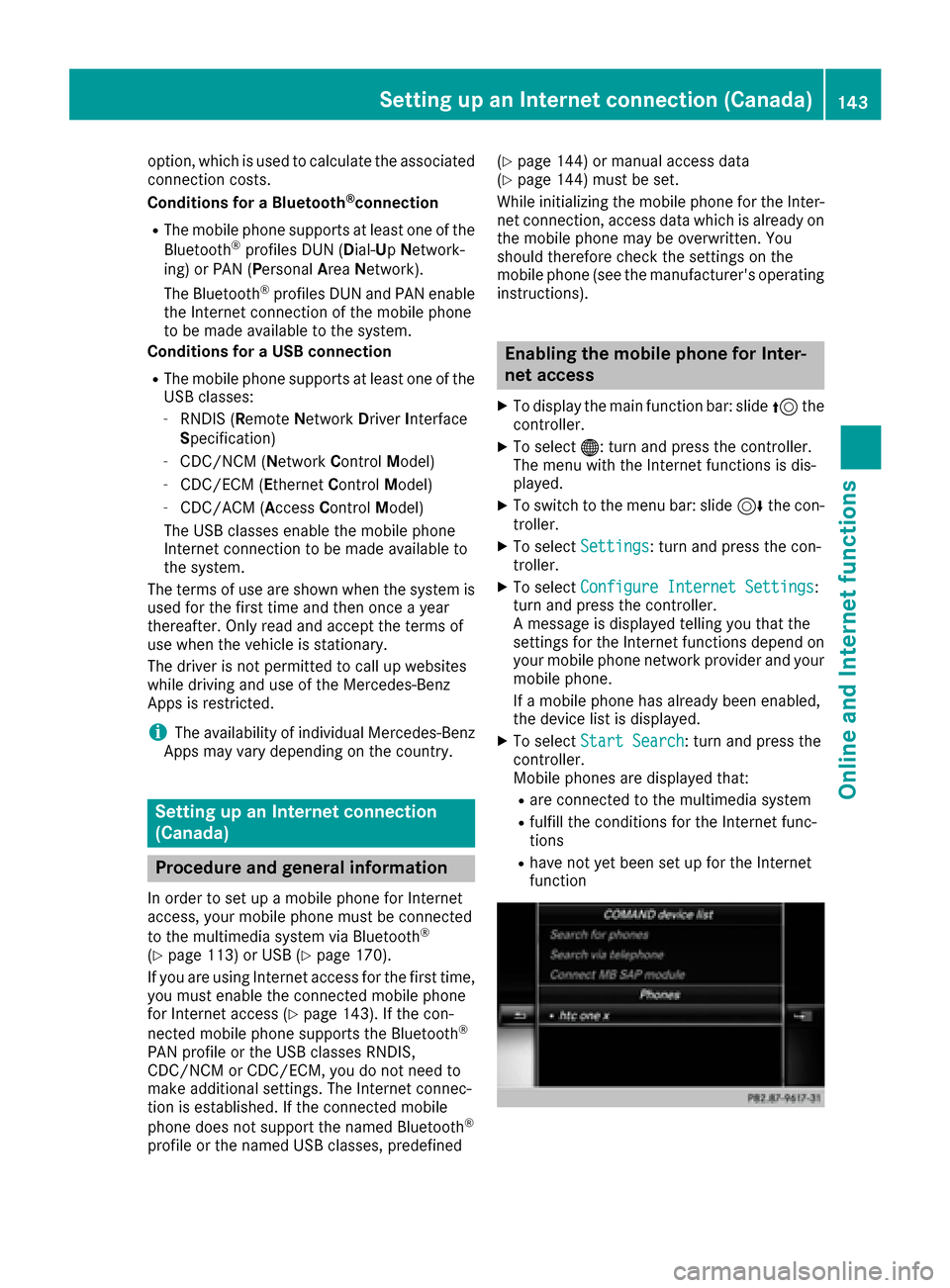
XTo select Start Search: turn and press the
controller.
Mobile phones are displayed that:
Rare connected to the multimedia system
Rfulfill the conditions for the Internet func-
tions
Rhave not yet been set up for the Internet
function
Setting up an Internet connection (Canada)143
Online and Internet functions
Z
Page 146 of 230

XTo select a mobile phone from the device list:turn the controller and press to confirm.
If the mobile phone supports the Bluetooth
®
PAN profile or the USB classes RNDIS, CDC/
NCM or CDC/ECM, Internet access is set up.
You can use the Internet functions.
If the connected mobile phone does not sup-
port the named Bluetooth
®profile or the
named USB classes, predefined (Ypage 144)
or manual access data (Ypage 144) must be
set.
Setting access data of the mobile
phone network provider
Selecting the predefined access data of
the mobile phone network provider
XTo select Predefined Settings: turn and
press the controller.
A list of countries appears.
If the mobile phone network provider provides
multiple access data options, the relevant
access data still has to be selected. This
depends on the data package used, for example.
To check whether the predetermined dial-in
data corresponds with the dial-in data provided by your mobile phone network provider, pro-
ceed as follows (
Ypage 145) and select Man‐ual Settings. The access data is displayed.
The access data for the mobile phone network
provider is selected once for the mobile phone
connected and is loaded again each time the
mobile phone is connected. Establishing a con-
nection (
Ypage 146).
You must set the access data of the mobile
phone network provider who provides the SIM
card and the associated data package (access
settings) for the connected mobile phone. The
access data remains the same when you are in a different country (roaming). The access data of
another network is
notselected.
Manually setting the access data of the
mobile phone network provider
XTo select Manual Settings: turn and press
the controller.
An overview of the provider settings appears.
XSet access data (Ypage 144).
XTo confirm settings: select Confirm Set‐tingsand turn and press the controller.
The access data for the mobile phone network
provider is selected once for the mobile phone
connected and is loaded again each time the
mobile phone is connected. Establishing a con-
nection (
Ypage 146).
You must set the access data of the mobile
phone network provider who provides the SIM
card and the associated data package (access
settings) for the connected mobile phone. The
access data remains the same when you are in a
different country (roaming). The access data of
another network is notselected.
Setting access data
Set the access data in accordance with your
data package. You can contact your mobile
phone network provider to obtain the precise
access data.
144Setting up an Internet connection (Canada)
Online and Internet functions
Page 147 of 230

Explanation of the access data
Input fieldMeaning
Phone Num‐ber:Access number for estab-
lishing the connection
The access number
depends on the mobile
phone used. For GSM/
UMTS mobile phones,
*99***1#
is used as a
standard.
AccessPoint:APN network access point
(A ccess PointName)
You can obtain this infor-
mation from your mobile
phone network provider.
Entry is not necessary for
all mobile phone network
providers and mobile
phones.
PDP Type:Internet protocol used.
You can obtain this infor-
mation from your mobile
phone network provider.
User ID:The user identification can
be obtained from your
mobile phone network pro-
vider.
Entry is not necessary for
all mobile phone network
providers.
Password:The password can be
obtained from your mobile
phone network provider.
Entry is not necessary for
all mobile phone network
providers.
Auto DNS:Automatic allocation of
DNS servers is activated. If
the function is deactivated,
the DNS server addresses
must be entered manually.
DNS ( Domain Name
Service).
DNS1:
DNS2:
Fields for entering the DNS
server addresses manually.
The address can be
obtained from your mobile
phone network provider.
Managing existing access data
Calling up the device list
XTo display the main function bar: slide 5the
controller.
XTo select ®: turn and press the controller.
The menu with the Internet functions is dis-
played.
XTo switch to the menu bar: slide 6the con-
troller.
XTo select Settings: turn and press the con-
troller.
XTo select Configure Internet Settings:
turn and press the controller.
The device list is displayed.
Editing the access data
The mobile phone must be connected with the
system for the access data to be changed.
When the Internet connection is active, you can-
not edit or delete the access data of the cur-
rently set mobile phone network provider.
XCall up the device list (Ypage 145).
XTo highlight the desired mobile phone in the
device list: turn the controller.
XTo select G: slide 9the controller.
XTo select Change Configuration: turn and
press the controller.
XSelect Predefined SettingsorManualSettings.
The provider settings are displayed.
In order to edit the access data of the mobile
phone network provider you have two options:
ROption 1: select the predefined access data of
the mobile phone network provider
(
Ypage 144).
ROption 2: manually set the access data of the
mobile phone network provider (Ypage 144).
Setting up an Internet connection (Canada)145
Online and Internet functions
Z
Page 149 of 230

Connection status
:Display of existing connection and signal
strength of the mobile phone network
In most cases, the current connection status is
then shown in the status bar when you switch to
another main function.
Detailed connection status
XTo display the main function bar: slide 5the
controller.
XTo select ®: turn and press the controller.
The menu with the Internet functions is dis-
played.
XTo switch to the menu bar: slide 6the con-
troller.
XTo select Settings: turn and press the con-
troller.
XTo select Connection Status: turn and
press the controller.
The following information is displayed:
Rthe volume of transferred data
Rconnection status
Rthe device name of the mobile phone
Ending the connection
USA: you cannot cancel the connection your-
self. The Internet connection is automatically
terminated if the system does not recognize any
user input within a five-minute time period.
Canada:
XTo display the main function bar: slide 5the
controller.
XTo select ®: turn and press the controller.
The menu with the Internet functions is dis-
played.
XTo switch to the menu bar: slide 6the con-
troller.
XTo select ©: turn and press the controller.
If the mobile phone Internet connection is can-
celed, the multimedia system tries to reconnect.
You should therefore always end the connection
in the multimedia system.
Mercedes-Benz Apps
General notes
To be able to use Mercedes-Benz Apps, you have
to register and confirm the terms and condi-
tions.
Calling up Mercedes-Benz Apps
XTo display the main function bar: slide 5the
controller.
XTo select ®: turn and press the controller.
XTo selectMercedes-Benz Apps: turn and
press the controller.
XTo call up the app: turn and press the con-
troller.
You can find further Mercedes-Benz Apps and
information under:
http://apps.mercedes-benz.com/apps/
iThe available features are country-depend-
ent.
License fees may be applicable.
Mercedes-Benz Companion
Introduction
The Mercedes Benz Companion app is available
in the USA.
The Mercedes-Benz Companion app enables
door-to-door navigation.
Door-to-door navigation means:
RThe current destination is transferred from
the vehicle's multimedia system to an exter-
nal device (iPhone
®or Apple Watch®).
Mercedes-Benz Companion147
Online and Internet functions
Z
Page 151 of 230

On the iPhone®
XSelect Mercedes-Benz Companion.
XSelectSend a Destination.
XEnter the destination.
A list of possible destinations is displayed.
XSelect the destination.
XTransfer the destination to the vehicle.
On the Apple Watch
®
XSelect Mercedes-Benz Companion.
XSelect Send to Car.
XSelectFind destinations.
XSay the destination.
XConfirm the entered text with Done.
A list of possible destinations is displayed.
XSelect the destination.
XTransfer the destination to the vehicle.
In the vehicle and on the multimedia system
XSwitch on the multimedia system.
The destination in the Apple Watch®or
iPhone®is transferred to the multimedia sys-
tem.
XAccept the displayed destination.
Route guidance starts.
iYou also have the option of transferring des-
tinations or coordinates from other applica-
tions to Mercedes-Benz Companion.
Navigating to the vehicle
You can be guided to the vehicle's location:
Rvia the Apple Watch®
Rvia the iPhone®
On the iPhone®
XSelect Send a Destination.
XSelect the vehicle location and the pedestrian
symbol.
XStart navigation.
On the Apple Watch
®
XSelect Locate Car.
XSelect the car symbol.
XStart navigation.
Displaying vehicle information
Mercedes-Benz Companion allows you to dis-
play vehicle data on the Apple Watch®or
iPhone®, for example:
RFuel level and range
RMaintenance interval
RTire pressure
XSelect Mercedes-Benz Companion.
The vehicle information is displayed.
Web browser
Calling up a website
Function restrictions
Internet pages cannot be shown while the vehi-
cle is in motion.
Entering a web address
XTo display the main function bar: slide 5the
controller.
XTo select ®: turn and press the controller.
The menu with the Internet functions is dis-
played.
Web browser149
Online and Internet functions
Z
Page 152 of 230

XTo selectwww: turn and press the controller.
An input menu for the web address is dis-
played.
XEnter characters using the controller
(Ypage 34) or the number keypad.
XTo finish entry and call up a website: select
¬.
Selecting a web address from the list
XWhen the character bar is displayed, slide
5 the controller.
XTo select the desired web address: turn and
press the controller.
The web address can still be changed as
desired.
XTo call up a website: select ¬.
The website is called up.
Navigating the website
StepResult
XTurn the controller.Navigates from one
selectable item (e.g.
link, text field or
menu) to the next and
highlights the respec-
tive element on the
website.
Sliding the controller:
XLeft or right 1
XUp or down4
XDiagonally2
Moves the pointer on
the page.
XPress the control-
ler.Opens the selected
item.
XPress%.Calls up the menu.
Menu functions
:Closes the browser
;Goes back/forward
=Refreshes/cancels
?URL entry
AFavorites
BCloses the window
COptions
XTo show the menu: press the%button.
XTo call up the Options menu: select3by
turning and pressing the controller.
XTo close the website: select&.
XTo call up the previous website: select
t.
XTo call up the next website: selectu.
XTo refresh the website: selectÎ.
The website is refreshed. This procedure may
take some time.
iWhile the website is loading, a cross
appears in the menu. This can be used to can-
cel the loading procedure.
XTo enter a URL: selectg.
XEnter a web address (URL) (Ypage 149).
XFavorites: selectf.
XTo close the active window: selecth.
150Web browser
Online and Internet functions