2017 MERCEDES-BENZ S-Class MAYBACH display
[x] Cancel search: displayPage 109 of 230

Turning an area on/off and displaying/changing the area
XTo switch to navigation mode:press theßbutton.
XTo show the menu: slide6the controller.
XTo select Options: turn and press the controller.
XSelectRoute Settings.
XSelectAvoid Options.
XSelectAvoid Area.
A list appears.
XTo switch an area to avoid on/off: select an area by turning and pressing the controller.
The area is avoided Oor not avoided ª.
XTo display/change an area: to select an area, turn the controller.
XSlide9the controller.
XTo select Display/Change: press the controller.
The map with the crosshair appears.
The area currently blocked is displayed as a red square.
XTo move the area to a new location: slide 1,4,2and press the controller.
XTo change the size of the area: press the controller.
XTo accept changes: press the controller.
A message appears stating that the area has been set.
Deleting one/all areas
XTo switch to navigation mode: press theßbutton.
XTo show the menu: slide6the controller.
XTo select Options: turn and press the controller.
XSelectRoute Settings.
XSelectAvoid Options.
XSelectAvoid Area.
A list appears.
XTo delete an area: mark an area by turning the controller.
XSlide9the controller.
XSelect Delete.
A prompt appears asking whether you wish to delete the area.
Map functions107
Navigation
Z
Page 110 of 230

XSelectYesorNo.
After selecting Yes, the area is deleted.
XTo delete all areas: slide9 the controller when the list is displayed.
XSelect Delete All.
A prompt appears asking whether you wish to delete all areas.
XSelect YesorNo.
After selecting Yes, all areas are deleted.
SIRIUS XM service
Displaying SIRIUS XM service informa-
tion
You can display the SIRIUS XM service informa-
tion.
XTo switch to navigation mode: press the
Ø button.
XTo show the menu: slide6the controller.
XTo select Traffic: turn and press the con-
troller.
XSelect SIRIUS Service.
The window on the right half of the display
shows the telephone number of the provider
(SIRIUS XM) and the serial number of your
service module.
Registering for the SIRIUS XM traffic
report service
XCall the provider telephone number shown on
the display.
iYou can also have the satellite service acti-
vated online. To do so, visit the SIRIUS XM
Radio website at http://www.sirius.com
(USA).
Once the connection has been established:
XFollow the service employee's instructions.
The activation process may take up to ten
minutes.
If registration is not included when purchasing
the system, your credit card details will be
required to activate your account.
Updating the digital map
Introduction
The digital maps generated by the map software
become outdated in the same way as conven-
tional road maps. Optimal route guidance can
only be provided by the navigation system in
conjunction with the most up-to-date map soft-
ware.
Information about new versions of the digital
map can be obtained from an authorized
Mercedes-Benz Center. You can have the digital
map updated there using a data medium, or you
can update it yourself.
Updating at an authorized Mercedes-
Benz Center
If an update for your map software is available,
you will receive it free of charge at your
Mercedes-Benz Service Center during your vehi-
cle's annual service. You can arrange a separate
appointment for this at your Mercedes-Benz
Service Center on request.
The update can only be performed:
Rat an authorized Mercedes-Benz Center
Rfor map data for North America
The map software is not provided on DVD.
Carrying out a manual update
After the free update of the map data has
expired or when buying map data, you can
update the data yourself.
The update process may take some time (up to
45 minutes), depending on the size of the digital
map. The update will be completed more quickly
if the vehicle is stationary. If you begin the
update while the vehicle is stationary and the
starter battery has insufficient power, the mul-
timedia system may switch off automatically.
This protects the battery. In order to prevent
108Map functions
Navigation
Page 111 of 230

this, a suitable power supply to the vehicle must
be maintained.
Navigation functions
Calling up the navigation system
menu
XTo switch to navigation mode:press the
ß button.
XTo show the menu: slide5the controller.
Navi
is highlighted in the main function bar.
XPress the controller.
The navigation menu appears.
XTurn the controller to display the navigation
functions one after another.
XTo change to the map: turn the controller until
Navigationis shown and then press the con-
troller.
iEquipment with touchpad: alternatively, you
can carry out these steps on the touchpad
(
Ypage 28).
Calling up the online map display
Requirement (USA): mbrace must be activated
for Internet access (Ypage 142).
Requirement (Canada): a mobile phone is con-
nected to the multimedia system via Bluetooth
®
(Ypage 113) or USB (Ypage 183).
XCall up the navigation menu (Ypage 109).
XTurn the controller until Online Map Dis‐playis brought to the front.
XPress the controller.
The online connection is established. Once
the connection is established, the Google
Maps™ map appears around the current vehi-
cle position.
XMove the map (Ypage 68) and change the
map scale (Ypage 101).
XTo exit the online map display: press the %
button.
Calling up the compass display
XCall up the navigation menu (Ypage 109).
XTurn the controller until Compassis brought to
the front.
XPress the controller.
The compass display provides the following
information:
RThe current direction of travel with bearing
(360 degree format) and compass direction
RLongitude and latitude coordinates in
degrees, minutes and seconds
RHeight (rounded off) above sea level
RNumber of GPS satellites from which a sig- nal can be received
XTo exit the compass display: press the %
button.
Drive information
XCall up the navigation menu (Ypage 109).
XTurn the controller until DriveInformationis brought to the front.
XPress the controller.
TheStarting Drive Information.
Please Wait...message appears.
You will then see maps with the current vehi-
cle position and the vicinity of the destination
Navigation functions109
Navigation
Z
Page 112 of 230

in different scales, these are automatically
displayed one after another.
USA: if mbrace is activated for Internet
access, additional information can be dis-
played, e.g. weather at the destination
(
Ypage 142).
Canada: if a mobile phone is connected to the multimedia system via Bluetooth
®
(Ypage 113) or USB (Ypage 183), addi-
tional information, such as the weather at the
destination, can be displayed (
Ypage 142).
XTo exit Drive Information: press the controller.
XPress the %button.
Route flight
XCall up the navigation menu (Ypage 109).
XTurn the controller until Route Flightis
brought to the front.
XPress the controller.
XSelect Ì.
The route will then be flown along from a heli-
copter view.
XTo stop the route flight: selectË.
XTo exit the route flight: press the controller.
XPress the%button.
Info on navigation
XCall up the navigation menu (Ypage 109).
XTurn the controller until Info on Naviga‐tionis brought to the front.
XPress the controller.
The Digital Operator's Manual is opened at
the section on navigation.
Problems with the navigation system
ProblemPossible causes/consequences and MSolutions
The multimedia system
does not resume route
guidance after the jour-
ney has been interrup-
ted.Route guidance is canceled if you interrupt the journey for more than
two hours.
"Interrupting the journey" refers to stopping the vehicle.
"Continuing route guidance" refers to switching the multimedia sys-
tem back on and driving on.
XContinue route guidance manually (Ypage 92).
ProblemPossible causes/consequences andMSolutions
The multimedia system
is unable to determine
the vehicle's position.The multimedia system must identify the vehicle’s position again after
it has been transported.
Example:
RAfter transporting the vehicle by ferry
RAfter transporting the vehicle by motorail
XStart the vehicle and pull away.
The multimedia system calculates the vehicle's position. Depending
on the driving situation, this may take some time.
Route guidance may be restricted during the determination of the
vehicle's position.
When positioning is complete, route guidance is resumed with nav-
igation announcements and route guidance displays.
110Problems with the navigation system
Navigation
Page 114 of 230

Your multimediasystem equipment
These operating instructions describe all the
standard and optional equipment of your multi-
media system, as available at the time of going
to press. Country-specifi cdifferences are pos-
sible. Bear in mind that your vehicle may not
feature all functions described here. This also
applies to safety-relevant systems andfunc-
tions.
Read the information on qualified specialist
workshop s in the vehicle Operator's Manual.
Important safety notes
GWARNING
If you operate mobile communication equip-
ment while driving, you will be distracted from traffic conditions. You could also lose control
of th e vehicle. There is a risk of an accident.
Only operate this equipment when the vehicle
is stationary.
If you mak eacall on your mobile phone while
driving, always use hands-free mode. Only use
th e mobile phone when road, weather and traffic
conditions permit. Some jurisdictions prohibit
th e driver from usingamobile phone while driv-
ingavehicle.
Bear in mind that at a speed of 30 mph (approx-
imately 50 km/h), th e vehicle coversadistance
of 44 feet (approximately 14 m) per second.
Excessive levels of electromagnetic radiation
may cause damage to your health and the health
of others.
There is scientific discussion surroundingth e
possible health risks posed by electromagnetic
fields. You can reduce this risk by using an exte- rior antenna.
Therefore, connect your mobile communica-
tions equipment to the vehicle's exterior
antenna wherever possible.
General notes
Bluetooth®interface
A Bluetooth®interface is available for teleph-
ony. If your mobile phone supports the Bluetooth
®
profile PBAP (
PhoneBook Access Profile), the
contact s are automatically displayed in the mul-
timedia system. If your mobile phone does not
support the PBAP Bluetooth
®profile, the multi-
media system will attempt to display the con-
tact s using alternative methods.
You can use the message function if your mobile
phone supports th eMA P Bluetooth
®profile
( M essage Access Profile).
Withasuitable mobile phone, you can use the
hands-free syste m and receive vCards via the
Bluetooth
®interface.
You can obtain more information about suitable
mobile phones on the Internet athttp://
www.mercedes-benz.com/connect.
You can also obtain more information by calling.
In th e USA, you can get in touch with the
Mercedes-Benz Customer Assistanc e Center on
1-800-FOR-MERCedes (1-800-367-6372).
In Canada, you can get in touch with the Cus-
tomer Relations Center on 1-800-387-0100.
HD Voice®
The multimedia system supports telephone
calls in HD Voice®. The voice quality can be
improved with this procedure.
Requirements for HD Voice
®:
RYour mobile phone and mobile phone network
provider support HD Voice®.
RThe mobile phone and mobile phone network
provider of the person you are calling support
HD Voice
®.
Depending on the quality of the connection, the
voice quality may fluctuate.
Call disconnection while the vehicle is
in motion
A call may be disconnected if:
Rthere is insufficient network coverage in cer-
tain areas
Ryou move from one transmitter/receiver area
(cell) into another and no channels are free
Ryou use a SIM card that is not compatible with
the network available
112General notes
Telephone
Page 115 of 230

Operating options
You can operate the telephone by:
Rusing the controller:
turning
sliding1 or4
pressing
Rusing the touchpad (Ypage 28)
Rusing the 6or~ button on the multi-
function steering wheel
Rusing the Voice Control System (see the sep-
arate operating instructions)
Function restrictions
You may have to wait before using telephony via
the multimedia system in the following situa-
tions:
Rif the mobile phone is switched off
Rif Bluetooth®is switched off on the mobile
phone
Rif the mobile phone is not (or not yet) logged
into a mobile phone network
Rif the Bluetooth®function is switched off in
the multimedia system
The telephone automatically tries to log on to a
network. If no network is available, you may not
be able to make a " 911" emergency call. If you
attempt to make an outgoing call, the No Ser‐
vicemessage will appear for a short while.
Telephone menu
:Mobile phone network provider
;Signal strength of the mobile phone network
=Receiver icon¢or¡
?Telephone menu character bar
ABluetooth®device name of the currently
connected mobile phone
BEnters characters using the touchpad (if
available)
CDisplays the phone book
Symbols :to= and Aare not shown until
after a mobile phone has been connected to the
multimedia system. The symbols depend on
your mobile phone and your mobile phone net-
work provider. Further information on connect-
ing a mobile phone (
Ypage 113).
Symbol ;shows the current signal strength of
the mobile phone network. If all bars are filled,
you have optimum reception.
If no bars are shown, reception is either very
poor or there is none at all.
iReceiver icon shows whether a call is
active/being connected ¡or not ¢.
Calling up the telephone menu:
XPress %.
Showing the menu bar:
XSlide 6the controller.
If the mobile phone connected supports the
MAP Bluetooth
®profile (Message Access
Profile), the 1menu item is available. Further
information on text messages and e-mail
(
Ypage 129).
If you have an unread text message or e-mail,
the 0 mail symbol is displayed in the status
bar. The symbol disappears once you have read
the text message or e-mail. The úsymbol is
displayed as soon as the message memory on
the connected mobile phone is full. The symbol
disappears once you delete at least one mes-
sage.
Connecting/disconnecting a mobile
phone
Requirements
For telephony via the Bluetooth®interface, you
require a Bluetooth®-capable mobile phone. The
mobile phone must support Hands-Free Profile
1.0 or above.
On the multimedia system
XActivate Bluetooth®(Ypage 45).
XSwitch on NFC (Ypage 46).
Connecting/disconnecting a mobile phone113
Telephone
Z
Page 116 of 230

On the mobile phone
XSwitch on the mobile phone and enter the PIN
when prompted to do so (see the manufac-
turer's operating instructions).
XActivate Bluetooth®and, if necessary, Blue-
tooth®visibility for other devices (see the
manufacturer's operating instructions).
This visibility is for restricted periods of time
on some mobile phones (see the manufactur-
er's operating instructions).
XSet the Bluetooth®device name for the
mobile phone if necessary.
The device names for all of one manufacturer's
products might be identical. To make it possible
to clearly identify your mobile phone, change
the device name (see the manufacturer's oper-
ating instructions). The name can be freely
selected.
If the mobile phone supports the PBAP (Phone
Book Access Profile) and MAP (Message
Access Profile) Bluetooth
®profiles, the follow-
ing information will be transmitted after you
connect:
RPhone book
RCall lists
RMessages
The battery of the mobile phone should always
be kept sufficiently charged in order to prevent
malfunctions.
iNot all mobile phones available on the mar-
ket are equally suitable. You can obtain more
detailed information about suitable mobile
phones and about the connection between
the mobile phone and the multimedia system on the Internet at
www.mercedes-benz.com/connect .
You can also obtain more information by call-
ing.
In the USA, you can get in touch with the
Mercedes-Benz Customer Assistance Center
on 1-800-FOR-MERCedes (1-800-367-6372 ).
In Canada, you can get in touch with the Cus-
tomer Relations Center on 1-800-387-0100.
iSome displays (e.g. the signal strength)
depend on the supported version of the
Hands-Free Profile.
Procedure and general information
Authorizing a mobile phone (connecting)
If you connect your mobile phone using NFC
(Near Field Communication) the NFC area of
your mobile phone has to touch the NFC logo on
the DVD changer/single DVD drive. The author-
ization then starts automatically. The NFC range
varies depending on the mobile phone and can
be identified by the logo. Further information
(see the manufacturer's operating instructions).
Before using your mobile phone without NFC
with the multimedia system, you will need to
search for the phone (
Ypage 115) and then
authorize it (Ypage 116). Depending on the
mobile phone, authorization either takes place
by means of Secure Simple Pairing or by enter-
ing a passkey. The multimedia system automat-
ically makes the procedure that is relevant for
your mobile phone available. You can recognize
Secure Simple Pairing by the fact that a code is displayed on the mobile phone and on the mul-
timedia system. You can recognize the passkey
system by the fact that you have to enter a code
on the mobile phone and on the multimedia sys-
tem. The mobile phone is always connected
automatically after authorization.
If the multimedia system does not detect your
mobile phone, this may be due to particular
security settings on your mobile phone. You can
also start the search procedure and authoriza-
tion on the mobile phone (
Ypage 116).
Device-specific information on authorizing and
connecting Bluetooth
®-capable mobile phones
can be obtained from an authorized Mercedes-
Benz Center or via the Internet at http://
www.mercedes-benz.com/connect.
You can authorize up to 15 mobile phones. After
authorization, the connection of the last two tel-
ephones used always functions automatically.
Only one mobile phone can be connected to the
multimedia system at any one time.
De-authorizing (disconnecting) a mobile
phone
The connection is terminated automatically if
you leave the receiver range of the multime dia
system or deactivate Bluetooth
®on your mobile
phone.
If you no longer want the Bluetooth
®connection
to be established automatically, the mobile
phone must be de-authorized (disconnected)
(
Ypage 117).
114Connecting/disconnecting a mobile phone
Telephone
Page 117 of 230
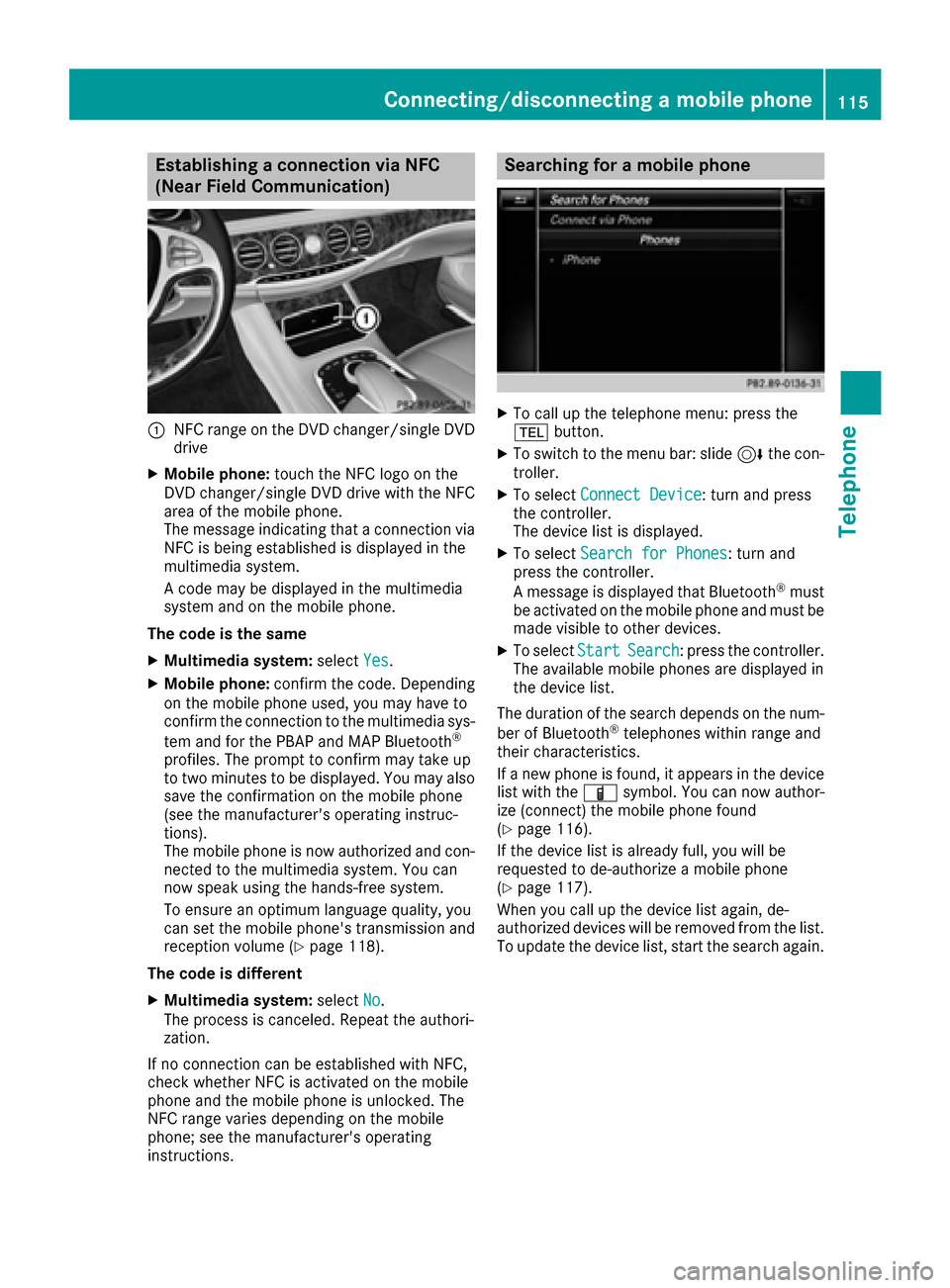
Establishing a connection via NFC
(Near Field Communication)
:NFC range on the DVD changer/single DVD
drive
XMobile phone:touch the NFC logo on the
DVD changer/single DVD drive with the NFC
area of the mobile phone.
The message indicating that a connection via
NFC is being established is displayed in the
multimedia system.
A code may be displayed in the multimedia
system and on the mobile phone.
The code is the same
XMultimedia system: selectYes.
XMobile phone: confirm the code. Depending
on the mobile phone used, you may have to
confirm the connection to the multimedia sys-
tem and for the PBAP and MAP Bluetooth
®
profiles. The prompt to confirm may take up
to two minutes to be displayed. You may also
save the confirmation on the mobile phone
(see the manufacturer's operating instruc-
tions).
The mobile phone is now authorized and con-
nected to the multimedia system. You can
now speak using the hands-free system.
To ensure an optimum language quality, you
can set the mobile phone's transmission and
reception volume (
Ypage 118).
The code is different
XMultimedia system: selectNo.
The process is canceled. Repeat the authori-
zation.
If no connection can be established with NFC,
check whether NFC is activated on the mobile
phone and the mobile phone is unlocked. The
NFC range varies depending on the mobile
phone; see the manufacturer's operating
instructions.
Searching for a mobile phone
XTo call up the telephone menu: press the
% button.
XTo switch to the menu bar: slide 6the con-
troller.
XTo select Connect Device: turn and press
the controller.
The device list is displayed.
XTo select Search for Phones: turn and
press the controller.
A message is displayed that Bluetooth
®must
be activated on the mobile phone and must be
made visible to other devices.
XTo select StartSearch: press the controller.
The available mobile phones are displayed in
the device list.
The duration of the search depends on the num- ber of Bluetooth
®telephones within range and
their characteristics.
If a new phone is found, it appears in the device list with the Ïsymbol. You can now author-
ize (connect) the mobile phone found
(
Ypage 116).
If the device list is already full, you will be
requested to de-authorize a mobile phone
(
Ypage 117).
When you call up the device list again, de-
authorized devices will be removed from the list.
To update the device list, start the search again.
Connecting/disconnecting a mobile phone115
Telephone
Z