2017 MERCEDES-BENZ S-Class MAYBACH display
[x] Cancel search: displayPage 162 of 230

BKeyword search
COptions menu
DArtist & track
EAdditional display area
Channel information =can be viewed in detail (
Ypage 162).
Additional display area Eshows the specific SIRIUS XM Satellite Radio logos of the different
channels.
Selecting a category
Satellite radio channels are sorted into catego-
ries. You can choose between various catego-
ries such as News/Discussions, Sports and
Country (if available). The category list is sorted
alphabetically. The content of the categories is
sorted by channel numbers.
XTo call up the category list: selectCate‐
goryin the menu bar by turning and pressing
the controller.
The category list appears.
XTo select a category: turn the controller and
press to confirm.
The category selected is shown in the display.
You hear the channel last selected for this
category.
The #dot indicates the current setting.
At the beginning of the category list, the All
Channelscategory appears. This category
enables you to browse all available channels.
Selecting a channel
Channel search
XWhen the display/section window is selec-
ted, slide 8or9 the controller.
The multimedia system searches in both
directions (ascending and descending) and
stops at the next channel found in the selec-
ted category.
Entering channel numbers directly
XIn satellite radio mode, slide 6the control-
ler.
XTo select Options: turn and press the con-
troller.
The satellite radio menu appears.
XTo select Direct Entry: turn and press the
controller.
An input menu appears.
XTo select a channel number: turn and press
the controller.
The multimedia system sets the selected
channel.
iYou can only select currently permitted dig-
its.
Selecting a channel via the satellite
radio station list
You can select the channel using the station list
displaying the artists and tracks that are cur-
rently playing.
XIn satellite radio mode, slide 6the control-
ler.
XTo select Options: turn and press the con-
troller.
The satellite radio menu appears.
XTo select Current Station List withArtist&Title: turn and press the control-
ler.
The channel list appears.
XSelect the desired channel
160Satellite radio
Radio
Page 163 of 230

Keyword search
XIn satellite radio mode, slide6thecontrol -
ler.
XTo select the keyword search èin the
menu bar: turn and press thecontroller.
XTo enter the required search term : turn and
press th econtroller.
Direc t and indirect results are shown.
XSelect the required result.
The relevant channel is played.
Memory functions
Quick save:
XSe tth e desired channel in satellite radio
mode.
XPress and hold the controller until the preset
list appears.
XTo select the preset number: turn and press
th econtroller.
A tone confirm sthat th estoring process was
successful.
Saving a channel using the edit function:
XIn satellite radio mode, slide 6thecontrol -
ler.
XTo select Preset: turnand press th econtrol -
ler.
XTo select EditStatio nPreset: turn and
press th econtroller.
The list of saved channels appears.
XTo select the preset: turn the controller and
press for about 2 seconds.
The newly saved channel overwrites the exist-
ing preset.
iThere are 100 presets available.
Presets menu view
You can use this function to change to the sta-
tion presets display.
Activating
XIn radio mode: slide 6thecontroller.
XTo select Preset: turnand press th econtrol -
ler.
XTo select StationPreset View: On: turn
and press th econtroller.
The station preset display appears.
XTo switch between the stored stations: turn
th econtroller.
Deactivating
XIn radio mode: slide 6thecontroller.
XTo select Preset: turnand press th econtrol -
ler.
XTo select StationPresetView:Off: turn
and press th econtroller.
A view of the last waveband you listened to
appears.
Music and sports alerts
Gene ral notes
This function makes it possible to storea pro-
gram alert for your favorite artists, tracks or
sporting events.
You can store up to 30 music and sports alerts
(favorites).
Music alerts can only be saved whils tatrack is
being played. You can also specify sports alerts
via th e menu option. The system then continu-
ously searches through all the channels. Ifa
match is found withasaved message, you will
be informed. A window appears with the respec-
tive information.
Setting a music alert
XIn satellite radio mode, slide 6thecontrol -
ler.
XTo select Options: turnand press th econ-
troller.
XTo select Alert for Artist ,Track &SportsEvent: turnand press th econtroller.
A menu appears.
XSelect Add New Alert.
A window wit haprompt appears.
XSelectArtistorTrack.
The alert is set for the current artist or track.
iIf an alert cannot be set, theNo AlertsAvailablemessage appears.
Satellite radio161
Radio
Page 164 of 230

Setting a sports alert
XIn satellite radio mode, slide6the control-
ler.
XTo select Options: turn and press the con-
troller.
XTo select Alert for Artist, Track &SportsEvent: turn and press the controller.
A menu appears.
XSelect Manage Sports Alerts.
A menu appears.
XSelect Select New Alerts.
A menu appears.
XSelect the desired team from a league, e.g.
college, NBA, NHL, NFL or MLB.
The alert function for the sports team is
added.
The music alert window appears
XTo select Change ToorIgnore: turn and
press the controller.
If you select Change To
, the channel is
changed and the favorite artist or track is
played.
If you select Ignore
, the current channel will
continue playing.
Editing music and sports alerts
XTo select Alert for Artist, Track &SportsEvent: turn and press the controller.
A menu appears.
XSelect Manage Music AlertsorManageSports Alerts.
A list of set alerts appears.
Tagging music tracks
If the channel supports this function, you are
able to transfer the music track currently playing
to an Apple
®device. You can then purchase it in
the iTunes®store.
XIn satellite radio mode, slide 6the control-
ler.
XTo select Options: turn and press the con-
troller.
XTo select Tag This Track: turn and press
the controller.
A message about saving this music track on
the Apple
®device appears.
Displaying information
XIn satellite radio mode, slide 6the control-
ler.
XTo select Info: turn and press the controller.
Information on the currently received pro-
gram is displayed.
If available, you will see:
Rthe channel logo
Rthe channel abbreviation
Rthe artist of the current track
Rthe current track.
XTo return to the radio display: selectInfoby sliding 6and pressing the controller.
Displaying service information
The provider's customer service center is avail-
able by phone at any time to answer any general
questions or questions on the versions availa-
ble.
162Satellite radio
Radio
Page 165 of 230

XIn satellite radio mode, slide6the control-
ler.
XTo select Options: turn and press the con-
troller.
XTo select Service: turn and press the con-
troller.
The provider's details appear.
XTo return to the main display: press the
% button.
Channel list updates
During reception of a new channel list, the
Updating Channels...message is shown.
The channel last selected is switched to mute
until the update has been completed. Satellite
radio mode is not available during this process. Once the update has been completed, the sat-
ellite radio basic menu appears. The channel
last selected will be played if it is still available.
Sound settings
Information on sound settings (Ypage 193).
Satellite radio163
Radio
Page 166 of 230
Your multimediasystem equipment
These operating instructions describe all the
standard and optional equipment of your multi-
media system, as available at the time of going
to press. Country-specifi cdifferences are pos-
sible. Bear in mind that your vehicle may not
feature all functions described here. This also
applies to safety-relevant systems andfunc-
tions.
Read the information on qualified specialist
workshop s in the vehicle Operator's Manual.
Activating media mode
General notes
There are several ways to activate media sour-
ce s using the multimedia system.
The relevant sections of the Operator's Manual
describe the simplest way to activateamedia
source. Thi s section describes all options for
activating media sources. If you wish to play
external media sources, the default display
must already be turned on.
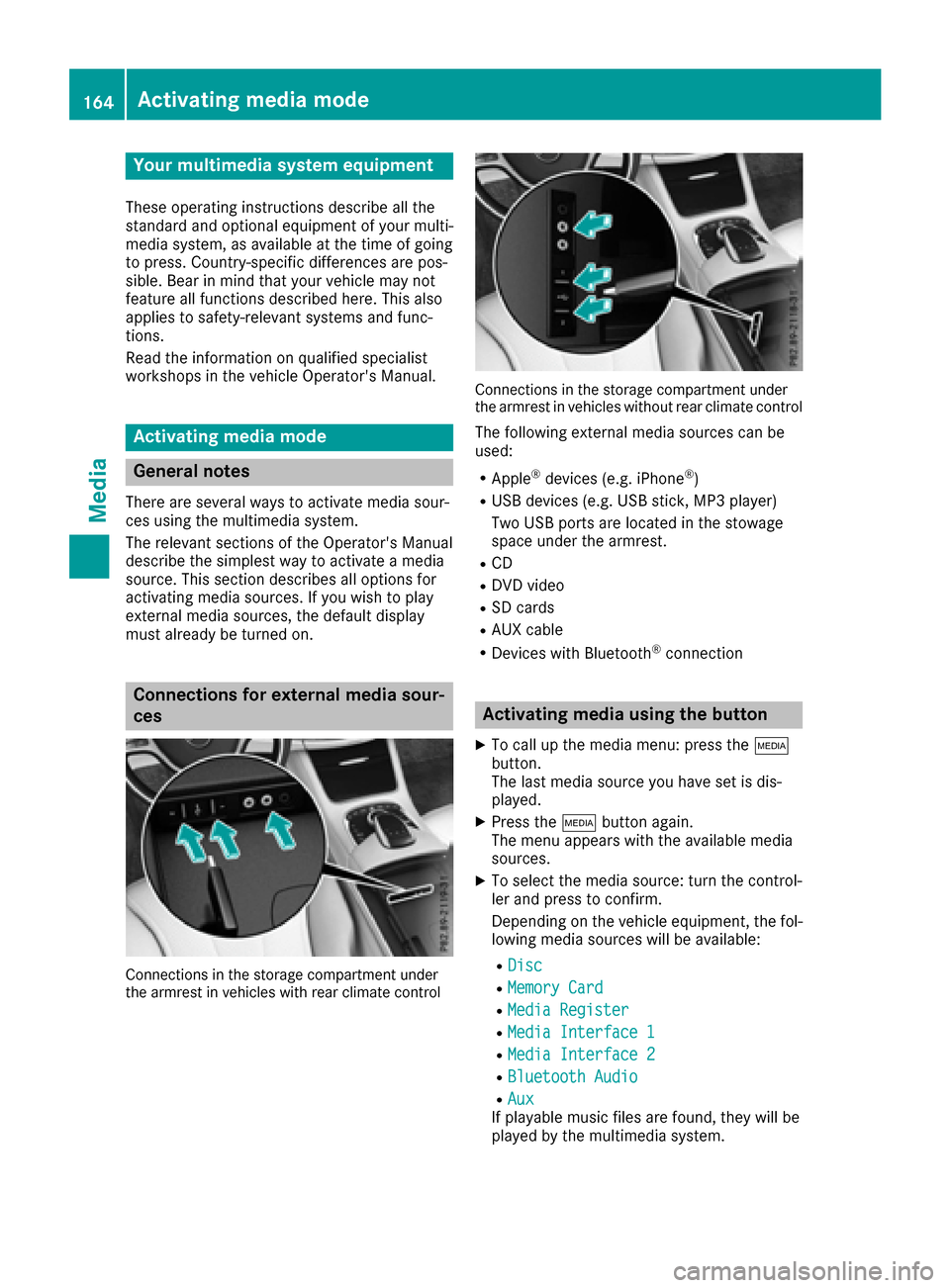
Connections for external media sour-
ces
Connection s in thestorage compartmen t under
th earmres t in vehicles with rearclimate contro l
Connections in thestorage compartmen t under
th earmres t in vehicles without rearclimate contro l
The following external media sources can be
used:
RApple®devices (e.g. iPhone®)
RUSB devices (e.g. USB stick, MP3 player)
Two USB ports are located in the stowage
space under the armrest.
RCD
RDVD video
RSD cards
RAU X cable
RDevices with Bluetooth®connection
Activating media using the button
XTo call up the media menu: press the Õ
button.
The last media source you have set is dis-
played.
XPress the Õbutton again.
The menu appears with the available media
sources.
XTo select themedia source: turn th econtrol-
ler and press to confirm .
Depending on the vehicle equipment, thefol-
lowing media sources will be available:
RDisc
RMemory Card
RMedi aRegister
RMedi aInterfac e1
RMediaInterfac e2
RBluetoothAudi o
RAuxIf playable music files are found, they will be
played by the multimedia system.
164Activating media mode
Media
Page 167 of 230

Activating media using themain func-
ti on bar
XTo display the main function bar: slide 5the
controller.
XTo select Media: turnand press th econtroller.
The last media source you have set is dis-
played.
XTo select Mediain media mode: slide 5and
press th econtroller.
The menu appears with the available media
sources.
XTo select the media source: turn thecontrol -
ler and press to confirm .
If th e media source contains music or video
files, these will be played. The corresponding
basic menu will be shown.
Activating media using the number
keypad
i
If you touch a key in the touch-sensitive
number keypad, the number field is displayed
in the additional display area.
XTouch any number key when in media mode.
The number field is shown. The active media
source is highlighted.
XTo select a media source: press thecorre-
sponding number key.
If th e media source contains music or video
files, these will be played. The corresponding
basic menu will be shown.
XTo select a track from th e active media
source: press theg key on the number
keypad.
An input field appears.
XTo ente ratrack number: use the number key-
pad to enter the desired numbers.
The track is played.
XTo sho w track information: press thes
ke y on the number keypad
An additional field appears with thetrack
information.
Activating media using the device list
XIn media mode, slide 6thecontroller.
The media menu bar appears.
XTo select Devices: turnand press th econ-
troller.
The available media sources will be shown.
The #dot indicates the current setting.
XSelect the media source.
If th e media source contains music or video
files, these will be played. The corresponding
basic menu will be shown.
Switching on automatically
After inserting a CD or DVD, this media mode is
automatically switched on by the multimedia
system.
If playable music files are found, they will be
played by the multimedia system.
If a media function is already switched on in the
multimedia system, this will be interrupted and
th e basic display of the CD/DVD mode will
appear. If another function, such as navigation,
is being operated, the basic display will not
change. Only the music from the last inserted
CD or DVD will be played.
Activating media mode16 5
Media
Page 170 of 230

Playback problems may occur when playing
copied discs.
There may be playback problems if you play CDs
that you have copied yourself with a storage
capacity of more than 700 MB.
iThe multimedia system is able to play back
audio CDs in multichannel audio format.
Inserting and removing a disc from
the single CD/DVD drive
Before inserting a CD or DVD, ensure that the
cup holder is empty and the protective flap is
open. Before removing a disc, be aware that the
CD or DVD can become hot.
Inserting
XPress the þbutton on the single drive.
If there is a disc already inserted, it will be
ejected.
XInsert a disc into the disc slot with the printed
side facing up.
The drive closes and the disc is played.
If the CD or DVD is started in Media mode, the
corresponding basic menu will be shown. If
the CD or DVD is started from another appli-
cation (e.g. navigation), the display will not
change.
iThe drive may not be able to play discs with
copy protection.
Removing
XPress the þbutton.
The drive ejects the disc.
XRemove the ejected disc from the slot.
If you do not take the disc out of the slot, it is
drawn in again automatically after a short
while.
Menu overview
:Cover view (if available)
;Artist and album
=Main function bar
?Media menu bar
ATrack display on the disc
168Audio/video mode
Media
Page 171 of 230

BTrack number and number of tracks in the track list
CNumerical time display
DGraphic time display
Inserting a CD/DVD into the DVD
changer
The DVD changer has a magazine with six trays.
Before inserting a CD or DVD, ensure that the
cup holder is empty and the protective flap is
open.
Inserting a CD/DVD into the magazine tray
XPress theVbutton.
The magazine menu appears.
XTo select the magazine tray: turn the control- ler and press to confirm.
The DVD changer switches to the selected
magazine tray.
The Please Wait...
message appears.
You will then see the Please
insertdisc1.message, for example.
XInsert a disc into the disc slot with the printed
side facing up.
Loading all empty magazine trays
XPress theVbutton.
The magazine menu appears.
XTo select LoadEmptySlots: slide6,turn
and press the controller.
The multimedia system switches to the next
empty magazine tray.
The Please Wait...
message appears.
You will then see the Please
insertdisc1.message, for example.
XInsert a disc into the disc slot with the printed
side facing up.
Once the disc is loaded, the DVD changer
switches to the next empty tray.
If you take too long inserting the next disc, the
last inserted disc is played.
XRepeat these steps until all magazine trays
are filled.
The DVD changer plays the last inserted disc.
Canceling the loading process
XPress the Vbutton.
or
XTo select %in the magazine menu: turn
and press the controller.
Inserting a CD/DVD into the DVD
changer
:Active ejection
;Disc name
=Type of data medium
If you remove one disc while playing another
disc, the DVD changer interrupts playback. Play-
Audio/video mode169
Media
Z