2017 MERCEDES-BENZ E-CLASS SALOON phone
[x] Cancel search: phonePage 279 of 497

Exporting
If PIN pr
otection is activated, the PIN is reques‐
te d. #
Ente rth efo ur-digit PIN. #
Select a data storage medium.
The data is expor ted. The data export may
ta ke several minutes.
Ac tivating/deactivating PIN pr otection for
data export
Multimedia sy stem:
, Vehicle .
System settings .
Import/
export data #
Toactivate: activateActivate PIN protection
O. #
Enter your four-digit PIN. #
Enteryo ur four-digit PIN again.
PIN pr otection is activated when bo thPINs
match. #
Todeactivate: deactivateActivate PIN pro-
tection ª. #
Enter your four-digit PIN. %
Ifyo u ha veforg ottenyo ur PIN, a Mercedes-
Benz service centre can deactivate your PIN
pr otection foryo u.
Alternatively: you can deactivate PIN pr otec‐
tion byresetting your personal data
(→ page 276). Re
set function Multimedia sy
stem:
, Vehicle .
System settings .
Reset
The multimedia sy stem is reset tothefa ctory
settings.
Pe rsonal data is dele ted, forex ample:
R station presets
R connec ted mobile phones #
Select Yes.
A qu ery appears asking if you are sure that
yo uwa nttoreset.
No selected: the process is cancelled. #
Select Yes.
The multimedia sy stem is reset tofactory
settings and restar ted. Garmin
®
MAP PIL OTnavigation module Overview of Garmin
®
MAP PIL OTnavigation
module &
DANG ER Risk of fata l injury from swal‐
lowing SD cards
SD cards are small parts.
They could be swallo wed and lead tochok‐
ing. #
Keep SD cards out of there ach of chil‐
dren. #
Seek medical attention immediately if
an SD card has been swallo wed. &
WARNING Risk of di stra ction from infor‐
mation sy stems and communications
equipment
If yo u operate information and communica‐
tion equipment integ rated in theve hicle
when driving, you will be distracted from the
traf fic situation. This could also cause youto
lose control of theve hicle. 276
Multimedia sy stem
Page 280 of 497
#
Only operate this equipment when the
traf fic situation permits. #
Ifyo u cannot be sure of this, stop the
ve hicle whilst paying attention toroad
and traf fic conditions and ope rate the
equipment with theve hicle stationar y. During operation of
the Garmin ®
MAP PIL OT,
alw ays obser vethefo llowing:
R the legal requirements forth e count ryin
which you are cur rently driving
R road and traf fic ru les and regulations alw ays
ha ve priority over Garm in®
MAP PIL OTdriv‐
ing recommendations
Obser vethefo llowing no tes on the operating
instructions and updates:
R the Garmin ®
MAP PIL OToperating instruc‐
tions are stored on the SD memory card as a
PDF file.
R the SD card box conta ins a printedquick
guide. R
you can obtain digital map and software
updates from a Mercedes-Benz service
centre.
Fo r some countries, digi tal map and software
updates are available in thefo rm of a down‐
load or an SD memory card.
Fo r downloads, visit http://shop.mercedes-
benz.com and follow the information in the
Garmin ®
MAP PIL OTsection.
Fu rther information (see the manufacturer's
operating instructions). Switching
the Garmin ®
MAP PIL OTnaviga‐
tion module on *
NO
TEDama gecaused byhigh temp era‐
tures High
temp eratures can damage the SD mem‐
ory card. #
Remo vethe SD memory card af ter use
and take it out of theve hicle. Multimedia sy
stem:
, Navi #
Alternatively: press theß button. #
Insert the SD memory card (→ page 296). Te
lephone Te
lephony Te
lephone menu overview 1
Mobile phone network pr ovider
2 Signal stre ngth of the mobile phone network
3 ¢ (telephone ready) or w(call active) Multimedia sy
stem 277
Page 281 of 497
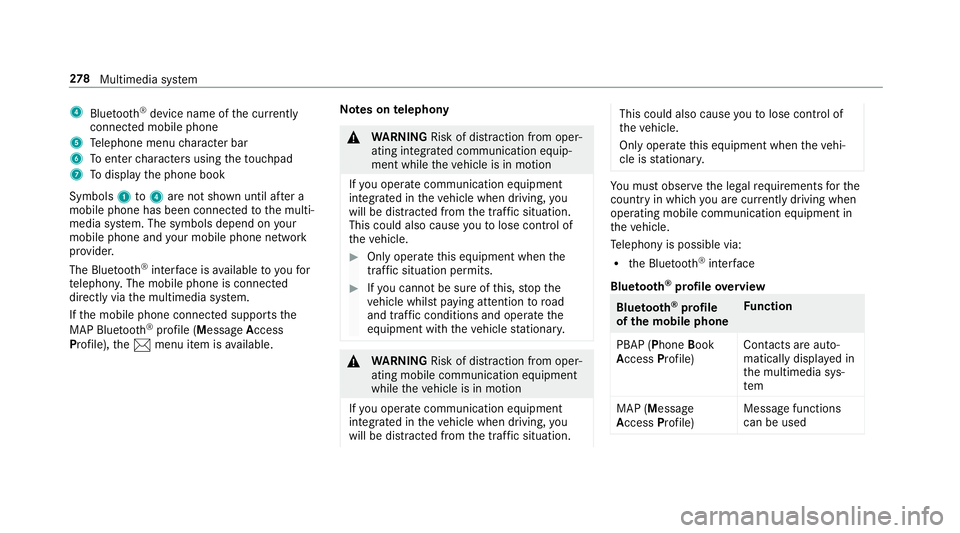
4
Bluetoo th®
device name of the cur rently
connected mobile phone
5 Telephone menu character bar
6 Toenter characters using theto uchpad
7 Todisplay the phone book
Symbols 1to4 are not shown until af ter a
mobile phone has been connected tothe multi‐
media sy stem. The symbols depend on your
mobile phone and your mobile phone network
pr ov ider.
The Blue tooth®
inter face is available toyoufor
te lephon y.The mobile phone is connected
directly via the multimedia sy stem.
If th e mobile phone connected supports the
MAP Blue tooth®
profile (Message Access
Pro file), the1 menu item is available. Note
s ontelephony &
WARNING Risk of di stra ction from oper‐
ating integrated communication equip‐
ment while theve hicle is in motion
If yo u operate communication equipment
integrated in theve hicle when driving, you
will be distracted from the traf fic situation.
This could also cause youto lose control of
th eve hicle. #
Only operate this equipment when the
traf fic situation permits. #
Ifyo u cannot be sure of this, stop the
ve hicle whilst paying attention toroad
and traf fic conditions and ope rate the
equipment with theve hicle stationar y. &
WARNING Risk of di stra ction from oper‐
ating mobile communication equipment
while theve hicle is in motion
If yo u operate communication equipment
integrated in theve hicle when driving, you
will be distracted from the tra ffic situation. This could also cause
youto lose control of
th eve hicle.
Only operate this equipment when theve hi‐
cle is stationar y. Yo
u must obse rveth e legal requ irements forthe
country in whi chyou are cur rently driving when
operating mobile communication equipment in
th eve hicle.
Te lephony is possible via:
R the Blue tooth®
inter face
Blue tooth ®
profile overview Blue
tooth ®
profile
of the mobile phone Fu
nction
PBAP (Phone Book
Access Profile) Contacts are auto‐
matically displa
yed in
th e multimedia sys‐
tem
MAP (Message
Access Profile) Message functions
can be used 278
Multimedia sy stem
Page 282 of 497
Fu
rther information can be obtained from a
Mercedes-Benz service centre or at: http://
www.mercedes-benz.com/connect.
HD Voice ®
R Toimpr ove vo icequalit y,the multimedia sys‐
te m supports telephone calls in HD Voice ®
.
R In order touse this function, the mobile
phones and the mobile phone network pro‐
vider of the person you are calling must sup‐
port HD Voice ®
.
Depending on thequ ality of the connection, the
vo ice quality may fluctuate.
The following situations can lead tothe call
being disconnected while theve hicle is in
motion:
R there is insuf ficient network co verage inthe
area
R you mo vefrom one GSM or UMTS transmit‐
te r/receiver area (cell) into ano ther and no
communication channels are free
R the SIM card used is not compatible with the
network available R
a mobile phone with "Twincard" is logged into
th e network with the second SIM card at the
same time
Information on telephony
The following situations can lead tothe call
being disconnected while theve hicle is in
motion:
R there is insuf ficient network co verage inthe
area
R you mo vefrom one GSM or UMTS transmit‐
te r/receiver area (cell) into ano ther and no
communication channels are free
R the SIM card used is not compatible with the
network available
R a mobile phone with "Twincard" is logged into
th e network with the second SIM card at the
same time
HD Voice ®
R Toimpr ovevoice qualit y,the multimedia sys‐
te m supports telephone calls in HD Voice ®
.
R In order touse this function, the mobile
phones and the mobile phone network pro‐ vider of
the person you are calling must sup‐
port HD Voice ®
.
Depending on thequ ality of the connection, the
vo ice quality may fluctuate.
Connecting a mobile phone (au thorising)
Requ irements:
Blue tooth ®
is activated on the mobile phone (see
th e manufacturer's operating instructions).
Blue tooth ®
is activated on the multimedia sys‐
te m (→ page275).
Mul timedia sy stem:
, Tel/ ®.
Telephone .
Connect
device
Sear ching for a mobile phone #
Select Search for phones . #
Select Start search .
The available mobile phones are displa yed. If
a new mobile phone is found, it is indicated
by theá symbol. Multimedia sy
stem 279
Page 283 of 497
Connecting a mobile phone (au
thorisation
using Secure Simple Pairing) #
Select a mobile phone.
A code is displa yed in the multimedia sy stem
and on the mobile phone. #
Ifth e codes match: selectYesonthe multi‐
media sy stem.
R Confirm the code on the mobile phone. #
Ifth e codes are dif fere nt: select Noonthe
multimedia sy stem.
The process is cancelled.
Connecting a mobile phone (authorisation by
entering a passk ey)#
Select the Blue tooth®
name of the mobile
phone. #
Choose a one tosixteen-digit number combi‐
nation as a passk ey.#
Multimedia sy stem: enter the passk eyand
select a. #
Mobile phone: enterthe passk eyagain and
con firm. #
Depending on the mobile phone used, you
may ha vetoconfirm the connection tothe multimedia sy
stem and forth e PBAP and
MAP Blue tooth®
profiles.
Switching mobile phones
Requ irements:
R The mobile phones are authorised
(→ page 279).
Mul timedia sy stem:
, Tel/ ®.
Telephone .
Connect
device #
Select the mobile phone from the device list.
% Only one mobile phone can be connected at
any one time. The mobile phone that is cur‐
re ntly connected is indica ted with a dot #.
Disconnecting a mobile phone (deauthoris‐
ing)
Multimedia sy stem:
, Tel/ ®.
Telephone .
Connect
device #
Highlight the mobile phone in the device list. #
Select G. #
Select De-authorise. #
Select Yes.
Setting there ception and transmission vol‐
ume
Re quirements:
R A mobile phone is connec ted (authorised)
(→ page 279).
Mul timedia sy stem:
, Tel/ ®.
Telephone .
Connect
device
This function ensures optimal language qualit y. #
Highlight the mobile phone in the device list. #
Select G. #
Select Reception volume orTransmission
volume . #
Set thevo lume.
Fu rther information on there commended recep‐
tion and transmission volume: http://
www.me rcedes-benz.com/connect 280
Multimedia sy stem
Page 284 of 497
Un
iversal sma rtphone cradle Fe
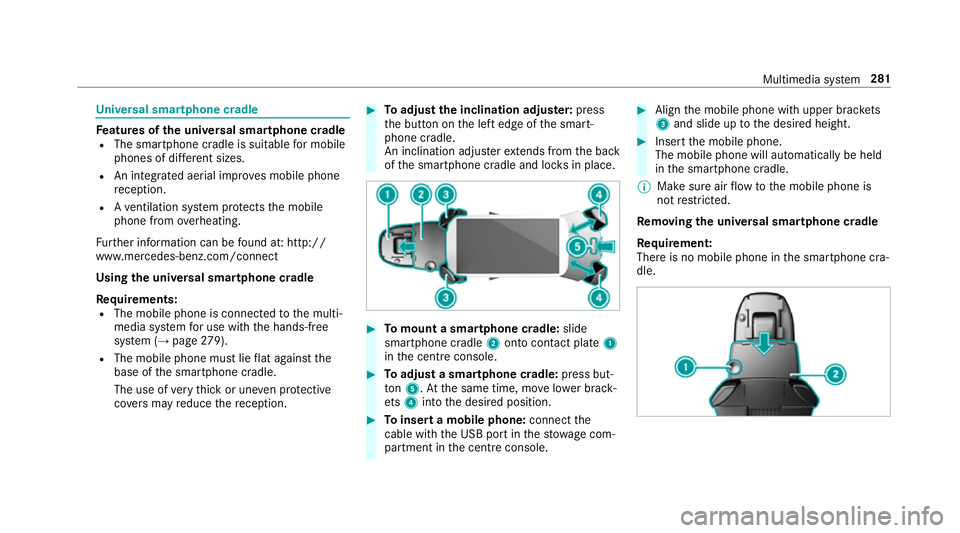
atures of the universal sma rtphone cradle
R The sma rtphone cradle is suitable for mobile
phones of dif fere nt sizes.
R An integrated ae rial impr oves mobile phone
re ception.
R Ave ntilation sy stem pr otects the mobile
phone from overheating.
Fu rther information can be found at: http://
www.mercedes-benz.com/connect
Using the universal sma rtphone cradle
Re quirements:
R The mobile phone is connec tedto the multi‐
media sy stem for use with the hands-free
sy stem (→ page279).
R The mobile phone mu stlie flat against the
base of the smartphone cradle.
The use of very thick or une ven pr otective
co vers may reduce there ception. #
Toadjust the inclination adju ster: press
th e button on the left edge of the smart‐
phone cradle.
An inclination adjus terex tends from the back
of the smartphone cradle and loc ksin place. #
Tomount a smartphone cradle: slide
sma rtphone cradle 2onto con tact plate 1
in the cent reconsole. #
Toadjust a smartphone cradle: press but‐
to n5. Atthe same time, mo velowe r brack‐
et s4 into the desired position. #
Toinsert a mobile phone: connectthe
cable wi th the USB port in thestow age com‐
partment in the cent reconsole. #
Align the mobile phone with upper brac kets
3 and slide up tothe desired height. #
Insert the mobile phone.
The mobile phone will automatically be held
in the smartphone cradle.
% Make sure air flow tothe mobile phone is
not restricted.
Re moving the uni versal smartphone cradle
Re quirement:
There is no mobile phone in the smartphone cra‐
dle. Multimedia sy
stem 281
Page 285 of 497
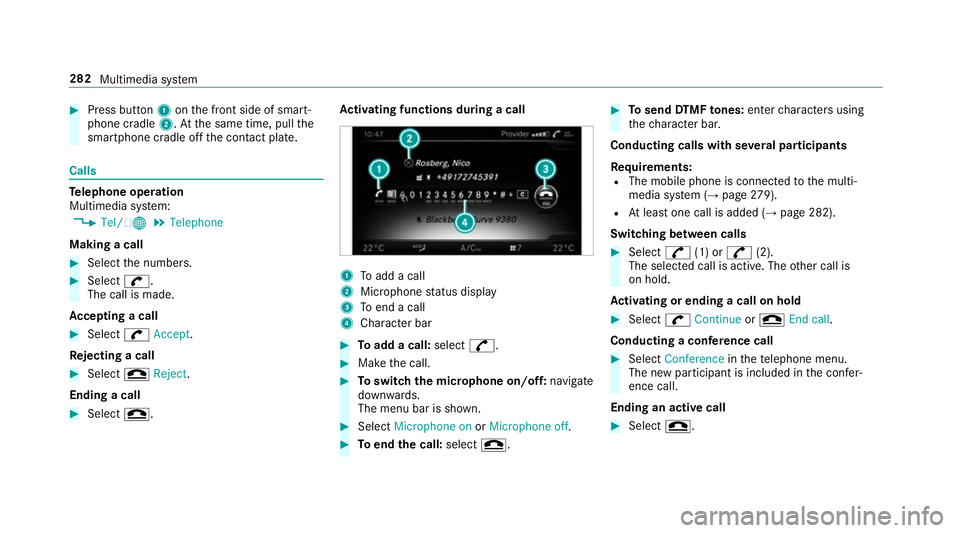
#
Press button 1onthe front side of smart‐
phone cradle 2.Atthe same time, pull the
smartphone cradle off the conta ct plate. Calls
Te
lephone operation
Multimedia sy stem:
, Tel/ ®.
Telephone
Making a call #
Select the numbers. #
Select w.
The call is made.
Ac cepting a call #
Select wAccept.
Re jecting a call #
Select =Reject .
Ending a call #
Select =. Ac
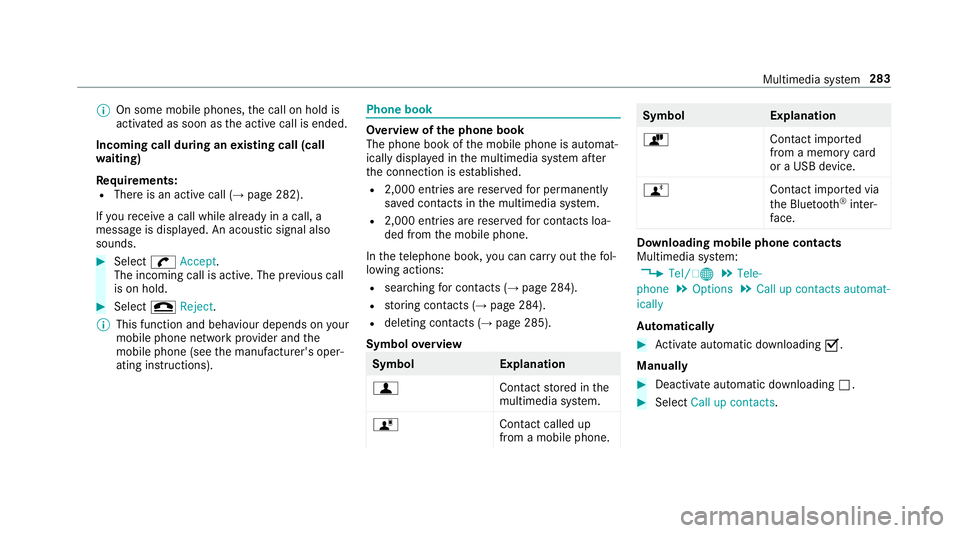
tivating functions during a call 1
Toadd a call
2 Microphone status display
3 Toend a call
4 Character bar #
Toadd a call: select^. #
Make the call. #
Toswitch the microphone on/off: navigate
down wards.
The menu bar is shown. #
Select Microphone on orMicrophone off. #
Toend the call: select=. #
Tosend DTMF tones: enter characters using
th ech aracter bar.
Conducting calls with se veral participants
Re quirements:
R The mobile phone is connec tedto the multi‐
media sy stem (→ page279).
R Atleast one call is added (→ page 282).
Switching between calls #
Select ^(1) or ^(2).
The selec ted call is active. The other call is
on hold.
Ac tivating or ending a call on hold #
Select wContinue or= End call.
Conducting a conference call #
Select Conference inthete lephone menu.
The new participant is included in the confe r‐
ence call.
Ending an active call #
Select =. 282
Multimedia sy stem
Page 286 of 497
%
On some mobile phones, the call on hold is
activated as soon as the active call is ended.
Incoming call during an existing call (call
wa iting)
Re quirements:
R There is an active call (→ page 282).
If yo ure cei vea call while already in a call, a
message is displa yed. An acoustic signal also
sounds. #
Select wAccept.
The incoming call is active. The pr evious call
is on hold. #
Select =Reject.
% This function and behaviour depends on your
mobile phone network pr ovider and the
mobile phone (see the manufacturer's oper‐
ating instructions). Phone book
Overview of
the phone book
The phone book of the mobile phone is automat‐
ically displa yed in the multimedia sy stem af ter
th e connection is es tablished.
R 2,000 ent ries are reser vedfo r permanently
sa ve d con tacts in the multimedia sy stem.
R 2,000 entri es arereser vedfo r contacts loa‐
ded from the mobile phone.
In thete lephone book, you can car ryout thefo l‐
lowing actions:
R sear ching for contacts (→ page 284).
R storing contacts (→ page 284).
R deleting contacts (→ page 285).
Symbol overview Symbol
Explanation
f Contactstored in the
multimedia sy stem.
ó Contact called up
from a mobile phone. Symbol
Explanation
ò Contact imported
from a memory card
or a USB device.
ñ Contact imported via
th e Blue tooth®
inter‐
fa ce. Downloading mobile phone contacts
Multimedia sy
stem:
, Tel/ ®.
Tele-
phone .
Options .
Call up contacts automat-
ically
Au tomatically #
Activate au tomatic downloading O.
Manually #
Deactivate auto matic downloading ª. #
Select Call up contacts. Multimedia sy
stem 283