2017 AUDI TT ROADSTER navigation
[x] Cancel search: navigationPage 149 of 314
CD
CD
.... N
" N ...... 0
" V, co
Route information
The display of route information such a s the cur
rent road being dr iven on, upcom ing maneuvers,
traffic informat ion or points of interest along the
route can be switched on/off .
Automatic zoom
On: the ma p scale is ad apted automat ically de
pending on the type o f road being trave le d (ex
p ressway, hig hway, other roads) so that you al
ways have an optima l overview of the road ahead.
The sca le is also automat ica lly adapted when
there are upcoming maneuvers to provide a bet
ter detai led view.
Off : the map sca le yo u have chosen is kept .
Map content
Map content, such a s traffic informa tion, favo r
ites o r res taur ants, can be dis played o r hidde n
(~).
Online map display
Applies to: vehicles with navigation system and Audi connect
With the online map view, you can display the
map with satellite images .
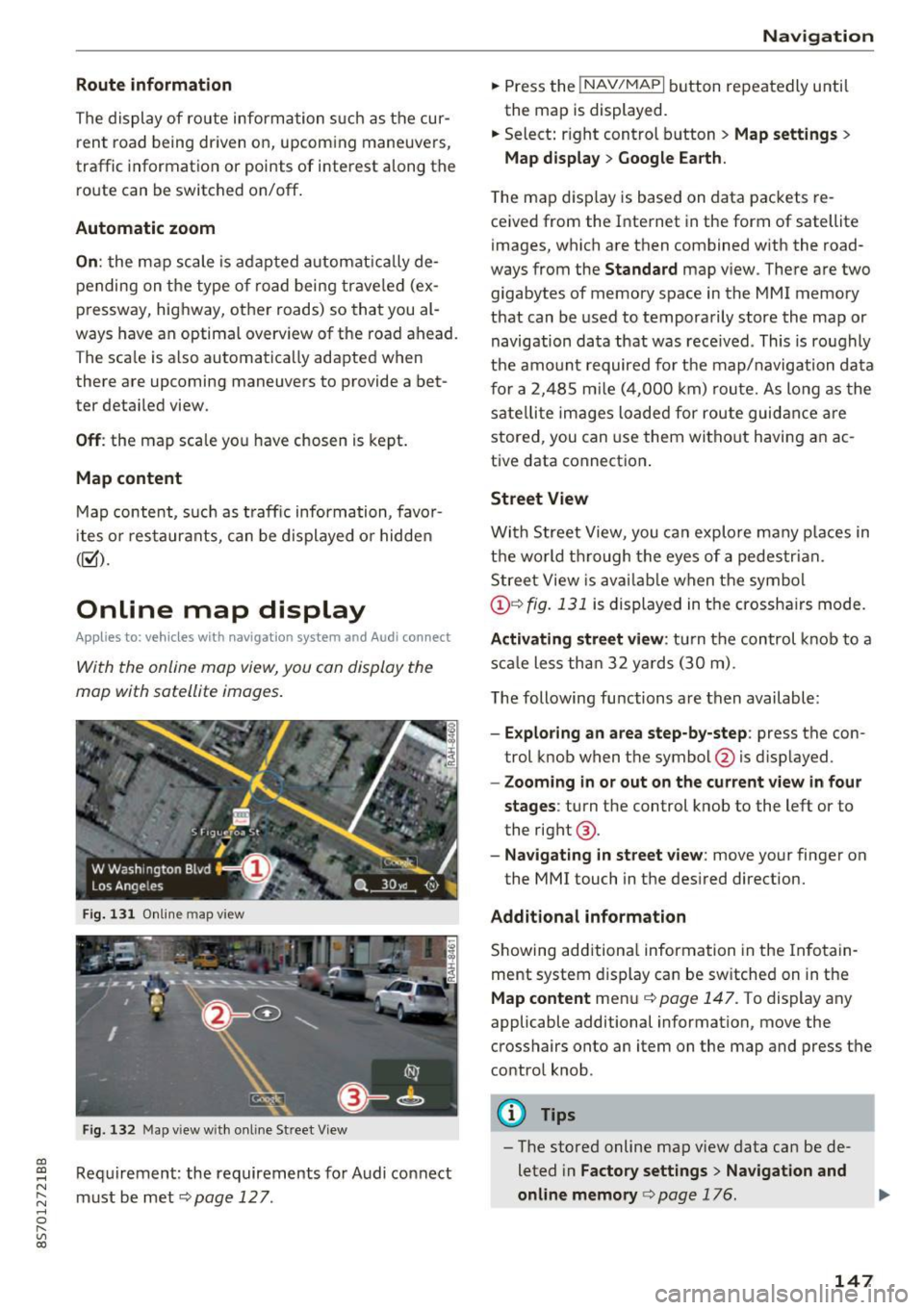
Fig. 1 31 Onlin e m ap v iew
Fi g. 13 2 Map v iew w ith on li ne Stree t View
Re quirement: the requirements fo r Audi connect
must be met ¢
page 12 7.
Navigation
.. Press the !NAV/MAPI b utton repeatedly until
the map is displayed.
.. Select : right control b utton
> Map settings >
Map display > Google Earth .
The map d is p lay is based on data packets re
ce ived from the Inte rnet in the form of satellite
images, which are t hen combined w ith the road
ways from the
S tandard map v iew . There are two
gigabytes of memory space in the MMI memory
that can be used to temporarily store the map or
navigation data that was rece ived . This is roughly
the amo unt required fo r th e map/navigation da ta
f or a 2,485 m ile ( 4,00 0 km) rou te. As long as the
sate llite image s loade d for route guid ance are
stored, you can use them witho ut havi ng an a c
tive data connect io n.
Street View
W it h St reet View, you can explo re many places in
t h e world t hrough the eyes of a pedestria n.
S tree t View is ava ilab le w hen t he sym bol
@ ¢fig . 131 is displayed in t he crossha irs mode.
Activating street view : tur n the co ntrol knob to a
s c al e less tha n 32 yar ds ( 30 m).
T he following fu nctions are then available :
-Exploring an area step-by-step : press the con
trol knob w hen the symbol @is d isplayed.
- Zooming in or out on the current view in four
stages :
turn the control knob to the left or to
the rig ht @ .
-Na vigating in street v iew : move yo ur finger on
the MMI touch in the des ired direction.
Additional information
Showing add itiona l information in the In fotain
ment system display can be sw itched on in t he
Map content me nu¢ page 147. To display any
applicable additional information, move the
crosshairs onto an item on the map and press the
contro l knob.
@ Tips
- The store d online map view data can be de
leted in
Factory settings > Navigation and
online memory
c> pag e 176.
147
Page 152 of 314
Navigation
(D Tips
Critical traffic information, such as warnings
about wrong-way drivers, is automatically d is
played. To hide the traffic information, press
the
I BACK I button or the control knob.
- TMC traffic reports are not availab le in Can
ada. For more information, please contact
Sirius Canada.
Better route
A pp lies to: ve hicles w ith navigation system
By receiving traffic information through TMC,
your /11/111 calculates a better route -if available -
and the possible time saved for the current route
guidance . You can decide yourself which route
you would like to use .
.,. Press the I NAV/MAPI button repeatedly until
the map is d isplayed .
Troubleshooting
App lies to: ve hicles w ith navigation system
Problem Solution
Requirement:
Route guidance must be active.
If your MMI has ca lculated a better route than
the cur rent route guidance, the message
A better
route is available .
appears on the map along
with the time that may be saved . A better route
i s ind icated in the map view by the symbol
f'e@
~ page 144, fig. 129.
Apply better route
Requirement: the ta symbol must be shown on
the map.
- Press the right control button.
- Select and confirm the better route.
- The better route is used for the remaining
route guidance and the route is recalculated .
Free text search: the desired des- The dest inat ion might not be entered in the navigation database .
ti nation cannot be found .
Or: check the spelling of the search term and whether the right
co untry/state was selected using the
Country/state selec-
tion~
page 137 for the free text search.
150
Page 154 of 314
Radio
Radio functions
Free text search
Using the free text search, you can select the or
der that the search terms are entered in the in
put field. Search in all frequency bands for a sta tion name or program type such as
News ).
891 l,
~ flLJ.3 .
D
H'J.6
WIBI-FM HDl
H'-J.7 WIBI-FM HD4
IIM
r,M
~
fl'l.9 WIBI-FM HD6 ,,,,.
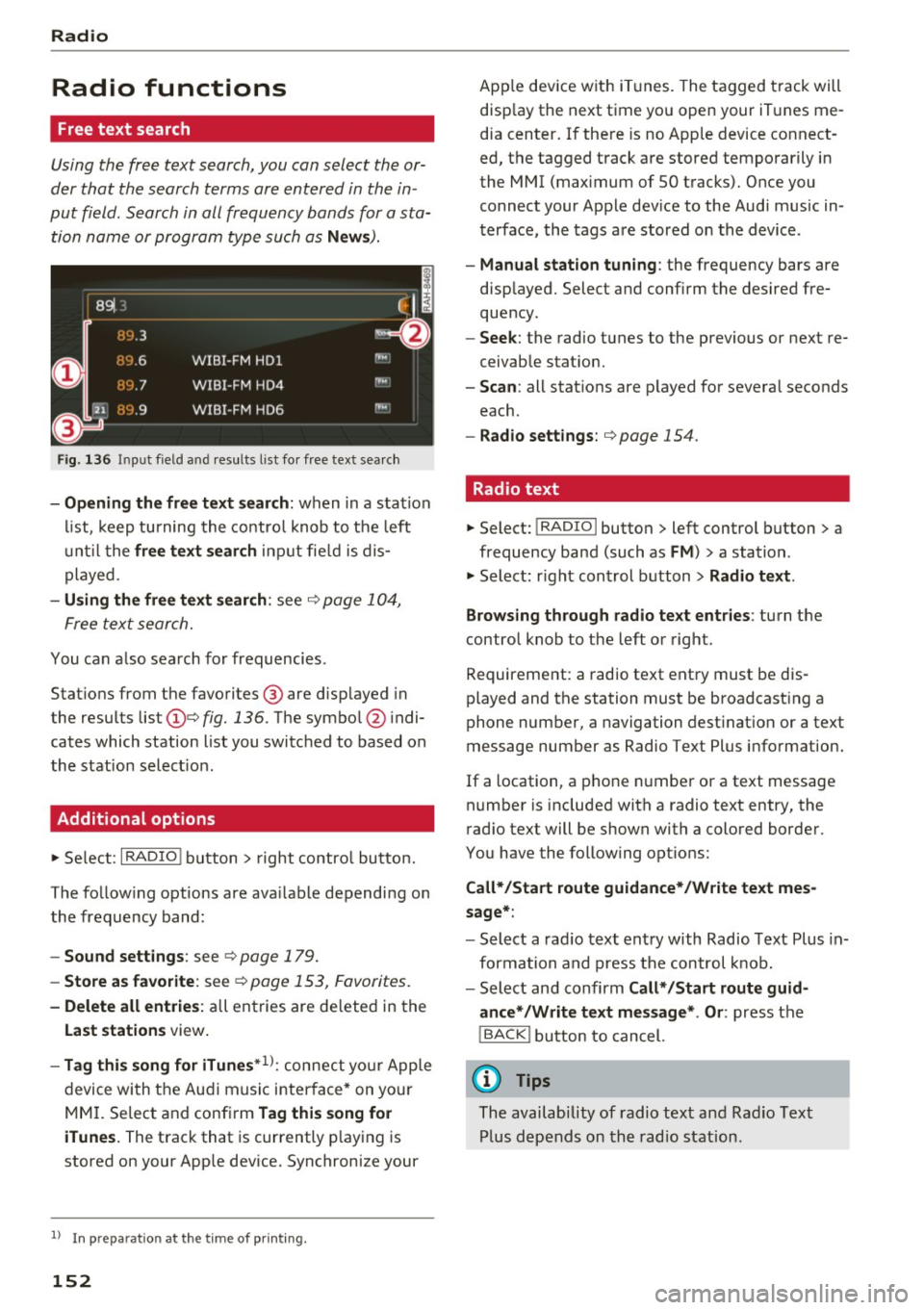
Fig. 136 Input field a nd result s list fo r free text sea rc h
- Opening the free text search : when in a station
list, keep turning the control knob to the left
until the
free text search input fie ld is dis
played .
-Using the free text search : see ¢ page 104,
Free text search.
You can a lso search for frequencies .
Stat ions from the favorites ® are disp layed in
the results list
(D e> fig. 136. The symbol @ indi
cates which station list you switched to based on
the station select ion .
Additional options
~ Select : I RADIO I button> right control button.
The follow ing options are ava ilable depending on
the frequency band:
- Sound settings : see c> page 179.
-Store as favorite: see c> page 153 , Favorites.
- Delete all entries: all entries are de leted in the
Last stations view.
-Tag this song for iTunes*1>: connect you r Apple
device with the Audi music interface* on you r
MM I. Select and confirm
Tag this song for
iTunes.
The track that is currently p laying is
stored on your App le device. Synchronize your
1> I n pr ep aratio n at t he time of pr inting.
152
App le device with iTunes. The tagged track will
disp lay the next time you open your iTunes me
dia center. If there is no Apple device connect
ed, the tagged track are stored temporarily in
the MMI (max imum of SO tracks). Once you
connect your Apple dev ice to the Audi music in
terface, the tags are stored on the device .
-Manual station tuning: the frequency bars are
displayed. Select and confirm the desired fre
quency .
-Seek: the radio tunes to the previous or next re
ceivable stat ion.
- Scan: all stat ions are p layed for several seconds
each.
- Radio settings: c> page 154 .
Radio text
~ Select: I RADIO I button > left control button > a
frequency band (such as
FM ) > a station .
~ Select: right control button> Radio text .
Browsing through radio text entries :
turn the
control knob to the left or right.
Requirement: a radio text entry must be dis
played and the station must be broadcasting a
phone number, a navigation dest ination or a text
message number as Radio Text Plus information.
If a location, a phone number or a text message
number is included with a radio text entry, the
radio text will be shown with a colored border .
You have the following options:
Call*/Start route guidance*/Write text mes
sage*:
- Select a radio text entry with Radio Text Plus in
formation and press the control knob.
- Select and confirm
Call* /Start route guid
ance* /Write text message* . Or :
press the
I BACK I button to cancel.
(D Tips
The availability of radio text and Radio Text
Plus depends on the radio station.
Page 178 of 314
System settings
Individual speech training (on ly when the vehi
cle is stationary): yo u can adapt the voice recog
n ition system to yo ur voice or pro nunciat ion in
order to improve the system's ability to recogni ze
your speech. Individua l train ing is comprised of
20 speech e ntries that cons ist of commands and
sequences o f num bers . You can dele te the p ro
g ramm ed vo ice tra ining w ith the
Reset individu·
al spee ch training
func tion.
Factory settings
The fo llow ing funct ions can be reset to the facto
ry default set tings :
-Sound settings
- Rad io
- Media settings
-Jukebox *
- Directory *
- Telephone*
- Bluetooth and Wi-Fi *
- Navigation sett ings *
- Navigation and online memory*
- Voice recognition system*
- Message settings*
-Apps *
- Tool tips
- Audi connect *
You can select the desi red functions individually
or all at once with the
Select all entries option.
Select and confirm
Restore factory settings .
@ Tips
-Make su re that not only t he settings we re
d eleted but also the stored data, if ap plica
bl e.
- If you reset the
Navigation and online
memory* or Audi connect*
to t he factory
default settings, the system automatically
r estarts afte r approximate ly 20 seconds.
The I nfota inme nt system display will be
b lack for several m inu tes when r estart ing.
- Please note t hat the vo ice recog nit io n sys
t e m* is not availabl e in Cabr io le ts t hat do
not hav e a factory- insta lled safety bel t mi
crophone.
176
Connection manager
' Introduction
The connection manager gives you an overview
of your connected devices and their network sta
tus.
"' Select: !ME NUI button> Settings > left control
button
> MMI settings > Conne ction manager .
"'Select and confirm a menu i tem .
If a mobile device was already connected and you
se lect and co nfirm the corresponding menu item,
the dev ice name and co nnect ion mode a re dis
played under the men u item.
You can individ ually
connect (~) or disconnect
(0) a pa ired device.
' Using the telephone
App lies to : vehicles wit h te lepho ne
- Connect new device: search for and con nect a
cell p ho ne.
- List of devices already paired : select your ce ll
phone from t he list of all th e dev ices tha t are
already paired .
Second telephone
Applies to : vehicles wi th telepho ne
- Connect new device : search for and co nnect a
c ell p hone.
- List of device s already paired : sele ct yo ur cell
ph one fr om t he list of all the dev ices tha t ar e
a lready paired .
Data connection
Applies to : vehicles wi th Audi connec t
-Connect new device: search for and con nect a
mob ile dev ice (such as a smart pho ne).
- List of devices already paired : select yo ur ce ll
phone from t he list of all the dev ices that a re
already paired.
Or: insert a m ini SIM ca rd into
the SIM card
reader *¢page 127.
Page 180 of 314
System settings
Online settings*
- Data connection setting s:
see~ page 132,
Configuring the data connection
- Data u sage counter : the amount of d ata p ack
e ts tha t ar e sent and received throug h the MM I
is d isp layed. You can reset the data usage infor
mation to zero using the
Reset data counter
option.
- Network statu s: the mobile netwo rk p rovider
for data se rvice as well as t he network status
are displayed.
Wi -Fi settings*
See Q page 131, Wi- Fi ho tspo t.
SIM PIN settings*
- Automatic PIN entry:
when t his fu nction is
swi tched on@', th e S IM PI N is automatically
saved in the M MI after it is e nte red for the f irst
t im e. The S IM PIN for four dif feren t SIM cards
c a n be save d in t he MM I. W ith the func tion
swi tc h ed o ff, the cur ren tly store d SI M P IN i s
deleted from the MMI. When the a utomatic
PI N entry is switched on, there are no SI M PIN
prompts.
- Disable PIN query : when switched on, the re are
no SI M PIN queries. The a utomat ic PIN entry is
not used in t his case .
-Change PIN : you can change the PI N on your
SIM card. First enter the c urrent SIM PI N. The
SIM PIN may only contain d ig its 0-9. The new
SIM PIN must be ente red tw ice for secur ity and
then it w ill be saved to t he SIM ca rd .
Apple CarPlay sound settings/ Android Auto
sound settings
A ppl ies to: ve hicles w ith Audi smartpho ne inte rface
See Qpoge 179.
About Apple CarPlay/About Android Auto
Appl ies to: ve hicles w ith Audi smartpho ne inte rface
Here you will f ind lega l in fo rmation regar ding
the use of App le Ca rPlay or Android Auto and in
formation abo ut dev ice-specif ic data excha nge.
178
Delete CarPlay device/Delete Android Auto
device
App lies to: vehicles wi th Audi s m art ph one interface
Requirement: yo ur cell phone m ust not be con
nected to the Aud i m usic interface with a USB
adapter.
To remove your cell phone from t he list of all ce ll
p hones t hat are a lready paired, se lect and con
firm
Delete CarPlay device or Delete Android Au·
to device .
(D Tips
Some SIM cards do not a llow the SI M PIN
qu eries to be sw itche d off.
System update
.,. Select: !ME NUI bu tton> Settings > left control
button >
System maintenance .
- System update :
slide the storage device with
the update data into t he a pprop riate drive
r=> poge 157. Se lect and confi rm the dr ive>
Start update . The length of the process de
pends on the size of the update .
-Reset driver installation: the selecte d media
driver package is reset to the settings at the
time of delivery.
- Version informat ion : info rmation on the MMI
software ve rsion and the navigation database*
so ftware ve rsion is d isp layed . The
Software in
formation
fu nction also prov ides infor mat ion
on t he softwa re contai ned in the M MI and the
li censing ag ree men t.
Page 181 of 314
CD
CD
.... N
" N ...... 0
" V, co
Sound settings
The sound distribution and volume of the MMI
can be adjusted individually. The settings depend
on vehicle equipment.
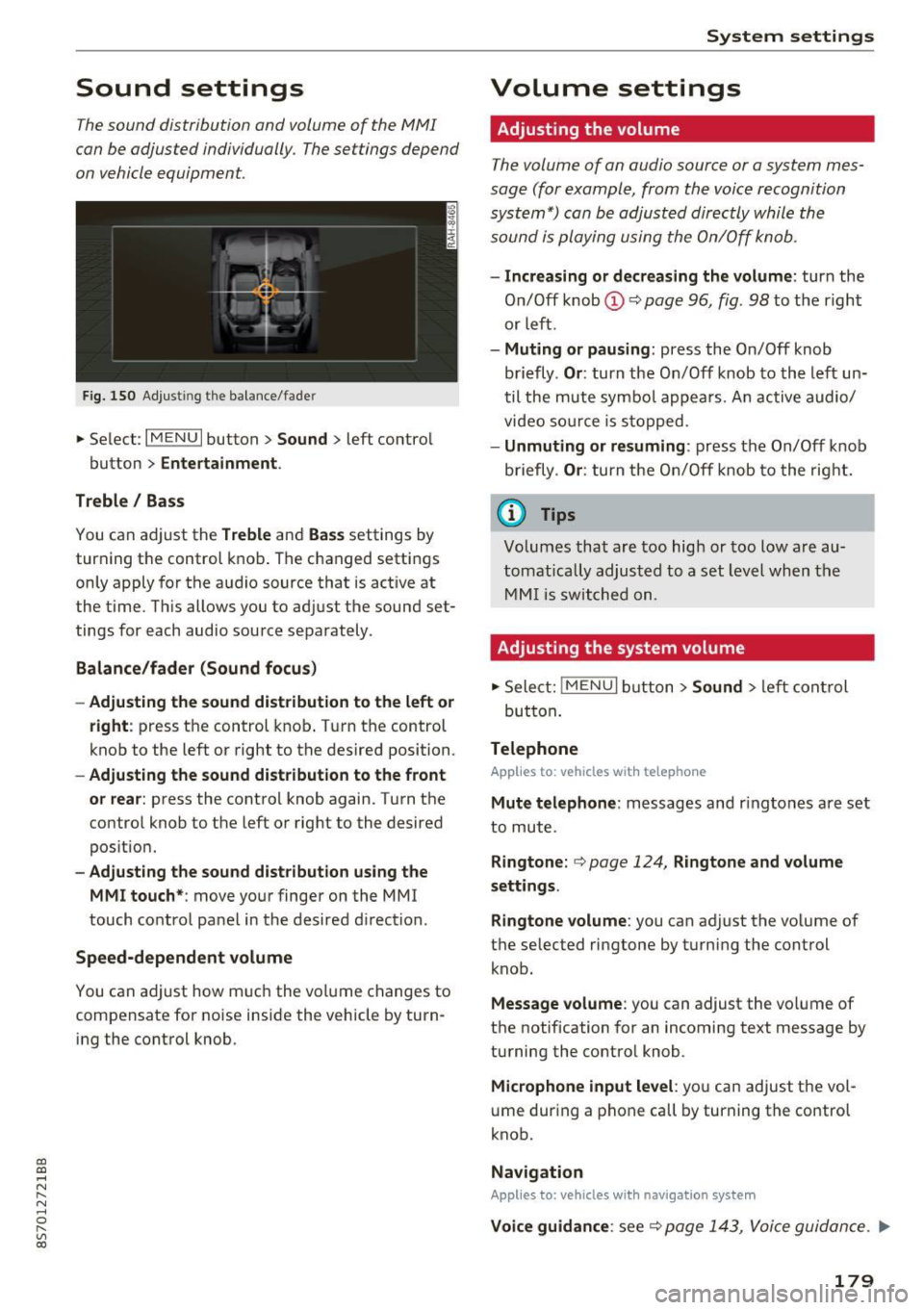
Fig. 150 Adjusting the balance/fader
~ Select: IM ENU I button > Sound > left contro l
button
> Entertainment .
Treble/ Bass
You can adjust the Treble and Bass settings by
turning the control knob. The changed settings
only apply for the audio source that is active at
the time. This allows you to adjust the sound set
tings for each audio source separately .
Balance/fader (Sound focus)
- Adjusting the sound distribution to the left or
right :
press the control knob. Turn the control
knob to the left or right to the desired position.
-Adjusting the sound distribution to the front
or rear:
press the control knob again. Turn the
control knob to the left or right to the desired
position.
- Adjusting the sound distribution using the
MMI touch* :
move your finger on the MMI
touch control panel in the desired direction .
Speed-dependent volume
You can adjust how much the volume changes to
compensate for noise inside the vehicle by turn
ing the control knob.
System settings
Volume settings
Adjusting the volume
The volume of an audio source or a system mes
sage (for example, from the voice recognition
system*) can be adjusted directly while the
sound is playing using the On/Off knob.
- Increasing or decreasing the volume : turn the
On/Off knob@Q
page 96, fig . 98 to the right
or left.
- Muting or pausing : press the On/Off knob
briefly .
Or: turn the On/Off knob to the left un
til the mute symbo l appears. An active audio/
video source is stopped.
-Unmuting or resuming : press the On/Off knob
briefly .
Or: turn the On/Off knob to the right.
(D Tips
Volumes that are too high or too low are au
tomatically adjusted to a set level when the
MMI is switched on.
Adjusting the system volume
~ Select: jMENUI button> Sound > left control
but ton .
Telephone
Applies to: vehicles with telephone
Mute telephone : messages and ringtones are set
to mute.
Ringtone: Q page 124, Ringtone and volume
settings.
Ringtone volume:
you can adjust the volume of
t he selected ringtone by turning the control
knob.
Message volume : you can adjust the volume of
the notification for an incoming text message by
turning the contro l knob.
Microphone input level : you can adjust the vol
ume during a phone call by turning the control
knob.
Navigation
Applies to: vehicles with navigation system
Voice guidance : see Q page 143, Voice guidance . ..,.
179
Page 202 of 314
Airbag system
Front airbags
Description of front airbags
The airbag system can provide supplemental
protection to properly restrained front seat occu
pants.
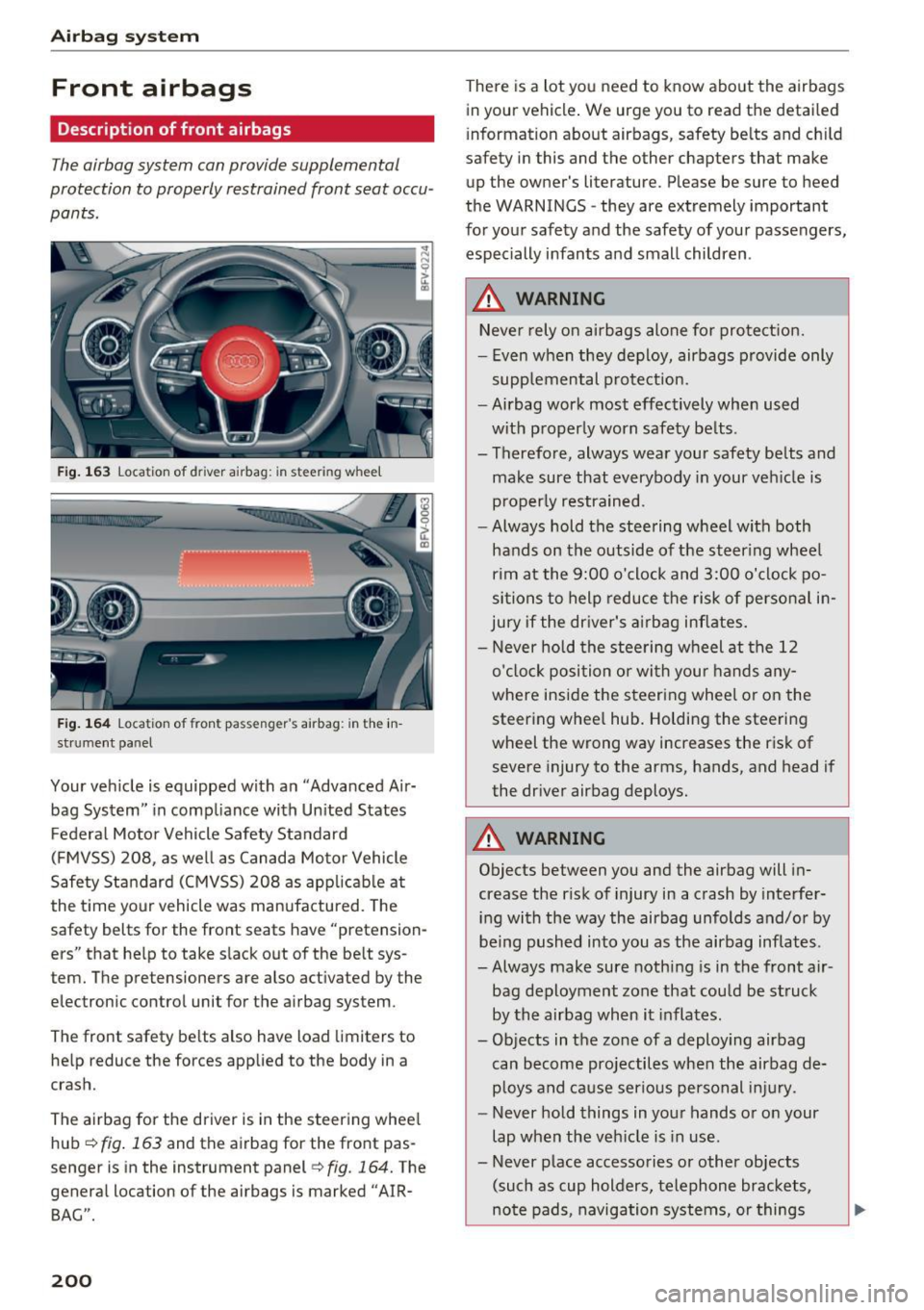
Fig. 163 Location of dr iver airbag: in steering whee l
Fig. 164 Location of front passenger's airbag: in the in
strument panel
Your vehicle is equipped with an "Advanced Air
bag System" in compliance with Un ited States
Federal Motor Vehicle Safety Standard
(FMVSS)
208, as well as Canada Motor Vehicle
Safety Standard (CMVSS)
208 as applicable at
the time your vehicle was manufactured. The
safety belts for the front seats have "pretension
ers" that help to take slack out of the belt sys
tem. The pretensioners are also activated by the
electronic control unit for the airbag system.
The front safety be lts also have load limiters to
help reduce the forces applied to the body in a
crash.
The airbag for the driver is in the steering wheel
hub<=>
fig . 163 and the airbag for the front pas
senger is in the instrument panel
<=>fig. 164. The
general location of the airbags is marked "AIR
BAG".
200
There is a lot you need to know about the airbags
in your vehicle . We urge you to read the detai led
i nformation about airbags, safety belts and ch ild
safety in this and the other chapters that make
up the owner's literature. Please be sure to heed
the WARNINGS -they are extremely important
for your safety and the safety of your passengers,
especially infants and small children .
.&_ WARNING -
Never rely on airbags alone for protection.
- Even when they deploy, airbags provide only
supp lemental protection.
- Airbag work most effectively when used
with properly worn safety belts .
- Therefore, always wear your safety belts and make sure that everybody in your vehicle is
properly restrained.
- Always hold the steering wheel w ith both
hands on the outside of the steering wheel
rim at the 9:00 o'clock and 3:00 o'clock po
sitions to help reduce the risk of personal in
jury if the driver's airbag inflates.
- Never hold the steering wheel at the
12
o'clock position or with your hands any
where inside the steering wheel or on the
steering whee l hub. Holding the steering
wheel the wrong way increases the risk of
severe injury to the arms, hands, and head if
the driver airbag deploys.
.&_ WARNING
Objects between you and the airbag will in
crease the r isk of injury in a crash by interfer
ing with the way the airbag unfolds and/or by
being pushed into you as the airbag inflates.
- Always make sure nothing is in the front air-
bag deployment zone that could be struck
by the airbag when it inflates.
- Objects in the zo ne of a deploying airbag
can become projectiles when the airbag de
ploys and cause serious personal injury.
- Never hold things in your hands or on your
lap when the vehicle is in use.
- Never place accessories or other objects (such as cup holders, telephone brackets,
note pads, navigation systems, or things
-
Page 203 of 314
co
co
.... N
" N .... 0
" "' c:o
that are large, heavy, or bulky) on the doors;
never attach then to the doors or the wind
shield; never place them over or near or at
tach them to the area marked ,.AIRBAG" on
the steering wheel, instrument panel or the
seat backrests; never place them between
these areas and you or any other person in
the vehicle.
- Never attach objects to the windshield
above the passenger front airbag, such as
accessory GPS navigation units or music
players. Such objects could cause serious in
jury in a collision, especially when the air bags inflate.
&_ WARNING
A person on the front passenger seat, especially infants and small children, will receive
serious injuries and can even be killed by be
ing too close to the airbag when it inflates.
- Although the Advanced Airbag System in
your vehicle is designed to turn off the front
passenger airbag if an infant or a small child
is on the front passenger seat, nobody can
absolutely guarantee that deployment un
der these special conditions is impossible in
all conceivable situations that may happen
during the useful life of your vehicle.
- The Advanced Airbag System can deploy in
accordance with the "low risk" option under
the U.S. Federal Standard if a child that is
heavier than the typical one-year old child is
on the front passenger seat and the other
conditions for airbag deployment are met.
- For its own safety, a child should always ride
properly restrained for its age and si ze.
Advanced front airbag system
Your vehicle is equipped with a front Advanced
Airbag System in compliance with United States
Federal Motor Vehicle Safety Standard (FMVSS)
208, as well as Canada Motor Vehicle Safety
Standard (CMVSS) 208 as applicable at the time
your vehicle was manufactured.
T he front Advanced Airbag System supplements
the safety belts to provide additional protection
Airbag system
for the driver's and front passenger's heads and
upper bodies in frontal crashes. The airbags in
flate only in frontal impacts when the vehicle de
celeration is high enough.
The front Advanced Airbag System for the front
seat occupants is not a substitute for your safety
belts. Rather, it is part of the overall occupant re
straint system in your vehicle . Always remember
that the airbag system can only help to protect
you, if you are sitting upright, wearing your safe
ty belt and wearing it properly. This is why you
and your passengers must always be properly re
strained, not just because the law requires you to
be.
The Advanced Airbag System in your vehicle has
been certified to meet the "low risk" require
ments for 3 and 6 year-old children on the pas
senger side and very small adults on the driver
side. The low risk deployment criteria are intend
ed to help reduce the risk of injury through inter
action with the front airbag that can occur, for
example, by being too close to the steering wheel
and instrument panel when the airbag inflates.
In addition, the system has been certified to
comply with the "suppression" requirements of
the Safety Standard, to turn off the front airbag
for infants 12 months old and younger who are res trained on the front passenger seat in child re
straints that are listed in the Standard
¢ page 220, Child restraints and Advanced front
airbag system.
"Suppression" requires the front airbag on the
passenger side to be turned off if:
- a child up to about one year of age is restrained
on the front passenger seat in one of the rear
facing or forward-facing infant restraints listed in Federal Motor Vehicle Safety Standard 208
with which the Advanced Airbag System in your
vehicle was certified . For a listing of the child
restraints that were used to certify your vehi
cle's compliance with the US Safety Standard
¢page 220,
-When a person is detected on the front passen
ger seat that has an electrical capacitance that
is more than the total electrical capacitance of
a child that is about 1 year old restrained in one .,.
201