2017 AUDI TT ROADSTER navigation
[x] Cancel search: navigationPage 112 of 314
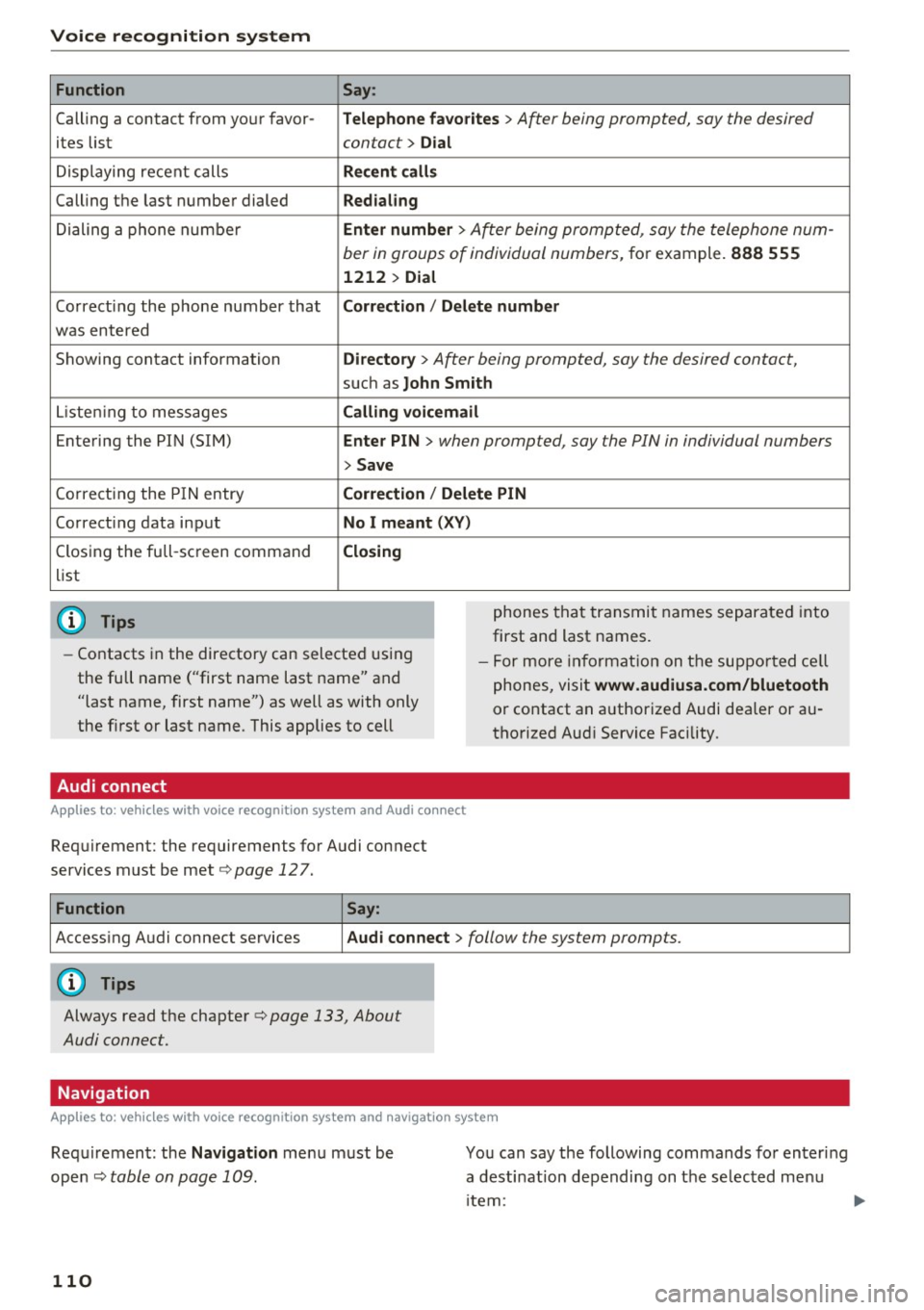
Voice recognition system Function
Calling a contact from your favor -
ites list
Displaying recent calls
Calling the last number dialed
Dialing a phone number
Co rrecting the phone number that
was entered
Showing contact information
L isten ing to messages
Entering the PIN (SIM)
C orrecting the P IN entry
Correcting data input
Closing the full-sc reen command
list
@ Tips
Say :
T elepho ne fa vo rites
> After being prompted, soy the desired
contact>
D ial
Re cen t c alls
Redialing
Enter number
> After being prompted, say the telephone num-
ber in groups of individual numbers,
for example. 888 555
1212 > Dial
Correct ion / Delete number
Dire ctory >
After being prompted, soy the desired contact,
such as John Smi th
Calling voic email
Ente r PIN
> when prompted, soy the PIN in individual numbers
> Save
Correct ion
I Delete PIN
No I m eant ( XV )
Closing
phones that transmit names separated into
first and last names.
- Contacts in the directory can selected using
the full name ("first name last name" and
"last name, first name") as well as with only
the first or last name. This applies to cell -
For more information on the suppo rted ce ll
phones, visit
www.audiusa.com/bluetooth
or contact an authorized Audi dealer or au
thorized Aud i Service Facility.
Audi connect
A ppl ies to: ve hicles w ith vo ice recognit ion sys te m and Audi co nnect
Requirement: the requirements for Audi connect
services must be met
c> page 12 7.
Function Say:
Accessing Audi connect services Aud i connect > follow the system prompts.
(D Tips
Always read the chapter c> page 133, About
Audi connect.
Navigation
A pp lies to: ve hicles w ith vo ice recognition syste m and navigation system
Requirement: the Navigation menu must be
ope n
Q table on page 109 .
110
You can say the following commands fo r entering
a desti nation depending on the se lec ted menu
i tem:
Page 113 of 314

co
co
.... N
" N .... 0
" "' c:o
Voice recognition system
Function Say:
Open ing the list of previous nav iga-La st destinations
t ion destinations
A cc ess ing favo rites
Naviga tion favorit es
Selecting the home address Home address or Dri ve home
Entering a n add ress wi th guida nce Enter addres s > follow the system prompts
from the system
I n dividual commands for entering a
Enter country I Ent er stat e / Enter city / Enter ZIP cod e / Enter
destination street / Enter house number
Making a correction whi le entering Correction
a dest inat ion
Navigating to a contact
Drive me to (XV ) or Navigate to (XV ), for example Drive me to
"John Smith"
Navigating to a specific address for Navigate to ( XV) business / priv ate ,
a contact for example, "Navigate to John Smit h "
Navigating to favorites
Navigat ion favorites > Line (XV) / Line contents > Start route
guidance when prompted
Start ing route guidance with an ad-Navigate / Navigate to private addres s/ Navigate to bus ine ss
dress card open ad dre ss
Entering a new destination/stop-Enter dest ination > enter the desired address when prompted >
over when route gu idance is active confirm the new destination/stopover if prompted
Start ing route g uidance after enter-Start route guidance
ing a destination
Canceling current route gu idance
Cancel route guid ance
Calculating a lterna tive routes Calcul ate al ternative routes
Entering a point of interest by se-Point of inter est > Chang e search ar ea > category or subcatego-
lecting a search area with guidance ry when prompted, for example "restaurant"
from the system
Dest ination input categor ies
Aud i Ser vic e / T rain s ta tion / Ai rport / Hotel / Hospital / Pa rk -
ing facility / Rest area / Restaurant / Gas station
etc.
Search areas for ente ring points of Nearby / Along the rout e/ Near de stination / Near stopover /
interest In new city / In new state or countr y
Entering an online destination* Online de st inat ion (XV ), for example "Online d estination
"Lakeview Hotel" "
Correcting data input No I meant ( XV)
Closing the full-sc reen command Close
list
Req uirement: you must be in the
Navigation or
Map menu . You ca n say the fo llow ing commands
for more settings i n Navigation:
111
Page 124 of 314
Telephone
(D Tips
-This service must be set up and activated in
advance by the cell phone service provider.
You can obta in more information from your
cell phone service prov ider.
- The voicemai l number depends on the cell
phone service provider .
Emergency call functions
Appl ies to: ve hicles w ith tele phone
~ Select : I MENU I button >Telephone > left con
trol button >
Enter number > Enter emergency
call number (for example , 911)
> O K.
A WARNING
-
- Beca use your phone works with radio s ig
nals , a connect ion cannot be guaranteed un
der all ci rc u mstances. Do not rely on only
yo ur phone when it comes to essent ial com
mun ication (s uch as a medical eme rgency).
- Always follow the instructions given by the
emergency personnel du ring an emergency
call and only end the call when they instruct
yo u to do so .
(D Tips
Emergency numbers are not the same eve ry
where. Find out which eme rgency number is
used in yo ur current locat ion .
Directory
Opening the directory
Appl ies to: ve hicles w ith tele phone
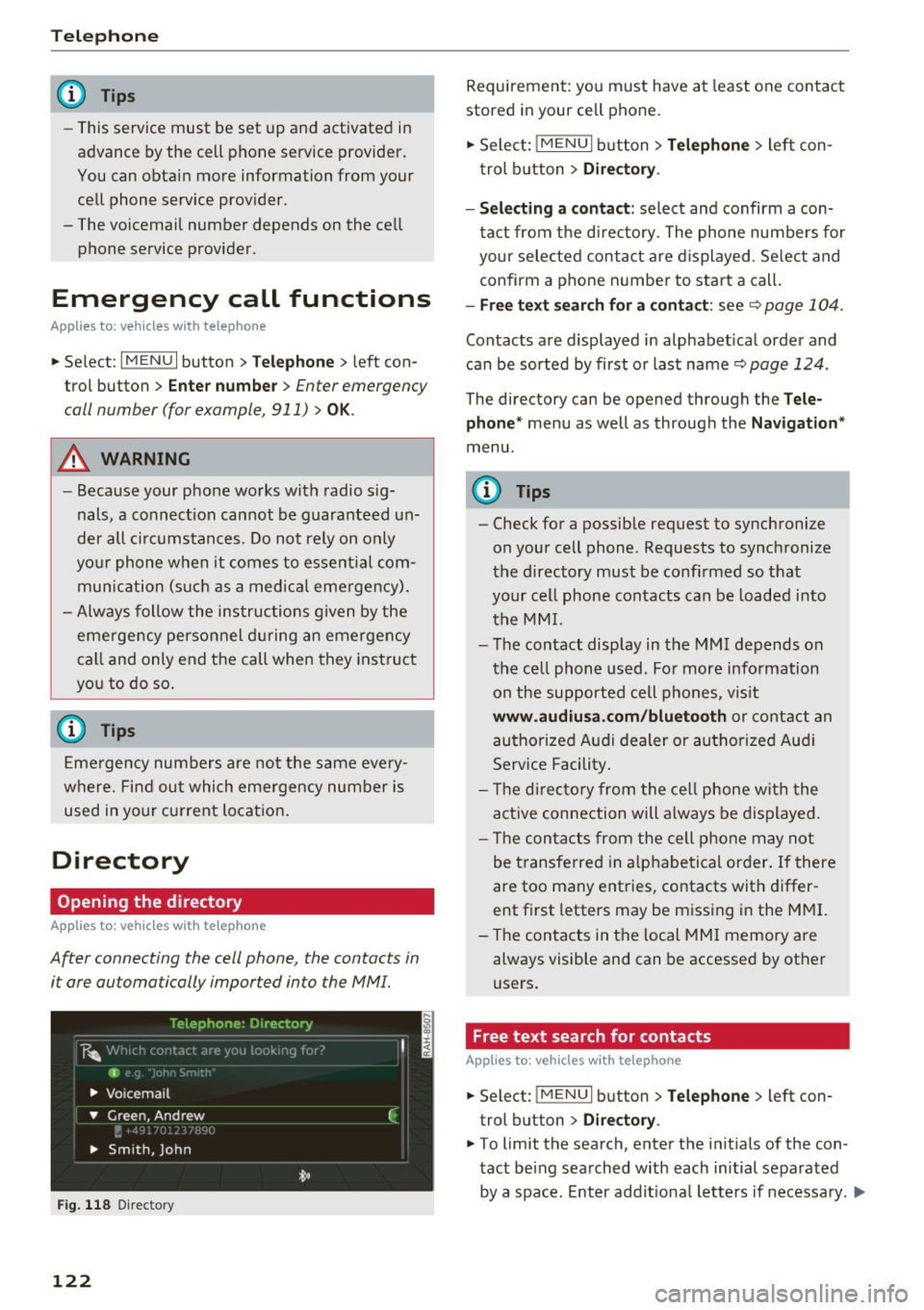
After connecting the cell phone, the contacts in
i t are automatically impor ted in to the MMI.
F ig . 11 8 Direc tory
122
Requirement: yo u must have at least one contact
stored in your cell phone.
~ Select: ! M ENUI button> T el ephone > left con
trol b utton >
Dire ctory .
- Selecting a contact :
select and confirm a con
tact from t he d irectory. The phone numbers for
your selected contact are displayed . Se lect and
confirm a phone n umbe r to sta rt a call .
-Fre e te xt sear ch for a conta ct : see q page 104 .
Contacts a re displayed in alphabet ical order and
can be sorted by first or last name ¢
page 124.
The directo ry can be opened th rough the Tele
phone "
menu as well as through the Navigation "
menu.
(D Tips
-Check for a possible request to synchronize
on your cell phone . Requests to synchronize
the directory must be confirmed so that
your cell phone contacts can be loaded into
the MM I.
- The contact display in the MMI depends on
the ce ll phone used . Fo r more information
on the supported cell phones , vis it
www .audiu sa .com /blu etooth or contact an
authorized Audi dealer or authorized Aud i
Service Facility .
- T he d irecto ry from the cell phone w ith the
active connection will a lways be displayed.
- T he contac ts from the cell phone may not
be transferred in a lphabetical order. If there
are too many entries, contacts with differ
ent first letters may be miss ing in the M MI.
- The contacts in the local MMI memory are
always visible and can be accessed by other
users.
, Free text search for contacts
App lies to : vehicles wi th telepho ne
~ Select: !MENU I button> Telephone > left con
trol button >
Director y.
~ To limit the search , enter the in it ials of the con
tact being searched with each initial separated
by a space. Enter addit iona l letters if necessa ry . .,..
Page 125 of 314
co
co
.... N
" N .... 0
" "' c:o
~ Select and confirm a contact from the di recto
ry. The p ho ne numbers for the selecte d contact
are disp layed .
~ To make t he call, se lect and confi rm a phone
number.
(D Tips
- You can scro ll through long lists quickly by
turning the contro l knob quick ly. The scroll
in g s peed depends on t he nu mbe r of list e n
tries.
- Additional informat io n on free text searches
ca n be found un der
r=> page 104.
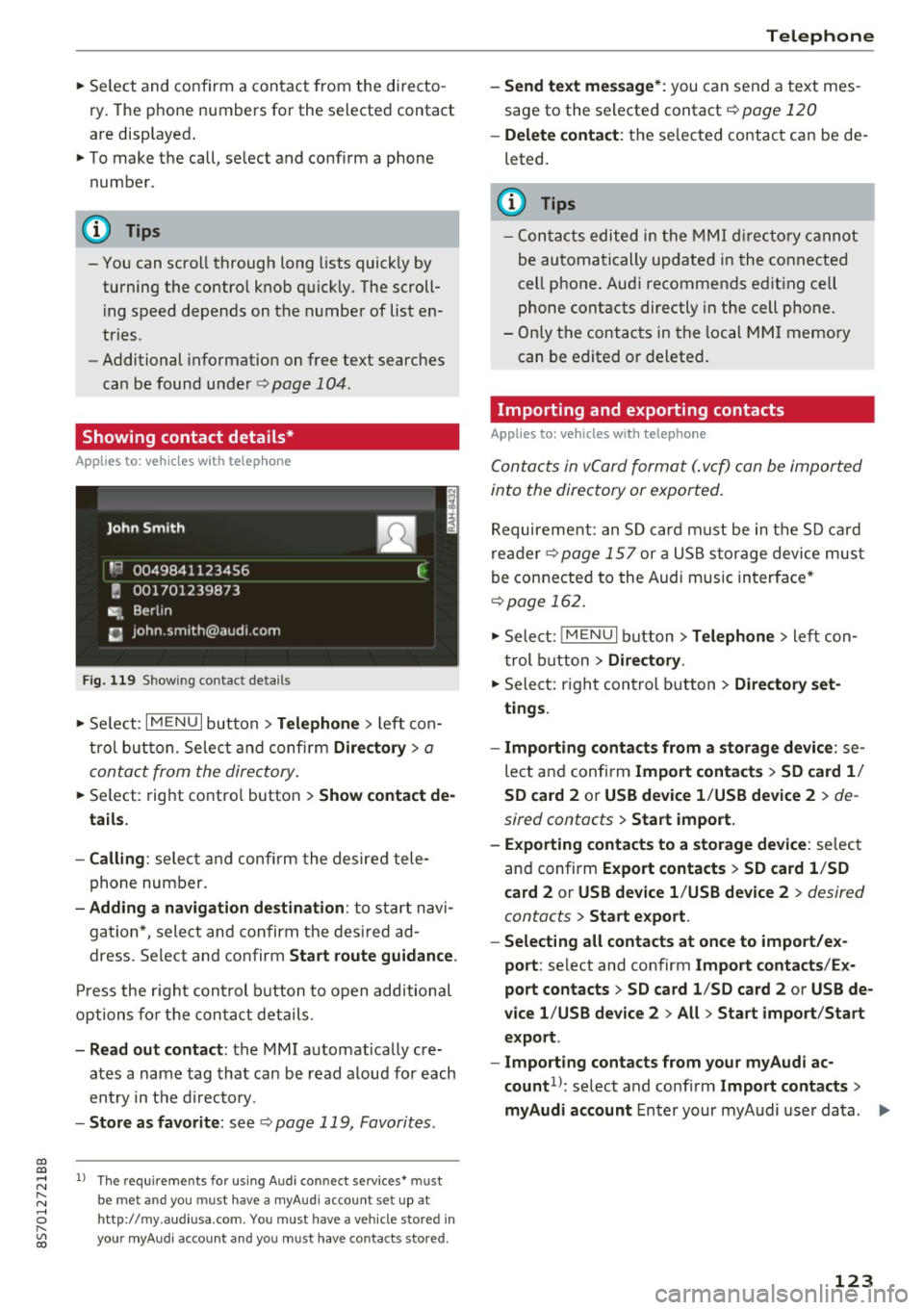
Showing contact details*
App lies to: ve hicles with telep hone
Fig. 119 S h ow ing contact deta ils
~ Se le ct: I M ENU I button> Telephone > left con
t rol butt on. Selec t and confir m
Directory > a
conta ct from the dire ctory .
~ Se lect: rig ht contro l button > Show contact de
tails.
- Calling :
select and con firm the desire d tele
phone number.
- Adding a navigation de stination : to sta rt n avi
ga tion *, sele ct and confirm t he des ire d a d
dress . Select and co nfirm
Start route guidance .
Press the r igh t con trol button to open additional
opti ons fo r the con ta ct det ails.
- Read out contact : the MMI automat ically cre
ates a name tag tha t can be r ead a loud for each
en try in t he dir ecto ry.
- Store as favorite : seer=> page 119, Favorites.
l) Th e requireme nts for using A udi co nn ect services• must
b e met and you must have a myAudi account set up at
ht tp:// my.aud iusa.com . You must have a ve hicle sto red in
your myAud i accou nt and you must have contacts stored .
Telephone
-Send text message *: you can send a text mes
sage to the selecte d contact r=>
page 120
-Delete contact : th e se lec ted co ntac t can be de
leted.
(D Tips
- C ont acts edited in the MMI dir ector y cann ot
be au tom atic ally up date d in t he connected
cell p hone . Aud i recommends e diting ce ll
p hone contacts directly in t he cell p hone .
- Only t he con tacts i n the local M MI memory
can be edited o r deleted .
Importing and exporting contacts
Applies to: vehicles wit h telep hone
Conta cts in vCard format ( . vc f) can be imported
into the directory or expor ted.
R equireme nt: an S D card must be in t he SD c ard
re ad er r=>
page 15 7 or a US B storage device mus t
be connecte d to the Audi music in terface *
r=>page 162.
~ Sele ct: ! ME NUI bu tton> Telephone > left c on
t rol b utton
> Directory .
~ Select: righ t con trol button > Directory set
tings .
- Importing conta cts from a storage device :
se
lect a nd confirm
Import contacts > SD card 1 /
SD card 2
o r USB device 1 /USB de vice 2 > de
sired contacts
> Start import.
- Exporting contacts to a storage device :
selec t
an d confirm
Expo rt cont acts > SD card 1 /SD
c ard 2
or USB device 1 /USB device 2 > desired
contacts
> Start export .
- Selecting all contacts at once to impo rt/ex
port :
select and con firm Import contacts /Ex
port contacts > SD card 1 /SD card 2
or USB de
vice 1 /USB device 2
> All > Start import /Start
export .
- Import ing contacts from your myAudi ac
count 1>:
select and confi rm Import contacts >
myAudi account
E nter your my A udi use r da ta. .,.
123
Page 132 of 314
Audi connect
"' Se lect and confirm F light informati on.
You can se lect the desired information us ing the
right contro l button.
City events
A pplies to: ve hicles w ith Aud i co nn ect
Information on events in various categories in
the desired search area .
"' Se lect and confirm
City eve nts> left control
button
> category .
Online news
App lies to: ve hicles w ith Aud i co nn ect
You can check the current headlines of your fa
vorite pub lications in the MMI.
Requirement: your myAudi account must be sub
scr ibed to newsfeeds and yo ur vehicle must be
connected to myAudi
q page 128.
"' Se lect: Online new s > desired newsfeed > a
headline.
(D Tips
If you have not subscr ibed to any persona l
newsfeeds in yo ur myAud i account, pre-con
fig ured newsfeeds will be displayed.
Twitter
A ppl ies to: ve hicles w ith Aud i co nn ect
You can access the most important functions in
your Twitter account through your MMI.
Requirement:
You must have connected your myAudi account
with Twitter. Additional information on this can be found in the
Aud i conn ect ( myAud i) operating
manual under
m y.audiu sa. com .
You must have connected your vehicle with
myAudi
q page 128.
"'Se lect Twitter > left contro l butto n > desired
function
(for example, T re nd s).
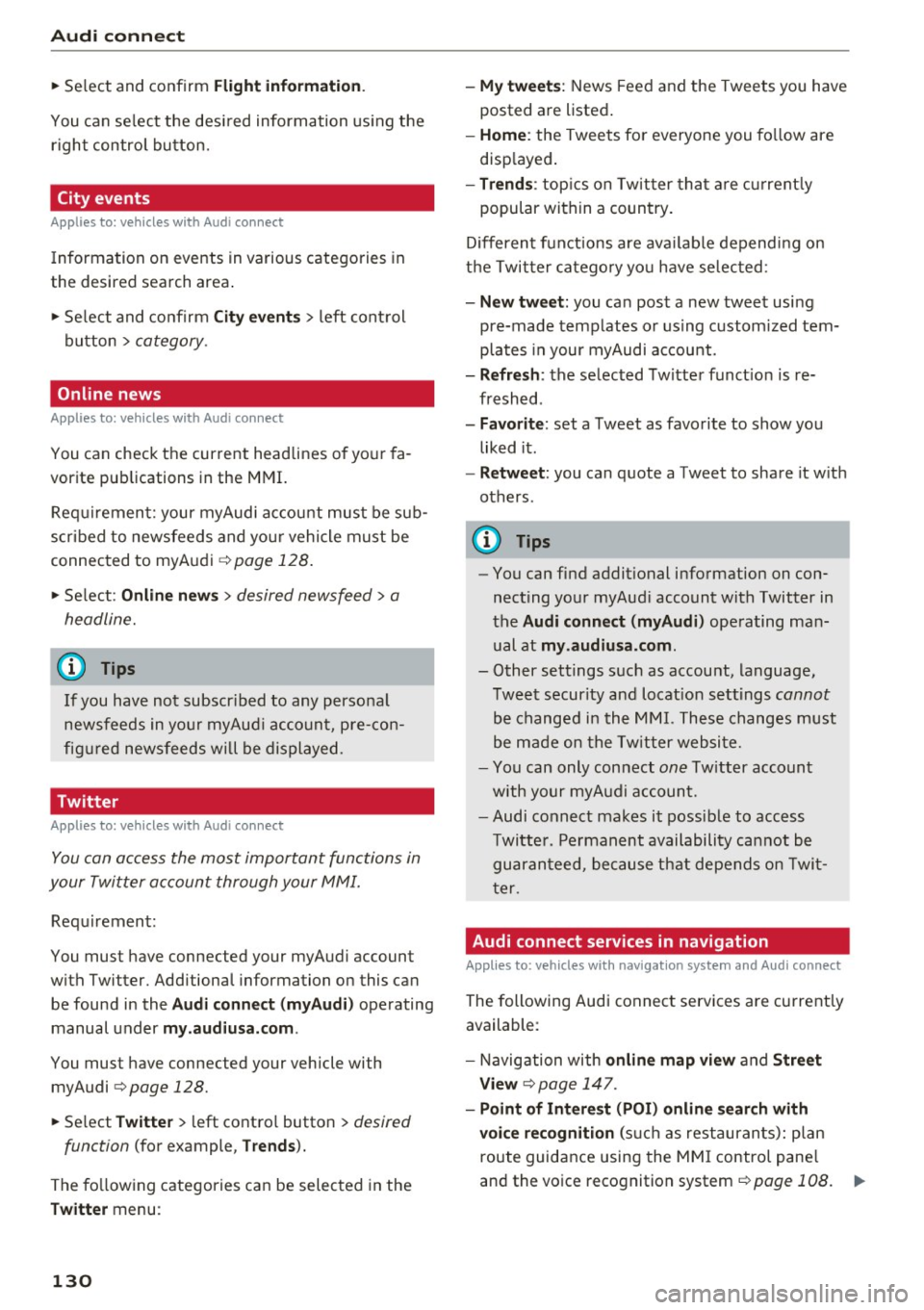
The fo llowing categories can be selected in the
Tw itter menu :
130
-My tw eet s: News Feed and the Tweets you have
posted are listed .
-Home : the Tweets for everyone you fo llow are
disp layed .
-Trend s: top ics on Twitter that are c urrent ly
popular with in a country .
D ifferent functions are ava ilable depend ing on
t h e Twitter category yo u have selected :
-New tw eet: you ca n post a new tweet using
pre-made temp lates or us ing custom ized tem
plates in your myAudi account.
- Refr esh: the selected Twitter funct ion is re
freshed .
-Favorit e: set a Tweet as favorite to show yo u
liked it.
- Retweet : you can quote a Tweet to share it w ith
others.
(D Tips
- You can find addit ional information on con
necting your myAud i account with Twitter in
the
Audi connect (myAudi) operating man
ual at
my .audiu sa.com .
-Other settings such as account, language,
Tweet security and locat ion settings
cannot
be changed in the MMI. These changes must
be made on the Tw itter website.
- You can only connect
one Tw itter account
with your myAudi accoun t.
- Audi connect makes it possible to access
Twitte r. Permanent availability ca nnot be
guaranteed, because that depends on Twi t
ter .
Audi connect services in navigation
App lies to : vehicles wi th navigat ion syste m and Aud i connect
The following Audi connect services are current ly
available :
- Navigation with
online map view and Street
View
Q page 147.
- Point of Intere st (POI) on line search with
voi ce re cognition
(s uch as restauran ts): plan
route guidance using the MM I control pane l
and the vo ice recognition system
c;, page 108. ..,_
Page 133 of 314
co
co
.... N
" N .... 0
" "' c:o
-Set up destinations in your MMI using your
m yA udi acc ount or online map view
¢ page 147.
-Onli ne traffic i nfo rmat ion: receive up-to-the
minute traffic information about accidents,
road construction and other incidents
¢ page 148.
-Map updates *: import navigation map updates
in your MMI using an SD card .
@ Tips
-For the Map update Audi connect service us
ing an SD card, check the current software
version in your vehicle and compare it with
my.aud iu sa. com to see if a new version is
available . You can also have the new naviga
tion data installed by an Audi dealer, which
can be done for an add itiona l charge.
- More information on
map updat es can be
found in the
Audi c onnect Operating Man
ual under
m y.audiusa .com .
Audi connect services on the phone
Applies to: vehicles with Audi connect
The follow ing Audi connect serv ices are currently
ava ilable:
Storing contacts on your computer using your
m yAudi Ac count and loading the contacts into
the MMI directory ¢page 123.
Audi connect services in the Media menu
Applies to: vehicles with Wi- Fi audio player and Audi connect
-Wi-Fi audi o play er: you can access the media
center through Wi-Fi connected media players
(such as smartphones)
¢ page 160.
- Online m edia : offers access to different online
med ia services and operation through the MMI
using the
Audi MMI connect app .
(D Tips
For mo re information on the Wi-Fi a udio p lay
er and supported devices, contact an author
ized Audi dealer or authorized Audi Service Facility.
Audi c onn ect
Additional options
Applies to: vehicles with Audi connect
., Select: !M ENUI button> Audi conn ect> right
cont rol button .
The following options are available in the Aud i
connect serv ices overv iew :
-Lo g in: see ¢ page 128, Logging into myAudi in
the vehicle .
-Connect ion manage r: see¢ page 176.
Wi-Fi hotspot
Applies to: vehicles with Wi-Fi hotspot
You can use the MMI as a Wi-Fi hotspot to con
nect up to eight Wi-Fi devices to the Internet.
Requirement: the ignition must be sw itched on .
.. Select:
!MENU I button> Telephone > right con-
trol button >
Wi-Fi setting s.
The following sett ings can be mod ified:
Wi -Fi
The MMI Wi-Fi hotspot is deactivated at the fac
tory . Sw itch the Wi-F i hotspot to
On before es
tab lishing an Internet connection between your
vehicle and you r Wi -Fi device.
- On : the MMI Wi-Fi hotspot is act ive and v is ible
to other dev ices. You can connect your W i-F i
dev ice w ith the MM I.
-Off : the MMI Wi-Fi hotspot is deactivated . An
Internet connect ion for W i- Fi dev ices is not
possible .
_&. WARNING
-As the driver, do not allow usage of the Wi
Fi hotspot to distract you from driving, as
this could increase the risk of an accident .
-It is only safe to use tablets, laptops, mo
bi le devices and other simi lar devices when
the vehicle is stationary because, like all loose objects, they could be thrown around
the inside of the vehicle in a crash and cause
serious injuries . Store these types of devices
securely while driving.
~
1 31
Page 138 of 314
Navigation
Navigation
Opening navigation
A pplies to: ve hicles w ith navigation system
The navigation system directs you to your destination, around traffic incidents and on alternative
routes, if desired.
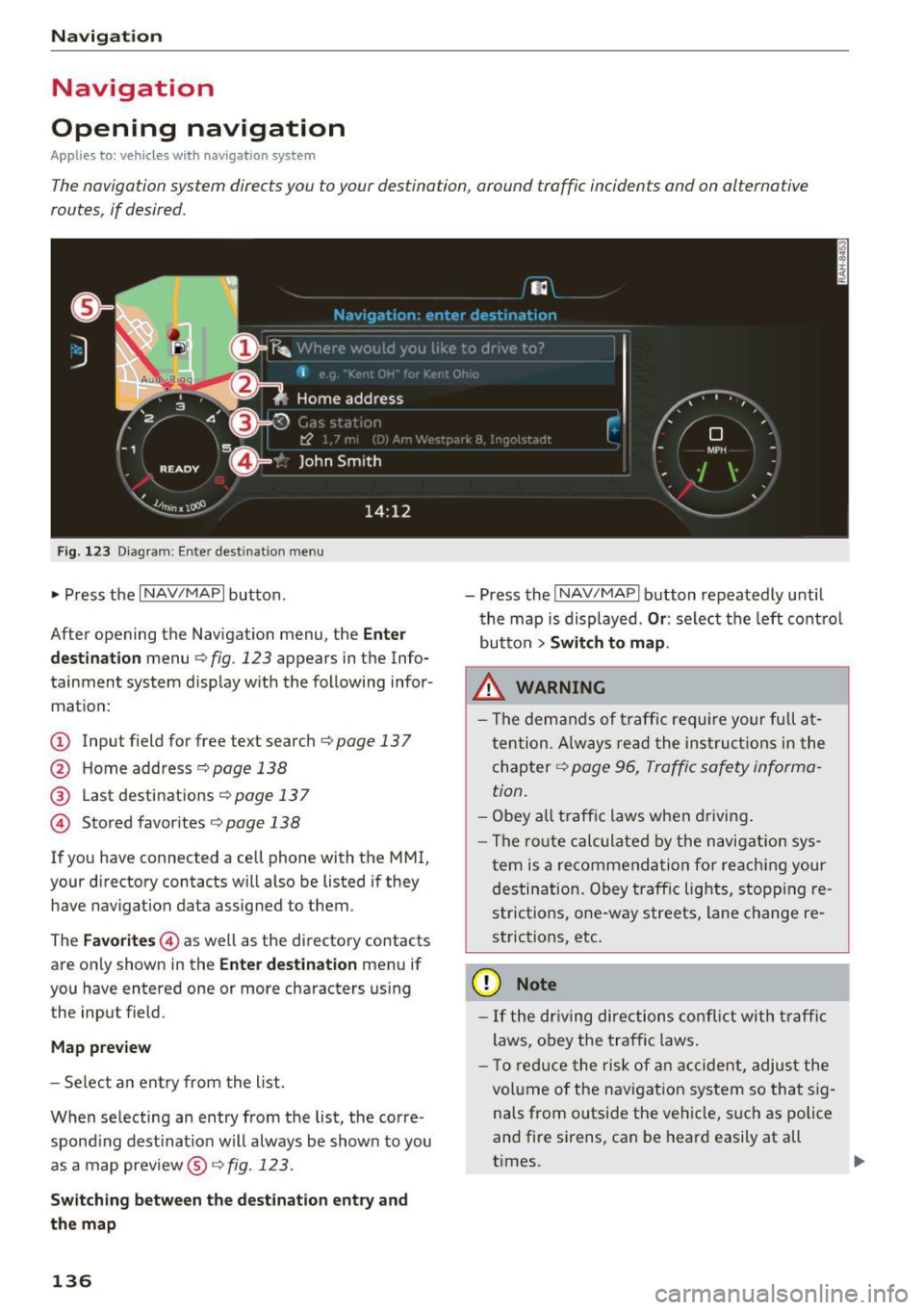
Fig. 123 Diagram: Enter destination menu
~ Press the I NAV/MAPI button.
After opening the Navigation menu, the
Enter
destination
menu Q fig. 123 appears in the Info
tainment system display with the following infor mat ion:
(!) Input field for free text search q page 13 7
@ Home address 9poge 138
@ Last destinations qpoge 137
© Stored favorites q page 138
If you have connected a cell phone with the MMI,
your directory contacts will also be listed if they
have navigation data assigned to them .
The
Favorites © as well as the directory contacts
are only shown in the
Enter destination menu if
you have entered one or more characters using the input field.
Map preview
-Select an entry from the list.
When selecting an entry from the list, the corre
spond ing dest ination will always be show n to you
as a map preview®~
fig. 123.
Switching between the destination entry and
the map
136
- Press the I NAV/MAPI button repeatedly until
the map is displayed .
Or: select the left control
button
> Switch to map.
.&_ WARNING
-The demands of traffic require your full at
tention. Always read the instructions in the
chapter
9 page 96, Traffic safety informa
tion.
- Obey all traffic laws when driving.
- The route calculated by the navigation sys-
tem is a recommendation for reaching your
destination. Obey traffic lights, stopp ing re
strictions, one-way streets, lane change re
strictions, etc.
(D Note
- If the dr iving directions conflict with traffic
laws, obey the traffic laws.
- T o reduce the risk of an accident, adjust the
volume of the navigation system so that sig
nals from outside the vehicle, such as police
and fire sirens, can be heard easily at all
times.
-
Page 139 of 314
co
co
.... N
" N .... 0
" "' c:o
@ Tips
-Information on importing map updates us
ing an
SD card in your MMI can be found in
the
Aud i connect (myAud i) ope rating ma n
u al
under m y. audiusa .com .
-Snow and obstructions on the GPS antenna
or interference caused by trees and large
buildings can impair satellite reception and
affect the system's ab ility to determine the
vehicle position . Several deactivated or mal
funct ion ing sate llites can also inte rr u pt GPS
r eception and affect the sys tem's ability to
determine the ve hicl e posi tion.
- Because st reet names sometimes cha nge,
the n ames stored in the MMI m ay in ra re
cases differ from the ac tual street name.
Entering a destination
Free text search for destinations
App lies to: vehicles with navigation system
Using the MMI touch contro l pad, yo u can enter
the data for a navigation dest ination in any orde r
a ll at once (fo r example, monument Wash ing
ton). Likew ise , you can sea rch for poin ts of in ter
est, contac ts, previous desti nations o r favor ites
to naviga te to the des ired add ress.
"P ress th e
I NAV/MAPI button repeated ly un til
t h e
Ent er de stination menu is displayed
¢ page 136, fig . 123.
" Keep turning the contro l knob to t he left until
t h e input fie ld appears.
- Wr ite one o r more searc h terms in the inp ut
field @¢
page 136, fig. 1 23. A list of a ll re
s ul ts fo u nd will a ppear in the Infota inment sys
tem display.
- Se lect and confirm a destination from the re -
s ul ts list.
- Se lect and co nfirm
Start route guidance .
The route is displayed as an ove rview in the map
and the route guidance is al ready active .
Narrowing the sea rch area
- Se lect : rig ht contro l button > Country /state se
lection . Na
vigation
All co untries/states are selected at the factory
for th e free text search. Using the
Countr y/state
s election ,
you can deselect the irrelevant coun
tries/states to increase the search speed and nar row the results list.
(D Tips
- T he MMI input suggestions depend on the
last nav igated dest inat ions.
- Up to 50 entries can be stored in the last
destinations list .
- Additiona l information on free text sea rches
can be fo und under ¢
page 104.
- For add itiona l information about entering
information on the M MI touch, see
¢page 98.
Load last destination
Applies to : vehicles with navigat ion syste m
Your last destinations are automatically stored
and can be loaded directly as a destination .
Requirement: a dest inat io n was already navigat
ed to.
" Press the
!NAV /MAPI button repeatedly u nti l
t he
Enter destination men u is displayed
¢page 136, fig . 123.
Yo ur l ast des tinations will be listed directly in the
Enter destination me nu and a re mar ked wi th the
symbol @¢page
136, fig.123.
-Select and confirm one of your last destina-
tions.
- Select and confirm
Start route guidance .
Delete last destinat ions
- Select and confirm one of the last destinations
from the list.
- Select: r ight cont rol b utton
> Delete .
-Select and confirm Delete this last destination
or Delete all last de stinations.
T he sele cted dest inat ion or all las t dest inat io ns
is/are deleted and no longer d isplayed in the
en
ter destination
¢ page 136, fig . 123 menu .
137