2017 AUDI TT ROADSTER navigation
[x] Cancel search: navigationPage 140 of 314

Navigation Entering an address
Applies to: vehicles with navigation system
"' Press the I NAV/MAPI button repeatedly until
the
Enter destination menu is displayed
<=:>page 136, fig. 123 .
.. Se lect: left control button > Enter address.
-Se lect and confirm a line (such as Street, House
number or Country/state)
and enter the de
sired information.
- Se lect and confirm
Start route guidance.
Setting a destination from the map
Applies to: vehicles with navigation system
A point on the map can be used as the destina
tion.
.. Press the I NAV/MAPI button repeatedly until
the map is disp layed .
-Adjusting the scale: turn the control knob to
the left/right to decrease the map scale.
-Activating crosshairs: press the control knob.
The crosshairs are shown on the map .
-Moving the crosshairs : move the crosshairs to
the destination using the MMI touch control pad .
-Setting as destination : press the control knob
whe n the crosshairs are shown . If necessary,
select and confirm
Add as stopover and then
Start route guidance .
- Hiding the crosshairs :
press the I BACKI button.
Additional information about the location of
the crosshairs :
if you select map content with
crosshairs, the available information is displayed
(such as the name of the c ity or points of inter
est) @
i::> page 144, fig . 129 .
138
Setting a home address/favorite as the
destination
Applies to: vehicles with navigation system
You can quickly and easily start route guidance
to your home address using the home address
function. Favorites allow easier access to fre
quently used destinations.
"' Press the I NAV /MAPI button repeatedly until
the
Enter destination menu is displayed
i=:> page 136, fig. 123.
Setting a home address as the destination
Requirement: a home address m ust be stored
<=:> page 142.
Your home address is directly shown in the Enter
destination
menu @<=:>page 136, fig. 123 .
-Select and confirm the home address.
- Select and confirm
Start route guidance.
Setting a favorite as the destination
Requirement: a destination must be stored as a
favorite
c:> page 142.
- Enter one or more letters into the free text
search input fie ld. The favorites that are found
are shown in the Infotainment system display
and marked with th e symbol @
i::> page 136,
fig. 123.
-Select and confirm the desired favorite.
- Select and confirm
Start route guidance .
(D Tips
-Additional settings for the home address
can be found under
i=:>page 142 .
-Additional settings for the favorites can be
found under<=:>
page 142.
Page 141 of 314

CD co .... N
" N ...... 0 r--. V, co
Transferring a destination from the directory
A pp lies to: ve hicles with naviga tion system
You can navigate directly to destinations in the
directory.
Fig. 124 Possible stored locat ions in the direc tory
Requirement : an address with navigation data or
a destination must already be assigned to a con
tact.
.,. Press the
I NAV /MAP I button repeatedly until
the
Enter de stination menu is displayed
r='vpage 136, fig . 123.
• Select : left control button > Directory > a con-
tact.
The directory/contacts are shown in alphabetical
order and are marked with symbols to ind icate
the storage location:
(D Business address
@ Private address
® Business destination
@ Priva te dest inat ion
- Select and confirm an address or a destination .
When you have selected a dest inat ion, route
guidance starts immediately.
- Check the address input again when selecting
an address.
- Th en select and confirm
Start route guidance .
Additional directory funct ions in the navigation
system can be found under
r='vpage 142.
(D Tips
-Addresses that have been imported from
your ce ll phone into the MMI can also be
used as a dest ination .
Navigation
-If a contact is grayed out in the directory,
this contact does not have a destination or
an address assigned to them.
Entering a point of interest
Applies to : vehicles wit h navigation syste m
Fig. 125 En tering a po int of intere st
.. Press the INAV/MAPI button repeatedly until
the
Enter destination menu is displayed
r='vp age 136, fig . 123 .
• Select: left control button > Points of interest .
- Changing the search area :
select and confirm
Search area > a search area from the list.
-Searching for a point of interest in a specific
category :
select: Select category > desired cat
egory ,
such as Restaurants .
The following searc h categor ies are available:
Nearby : points of interest can be selected from
different categories. The points of interest are
lis ted starting from the vehicle position up to a
r ad ius of approximately 124 miles (200 km).
Along the route: points of interest along the
route can only be selected during active route
guidance. The points of interest are loca ted di
rectly along or in the immediate vicinity of the
calculated route.
Near destination /Near stopover : the points of
interes t can likewise be selected from different
categories in the vicinity of the destination or
stopover . For example, you can search for a hotel
or parking lot at the destination .
In new city: enter the name of the desired city .
Po ints of interest can be selected from various
categories . This function allows you to sea rch for
points of interest in any city regardless of the ac-
tive route guidance or the vehicle pos ition .
IJI>
139
Page 142 of 314
Navig ation
(D Tips
- Distances to points of interest are shown as
a stra ight-line distance from the veh icle po
sition. The actual distance from your current
l ocation to the point of interest is updated
automat ically . The list of found points of in
terest is not resorted when this happens .
- There may be entries in the list that cannot
be d isplayed completely due to their length.
If you select these list entries using the con
tro l knob , deta iled informa tion about t he
se lected list entry wi ll be shown automati
c al ly a fter several seconds .
Point of interest online search
Applies to: vehicles with navigation system and Audi connect
You can search for points of interest on the In
ternet.
Requirement: the requirements fo r A udi con nect
services must be met
¢ page 127.
.,. Press t he I N AV /MAPI button repeated ly until
the
Enter destination menu is displayed
¢ page 136, fig. 123 .
.,. Se lect: left cont rol button > Online search . The
search area las t set is shown in the input field.
- Changing the search area : select and confirm
Search area > a search area from the list .
-Sear ching for onl ine destinations in thes e
lected search area :
enter a new city if necessa
r y. En ter a sea rch te rm su ch as restau rant . Se
l ec t and co nfirm an on line destin ation. Se lect
and con firm
Start route guidance .
- Sea rching for an online de stination in a specif
i c category :
select: Select category > desired
category,
s u ch a s Hotel s.
Find which search areas a re available under
¢ page 139, Entering a point of interest.
You can search for o n line dest inat io ns using the
voice recognition system¢
table on page 111 .
(D Tips
-Always read the chapter¢ page 133.
-Additional in format ion can be found under
www.audiusa.com/audiconnect
140
Accessing destinations from your myAudi
account
Applies to: vehicles with navigation system and Audi connect
Import destinations from your myAudi account
into the MMI.
Requireme nt: yo u must have a reg istered myAud i
account at
my .audiusa. com . You must have ave
hicle s to red in yo ur myAud i account and you
mus t have a destination stored .
.,. Press the
I NAV/MAPI button repeatedly u ntil
the
Enter dest inat ion me nu is displayed
¢page 136, fig. 123 .
.,. Sele ct: le ft control button > myAudi contacts .
.,. If necess ary, en ter yo ur myAu di user data or
your myA udi PIN. The contacts stored in myA u
di are disp layed.
- Select and confirm a contac t
> desired destina
tion .
-Sele ct and confirm Start route guidance .
(D Tips
-You only n eed to e nter the myA udi use r da ta
one time .
- You can rece ive your myAudi PI N if yo u have
set up a myAu di acco unt. For addit io nal in
forma tio n, see
my.audiusa.com .
'
Entering a destination using geo
coordinates
Applies to: vehicles with navigation system
.,. Pr ess the I NAV/MAP I button repeatedly until
the
Enter destinat ion men u is displayed
¢page 136, fig. 123 .
.,. Select: left control button > Geo coordinates .
-Select and confi rm either Latitude or Longi·
tude .
-Tur n th e control knob to change the latit ude/
longitude.
- Press the contro l knob to confirm your in put .
- Sele ct and confirm
Sta rt route guidance.
Page 143 of 314
CD
CD
.... N
" N .... 0
Adding a stopover
Applies to: vehicles with navigation system
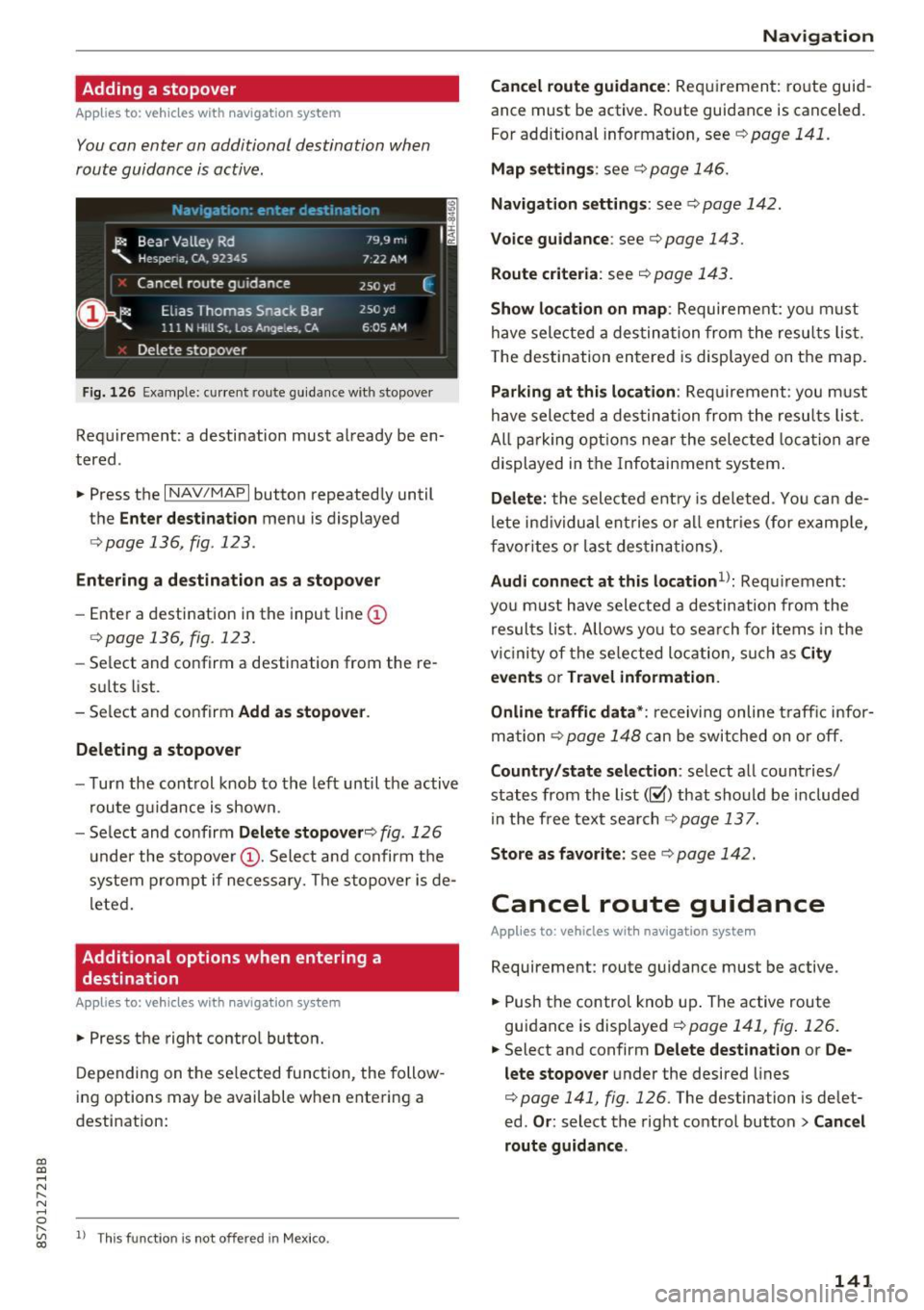
You con enter on additional destination when
route guidance is active.
Fig. 126 Ex ample: current rou te guidance with stopover
Requirement: a destination must already be en
tered .
• Press the
I NAV/MAPI button repeatedly until
the
Enter destination menu is displayed
r=> poge 136 , fig . 123 .
Entering a de stination as a stopover
-Enter a destination in the input line (D
<=>page 136, fig . 123.
- Select and confirm a destination from the re-
sults list.
- Select and confirm
Add as stopover .
Deleting a stopover
- Turn the control knob to the left until the active
route guidance is shown.
- Select and confirm
Delete stopover ¢ fig. 126
under the stopover (D. Select and confirm the
system prompt if necessary. The stopover is de
l eted.
Additional options when entering a
destination
Applies to: veh icles with navigation system
• Press the right control button.
Depending on the selected function, the follow
ing options may be available when entering a
destination:
" "' 1> Th
is fun ctio n is not off ere d in Mexic o . co
Navigation
Cancel route guidance:
Requirement: route guid
ance must be active . Route guidance is canceled.
For additional information, see
c> pag e 141 .
Map settings : see c> page 146.
Navigation settings: see ¢ page 142.
Voice guidance : see c> page 143.
Route criteria : see c> page 143.
Show location on map : Requirement: yo u m ust
have selected a destination from the results list.
T he destination entered is displayed on the map.
Parking at this location : Requirement: you must
have selected a destination from the results list.
All pa rking options near the selec ted location are
displayed in the Infotainment system.
Delete: the selected entry is deleted . You can de
l ete ind ividual ent ries or all entr ies (for examp le,
favorites or last destina tions).
Audi connect at this location1>: Requ irement:
yo u must have sele cted a destination from the
results list. Allows yo u to search for items in the
vi cinity of the selected location, such as
City
events
or Travel information.
Online traffic data*:
receiving online traffic infor
mation
c> page 148 can be switched on or off.
Country/state selection: select all countries/
states from the list(~) that should be included
in the free text search
c> page 137.
Store as favorite: see c> page 142.
Cancel route guidance
Applies to : vehicles with navigat ion system
Requirement: route guidance must be active.
• Push the control knob up. The active route
guidance is displayed
c> page 141, fig . 126.
.. Select and confirm Delete destination or De
lete stopover
under the desired lines
c> page 141, fig. 126 . The destination is delet
ed.
Or : select the right control button > Cancel
route guidance .
141
Page 144 of 314
Navigation
Home address
Applies to: vehicles with nav igation system
.. Press t he I N AV/MAPI but ton repeated ly un til
the
Enter destination menu is dis played
¢ page 136, fig. 123 .
Storing a home address
- Sele ct and co nfir m Home address
@ ¢page 136, fig. 123. After ope ning t he
home address fo r the fi rst time, yo u will be
asked to create a home a ddress .
- S elec t and confirm
Create now.
- En ter a desti nat ion or sele ct a des tina tion from
the lis t.
Or:
-Se lec t and co nfirm a destin ation > r ig ht contro l
bu tton >
Store as home address .
A home address will be s to re d in the M MI rega rd
less of the co nnected cell p hone. This home ad
dr es s is alw ay s ava ilable eve n if a c ell phone is
no t con necte d to the MMI.
Editing the home address
- Se lect Home address @ ¢page 136, fig . 123.
- Se lect: rig ht contro l button > Ed it home ad -
dress .
-Se lect and confirm a new destinat ion as the
home address.
The se lected destination is store d as t he new
home address.
Favorites
Applies to: vehicles with navigation system
.. Press the I N AV/MAPI button repeated ly until
the
Enter destination menu is displayed
¢ page 136, fig. 123 .
-Storing an existing destination as a favorite :
search for the desired destinat ion using the in
put f ie ld.
Or : select and confirm a dest ination
from the list. Select: right cont rol button>
Store as favorite .
- Renaming favorites :
select: left control button
>
Favorites > a favorite from the list> right
contro l butto n >
Rename favorite.
- Moving favorites:
select the left control button
>
Favorites > a favorite from the list> right
142 cont
rol but ton >
Move favorite. S e lect and con
firm t he desire d position.
-Deleting favorites : select and confirm a favo r
ite > r ight control button >
Delete this favor
ite / Delete all favorites.
Directory contacts
Applies to: vehicles with navigation system
Two addresses (private/business) can be as
signed as destinations for each contact in the di
rectory.
.. Press the I NAV/MAPI bu tton repeatedly unti l
the
Enter destination me nu is displaye d
¢page 136, fig. 123.
Storing a destination as a contact in the
directory
Requirement: a cell phone must be connected to
the MMI.
- Select:
a destination > right contro l button >
Add destination to contact.
- Sele ct an d confirm Add business destination or
Add private destination.
- En ter a name . Or: sele ct a nd con fir m a direc to
ry contact from the list .
- Sele ct and c onfirm
Save business card .
Additional settings
' Navigation settings
Applies to: vehicles with navigation system
.. Press the I NAV/M API button repeatedly unti l
t he
Enter destination me nu i s displaye d
¢page 136, fig. 123.
.. Sele ct: r igh t con trol button> Navigation set-
tings .
Depend ing o n the selec te d fu nction, t he follow
i ng settings can b e selecte d:
Show alternative routes
Up to three route suggestions and their proper
ties are d isplayed o n the overv iew map w hen the
funct io n is switched on~-See¢
page 143, Dis
playing alternative routes.
Page 145 of 314
CD
CD
.... N
" N ...... 0 r--. V, co
Low fuel warning
A message is disp laye d if the fue l g auge goes be
l ow the reserve m arki ng when this fun ct ion is
switche d on ~-Co nfirming this message displays
a list of gas stations in the area. When a gas sta
tion is selected, route gu idance from the c urrent
ve hicle position is calcu lated.
Notification when nearby*
The notifi cation when near by is switche d off a t
the facto ry.
The M MI not ifi es you whe n you are appro ac hing
se lec te d p oin ts of in terest when this func tio n is
switche d on ~-You can a lso h ave a
Notification
tone .
Presentation mode
The pre se nt ation mode he lp s yo u to plan a nd fo l
l ow a ro ute wi tho ut mo ving the veh icle. Yo u ca n
Select starting point when yo u wo uld like to cal
cula te a ro ute star ting from a loca tion o ther than
the vehicle pos it io n. Sta rt p resentation mode to
sim ulate route guida nce .
Route criteria
App lies to: veh icles with navigation system
J(
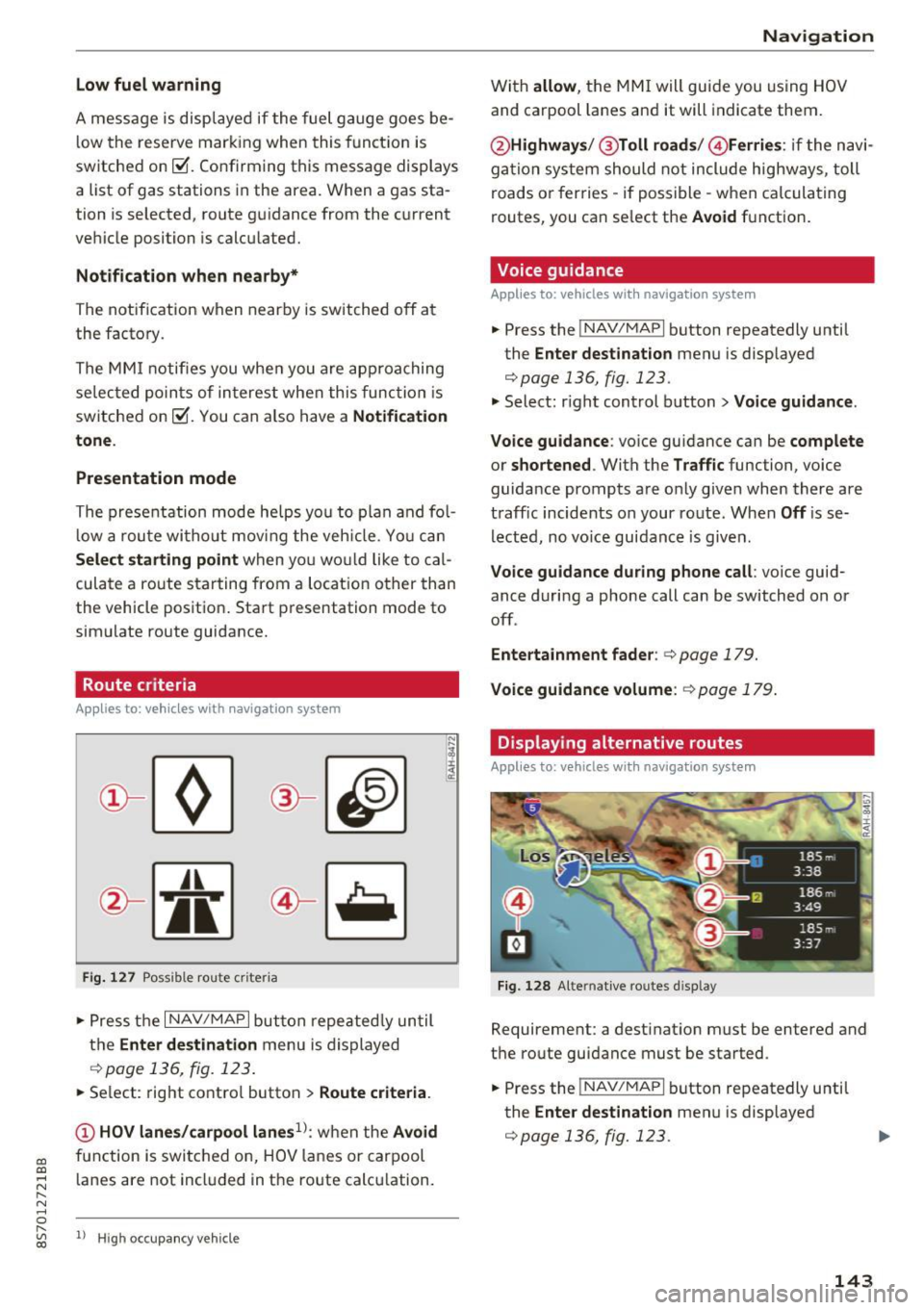
Fi g. 127 Possib le route criteria
• Pres s th e I NAV/ MAP I button r epeated ly un til
t h e
Enter destination menu is displayed
.::!) page 136, fig. 12 3.
• Se lect: rig ht contro l butto n > Route criteria .
(D HOV lanes/carpool lanes1
l: w hen t he Avoid
fu nction is swi tc h ed o n, HOV lanes or car pool
l anes are not incl uded in t he ro ute ca lcu lation .
1> Hig h oc cu pa ncy ve hicle
Navigation
W it h allow , the MMI will gui de you using HOV
and carpool la nes an d it will indicate them.
@ Highways /@ Toll roads /@ Ferries : if the n avi
ga tio n sy stem should not include highways, toll
roads or fer ries -if poss ible -w hen c alcula ting
routes, you can se lect the
Avoid f u nction .
Voice guidance
Applies to: vehicles with navigation system
• Press the !NAV/MAPI b utton repeatedly unti l
the
Enter destination men u is displayed
r::;,page 136, fig. 123.
• Select: r igh t cont rol button > Voice guidance .
Voice guidance :
voice gui dance ca n be complete
or shortened . With the Traffic function, voice
guida nce prompts a re o nly given when there ar e
t raff ic incidents on your ro ute. When
Off is se
l e cte d, no vo ic e gui dan ce is giv en.
Voice guidance during phone call : voice guid
ance d uri ng a phone call can be switched on or
off .
Entertainment fader : c:> page 179.
Voice guidance volume : r::!) page 179 .
Displaying alternative routes
Applies to: vehicles with navigation system
Fig. 128 Alte rnati ve routes d isp lay
Requireme nt: a dest inat ion m ust be entered and
t h e ro ute guidance must be started .
• Press the
!NAV/MAPI b utton repeatedly u nti l
the
Enter destination men u is displayed
r::;,page 136, fig. 123.
143
Page 146 of 314
Navigation
~ Select: right contro l button > Show alternative
routes.
Up to three route suggestions and their proper
ties are displayed on the map when this function
is switched on¢
fig. 128.
If available, the following information w ill ap
pear on the route suggestions:
- Route type (fast
(D, fast a lternative @, eco
nomic route@)
- Distance to the destination and the calculated arrival time
- Heavy traffic along the route including time de
lays
Map
Operating the map
Applies to: veh icles with navigation system
Escondido Fwy
Escondido
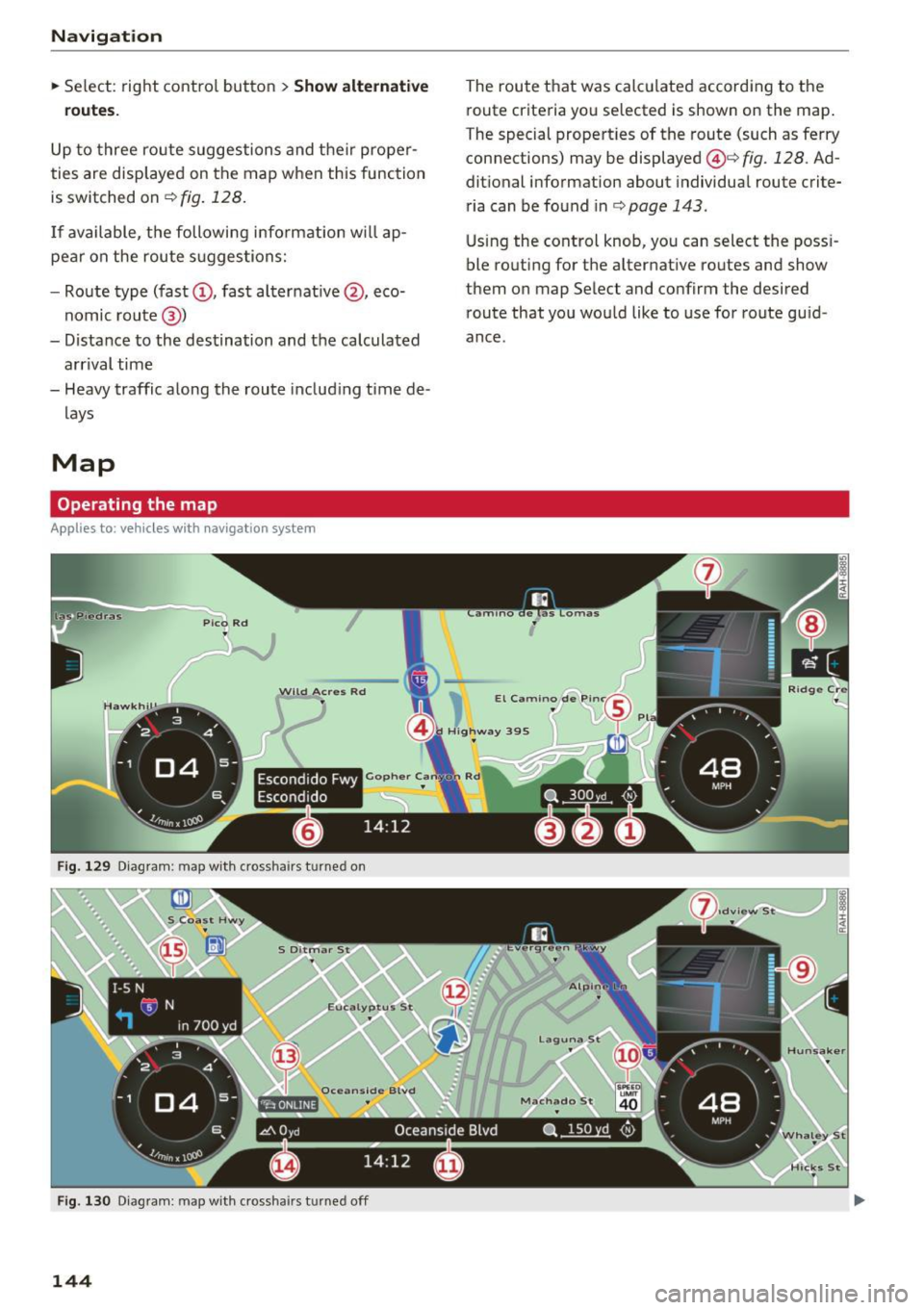
Fig. 129 Diag ram : map with crossha irs t urned on
Fig. 130 Diagram : map with crossha irs tu rned off
144
The route that was calculated according to the
route criteria you selected is shown on the map.
The special properties of the route (such as ferry
connections) may be displayed @¢
fig. 128 . Ad
ditional information about individual route crite
ria can be found inc:;,
page 143 .
Using the control knob, you can select the poss i
ble routing for the alternative routes and show
them on map Select and confirm the desired route that you would like to use for route guid
ance.
Page 148 of 314
Navig ation
on highways , possib le parking lots and rest areas
are shown, which you can select as a stopover .
POis along the route
Requirement: route gu idance must be active.
Searching fo r points of interest along your cur
rent route See
<=> page 139 .
Additional options on the map
Applies to: vehicles with navigation system
~ Press the I NAV/MAPI button repeated ly until
the map is d isp layed
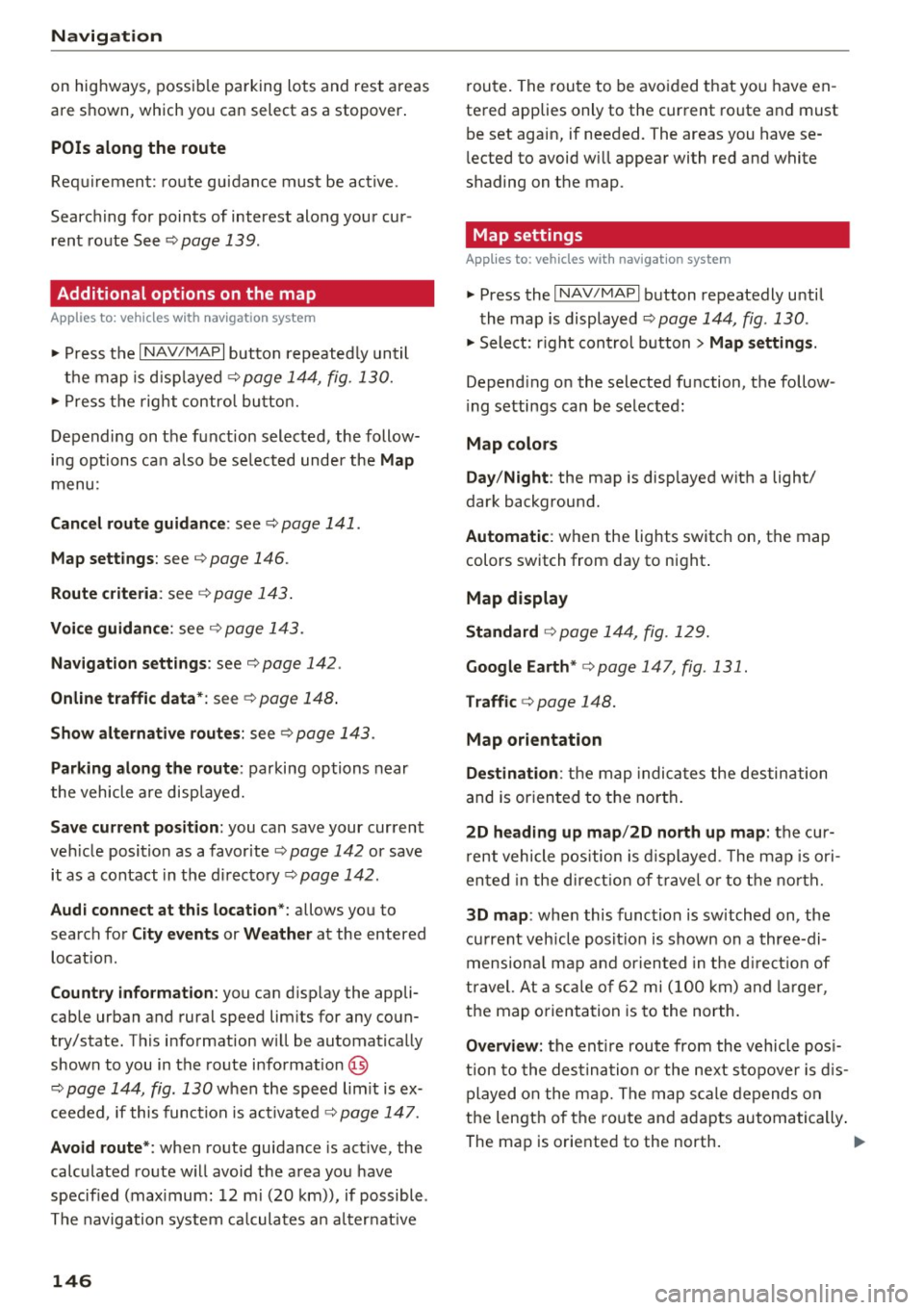
¢ page 144, fig. 130.
~ Press t he right contro l bu tton.
Depending on the funct ion selected , the follow
i n g options ca n also be se lected under the
Map
menu :
Cancel rout e guidance : see¢ page 141 .
Map settings : see <=> page 146.
Route c rite ria : see ¢ page 143 .
Voice guidance : see <=> page 143.
Nav igat ion sett ing s: see ¢ page 142 .
Online traffic data *: se e <=> page 148 .
Show altern ative route s: see<=> page 143.
Parking along the route : parking options near
the vehicle are disp layed.
Save current position : you can save your current
ve hicle position as a favorite <=>
page 142 or save
it as a contact in the di rectory <=>
page 142.
Aud i connect at this locat ion *: allows you to
search for
City events or Weather at the entered
locat ion .
Country inform ation : you can d isp lay the appli
cable urban and rural speed lim its for any coun
try/state. T his information w ill be automatically
shown to you in the route information @
<=> page 144, fig. 130 when the speed lim it is ex
ceeded , if this function is act ivated
¢ page 147.
Avoid route *: when route guidance is act ive, the
calc ulated route w ill avoid the area you have
specified (max imum: 12 mi (20 km)), if possible .
The navigation system ca lcula tes an a lter nat ive
146
route . The route to be avo ided that you have en
tered applies only to the current route and must be set again, if needed. The areas you have se
l ected to avoid w ill appear with red and white
shading on the map .
' Map settings
Applies to: vehicles with navigation system
~ Press the I NAV /MAPI button repeatedly until
the map is displayed
<=> page 144, fig . 130 .
~ Select: r ight cont rol b utton> Map settings .
Depending on the selected function, the follow
i ng settings can be selected :
Map colors
Day /Night :
the map is displayed w ith a light/
dark background.
Automatic : when the lights switch on, the map
colors switch from day to n ight .
Map display
Standard
<=> page 14 4, fig . 129.
Google E arth * <=>page 147 , fig. 131.
Traffic <=> page 148.
Map orientation
Destinati on:
the map indic ates the des tin ation
and is or ien ted to t he nor th .
2 D heading up map /2D north up map : the cur
r ent vehicle pos ition is d isplayed. The map is ori
ented in the d irect ion of t rave l o r to t he no rth.
3D map : when this function is sw itched on, the
cu rrent veh icle pos it io n is shown on a three-di
mensiona l map and oriented in t he d irect ion of
travel. At a sc ale of 62 mi ( 100 k m) and l arger ,
the map o rientation is to the north.
Overview : the entire route from the v ehicle pos i
t ion to the des tina tion o r the next stopove r is d is
played on the m ap. The m ap scale depends o n
the length of the ro ute and adapts automatically .
The map is oriented to the north . ..,.