2016 VOLVO XC90 T8 pairing phone
[x] Cancel search: pairing phonePage 10 of 546
8
Driving with a trailer367
Detachable trailer hitch 368
Trailer Stability Assist (TSA) 369
Ignition modes 370
Battery drain 372
Starting the engine 372
Turning the engine off 374
Driving systems 374
Hybrid battery charging cable 375
Hybrid charging cable circuit breaker 377
Hybrid-related symbols and messages 378
Preparations for charging the hybrid battery 380
Stopping hybrid battery charging 381
Initiating hybrid battery charging 382
Charging the hybrid battery 383
Hybrid battery charge status 385
Charger status indicators 387
Hybrid battery charging current 387
Long-term storage of a vehicle witha hybrid battery 388
Using the electric motor in city driving 389
Drive modes 390
ECO drive mode 394
Automatic transmission 395
Shiftlock396
Gear shift indicator 396
Gear selector positions 396
Steering wheel paddles *
398
Low Speed Control (LSC) 399
All Wheel Drive (AWD) 400
Suspension and leveling control *
400
INFOTAINMENT
The infotainment system
404
Sound settings 404
Radio 405
Radio settings 405
RBDS radio 406
Changing and searching for radio stations 406
HD Radio ™reception
407
Switching HD Radio on and off 409
HD Radio sub-channels 409
HD Radio limitations 410
SiriusXM ®
Satellite radio * 411
Using SiriusXM ®
Satellite radio radio *412
SiriusXM ®
Satellite radio * settings 413
Phone 414
Pairing a cell phone 415
Connecting/disconnecting a cell phone 416
Handling phone calls 417
Handling text messages 418
Phone settings 419
Text message settings 420
Connecting a Bluetooth ®
device 420
Connecting a device via theAUX/USB socket 420
Media player 421
Page 417 of 546
INFOTAINMENT
}}
415
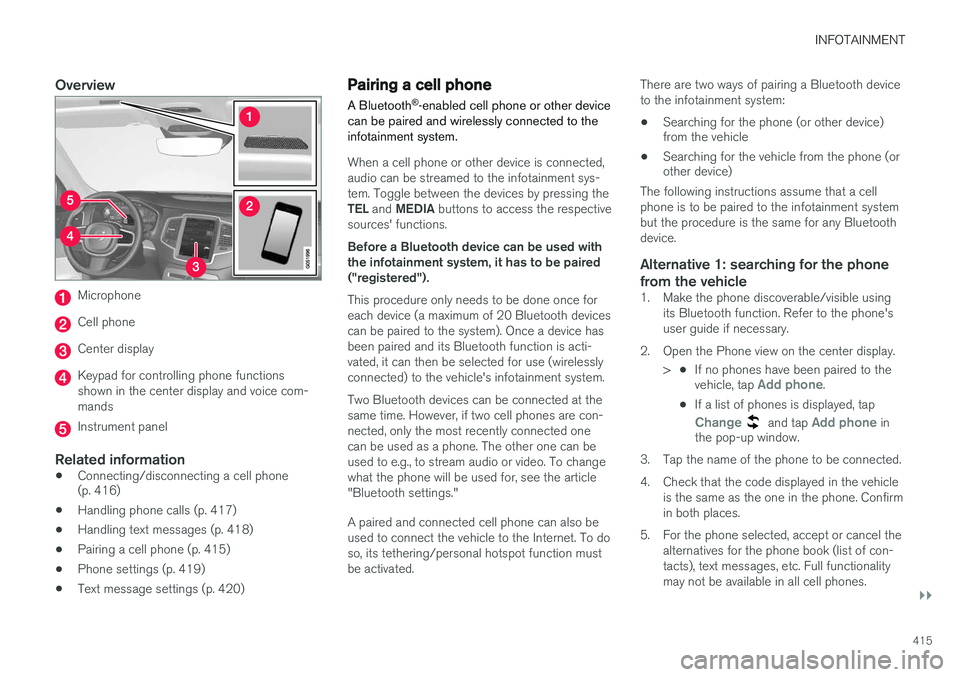
Overview
Microphone
Cell phone
Center display
Keypad for controlling phone functions shown in the center display and voice com-mands
Instrument panel
Related information
•Connecting/disconnecting a cell phone (p. 416)
• Handling phone calls (p. 417)
• Handling text messages (p. 418)
• Pairing a cell phone (p. 415)
• Phone settings (p. 419)
• Text message settings (p. 420)
Pairing a cell phone
A Bluetooth ®
-enabled cell phone or other device
can be paired and wirelessly connected to the infotainment system.
When a cell phone or other device is connected, audio can be streamed to the infotainment sys-tem. Toggle between the devices by pressing the TEL and MEDIA buttons to access the respective
sources' functions. Before a Bluetooth device can be used with the infotainment system, it has to be paired("registered"). This procedure only needs to be done once for each device (a maximum of 20 Bluetooth devicescan be paired to the system). Once a device hasbeen paired and its Bluetooth function is acti-vated, it can then be selected for use (wirelesslyconnected) to the vehicle's infotainment system. Two Bluetooth devices can be connected at the same time. However, if two cell phones are con-nected, only the most recently connected onecan be used as a phone. The other one can beused to e.g., to stream audio or video. To changewhat the phone will be used for, see the article"Bluetooth settings." A paired and connected cell phone can also be used to connect the vehicle to the Internet. To doso, its tethering/personal hotspot function mustbe activated. There are two ways of pairing a Bluetooth deviceto the infotainment system:
• Searching for the phone (or other device) from the vehicle
• Searching for the vehicle from the phone (orother device)
The following instructions assume that a cell phone is to be paired to the infotainment systembut the procedure is the same for any Bluetoothdevice.
Alternative 1: searching for the phone
from the vehicle
1. Make the phone discoverable/visible using its Bluetooth function. Refer to the phone'suser guide if necessary.
2. Open the Phone view on the center display. >•If no phones have been paired to the vehicle, tap
Add phone.
• If a list of phones is displayed, tap
Change and tap Add phone in
the pop-up window.
3. Tap the name of the phone to be connected.
4. Check that the code displayed in the vehicle is the same as the one in the phone. Confirm in both places.
5. For the phone selected, accept or cancel the alternatives for the phone book (list of con-tacts), text messages, etc. Full functionalitymay not be available in all cell phones.
Page 418 of 546
||
INFOTAINMENT
4166. To connect the vehicle to the Internet via the
phone's Bluetooth function, activate the phone's function for tethering/personal hot-spot, etc.
Alternative 2: searching for the vehicle from the phone
1. Open the center display's Phone view.
•If no phones have been paired to the vehi- cle, tap
Add phoneMake vehicle
discoverable.
• If a phone has previously been paired to the vehicle, tap
Change and tap Add
phone
Make vehicle discoverable in
the pop-up window.
2. Activate the phone's Bluetooth function.
3. Search in the phone for Bluetooth devices. > A list of Bluetooth devices will be dis-played.
4. Select the vehicle's name in the list.
5. Check that the code displayed in the phone is the same as the one in the vehicle. Con- firm in both places.
6. For the phone selected, accept or cancel the alternatives for the phone book (list of con-tacts), text messages, etc. Full functionalitymay not be available in all cell phones. 7. To connect the vehicle to the Internet via the
phone's Bluetooth function, activate thephone's function for tethering/personal hot-spot, etc.
NOTE
If your cell phone's operating system is upda- ted, this may break the connection betweenthe phone and the vehicle. If this happens,delete the phone from the list of pairedphones and repeat the pairing proceduredescribed in this article.
Compatible cell phonesMany of the cell phones available today have Bluetooth functionality but not all of them arefully compatible with the vehicle. Go towww.volvocars.com for a list of compatiblephones or contact your Volvo retailer.
Related information
• Connecting/disconnecting a cell phone (p. 416)
• Handling phone calls (p. 417)
• Handling text messages (p. 418)
• Phone settings (p. 419)
• Bluetooth settings (p. 433)
Connecting/disconnecting a cell phone
Once a cell phone or other Bluetooth device has been paired to the infotainment system, it can beconnected, disconnected or removed from thelist of available devices.
Connecting automatically1. Before switching on the vehicle's ignition, be sure that the phone's Bluetooth and personal hotspot (tethering) functions are activated.
2. Switch on the ignition. > The phone (or other device) will be con-nected to the system and can be usedwirelessly.
Connecting manually1. Be sure that the phone's Bluetooth and per- sonal hotspot (tethering) functions are acti-vated.
2. In the center display, open Phone view and tap
Change phone.
> A list of available Bluetooth devices (ones that have already been paired to the info- tainment system) will be displayed.
3. Tap the name of the phone or other device to be connected.
> The phone (or other device) will be con-nected.
Page 419 of 546
INFOTAINMENT
}}
417
Disconnecting a phone
–Deactivate the phone's Bluetooth function.
If a phone is carried out of range of the vehicle, it will automatically be disconnected. If a call in progress when this is done, the call will be transferred from the vehicle's speakers/micro-phone to the cell phone.
Changing phones1. In the center display, open Phone view. 2. Tap
Change.
> A list of available Bluetooth devices (ones that have already been paired to the info- tainment system) will be displayed.
3. Tap the name of the phone (or other device) to be connected.
Removing a phone (or other device) from the list
1. In the center display, open Phone view. 2.Tap
SettingsCommunicationBluetooth.
> A list of available Bluetooth devices (ones that have already been paired to the info- tainment system) will be displayed.
3. Tap the name of the phone to be deleted from the list. 4.
Tap
Remove device and confirm.
> The phone or other device is no longer paired to the vehicle. Before this device can be used again, the pairing procedurewill have to be repeated.
Related information
• Pairing a cell phone (p. 415)
Handling phone calls Calls can be made to one or more parties.
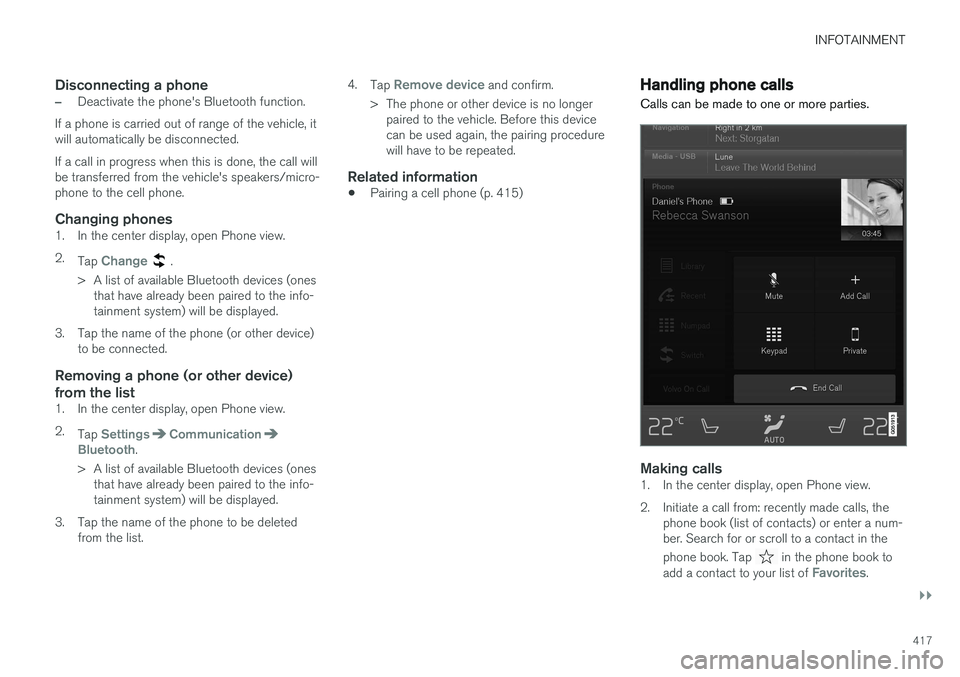
Making calls1. In the center display, open Phone view.
2. Initiate a call from: recently made calls, the
phone book (list of contacts) or enter a num- ber. Search for or scroll to a contact in the phone book. Tap
in the phone book to
add a contact to your list of Favorites.
Page 422 of 546
INFOTAINMENT
420
Text message settings
The following settings can be made for text mes- sages received through a paired and connectedcell phone.
Text message settings
–Pull down the center display's Top view and tap
SettingsCommunicationText
Messages and choose among the following
settings:
•
Notification in center display: shows
text messages in the center display's sta- tus bar.
•
Notification in driver display: shows
text messages in the instrument panel. With this alternative active, incoming mes-sages can be handled from the right-sidesteering wheel keypad.
•
Text message tone: select an audible
signal for incoming text messages.
Related information
• Connecting/disconnecting a cell phone (p. 416)
• Pairing a cell phone (p. 415)
• Handling text messages (p. 418)
Connecting a Bluetooth ®
device
Bluetooth ®
-enabled devices can be paired and
connected to the infotainment system to stream media and in some cases connect to the Inter-net.
Many cell phones and other devices currently on the market offer wireless Bluetooth ®
technology.
Consult your Volvo retailer or go to support.volvocars.com for any questions regar-ding a device's compatibility with the vehicle'sinfotainment system. The procedure for pairing and connecting a Bluetooth ®
-enabled device is the same as for a
cell phone. See the articles "Pairing a cell phone" and "Connecting/disconnecting a cell phone" fordetails.
Related information
• Pairing a cell phone (p. 415)
• Connecting/disconnecting a cell phone (p. 416)
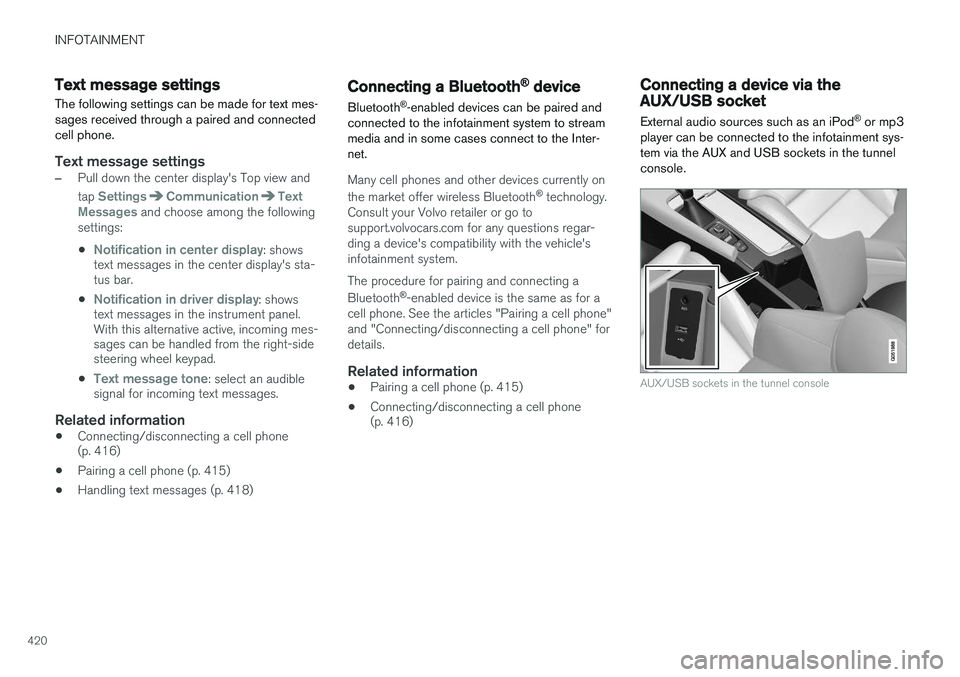
Connecting a device via the AUX/USB socket
External audio sources such as an iPod ®
or mp3
player can be connected to the infotainment sys- tem via the AUX and USB sockets in the tunnelconsole.
AUX/USB sockets in the tunnel console
Page 433 of 546

INFOTAINMENT
}}
431
Internet connected vehicle
Connecting to the Internet makes it possible to e.g., use certain navigation services, listen toweb radio, stream music using apps, contact aretailer and download software.
The vehicle can connect to the Internet using Bluetooth, Wi-Fi, a cell phone connected by acable to the USB socket or via the integratedmodem. When connected, it is possible to share (tether) a Wi-Fi-hotspot to allow other devices to use the connection 5
.
Connection status is shown in the center dis- play's status bar.
Related information
• Connecting to the Internet (p. 431)
• Apps (applications) (p. 433)
• Booking service and repairs (p. 475)
• System updates (p. 474)
• Volvo ID (p. 31)
• Symbols in the center display status bar (p. 47)
• Tethering (Wi-Fi sharing) (p. 435)
Connecting to the Internet
Connect the vehicle to the Internet using
Bluetooth, Wi-Fi, by connecting a phone through a cable to the USB socket or via the vehicle'sintegrated modem.
The cell phone and the network service provider must support Internet sharing (tethering) and thesubscription must included data transfer. See the terms and confidentiality information at support.volvocars.com before connecting to theInternet.
NOTE
When using Apple CarPlay, an Internet con- nection can only be established by usingWi-Fi or the vehicle's integrated modem.
Connect using BluetoothSee the article "Pairing a cell phone."
Connect using Wi-Fi
5 This does not apply to Wi-Fi connections.
Page 434 of 546
||
INFOTAINMENT
4321. Activate tethering/personal hotspot in the
cell phone.
2. Tap
Settings in the center display's Top
view.
3. Tap
CommunicationWi-Fi.
4. Tap Wi-Fi to activate/deactivate.
5. Tap the name of the network to be used.
6. Enter the network password.
7. If a different connection was used previously, confirm the connection change.
> The vehicle will connect to the network.
Please be aware that certain cell phones disable tethering when the connection to the vehicle hasbeen broken, e.g., when the phone has beenremoved from the vehicle. In such cases, thephone's tethering function will have to be reacti-vated the next time the phone is used to connectto the Internet. When a phone is connected to the vehicle, it is saved for future use. When a max. number of 50have been saved, the first one connected will bedeleted. To show the list of saved networks or to manually delete a network, tap
SettingsWi-Fi
Saved networks.
See the article "Wi-Fi technology and security" for network connection requirements.
Connect using a cable connected to the USB socket
1. Connect the phone via a cable to the USB socket in the tunnel console storage com- partment.
2. Activate USB tethering in the cell phone.
3. If a different connection was used previously, confirm the connection change.
> The vehicle will connect to the network.
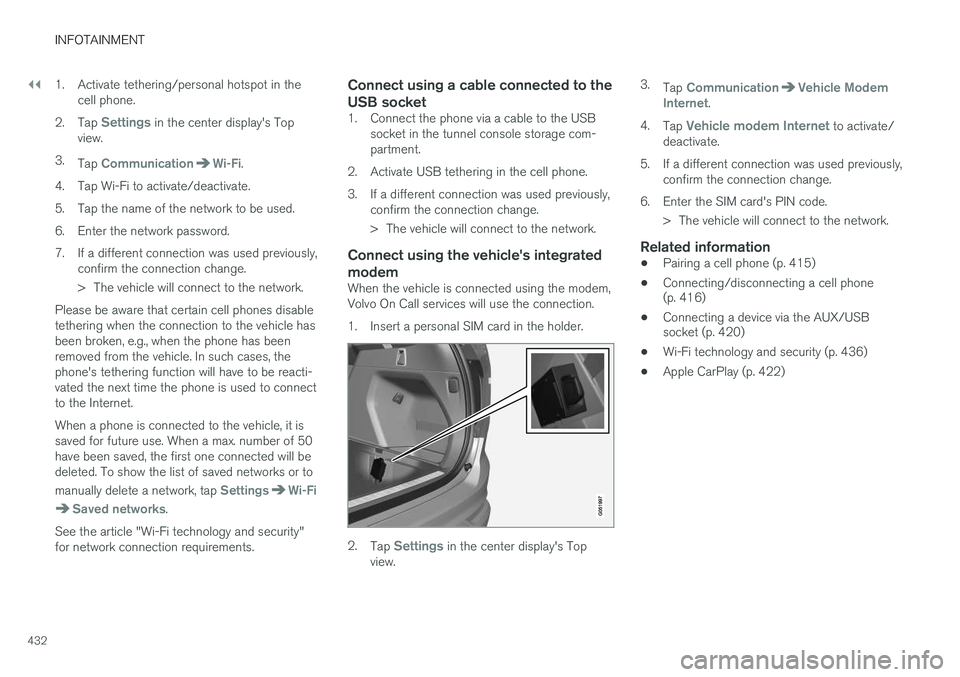
Connect using the vehicle's integrated modem
When the vehicle is connected using the modem, Volvo On Call services will use the connection.
1. Insert a personal SIM card in the holder.
2.Tap Settings in the center display's Top
view. 3.
Tap
CommunicationVehicle Modem
Internet.
4. Tap
Vehicle modem Internet to activate/
deactivate.
5. If a different connection was used previously, confirm the connection change.
6. Enter the SIM card's PIN code. > The vehicle will connect to the network.
Related information
• Pairing a cell phone (p. 415)
• Connecting/disconnecting a cell phone (p. 416)
• Connecting a device via the AUX/USBsocket (p. 420)
• Wi-Fi technology and security (p. 436)
• Apple CarPlay (p. 422)
Page 436 of 546
||
INFOTAINMENT
434operated in conjunction with any other antenna or transmitter. Canada This device complies with Industry Canada licence-exempt RSS standard(s). Operation issubject to the following two conditions: (1) this device may not cause interference, and(2) this device must accept any interference, including interference that may cause undesiredoperation of the device.
Related information
•
Internet connected vehicle (p. 431)
• Pairing a cell phone (p. 415)
• Phone (p. 414)
• Media player (p. 421)
• Connecting/disconnecting a cell phone (p. 416)
Downloading, updating and uninstalling apps
Apps can be added (downloaded), kept up-to- date or deleted.
NOTE
Downloading data may affect other services that transfer data such as web radio, stream-ing music, etc. If this occurs, a download inprogress can be cancelled or the other serv-ice can be temporarily turned off.
Apps are managed via theRemote update service in
the center display's App view. To download, update or delete apps, the vehicle must be con-nected to the Internet.
Downloading an app
1. Open the Remote update service app.
2. Select
Explore to open a list of apps that
are available but which are not installed in the vehicle. Tap anywhere in a line for an appto expand the list for additional information. 3.
Select
Install to start downloading the app. It
will remain in the list and a new download can be initiated if necessary.
> Download status will be indicated while it is in progress. A message will be displayed if a download cannot be started immediately. The appwill remain in the list and a new downloadcan be initiated if necessary.
Cancelling (aborting) a download
–Tap Abort to cancel a download that is cur-
rently underway.
Only a download can be cancelled. If the installa-
tion phase has begun, it cannot be interrupted.
Updating appsIf an app is being used while an update is in pro- gress, it will be restarted to complete the update.
Update (install) all
1. Open the Remote update service app.
2. Select
Install all.
> The update will begin.
Updating certain apps
1. Open the Remote update service app.
2. Select
Application updates to open a list
of available updates.
3. Find the desired app and select
Install.
> The update will begin.