Page 346 of 688

3463-2. Using the audio system (Entune Audio)
VENZA_OM_OM73030U_(U) ● AAC file compatibility
• Compatible standards
MPEG4/AAC-LC
• Compatible sampling frequencies
11.025/12/16/22.05/24/32/44.1/48 (kHz)
• Compatible bit rates
16-320 (kbps)
• This system can play back AAC files encoded by iTunes.
● Compatible media
Media that can be used for MP3, WMA and AAC playback are CD-Rs and
CD-RWs.
Playback in some instances may not be possible if the CD-R or CD-RW is
not finalized. Playback may not be possible or the audio may jump if the
disc is scratched or marked with fingerprints.
● Compatible disc formats
The following disc formats can be used.
• Disc formats: CD-ROM Mode 1 and Mode 2
CD-ROM XA Mode 2, Form 1 and Form 2
• File formats: ISO9660 Level 1, Level 2, (Romeo, Joliet)
UDF (2.01 or lower)
MP3, WMA and AAC files written in any format other than those listed
above may not play correctly, and their file names and folder names may
not be displayed correctly.
Items related to standards and limitations are as follows.
• Maximum directory hierarchy: 8 levels (including the root)
• Maximum length of folder names/file names: 32 characters
• Maximum number of folders: 192 (including the root)
• Maximum number of files per disc: 255
● File names
The only files that can be recognized as MP3/WMA/AAC and played are
those with the extension .mp3, .wma or .m4a.
● Discs containing multi-session recordings
As the audio system is compatible with multi session discs, it is possible to
play discs that contain MP3, WMA and AAC files. However, only the first
session can be played.
Page 350 of 688
3503-2. Using the audio system (Entune Audio)
VENZA_OM_OM73030U_(U)Listening to an iPod Connecting an iPod
P. 3 2 5
Audio control screen
Pressing the “AUDIO” button disp lays the audio control screen from
any screens of the selected source.
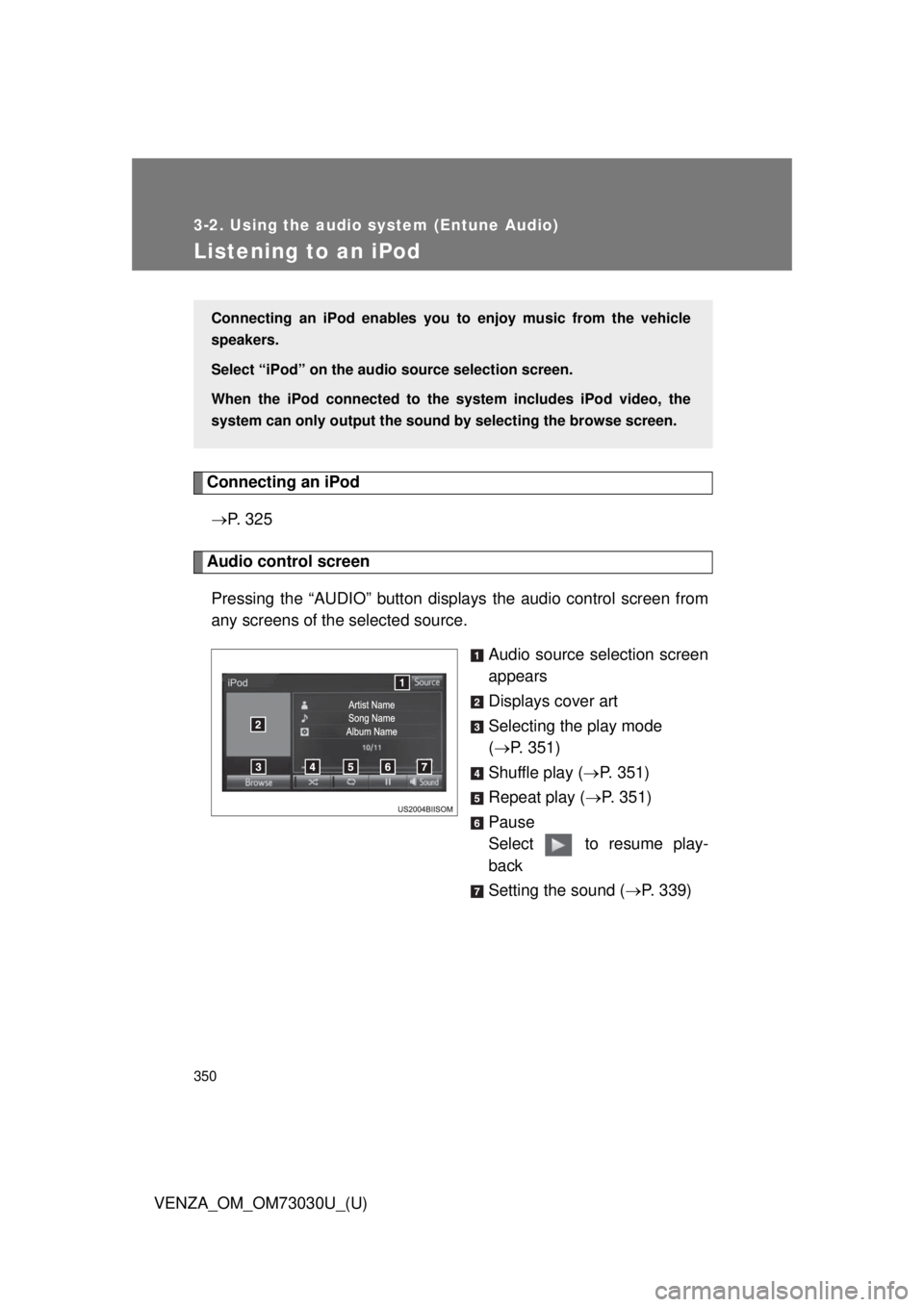
Audio source selection screen
appears
Displays cover art
Selecting the play mode
( P. 351)
Shuffle play ( P. 351)
Repeat play ( P. 351)
Pause
Select to resume play-
back
Setting the sound ( P. 339)Connecting an iPod enables you to enjoy music from the vehicle
speakers.
Select “iPod” on the audio source selection screen.
When the iPod connected to th e system includes iPod video, the
system can only output the sound by selecting the browse screen.
Page 352 of 688

3523-2. Using the audio system (Entune Audio)
VENZA_OM_OM73030U_(U) ■ iPod cover art
● Depending on the iPod and songs in the iPod, iPod cover art may be dis-
played.
● This function can be changed to on/off. ( P. 332)
● It may take time to display iPod cover art, and the iPod may not be oper-
ated while the cover art display is in process.
● Only iPod cover art that is saved in JPEG format can be displayed.
■ iPod functions
● When an iPod is connected and the audio source is changed to iPod
mode, the iPod will resume play from the same point in which it was last
used.
● Depending on the iPod that is connected to the system, certain functions
may not be available. If a function is unavailable due to a malfunction (as
opposed to a system specification), disconnecting the device and recon-
necting it may resolve the problem.
● While connected to the system, the iPod cannot be operated with its own
controls. It is necessary to use the controls of the vehicle’s audio system
instead.
● When the battery level of an iPod is very low, the iPod may not operate. If
so, charge the iPod before use.
● Compatible models ( P. 354)
■ iPod problems
To resolve most problems encountered when using your iPod, disconnect
your iPod from the vehicle iPod connection and reset it. For instructions on
how to reset your iPod, refer to your iPod Owner’s Manual.
Page 356 of 688
3563-2. Using the audio system (Entune Audio)
VENZA_OM_OM73030U_(U)Listening to a USB memor y device Connecting a USB memory device
P. 3 2 5
Audio control screen
Pressing the “AUDIO” button disp lays the audio control screen from
any screens of the selected source.
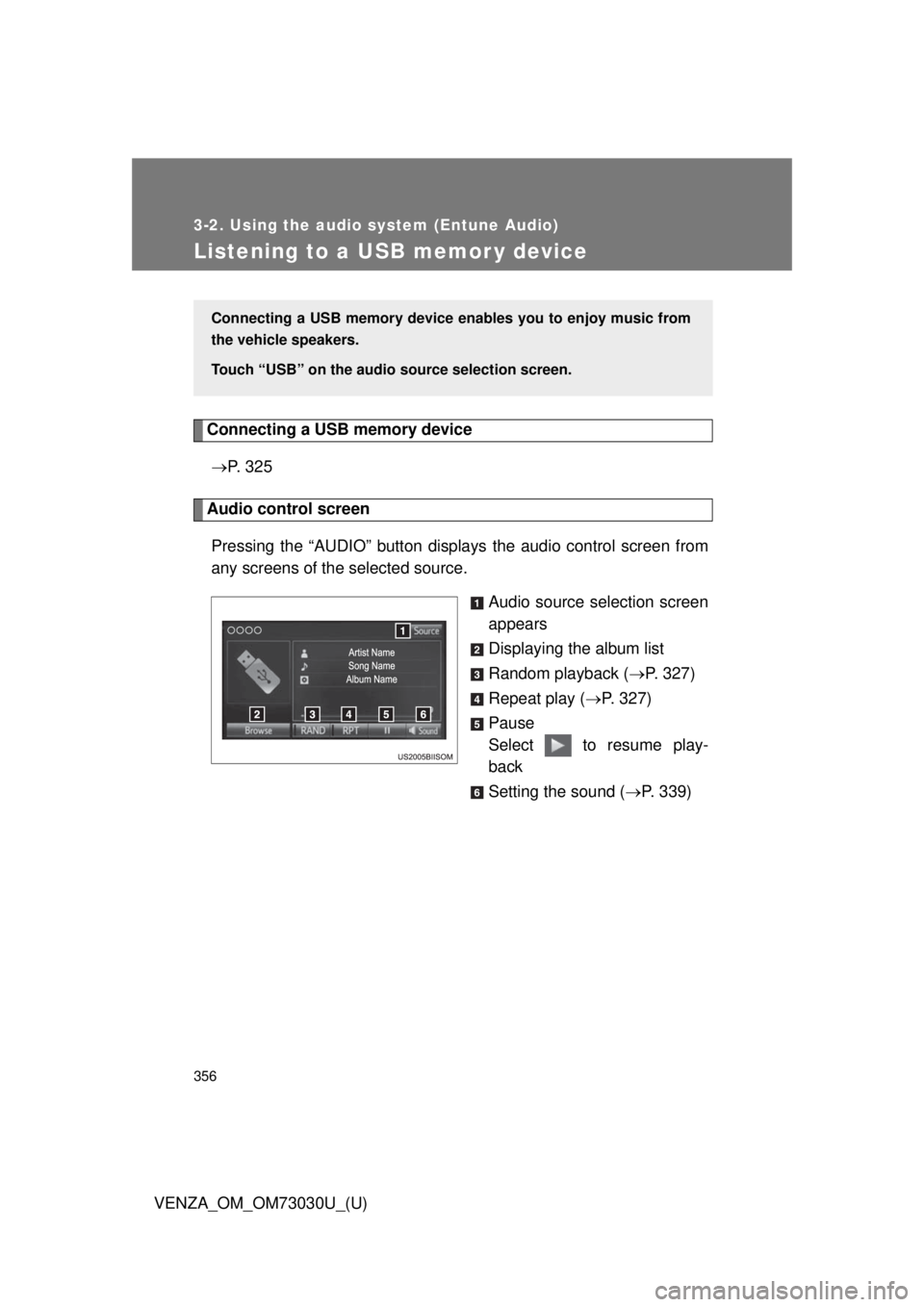
Audio source selection screen
appears
Displaying the album list
Random playback ( P. 327)
Repeat play ( P. 327)
Pause
Select to resume play-
back
Setting the sound ( P. 339)Connecting a USB memory device en ables you to enjoy music from
the vehicle speakers.
Touch “USB” on the audio source selection screen.
Page 358 of 688

3583-2. Using the audio system (Entune Audio)
VENZA_OM_OM73030U_(U) ■ USB memory
● Compatible devices
USB memory device that can be used for MP3, WMA and AAC playback.
● Compatible device formats
The following device format can be used:
• USB communication format: USB2.0 FS (12 Mbps) and USB2.0 HS
(480 Mbps)
• File system format: FAT16/32 (Windows)
• Correspondence class: Mass storage class
MP3, WMA and AAC files written to a device with any format other than
those listed above may not play correctly, and their file names and
folder names may not be displayed correctly.
Items related to standards and limitations are as follows:
• Maximum directory hierarchy: 8 levels
• Maximum number of folders in a device: 3000 (including the root)
• Maximum number of files in a device: 9999
• Maximum number of files per folder: 255
● MP3, WMA and AAC files
MP3 (MPEG Audio LAYER 3) is a standard audio compression format.
Files can be compressed to approximately 1/10 of their original size using
MP3 compression.
WMA (Windows Media Audio) is a Microsoft audio compression format. This
format compresses audio data to a size smaller than that of the MP3 format.
This product is protected by certain intellectual property rights of Microsoft
Corporation and third parties. Use or distribution of such technology outside
of this product is prohibited without a license from Microsoft or an authorized
Microsoft subsidiary and third parties.
AAC is short for Advanced Audio Coding and refers to an audio compression
technology standard used with MPEG2 and MPEG4.
MP3, WMA and AAC file and media/formats compatibility are limited.
Page 362 of 688
3623-2. Using the audio system (Entune Audio)
VENZA_OM_OM73030U_(U)Using the AUX port Connecting a portable audio player
P. 3 2 5■ Operating portable audio players connected to the audio system
The volume can be adjusted using the vehicle’s audio controls. All other
adjustments must be made on the portable audio player itself.
■ When using a portable audio player connected to the power outlet
Noise may occur during playback. Use the power source of the portable
audio player.
CAUTION■ While driving
Do not connect a portable audio player or operate the device controls.To use the AUX port, connect a portable player, press the “AUDIO”
button, then select “AUX” to display the audio control screen.
Page 365 of 688
3653-2. Using the audio system (Entune Audio)
VENZA_OM_OM73030U_(U) 3
Interior features Registering and connecti ng from the “Bluetooth
* Setup” screen
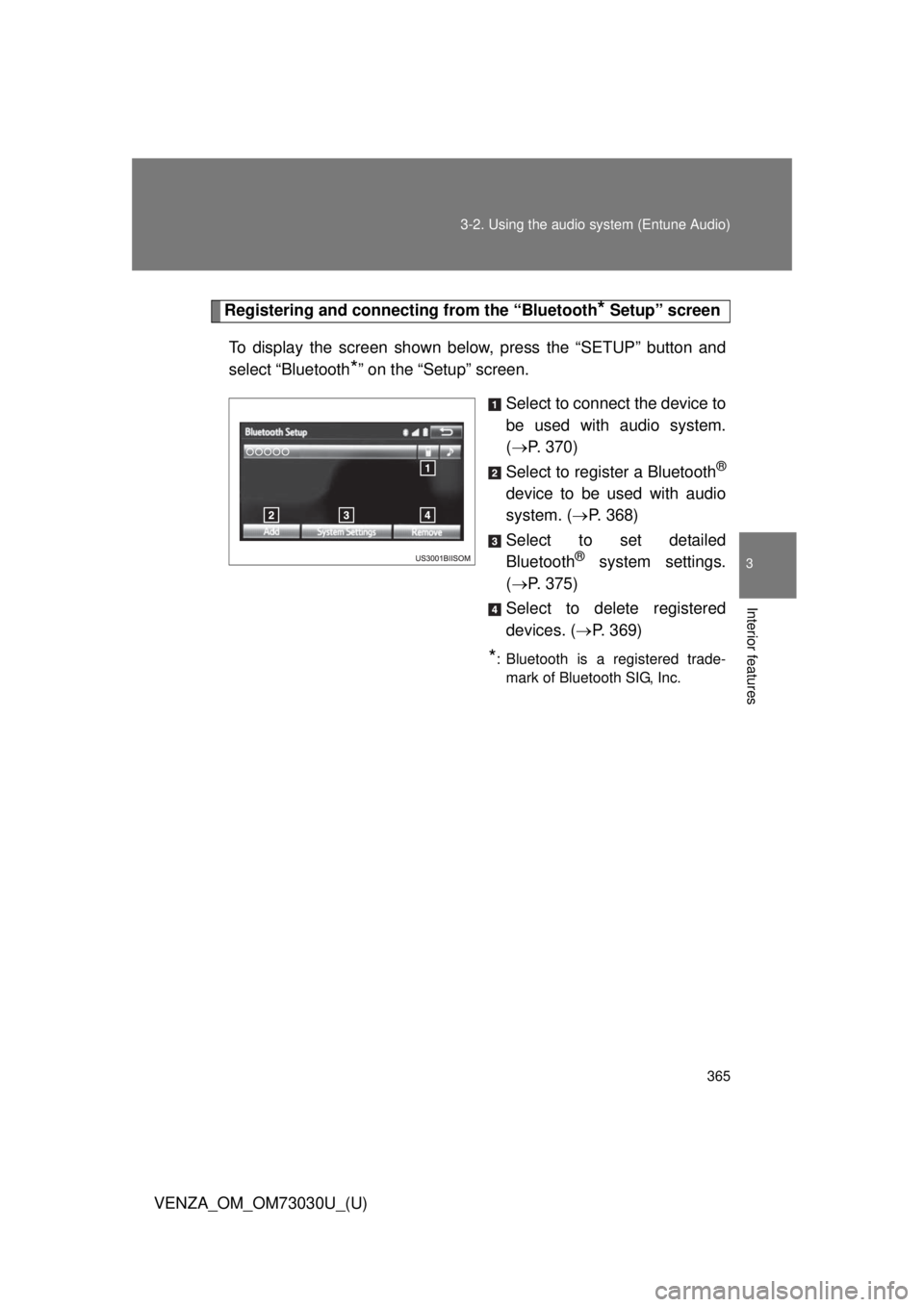
To display the screen shown below, press the “SETUP” button and
select “Bluetooth
* ” on the “Setup” screen.
Select to connect the device to
be used with audio system.
( P. 370)
Select to register a Bluetooth ®
device to be used with audio
system. ( P. 368)
Select to set detailed
Bluetooth ®
system settings.
( P. 375)
Select to delete registered
devices. ( P. 369)
* : Bluetooth is a registered trade-
mark of Bluetooth SIG, Inc.
Page 368 of 688
3683-2. Using the audio system (Entune Audio)
VENZA_OM_OM73030U_(U)Registering a Bluetooth ®
deviceHow to register a Bluetooth ®
device
Display the “Bluetooth
* Setup” screen. ( P. 365)
* : Bluetooth is a registered trademark of Bluetooth SIG, Inc.
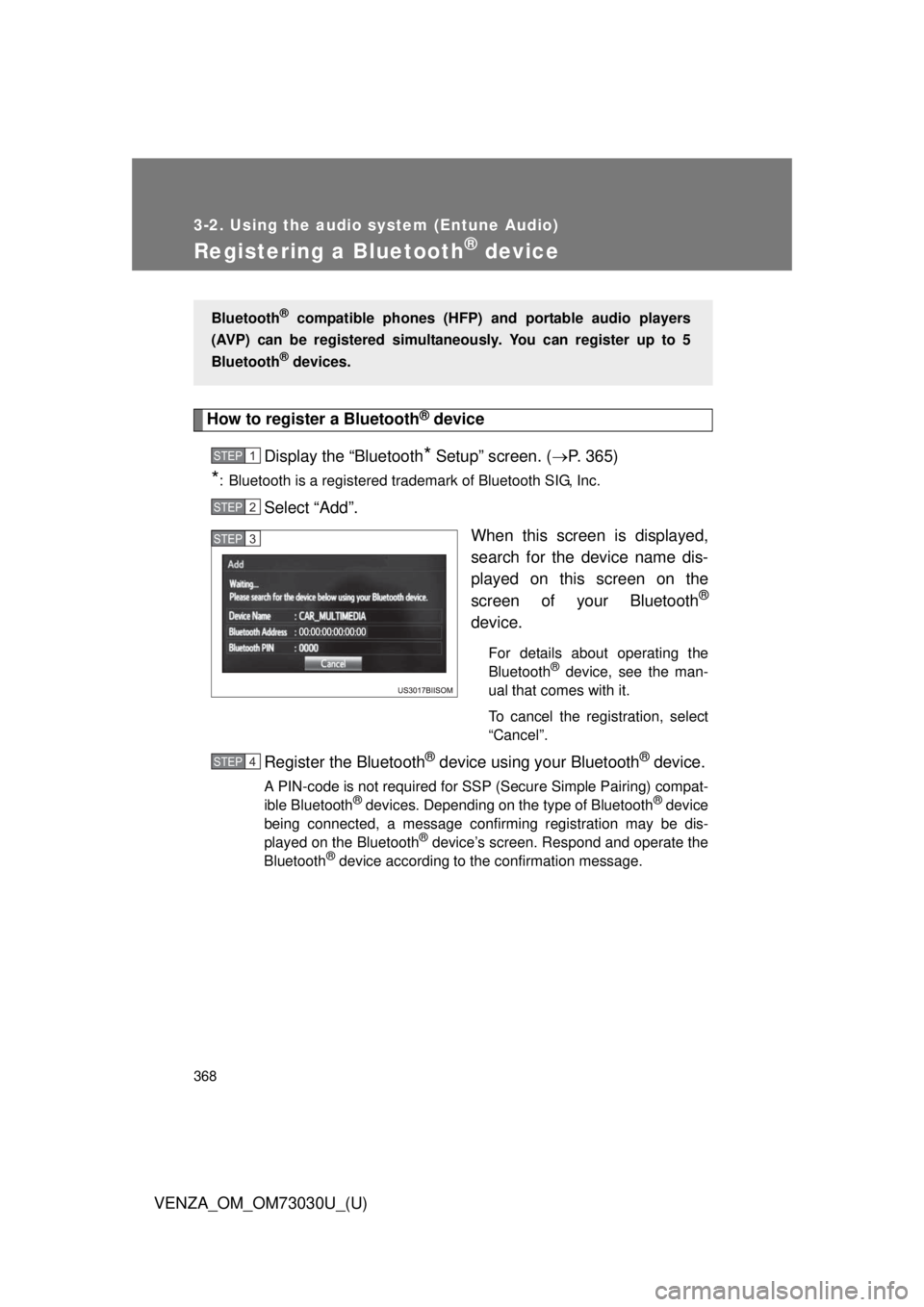
Select “Add”.
When this screen is displayed,
search for the device name dis-
played on this screen on the
screen of your Bluetooth ®
device. For details about operating the
Bluetooth ®
device, see the man-
ual that comes with it.
To cancel the registration, select
“Cancel”.
Register the Bluetooth ®
device using your Bluetooth ®
device.A PIN-code is not required for SSP (Secure Simple Pairing) compat-
ible Bluetooth ®
devices. Depending on the type of Bluetooth ®
device
being connected, a message confirming registration may be dis-
played on the Bluetooth ®
device’s screen. Respond and operate the
Bluetooth ®
device according to the confirmation message.Bluetooth ®
compatible phones (HFP) and portable audio players
(AVP) can be registered simultane ously. You can register up to 5
Bluetooth ®
devices.STEP 1
STEP 2
STEP 3
STEP 4