2016 SUBARU WRX phone
[x] Cancel search: phonePage 340 of 594

tration may be displayed on the Blue-
tooth device ’ s screen. Respond and
operate the Bluetooth device accord-
ing to the confirmation message.
4. Check that the screen is displayed
when registration is complete.
. The system waits for connection
requests coming from the registered
device.
. At this stage, the Bluetooth func-
tions are not yet available.
! Deleting a Bluetooth device
1. Display the “ BT Devices Connection ”
screen. Refer to “ Registering a Bluetooth
phone for the first time ” F 5-81.
2. Select the desired device.
Press and hold the Trash box icon for the
device to be deleted, and then select
“ OK ” .
NOTE When deleting a Bluetooth phone, the
contact data will be deleted at the same
time.
! Connecting a Bluetooth device
Up to 5 Bluetooth devices (Phones (HFP)
and audio devices (AVP)) can be regis-
tered. If more than 1 Bluetooth device has been
registered, select which device to connect
to.
1. Display the “ BT Devices Connection ”
screen. Refer to “ Registering a Bluetooth
phone for the first time ” F 5-81.
2. Select the device to be connected.
. Supported profile icons will be dis-
played.
–
: Phone
– : Audio device
– : Smartphone Application
. Supported profile icons for currently
connected devices will illuminate.
. The Audio icon illuminates only
when in the Bluetooth audio mode.
. All icons are dimmed when Blue-
tooth is set to OFF or when the
connection cannot be made with the
device.
NOTE . It may take time if the device con-
nection is carried out during Bluetooth
audio playback.
. Depending on the type of Bluetooth
device being connected, it may be
necessary to perform additional steps
on the device.
. It is not possible to establish a
Bluetooth connection with iOS devices currently connected with a USB cable.
! Bluetooth ON/OFF
1. Display the “ BT Devices Connection ”
screen. Refer to “ Registering a Bluetooth
phone for the first time ” F 5-81.
2. Select the “ Bluetooth ON/OFF ” key.
. Select “ ON ” or “ OFF ” to connect/
disconnect the Bluetooth communica-
tion. “ ON ” establishes a connection,
and “ OFF ” disconnects the connec-
tion.
. The setting is fixed as “ OFF ” when
no device is registered.
! “ In-Car-Device setting ” screen
The Bluetooth settings can be confirmed
and changed.
1. Display the “ SETTINGS ” screen. Refer
to “ Registering a Bluetooth phone for the
first time ” F 5-81.
2. On the SETTINGS for In-Car-Device
setting select “ set ” key. Audio/Bluetooth ®
settings
– CONTINUED –5-85
Page 342 of 594

! When the cursor is at the “ Device
Name Display Area ”
. Thedevicenamecanbesetor
changed.
. Press the “ PIN ” key to enter a pass-
code.
. If the “ PIN ” key is already selected, the
“ Alphabet ” key is cross-hatched and dis-
abled.
! When the cursor is at the “ Pass-
code Display Area ”
. The passcode can be set/changed.
. Press the “ Name ” key to enter a device
name. Phone operation (Hands-free
system for cellular phones) & Quick reference The phone top screen can be used to
make a phone call. To display the hands-
free operation screen, select
and then
select
PHONE (PHONE), or press the
switch on the steering wheel.
Several functions are available to operate
on each screen that is displayed by
selecting the 4 tabs. PHONE (Menu) screen
PHONE (Dialpad) screenAudio/Phone operation (Hands – free system for cellular phones)
– CONTINUED –5-87
Page 343 of 594

Audio/Phone operation (Hands – free system for cellular phones)
No. Function
& 1
“ Incoming Calls ” key: Opens the
Incoming Calls screen.
& 2
“ Outgoing Calls ” key: Opens the Out-
going Calls screen.
& 3
“ Contacts ” key: Opens the Contacts
screen.
& 4
“ Dialpad ” key: Changes the screen
from the Menu screen to the Dialpad
screen.
& 5
“ Option ” key: Opens the phone vo-
lume setting screen.
& 6
“ OFF Hook ” key: Use to make a
phone call. You cannot press this key
until you open the Dialpad screen and
enter a phone number.
& 7
“ Bluetooth Setting ” key: Opens the BT
Devices Connection screen.
& 8
Enter the phone number that you
want to call.
& 9
“ Switch Screen ” key: Switches the
screen to the Phone (Menu) screen.
& 10
& 11
If no device is registered, a message
is displayed instead of menu items.
& Some basics The hands-free system enables calls to be
made and received without having to take
your hands off the steering wheel.
This system supports Bluetooth. Bluetooth is a wireless data system that enables
cellular phones to be used without being
connected by a cable or placed in a
cradle.
The operating procedure of the phone is
explained here.
WARNING. While driving, do not use a cel-
lular phone or connect the Blue-
tooth phone.
. Your audio unit is fitted with
Bluetooth antennas. People with
implantable cardiac pacemakers,
cardiac resynchronization ther-
apy-pacemakers or implantable
cardioverter defibrillators should
maintain a reasonable distance
between themselves and the
Bluetooth antennas. The radio
waves may affect the operation
of such devices.
. Before using Bluetooth devices,
users of any electrical medical
device other than implantable
cardiac pacemakers, cardiac re-
synchronization therapy-pace-
makers or implantable cardiover-
ter defibrillators should consult
the manufacturer of the device
for information about its opera-5-88
Page 344 of 594

tion under the influence of radio
waves. Radio waves could have
unexpected effects on the opera-
tion of such medical devices.
CAUTIONDo not leave your cellular phone in
the vehicle. The temperature inside
mayrisetoalevelthatcould
damage the phone.
NOTE . If your cellular phone does not
support Bluetooth, this system cannot
function.
. In the following conditions, the sys-
tem may not function:
– The cellular phone is turned off.
– The current position is outside
the communication area.
– The cellular phone is not con-
nected.
– The cellular phone has a low
battery.
. When using the hands free function
and other Bluetooth functions at the
same time, the following problems may
occur:
– The Bluetooth connection may be cut.
– Noise may be heard when play-
ing back voice with the Bluetooth
function.
! Registering/connecting a Bluetooth
phone
To use the hands-free system for cellular
phones, it is necessary to register a
cellular phone with the system. Refer to
“ Registering/connecting Bluetooth ®
de-
vice ” F 5-81.
! Bluetooth phone condition dis-
play
The condition of the Bluetooth phone
appears on the upper right side of the
screen. Refer to “ Bluetooth phone condi-
tion display ” F 5-89.
! Using the phone switch/micro-
phone
Steering switch
By pressing the phone switch, a call can
be received or ended without taking your
hands off the steering wheel. & 1
Volume control switch
. Press the “ + ” side to increase the
volume.
. Press the “ - ” side to decrease the
volume.
& 2
Off hook switch
& 3
On hook switch
Microphone
The microphone is used when talking on
the phone.Audio/Phone operation (Hands – free system for cellular phones)
– CONTINUED –5-89
Page 345 of 594

Audio/Phone operation (Hands – free system for cellular phones)
Type A
Type B ! Voice command system
Press this switch to operate the voice
command system.
& 1
Talk switch
. The voice command system and its list
of commands can be operated. Refer to
“ Voice command system operation ” F 5-
108.
NOTE . The other party ’ s voice will be heard
from the front speakers. The audio/
visual system will be muted during
phone calls or when hands-free voice
commands are used.
. Talk alternately with the other party
on the phone. If both parties speak at
the same time, the other party may not hear what has been said. (This is not a
malfunction.)
. Keep call volume down. Otherwise,
the other party ’ s voice may be audible
outside the vehicle and voice echo may
increase. When talking on the phone,
speak clearly towards the microphone.
. The other party may not hear you
clearly when:
– Drivingonanunpavedroad.
(Making excessive traffic noise.)
– Driving at high speeds.
– The roof or windows are open.
– The air conditioning vents are
pointed towards the microphone.
– The sound of the air conditioning
fan is loud.
– Thereisanegativeeffecton
sound quality due to the phone
and/or network being used.
! About the contacts in the contact
list
. The following data is stored for every
registered phone. When another phone is
connected, the following registered data
cannot be read:
– Contact data
NOTE
When a phone ’ s registration is deleted,
the above-mentioned data is also de-5-90
Page 346 of 594
leted.
! When selling or disposing of the
vehicle
A lot of personal data is registered when
the hands-free system is used. When
selling or disposing of the vehicle, initialize
the data. Refer to “ Other settings ” F 5-10.
. The following data in the system can
be initialized:
– Contact data
NOTE Once initialized, the data and settings
will be erased. Pay much attention
when initializing the data. & Calling on the Bluetooth
phone After a Bluetooth phone has been regis-
tered, a call can be made using the hands-
free system. There are several methods
by which a call can be made, as described
below.
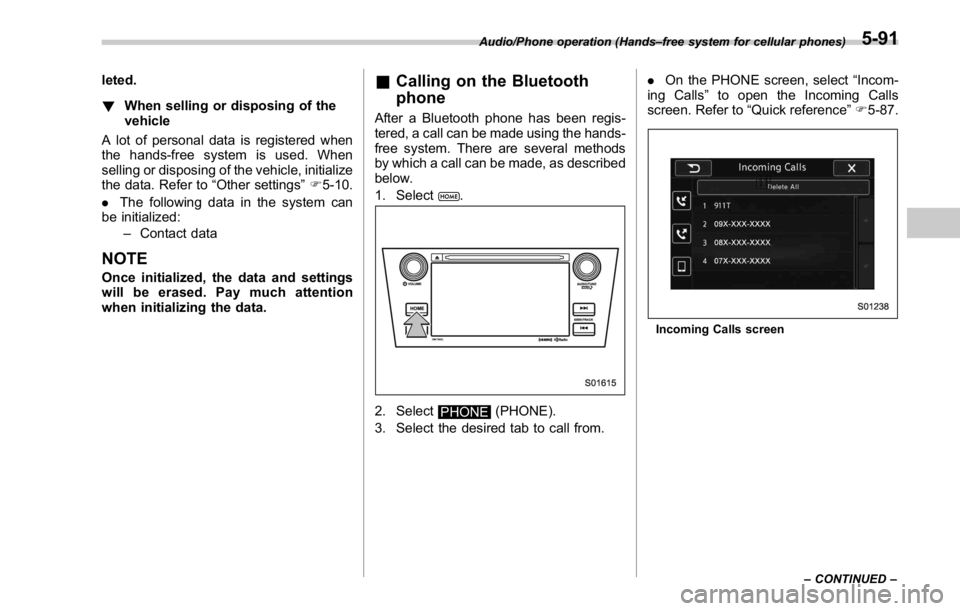
1. Select
.
2. Select
PHONE (PHONE).
3. Select the desired tab to call from. . On the PHONE screen, select “ Incom-
ing Calls ” to open the Incoming Calls
screen. Refer to “ Quick reference ” F 5-87.
Incoming Calls screenAudio/Phone operation (Hands – free system for cellular phones)
– CONTINUED –5-91
Page 347 of 594
Audio/Phone operation (Hands – free system for cellular phones)
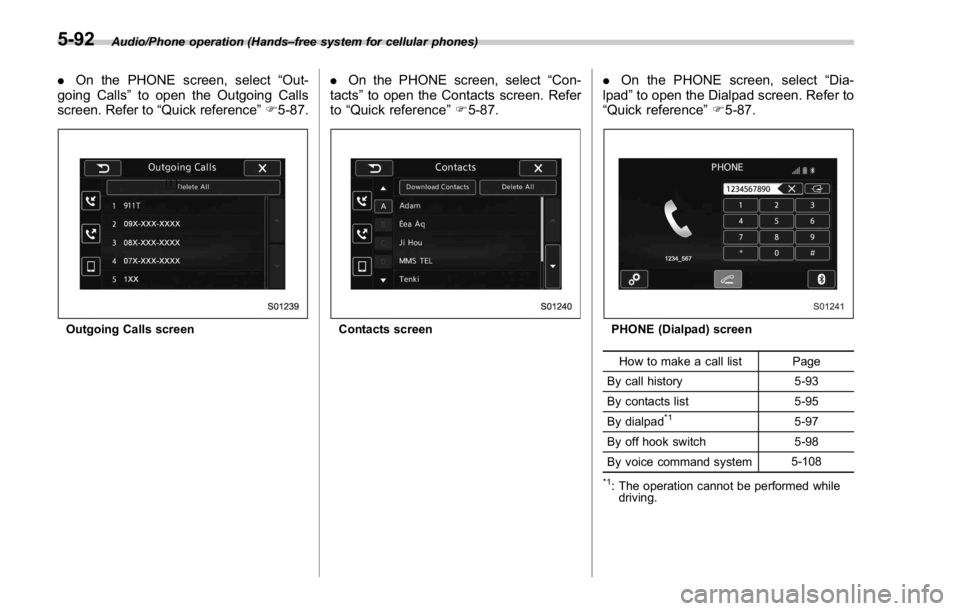
. On the PHONE screen, select “ Out-
going Calls ” to open the Outgoing Calls
screen. Refer to “ Quick reference ” F 5-87.
Outgoing Calls screen . On the PHONE screen, select “ Con-
tacts ” to open the Contacts screen. Refer
to “ Quick reference ” F 5-87.
Contacts screen . On the PHONE screen, select “ Dia-
lpad ” to open the Dialpad screen. Refer to
“ Quick reference ” F 5-87.
PHONE (Dialpad) screen
How to make a call list Page
By call history 5-93
By contacts list 5-95
By dialpad *1
5-97
By off hook switch 5-98
By voice command system 5-108 *1
: The operation cannot be performed while
driving.5-92
Page 348 of 594

! By call history
! Incoming Calls
. On the PHONE screen, select “ Incom-
ing Calls ” to open the Incoming Calls
screen.
. Up to ten items in the incoming call
history are listed. Scroll the screen to see
items that are not on the screen.
. You can make a call by selecting an
item in the incoming call history list.
Incoming Calls screen
. If there is no incoming call history, a
message appears to indicate that there is
no incoming call history data. Incoming Calls screen (No incoming call
history)
Incoming Calls screen (Confirmation to
delete incoming call history) No. Function
& 1
“ Outgoing Calls ” key: Opens the Out-
going Calls screen.
& 2
“ Contacts ” key: Opens the Contacts
screen.
& 3
“ Delete All ” key: Deletes all incoming
call history data. The “ Delete All ” key
is disabled when there is no incoming
call history.
& 4
“ OK ” key: Deletes incoming call his-
tory.
& 5
“ Cancel ” key: Cancels the deletion of
incoming call history. The screen
returns to the Incoming Calls screen.
NOTE . When making a call to the same
number continuously, only the most
recent call is listed in call history.
. When a phone number registered in
the contact list is received, the name is
displayed.
. Number-withheld calls are also
memorized in the system.
. International phone calls may not be
made depending on the type of cellular
phone you have.
. The list should group together con-
secutive entries with the same phone
number and same call type.Audio/Phone operation (Hands – free system for cellular phones)
– CONTINUED –5-93