2016 SUBARU WRX phone
[x] Cancel search: phonePage 286 of 594

STARLINK disclaimer error screen
The error screen will be displayed due to
one of the following possible reasons.
. Your smartphone and the system
has not been connected via USB (for
iPhone) or Bluetooth (for Android).
. STARLINK APPS has not been
activated.
3. If you press
Check (Check) on the
STARLINK disclaimer screen, the APPS
main screen will be displayed. No. Function
& 1
Select to go to the Music APPS
screen.
& 2
Select to go to the News APPS
screen.
& 3
Select to go to the Calendar APPS
screen.
& 4
Select to go to the Weather APPS
screen.
& 5
Select to go to the iHeartRadio
APPS screen. Error screen that is displayed while using
STARLINK
The error screen will be displayed while
using STARLINK due to one of the
following possible reasons.
. When your smartphone has no service
or the Bluetooth communication is not
possible.
. When your smartphone is turned off.
. When the STARLINK APPS is quit.
. When connection to the STARLINK
server is not possible.
. When a problem occurs other than a
server error.
NOTE
When using the STARLINK function, a
disclaimer screen will be displayed. Be
sure to fully read the contents before Audio/Useful information
– CONTINUED –5-31
Page 287 of 594

Audio/Useful information
using the function.
NOTE Connection method
iPhone: USB
Android: Bluetooth
Supported devices
iPhone: iPhone 4/iPhone 4S/iPhone 5
(iOS Ver. 5.1 or later)
Android: (OS Ver. 4.0 or later)5-32
Page 293 of 594

Audio/Radio operation
2. If you select an item from the book-
mark list, the following image will be
displayed.
3. When you call up bookmark informa-
tion, a QR code converted from the
bookmark information will be displayed on the screen. You can access a URL by
reading the QR code using a smartphone,
etc.
! Delete bookmark from the list
1. Select
Delete Bookmark (Delete
Bookmark) on the station list screen and
the following screen will be displayed.
2. If you select an item from the book-
mark list, the item will be deleted from the
bookmark list.
3. If you select
Delete All (Delete All), all
bookmark items in the bookmark list will
be deleted. . FM stations can provide additional
digital-only audio programming on HD2/
HD3 Channels.
! Radio broadcast data system
This audio system is equipped with Radio
Broadcast Data Systems (RBDS). RBDS
mode allows text messages to be received
from radio stations that utilize RBDS
transmitters.
When RBDS is on, the radio can
. only select stations of a particular
program type,
. display messages from radio stations,
. search for a stronger signal station.5-38
Page 318 of 594
WARNING. Do not operate the player ’ s con-
trols or connect to the Bluetooth
audio system while driving.
. Your audio unit is fitted with
Bluetooth antennas. People with
implantable cardiac pacemakers,
cardiac resynchronization ther-
apy-pacemakers or implantable
cardioverter defibrillators should
maintain a reasonable distance
between themselves and the
Bluetooth antennas. The radio
waves may affect the operation
of such devices.
. Before using Bluetooth devices,
users of any electrical medical
device other than implantable
cardiac pacemakers, cardiac re-
synchronization therapy-pace-
makers or implantable cardiover-
ter defibrillators should consult
the manufacturer of the device
for information about its opera-
tion under the influence of radio
waves. Radio waves could have
unexpected effects on the opera-
tion of such medical devices. CAUTIONDo not leave your portable player in
the vehicle. In particular, high tem-
peratures inside the vehicle may
damage the portable player.
NOTE . Depending on the Bluetooth device
that is connected to the system, the
music may start playing when selecting
while it is paused. Conversely, the
music may pause when selecting
while it is playing.
. In the following conditions, the sys-
tem may not function:
– The Bluetooth device is turned
off.
– The Bluetooth device is not con-
nected.
– The Bluetooth device has a low
battery.
. Itmaytaketimetoconnectthe
phone when Bluetooth audio is being
played.
. For operating the portable player,
see the instruction manual that comes
with it.
. If the Bluetooth device is discon-
nected due to poor reception from the
Bluetooth network when the ignition switch is in the “ ACC ” or “ ON ” posi-
tion, the system will automatically
reconnect to the portable player.
. If the Bluetooth device is discon-
nected on purpose, such as it was
turned off, this does not happen.
Reconnect the portable player manu-
ally.
. Bluetooth device information is re-
gistered when the Bluetooth device is
connected to the Bluetooth audio sys-
tem. When selling or disposing of the
vehicle, remove the Bluetooth audio
information from the system. Refer to
“ Other settings ” F 5-10.
! Connecting a Bluetooth device
To use the Bluetooth audio system, it is
necessary to register a Bluetooth device
with the system.
Registering an additional device
1. Select the Bluetooth Setting Key on
the BT Audio menu screen.
2. Select
Add (Add) on the BT Devices
Connection screen.
3. Register a Bluetooth device.
4. For more information: Refer to “ Regis-
tering a Bluetooth device ” F 5-84.
Selecting a registered device
1. Select the Bluetooth Setting Key on
the BT Audio menu screen. Audio/Media operation
– CONTINUED –5-63
Page 319 of 594
Audio/Media operation
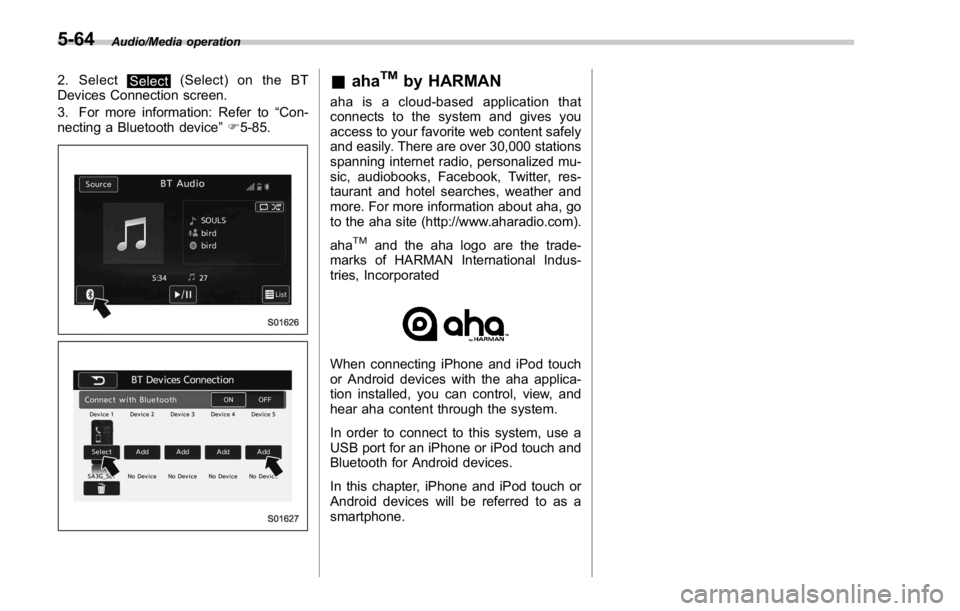
2. Select
Select (Select) on the BT
Devices Connection screen.
3. For more information: Refer to “ Con-
necting a Bluetooth device ” F 5-85.
& aha TM
by HARMAN aha is a cloud-based application that
connects to the system and gives you
access to your favorite web content safely
and easily. There are over 30,000 stations
spanning internet radio, personalized mu-
sic, audiobooks, Facebook, Twitter, res-
taurant and hotel searches, weather and
more. For more information about aha, go
to the aha site (http://www.aharadio.com).
aha TM
and the aha logo are the trade-
marks of HARMAN International Indus-
tries, Incorporated
When connecting iPhone and iPod touch
or Android devices with the aha applica-
tion installed, you can control, view, and
hear aha content through the system.
In order to connect to this system, use a
USB port for an iPhone or iPod touch and
Bluetooth for Android devices.
In this chapter, iPhone and iPod touch or
Android devices will be referred to as a
smartphone.5-64
Page 321 of 594

Audio/Media operation
No. Function
& 1
Select to display the audio source
selection screen.
& 2
Select to open Station List.
& 3
Select to fast forward the current con-
tent item by 30 seconds.
& 4
Select to display the Contents List of
the selected station.
& 5
Select to make a phone call to the
current content item.
A phone number is distributed depend-
ing on content items.
This feature is available only in these
cases.
& 6
Select to play back or pause a track.
The track pauses when pressed during
playback and plays back when pressed
during pause.
& 7
Select to set “ Like ” .
& 8
Select to set “ Dislike ” .
& 9
Select to start the playback from the
beginning of the content in the target
station.
& 10
Select to rewind the current content
item by 15 seconds.
& 11 To display the APPS menu screen,
select the “ STARLINK ” .
Or, to display the aha screen, select
“ aha ” or to display the Pandora screen,
select “ Pandora ” . No. Function
& 12
Select to display the sound setting
screen. Refer to “ Basic operation ” F 5-
12.
& 13
Turn to adjust volume.
Press to turn the audio system on/off.
& 14
Turn to display the next/previous con-
tent item.
Press to select an audio mode
& 15
Select to display the next/previous
content item.
5-66
Page 323 of 594

Audio/Media operation
WARNING. Do not connect or operate the
smartphone while driving.
. Be sure to park the vehicle in a
safe location before connecting
or operating the smartphone.
CAUTION. Do not leave your smartphone in
the car. In particular, high tem-
peratures inside the vehicle may
damage the smartphone.
. Do not push down on or apply
unnecessary pressure to the
smartphone while it is connected
as this may damage the smart-
phone or its terminal.
. Do not insert foreign objects into
the port as this may damage the
smartphone or its terminal.
NOTE . For safety reasons, certain func-
tions are not available while your
vehicle is in motion.
. In order to maximize signal recep-
tion, performance and precision of the
smartphone, please ensure the smart- phone is placed as close to the system
as possible, while ensuring it is stowed
and secure while driving.
. Use USB cables of iPhone/iPod
touch accessories.
. When the ignition switch is in the
“ ACC ” or “ ON ” position, the battery of
the connected iPhone/iPod touch is
charged.
. iPhone/iPod touch may not be re-
cognized when the ignition switch is in
the “ ACC ” or “ ON ” position. In this
case, remove the iPhone/iPod touch
and reconnect it.
. The accuracy of the displayed in-
formation or the signal reception per-
formance depends on the smartphone
or the connected device, and it ’ s wire-
less connection.
. Since the aha application uses sig-
nals from GPS satellites and wireless
communication lines, it may not work
properly in the following locations.
– In a tunnel
– In underground parking lots
– Outside wireless communication
range, such as some countryside
areas
– Where the wireless communica-
tion network is congested, or where
communications are restricted
. Depending on the circumstances and environment, the signal may be
weak or not be received. In such cases,
an error may occur.
. Top 35 entries in the preset station
list on the smartphone are displayed.
When there are more than 35 entries in
the preset station list, change the order
of the entries in the list on the smart-
phone. You can change the priority of
your preset stations within the aha
application (after disconnected from
this system) to modify the station list
shown on the screen. Please see your
smartphone aha application “ Edit Pre-
sets (in Main menu) ” to modify this list.
. For operating the smartphone, see
the instruction manual that comes with
it.
. If there are multiple music files
stored on your iPhone or iPod touch,
it may take some time until playback
starts.
. Playback may be intermittent when
youswitchtostreamingBluetooth
audio from aha on your smartphone
device.
. When connecting the device via
Bluetooth, the communication speed
may become slower than via USB.5-68
Page 324 of 594

! Before using aha application
In order to use the aha application on this
system, the application must be installed
on the smartphone.
! Settings required to use aha
application
. Search and download the aha applica-
tion from your smartphone app store.
– iPhone and iPod touch: Apple App
Store via iTunes
– Android device: Google Play Store
. Create an account and login to the aha
application on the smartphone.
NOTE Please use the latest version of the aha
application.
! About app-based connected con-
tent
Requirements for using the connected
content services of the aha application
on this system.
. Latest version of the system is compa-
tible with connected content application(s)
for the smartphone, available from aha,
downloaded to your smartphone.
. A current account with a wireless
content service provider.
. A smartphone data plan: If the data
plan for your smartphone does not provide for unlimited data usage, additional
charges from your carrier may apply for
accessing app-based connected content
via 3G, 4G, Wi-Fi, or 4G LTE wireless
networks.
. Connection to the internet via 3G, 4G,
Wi-Fi, or 4G LTE networks.
NOTE . Changes to product specifications
may result in differences between the
content of the manual and features of
the product.
. Be careful not to exceed the data
usage limits for your smartphone.
Doing so will result in additional data
usage charges from your phone car-
rier.
. Access to app-based connected
content will depend on the availability
of wireless cellular and/or Wi-Fi net-
work coverage for the purpose of
allowing your smartphone to connect
to the internet.
. Service availability may be geogra-
phically limited by region. Consult the
wireless connected content service
provider for additional information.
. Ability of this product to access
connected content is subject to change
without notice and could be affected by
any of the following: compatibility issues with future firmware versions
of the smartphone; compatibility is-
sues with future versions of the con-
nected content application(s) for the
smartphone; changes to or disconti-
nuation of the connected content ap-
plication(s) or service by its provider.
. Communication and phone call
charges for smartphones should be
paid by the wireless subscriber.
. If you lose the data in a smartphone
or other device while using it with the
system, no compensation will be given
for the lost data.
. Fuji Heavy Industries makes no
guarantee regarding the content pro-
vided by aha.
. aha may not work due to factors on
smartphones, smartphone applications
or stations. Fuji Heavy Industries is not
responsible for it. Audio/Media operation
– CONTINUED –5-69