Page 333 of 661
uuBlu-ray/DVD Rear Entertainment System*uPlaying Audio
332
Features
To play the AM/FM radio, press the AM/FM button on the remote.
When you press the MENU button on the remote while the radio is playing, the
audio menu appears on the overhead screen.
The available functions are the same as those of the front audio system. The TUNE/
SKIP bar on the remote works the same as the Skip/Seek icons (<>) on the front
touch screen for AM/FM radio operation.
2 Playing AM/FM Radio P. 265
To play the SiriusXM® radio, press the SXM button on the remote.
When you press the MENU button on the remote while the radio is playing, the
audio menu appears on the overhead screen.
The available functions are the same as those of the front audio system. The TUNE/
SKIP bar on the remote works the same as the Skip/Seek icons (<>) on the front
touch screen for SiriusXM ® radio operation.
2Playing SiriusXM ® Radio P. 270
To change the mode between category and channel, press the TITLE/SCROLL
button on the remote for five seconds.
■Playing AM/FM Radio in the Rear
■Playing SiriusXM ® Radio in the Rear
1 System Controls
You can operate the Blu-ray/DVD rear entertainment
system on the front display.
16 PILOT-31TG76000.book 332 ページ 2015年6月15日 月曜日 午前11時30分
Page 334 of 661
333
uuBlu-ray/DVD Rear Entertainment System*uPlaying Audio
Features
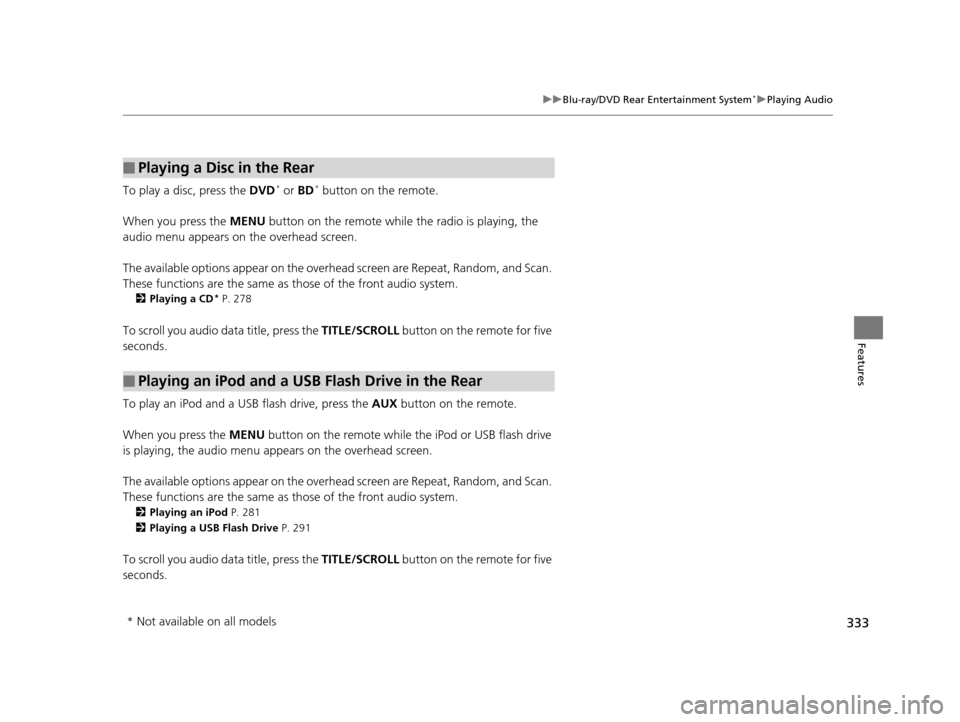
To play a disc, press the DVD* or BD* button on the remote.
When you press the MENU button on the remote while the radio is playing, the
audio menu appears on the overhead screen.
The available options appear on the overh ead screen are Repeat, Random, and Scan.
These functions are the same as those of the front audio system.
2 Playing a CD* P. 278
To scroll you audio da ta title, press the TITLE/SCROLL button on the remote for five
seconds.
To play an iPod and a USB flash drive, press the AUX button on the remote.
When you press the MENU button on the remote while the iPod or USB flash drive
is playing, the audio menu ap pears on the overhead screen.
The available options appear on the overh ead screen are Repeat, Random, and Scan.
These functions are the same as those of the front audio system.
2 Playing an iPod P. 281
2 Playing a USB Flash Drive P. 291
To scroll you audio data title, press the TITLE/SCROLL button on the remote for five
seconds.
■Playing a Disc in the Rear
■Playing an iPod and a USB Flash Drive in the Rear
* Not available on all models
16 PILOT-31TG76000.book 333 ページ 2015年6月15日 月曜日 午前11時30分
Page 341 of 661

uuBlu-ray/DVD Rear Entertainment System*uPlayable Discs
340
Features
Compression video not supported, Compression audio specification are following.
■Recommended Discs
MediaCD-R/CD-RW
DVD-R/DVD-RW
DVD+R/DVD+RW
Disc formatCD-ROM Mode1
CD-ROM Mode2 Form1 DVD-ROM
File formatISO9660 Level 1 & 2Romeo, Joliet
Audio formatMP3WMAAAC
Audio format
specificationMPEG-1 AUDIO LAYER3
MPEG-2 AUDIO LAYER3
MPEG-2.5 AUDIO LAYER3Microsoft Windows Media Audio Ver7,8,9MPEG4-AAC
m4a files created by iTunes (Apple)
Sampling
frequency [kHz]MPEG-1: 32/44.1/48
MPEG-2: 16/22.05/24
MPEG-2.5: 8/11.025/128/11.025/12/16/22.05/24/ 32/44.1/48
Exceptions not supported by DVD Player:12/24
8/11.025/12/16/22.05/24/ 32/44.1/48
Bit rate [kbps]
MPEG1: 32/40/48/56/64/80/96/112/128/160/192/
224/256/320
MPEG2: 8/16/24/32/40/48/ 56/64/80/96/112/128/144/
160
MPEG2.5: 8/16/24/32/40/ 48/56/64/80/96/112/128/
144/1605/8/16/24/32/40/48/64/80/96/128/160/192/224/256/ 320/384
Exceptions not supported by DVD Player: 24/224/3848/16/20/24/28/32/40/48/56/
64/80/96/112/128/160/192/
224/256/320/384/448/512/ 576
Exceptions not supported by DVD Player: 384/448/512/
576
File extension.mp3/.MP3.wma/.WMA.m4a/.M4A
1Recommended Discs
Large files may take longer to change audio or fast-
forward/fast-rewind.
Some CD-R/CD-RW/DVD-R/DVD -RW may not be read
due to the discs’ encoding properties. Use discs
recorded with disc-at-once or track-at-once for this
unit.
“AVCHD” and the “AVCHD” logo are trademarks of
Panasonic Corporation and Sony Corporation.
16 PILOT-31TG76000.book 340 ページ 2015年6月15日 月曜日 午前11時30分
Page 351 of 661
350
uuCustomized Features u
Features
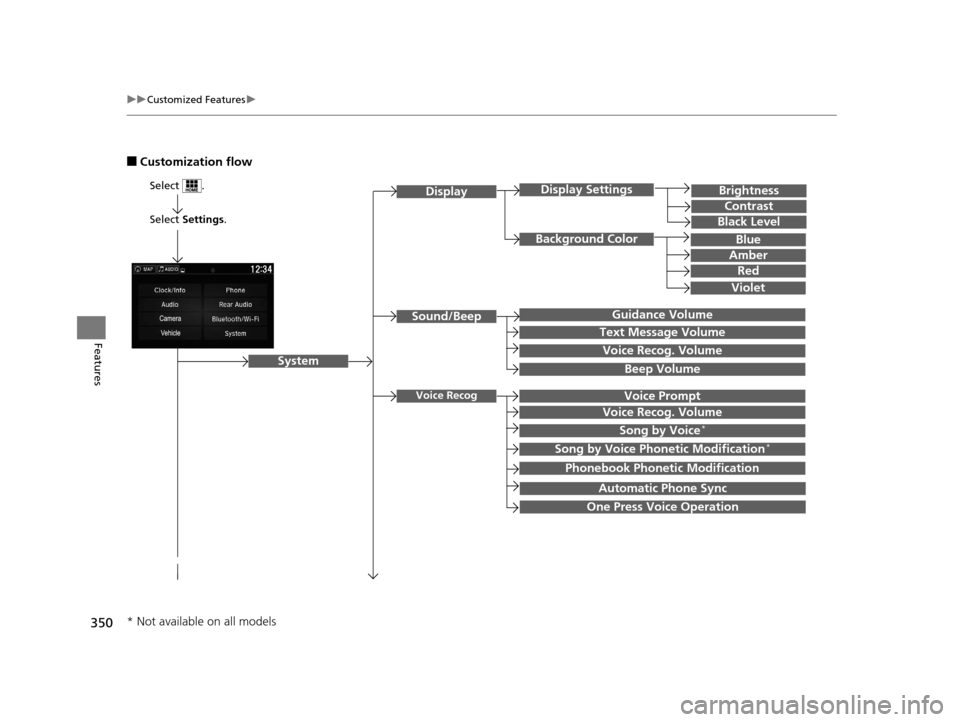
■Customization flow
Select Settings.
Brightness
Contrast
Black Level
Sound/Beep
System
DisplayDisplay Settings
Background Color
Guidance Volume
Text Message Volume
Select .
Voice RecogVoice Prompt
Blue
Amber
Red
Violet
Voice Recog. Volume
Beep Volume
Voice Recog. Volume
Song by Voice*
Song by Voice Phonetic Modification*
Phonebook Phonetic Modification
Automatic Phone Sync
One Press Voice Operation
* Not available on all models
16 PILOT-31TG76000.book 350 ページ 2015年6月15日 月曜日 午前11時30分
Page 361 of 661
360
uuCustomized Features u
Features
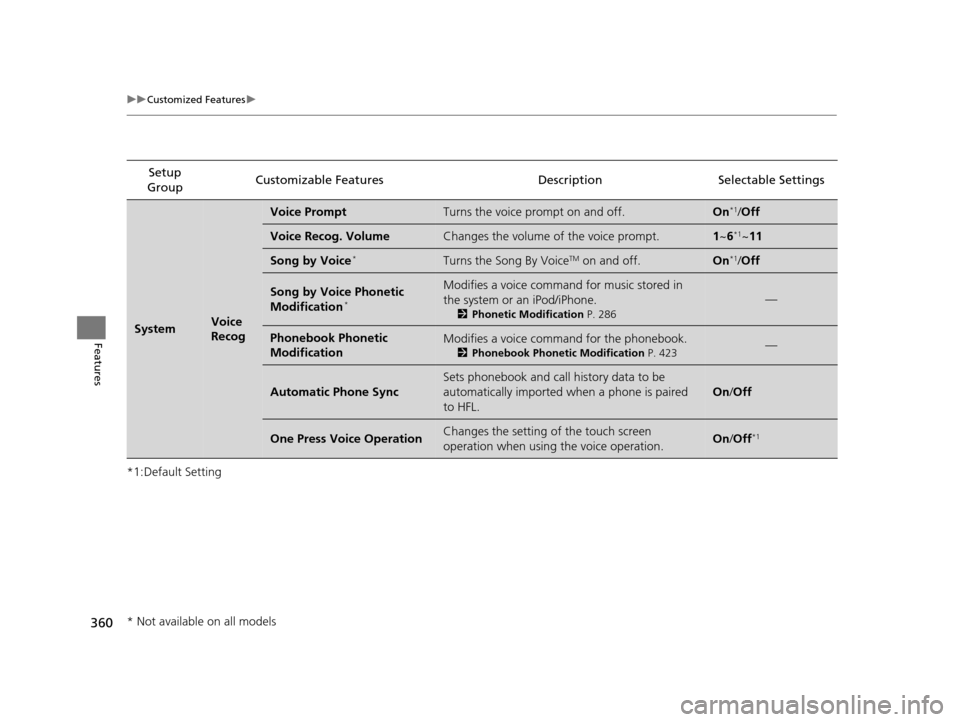
*1:Default SettingSetup
Group Customizable Features Descri
ption Selectable Settings
SystemVoice
Recog
Voice PromptTurns the voice prompt on and off.On*1/Off
Voice Recog. VolumeChanges the volume of the voice prompt.1 ~6*1~11
Song by Voice*Turns the Song By VoiceTM on and off.On*1/Off
Song by Voice Phonetic
Modification*
Modifies a voice command for music stored in
the system or an iPod/iPhone.
2 Phonetic Modification P. 286
—
Phonebook Phonetic
ModificationModifies a voice command for the phonebook.
2Phonebook Phonetic Modification P. 423—
Automatic Phone Sync
Sets phonebook and call history data to be
automatically imported when a phone is paired
to HFL.
On/Off
One Press Voice OperationChanges the setting of the touch screen
operation when using the voice operation.On/Off*1
* Not available on all models
16 PILOT-31TG76000.book 360 ページ 2015年6月15日 月曜日 午前11時30分
Page 365 of 661
364
uuCustomized Features u
Features
*1:Default SettingSetup
Group Customizable Features Description Selectable Settings
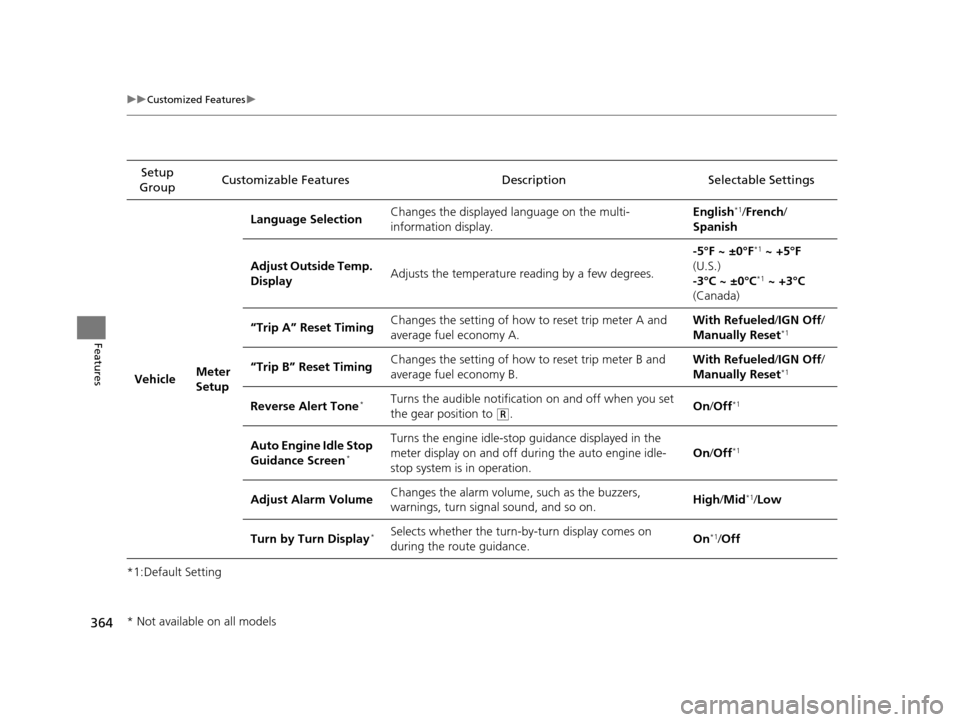
Vehicle Meter
SetupLanguage Selection
Changes the displayed language on the multi-
information display. English
*1/
French /
Spanish
Adjust Outside Temp.
Display Adjusts the temperature reading by a few degrees. -5°F ~ ±0°F
*1
~ +5°F
(U.S.)
-3°C ~ ±0°C
*1 ~ +3°C
(Canada)
“Trip A” Reset Timing Changes the setting of how to reset trip meter A and
average fuel economy A. With Refueled
/IGN Off /
Manually Reset
*1
“Trip B” Reset Timing Changes the setting of how to reset trip meter B and
average fuel economy B. With Refueled
/IGN Off /
Manually Reset*1
Reverse Alert Tone*Turns the audible notification on and off when you set
the gear position to
(R. On
/Off*1
Auto Engine Idle Stop
Guidance Screen*
Turns the engine idle-stop guidance displayed in the
meter display on and off duri ng the auto engine idle-
stop system is in operation. On
/Off*1
Adjust Alarm Volume Changes the alarm volume, such as the buzzers,
warnings, turn signal sound, and so on. High
/Mid*1/Low
Turn by Turn Display
*Selects whether the turn-by-turn display comes on
during the route guidance. On*1/
Off
* Not available on all models
16 PILOT-31TG76000.book 364 ページ 2015年6月15日 月曜日 午前11時30分
Page 376 of 661
375
uuCustomized Features u
Continued
Features
*1:Default SettingSetup
Group Customizable Features Descri
ption Selectable Settings
Camera
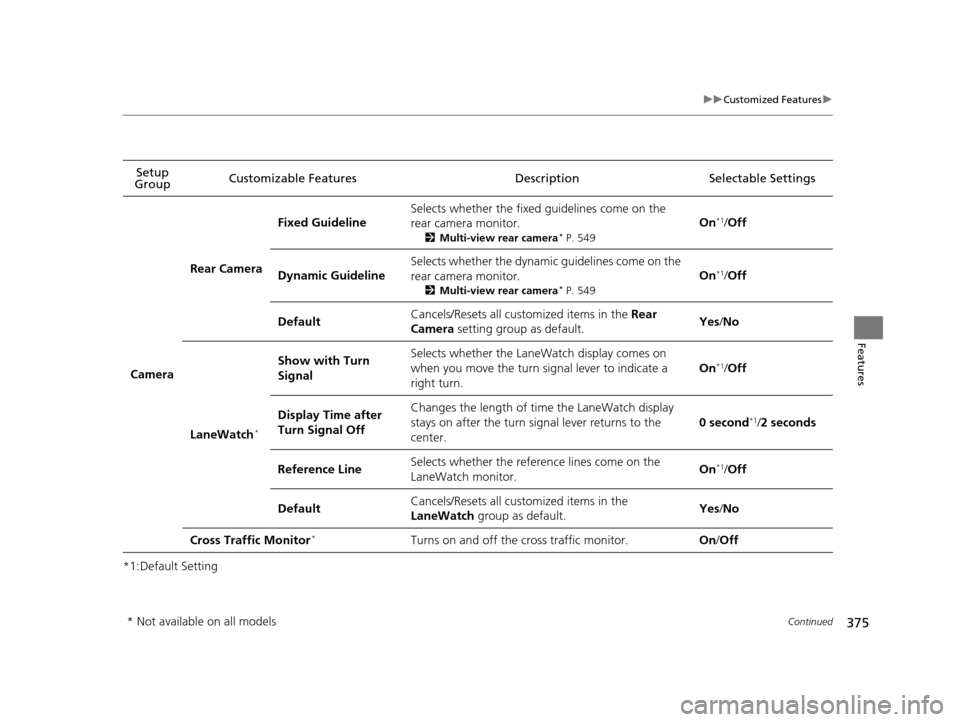
Rear Camera
Fixed Guideline
Selects whether the fixed guidelines come on the
rear camera monitor.
2Multi-view rear camera* P. 549
On*1/Off
Dynamic Guideline
Selects whether the dynamic guidelines come on the
rear camera monitor.
2 Multi-view rear camera* P. 549
On*1/Off
DefaultCancels/Resets all customized items in the Rear
Camera setting group as default.Yes /No
LaneWatch*
Show with Turn
SignalSelects whether the LaneWatch display comes on
when you move the turn signal lever to indicate a
right turn.
On*1/Off
Display Time after
Turn Signal OffChanges the length of time the LaneWatch display
stays on after the turn signal lever returns to the
center.
0 second*1/2 seconds
Reference LineSelects whether the reference lines come on the
LaneWatch monitor.On*1/ Off
DefaultCancels/Resets all customized items in the
LaneWatch group as default.Yes/No
Cross Traffic Monitor*Turns on and off the cross traffic monitor.On /Off
* Not available on all models
16 PILOT-31TG76000.book 375 ページ 2015年6月15日 月曜日 午前11時30分
Page 378 of 661
377
uuCustomized Features uDefaulting All the Settings
Features
Defaulting All the Settings
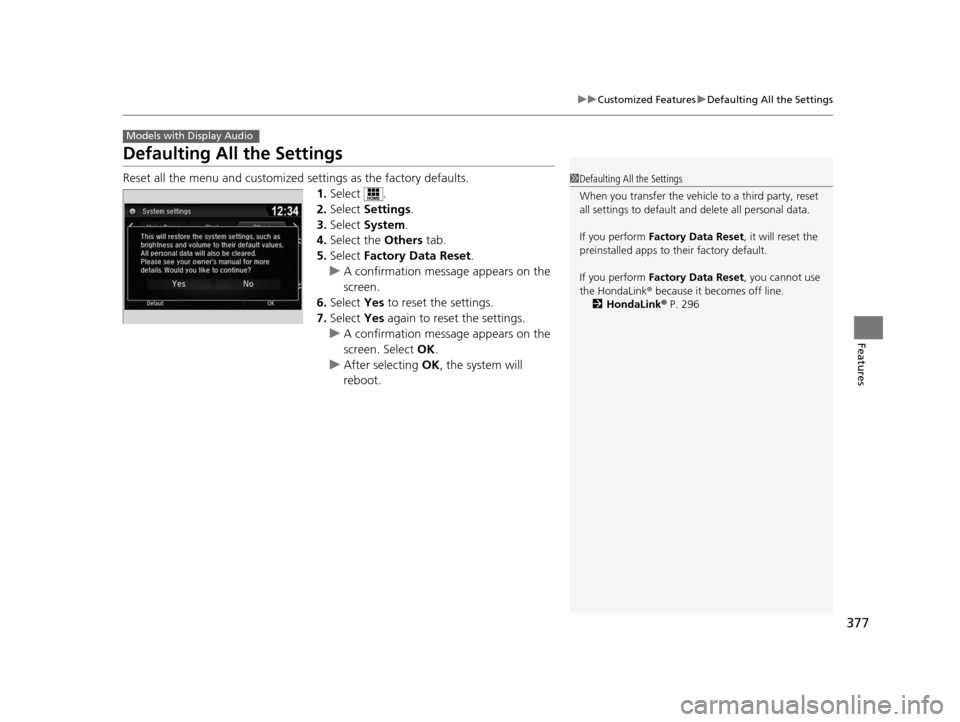
Reset all the menu and customized settings as the factory defaults.
1.Select .
2. Select Settings .
3. Select System.
4. Select the Others tab.
5. Select Factory Data Reset .
u A confirmation message appears on the
screen.
6. Select Yes to reset the settings.
7. Select Yes again to reset the settings.
u A confirmation message appears on the
screen. Select OK.
u After selecting OK, the system will
reboot.
Models with Display Audio
1 Defaulting All the Settings
When you transfer the vehicle to a third party, reset
all settings to default a nd delete all personal data.
If you perform Factory Data Reset , it will reset the
preinstalled apps to their factory default.
If you perform Factory Data Reset , you cannot use
the HondaLink ® because it becomes off line.
2 HondaLink® P. 296
16 PILOT-31TG76000.book 377 ページ 2015年6月15日 月曜日 午前11時30分