Page 204 of 661
Continued203
uuInterior Lights/Interior Convenience Items uInterior Convenience Items
Controls
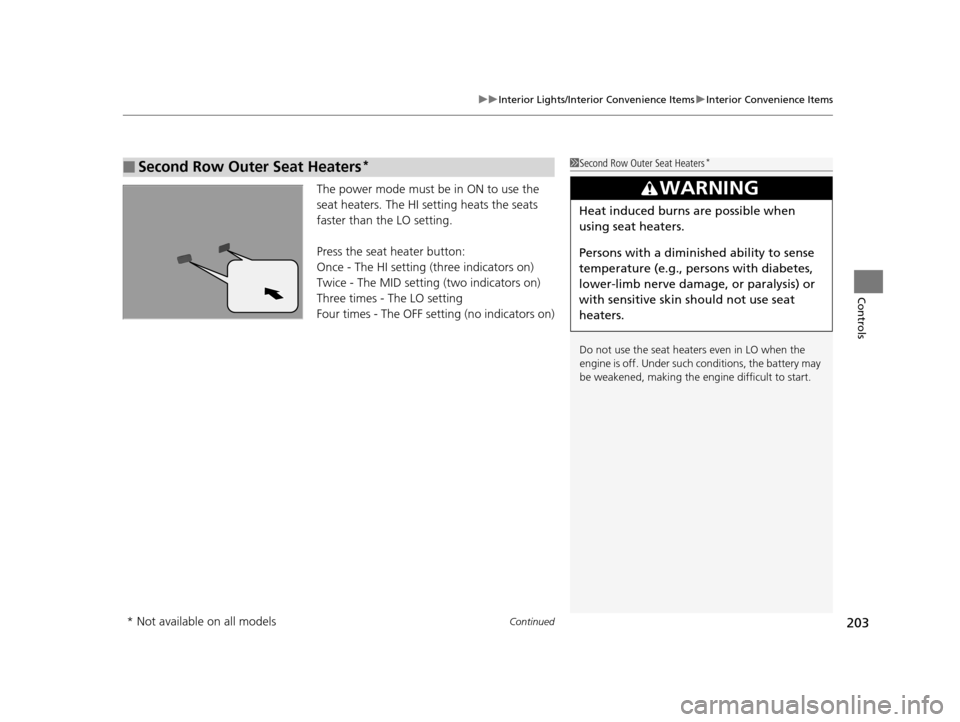
The power mode must be in ON to use the
seat heaters. The HI setting heats the seats
faster than the LO setting.
Press the seat heater button:
Once - The HI setting (three indicators on)
Twice - The MID setting (two indicators on)
Three times - The LO setting
Four times - The OFF setting (no indicators on)
■Second Row Outer Seat Heaters*1Second Row Outer Seat Heaters*
Do not use the seat heaters even in LO when the
engine is off. Under such conditions, the battery may
be weakened, making the engine difficult to start.
3WARNING
Heat induced burns are possible when
using seat heaters.
Persons with a diminished ability to sense
temperature (e.g., persons with diabetes,
lower-limb nerve damage, or paralysis) or
with sensitive skin should not use seat
heaters.
* Not available on all models
16 PILOT-31TG76000.book 203 ページ 2015年6月15日 月曜日 午前11時30分
Page 218 of 661
217
Features
This chapter describes how to operate technology features.
Audio SystemAbout Your Audio System ................ 218
USB Port(s) ....................................... 219
Auxiliary Input Jack .......................... 220
Audio System Theft Protection ......... 221
Audio Remote Controls .................... 222
Audio System Basic Operation ........ 224
Audio System Basic Operation ........ 242
Models with color audio system
Models with Display Audio
Audio Error Messages...................... 304
CD Player*....................................... 304
iPod/USB Flash Drive ........................ 305
Pandora ®
*....................................... 306
Android/Apps .................................. 307
General Information on the Audio
System ............................................. 308
SiriusXM ® Radio Service ................... 308
Recommended CD
*......................... 309
Compatible iPod, iPhone, and USB Flash Drives............................................. 311
About Open Source Licenses ............ 312 Blu-ray/DVD Rear Entertainment
System
*........................................... 313
Customized Features ........................ 342
HomeLink ® Universal Transceiver
*.. 378
Bluetooth ® HandsFreeLink® ............. 381
Bluetooth ® HandsFreeLink® ............. 406
Compass
*.......................................... 439
Compass Calibration........................ 439
Compass Zone Selection .................. 440
Models with color audio system
Models with Display Audio
* Not available on all models
16 PILOT-31TG76000.book 217 ページ 2015年6月15日 月曜日 午前11時30分
Page 220 of 661
219
uuAudio System uUSB Port(s)
Features
USB Port(s)
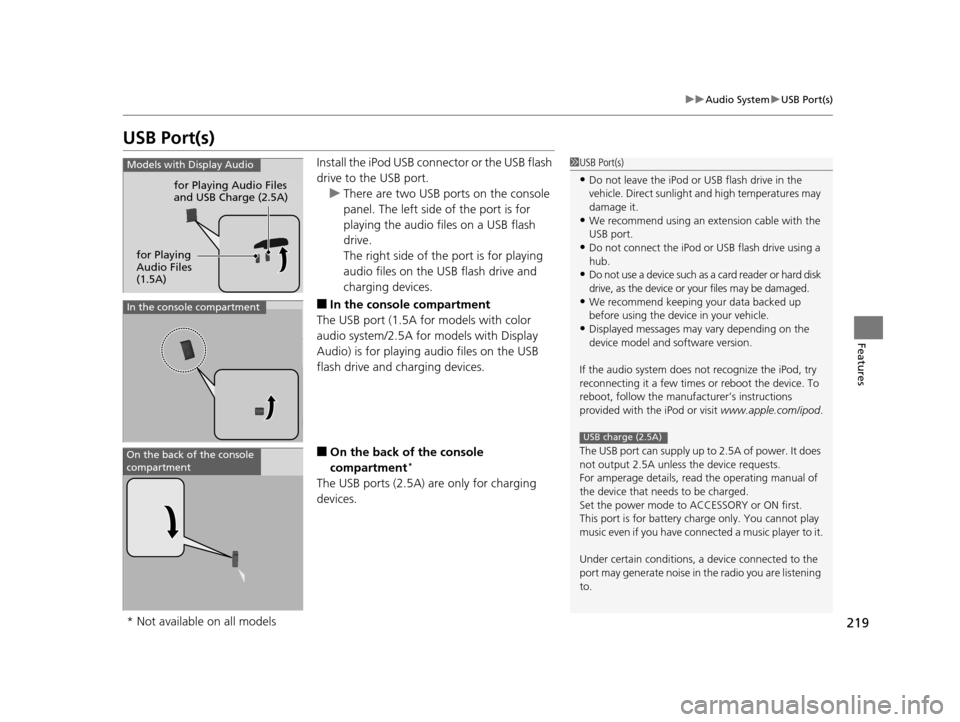
Install the iPod USB connector or the USB flash
drive to the USB port.
u There are two USB ports on the console
panel. The left side of the port is for
playing the audio files on a USB flash
drive.
The right side of th e port is for playing
audio files on the USB flash drive and
charging devices.
■In the consol e compartment
The USB port (1.5A for models with color
audio system/2.5A for models with Display
Audio) is for playing audio files on the USB
flash drive and charging devices.
■On the back of the console
compartment*
The USB ports (2.5A) are only for charging
devices.
1 USB Port(s)
•Do not leave the iPod or USB flash drive in the
vehicle. Direct sunlight and high temperatures may
damage it.
•We recommend using an extension cable with the
USB port.
•Do not connect the iPod or USB flash drive using a
hub.
•Do not use a device such as a card reader or hard disk
drive, as the device or your files may be damaged.
•We recommend keeping y our data backed up
before using the device in your vehicle.
•Displayed messages may vary depending on the
device model and software version.
If the audio system does not recognize the iPod, try
reconnecting it a few times or reboot the device. To
reboot, follow the manufac turer’s instructions
provided with the iPod or visit www.apple.com/ipod.
The USB port can supply up to 2.5A of power. It does
not output 2.5A unless the device requests.
For amperage details, read the operating manual of
the device that ne eds to be charged.
Set the power mode to ACCESSORY or ON first.
This port is for battery charge only. You cannot play
music even if you have conne cted a music player to it.
Under certain condi tions, a device connected to the
port may generate noise in the radio you are listening
to.
USB charge (2.5A)
Models with Display Audio
for Playing Audio Files
and USB Charge (2.5A)
for Playing
Audio Files
(1.5A)
In the console compartment
On the back of the console
compartment
* Not available on all models
16 PILOT-31TG76000.book 219 ページ 2015年6月15日 月曜日 午前11時30分
Page 222 of 661
221
uuAudio System uAudio System Theft Protection
Features
Audio System Theft Protection
The audio system is disabled when it is disconnected from the power source, such as
when the battery is disconnected or goes dead. In certain conditions, the system
may display ENTER CODE
*1/Enter code*2. If this occurs, r eactivate the audio
system.
■Reactivating the audio system
1. Set the power mode to ON.
2. Turn on the audio system.
3. Press and hold the audio system powe r button for more than two seconds.
u The audio system is reac tivated when the audio co ntrol unit establishes a
connection with the vehicl e control unit. If the control unit fails to recognize
the audio unit, you must go to a deal er and have the audio unit checked.
*1: Models with color audio system
*2: Models with Display Audio
16 PILOT-31TG76000.book 221 ページ 2015年6月15日 月曜日 午前11時30分
Page 225 of 661
224
Features
Audio System Basic Operation
To use the audio system, the power mode must be in ACCESSORY or ON.
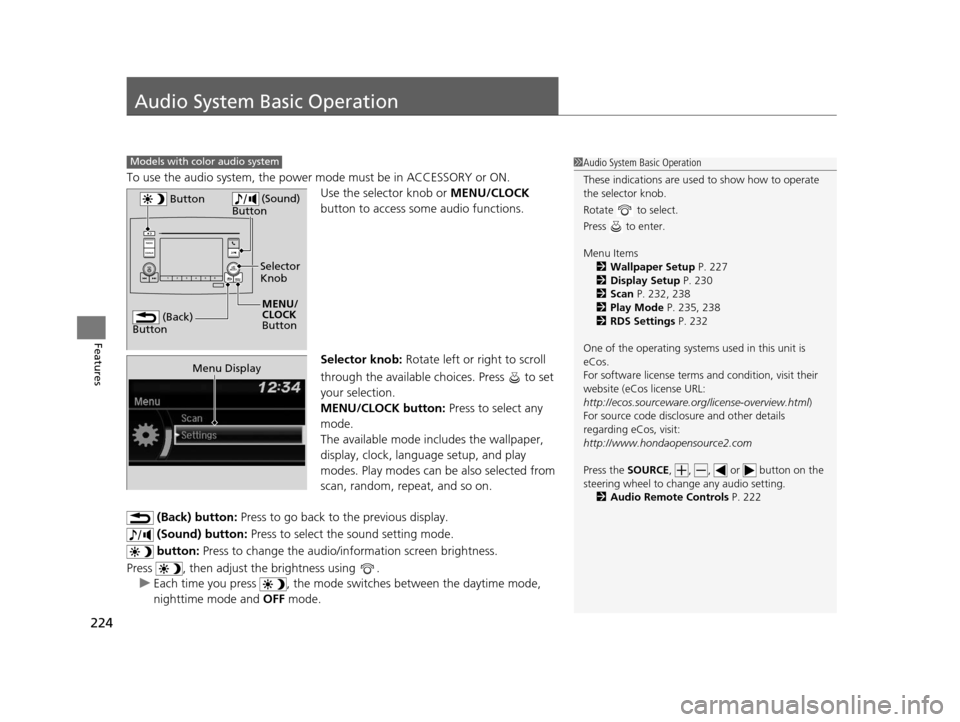
Use the selector knob or MENU/CLOCK
button to access some audio functions.
Selector knob: Rotate left or right to scroll
through the available choices. Press to set
your selection.
MENU/CLOCK button: Press to select any
mode.
The available mode includes the wallpaper,
display, clock, langu age setup, and play
modes. Play modes can be also selected from
scan, random, rep eat, and so on.
(Back) button: Press to go back to the previous display.
(Sound) button: Press to select the sound setting mode.
button: Press to change the audio/information screen brightness.
Press , then adjust th e brightness using .
u Each time you press , the mode switches between the daytime mode,
nighttime mode and OFF mode.
Models with color audio system1Audio System Basic Operation
These indications are used to show how to operate
the selector knob.
Rotate to select.
Press to enter.
Menu Items 2 Wallpaper Setup P. 227
2 Display Setup P. 230
2 Scan P. 232, 238
2 Play Mode P. 235, 238
2 RDS Settings P. 232
One of the operating system s used in this unit is
eCos.
For software license terms and condition, visit their
website (eCos license URL:
http://ecos.sourceware.org/license-overview.html )
For source code disclo sure and other details
regarding eCos, visit:
http://www.hondaopensource2.com
Press the SOURCE, , , or button on the
steering wheel to cha nge any audio setting.
2 Audio Remote Controls P. 222
(Back)
Button
Selector
Knob
MENU/
CLOCK
Button
Button
(Sound)
Button
Menu Display
16 PILOT-31TG76000.book 224 ページ 2015年6月15日 月曜日 午前11時30分
Page 233 of 661
uuAudio System Basic Operation uPlaying AM/FM Radio
232
Features
Provides text data information related to your selected RDS capable FM station.
■To find an RDS station from Station List
1. Press while listening to an FM station.
2. Rotate to select the station, then press .
■Update List
Updates your available station list at any time.
1. Press while listening to an FM station.
2. Rotate to select Update List, then press .
■Radio text
Displays the radio text informat ion of the selected RDS station.
1. Press the MENU/CLOCK button.
2. Rotate to select Settings, then press .
3. Rotate to select RDS Settings, then press .
4. Rotate to select Radio Text, then press .
■Scan
Samples each of the strongest stations on the selected band for 10 seconds.
1. Press the MENU/CLOCK button.
2. Rotate to select Scan, then press .
To turn off scan, press .
■Radio Data System (RDS)1 Playing AM/FM Radio
The ST indicator appears on the display indicating
stereo FM broadcasts.
Stereo reproduction in AM is not available.
You can store 6 AM stations and 12 FM stations into
reset button memory. FM1 and FM2 let you store 6
stations each.
Switching the Audio Mode
Press the SOURCE button on the steering wheel.
2 Audio Remote Controls P. 222
1Radio Data System (RDS)
When you select an RDS-capable FM station, the RDS
automatically turns on, and the frequency display
changes to the station name. However, when the
signals of that station become weak, the display
changes from the statio n name to the frequency.
16 PILOT-31TG76000.book 232 ページ 2015年6月15日 月曜日 午前11時30分
Page 237 of 661
236
uuAudio System Basic Operation uPlaying a USB Flash Drive
Features
Playing a USB Flash Drive
Your audio system reads and plays audio f iles on a USB flash drive in either MP3,
WMA or AAC*1 format.
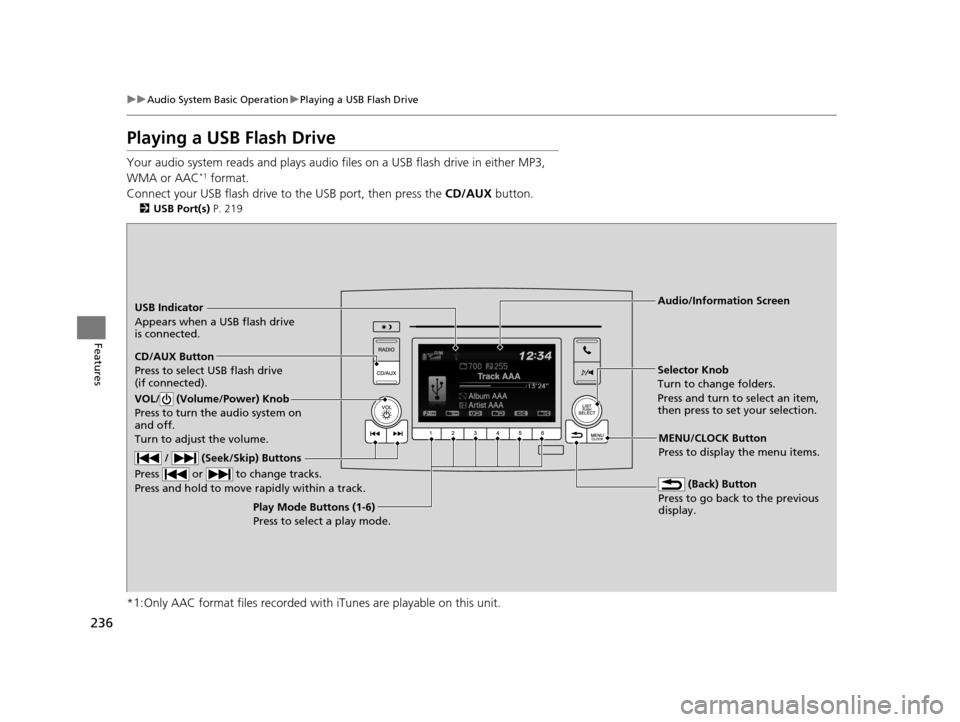
Connect your USB flash drive to the USB port, then press the CD/AUX button.
2USB Port(s) P. 219
*1:Only AAC format files recorded with iTunes are playable on this unit.
USB Indicator
Appears when a USB flash drive
is connected.
CD/AUX Button
Press to select USB flash drive
(if connected).
(Back) Button
Press to go back to the previous
display.
/ (Seek/Skip) Buttons
Press or to change tracks.
Press and hold to move rapidly within a track.
VOL/ (Volume/Power) Knob
Press to turn the audio system on
and off.
Turn to adjust the volume.
Selector Knob
Turn to change folders.
Press and turn to select an item,
then press to set your selection.
MENU/CLOCK Button
Press to display the menu items.
Audio/Information Screen
Play Mode Buttons (1-6)
Press to select a play mode.
16 PILOT-31TG76000.book 236 ページ 2015年6月15日 月曜日 午前11時30分
Page 239 of 661
uuAudio System Basic Operation uPlaying a USB Flash Drive
238
Features
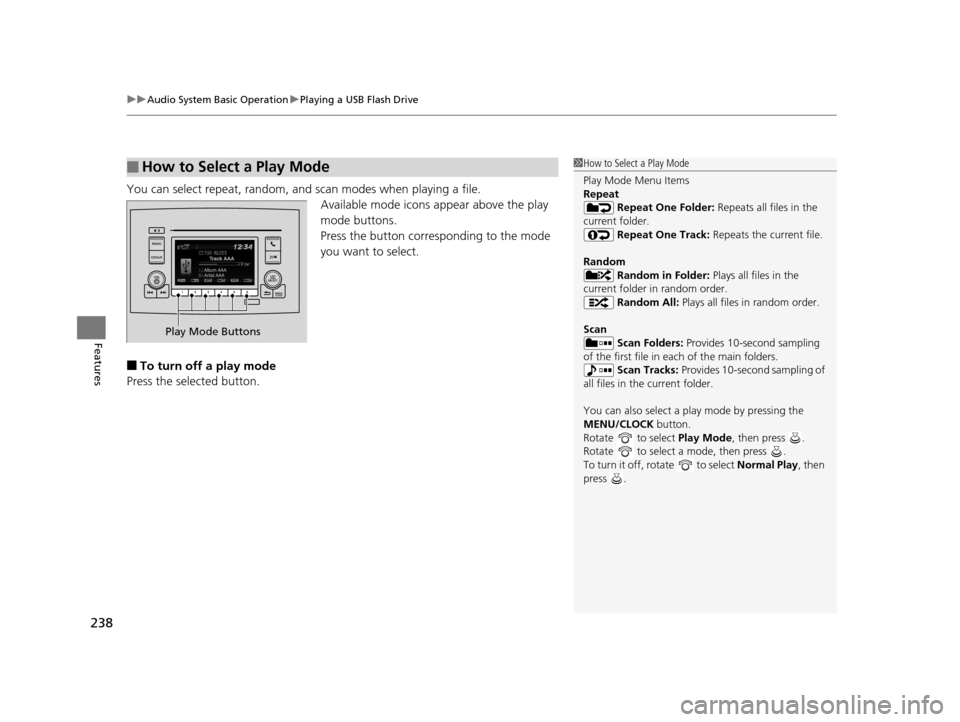
You can select repeat, random, and scan modes when playing a file.
Available mode icons appear above the play
mode buttons.
Press the button corresponding to the mode
you want to select.
■To turn off a play mode
Press the selected button.
■How to Select a Play Mode1 How to Select a Play Mode
Play Mode Menu Items
Repeat
Repeat One Folder: Repeats all files in the
current folder. Repeat One Track: Repeats the current file.
Random Random in Folder: Plays all files in the
current folder in random order. Random All: Plays all files in random order.
Scan Scan Folders: Provides 10-second sampling
of the first file in each of the main folders.
Scan Tracks: Provides 10-second sampling of
all files in the current folder.
You can also select a pl ay mode by pressing the
MENU/CLOCK button.
Rotate to select Play Mode, then press .
Rotate to select a mode, then press .
To turn it off, rotate to select Normal Play, then
press .
Play Mode Buttons
16 PILOT-31TG76000.book 238 ページ 2015年6月15日 月曜日 午前11時30分