Page 296 of 661
295
uuAudio System Basic Operation uPlaying Bluetooth ® Audio
Features
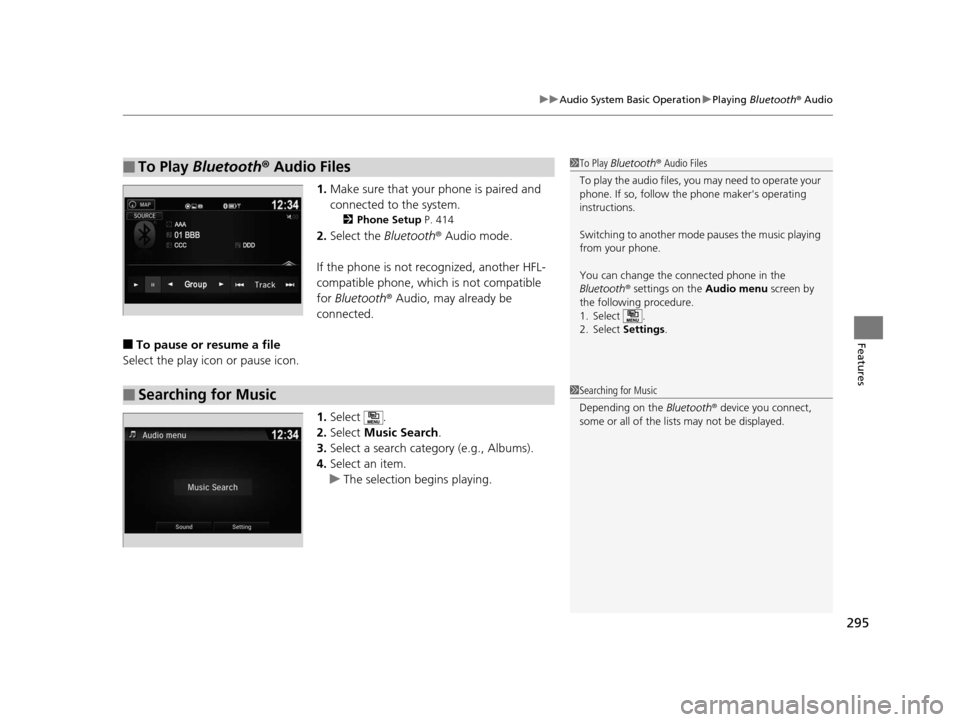
1. Make sure that your phone is paired and
connected to the system.
2 Phone Setup P. 414
2.Select the Bluetooth® Audio mode.
If the phone is not recognized, another HFL-
compatible phone, which is not compatible
for Bluetooth ® Audio, may already be
connected.
■To pause or resume a file
Select the play icon or pause icon.
1.Select .
2. Select Music Search.
3. Select a search catego ry (e.g., Albums).
4. Select an item.
u The selection begins playing.
■To Play Bluetooth ® Audio Files1 To Play Bluetooth ® Audio Files
To play the audio files, y ou may need to operate your
phone. If so, follow the phone maker's operating
instructions.
Switching to another mode pauses the music playing
from your phone.
You can change the connected phone in the
Bluetooth ® settings on the Audio menu screen by
the following procedure.
1. Select .
2. Select Settings .
■Searching for Music1Searching for Music
Depending on the Bluetooth® device you connect,
some or all of the list s may not be displayed.
16 PILOT-31TG76000.book 295 ページ 2015年6月15日 月曜日 午前11時30分
Page 306 of 661
305
uuAudio Error Messages uiPod/USB Flash Drive
Features
iPod/USB Flash Drive
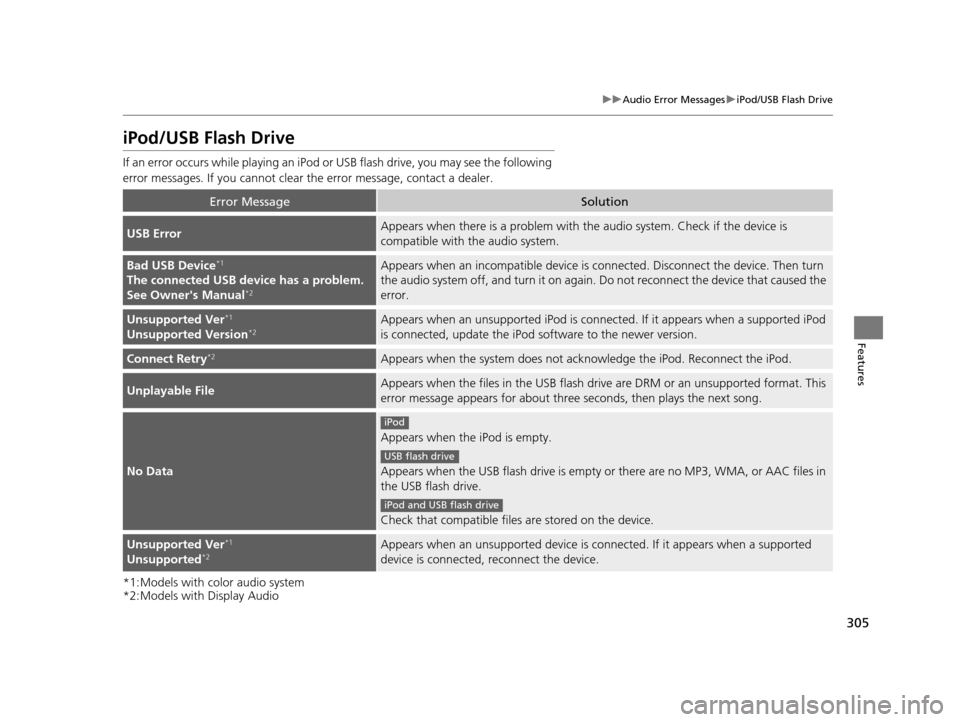
If an error occurs while playing an iPod or USB flash drive, you may see the following
error messages. If you cannot clear the error message, contact a dealer.
*1:Models with color audio system
*2:Models with Display Audio
Error MessageSolution
USB ErrorAppears when there is a pr oblem with the audio system. Check if the device is
compatible with the audio system.
Bad USB Device*1
The connected USB device has a problem.
See Owner's Manual*2
Appears when an incompatible device is co nnected. Disconnect the device. Then turn
the audio system off, and turn it on again. Do not reconnect the device that caused the
error.
Unsupported Ver*1
Unsupported Version*2Appears when an unsupported iPod is connect ed. If it appears when a supported iPod
is connected, update the iPod software to the newer version.
Connect Retry*2Appears when the system does not acknowledge the iPod. Reconnect the iPod.
Unplayable FileAppears when the files in the USB flash driv e are DRM or an unsupported format. This
error message appears for about three seconds, then plays the next song.
No Data
Appears when the iPod is empty.
Appears when the USB flash drive is empty or there are no MP3, WMA, or AAC files in
the USB flash drive.
Check that compatible files are stored on the device.
Unsupported Ver*1
Unsupported*2Appears when an unsupported device is connected. If it appears when a supported
device is connected, reconnect the device.
iPod
USB flash drive
iPod and USB flash drive
16 PILOT-31TG76000.book 305 ページ 2015年6月15日 月曜日 午前11時30分
Page 307 of 661
306
uuAudio Error Messages uPandora®*
Features
Pandora ®*
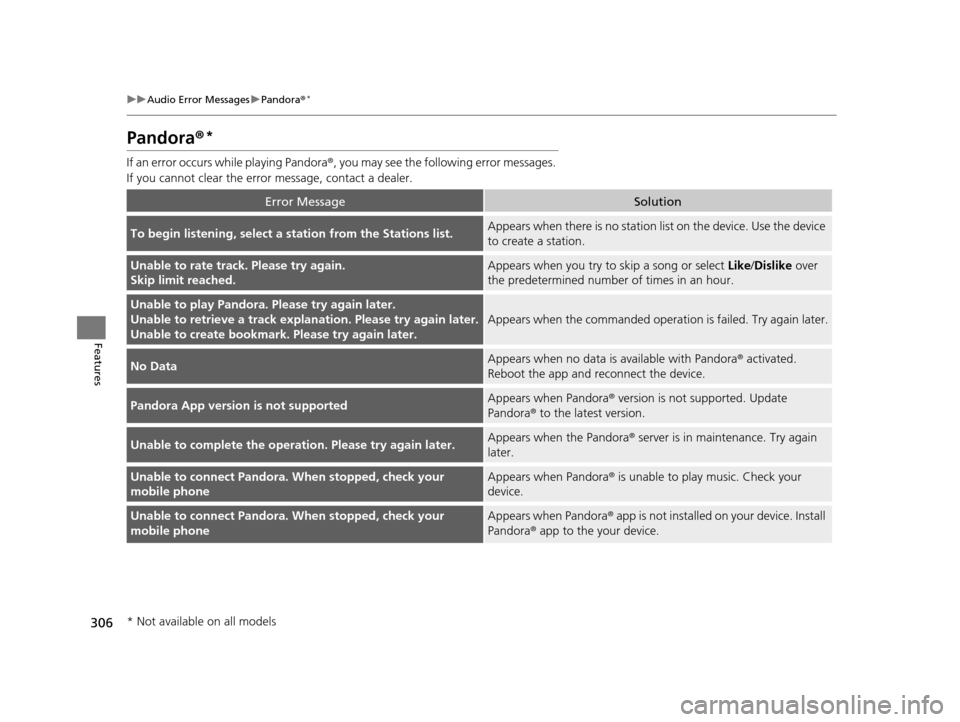
If an error occurs while playing Pandora ®, you may see the following error messages.
If you cannot clear the error message, contact a dealer.
Error MessageSolution
To begin listening, select a station from the Stations list.Appears when there is no station list on the device. Use the device
to create a station.
Unable to rate track. Please try again.
Skip limit reached.Appears when you try to skip a song or select Like/Dislike over
the predetermined number of times in an hour.
Unable to play Pandora. Please try again later.
Unable to retrieve a track explan ation. Please try again later.
Unable to create bookmark. Please try again later.
Appears when the commanded operation is failed. Try again later.
No DataAppears when no data is available with Pandora® activated.
Reboot the app and reconnect the device.
Pandora App version is not supportedAppears when Pandora ® version is not supported. Update
Pandora® to the latest version.
Unable to complete the operation. Please try again later.Appears when the Pandora ® server is in maintenance. Try again
later.
Unable to connect Pandora. When stopped, check your
mobile phoneAppears when Pandora ® is unable to play music. Check your
device.
Unable to connect Pandora. When stopped, check your
mobile phoneAppears when Pandora ® app is not installed on your device. Install
Pandora® app to the your device.
* Not available on all models
16 PILOT-31TG76000.book 306 ページ 2015年6月15日 月曜日 午前11時30分
Page 310 of 661
309
uuGeneral Information on the Audio System uRecommended CD*
Continued
Features
Recommended CD*
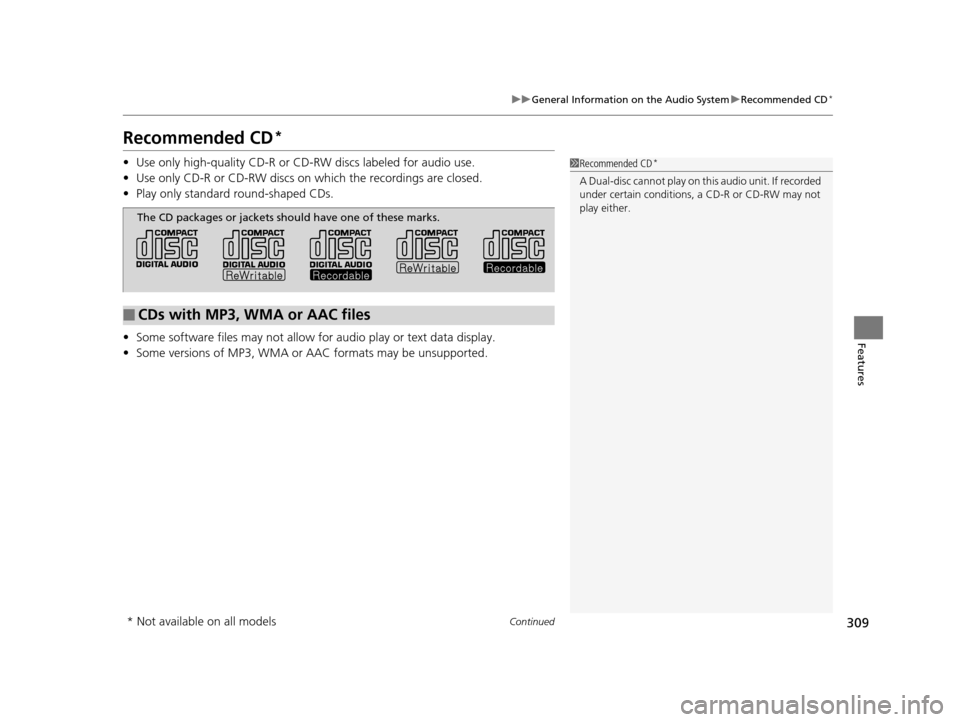
• Use only high-quality CD-R or CD-RW discs labeled for audio use.
• Use only CD-R or CD-RW discs on wh ich the recordings are closed.
• Play only standard round-shaped CDs.
• Some software files may not allow for audio play or text data display.
• Some versions of MP3, WMA or AAC formats may be unsupported.1Recommended CD*
A Dual-disc cannot play on th is audio unit. If recorded
under certain conditions, a CD-R or CD-RW may not
play either.
■CDs with MP3, WMA or AAC files
The CD packages or jackets should have one of these marks.
* Not available on all models
16 PILOT-31TG76000.book 309 ページ 2015年6月15日 月曜日 午前11時30分
Page 312 of 661
311
uuGeneral Information on the Audio System uCompatible iPod, iPhone, and USB Flash Drives
Features
Compatible iPod, iPhone , and USB Flash Drives
•Use a recommended USB flash drive of 256 MB or higher.
• Some digital audio players may not be compatible.
• Some USB flash drives (e.g., a device with security lockout) may not work.
• Some software files may not allow for audio play or text data display.
• Some versions of MP3, WMA, or AAC formats may be unsupported.
*1: Models with Display Audio
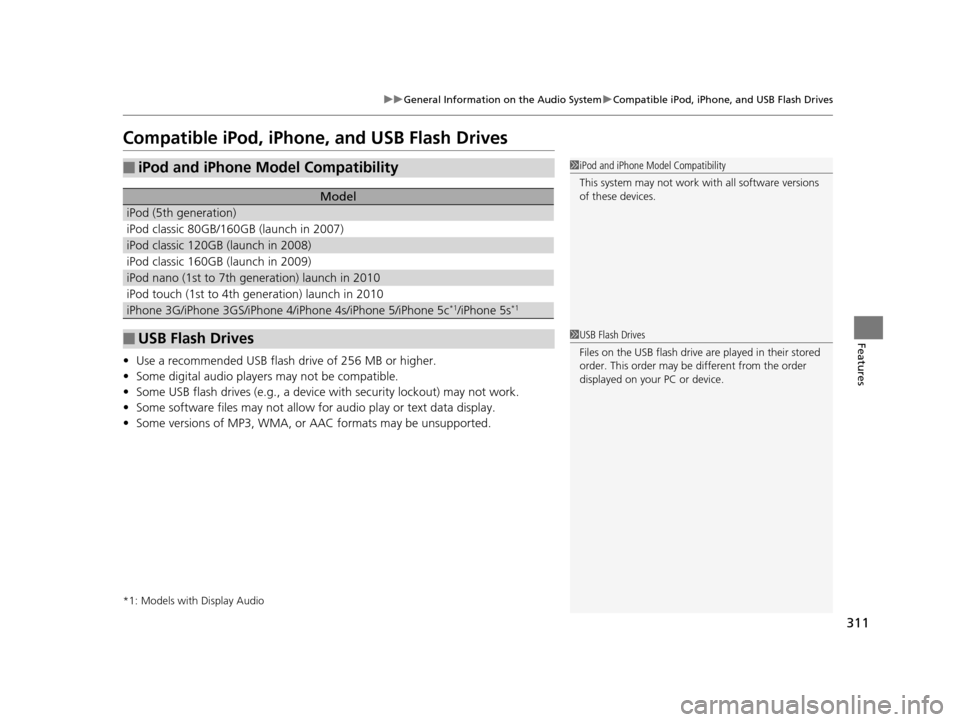
■iPod and iPhone Model Compatibility
Model
iPod (5th generation)
iPod classic 80GB/160GB (launch in 2007)
iPod classic 120GB (launch in 2008)
iPod classic 160GB (launch in 2009)
iPod nano (1st to 7th generation) launch in 2010
iPod touch (1st to 4th generation) launch in 2010
iPhone 3G/iPhone 3GS/iPhone 4/iPhone 4s/iPhone 5/iPhone 5c*1/iPhone 5s*1
■USB Flash Drives
1iPod and iPhone Model Compatibility
This system may not work with all software versions
of these devices.
1USB Flash Drives
Files on the USB flash drive are played in their stored
order. This order may be different from the order
displayed on your PC or device.
16 PILOT-31TG76000.book 311 ページ 2015年6月15日 月曜日 午前11時30分
Page 317 of 661
316
uuBlu-ray/DVD Rear Entertainment System*uOverhead Screen
Features
Overhead Screen
Pull down the screen to the first or second
detent until it latches.
Operating the System
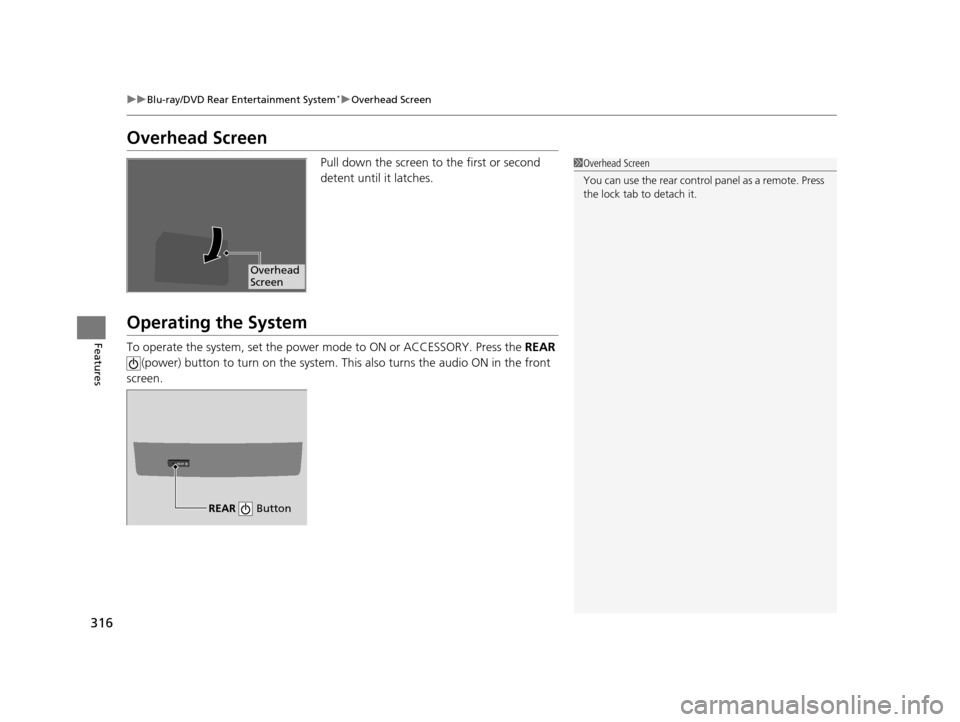
To operate the system, set the power mode to ON or ACCESSORY. Press the REAR
(power) button to turn on the system. Th is also turns the audio ON in the front
screen.
1 Overhead Screen
You can use the rear control panel as a remote. Press
the lock tab to detach it.
Overhead
Screen
REAR
REAR Button
16 PILOT-31TG76000.book 316 ページ 2015年6月15日 月曜日 午前11時30分
Page 318 of 661
317
uuBlu-ray/DVD Rear Entertainment System*uPlaying a DVD/Blu-rayTM*
Continued
Features
Playing a DVD/Blu-rayTM*
To play a DVD or Blu-rayTM *, insert a DVD or Blu-rayTM * into the lower slot of the
front audio system, and press the REAR button.
u The system automatically st arts the DVD or Blu-ray
TM *. DVD or Blu-rayTM * is
available for the rear seat passenger only.
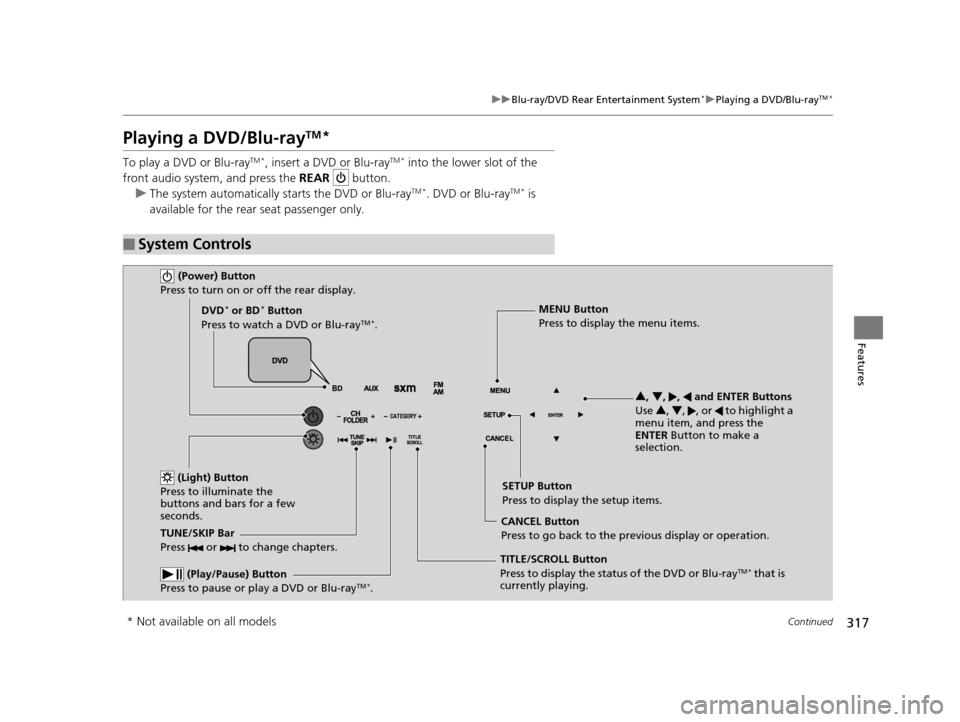
■System Controls
(Power) Button
Press to turn on or off the rear display.
DVD* or BD* Button
Press to watch a DVD or Blu-rayTM *.
(Light) Button
Press to illuminate the
buttons and bars for a few
seconds.
TUNE/SKIP Bar
Press or to change chapters.
(Play/Pause) Button
Press to pause or play a DVD or Blu-rayTM *.
TITLE/SCROLL Button
Press to display the status of the DVD or Blu-rayTM * that is
currently playing. MENU Button
Press to display the menu items.
SETUP Button
Press to display the setup items.
CANCEL Button
Press to go back to the previous display or operation. 3
, 4 , , and ENTER Buttons
Use 3, 4 , , or to highlight a
menu item, and press the
ENTER Button to make a
selection.
* Not available on all models
16 PILOT-31TG76000.book 317 ページ 2015年6月15日 月曜日 午前11時30分
Page 332 of 661
331
uuBlu-ray/DVD Rear Entertainment System*uPlaying Audio
Continued
Features
Playing Audio
You can play a USB, iPod, auxiliary video (rear), or auxiliary audio (front) from the
rear seats.
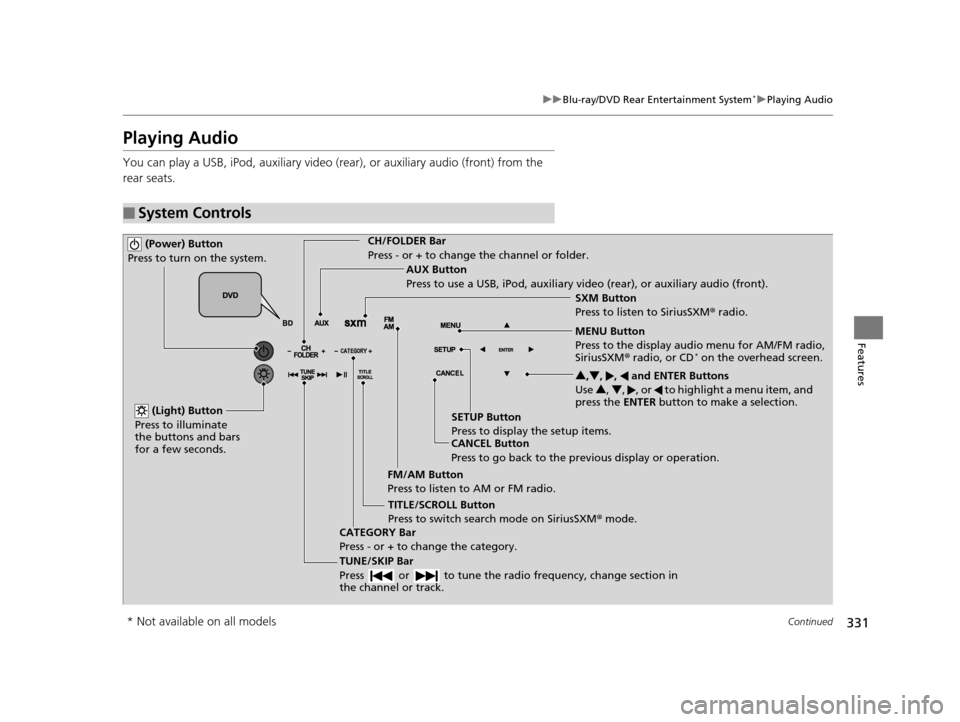
■System Controls
(Power) Button
Press to turn on the system.CH/FOLDER Bar
Press - or + to change the channel or folder.
(Light) Button
Press to illuminate
the buttons and bars
for a few seconds.
TUNE/SKIP Bar
Press or to tune the radi o frequency, change section in
the channel or track.
TITLE/SCROLL Button
Press to switch search mode on SiriusSXM ® mode.
CANCEL Button
Press to go back to the previous display or operation. 3
,4 , , and ENTER Buttons
Use 3, 4 , , or to highlight a menu item, and
press the ENTER button to make a selection.
CATEGORY Bar
Press - or + to change the category. AUX Button
Press to use a USB, iPod, auxiliary video (rear), or auxiliary audio (front).
FM/AM Button
Press to listen to AM or FM radio. SETUP Button
Press to display the setup items. SXM Button
Press to listen to SiriusSXM
® radio.
MENU Button
Press to the display audio menu for AM/FM radio,
SiriusSXM ® radio, or CD
* on the overhead screen.
* Not available on all models
16 PILOT-31TG76000.book 331 ページ 2015年6月15日 月曜日 午前11時30分