Page 359 of 664
SIENNA_OM_01999-08001_(U)
3595-7. Connecting Bluetooth®
5
Audio system
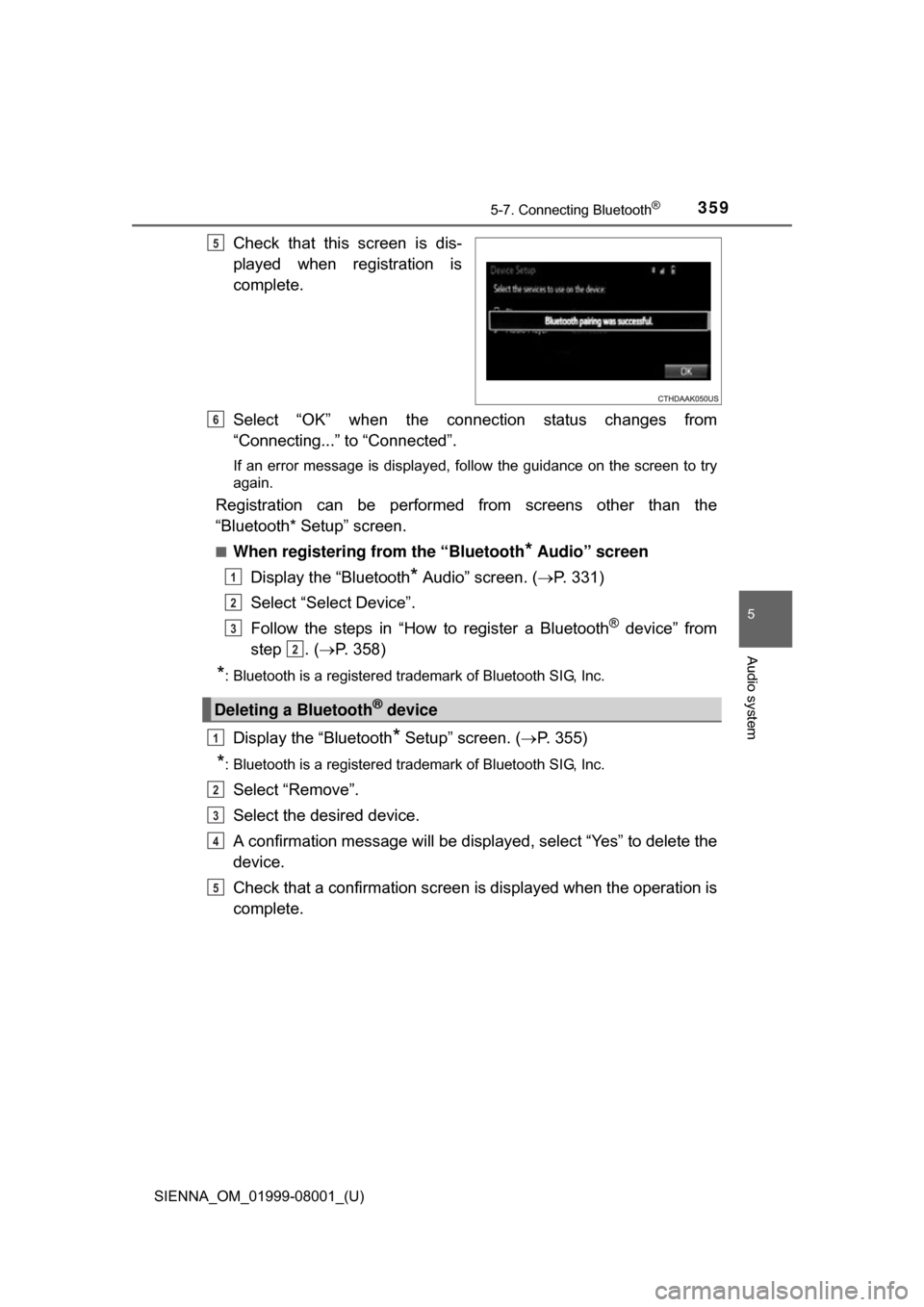
Check that this screen is dis-
played when registration is
complete.
Select “OK” when the connection status changes from
“Connecting...” to “Connected”.
If an error message is displayed, follow the guidance on the screen to try
again.
Registration can be performed from screens other than the
“Bluetooth* Setup” screen.
■When registering from the “Bluetooth* Audio” screen
Display the “Bluetooth
* Audio” screen. ( P. 331)
Select “Select Device”.
Follow the steps in “How to register a Bluetooth
® device” from
step . ( P. 358)
*: Bluetooth is a registered trademark of Bluetooth SIG, Inc.
Display the “Bluetooth* Setup” screen. ( P. 355)
*: Bluetooth is a registered trademark of Bluetooth SIG, Inc.
Select “Remove”.
Select the desired device.
A confirmation message will be displa yed, select “Yes” to delete the
device.
Check that a confirmation screen is displayed when the operation is
complete.
5
Deleting a Bluetooth® device
6
1
2
3
2
1
2
3
4
5
Page 360 of 664
360
SIENNA_OM_01999-08001_(U)
5-7. Connecting Bluetooth®
Connecting a Bluetooth® device
Press the “SETUP” button.
Select “Bluetooth
*”.
*: Bluetooth is a registered trademark of Bluetooth SIG, Inc.
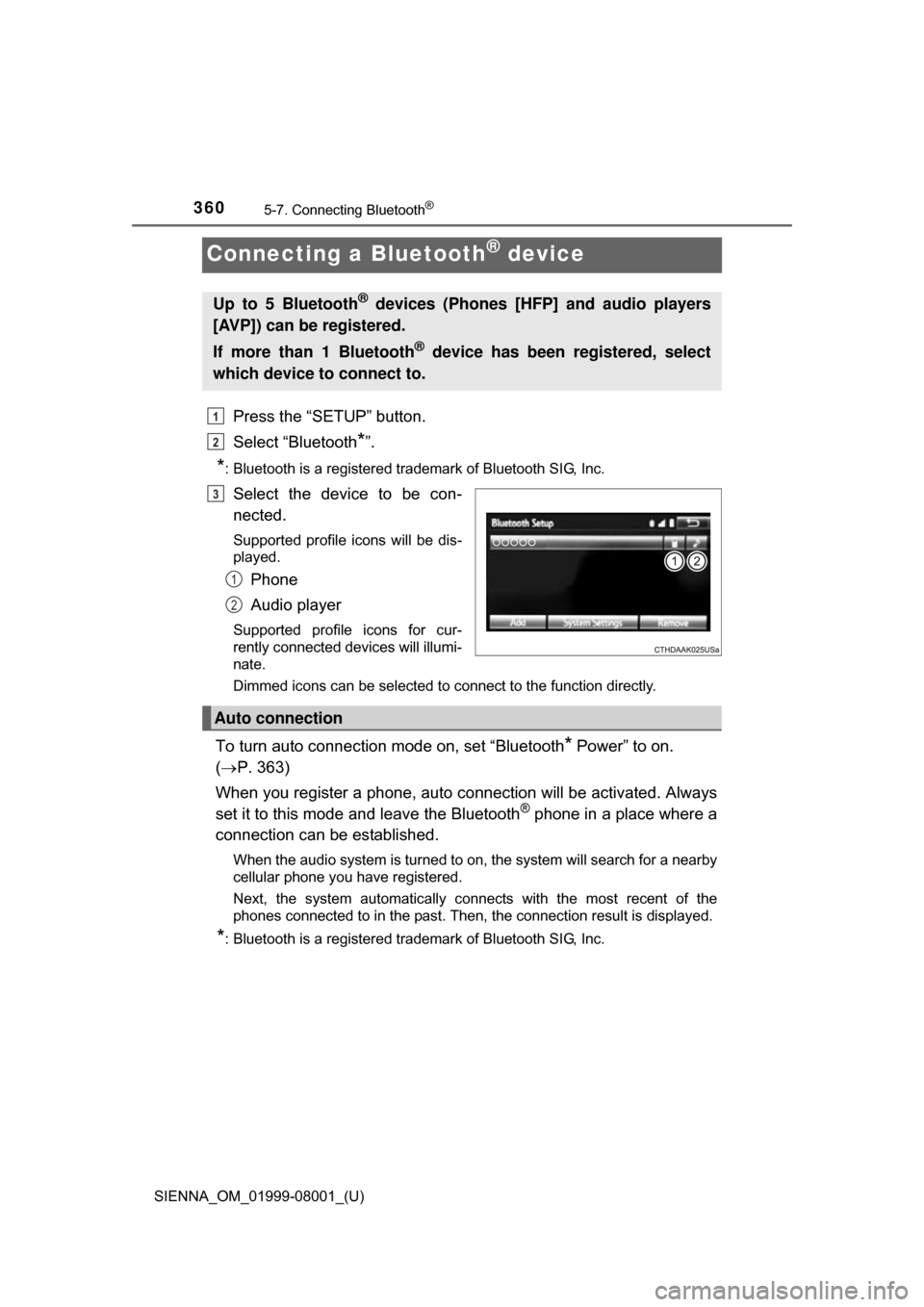
Select the device to be con-
nected.
Supported profile icons will be dis-
played.
Phone
Audio player
Supported profile icons for cur-
rently connected devices will illumi-
nate.
Dimmed icons can be selected to connect to the function directly.
To turn auto connection mode on, set “Bluetooth* Power” to on.
( P. 363)
When you register a phone, auto co nnection will be activated. Always
set it to this mode and leave the Bluetooth
® phone in a place where a
connection can be established.
When the audio system is turned to on, the system will search for a nearby
cellular phone you have registered.
Next, the system automatically connects with the most recent of the
phones connected to in the past. Then, the connection result is displayed.
*: Bluetooth is a registered trademark of Bluetooth SIG, Inc.
Up to 5 Bluetooth® devices (Phones [HFP] and audio players
[AVP]) can be registered.
If more than 1 Bluetooth
® device has been registered, select
which device to connect to.
1
2
3
1
2
Auto connection
Page 361 of 664
SIENNA_OM_01999-08001_(U)
3615-7. Connecting Bluetooth®
5
Audio system
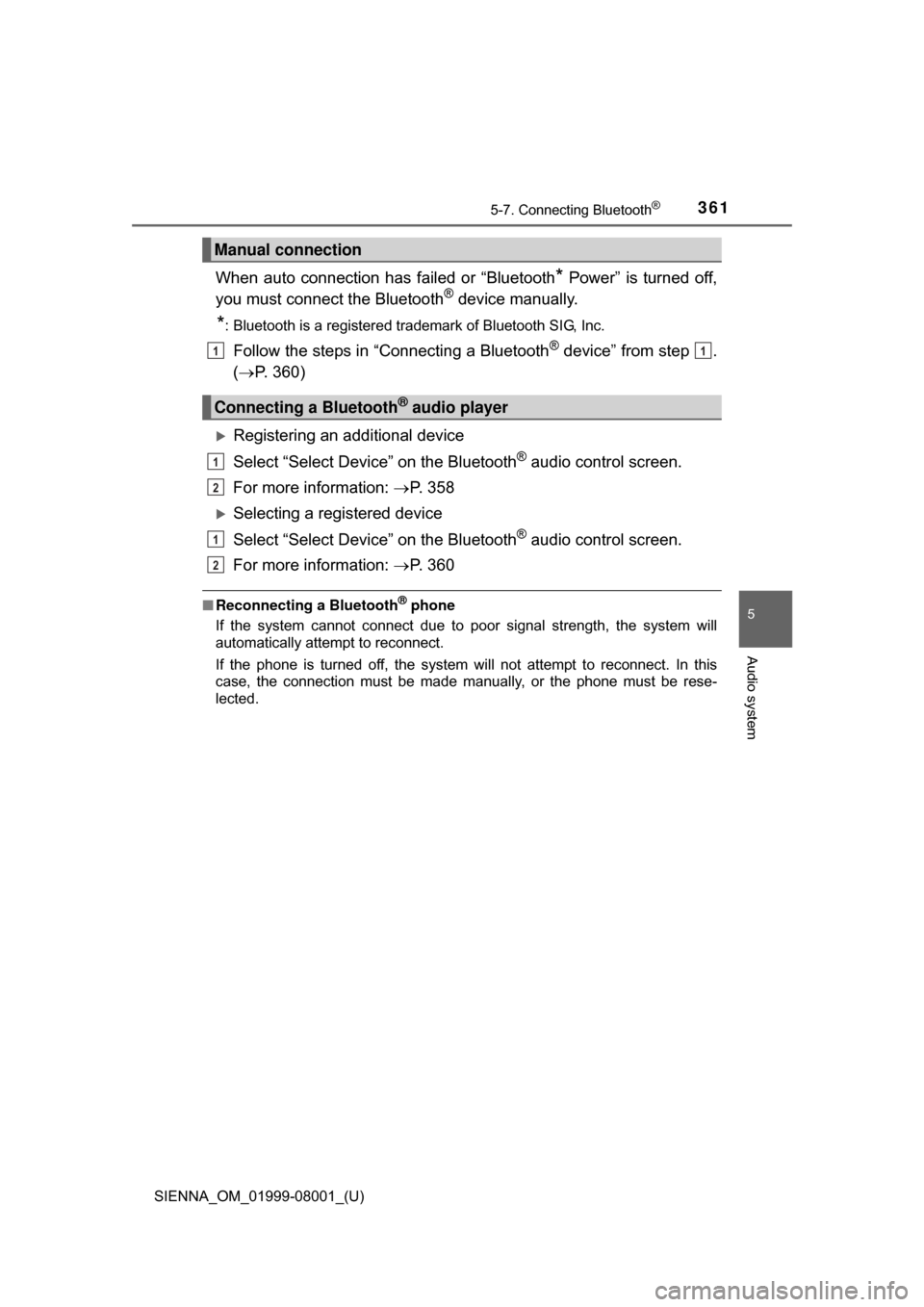
When auto connection has failed or “Bluetooth* Power” is turned off,
you must connec t the Bluetooth® device manually.
*: Bluetooth is a registered trademark of Bluetooth SIG, Inc.
Follow the steps in “Connecting a Bluetooth® device” from step .
( P. 360)
Registering an additional device
Select “Select Device” on the Bluetooth
® audio control screen.
For more information: P. 3 5 8
Selecting a registered device
Select “Select Device” on the Bluetooth
® audio control screen.
For more information: P. 3 6 0
■Reconnecting a Bluetooth® phone
If the system cannot connect due to poor signal strength, the system will
automatically attempt to reconnect.
If the phone is turned off, the system will not attempt to reconnect. In this
case, the connection must be made manually, or the phone must be rese-
lected.
Manual connection
Connecting a Bluetooth® audio player
11
1
2
1
2
Page 362 of 664
362
SIENNA_OM_01999-08001_(U)
5-7. Connecting Bluetooth®
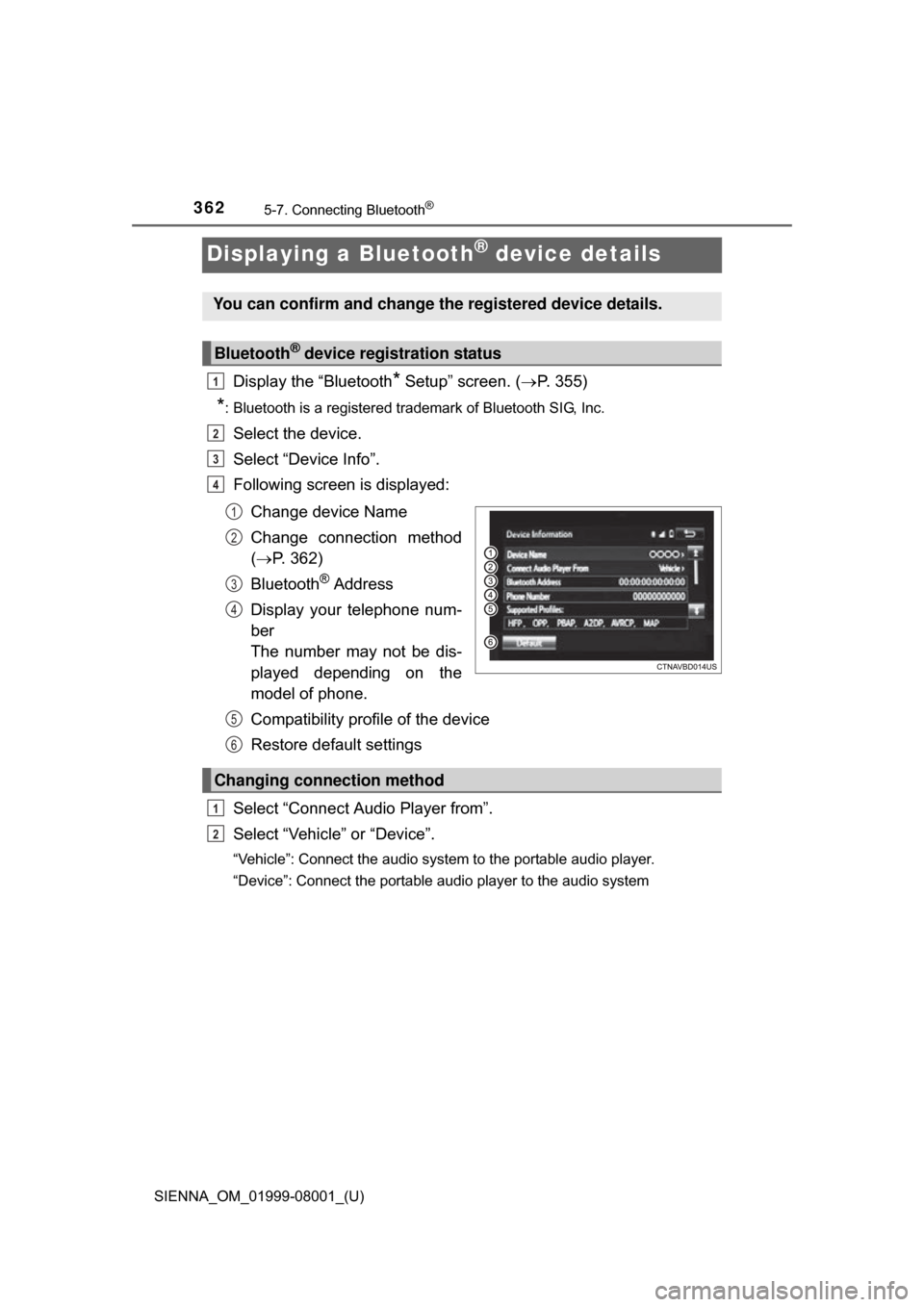
Displaying a Bluetooth® device details
Display the “Bluetooth* Setup” screen. (P. 355)
*: Bluetooth is a registered trademark of Bluetooth SIG, Inc.
Select the device.
Select “Device Info”.
Following screen is displayed:
Change device Name
Change connection method
( P. 362)
Bluetooth
® Address
Display your telephone num-
ber
The number may not be dis-
played depending on the
model of phone.
Compatibility profile of the device
Restore default settings
Select “Connect Audio Player from”.
Select “Vehicle ” or “Device”.
“Vehicle”: Connect the audio system to the portable audio player.
“Device”: Connect the portable audio player to the audio system
You can confirm and change the registered device details.
Bluetooth® device registration status
1
2
3
4
1
2
3
4
Changing connection method
5
6
1
2
Page 363 of 664
363
SIENNA_OM_01999-08001_(U)
5-7. Connecting Bluetooth®
5
Audio system
Detailed Bluetooth® system settings
Display the “Bluetooth* Setup” screen. (P. 355)
Select “System Settings”.
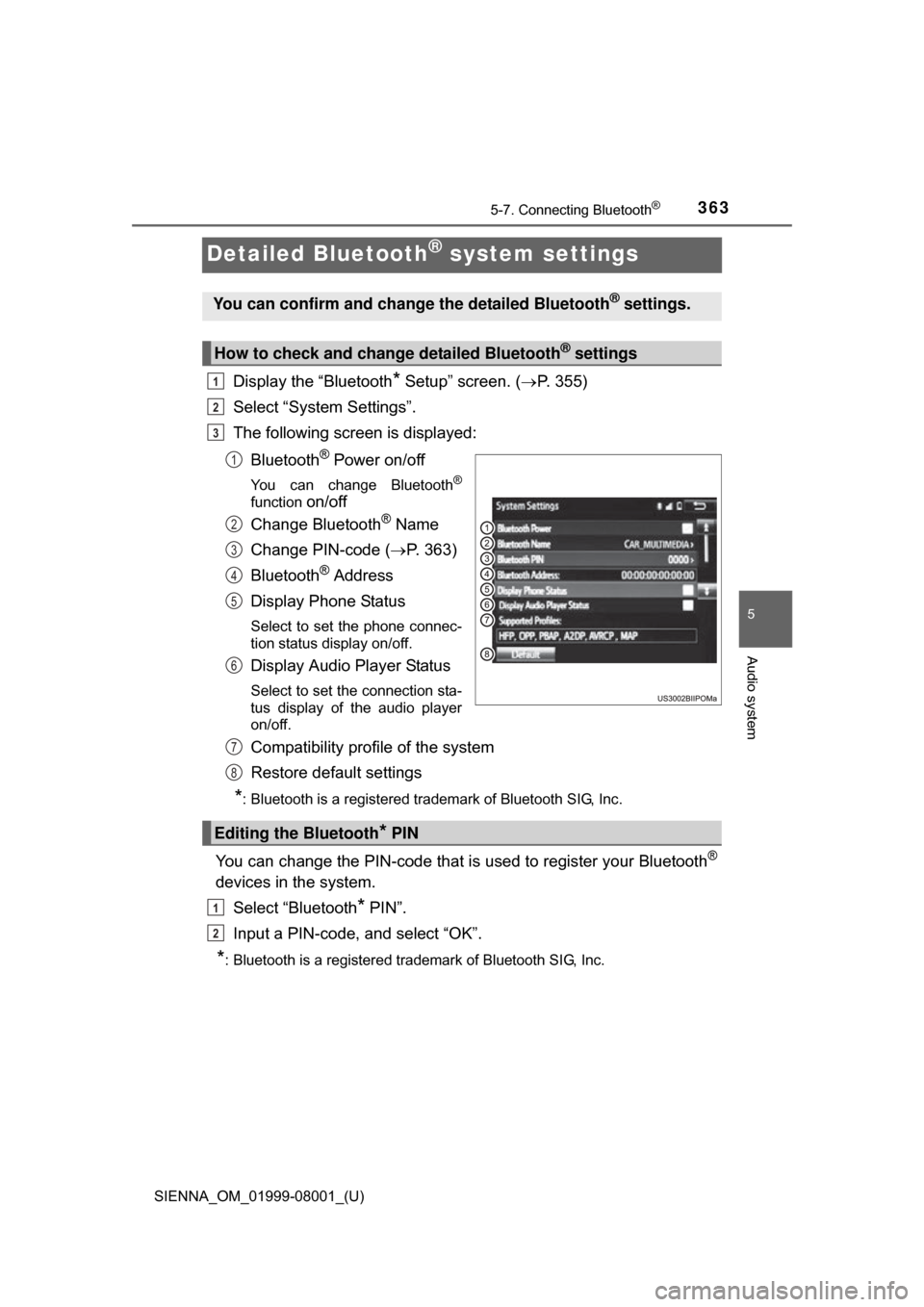
The following screen is displayed:
Bluetooth
® Power on/off
You can change Bluetooth®
function on/off
Change Bluetooth
® Name
Change PIN-code ( P. 363)
Bluetooth
® Address
Display Phone Status
Select to set the phone connec-
tion status display on/off.
Display Audio Player Status
Select to set the connection sta-
tus display of the audio player
on/off.
Compatibility profile of the system
Restore default settings
*: Bluetooth is a registered trademark of Bluetooth SIG, Inc.
You can change the PIN-code that is used to register your Bluetooth®
devices in the system.
Select “Bluetooth
* PIN”.
Input a PIN-code, and select “OK”.
*: Bluetooth is a registered trademark of Bluetooth SIG, Inc.
You can confirm and change the detailed Bluetooth® settings.
How to check and change detailed Bluetooth® settings
1
2
3
1
2
3
4
5
6
Editing the Bluetooth* PIN
7
8
1
2
Page 364 of 664
364
SIENNA_OM_01999-08001_(U)
5-8. Bluetooth® Audio
Listening to Bluetooth® Audio
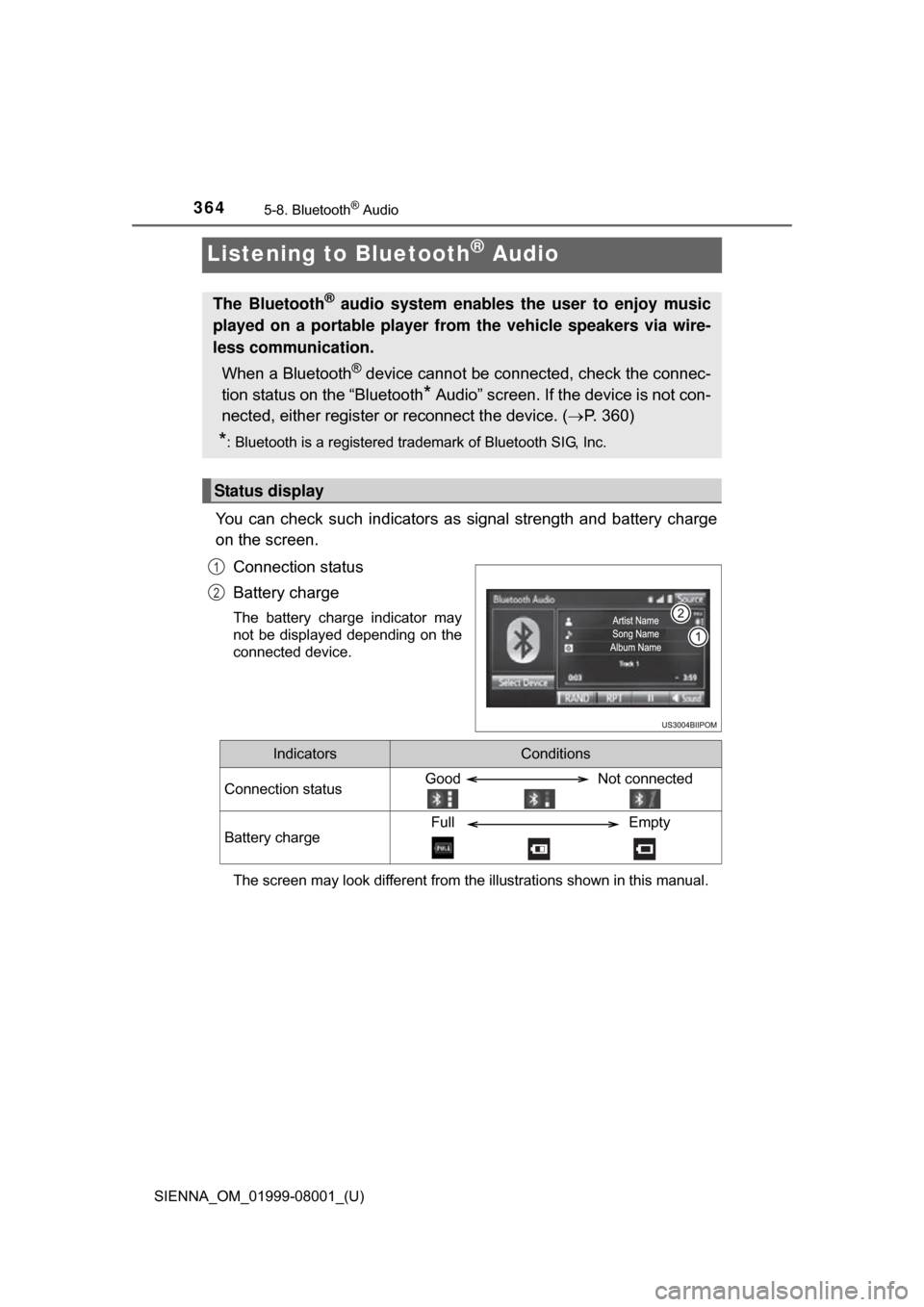
You can check such indicators as signal strength and battery charge
on the screen.
Connection status
Battery charge
The battery charge indicator may
not be displayed depending on the
connected device.
The screen may look different from the illustrations shown in this manual.
The Bluetooth® audio system enables the user to enjoy music
played on a portable player from the vehicle speakers via wire-
less communication.
When a Bluetooth
® device cannot be connected, check the connec-
tion status on the “Bluetooth
* Audio” screen. If the device is not con-
nected, either register or reconnect the device. ( P. 360)
*: Bluetooth is a registered trademark of Bluetooth SIG, Inc.
Status display
1
2
IndicatorsConditions
Connection statusGood Not connected
Battery chargeFull Empty
Page 365 of 664
SIENNA_OM_01999-08001_(U)
3655-8. Bluetooth® Audio
5
Audio system
Select or to Play/Pause.
For details on “Bluetooth
* Audio” screen operation methods, refer to
Basic Audio Operations. ( P. 323)
For details on how to select a track or album, refer to selecting, fast-
forwarding and reversing tracks/files/songs. ( P. 333)
*: Bluetooth is a registered trademark of Bluetooth SIG, Inc.
Playing Bluetooth® audio
Page 367 of 664
SIENNA_OM_01999-08001_(U)
3675-9. Bluetooth® phone
5
Audio system
◆Telephone switch (P. 379)
◆Microphone
The vehicle’s built in micro-
phone is used when talking on
the phone.
The person you are speaking to
can be heard from the front
speakers.
To use the hands-free system,
you must register your
Bluetooth
® phone in the sys-
tem. ( P. 358)
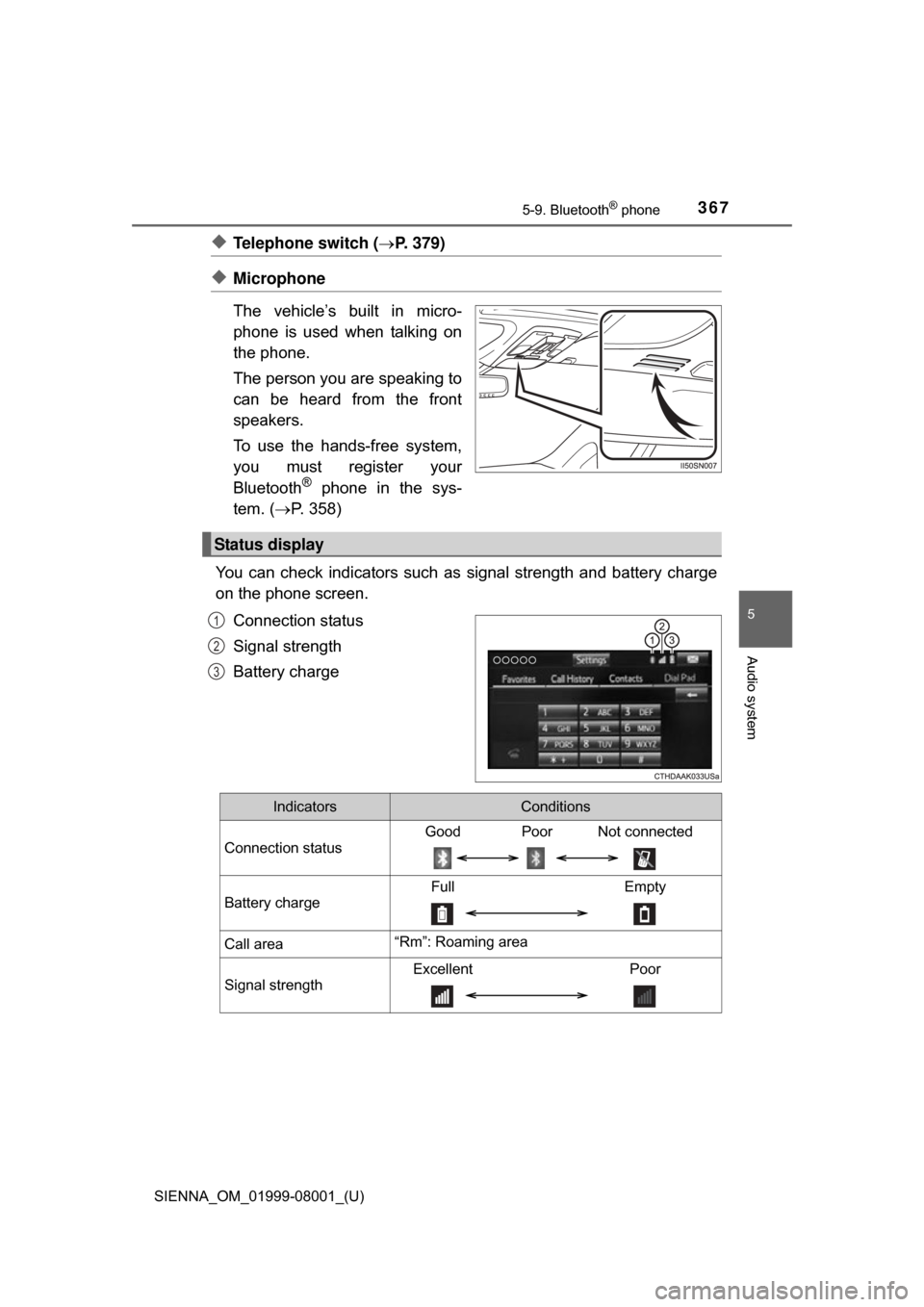
You can check indicators such as signal strength and battery charge
on the phone screen.
Connection status
Signal strength
Battery charge
Status display
1
2
3
IndicatorsConditions
Connection status
Good Poor Not connected
Battery charge
Full Empty
Call area“Rm”: Roaming area
Signal strength
Excellent Poor