Page 383 of 664
SIENNA_OM_01999-08001_(U)
3835-9. Bluetooth® phone
5
Audio system
■Updating the contacts in a different way (From the “Call
History” screen)
For PBAP compatible Bluetooth
® phones, this function is available
when “Automatic Transfer” is set to off. ( P. 381)
Display the phone screen. ( P. 366)
Select the “Call History” tab and select a contact not yet regis-
tered in the contact list.
Select “Update Contact”.
Select the desired contact.
Select a phone type for the phone number.
New contact data can be registered. Up to 4 numbers per person can
be registered. For PBAP compatible Bluetooth
® phones, this function
is available when “Automatic Transfer” is set to off. (P. 381)
Select “New Contact”.
Enter the name and select “OK”.
Enter the phone number and select “OK”.
Select the phone type for the phone number.
To add another number to this contact, select “Yes”.
■Registering a new contact in a different way (From the “Call
History” screen) Display the phone screen. ( P. 366)
Select the “Call History” tab and select a contact not yet regis-
tered in the contact list.
Select “Add to Contacts”.
Follow the steps in “Registering a new contact to the contacts
list” from step . ( P. 383)
Registering a new contact to the contact list
1
2
3
4
5
1
2
3
4
5
1
2
3
4
3
Page 385 of 664
SIENNA_OM_01999-08001_(U)
3855-9. Bluetooth® phone
5
Audio system
For PBAP compatible Bluetooth® phones, this function is available
when “Automatic Transfer” is set to off. ( P. 381)
Select “Delete Contacts”.
Select the desired contact and select “Delete”.
Select “Yes” when the confirmation screen appears.
■Deleting the contact in a different way (From the “Contact
Details” screen) Display the phone screen. ( P. 366)
Select the “Contacts”, “Call history” tab or the “Favorites” tab and
select the desired contact.
Select “Edit Contact”.
Select “Yes” when the confirmation screen appears.
Up to 15 contacts (maximum of 4 numbers per contact) can be regis-
tered in the favorites list.
■Registering the contacts in the favorites list
Select “Add Favorite”.
Select the desired contact to add to the favorites list.
Dimmed contacts are already stored as a favorite.
Check that a confirmation scr een is displayed when the opera-
tion is complete.
Deleting the contact data
Favorites list setting
1
2
3
1
2
3
4
1
2
3
Page 387 of 664
SIENNA_OM_01999-08001_(U)
3875-9. Bluetooth® phone
5
Audio system
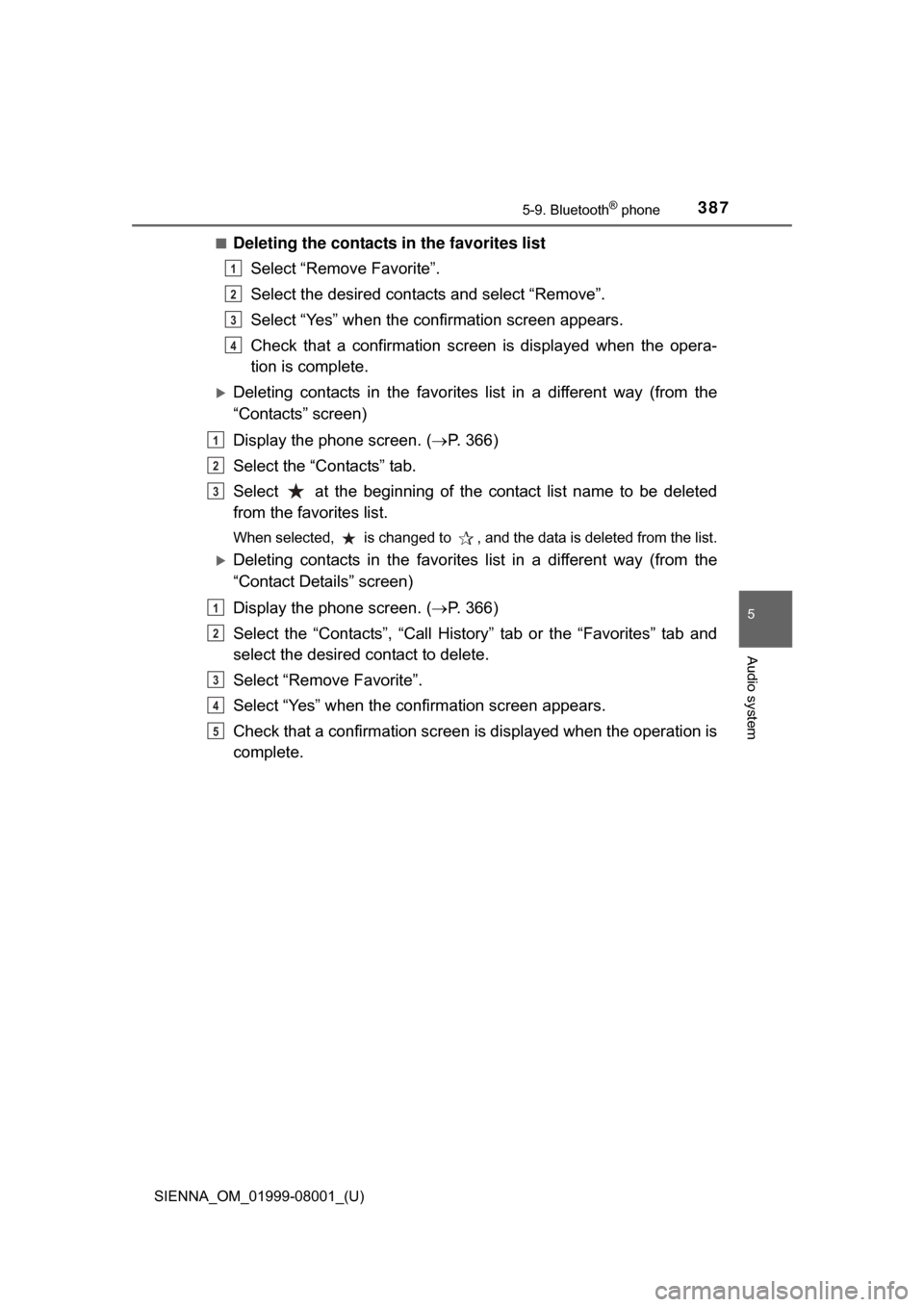
■Deleting the contacts in the favorites listSelect “Remove Favorite”.
Select the desired contacts and select “Remove”.
Select “Yes” when the confirmation screen appears.
Check that a confirmation scr een is displayed when the opera-
tion is complete.
Deleting contacts in the favorites list in a different way (from the
“Contacts” screen)
Display the phone screen. ( P. 366)
Select the “Contacts” tab.
Select at the beginning of the contact list name to be deleted
from the favorites list.
When selected, is changed to , and the data is deleted from the list.
Deleting contacts in the favorites list in a different way (from the
“Contact Details” screen)
Display the phone screen. ( P. 366)
Select the “Contacts”, “Call History” tab or the “Favorites” tab and
select the desired contact to delete.
Select “Remove Favorite”.
Select “Yes” when the confirmation screen appears.
Check that a confirmation screen is displayed when the operation is
complete.
1
2
3
4
1
2
3
1
2
3
4
5
Page 389 of 664
SIENNA_OM_01999-08001_(U)
3895-9. Bluetooth® phone
5
Audio system
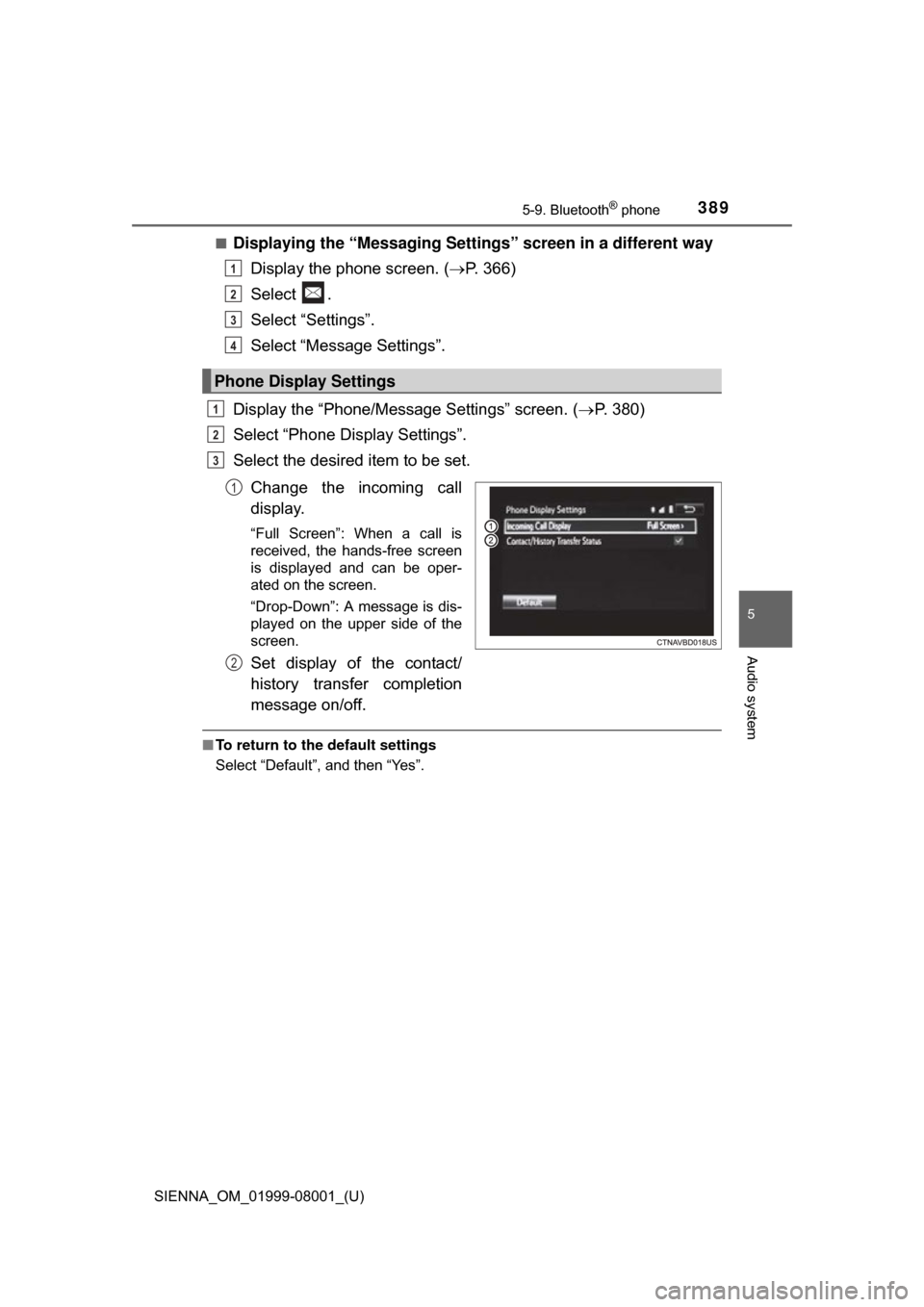
■Displaying the “Messaging Settings” screen in a different wayDisplay the phone screen. ( P. 366)
Select .
Select “Settings”.
Select “Message Settings”.
Display the “Phone/Message Settings” screen. ( P. 380)
Select “Phone Display Settings”.
Select the desired item to be set.
Change the incoming call
display.
“Full Screen”: When a call is
received, the hands-free screen
is displayed and can be oper-
ated on the screen.
“Drop-Down”: A message is dis-
played on the upper side of the
screen.
Set display of the contact/
history transfer completion
message on/off.
■To return to the default settings
Select “Default”, and then “Yes”.
Phone Display Settings
1
2
3
4
1
2
3
1
2
Page 391 of 664
SIENNA_OM_01999-08001_(U)
3915-9. Bluetooth® phone
5
Audio system
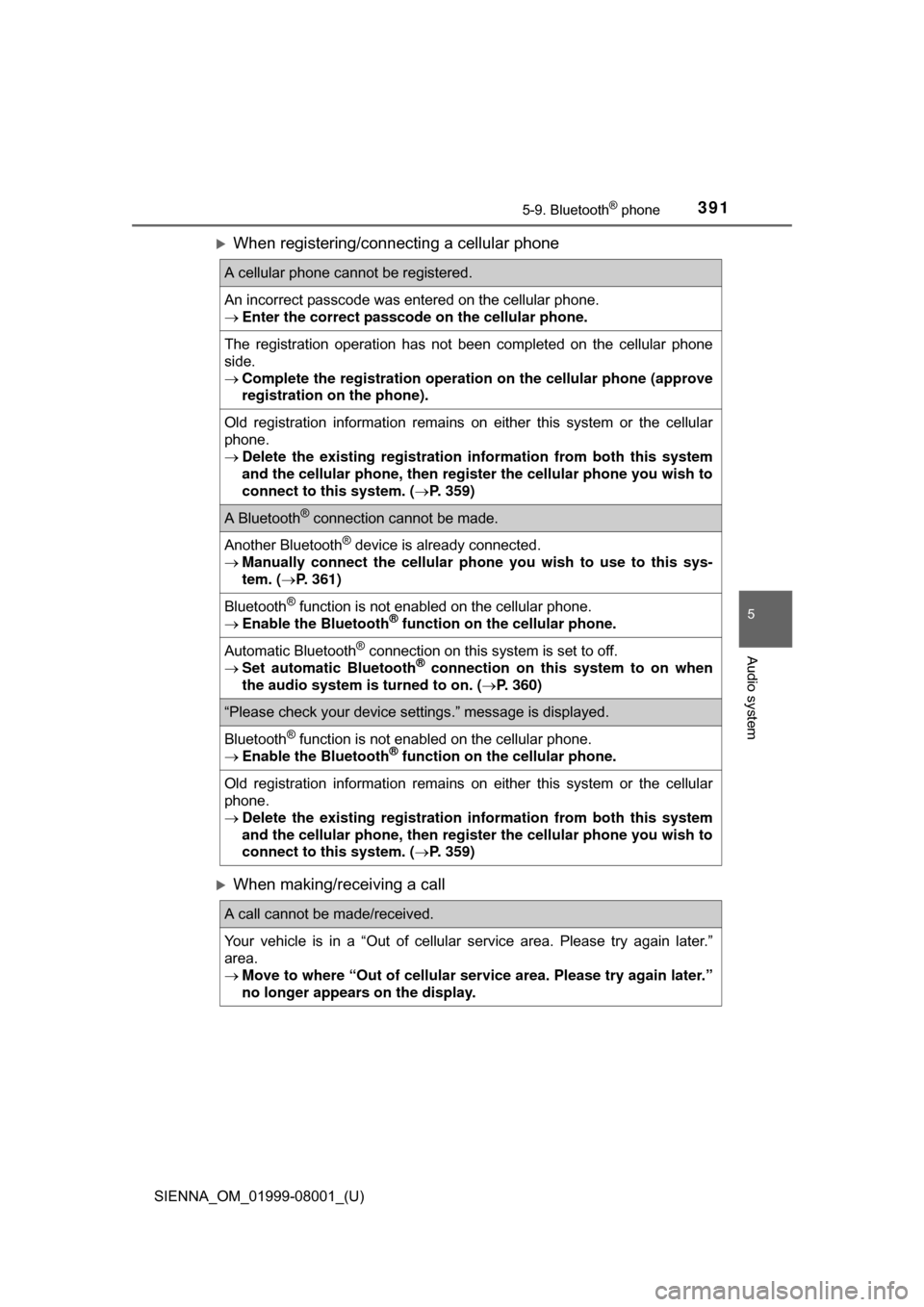
When registering/connecting a cellular phone
When making/receiving a call
A cellular phone cannot be registered.
An incorrect passcode was entered on the cellular phone.
Enter the correct passcode on the cellular phone.
The registration operation has not been completed on the cellular phone
side.
Complete the registration operation on the cellular phone (approve
registration on the phone).
Old registration information remains on either this system or the cellular
phone.
Delete the existing registration information from both this system
and the cellular phone, then register the cellular phone you wish to
connect to this system. ( P. 359)
A Bluetooth® connection cannot be made.
Another Bluetooth® device is already connected.
Manually connect the cellular phone you wish to use to this sys-
tem. ( P. 361)
Bluetooth® function is not enabled on the cellular phone.
Enable the Bluetooth® function on the cellular phone.
Automatic Bluetooth® connection on this system is set to off.
Set automatic Bluetooth® connection on this system to on when
the audio system is turned to on. ( P. 360)
“Please check your device settings.” message is displayed.
Bluetooth® function is not enabled on the cellular phone.
Enable the Bluetooth® function on the cellular phone.
Old registration information remains on either this system or the cellular
phone.
Delete the existing registration information from both this system
and the cellular phone, then register the cellular phone you wish to
connect to this system. ( P. 359)
A call cannot be made/received.
Your vehicle is in a “Out of cellular service area. Please try again later.”
area.
Move to where “Out of cellular ser vice area. Please try again later.”
no longer appears on the display.
Page 393 of 664
SIENNA_OM_01999-08001_(U)
3935-9. Bluetooth® phone
5
Audio system
In other situations
Even though all conceivable measures have been taken, the symptom sta-
tus does not change.
The cellular phone is not close enough to this system.
Bring the cellular phone closer to this system.
The cellular phone is the most likely cause of the symptom.
Turn the cellular phone off, remo ve and reinstall the battery pack,
and then restart the cellular phone.
Enable the cellular phone’s Bluetooth
® connection.
Stop the cellular phone’s security software and close all applica-
tions.
Before using an application installed on the cellular phone, care-
fully check its source and how its operation might affect this sys-
tem.
Page 394 of 664
394
SIENNA_OM_01999-08001_(U)
5-10. Bluetooth®
Bluetooth®
■When using the Bluetooth® audio system
● In the following conditions, the system may not function.
• If the portable audio player is turned off
• If the portable audio player is not connected
• If the portable audio player’s battery is low
● There may be a delay if a cellular phone connection is made during
Bluetooth
® audio play.
● Depending on the type of portable audio player that is connected to the sys-
tem, operation may differ slightly and certain functions may not be available.
■ When using the hands-free system
●The audio system is muted when making a call.
● If both parties speak at the same time, it may be difficult to hear.
● If the received call volume is overly loud, an echo may be heard.
If the Bluetooth
® phone is too close to the system, quality of the sound may
deteriorate and connection status may deteriorate.
● In the following circumstances, it may be difficult to hear the other party:
• When driving on unpaved roads
• When driving at high speeds
• If a roof or window is open
• If the air conditioning is blowing directly on the microphone
• If there is interference from the network of the cellular phone
■ Conditions under which th e system will not operate
● If using a cellular phone that does not support Bluetooth
®
●If the cellular phone is turned off
● If you are outside of cellular phone service coverage
● If the cellular phone is not connected
● If the cellular phone’s battery is low
● When outgoing calls are controlled, due to heavy traffic on telephone lines,
etc.
● When the cellular phone itself cannot be used
● When transferring contact data from the cellular phone
Page 395 of 664
SIENNA_OM_01999-08001_(U)
3955-10. Bluetooth®
5
Audio system
■Bluetooth® antenna
The antenna is built into the display.
If the Bluetooth
® device is behind the seat or in the glove box or console box,
or is touching or covered by metal objects, the connection status may deterio-
rate.
■ Battery charge/signal status
●This display may not correspond exactly with the portable audio player or
cellular phone itself.
● This system does not have a charging function.
● The portable audio player or cellular phone battery will be depleted quickly
when the device is connected to Bluetooth
®.
■ When using the Bluetooth
® audio and hands-free system at the same
time
The following problems may occur.
● The Bluetooth
® audio connection may be interrupted.
● Noise may be heard during Bluetooth
® audio playback.
■ About the contact in this system
The following data is stored for every registered cellular phone. When
another phone is connecting, you cannot read the registered data.
●Contact data
● Call history
● Favorite
● Message
When removing a Bluetooth
® phone from the system, the above-mentioned
data is also deleted.
■ About Bluetooth
®
The Bluetooth® word mark and logos are
registered trademarks owned Bluetooth
SIG, Inc. and any use of such marks by
PIONEER CORPORATION is under
license. Other trademarks and trade
names are those of their respective own-
ers.