Page 369 of 664
SIENNA_OM_01999-08001_(U)
3695-9. Bluetooth® phone
5
Audio system
Press the switch on the steering wheel.
If the phonebook is empty, a message will be displayed.
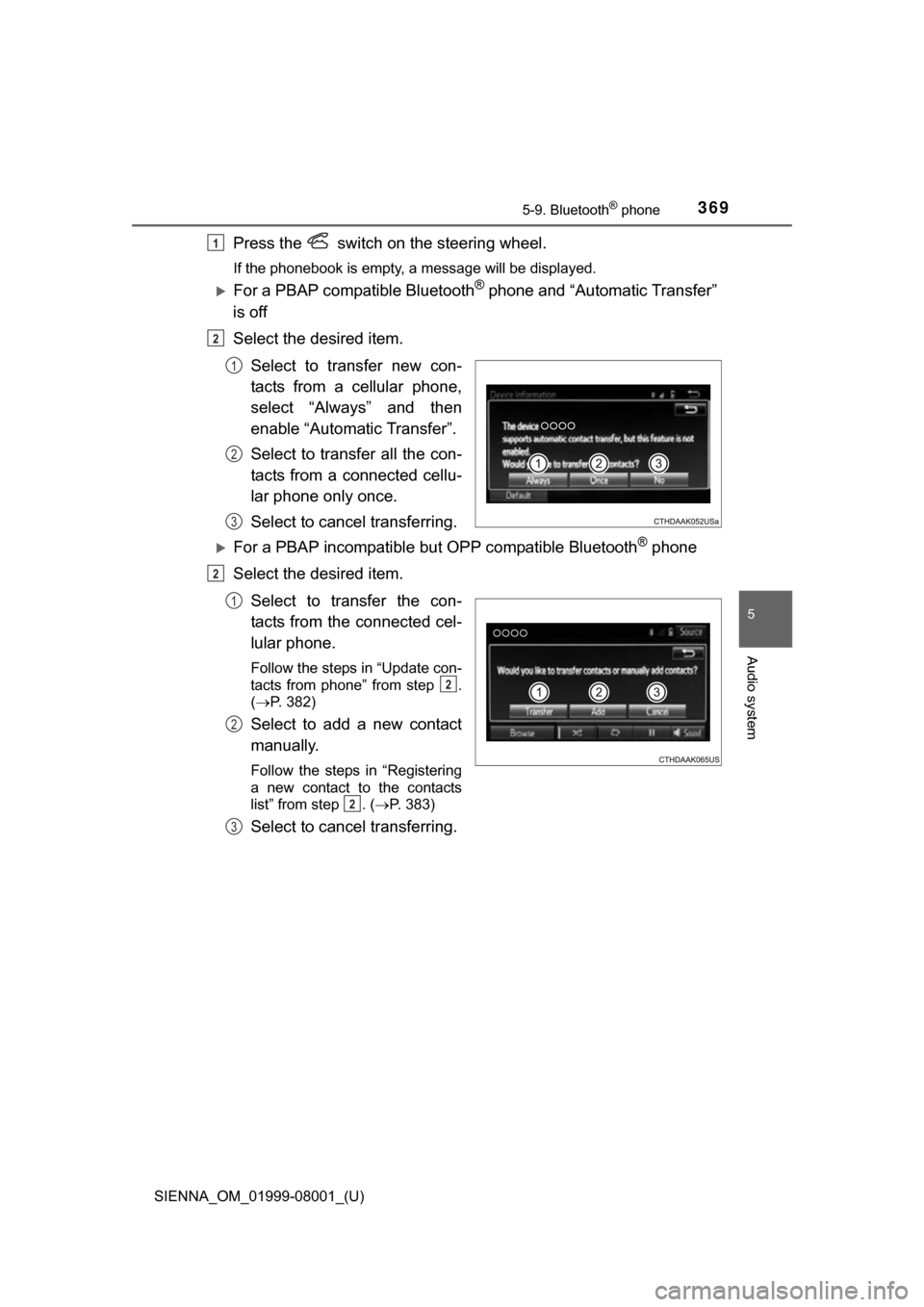
For a PBAP compatible Bluetooth® phone and “Automatic Transfer”
is off
Select the desired item.
Select to transfer new con-
tacts from a cellular phone,
select “Always” and then
enable “Automatic Transfer”.
Select to transfer all the con-
tacts from a connected cellu-
lar phone only once.
Select to cancel transferring.
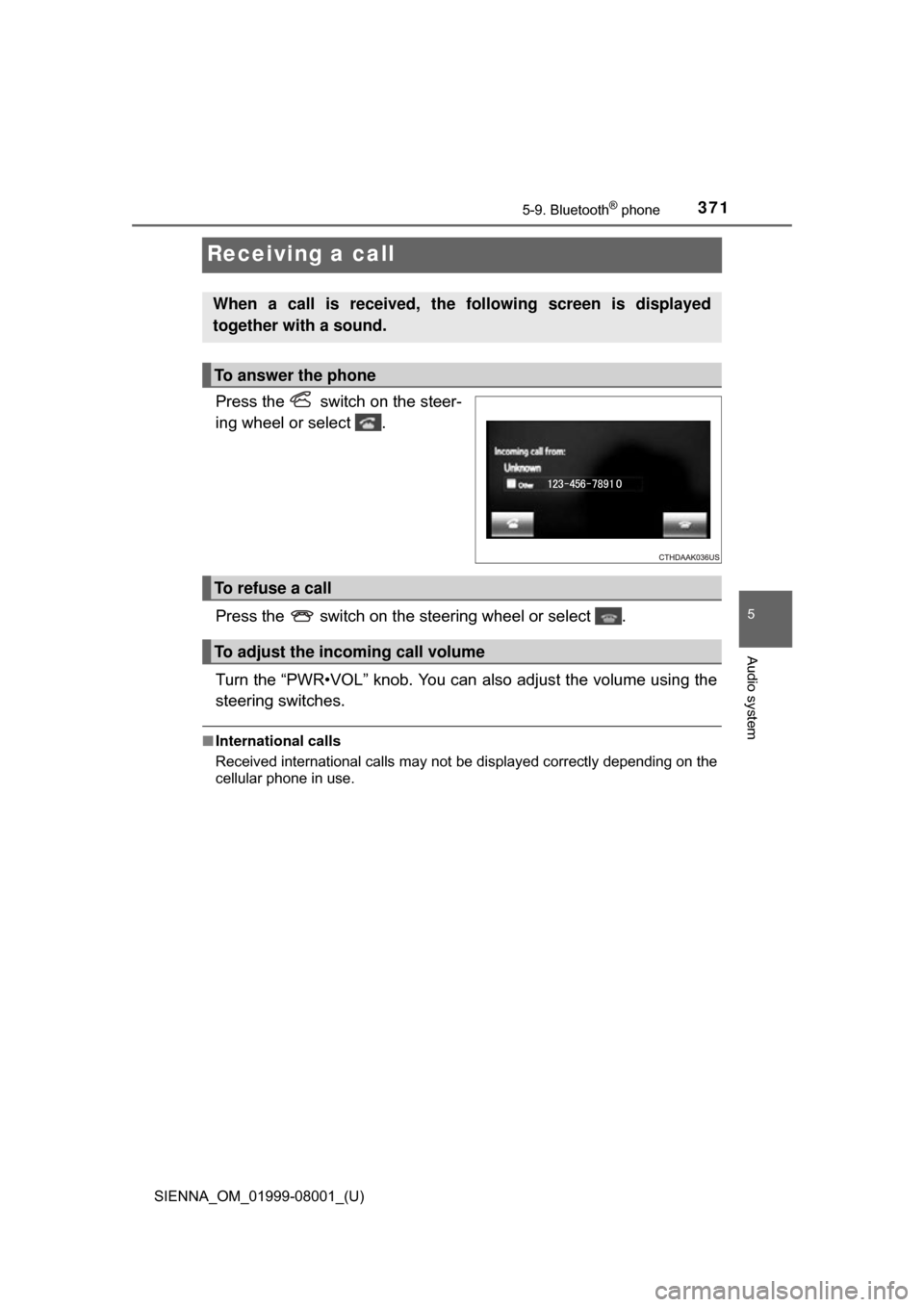
For a PBAP incompatible bu t OPP compatible Bluetooth® phone
Select the desired item.
Select to transfer the con-
tacts from the connected cel-
lular phone.
Follow the steps in “Update con-
tacts from phone” from step .
(P. 382)
Select to add a new contact
manually.
Follow the steps in “Registering
a new contact to the contacts
list” from step . (P. 383)
Select to cancel transferring.
1
2
1
2
3
2
1
2
2
2
3
Page 371 of 664
371
SIENNA_OM_01999-08001_(U)
5-9. Bluetooth® phone
5
Audio system
Receiving a call
Press the switch on the steer-
ing wheel or select .
Press the switch on the steering wheel or select .
Turn the “PWR•VOL” knob. You can also adjust the volume using the
steering switches.
■ International calls
Received international calls may not be displayed correctly depending on the
cellular phone in use.
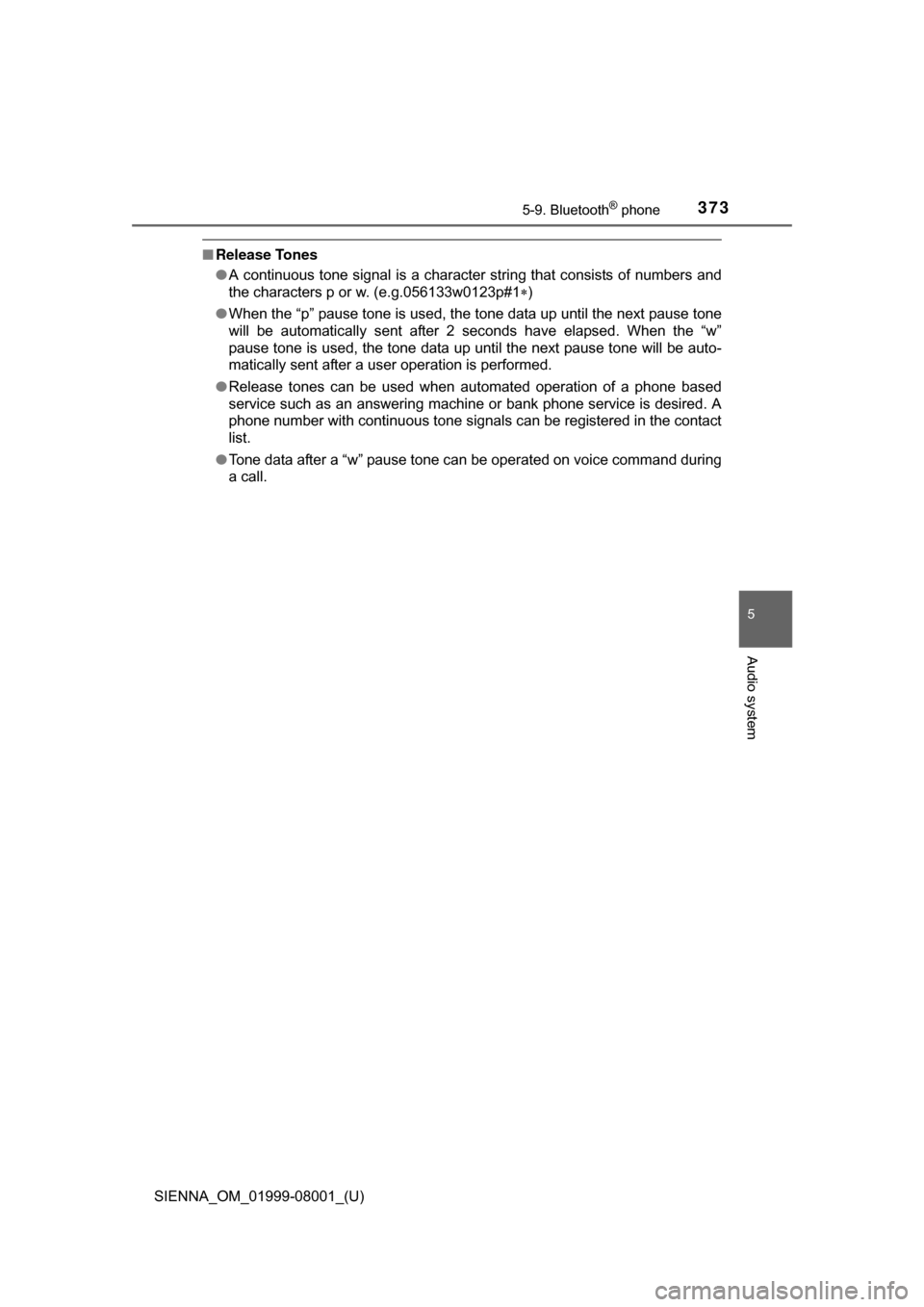
When a call is received, the following screen is displayed
together with a sound.
To answer the phone
To refuse a call
To adjust the incoming call volume
Page 373 of 664
SIENNA_OM_01999-08001_(U)
3735-9. Bluetooth® phone
5
Audio system
■Release Tones
●A continuous tone signal is a character string that consists of numbers and
the characters p or w. (e.g.056133w0123p#1 )
● When the “p” pause tone is used, the tone data up until the next pause tone
will be automatically sent after 2 seconds have elapsed. When the “w”
pause tone is used, the tone data up until the next pause tone will be auto-
matically sent after a user operation is performed.
● Release tones can be used when automated operation of a phone based
service such as an answering machine or bank phone service is desired. A
phone number with continuous tone signals can be registered in the contact
list.
● Tone data after a “w” pause tone can be operated on voice command during
a call.
Page 375 of 664
375
SIENNA_OM_01999-08001_(U)
5-9. Bluetooth® phone
5
Audio system
Bluetooth® phone message function
Press button.
Select .
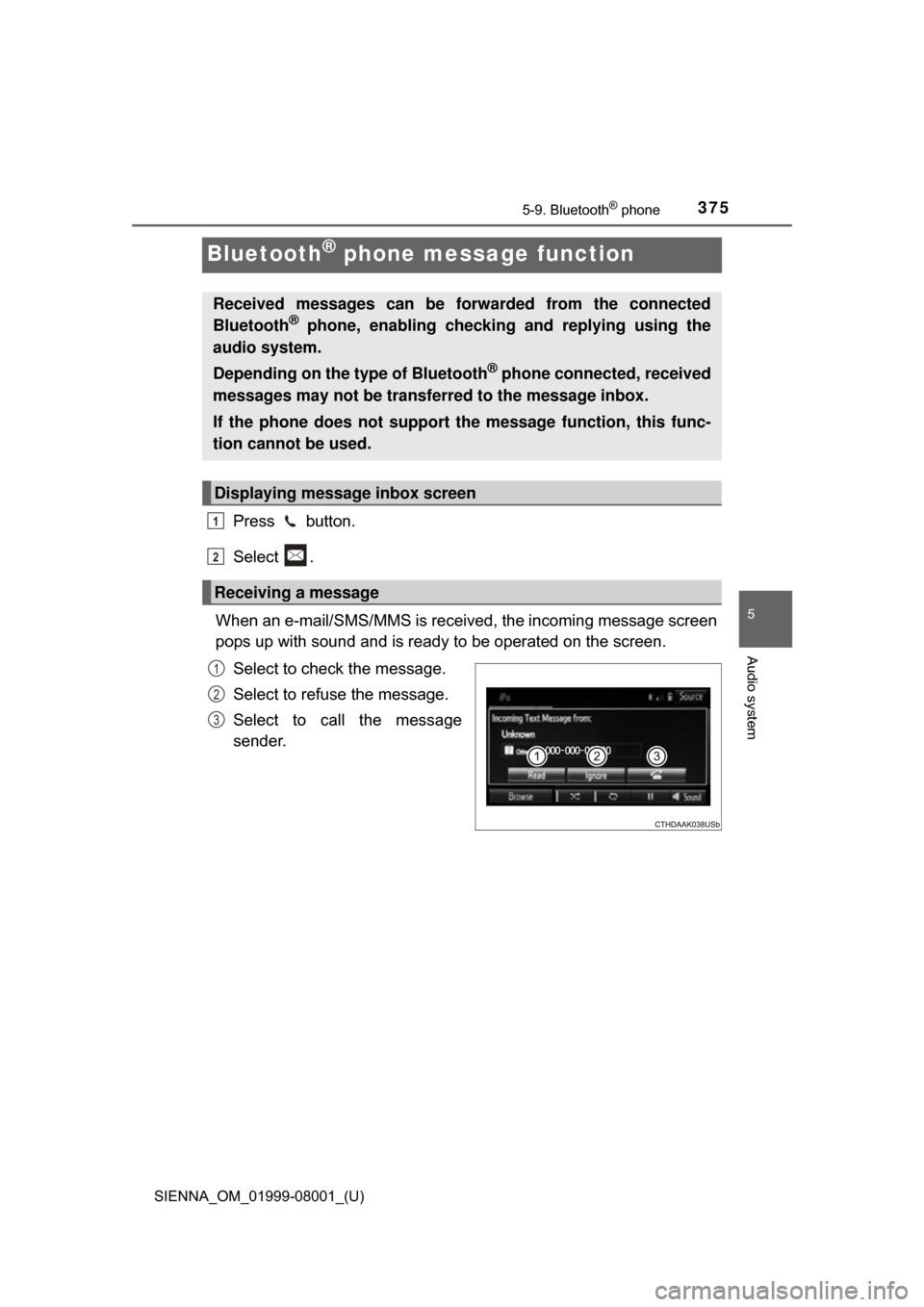
When an e-mail/SMS/MMS is received, the incoming message screen
pops up with sound and is ready to be operated on the screen. Select to check the message.
Select to refuse the message.
Select to call the message
sender.
Received messages can be forwarded from the connected
Bluetooth® phone, enabling checking and replying using the
audio system.
Depending on the type of Bluetooth
® phone connected, received
messages may not be transf erred to the message inbox.
If the phone does not support the message function, this func-
tion cannot be used.
Displaying message inbox screen
Receiving a message
1
2
1
2
3
Page 376 of 664
3765-9. Bluetooth® phone
SIENNA_OM_01999-08001_(U)
■Receiving a message
●Depending on the cellular phone used for receiving messages, or its regis-
tration status with the audio system, some information may not be dis-
played.
● The pop up screen is separately available for incoming e-mail and SMS/
MMS messages under the following conditions:
E-mail:
• “Incoming E-mail Display” is set to “Full Screen”. ( P. 388)
• “E-mail Notification Popup” is set to on. ( P. 388)
SMS/MMS:
• “Incoming SMS/MMS Display” is set to “Full screen”. (P. 388)
• “SMS/MMS Notification Popup” is set to on. (P. 388)
Page 377 of 664
SIENNA_OM_01999-08001_(U)
3775-9. Bluetooth® phone
5
Audio system
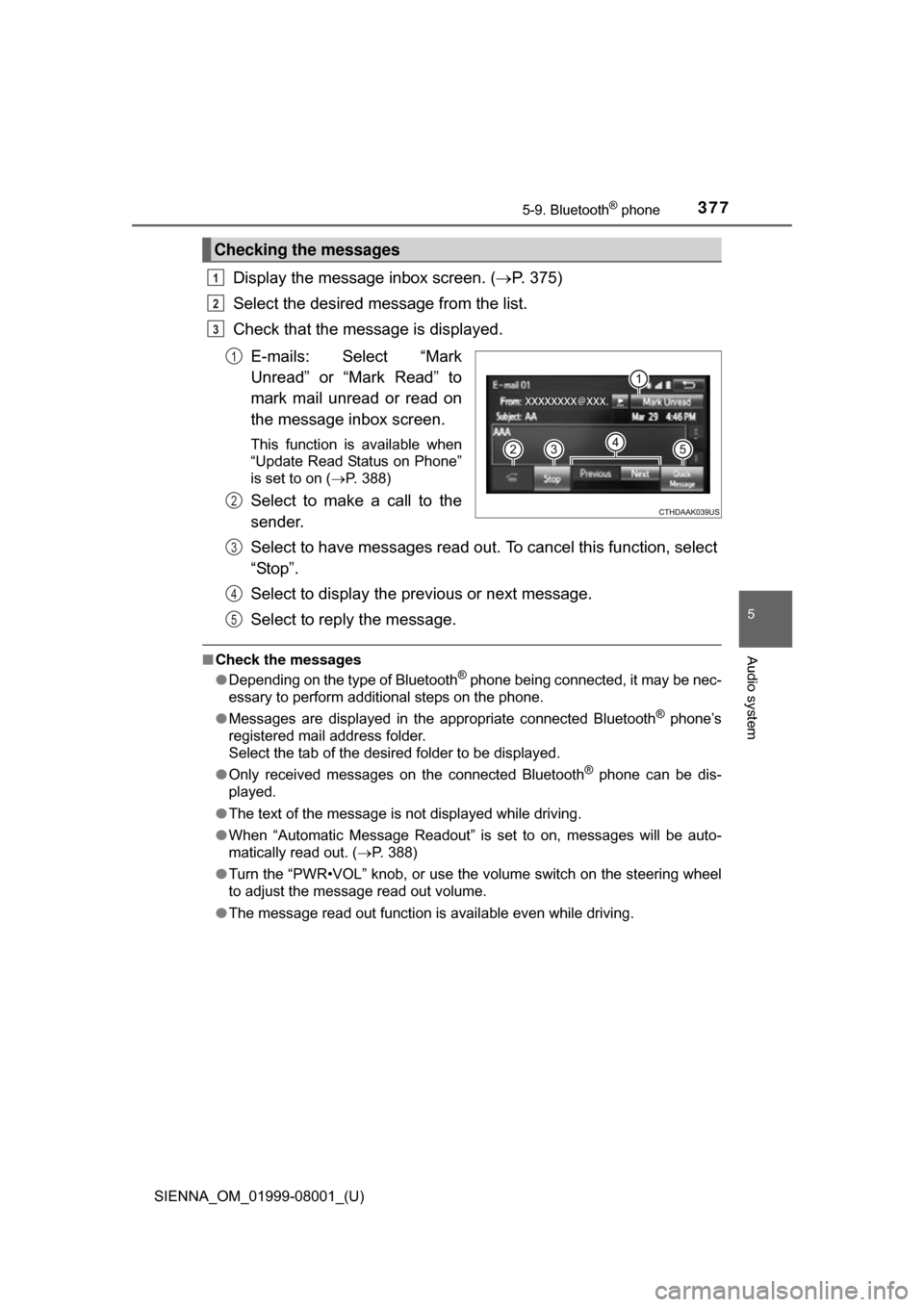
Display the message inbox screen. (P. 375)
Select the desired message from the list.
Check that the message is displayed.
E-mails: Select “Mark
Unread” or “Mark Read” to
mark mail unread or read on
the message inbox screen.
This function is available when
“Update Read Status on Phone”
is set to on ( P. 388)
Select to make a call to the
sender.
Select to have messages read out. To cancel this function, select
“Stop”.
Select to display the previous or next message.
Select to reply the message.
■ Check the messages
●Depending on the type of Bluetooth® phone being connected, it may be nec-
essary to perform additional steps on the phone.
● Messages are displayed in the appropriate connected Bluetooth
® phone’s
registered mail address folder.
Select the tab of the desired folder to be displayed.
● Only received messages on the connected Bluetooth
® phone can be dis-
played.
● The text of the message is not displayed while driving.
● When “Automatic Message Readout” is set to on, messages will be auto-
matically read out. ( P. 388)
● Turn the “PWR•VOL” knob, or use the volume switch on the steering wheel
to adjust the message read out volume.
● The message read out function is available even while driving.
Checking the messages
1
2
3
1
2
3
4
5
Page 379 of 664
379
SIENNA_OM_01999-08001_(U)
5-9. Bluetooth® phone
5
Audio system
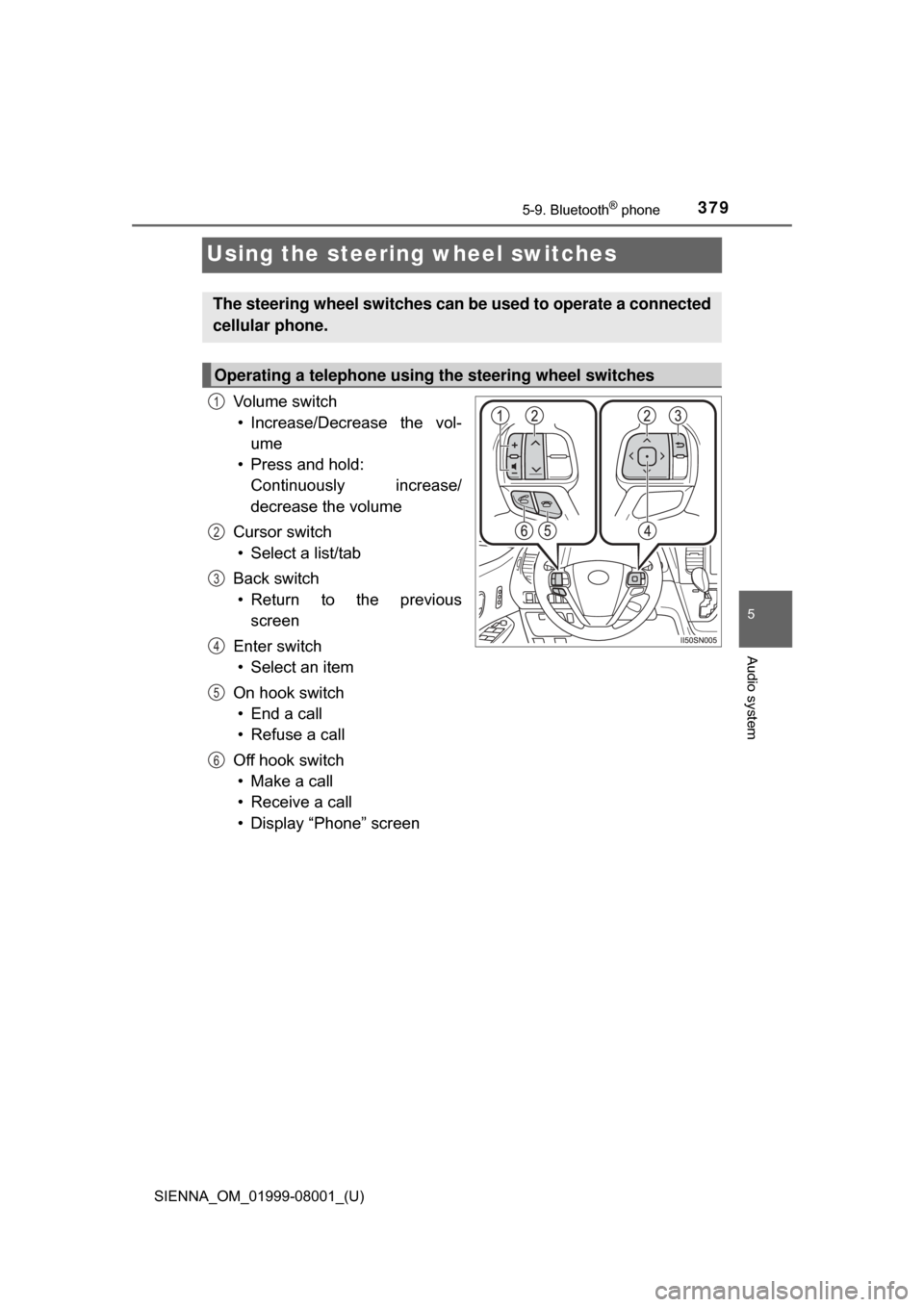
Using the steering wheel switches
Vo l u m e s w i t c h• Increase/Decrease the vol- ume
• Press and hold: Continuously increase/
decrease the volume
Cursor switch • Select a list/tab
Back switch • Return to the previous screen
Enter switch • Select an item
On hook switch • End a call
• Refuse a call
Off hook switch • Make a call
• Receive a call
• Display “Phone” screen
The steering wheel switches can be used to operate a connected
cellular phone.
Operating a telephone using the steering wheel switches
1
2
3
4
5
6
Page 381 of 664
381
SIENNA_OM_01999-08001_(U)
5-9. Bluetooth® phone
5
Audio system
Contact/Call Histor y Settings
The contact can be transferred from a Bluetooth® phone to the sys-
tem. The contact also c an be added, edited and deleted.
The call history can be deleted and contact and favorites can be
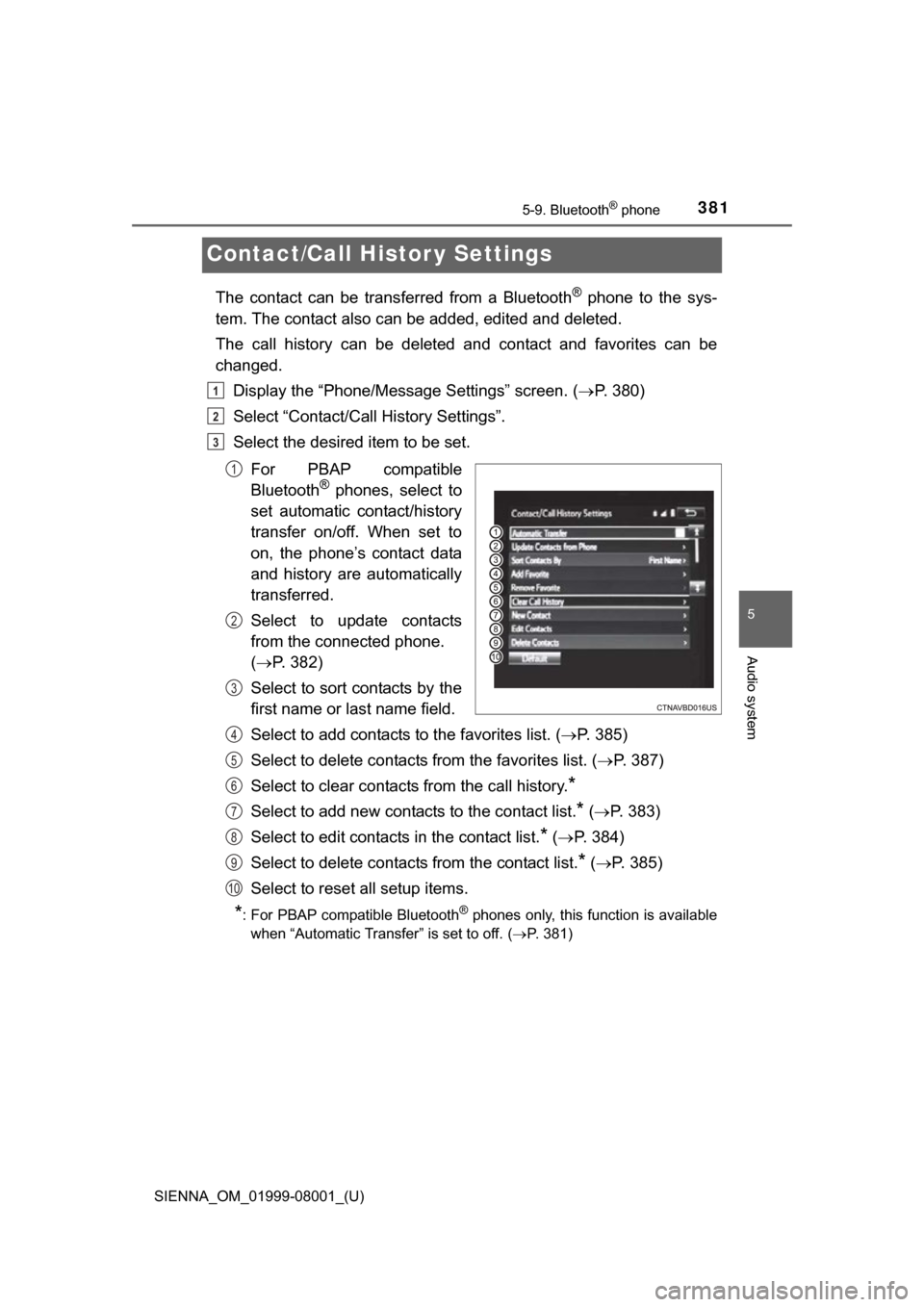
changed. Display the “Phone/Message Settings” screen. ( P. 380)
Select “Contact/Call History Settings”.
Select the desired item to be set.
For PBAP compatible
Bluetooth
® phones, select to
set automatic contact/history
transfer on/off. When set to
on, the phone’s contact data
and history are automatically
transferred.
Select to update contacts
from the connected phone.
( P. 382)
Select to sort contacts by the
first name or last name field.
Select to add contacts to the favorites list. ( P. 385)
Select to delete contacts from the favorites list. ( P. 387)
Select to clear contacts from the call history.
*
Select to add new contacts to the contact list.* ( P. 383)
Select to edit contacts in the contact list.
* ( P. 384)
Select to delete contacts from the contact list.
* ( P. 385)
Select to reset all setup items.
*: For PBAP compatible Bluetooth® phones only, this function is available
when “Automatic Transfer” is set to off.
( P. 381)
1
2
3
1
2
3
4
5
6
7
8
9
10