2015 Peugeot 208 phone
[x] Cancel search: phonePage 2 of 341
StartStart
Mirror Scr een
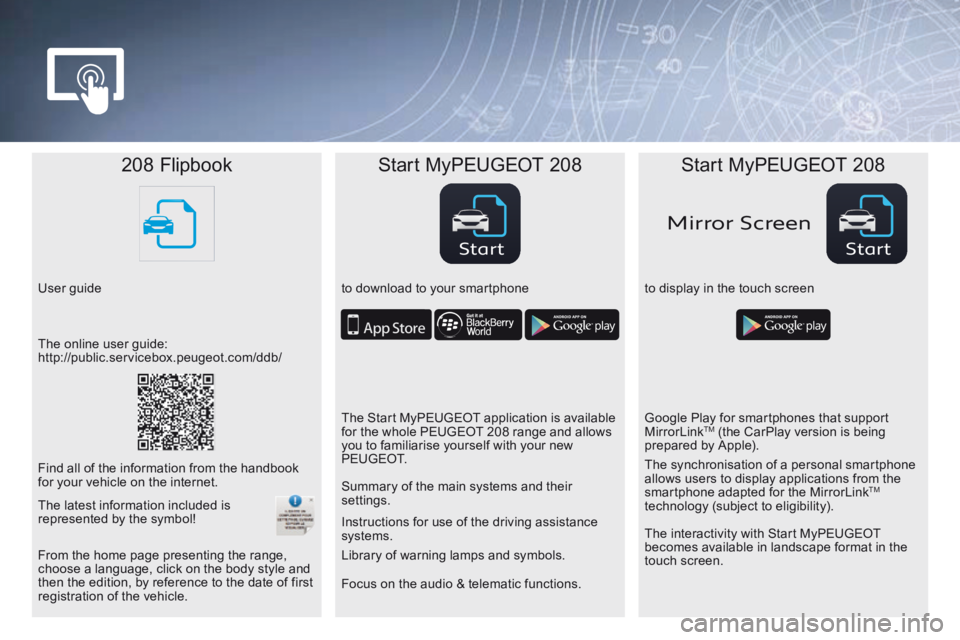
208 Flipbook Start MyPEUGEOT 208 Start MyPEUGEOT 208
User guide to download to your smartphoneto display in the touch screen
Focus on the audio & telematic functions. Instructions for use of the driving assistance
systems.
The online user guide:
http://public.servicebox.peugeot.com/ddb/
The Start MyPEUGEOT application is available
for the whole PEUGEOT 208 range and allows
you to familiarise yourself with your new
P E U G E O T.Google Play for smartphones that support
MirrorLink
TM (the CarPlay version is being
prepared by Apple).
Find all of the information from the handbook
for your vehicle on the internet. Summary of the main systems and their
settings.
The interactivity with Start MyPEUGEOT
becomes available in landscape format in the
touch screen. The synchronisation of a personal smartphone
allows users to display applications from the
smartphone adapted for the MirrorLink
TM
technology (subject to eligibility).
From the home page presenting the range,
choose a language, click on the body style and
then the edition, by reference to the date of first
registration of the vehicle. Library of warning lamps and symbols.
The latest information included is
represented by the symbol!
Page 8 of 341
6
208_en_Chap01_vue-ensemble_ed01-2015
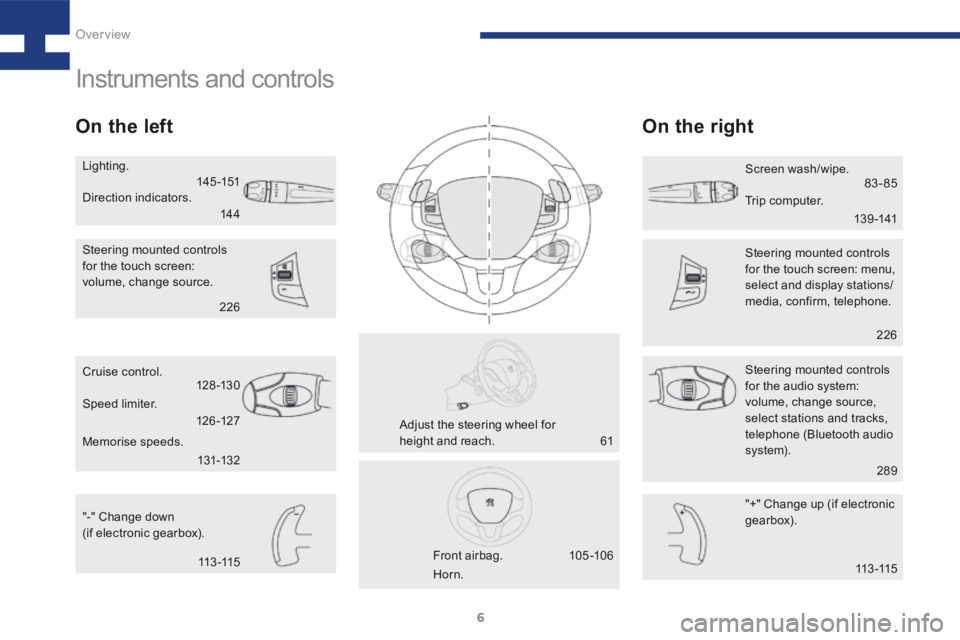
Instruments and controls
On the leftOn the right
"-" Change down
(if electronic gearbox). "+" Change up (if electronic
gearbox).
Cruise control.
Steering mounted controls
for the audio system:
volume, change source,
select stations and tracks,
telephone (Bluetooth audio
syste m).
Steering mounted controls
for the touch screen:
volume, change source.
Steering mounted controls
for the touch screen: menu,
select and display stations/
media, confirm, telephone.
Front airbag.
Adjust the steering wheel for
height and reach. Screen wash/wipe.
Lighting.
Horn.
Speed limiter.
Memorise speeds. Direction indicators.
Trip computer.
14 4
14 5 -151
13 9 -14183-85
113 -115
61
105 -10 6 226
289
226
131-132
126 -127
128 -13 0
113 -115
Over view
Page 52 of 341
50
208_en_Chap03_Indicateurs_ed01-2015
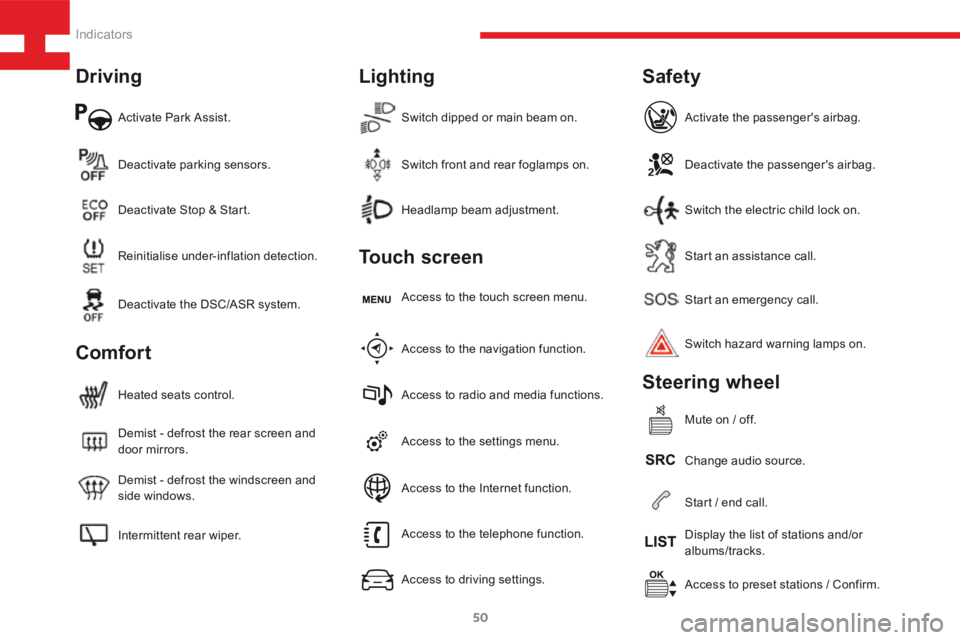
Activate Park Assist.
Intermittent rear wiper. Demist - defrost the windscreen and
side windows. Demist - defrost the rear screen and
door mirrors. Heated seats control.Access to the settings menu.Start an emergency call.
Access to preset stations / Confirm.
Headlamp beam adjustment.
Deactivate parking sensors.
Access to the navigation function. Access to the touch screen menu.Deactivate the passenger's airbag.
Change audio source. Switch hazard warning lamps on. Activate the passenger's airbag.
Mute on / off.
Switch dipped or main beam on.
Reinitialise under-inflation detection. Deactivate Stop & Start.
Access to radio and media functions.Start an assistance call.
Display the list of stations and/or
albums/tracks.
Switch front and rear foglamps on.
Deactivate the DSC/ASR system.
Access to the telephone function.
Access to driving settings.Switch the electric child lock on.
Start / end call.
Access to the Internet function.
Driving
Comfort Lighting
Touch screen
Safety
Steering wheel
Indicators
Page 55 of 341
53
208_en_Chap03_Indicateurs_ed01-2015
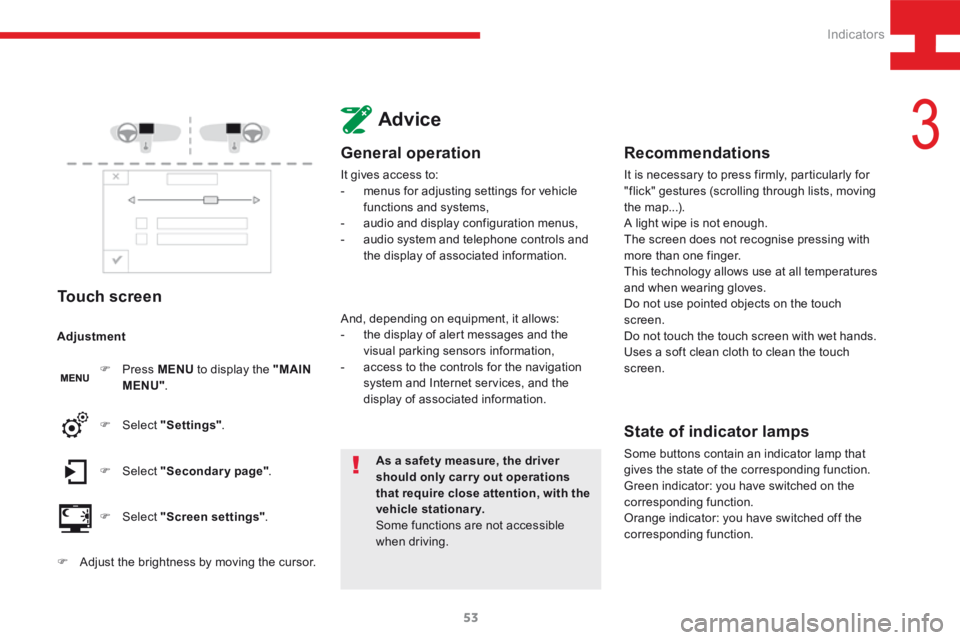
Touch screen
F Press MENU to display the "MAIN
MENU" .
F Select "Secondary page" .
F Select "Screen settings" .
F Select
"Settings" .
Adjustment
F
Adjust the brightness by moving the cursor.
Advice
General operation
It gives access to:
- menus for adjusting settings for vehicle
functions and systems,
- audio and display configuration menus,
- audio system and telephone controls and
the display of associated information.
As a safety measure, the driver
should only carr y out operations
that require close attention, with the
vehicle stationary.
Some functions are not accessible
when driving.
And, depending on equipment, it allows:
-
the display of alert messages and the
visual parking sensors information,
- access to the controls for the navigation
system and Internet services, and the
display of associated information.
Recommendations
It is necessary to press firmly, particularly for
"flick" gestures (scrolling through lists, moving
the map...).
A light wipe is not enough.
The screen does not recognise pressing with
more than one finger.
This technology allows use at all temperatures
and when wearing gloves.
Do not use pointed objects on the touch
screen.
Do not touch the touch screen with wet hands.
Uses a soft clean cloth to clean the touch
screen.
State of indicator lamps
Some buttons contain an indicator lamp that
gives the state of the corresponding function.
Green indicator: you have switched on the
corresponding function.
Orange indicator: you have switched off the
corresponding function.
3
Indicators
Page 62 of 341
60
208_en_Chap03_Indicateurs_ed01-2015
Energy load
Load reduction mode
Principle
System which manages the use of certain
functions according to the level of charge
remaining in the battery.
When the vehicle is being driven, the load
reduction function temporarily deactivates
certain functions, such as the air conditioning,
the heated rear screen...
The deactivated functions are reactivated
automatically as soon as conditions permit.
Economy mode
Principle
System which manages the period of use of
certain functions to maintain an adequate state
of charge of the battery.
After switching off the engine and for a
maximum cumulative period of around
30 minutes, you can continue to use functions
such as the audio and telematic system, the
wipers, dipped beam, courtesy lamps, ...
Entry into the mode
Once this time has elapsed, a message
advising the entry into energy economy mode
appears in the screen and the active functions
on put on standby.
If a telephone call is in progress at this time,
the connection via the audio system's hands-
free function will be maintained for around
10 minutes.
Coming out of the mode
These functions will be automatically restored
the next time the vehicle is used.
To restore the use of these functions
immediately, start the engine and allow it run
for at least five minutes.
The engine will not start if the battery is
discharged.
Indicators
Page 222 of 341
220
208_en_Chap9a_BTA_ed01-2015
Emergency call
PEUGEOT Connect SOS
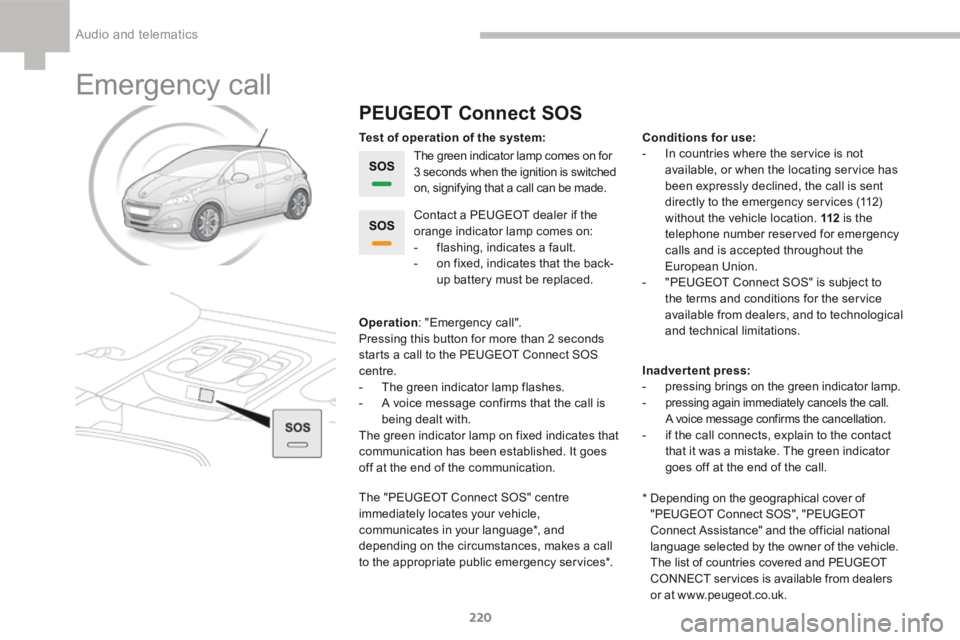
The green indicator lamp comes on for
3 seconds when the ignition is switched
on, signifying that a call can be made.
Operation : "Emergency call".
Pressing this button for more than 2 seconds
starts a call to the P EUGEOT Connect SOS
centre.
- The green indicator lamp flashes.
- A voice message confirms that the call is
being dealt with.
The green indicator lamp on fixed indicates that
communication has been established. It goes
off at the end of the communication. Contact a P
EUGEOT dealer if the
orange indicator lamp comes on:
- flashing, indicates a fault.
- on fixed, indicates that the back-
up battery must be replaced.
The " PEUGEOT Connect SOS" centre
immediately locates your vehicle,
communicates in your language*, and
depending on the circumstances, makes a call
to the appropriate public emergency services*. Test of operation of the system: Conditions for use:
- In countries where the service is not
available, or when the locating service has
been expressly declined, the call is sent
directly to the emergency services (112)
without the vehicle location. 112 is the
telephone number reserved for emergency
calls and is accepted throughout the
European Union.
- " PEUGEOT Connect SOS" is subject to
the terms and conditions for the service
available from dealers, and to technological
and technical limitations.
Inadvertent press:
- pressing brings on the green indicator lamp.
-
pressing again immediately cancels the call.
A voice message confirms the cancellation.
- if the call connects, explain to the contact
that it was a mistake. The green indicator
goes off at the end of the call.
* Depending on the geographical cover of
"PEUGEOT Connect SOS", "PEUGEOT
Connect Assistance" and the official national
language selected by the owner of the vehicle.
The list of countries covered and PEUGEOT
CONNECT services is available from dealers
or at www.peugeot.co.uk.
Audio and telematics
Page 225 of 341
223
208_en_Chap9b_SMEGplus_ed01-2015
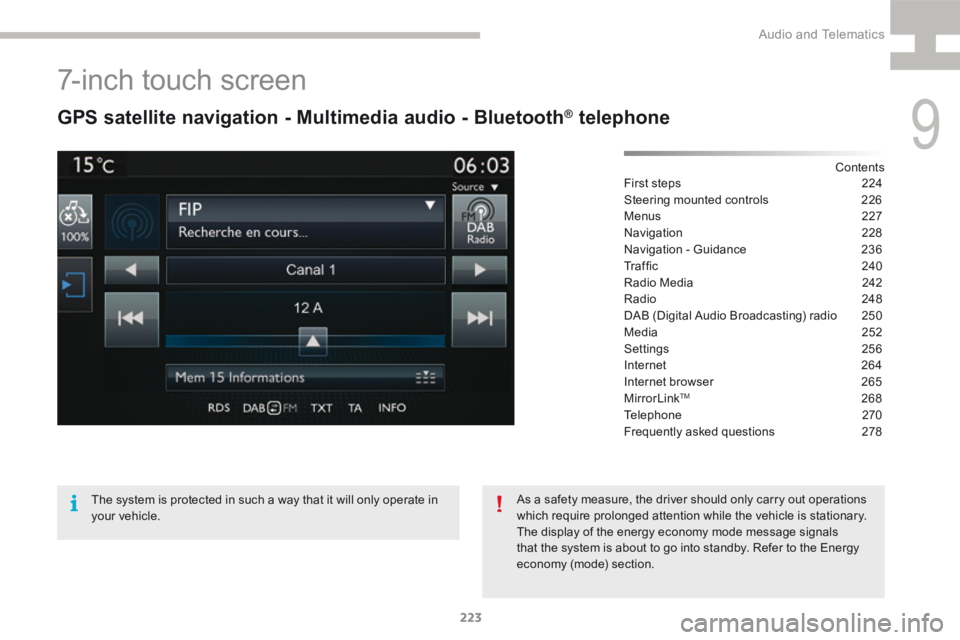
7-inch touch screen
GPS satellite navigation - Multimedia audio - Bluetooth® telephone
Contents
First steps 224
Steering mounted controls 226
Menus 227
Navigation 228
Navigation - Guidance 236
Tr a f fi c 2 4 0
Radio Media 242
Radio 248
DAB (Digital Audio Broadcasting) radio 250
Media 252
Settings 256
Internet 264
Internet browser 265
MirrorLink
TM 268
Telephone 270
Frequently asked questions 278
The system is protected in such a way that it will only operate in
your vehicle. As a safety measure, the driver should only carry out operations
which require prolonged attention while the vehicle is stationary.
The display of the energy economy mode message signals
that the system is about to go into standby. Refer to the Energy
economy (mode) section.
9
Audio and Telematics
Page 227 of 341
225
208_en_Chap9b_SMEGplus_ed01-2015
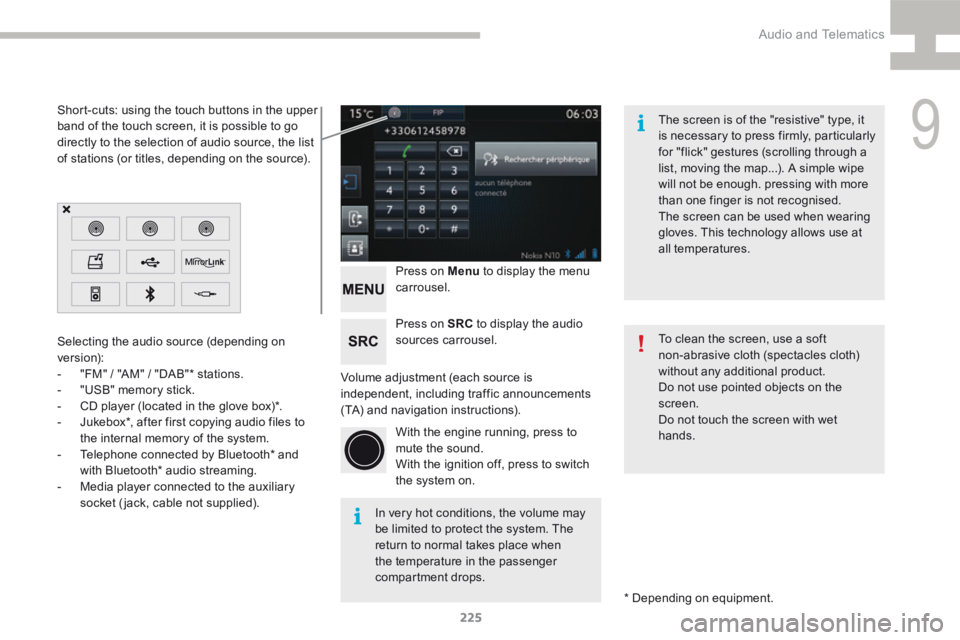
Volume adjustment (each source is
independent, including traffic announcements
(TA) and navigation instructions).Press on Menu
to display the menu
carrousel.
Press on SRC to display the audio
sources carrousel.
With the engine running, press to
mute the sound.
With the ignition off, press to switch
the system on.
Selecting the audio source (depending on
version):
-
"FM" / "AM" / "DAB"* stations.
- "USB" memory stick.
- CD player (located in the glove box)*.
- Jukebox*, after first copying audio files to
the internal memory of the system.
- Telephone connected by Bluetooth* and
with Bluetooth* audio streaming.
- Media player connected to the auxiliary
socket (jack, cable not supplied).
* Depending on equipment.
Short-cuts: using the touch buttons in the upper
band of the touch screen, it is possible to go
directly to the selection of audio source, the list
of stations (or titles, depending on the source).
The screen is of the "resistive" type, it
is necessary to press firmly, particularly
for "flick" gestures (scrolling through a
list, moving the map...). A simple wipe
will not be enough. pressing with more
than one finger is not recognised.
The screen can be used when wearing
gloves. This technology allows use at
all temperatures.
In very hot conditions, the volume may
be limited to protect the system. The
return to normal takes place when
the temperature in the passenger
compartment drops. To clean the screen, use a soft
non-abrasive cloth (spectacles cloth)
without any additional product.
Do not use pointed objects on the
screen.
Do not touch the screen with wet
hands.
9
Audio and Telematics