2015 MITSUBISHI OUTLANDER III change
[x] Cancel search: changePage 257 of 446
Wiper and washer switch 5-180 Features and controls
5
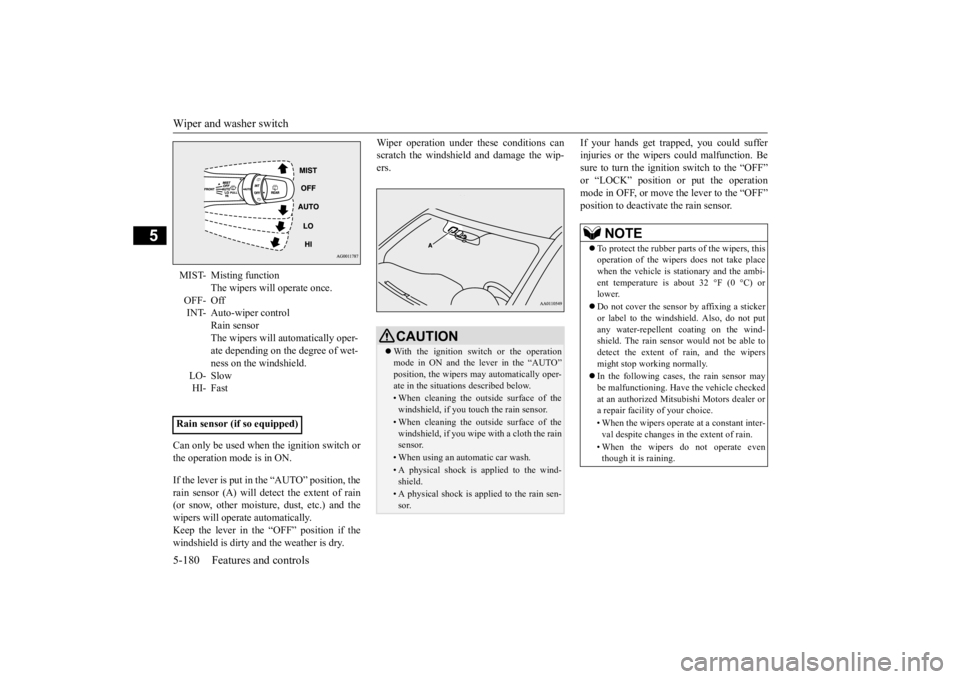
Can only be used when the ignition switch or the operation mode is in ON. If the lever is put in the “AUTO” position, the rain sensor (A) will detect the extent of rain(or snow, other moisture, dust, etc.) and the wipers will operate automatically. Keep the lever in the “OFF” position if thewindshield is dirty a
nd the weather is dry.
Wiper operation under th
ese conditions can
scratch the windshield and damage the wip-ers.
If your hands get trapped, you could suffer injuries or the wipers
could malfunction. Be
sure to turn the ignition switch to the “OFF” or “LOCK” position or put the operation mode in OFF, or move the lever to the “OFF”position to deactivate the rain sensor.
MIST- Misting function
The wipers will operate once.
OFF- Off INT- Auto-wiper control
Rain sensor The wipers will automatically oper- ate depending on the degree of wet-ness on the windshield.
LO- Slow HI- Fast
Rain sensor (if so equipped)
CAUTION With the ignition switch or the operation mode in ON and the lever in the “AUTO” position, the wipers
may automatically oper-
ate in the situati
ons described below.
• When cleaning the outsi
de surface of the
windshield, if you touch the rain sensor.• When cleaning the outsi
de surface of the
windshield, if you wipe with a cloth the rainsensor.• When using an automatic car wash.• A physical shock is
applied to the wind-
shield.• A physical shock is applied to the rain sen-sor.
NOTE
To protect the rubber parts of the wipers, this operation of the wipers
does not take place
when the vehicle is stationary and the ambi- ent temperature is about 32 °F (0 °C) or lower. Do not cover the sensor by affixing a sticker or label to the windshield. Also, do not putany water-repellent
coating on the wind-
shield. The rain sensor would not be able to detect the extent of rain, and the wipersmight stop working normally. In the following cases, the rain sensor may be malfunctioning. Have
the vehicle checked
at an authorized Mitsubishi Motors dealer or a repair facility of your choice. • When the wipers operate
at a constant inter-
val despite changes in the extent of rain. • When the wipers do not operate even though it is raining.
BK0211800US.book 180 ページ 2014年3月12日 水曜日 午後2時42分
Page 258 of 446
Wiper and washer switch
Features and controls 5-181
5
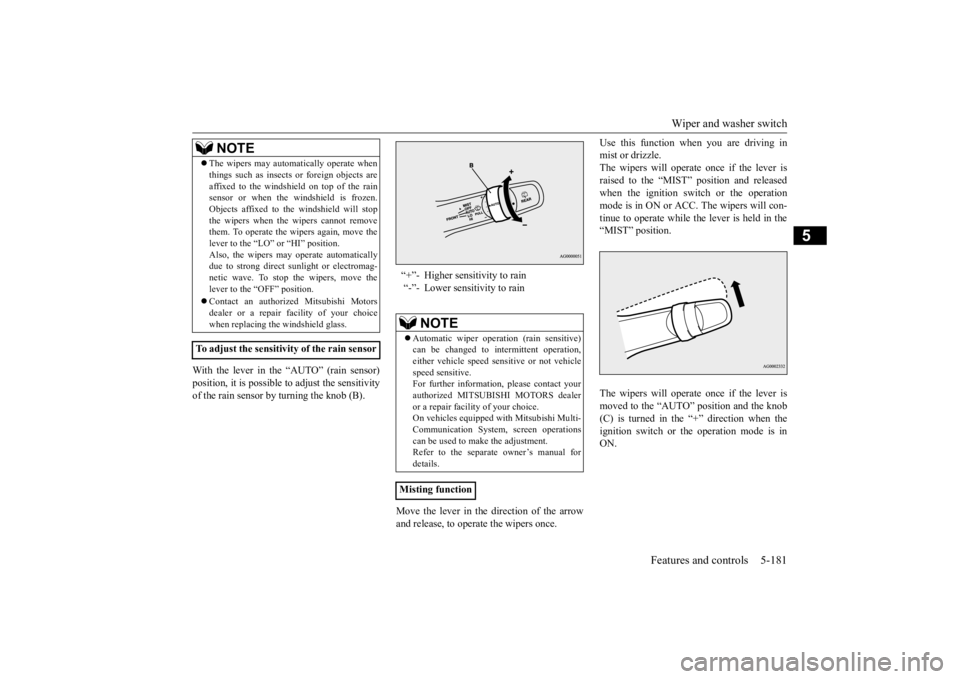
With the lever in the “AUTO” (rain sensor) position, it is possible to adjust the sensitivity of the rain sensor by turning the knob (B).
Move the lever in the direction of the arrow and release, to operate the wipers once.
Use this function when you are driving in mist or drizzle.The wipers will operate once if the lever is raised to the “MIST” position and released when the ignition switch or the operationmode is in ON or ACC.
The wipers will con-
tinue to operate while the lever is held in the “MIST” position. The wipers will operate once if the lever is moved to the “AUTO” position and the knob (C) is turned in the “+” direction when the ignition switch or the
operation mode is in
ON.
The wipers may automatically operate when things such as insects
or foreign objects are
affixed to the windshield on top of the rainsensor or when the windshield is frozen. Objects affixed to th
e windshield
will stop
the wipers when the wipers cannot removethem. To operate the wipers again, move the lever to the “LO” or “HI” position. Also, the wipers may operate automaticallydue to strong direct s
unlight or electromag-
netic wave. To stop the wipers, move the lever to the “OFF” position. Contact an authoriz
ed Mitsubishi Motors
dealer or a repair facility of your choicewhen replacing th
e windshield glass.
To adjust the sensitivity of the rain sensor
NOTE
“+”- Higher sensitivity to rain “-”- Lower sensitivity to rain
NOTE
Automatic wiper operation (rain sensitive) can be changed to in
termittent operation,
either vehicle speed se
nsitive or not vehicle
speed sensitive. For further informati
on, please contact your
authorized MITSUBISHI MOTORS dealer or a repair facility of your choice. On vehicles equipped
with Mitsubishi Multi-
Communication System, screen operations can be used to ma
ke the adjustment.
Refer to the separate
owner’s manual for
details.
Misting function
BK0211800US.book 181 ページ 2014年3月12日 水曜日 午後2時42分
Page 263 of 446
Bluetooth® 2.0 interface (if so equipped) 5-186 Features and controls
5
Steering control sw
itch and microphone
P.5-186Voice recogni
tion function
P.5-187
Useful voice commands
P.5-188
Speaker enrollment function
P.5-190
Connecting the Bluetooth
® 2.0 interface and
the Bluetooth
® device
P.5-191
Operating a music player connected via Blue- tooth
® P.5-195
How to make or re
ceive hands-free calls
P.5-196Phonebook function
P.5-198
N00564001109
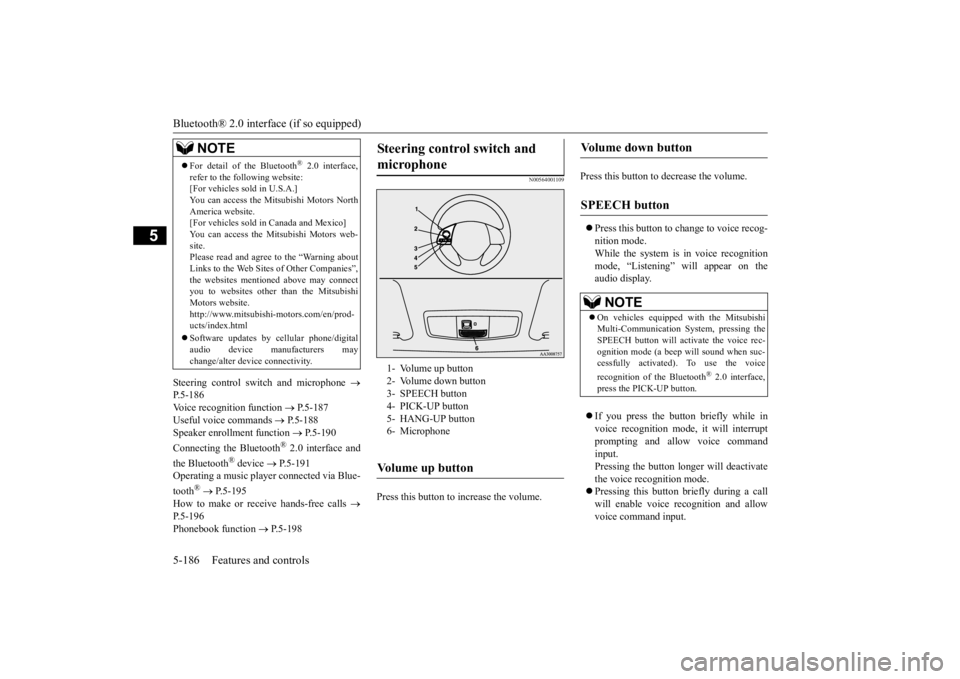
Press this button to increase the volume.
Press this button to decrease the volume. Press this button to ch
ange to voice recog-
nition mode.While the system is in voice recognition mode, “Listening” will appear on the audio display. If you press the button briefly while in voice recogniti
on mode, it will interrupt
prompting and allow voice commandinput. Pressing the button lo
nger will deactivate
the voice recognition mode. Pressing this button briefly during a call will enable voice
recognition and allow
voice command input.
For detail of the Bluetooth
® 2.0 interface,
refer to the following website: [For vehicles sold in U.S.A.] You can access the Mits
ubishi Motors North
America website. [For vehicles sold in
Canada and Mexico]
You can access the Mitsubishi Motors web-site. Please read and agree to the “Warning about Links to the Web Sites
of Other Companies”,
the websites mentione
d above may connect
you to websites other than the Mitsubishi Motors website.http://www.mitsubishi
-motors.com/en/prod-
ucts/index.html Software updates by cellular phone/digital audio device manufacturers may change/alter devi
ce connectivity.
NOTE
Steering control switch and microphone
1- Volume up button 2- Volume down button 3- SPEECH button4- PICK-UP button 5- HANG-UP button 6- MicrophoneVolume up button
Volume down button
SPEECH button
NOTE
On vehicles equipped
with the Mitsubishi
Multi-Communication System, pressing the SPEECH button will ac
tivate the voice rec-
ognition mode (a beep will sound when suc- cessfully activated)
. To use the voice
recognition of the Bluetooth
® 2.0 interface,
press the PICK-UP button.
BK0211800US.book 186 ページ 2014年3月12日 水曜日 午後2時42分
Page 265 of 446

Bluetooth® 2.0 interface (if so equipped) 5-188 Features and controls
5
1. Press the SPEECH button (except for vehicles with Mitsubishi Multi-Commu- nication System) or
PICK-UP button (for
vehicles with Mitsubishi Multi-Commu-nication System). 2. Say “Setup.” 3. Say “Language.”4. The voice guide will say “Select a lan- guage: English, Spanish, French or Japa- nese.” Say the desired language.(Example: “English”)
5. The voice guide will say “English (Span- ish, French or Japanese) selected. Is thiscorrect?” Say “Yes.” If you say “No,” the system will return to Step 4. 6. When the voice gui
de says “English
(Spanish, French or
Japanese) selected,”
the language change pr
ocess will be com-
pleted and the system will return to themain menu.
N00564200016 N00564301027
The Bluetooth
® 2.0 interface is equipped
with a help function. If you say “Help” when th
e system is waiting
for a voice command input, the system will tell you a list of the
commands that can be
used under the ci
rcumstances.
N00564400018
There are 2 cancel functions. If you are at the main menu, say “Cancel” to exit from the Bluetooth
® 2.0 interface.
If you are anywhere else within the system,say “Cancel” to return to the main menu.
N00564501032
The Bluetooth
® 2.0 interface is equipped
with a confirmation function. With the confirmation function activated, you are given more opportunities than normal toconfirm a command when making various settings to the Bluetooth
® 2.0 interface. This
For best performance
and further reduction
of ambient noise, the vehicle windowsshould be closed, lower the blower speed andrefrain from conversat
ion with your passen-
gers while engaging
the voice recognition
function. Some voice commands
have alternative
commands. Depending on the sele
cted language, some
functions may not
be available.
Language can be change
d by using the audio
control panel besides the following proce-dure. For details, refer to
“System settings” on
page 7-42. For DISP
LAY AUDIO and Mit-
subishi Multi-Communication System, refer to the separate owner’s manuals.
Selecting the language
NOTE
NOTE
The voice guide will
repeat the same mes-
sage twice. The first message is in the cur- rent language, and the
second message is in
the selected language. If many entries are registered in the vehicle phonebook, changing the language will take a longer time. Changing the language
deletes the mobile
phonebook imported to the Bluetooth
® 2.0
interface. If you wish to use it, you will have to import it again.
Useful voice commands
Help function
Canceling
Confirmation function setting
BK0211800US.book 188 ページ 2014年3月12日 水曜日 午後2時42分
Page 266 of 446

Bluetooth® 2.0 interface (if so equipped)
Features and controls 5-189
5
allows you to decrease
the possibility that a
setting is accident
ally changed.
The confirmation function can be turned on or off by following the steps below. 1. Press the SPEECH button (except for vehicles with Mitsubishi Multi-Commu-nication System) or PICK-UP button (for vehicles with Mitsubishi Multi-Commu- nication System).2. Say “Setup.” 3. Say “Confirmation prompts.” 4. The voice guide will say “Confirmation prompts are
N00564601105
It is possible to use
a passcode as a security
function by setting a passcode of your choice for the Bluetooth
® 2.0 interface.
When the security function is turned on, it is necessary to make a voice input of a 4-digit passcode in order to us
e all functions of the
Bluetooth
® 2.0 interface, except for recep-
tion.
Use the following procedure to turn on the security function by setting a passcode. 1. Press the SPEECH button (except for vehicles with Mitsubishi Multi-Commu- nication System) or
PICK-UP button (for
vehicles with Mitsubishi Multi-Commu-nication System). 2. Say “Setup.” 3. Say “Passcode.” 4. The voice guide will
say “Passcode is dis-
abled. Would you like to enable it?”Answer “Yes.” Answer “No” to cancel the setting of the passcode and return to the main menu. 5. The voice guide will say “Please say a 4- digit passcode. Remember this passcode. It will be required to use this system.” Say a 4-digit number which you want to set as a passcode. 6. For confirmation purposes, the voiceguide will say “Passc
ode <4-digit pass-
code>. Is this correct?” Answer “Yes.” Answer “No” to return to the passcodeinput in Step 5. 7. When the registration of the passcode is completed, the voice
guide will say “Pass-
code is enabled”
and the system will
return to the main menu.
If a passcode has been
set and the security
function is enabled, the voice guide will say “Hands-free system is
locked. State the pass-
code to continue” when the SPEECH button (except for vehicles with Mitsubishi Multi- Communication System) or PICK-UP button(for vehicles with Mitsubishi Multi-Commu- nication System) is pres
sed to enter voice rec-
ognition mode. Say th
e 4-digit passcode
number to enter the passcode. If the entered passcode is wrong, the voice guide will say “<4-digit passcode>, Incorrect passcode. Please try again.” Enter the correctpasscode.
Security function
Setting the passcode
NOTE
Passcode will be requi
red to access the sys-
tem after the next ignition cycle. It is required for a little time after engine stop that the entered
passcode is actually
recorded in the system.If the ignition switch
or the operation mode
is made to ACC or ON or the engine is started immediately afte
r engine stop, there
is a case when the entered passcode is not recorded in the system. At this time, please try to enter the passcode again.
Entering the passcode
BK0211800US.book 189 ページ 2014年3月12日 水曜日 午後2時42分
Page 269 of 446

Bluetooth® 2.0 interface (if so equipped) 5-192 Features and controls
5
If multiple paired Bluetooth
® devices are
available in the vehicle,
the cellular phone or
music player most recently connected is auto- matically connected to the Bluetooth
® 2.0
interface. You can also change a Bluetooth
® device to
be connected. To pair a Bluetooth
® device with the Blue-
tooth
® 2.0 interface, foll
ow the steps below.
1. Stop your vehicle in a safe area, put the selector lever in the “P” (PARK) positionand pull the parking brake lever.
2. Press the SPEECH button (except for vehicles with Mitsubishi Multi-Commu-nication System) or PICK-UP button (for vehicles with Mitsubishi Multi-Commu- nication System).3. Say “Setup.” 4. Say “Pairing Options.” 5. The voice guide will
say “Select one of
the following: pair, ed
it, delete, or list.”
Say “Pair.” 6. The voice guide will
say “Please say a 4-
digit pairing code.” Say a 4-digit number. When the confirmation function is on, the system will confirm
whether the number
said is acceptable. Answer “Yes.” Answer “No” to return to pairing code selection.
7. The voice guide will say “Start pairing procedure on the device. See the device manual for instructions.” Enter in the Bluetooth
® device the 4-digit number you
have registered in Step 6.
To p a i r
NOTE
You cannot pair any Bluetooth
® device with
the Bluetooth
® 2.0 interface unless the vehi-
cle is parked. Before pairing a Bluetooth
®
device with the Bluetooth
® 2.0 interface,
confirm that the vehicle is parked in a safe location.
NOTE
If 7 devices have alre
ady been paired, the
voice guide will sa
y “Maximum devices
paired” and then the system will end the pairing process. To re
gister a ne
w device,
delete one device and th
en repeat the pairing
process. (Refer to “Selecting a device: Deleting a device” on page 5-194.)
NOTE
Some Bluetooth
® devices requi
re a specific
pairing code. Please re
fer to the device man-
ual for pairing code requirements. The pairing code ente
red here is only used
for the Bluetooth
® connection ce
rtification.
It is any 4-digit numbe
r the user would like
to select. Remember the pairing c
ode as it needs to be
keyed into the Bluetooth
® device later in the
pairing process. Depending on the connecti
on settings of the
Bluetooth
® device, this code may have to be
entered each time you connect the Blue- tooth
® device to the Bluetooth
® 2.0 inter-
face. For the default
connection settings,
refer to the instructions for the device.NOTE
Depending on the Bluetooth
® device, it may
take a few minutes to pair it with the Blue- tooth
® 2.0 interface.
BK0211800US.book 192 ページ 2014年3月12日 水曜日 午後2時42分
Page 270 of 446

Bluetooth® 2.0 interface (if so equipped)
Features and controls 5-193
5
8. The voice guide will
say “Please say the
name of the device after the beep.” You can assign a desired name for the Blue- tooth
® device and register it as a device
tag. Say the name you want to register after the beep. 9. The voice guide will say “Pairing com- plete,” after which a beep will be played and the pairing process will end.
N00565101080
If multiple paired Bluetooth
® devices are
available in the vehicle,
the cellular phone or
music player most recently connected is auto- matically connected
to the Bluetooth
® 2.0
interface. You can connect to the
other paired cellular
phone or music player by following setting change procedures.
N00582200034
1. Press the SPEECH button (except forvehicles with Mitsubishi Multi-Commu- nication System) or
PICK-UP button (for
vehicles with Mitsubishi Multi-Commu- nication System). 2. Say “Setup.”3. Say “Select phone.” 4. After the voice guide says “Please say,” the numbers of the cellular phones anddevice tags of corresponding cellular phones will be read out in order, starting with the cellular phone that has been mostrecently connected. Say the number of the cellular phone that you want to connect to.
When the confirmation function is on, the system will ask you again whether thephone that you want to connect to is cor- rect. Answer “Yes” to continue and con- nect to the cellular phone.Answer “No,” and the voice guide will say “Please say.” Say the number of the phone that you want to connect to. 5. The selected phone will be connected to the Bluetooth
® 2.0 interface. The voice
guide will say “
and then the system will return to the main menu.
N00582300035
1. Press the SPEECH button (except for vehicles with Mitsubishi Multi-Commu- nication System) or PICK-UP button (for vehicles with Mitsubishi Multi-Commu-nication System). 2. Say “Setup.” 3. Say “Select music player.”
If the Bluetooth
® 2.0 interface cannot recog-
nize the Bluetooth
® device, the voice guide
will say “Pairing has tim
ed out” and the pair-
ing process will be cancelled. Confirm that the devi
ce you are pairing sup-
ports Bluetooth
®, and try pairing it again.
If you enter the wrong number, the voice guide will say “Pairing
failed” and the pair-
ing process will be cancelled. Confirm the number is right, and try pairingit again.NOTE
When the confirmation function is on, after repeating the device
tag you have said, the
voice guide will ask “Is this correct?” Answer “Yes.”To change the device
tag, answer “No” and
then say the device tag again.NOTE
Selecting a device
To select a cellular phone
NOTE
You can connect to a
phone at any time by
pressing the SPEECH button and saying the number, even before all of the paired num-bers and device tags
of corresponding cellu-
lar phones are read out by the system.
To select a music player
BK0211800US.book 193 ページ 2014年3月12日 水曜日 午後2時42分
Page 272 of 446

Bluetooth® 2.0 interface (if so equipped)
Features and controls 5-195
5
5. The voice guide will read out device tags of corresponding device
s in order, starting
with the Bluetooth
® device that has been
most recently connected. 6. After the device tags of all paired Blue- tooth
® devices have been read, the system
will say “End of list,
would you like to
start from the beginning?”To hear the list again from the beginning, answer “Yes.” When you are done, answer “No” to return to the main menu.
N00565301037
You can change the device tag of a paired cel-lular phone or music player. Follow the steps below to change a devicetag. 1. Press the SPEECH button (except for vehicles with Mitsubishi Multi-Commu- nication System) or
PICK-UP button (for
vehicles with Mitsubishi Multi-Commu- nication System). 2. Say “Setup.” 3. Say “Pairing Options.” 4. The voice guide will say “Select one ofthe following: pair, edit, delete, or list.” Say “Edit.” 5. The voice guide will
say “Please say,” and
read out the numbers of the Bluetooth
®
devices and device tags of corresponding devices in order, starting with the Blue- tooth
® that has been most recently con-
nected. After all paired devi
ce tags have been
read, the voice guide will say “Which device, please?” Say the number of the device tag you want to change.
6. The voice guide will say “New name, please.” Say the name you want to regis- ter as a new device tag.When the confirmation function is on, the voice guide will say
“
Is this correct?” Answer “Yes.”Answer “No,” you can say the new device tag you want to register again. 7. The device tag is changed.When the change is complete, the voice guide will say “New
name saved” and
then the system will return to the mainmenu.
N00565401070
For the operation of a music player connected via Bluetooth®, refer to the following sec- tions. [For vehicles equi
pped with the AM/FM
radio/CD player] Refer to “Listen to Bluetooth Audio” on page 7-38.
NOTE
If you press and release the SPEECH button and say “Continue” or
“Previous” while the
list is being read, the system will advance or rewind the list. Say “Continue” to proceed to the device withthe next highest number or “Previous” to return to the phone with the previous num- ber. You can change the device tag by pressing and releasing the SPEECH button and thensaying “Edit” while the
list is being read.
You can change the
phone to be connected
by pressing and releasing the SPEECH but- ton and then saying “S
elect phone” while the
list is being read. You can change the music player to be con- nected by pressing
and releasing the
SPEECH button and th
en saying “Select
music player” while the list is being read.
Changing a device tag
NOTE
You can press and release the SPEECH but- ton while the list is
being read, and immedi-
ately say the number of the device tag youwant to change.
Operating a music player con- nected via Bluetooth
®
BK0211800US.book 195 ページ 2014年3月12日 水曜日 午後2時42分