2015 MITSUBISHI OUTLANDER III change
[x] Cancel search: changePage 273 of 446
![MITSUBISHI OUTLANDER III 2015 Owners Manual Bluetooth® 2.0 interface (if so equipped) 5-196 Features and controls
5
[For vehicles equippe
d with the Mitsubishi
Multi-Communication System (MMCS)]Refer to the separate owner’s manual. [For ve](/manual-img/19/58145/w960_58145-272.png "MITSUBISHI OUTLANDER III 2015 Owners Manual Bluetooth® 2.0 interface (if so equipped) 5-196 Features and controls
5
[For vehicles equippe
d with the Mitsubishi
Multi-Communication System (MMCS)]Refer to the separate owner’s manual. [For ve")
Bluetooth® 2.0 interface (if so equipped) 5-196 Features and controls
5
[For vehicles equippe
d with the Mitsubishi
Multi-Communication System (MMCS)]Refer to the separate owner’s manual. [For vehicles equipped with the DISPLAY AUDIO]Refer to the separate owner’s manual.
N00565501097
You can make or receive hands-free calls using a Bluetooth
® compatible cellular phone
connected to the Bluetooth
® 2.0 interface.
You can also use the phonebooks in the Blue- tooth
® 2.0 interface to make calls without
dialing telephone numbers. To make a call P.5-196 Send function P.5-198 Receiving calls P.5-198Mute function P.5-198 Switching between hand
s-free mode and pri-
vate mode P.5-198
N00565601098
You can make a call in the following 3 ways using the Bluetooth
® 2.0 interface:
By saying a telephone number By using the Bluetooth
® 2.0 interface’s
phonebook By redialing a telephone number
You can make a call by saying the telephone number. 1. Press the SPEECH button (except for vehicles with Mitsubishi Multi-Commu-nication System) or PICK-UP button (for vehicles with Mitsubishi Multi-Commu- nication System).2. Say “Dial.” 3. After the voice gui
de says “Number
please,” say the
telephone number.
4. The voice guide wi
ll say “Dialing
® 2.0 interface will then
make the call.
When the confirmation function is on, the system will confirm the telephone numberagain. To continue with that number, answer “Yes.” To change the telephone number, answer“No.” The system
will say “Number
please” then say th
e telephone number
again.
You can make calls using the vehicle phone- book or mobile phonebook of the Bluetooth
®
2.0 interface. For details on the phonebooks, refer to “Phonebook function” on page 5-198.
How to make or receive hands- free calls
NOTE
Hands-free calls may not
operate correctly
when you place or receive the call directly from your cellular phone, instead of using the Bluetooth
® 2.0 interface.
To m a k e a c a l l
Making a call by using the telephone number
NOTE
In the case of English, the system will recog- nise both “zero” and “oh”
(Letter “o”) for the
number “0.” The Bluetooth
® 2.0 interface supports num-
bers (0 to 9) and characters (+, # and
*).
The maximum supporte
d telephone number
length is as follows: • International telephone
number: + and tele-
phone numbers (to 18 digits). • Except for international telephone number: telephone numbers (to 19 digits).
Making a call using a phonebook
BK0211800US.book 196 ページ 2014年3月12日 水曜日 午後2時42分
Page 274 of 446

Bluetooth® 2.0 interface (if so equipped)
Features and controls 5-197
5
1. Press the SPEECH button (except for vehicles with Mitsubishi Multi-Commu-nication System) or PICK-UP button (for vehicles with Mitsubishi Multi-Commu- nication System).2. Say “Call.” 3. After the voice guide says “Name please,” say the name you want
to call, from those
registered in the phonebook.4. If there is only 1 ma
tch, the system will
proceed to Step 5. If there are 2 or more matches, the voiceguide will say “More than one match was found, would you like to call
be uttered by the
voice guide.
5. If only 1 telephone number is registered under the name you just said, the voiceguide will proceed to Step 6. If 2 or more telephone numbers are regis- tered that match the name you just said,the voice guide will say “Would you like to call
” Select the location
to call.
6. The voice guide will say “Calling
the system will dial
the telephone number.
You can redial the last
number called, based
on the history of dialed calls in the paired cel- lular phone. Use the following procedure to redial.
NOTE
If you say “Call” wh
en the vehicle phone-
book and the mobile phonebook are empty, the voice guide
will say “The vehicle phone-
book is empty. Would you like to add a newentry now?” Answer “Yes,” and the voice guide will say “Entering the phonebook - new entry menu.”You can now create da
ta in the vehicle
phonebook. Answer “No,” the system will return to themain menu.
NOTE
If you say “No” to all names read by the sys- tem, the voice guide will say “Name notfound, returning to main menu” and the sys-tem will return to the main menu.NOTE
If the name you select
ed has matching data
in the vehicle phonebook but no telephone number is registered unde
r the selected loca-
tion, the voice guide will say “{home/work/mobile/other} not found for
nd you can register an
additional telephone
number under the
selected location.
If the name you sele
cted has matching data
in the mobile phonebook but no telephonenumber is registered unde
r the selected loca-
tion, the voice guide will say “{home/work/mobile/other} not found for
When the confirmation function is on, the system will check if the name and location of the receiver are correct. If the name is cor- rect, answer “Yes.”To change the name
or location to call,
answer “No.” The system will return to Step 3.
Redialing
NOTE
BK0211800US.book 197 ページ 2014年3月12日 水曜日 午後2時42分
Page 276 of 446

Bluetooth® 2.0 interface (if so equipped)
Features and controls 5-199
5
You can register a desire
d name as a name for
any phonebook entry register
ed in the vehicle
phonebook. Names and telephone numbers can be changed later on. The vehicle phonebook ca
n be used with all
paired cellular phones.
N00580500059
You can register a telephone number in thevehicle phonebook in the following 2 ways: Reading out a telephone number, and select- ing and transferring 1 phonebook entry fromthe phonebook of the cellular phone.
N00580600063
1. Press the SPEECH button (except forvehicles with Mitsubishi Multi-Commu-nication System) or PICK-UP button (for vehicles with Mitsubishi Multi-Commu- nication System).2. Say “Phonebook.” 3. The voice guide will
say “Select one of
the following: new entry, edit number,edit name, list names, delete, erase all, or import contact.” Say “New entry.”
4. The voice guide will
say “Name please.”
Say your preferred name to register it. 5. When the name has been registered, the voice guide will
say “home, work,
mobile, or other?” Say the location for which you want to register a telephone number. 6. The voice guide will say “Number please.” Say the te
lephone number to reg-
ister it.
7. The voice guide will
repeat the telephone
number you have just read, and then reg-ister the number. When the telephone number has been reg- istered, the voice gui
de will say “Number
saved. Would you li
ke to add another
number for this entry?” To add another telephone number for anew location for the current entry, answer “Yes.” The system will return to location selection in Step 5.Answer “No” to end the registration pro- cess and return to the main menu.
To register a telephone number in the vehicle phonebook
To register by reading out a tele- phone number
NOTE
If the maximum number of entries are already registered, the
voice guide will say
“The phonebook is full. Would you like todelete a name?” Say
“Yes” if you want to
delete a registered name. If you say “No,” the system will return to themain menu.NOTE
When the confirmation function is on, the voice guide will say “
rect?” Answer “Yes.” If a telephone number has
been registered for
the selected location, th
e voice guide will say
“The current number is
number please.” If you do not want to change the telephone number, say “cancel” or the original numberto keep it registered.
NOTE
In the case of English,
the system will recog-
nise both “zero” and “oh”
(Letter “o”) for the
number “0.”NOTE
When the confirmation f
unction is on, after
repeating the telephone number you have read, the voice guide wi
ll ask “Is this cor-
rect?” Answer “Yes.”Answer “No” to retu
rn to telephone number
registration in step 6.
BK0211800US.book 199 ページ 2014年3月12日 水曜日 午後2時42分
Page 278 of 446

Bluetooth® 2.0 interface (if so equipped)
Features and controls 5-201
5
8. The voice guide will say “Adding
er a different name.
9. The voice guide will say “Numberssaved.”
10. The voice guide will say “Would you like
to import another contact?” Answer “Yes” if you want to continue with the registration.
You can continue to
register a new phonebook entry from Step 5. Answer “No,” the system will return tothe main menu.
N00579800049
You can change or delete a name or telephonenumber registered in the vehicle phonebook.You can also listen to the list of names regis- tered in the vehicle phonebook.
N00579900053
1. Press the SPEECH button (except forvehicles with Mitsubishi Multi-Commu- nication System) or
PICK-UP button (for
vehicles with Mitsubishi Multi-Commu- nication System). 2. Say “Phonebook.”3. The voice guide will say “Select one of the following: new entry, edit number, edit name, list names, delete, erase all, or import contact”. Sa
y “Edit number.”
4. The voice guide will say “Please say thename of the entry you would like to edit, or say list names.”
Say the name of the
phonebook entry you want to edit. 5. The voice guide wi
ll say “Home, work,
mobile or other?” Sele
ct and say the loca-
tion where the telephone number you want to change or add is registered.When the confirmation function is on, the system will check the target name and location again. Answer “Yes” if you wantto continue with the editing.
Answer “No,” the system will return to Step 3.6. The voice guide will say “Number, please.” Say the
telephone number you
want to register. 7. The voice guide will
repeat the telephone
number. When the confirmation function is on, the system will ask if th
e number is correct.
Answer “Yes.” Answer “No,” the system will return to the Step 3.8. Once the telephone number is registered, the voice guide will say “Number saved” and then the system will return to themain menu.
To change the content registered in the vehicle phonebook NOTE
The system must have at least one entry.
Editing a telephone number
NOTE
Say “List names,” and the names registered in the phonebook will be read out in order.Refer to “Vehicle phonebook: Listening to the list of registered names” on page 5-202.
NOTE
If the telephone number is already registered in the selected location, the voice guide will say “The current number is
se.” Say a new tele-
phone number to change the current number.NOTE
If the location where a telephone number was already registered
has been overwritten
with a new number, the voice guide will say “Number changed” and
then the system will
return to the main menu.
BK0211800US.book 201 ページ 2014年3月12日 水曜日 午後2時42分
Page 279 of 446

Bluetooth® 2.0 interface (if so equipped) 5-202 Features and controls
5
N00580100055
1. Press the SPEECH button (except for vehicles with Mitsubishi Multi-Commu- nication System) or
PICK-UP button (for
vehicles with Mitsubishi Multi-Commu- nication System). 2. Say “Phonebook.”3. The voice guide will say “Select one of the following: new entry, edit number, edit name, list names, delete, erase all, or import contact.”
Say “Edit name.”
4. The voice guide will say “Please say thename of the entry you would like to edit, or say list names.”
Say the name you want
to edit. 5. The voice guide
will say “Changing
6. The voice guide will say “Name please.” Say the new name you
want to register.
7. The registered name will be changed. When the change is complete, the system will return to the main menu.
N00580200043
1. Press the SPEECH button (except forvehicles with Mitsubishi Multi-Commu-nication System) or PICK-UP button (for vehicles with Mitsubishi Multi-Commu- nication System). 2. Say “Phonebook.” 3. The voice guide will
say “Select one of
the following: new entry, edit number, edit name, list names, delete, erase all, or import contact.” Sa
y “List names.”
4. Bluetooth
® 2.0 interface will read out the
entries in the phonebook in order. 5. When the voice guide is done reading thelist, it will say “End of list, would you like to start from the beginning?” When you want to check the list again from thebeginning, answer “Yes.” When you are done, answer “No” to return to the previous or main menu.
N00580300057
1. Press the SPEECH button (except forvehicles with Mitsubishi Multi-Commu-nication System) or
PICK-UP button (for
vehicles with Mitsubishi Multi-Commu- nication System).2. Say “Phonebook.” 3. The voice guide will say “Select one of the following: new entry, edit number,edit name, list names, delete, erase all, or import contact.” Say “Delete.”
Editing a name
NOTE
Say “List names,” and the names registered in the phonebook are read out in order. Referto “Vehicle phonebook: Listening to the list of registered na
mes” on page 5-202.
Listening to the list of registered names
NOTE
You can call, edit or
delete a name that is
being read out.Press the SPEECH button and say “Call” tocall the name, “Edit name” to edit it, or “Delete” to delete it. The system will beep and then execute yourcommand. If you press the SPEECH button and say “Continue” or “Previous” while the list is being read, the system will advance or rewind the list. Say “C
ontinue” to proceed to
the next entry or “Previous” to return to the previous entry.
Deleting a telephone number
BK0211800US.book 202 ページ 2014年3月12日 水曜日 午後2時42分
Page 281 of 446

Bluetooth® 2.0 interface (if so equipped) 5-204 Features and controls
5
The Bluetooth
® 2.0 interface automatically
converts from text to
voice the na
mes regis-
tered in the transferred phonebook entries, and creates names. Follow the steps below to transfer to the mobile phonebook the phonebook stored in the cellular phone.
1. Press the SPEECH button (except for vehicles with Mitsubishi Multi-Commu- nication System) or PICK-UP button (forvehicles with Mitsubishi Multi-Commu- nication System). 2. Say “Phonebook.”3. The voice guide will
say “Select one of
the following: new entry, edit number, edit name, list names, delete, erase all, orimport contact.
” Say “Import contact.”
4. The voice guide will say “Would you like to import a single entr
y or all contacts?”
Say “All contacts.”
5. The voice guide will
say “Importing the
contact list from
the mobile phonebook.
This may take several minutes to com- plete. Would you li
ke to continue?”
Answer “Yes,” transferring to the mobilephonebook the phonebook stored in the cellular phone will start. Answer “No,” the system will return tothe main menu.
NOTE
Only the mobile phonebook transferred from the connected cellul
ar phone can be used
with that cellular phone. You cannot change the names and telephone numbers in the phonebook entries registeredin the mobile phonebook. You cannot select and delete specific
phonebook entries, either.
To change or delete any of the above, changethe applicable information in the source phonebook of the cellular phone and then transfer the phonebook again.
To import a devices phonebook
NOTE
Transfer should be completed while the vehi- cle is parked. Before transferring, make sure that the vehicle is parked in a safe location. The already stored phonebook in the mobile phonebook is overwritten by the stored phonebook in the cellular phone.
All or part of data
may not be transferred,
even when the cellular phone supports Blue- tooth
®, depending on the compatibility of
the device. Only a home, a work, and a mobile number can be imported. The maximum supported telephone number length is 19 digits. Any telephone number of20 digits or more will be
truncated to the first
19 digits. If telephone numbers
contain characters
other than 0 to 9,
*, # or +, these characters
are deleted before the transfer. For the connection set
tings on the cellular
phone side, refer to the
instructions for the
cellular phone.NOTE
NOTE
The transfer may take some time to complete depending on the number of contacts. If the Bluetooth
® 2.0 interface could not be
connected to the Bluetooth
® compatible cel-
lular phone, the voice gui
de will sa
y “Unable
to transfer contact list from phone” and thenthe system will return to the main menu. If you press the HANG-UP button or press and hold the SPEECH button during the data transfer, the transfer will be cancelled and the system will return to the main menu. If an error occurs during the data transfer, all transfer will be canc
elled and the voice guide
will say “Unable to complete the phonebook import” and then the system will return to the main menu. If there are no contacts in the phonebook, the voice guide will say
“There are no contacts
on the connected phone.”
BK0211800US.book 204 ページ 2014年3月12日 水曜日 午後2時42分
Page 282 of 446

Bluetooth® 2.0 interface (if so equipped)
Features and controls 5-205
5
6. When the transfer is complete, the voice guide will say “Import complete” andthen the system will return to the main menu.
N00566301092
MODEL: MMC FCC ID: CB2MDGMY10IC: 279B-MDGMY10 Your Bluetooth
® 2.0 interface operates on a
radio frequency subject to Federal Communi- cations Commission (FCC)
Rules (For vehi-
cles sold in U.S.A.
) and Industry Canada
Rules (For vehicles so
ld in Canada). This
device complies with Part 15 of the FCCRules and RSS-210 of the Industry Canada Rules. Operation is subject to the following two conditions: This device may not
cause harmful inter-
ference. This device must ac
cept any interference
received, including interference that maycause undesired operation.
The term “IC:” before
the radio certification
number only signifies th
at Industry Canada
technical specifications were met. The antenna used for this transmitter must not be co-located or operating in conjunctionwith any other antenna
or transmitter. End-
users and installers must be provided with installation instructions
and transmitter oper-
ating conditions for sa
tisfying RF exposure
compliance. FCC Notice: This equipment has been tested and found to comply with the limits for a Class B digital device, pursuant to part 15 ofthe FCC Rules. These limits are designed to provide reasonable prot
ection against harmful
interference in a residential installation.This equipment generate
s, use and can radiate
radio frequency energy and, if not installed and used in accordance with the instructions,may cause harmful interf
erence to radio com-
munications. However, there is no guarantee that interfer-ence will not occur in a particular installation. If this equipment does
cause harmful interfer-
ence to radio or tele
vision reception, which
can be determined by turning the equipment off and on, the user is encouraged to try to correct the interference by one or more of thefollowing measures: Reorient or relocate the receiving antenna. Increase the separation between the equipment and receiver.
General information
CAUTION Changes or modifica
tions made to this
equipment not expressly approved by the manufacturer may void the FCC authoriza- tion to operate this equipment.
Connect the equipment into an outlet on a circuit different from that to which thereceiver is connected. Consult the dealer or an experienced radio/TV technician for help.
ICES Notice: This Class B digital apparatus complies with Canadian ICES-003.
N00566401080
Enrollment commands
BK0211800US.book 205 ページ 2014年3月12日 水曜日 午後2時42分
Page 296 of 446
Cargo area cover (if so equipped)
Features and controls 5-219
5
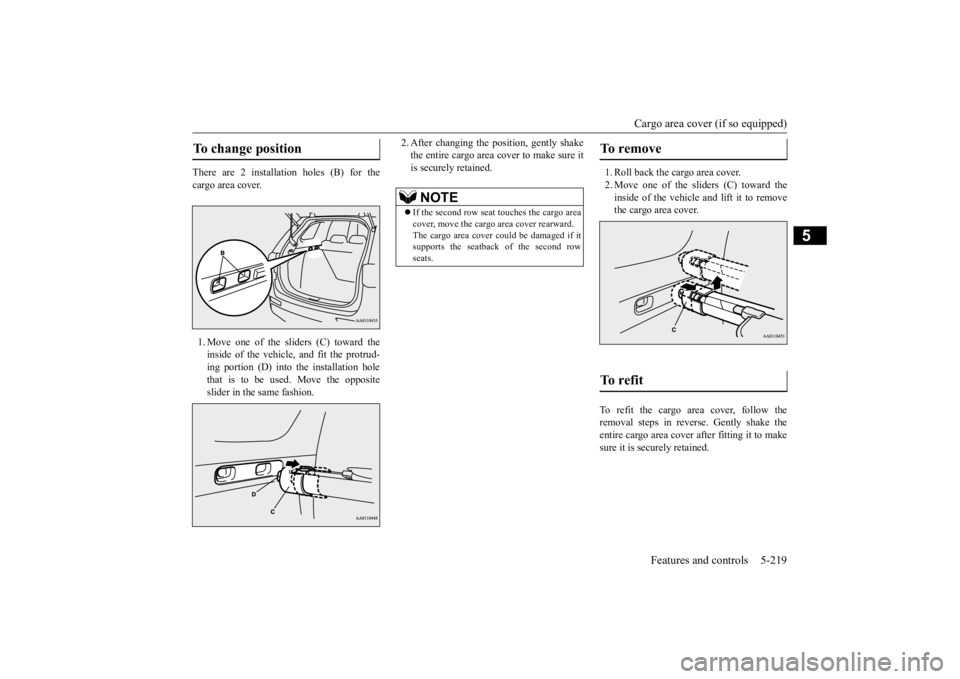
There are 2 installation holes (B) for the cargo area cover. 1. Move one of the sliders (C) toward the inside of the vehicle, and fit the protrud- ing portion (D) into the installation hole that is to be used. Move the oppositeslider in the same fashion.
2. After changing the position, gently shake the entire cargo area cover to make sure itis securely retained.
1. Roll back the cargo area cover. 2. Move one of the sliders (C) toward the inside of the vehicle and lift it to remove the cargo area cover.
To refit the cargo area cover, follow the removal steps in reverse. Gently shake theentire cargo area cover after fitting it to make sure it is securely retained.
To change position
NOTE
If the second row seat
touches the cargo area
cover, move the cargo
area cover rearward.
The cargo area cover co
uld be damaged if it
supports the seatback of the second row seats.
To remove To refit
BK0211800US.book 219 ページ 2014年3月12日 水曜日 午後2時42分