Page 173 of 429
!NAVIGATION.........................224
▫Navigation Registration (Uconnect® 8.4A
Only)..............................224
▫Getting Started.......................224
▫Main Menu..........................225
▫Where To?...........................226
▫View Map . . . . . . . . . . . . . . . . . . . . . . . . . ..262
▫View Map — Settings...................266
▫Information..........................272
▫Emergency..........................275
!SECURITY FEATURES...................281
▫Roadside Assistance — If Equipped.........281
▫9-1-1 Call — If Equipped................282
!REMOTE SERVICE FEATURES.............287
172 Uconnect® 8.4A — If Equipped
Page 282 of 429
You can search for a Fire Department by the following
categories, which are button tabs at the top of the
screen.
•Name
•Distance
•ABC (Search)
NOTE:In case of emergency, please contact the facility to
verify their availability before proceeding.
3. Press the desired Fire Department and press “Yes” to
confirm the destination.
If you are currently on a route guidance and you select a
Fire Department the system will ask you to choose one of
the following:
•Cancel previous route
•Add as first destination
•Add as last destination
NOTE:You can press the “back arrow” button on the
touchscreen to return to the previous screen or the “X”
button on the touchscreen to exit.
SECURITY FEATURES
The following Security Related options are available:
•9–1–1 Call
•Roadside Assistance Call
Roadside Assistance — If Equipped
If your vehicle is equipped with this feature and within
cellular range, you may be able to connect to Roadside
Assistance, Uconnect® Care and Vehicle Care by pressing
the “Assist” button on the Rearview Mirror of your
vehicle. To the extent any such calls incur additional
3
Uconnect® 8.4A — If Equipped 281
Page 291 of 429
▫Getting Started.......................339
▫Main Menu..........................340
▫Where To?...........................341
▫View Map . . . . . . . . . . . . . . . . . . . . . . . . . ..377
▫View Map — Settings...................381
▫Information..........................388
▫Emergency..........................391
▫Map Updates........................397
!SiriusXM TRAFFIC — U.S. MARKET ONLY
(AVAILABLE ON 8.4AN — IF EQUIPPED).....398
!SiriusXM TRAVEL LINK — U.S. MARKET ONLY
(AVAILABLE ON 8.4AN — IF EQUIPPED).....399
!SECURITY FEATURES...................400
▫Roadside Assistance — If Equipped.........400
▫9-1-1 Call — If Equipped................400
!REMOTE SERVICE FEATURES.............405
290 Uconnect® 8.4AN — If Equipped
Page 401 of 429
SECURITY FEATURES
The following Security Related options are available:
•9–1–1 Call
•Roadside Assistance Call
Roadside Assistance — If Equipped
If your vehicle is equipped with this feature and within
cellular range, you may be able to connect to Roadside
Assistance, Uconnect® Care and Vehicle Care by pressing
the “Assist” button on the Rearview Mirror of your
vehicle. To the extent any such calls incur additional
costs, you are responsible for them. If Roadside Assis-
tance is provided to your vehicle, you agree to be
responsible for any additional roadside assistance service
costs that you may incur.
To provide Uconnect® Services to you, we may record
and monitor your conversations with Roadside Assis-
tance, Uconnect® Care or Vehicle Care, whether such
conversations are initiated through the Uconnect® Ser-
vices in your vehicle, or via a landline or mobile tele-
phone, and may share information obtained through
such recording and monitoring in accordance with regu-
latory requirements. You acknowledge, agree and con-
sent to any recording, monitoring or sharing of informa-
tion obtained through any such call recordings.
9-1-1 Call — If Equipped
The 9-1-1 Call system is an embedded phone system that
allows you to connect to a 9-1-1 operator in an emer-
gency. You can choose to press the “9-1-1 Call” button on
the Rearview Mirror to contact a 9-1-1 operator.
400 Uconnect® 8.4AN — If Equipped
Page 419 of 429
Register
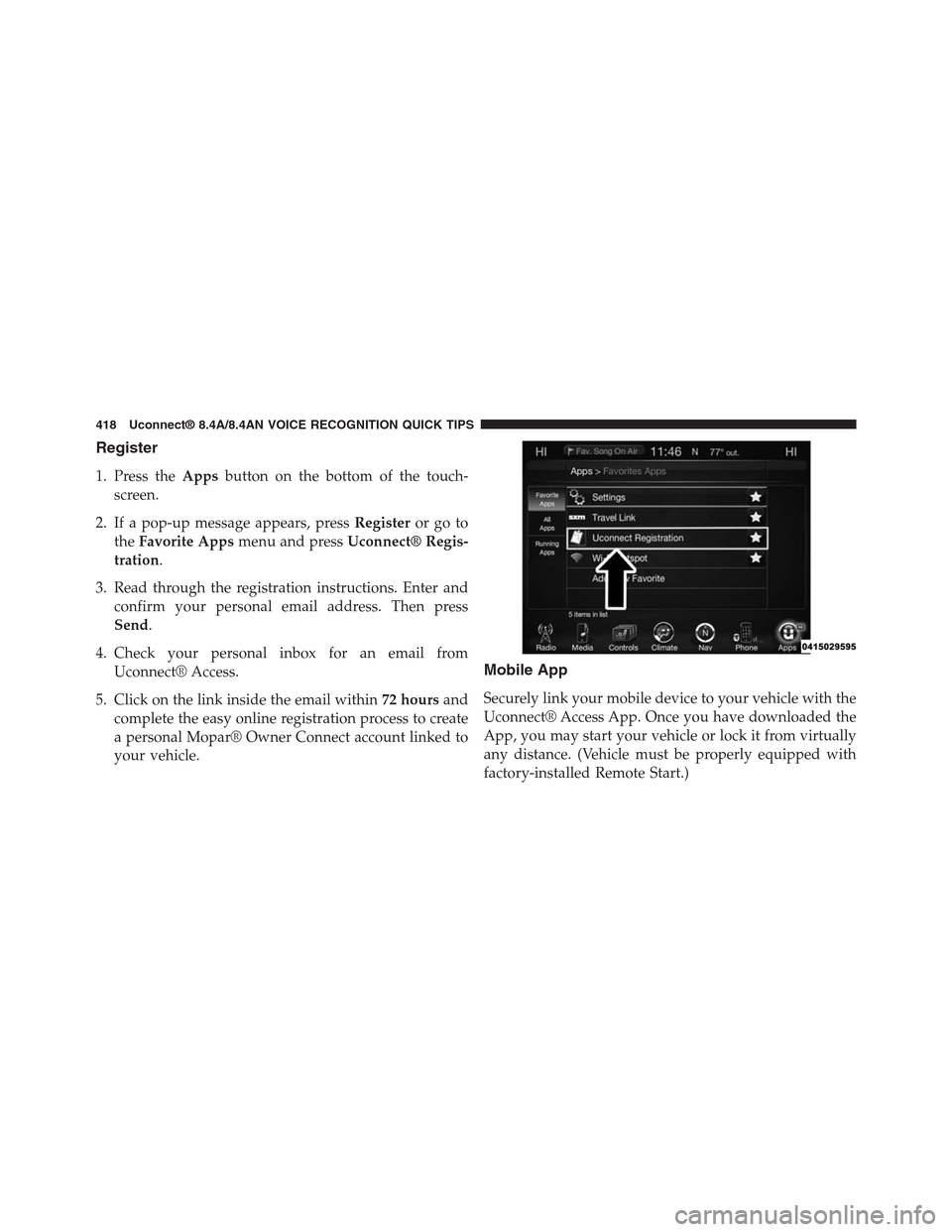
1. Press theAppsbutton on the bottom of the touch-
screen.
2. If a pop-up message appears, pressRegisteror go to
theFavorite Appsmenu and pressUconnect® Regis-
tration.
3. Read through the registration instructions. Enter and
confirm your personal email address. Then press
Send.
4. Check your personal inbox for an email from
Uconnect® Access.
5. Click on the link inside the email within72 hoursand
complete the easy online registration process to create
a personal Mopar® Owner Connect account linked to
your vehicle.
Mobile App
Securely link your mobile device to your vehicle with the
Uconnect® Access App. Once you have downloaded the
App, you may start your vehicle or lock it from virtually
any distance. (Vehicle must be properly equipped with
factory-installed Remote Start.)
418 Uconnect® 8.4A/8.4AN VOICE RECOGNITION QUICK TIPS
Page 423 of 429
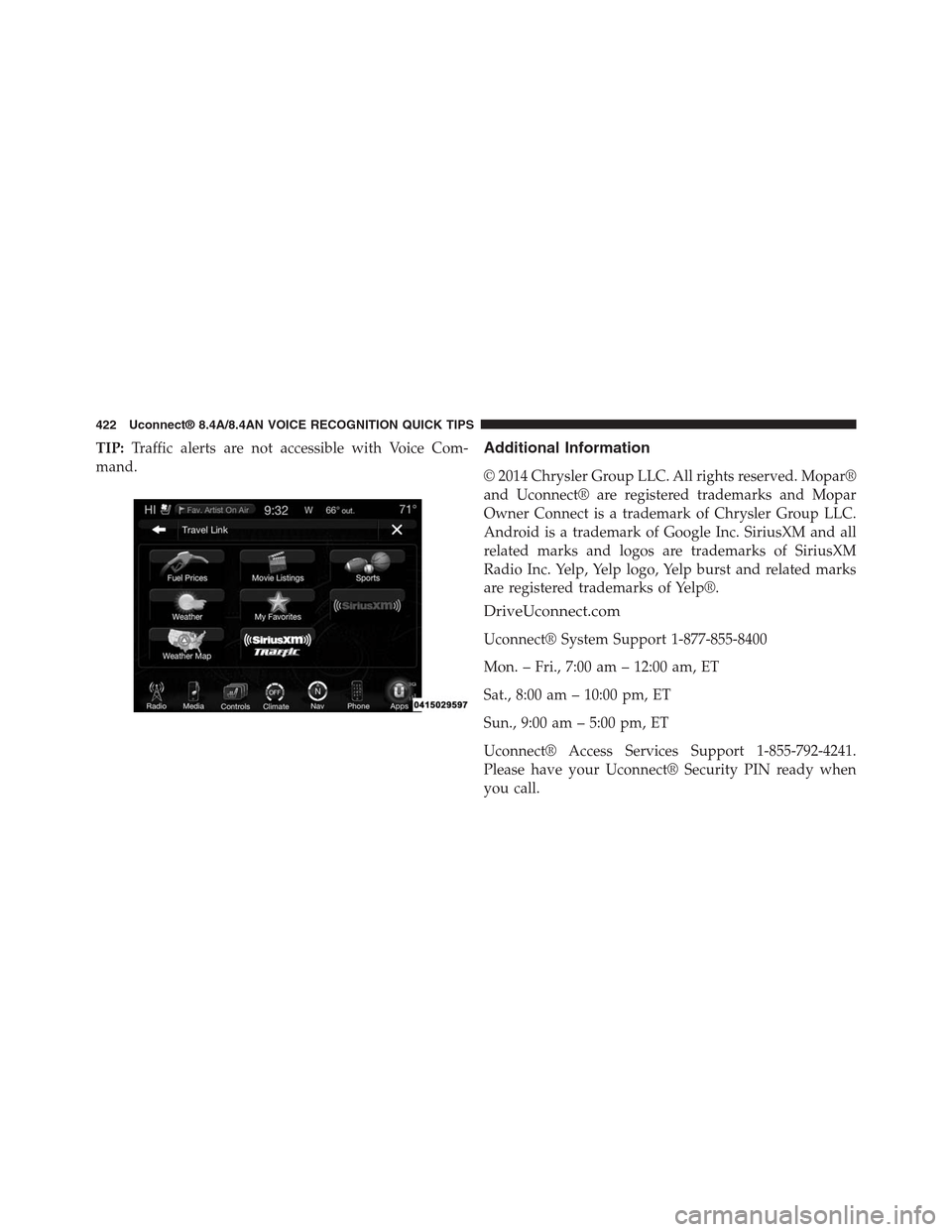
TIP:Traffic alerts are not accessible with Voice Com-
mand.
Additional Information
© 2014 Chrysler Group LLC. All rights reserved. Mopar®
and Uconnect® are registered trademarks and Mopar
Owner Connect is a trademark of Chrysler Group LLC.
Android is a trademark of Google Inc. SiriusXM and all
related marks and logos are trademarks of SiriusXM
Radio Inc. Yelp, Yelp logo, Yelp burst and related marks
are registered trademarks of Yelp®.
DriveUconnect.com
Uconnect® System Support 1-877-855-8400
Mon. – Fri., 7:00 am – 12:00 am, ET
Sat., 8:00 am – 10:00 pm, ET
Sun., 9:00 am – 5:00 pm, ET
Uconnect® Access Services Support 1-855-792-4241.
Please have your Uconnect® Security PIN ready when
you call.
422 Uconnect® 8.4A/8.4AN VOICE RECOGNITION QUICK TIPS