2015 DODGE CHARGER SRT ECU
[x] Cancel search: ECUPage 122 of 429

How It Works
Via Mobile uses the Uconnect® Access smartphone app
and your smartphone’s data plan to access your personal
Pandora® account from the vehicle and control it using
the vehicle touchscreen. A compatible smartphone is
required. The Pandora® mobile app on your phone does
not need to be launched to use Pandora® Via Mobile.
1. If you haven’t yet registered with Uconnect® Access,
begin by pushing the “Apps” icon on the touchscreen
inside your vehicle, and then push “Uconnect Regis-
tration.”
2. Once you receive an email from “Uconnect Access,”
click on the secure link to complete your registration
onmoparownerconnect.comwhere you’ll be guided
through setup of your Via Mobile profile.
3. Next, link app accounts to your Via Mobile profile by
entering your login information for Pandora®.
If you’ve already registered with Uconnect® Access,
log in tomoparownerconnect.comto set up your Via
Mobile profile. Click on “Via Mobile Profile.”
4. Next, connect your smartphone to the vehicle touch-
screen. The Uconnect® Access app is compatible with
select iPhone® and Android smartphones. Visit
UconnectPhone.comto confirm that your smart-
phone is compatible with Uconnect®. Once you’ve
confirmed your smartphone is compatible, pair it to
the vehicle touchscreen via Bluetooth® to use Via
Mobile apps. If using an iPhone®, a USB cable may
also be supported for the data connection.
2
ALL ABOUT Uconnect® ACCESS 121
Page 130 of 429

the vehicle touchscreen. A compatible smartphone is
required. The iHeartRadio mobile app on your phone
does not need to be launched to use iHeartRadio Via
Mobile.
1. If you haven’t yet registered with Uconnect® Access,
begin by pressing the “Apps” icon on the touchscreen
inside your vehicle, and then press “Uconnect Regis-
tration.”
2. Once you receive an email from “Uconnect Access,”
click on the secure link to complete your registration
onmoparownerconnect.comwhere you’ll be guided
through setup of your Via Mobile profile.
3. Next, link app accounts to your Via Mobile profile by
entering your login information for apps like iHeart-
Radio.
If you’ve already registered with Uconnect® Access,
log in tomoparownerconnect.comto set up your Via
Mobile profile. Click on “Via Mobile Profile”.
4. Connect your smartphone to the vehicle touchscreen.
The Uconnect® Access app is compatible with select
iPhone® and Android smartphones. Visit
UconnectPhone.comto confirm that your smart-
phone is compatible with Uconnect®. Once you’ve
confirmed your smartphone is compatible, pair it to
the vehicle touchscreen via Bluetooth® to use Via
Mobile apps. If using an iPhone®, a USB cable may
also be supported for the data connection.
5. Launch the Uconnect® Access app on your connected
smartphone and log in with your Mopar Owner
Connect Username/Email and password. From the
vehicle touchscreen press the “Apps” button and
select iHeartRadio from the list. iHeartRadio is located
within the “All Apps” tab. To launch iHeartRadio
using voice recognition, push the button on the steer-
ing wheel and say, “launch iHeartRadio Via Mobile.”
2
ALL ABOUT Uconnect® ACCESS 129
Page 139 of 429

1. If you have not registered with Uconnect® Access,
begin by pressing the “Apps” button on the touch-
screen inside your vehicle, and then press “Uconnect
Registration.”
2. Once you receive an email from “Uconnect Access,”
click on the secure link to complete your registration
onmoparownerconnect.comwhere you’ll be guided
through setup of your Via Mobile profile.
3. Next, link app accounts to your Via Mobile profile by
entering your login information for apps like Slacker
Radio.
If you’ve already registered with Uconnect Access, log
in tomoparownerconnect.comto set up your Via
Mobile profile. Click on “Via Mobile Profile”.
4. Next, connect your smartphone to the vehicle touch-
screen. The Uconnect® Access app is compatible with
select iPhone® and Android smartphones. Visit
UconnectPhone.comto confirm that your smart-
phone is compatible with Uconnect®. Once you’ve
confirmed your smartphone is compatible, pair it to
the vehicle touchscreen via Bluetooth® to use Via
Mobile apps. If using an iPhone®, a USB cable may
also be supported for the data connection.
5. Launch the Uconnect® Access app on your connected
smartphone and log in with your Mopar Owner
Connect Username/Email and password. From the
vehicle touchscreen press the “Apps” button and
select Slacker Radio from the list. Slacker Radio is
located within the “All Apps” tab. To launch Slacker
Radio using voice recognition, push the button on the
steering wheel and say, “launch Slacker Via Mobile.”
138 ALL ABOUT Uconnect® ACCESS
Page 147 of 429
1. If you have not yet registered with Uconnect® Access,
begin by pressing the “Apps” icon on the touchscreen
inside your vehicle, then pressing “Uconnect Registra-
tion.”
2. Once you receive an email from “Uconnect Access,”
click on the secure link to complete your registration
onmoparownerconnect.comwhere you will be
guided through the setup of your Via Mobile profile.
3. Next, link app accounts to your Via Mobile profile by
entering your login information for Aha™.
If you have already registered with Uconnect® Access,
log in tomoparownerconnect.comto set up your Via
Mobile profile. Click on “Via Mobile Profile.”
4. Next, connect your smartphone to the vehicle touch-
screen. The Uconnect® Access app is compatible with
select iPhone® and Android smartphones. Visit
UconnectPhone.comto confirm that your smart-
phone is compatible with Uconnect. Once you have
confirmed your smartphone is compatible, pair it to
the vehicle touchscreen via Bluetooth® to use Via
Mobile apps. If using an iPhone®, a USB cable may
also be supported for the data connection.
5. Launch the Uconnect® Access app on your connected
smartphone and log in with your Mopar Owner
Connect Username/Email and password. From the
vehicle touchscreen press the#Apps#button and select
Aha™ from the list. Aha™ is located within the “All
Apps” tab. To launch Aha™ using voice recognition,
push the VR button on the steering wheel and say,
“launch Aha™ Via Mobile.”
146 ALL ABOUT Uconnect® ACCESS
Page 161 of 429
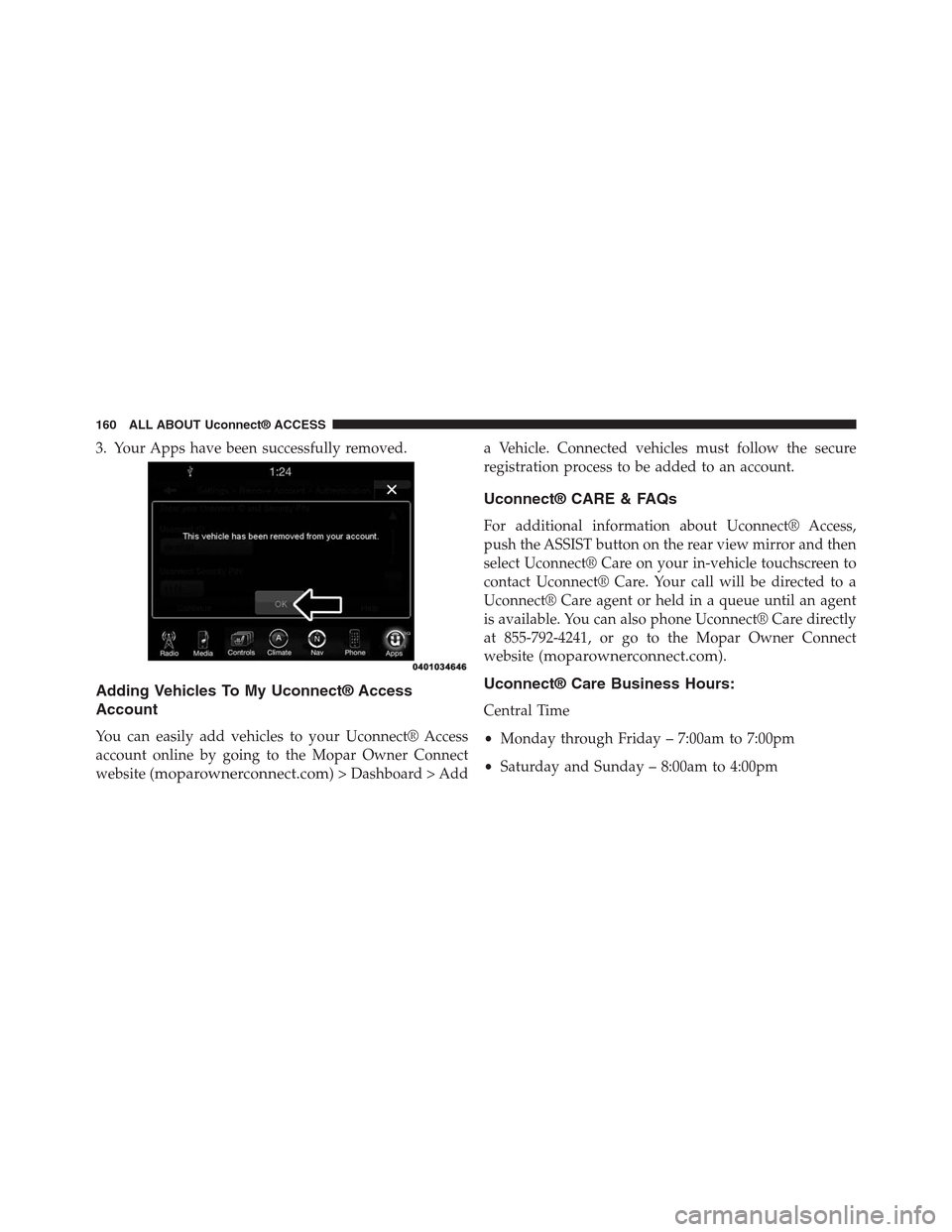
3. Your Apps have been successfully removed.
Adding Vehicles To My Uconnect® Access
Account
You can easily add vehicles to your Uconnect® Access
account online by going to the Mopar Owner Connect
website (moparownerconnect.com) > Dashboard > Add
a Vehicle. Connected vehicles must follow the secure
registration process to be added to an account.
Uconnect® CARE & FAQs
For additional information about Uconnect® Access,
push the ASSIST button on the rear view mirror and then
select Uconnect® Care on your in-vehicle touchscreen to
contact Uconnect® Care. Your call will be directed to a
Uconnect® Care agent or held in a queue until an agent
is available. You can also phone Uconnect® Care directly
at 855-792-4241, or go to the Mopar Owner Connect
website (moparownerconnect.com).
Uconnect® Care Business Hours:
Central Time
•Monday through Friday – 7:00am to 7:00pm
•Saturday and Sunday – 8:00am to 4:00pm
160 ALL ABOUT Uconnect® ACCESS
Page 162 of 429

1.How Do I Register For My Uconnect® Access Ac-
count?Press the “Apps” button on the in-vehicle
touchscreen, then select Uconnect® Registration.
2.Why Do I Need An Email Address?Without an email
address, customers cannot register for Uconnect®
Access. Customers need to register so they can sub-
scribe to receive additional services and create a
Uconnect® Security PIN for remote command re-
quests.
3.How Do I Create A Uconnect® Security PIN?Set up
your Uconnect® Security PIN during the registration
process. The Uconnect® Security PIN will be required
to authenticate you when accessing your account via
Uconnect® Care or performing any remote services
such as Remote Door Lock/Unlock, Remote Horn &
Lights, or Remote Vehicle Start.
4.What If I Forgot My Uconnect® Security PIN?If
you’ve already registered and forgot your Uconnect®
Security PIN, you can reset the pin by selecting Edit
Profile on the Mopar Owner Connect website
(moparownerconnect.com), or you can call
Uconnect® Care at 855-792-4241.
5.How Do I Create A Uconnect® Payment PIN?Log
into the Mopar Owner Connect website
(moparownerconnect.com) with your username and
password. Select Edit Profile > Uconnect® Payment
Account to create an account (and PIN) (if you have a
Uconnect® Access equipped vehicle).
6.What Is A Uconnect® Payment PIN?A Uconnect®
Payment PIN is a unique 4-digit code that you create
to gain access to your payment information – your
credit cards, billing address, payment history and
more. It is required in order to purchase Uconnect®
Access packages and Apps.
2
ALL ABOUT Uconnect® ACCESS 161
Page 163 of 429
7.What If I Forgot My Uconnect® Payment PIN?The
next time you are asked for your Uconnect® Payment
PIN, select “Forgot PIN?” and follow the steps to reset
it.
8.How Do I Update My Uconnect® Payment Account
Address?Your Uconnect® Payment Account address
must be updated online only: Login to the Mopar
Owner Connect website (moparownerconnect.com),
and select Edit Profile > Uconnect® Payment Account.
9.How Do I Update My Uconnect® Profile?Your
name, home address, phone number, email address
and Uconnect® Security PIN can be updated online on
the Mopar Owner Connect website
(moparownerconnect.com).
a. Log in to the Mopar Owner Connect website
(moparownerconnect.com) then select Edit Profile
to edit your personal information.
b. Make your edits and click “Save.”
10.Can I Try Apps, Features Or Packages Before I Buy
Them?Your new vehicle purchase may have come
with an included trial period for certain Apps and
services. For more information please contact
Uconnect® Care at 855-792-4241.
11.Can I Access Every App And Service While Driv-
ing?No, some applications and services are not
available while driving. For your own safety, it is not
possible to use some of the touchscreen features
while the vehicle is in motion (e.g. key pad).
12.Can I Access The Uconnect® Store While I Am
Driving?No, some applications and services are not
available while driving. Only use Uconnect® when it
is safe to do so.
162 ALL ABOUT Uconnect® ACCESS
Page 166 of 429
26.How Do I Re-Initiate A Download App If There
Was An Error?If you’re having issues with an App
you can reinstall it. This returns the App to its
original state which usually fixes the problem. This
does not affect your Uconnect® subscriptions or
account information. To reinstall an App from the
in-vehicle touchscreen, press Apps > All Apps >
Uconnect® Store > My Apps > Settings > Reinstall
Apps > Continue.
27.What Should I Do If I Want To Sell My Vehicle?
Before your vehicle is sold to a new owner, you’ll
want to remove your account information. This pro-
cess removes all personal information and returns the
Uconnect® system to its original factory settings. To
remove your account information from the
Uconnect® system:
a. On the touchscreen, press Apps > All Apps >
Uconnect® Store > My Apps > Settings.
b. Choose Remove Uconnect® Account and follow
the instructions.
28.What If I Forgot To Remove My Account Informa-
tion Before I Returned My Lease Vehicle Or Sold It?
Don’t worry – your information is secure. Contact
Uconnect® Care at 855-792-4241.
29.I Am Trading My Vehicle In. Can I Transfer Apps
To My New Vehicle If I Have An Active Subscrip-
tion?No.
Privacy Practices
For more information on how Chrysler and Sprint may
use your information, please see the Uconnect® privacy
policy atdriveuconnect.com/privacy/and the
Chrysler privacy statement at
chrysler.com/universal/privacy.html.
2
ALL ABOUT Uconnect® ACCESS 165