Page 73 of 429
WiFi Hotspot
Create A 3G WiFi Hotspot For Use In
Your Vehicle
Description
WiFi Hotspot is on-demand WiFi + 3G
connectivity that’s built-in and ready
to go whenever you are. Once your
vehicle is registered for Uconnect® Access, you can
purchase a WiFi Hotspot subscription at the Uconnect®
Store. After you’ve made your purchase, turn on your
signal and connect your devices.
WARNING!
Do Not use the WiFi Hotspot while operating the
vehicle. Only use the WiFi Hotspot when it is safe
to do so.
•Enables all your passengers to be simultaneously
connected to the web.
•Connect several devices at one time.
•Any WiFi-enabled device — such as a laptop or any
other portable enabled media can connect over your
private in-vehicle network.
•A high-speed, secured connection lets anyone on your
private network access the Web — great for working
and relaxing
72 ALL ABOUT Uconnect® ACCESS
Page 76 of 429
Optional:Give your hot spot a unique name by
pressing Hotspot Name (key pad is not available
while vehicle is in motion).
4. From your in-vehicle touchscreen, select the appropri-
ate in-vehicle network and the desired security level
setting. Each security level has different pass phrase
constraints. Change the security level setting by select-
ing the checkbox for any of the following security
settings.
2
ALL ABOUT Uconnect® ACCESS 75
Page 77 of 429
•WPA2/WPA — “WiFi Protected Access” – This is the
default security and can be changed by pressing
WiFi Hotspot > View/Edit Pass phrase.
•WEP — “Wired Equivalent Privacy” – Pass phrase
must be 13 characters long.
•None — No security, will not prompt you for a pass
phrase, when you attempt to connect to WiFi
Hotspot.
5. From your Wi-Fi enabled device (laptop, tablet, etc.)
•Search for and select the Uconnect® hotspot in the
settings of your device
•Type the network security key (this is called “pass
phrase” and is found in Apps > All Apps > WiFi
Hotspot > View/Edit Pass phrase)
•Click OK
You are now connected!
NOTE:Refer to your device’s owner ’s manual for spe-
cific information related to your device.
76 ALL ABOUT Uconnect® ACCESS
Page 80 of 429

FAQs
1.How do I know if I have a good signal strength?
There is a signal strength indicator on the Apps button
of the radio touchscreen.
2.What do I do if the WiFi Hotspot connection drops
while I’m driving?The connection will be automatic
when you enter an area with cellular coverage. Factors
affecting the performance of WiFi Hotspot include:
cellular network signal strength and quality, time of
day, number of channels used by the service provider,
type of connection, number of client using WiFi
Hotspot, client device.
3.What is the factory default security setting?WPA2/
WPA
4.What if I want to create a custom password for my
connection?Select either WPA2/WPA or the WEP
setting and create a pass phrase by pressing Apps >
All Apps > WiFi Hotspot > View/Edit Pass phrase.
5.I do not see the connection on my wireless laptop or
phone, what should I do?Refer to your device’s
owner ’s manual for specific information related to
your device.
6.Are there any data constraints with WiFi Hotspot?
WiFi Hotspot must be purchased in either one day, one
week or one month durations.
2
ALL ABOUT Uconnect® ACCESS 79
Page 105 of 429
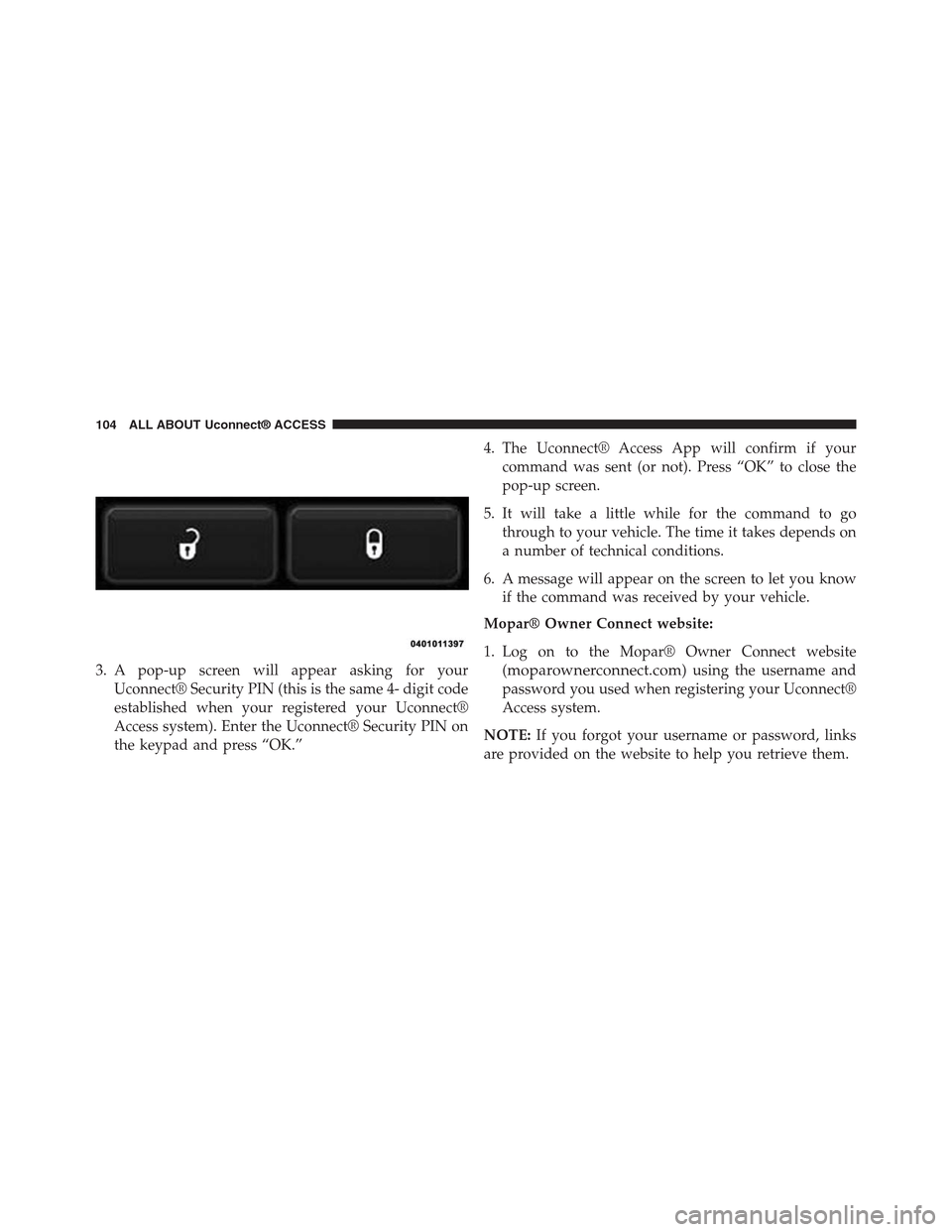
3. A pop-up screen will appear asking for your
Uconnect® Security PIN (this is the same 4- digit code
established when your registered your Uconnect®
Access system). Enter the Uconnect® Security PIN on
the keypad and press “OK.”
4. The Uconnect® Access App will confirm if your
command was sent (or not). Press “OK” to close the
pop-up screen.
5. It will take a little while for the command to go
through to your vehicle. The time it takes depends on
a number of technical conditions.
6. A message will appear on the screen to let you know
if the command was received by your vehicle.
Mopar® Owner Connect website:
1. Log on to the Mopar® Owner Connect website
(moparownerconnect.com) using the username and
password you used when registering your Uconnect®
Access system.
NOTE:If you forgot your username or password, links
are provided on the website to help you retrieve them.
104 ALL ABOUT Uconnect® ACCESS
Page 106 of 429
2. If you have more than one vehicle registered into the
Mopar® Owner Connect website
(moparownerconnect.com), select the vehicle you
want to send the command by clicking on its image
along the top.
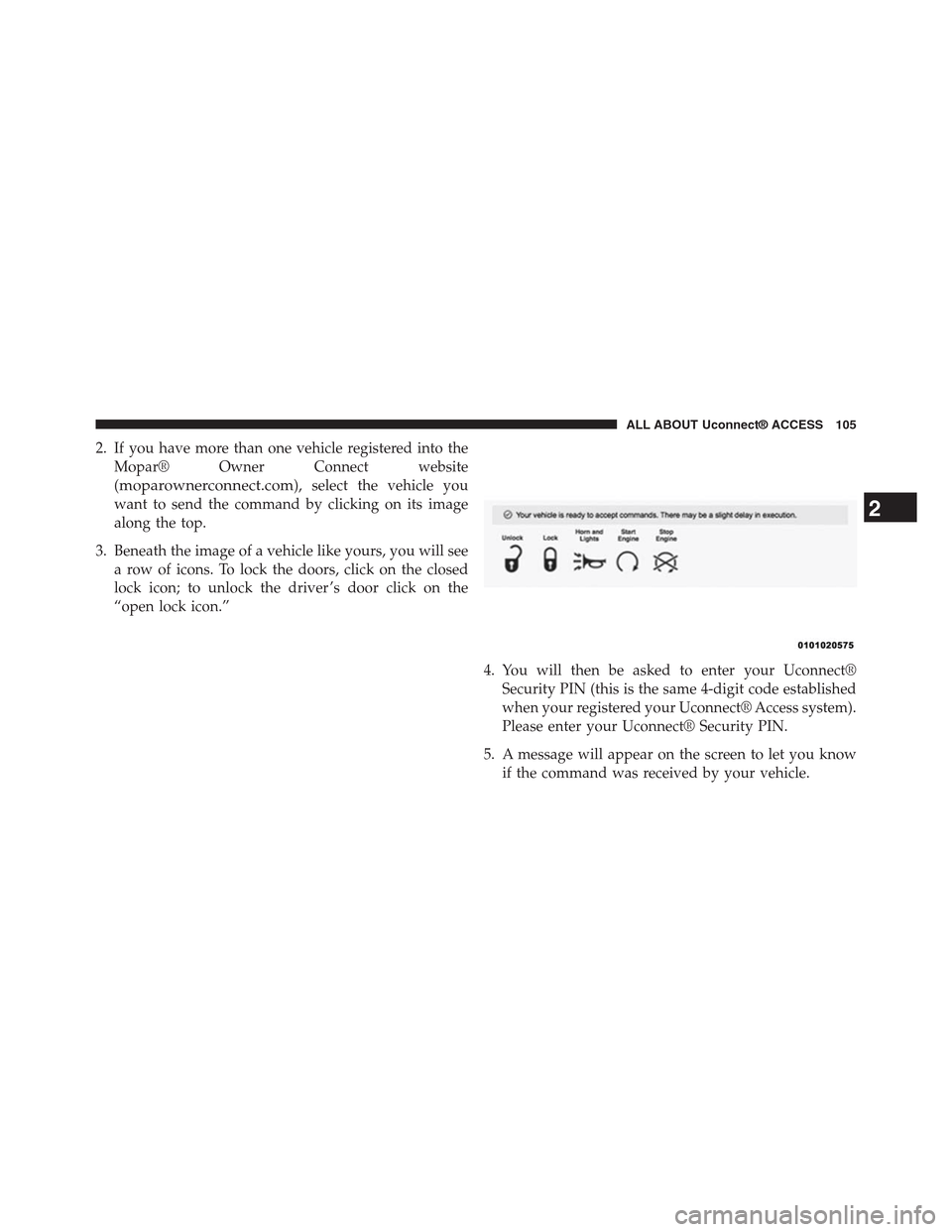
3. Beneath the image of a vehicle like yours, you will see
a row of icons. To lock the doors, click on the closed
lock icon; to unlock the driver ’s door click on the
“open lock icon.”
4. You will then be asked to enter your Uconnect®
Security PIN (this is the same 4-digit code established
when your registered your Uconnect® Access system).
Please enter your Uconnect® Security PIN.
5. A message will appear on the screen to let you know
if the command was received by your vehicle.
2
ALL ABOUT Uconnect® ACCESS 105
Page 107 of 429
Uconnect® Care:
1. If you need to unlock the doors of your vehicle,
contact Uconnect® Care by calling 855-792-4241.
NOTE:The Uconnect® Care agents are trained to help
you with unlocking of your door (for example, in an
accidental lock-out). All other Remote Services should be
performed via the Mopar® Owner Connect website
(moparownerconnect.com) or through the Uconnect®
Access App on your compatible smartphone.
CAUTION!
Must be registered with Uconnect® access and
have a current subscription.
2. For security purposes, the Uconnect® Care agent will
verify your identity by asking for your 4-digit
Uconnect® Security PIN.
3. After providing your Uconnect® Security PIN, you
can ask them to lock or unlock your vehicle. The agent
will send a command to your vehicle to get the task
done.
Give It A Try!
•Download the Uconnect® Access App to your smart-
phone.
•Enter the username and password that you established
for the Mopar® Owner Connect website
(moparownerconnect.com) during registration of
your new vehicle.
•If logging in for the first time, you will be asked to
agree to the Terms of Service.
•Push the button to unlock your vehicle’s door, you will
then be asked to enter your Uconnect® Security PIN.
106 ALL ABOUT Uconnect® ACCESS
Page 109 of 429

3.Will my vehicle be safe if I lose my smartphone?
People sometimes lose their phone, which is why
security measures have been engineered into the
Uconnect® Access App. Asking for your username,
password and Uconnect® Security PIN help to ensure
that nobody can get into your vehicle if they happen to
find your smartphone.
4.Why can’t all phones use the Uconnect® Access
App?The Uconnect® Access App has been designed
to work on most smartphones with the Apple and
Android operating systems. The capabilities of these
smartphone allows us to remotely command your
vehicle. Other operating systems may be supported in
the future.
5.Why is the Uconnect® Access App running slow?
The Uconnect® Access App relies on the cellular
connection from your smartphone to send commands
to your vehicle. If your smartphone is in an area with
below average coverage, it will take longer to log in
and send commands.
Remote Vehicle Start
Use Your Computer Or Smartphone App To Start The
Engine And Warm-Up Or Cool-Down The Vehicle
From Almost Anywhere.
108 ALL ABOUT Uconnect® ACCESS