Page 280 of 429
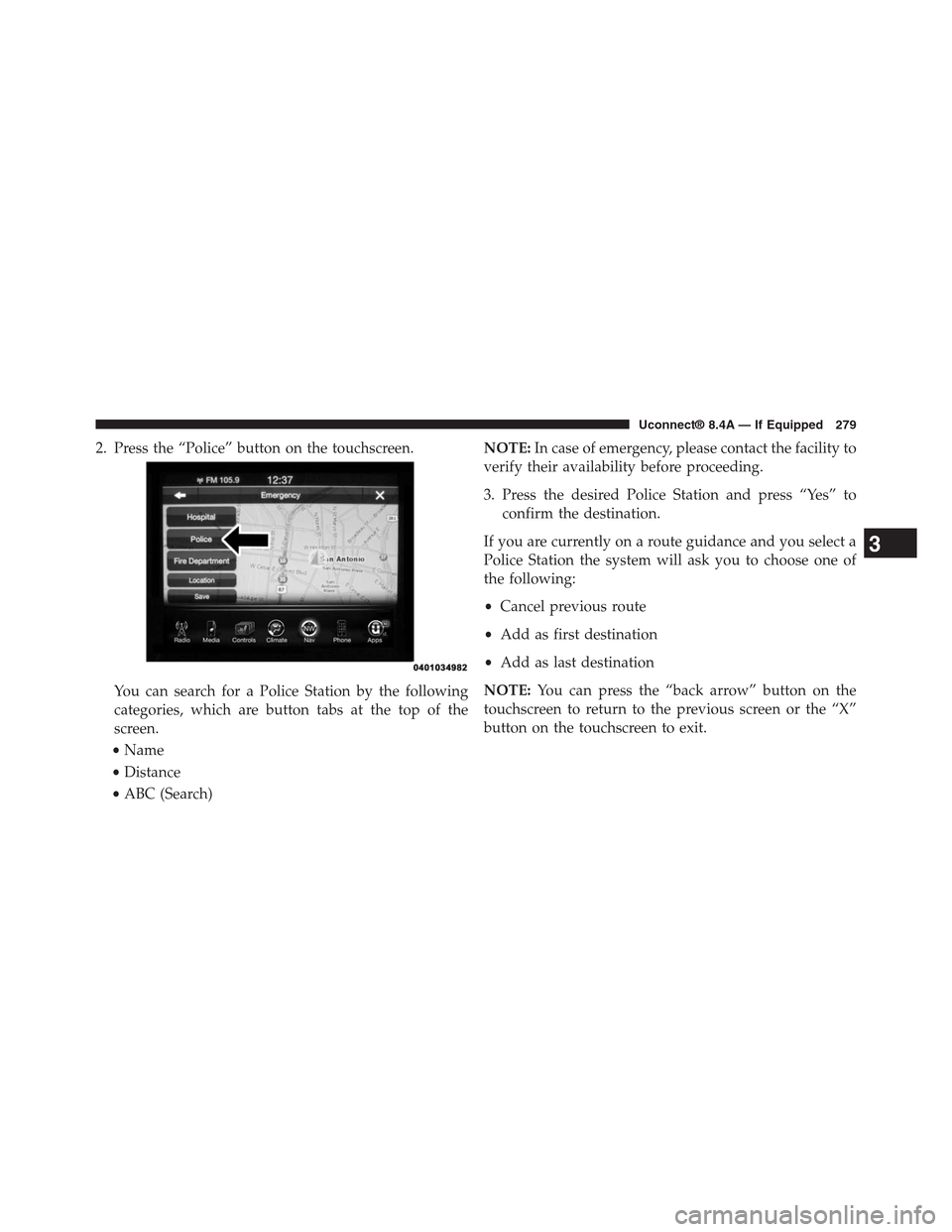
2. Press the “Police” button on the touchscreen.
You can search for a Police Station by the following
categories, which are button tabs at the top of the
screen.
•Name
•Distance
•ABC (Search)
NOTE:In case of emergency, please contact the facility to
verify their availability before proceeding.
3. Press the desired Police Station and press “Yes” to
confirm the destination.
If you are currently on a route guidance and you select a
Police Station the system will ask you to choose one of
the following:
•Cancel previous route
•Add as first destination
•Add as last destination
NOTE:You can press the “back arrow” button on the
touchscreen to return to the previous screen or the “X”
button on the touchscreen to exit.
3
Uconnect® 8.4A — If Equipped 279
Page 282 of 429
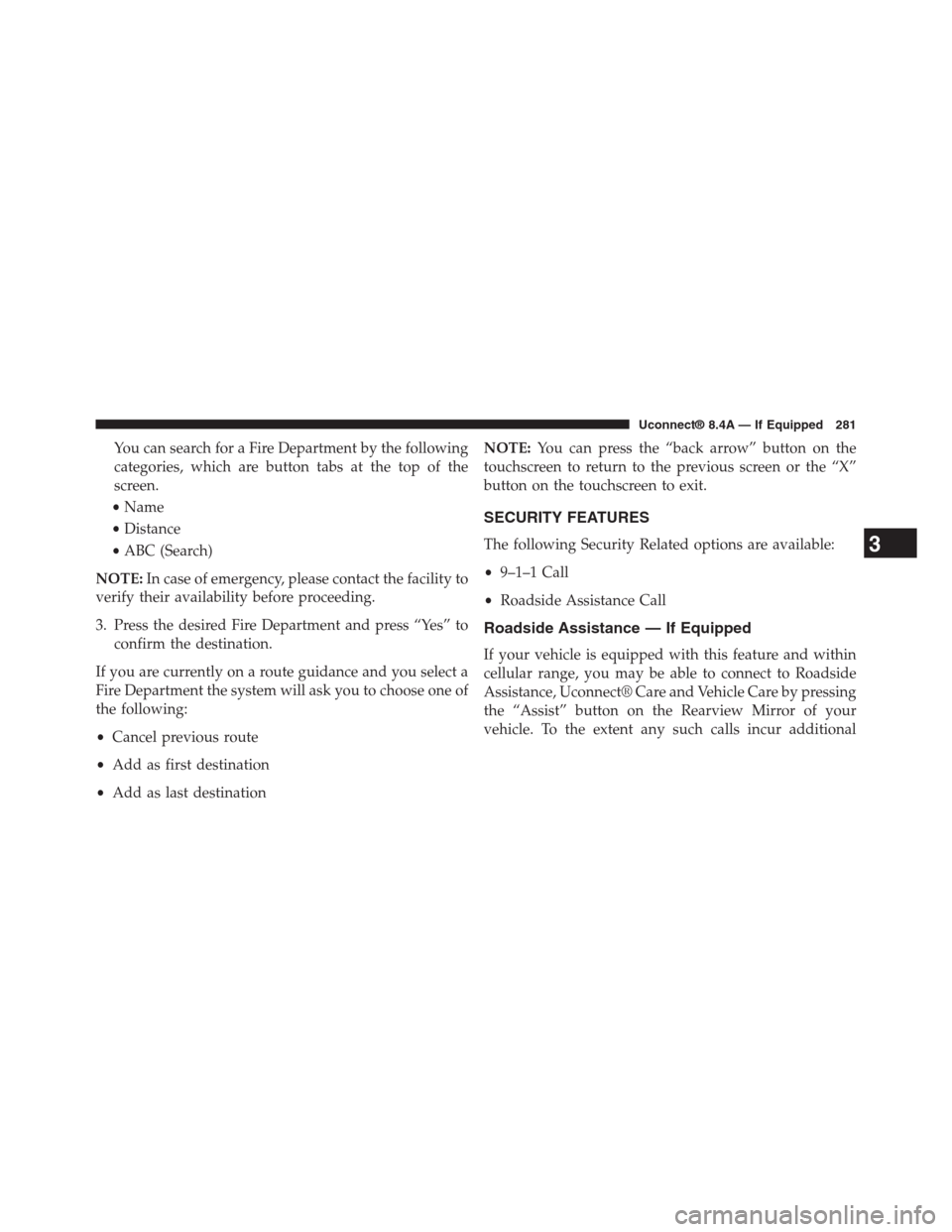
You can search for a Fire Department by the following
categories, which are button tabs at the top of the
screen.
•Name
•Distance
•ABC (Search)
NOTE:In case of emergency, please contact the facility to
verify their availability before proceeding.
3. Press the desired Fire Department and press “Yes” to
confirm the destination.
If you are currently on a route guidance and you select a
Fire Department the system will ask you to choose one of
the following:
•Cancel previous route
•Add as first destination
•Add as last destination
NOTE:You can press the “back arrow” button on the
touchscreen to return to the previous screen or the “X”
button on the touchscreen to exit.
SECURITY FEATURES
The following Security Related options are available:
•9–1–1 Call
•Roadside Assistance Call
Roadside Assistance — If Equipped
If your vehicle is equipped with this feature and within
cellular range, you may be able to connect to Roadside
Assistance, Uconnect® Care and Vehicle Care by pressing
the “Assist” button on the Rearview Mirror of your
vehicle. To the extent any such calls incur additional
3
Uconnect® 8.4A — If Equipped 281
Page 301 of 429
the touchscreen also forwards the content. The Radio
begins playing the content at the point at which the press
is release.
Live
Press the “Live” button on the touchscreen to resume
playing of Live content.
Favorites
Press the “fav.” button on the touchscreen to activate the
favorites menu, which will time out in five seconds in
absence of user interaction.
You can exit the Favorites Menu by a press of the “X” in
the top right corner.
The favorites feature enables you to set a favorite artist,
or song that is currently playing. The Radio then uses this
information to alert you when either the favorite song, or
favorite artist are being played at any time by any of the
SiriusXM Channels.
The maximum number of favorites that can be stored in
the Radio is 50.
Fav. Artist:While the song is playing to set a Favorite
Artist, press the “fav.” button on the touchscreen and
then the Fav. Artist button on the touchscreen.
Fav. Song:While the song is playing to set a Favorite
Song, press the “fav.” button on the touchscreen and then
the Fav Song button on the touchscreen.
Traffic & Weather — Available On The 8.4AN If
Equipped In The U.S. Market Only
Press the Traffic & Weather button on the touchscreen to
tune to a SiriusXM Traffic and Weather channel. To set a
Traffic & Weather alert for any one of the cities in the
Jump Browse list, see Browse in SXM.
300 Uconnect® 8.4AN — If Equipped
Page 351 of 429
POI — Gas Stations
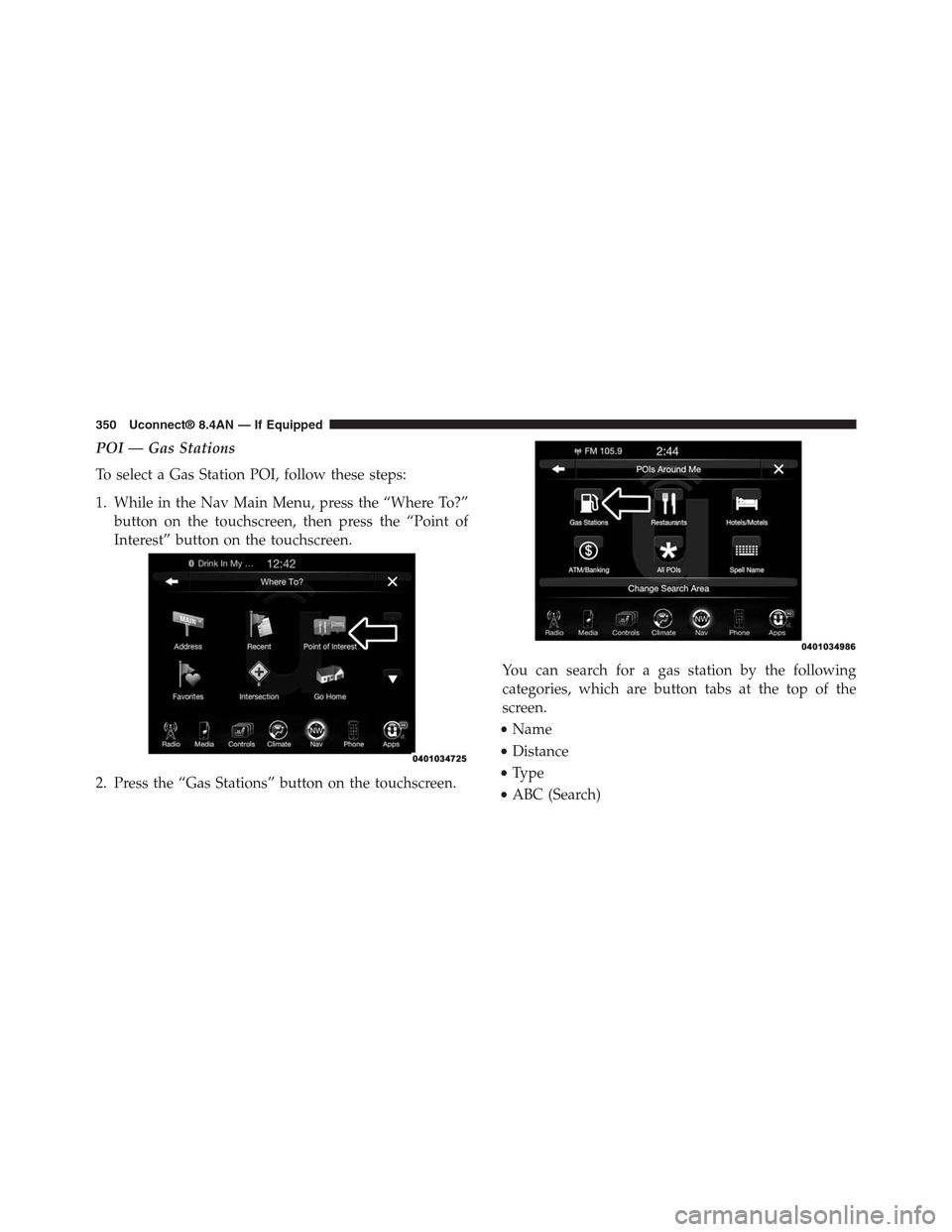
To select a Gas Station POI, follow these steps:
1. While in the Nav Main Menu, press the “Where To?”
button on the touchscreen, then press the “Point of
Interest” button on the touchscreen.
2. Press the “Gas Stations” button on the touchscreen.
You can search for a gas station by the following
categories, which are button tabs at the top of the
screen.
•Name
•Distance
•Type
•ABC (Search)
350 Uconnect® 8.4AN — If Equipped
Page 353 of 429
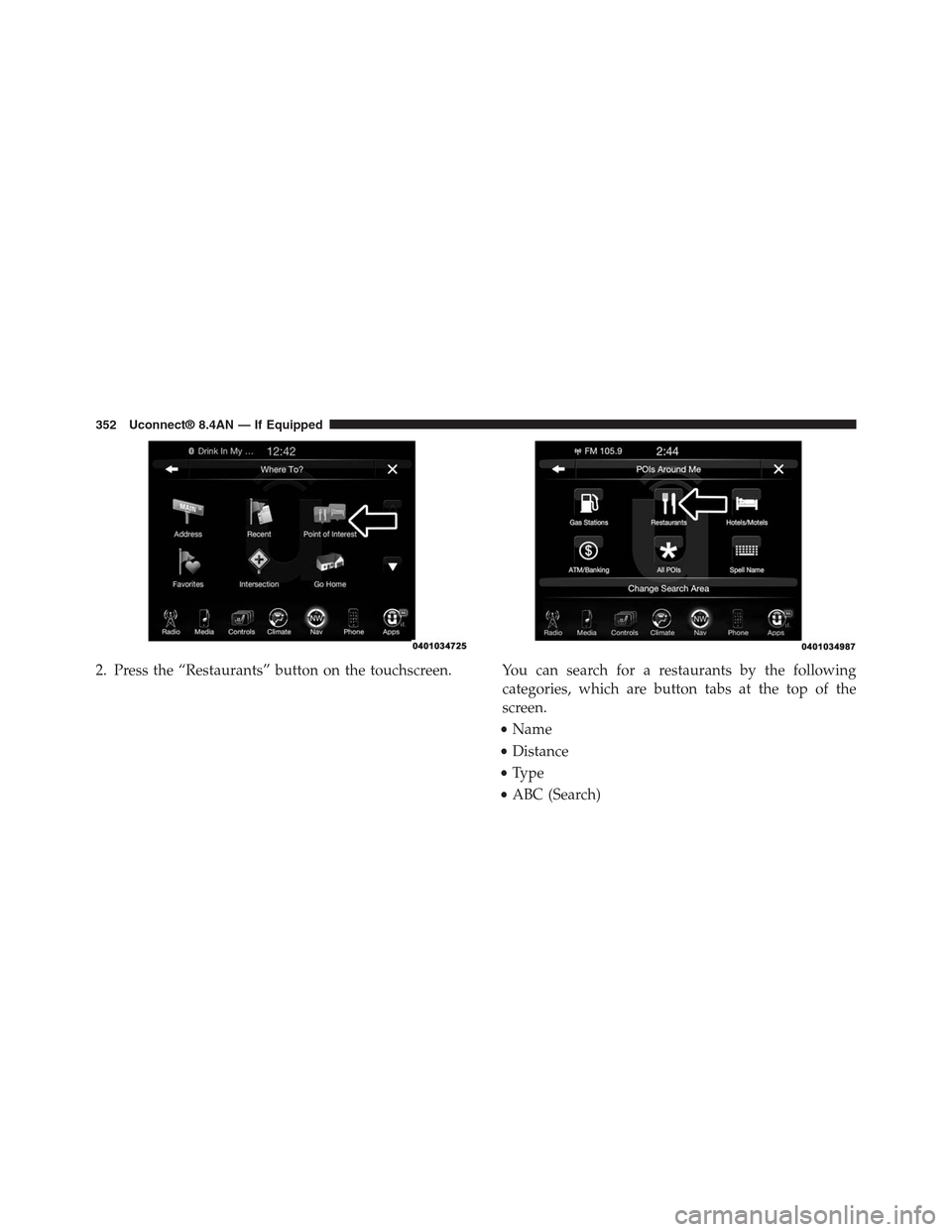
2. Press the “Restaurants” button on the touchscreen. You can search for a restaurants by the following
categories, which are button tabs at the top of the
screen.
•Name
•Distance
•Type
•ABC (Search)
352 Uconnect® 8.4AN — If Equipped
Page 355 of 429
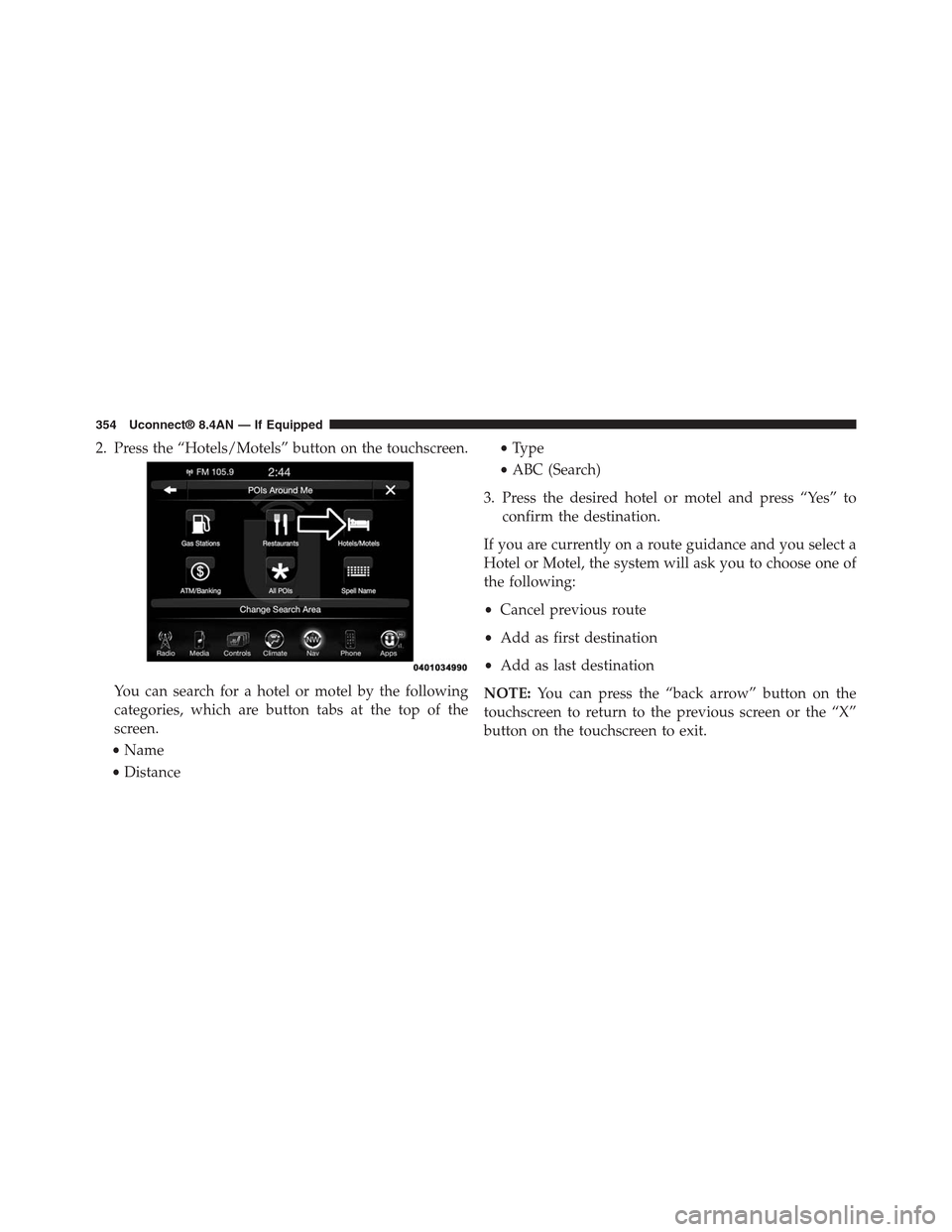
2. Press the “Hotels/Motels” button on the touchscreen.
You can search for a hotel or motel by the following
categories, which are button tabs at the top of the
screen.
•Name
•Distance
•Type
•ABC (Search)
3. Press the desired hotel or motel and press “Yes” to
confirm the destination.
If you are currently on a route guidance and you select a
Hotel or Motel, the system will ask you to choose one of
the following:
•Cancel previous route
•Add as first destination
•Add as last destination
NOTE:You can press the “back arrow” button on the
touchscreen to return to the previous screen or the “X”
button on the touchscreen to exit.
354 Uconnect® 8.4AN — If Equipped
Page 356 of 429
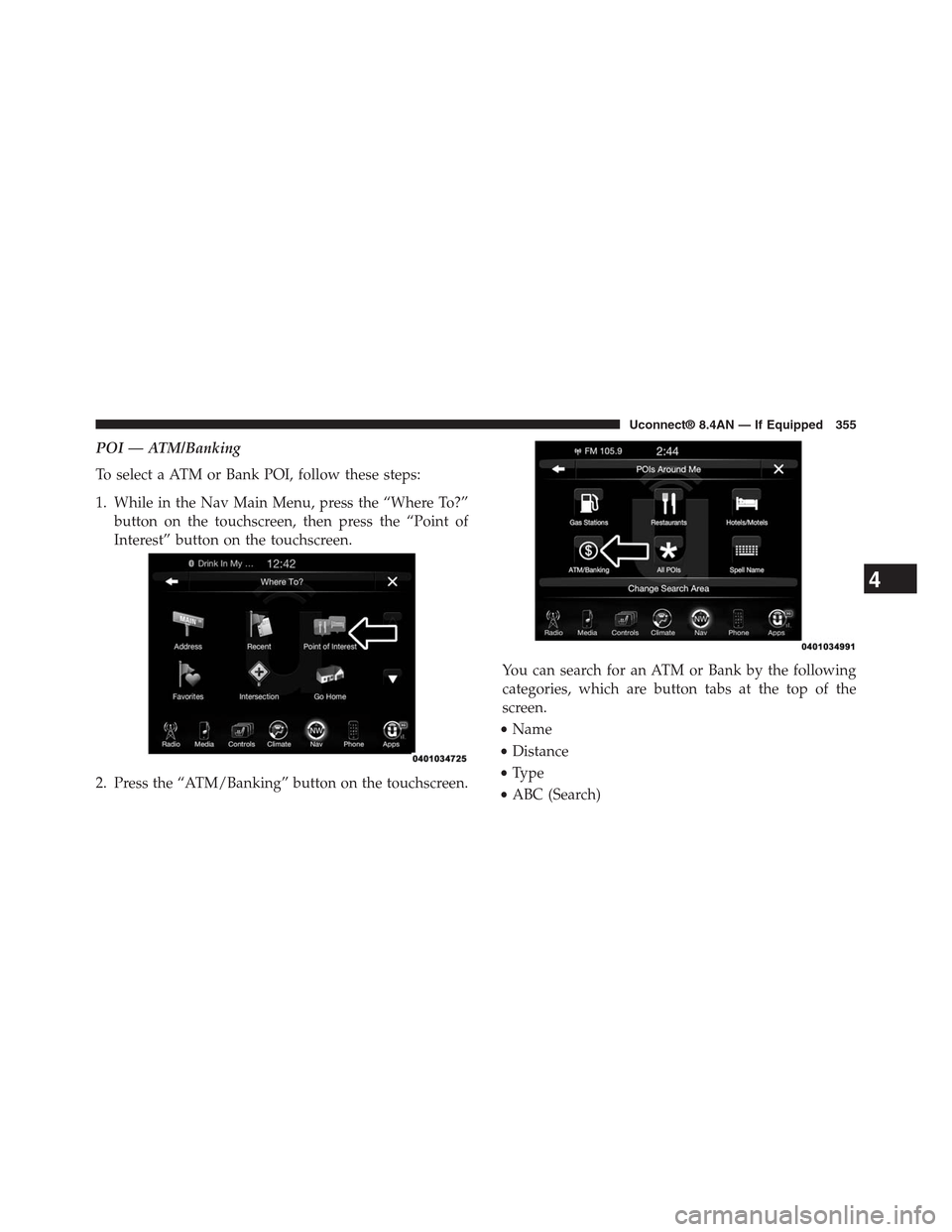
POI — ATM/Banking
To select a ATM or Bank POI, follow these steps:
1. While in the Nav Main Menu, press the “Where To?”
button on the touchscreen, then press the “Point of
Interest” button on the touchscreen.
2. Press the “ATM/Banking” button on the touchscreen.
You can search for an ATM or Bank by the following
categories, which are button tabs at the top of the
screen.
•Name
•Distance
•Type
•ABC (Search)
4
Uconnect® 8.4AN — If Equipped 355
Page 394 of 429
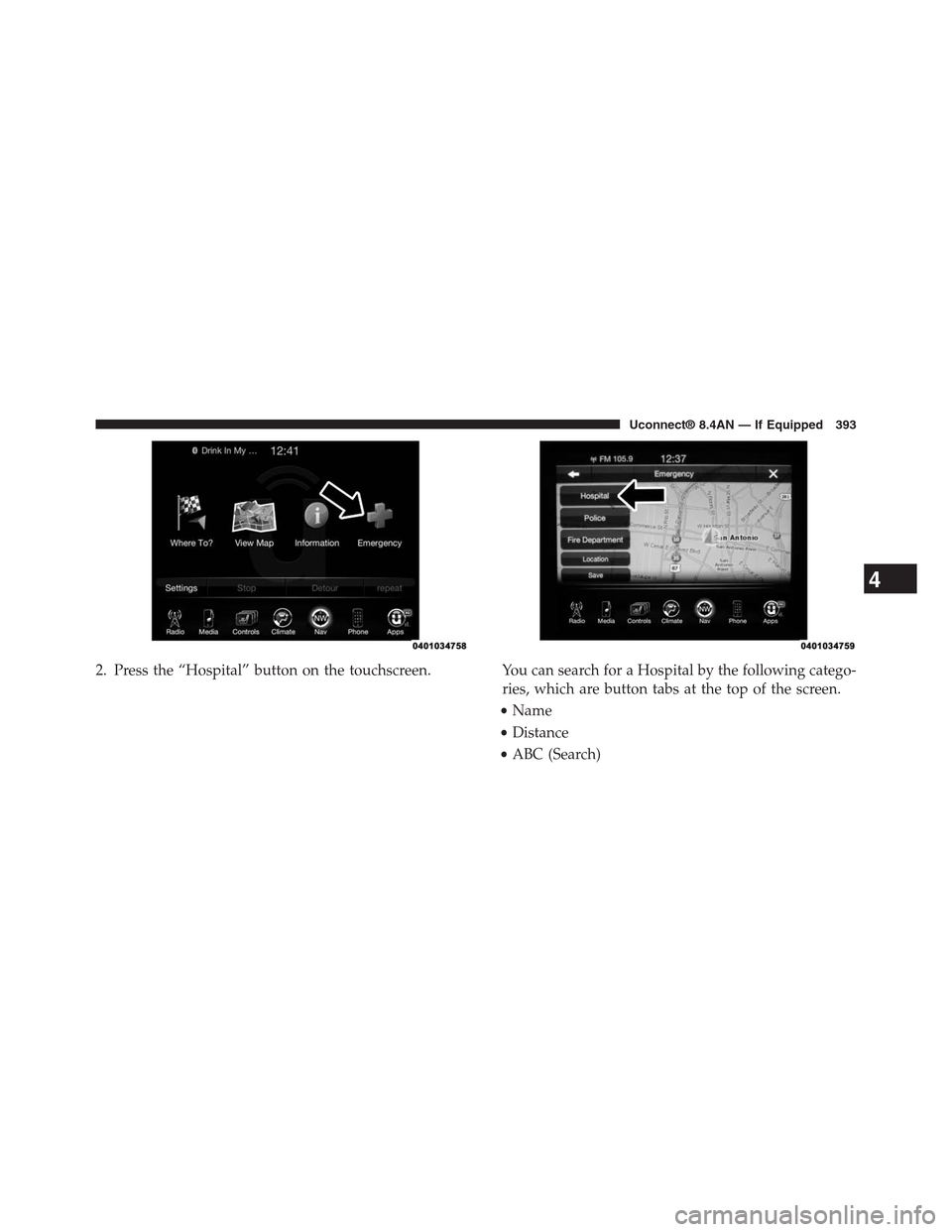
2. Press the “Hospital” button on the touchscreen. You can search for a Hospital by the following catego-
ries, which are button tabs at the top of the screen.
•Name
•Distance
•ABC (Search)
4
Uconnect® 8.4AN — If Equipped 393