Page 334 of 429
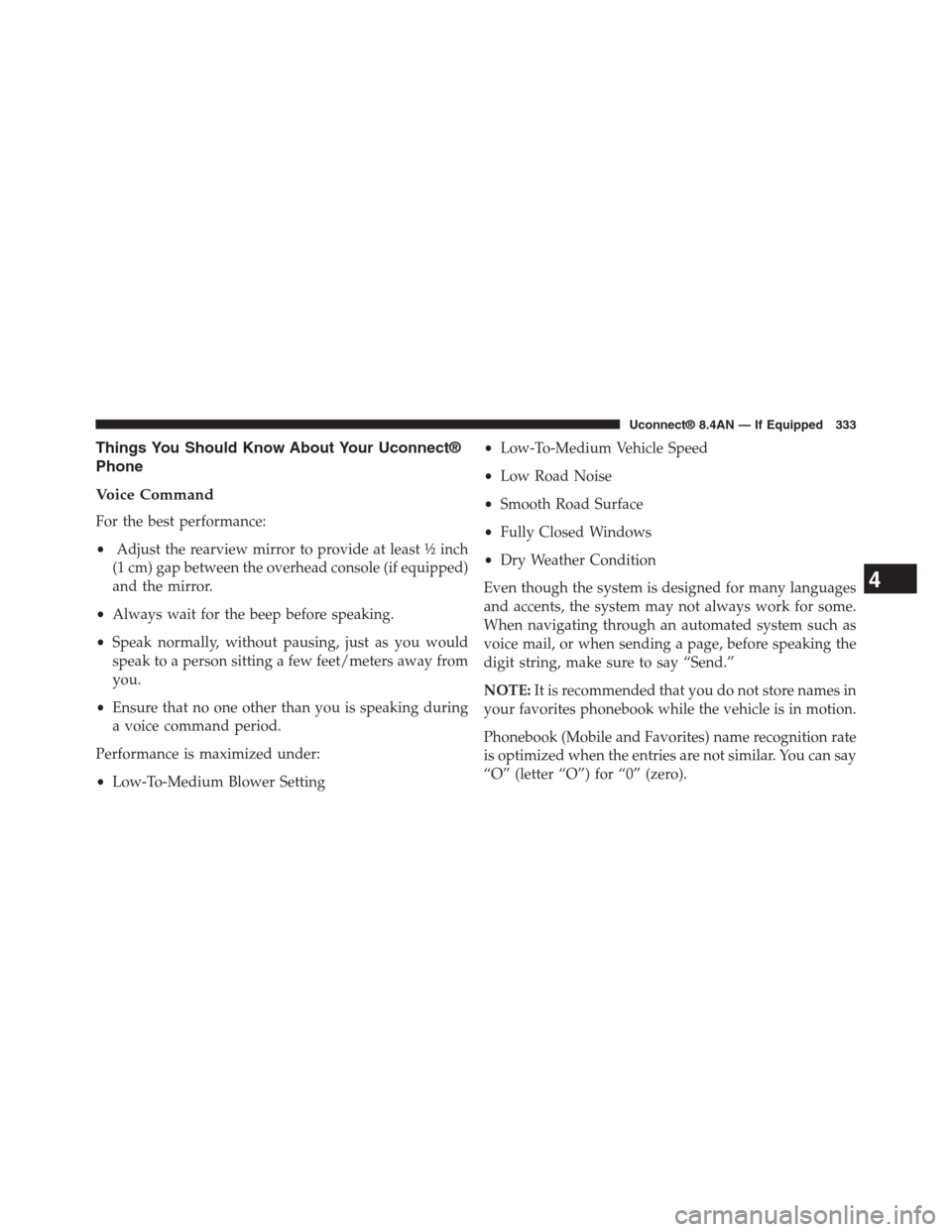
Things You Should Know About Your Uconnect®
Phone
Voice Command
For the best performance:
•Adjust the rearview mirror to provide at least½inch
(1 cm) gap between the overhead console (if equipped)
and the mirror.
•Always wait for the beep before speaking.
•Speak normally, without pausing, just as you would
speak to a person sitting a few feet/meters away from
you.
•Ensure that no one other than you is speaking during
a voice command period.
Performance is maximized under:
•Low-To-Medium Blower Setting
•Low-To-Medium Vehicle Speed
•Low Road Noise
•Smooth Road Surface
•Fully Closed Windows
•Dry Weather Condition
Even though the system is designed for many languages
and accents, the system may not always work for some.
When navigating through an automated system such as
voice mail, or when sending a page, before speaking the
digit string, make sure to say “Send.”
NOTE:It is recommended that you do not store names in
your favorites phonebook while the vehicle is in motion.
Phonebook (Mobile and Favorites) name recognition rate
is optimized when the entries are not similar. You can say
“O” (letter “O”) for “0” (zero).
4
Uconnect® 8.4AN — If Equipped 333
Page 335 of 429
Even though international dialing for most number com-
binations is supported, some shortcut dialing number
combinations may not be supported.
Far End Audio Performance
Audio quality is maximized under:
•Low-To-Medium Blower Setting
•Low-To-Medium Vehicle Speed
•Low Road Noise
•Smooth Road Surface
•Fully Closed Windows
•Dry Weather Conditions
•Operation From The Driver’s Seat
Performance such as audio clarity, echo, and loudness to
a large degree rely on the phone and network, and not
the Uconnect® Phone.
Echo at the far end can sometimes be reduced by
lowering the in-vehicle audio volume.
In a convertible vehicle, system performance may be
compromised with the convertible top down.
Voice Text Reply
WARNING!
ALWAYS drive safely and obey all applicable
laws. You should only use Uconnect® features
when it is safe to do so. Failure to do so may result
in an accident involving serious injury or death.
334 Uconnect® 8.4AN — If Equipped
Page 336 of 429
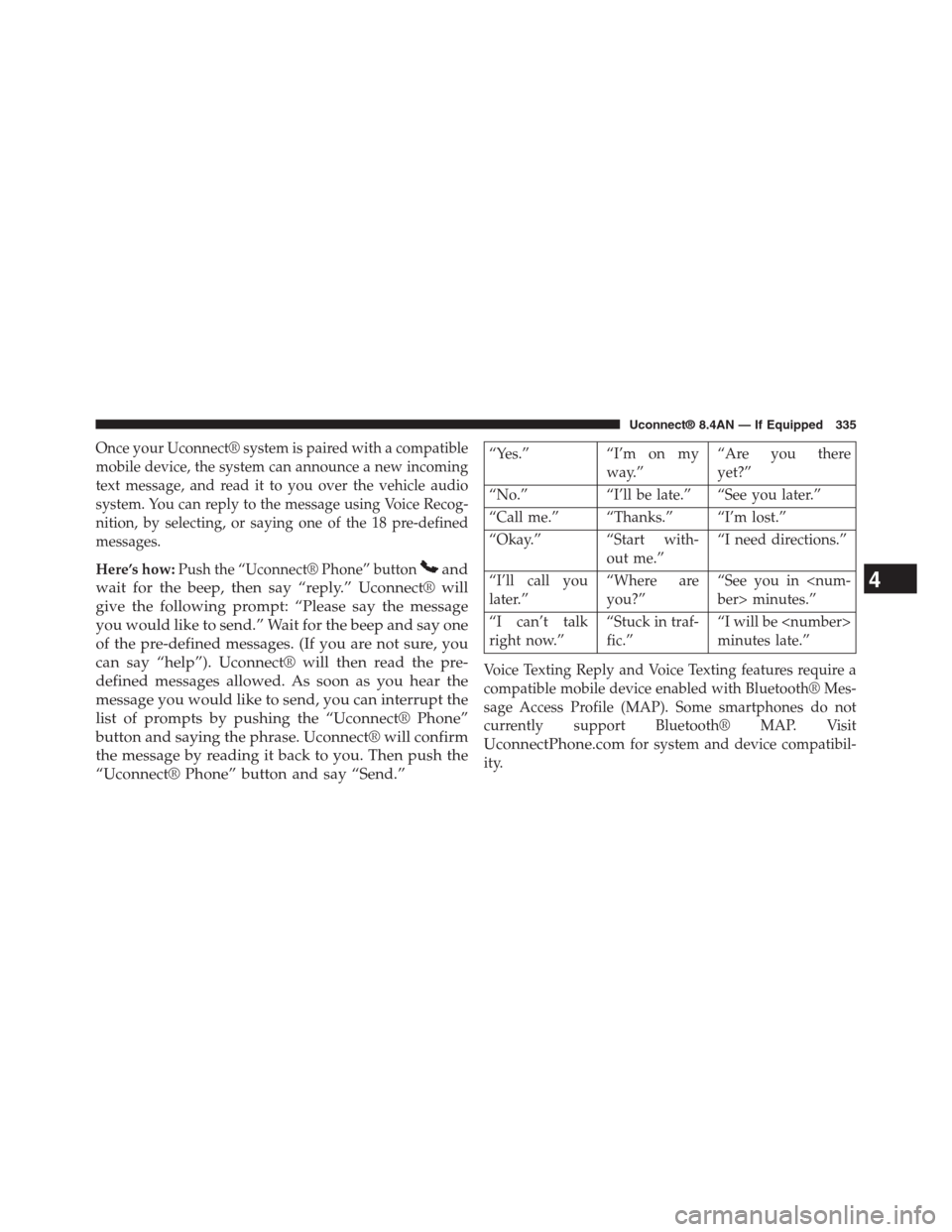
Once your Uconnect® system is paired with a compatible
mobile device, the system can announce a new incoming
text message, and read it to you over the vehicle audio
system. You can reply to the message using Voice Recog-
nition, by selecting, or saying one of the 18 pre-defined
messages.
Here’s how:Push the “Uconnect® Phone” buttonand
wait for the beep, then say “reply.” Uconnect® will
give the following prompt: “Please say the message
you would like to send.” Wait for the beep and say one
of the pre-defined messages. (If you are not sure, you
can say “help”). Uconnect® will then read the pre-
defined messages allowed. As soon as you hear the
message you would like to send, you can interrupt the
list of prompts by pushing the “Uconnect® Phone”
button and saying the phrase. Uconnect® will confirm
the message by reading it back to you. Then push the
“Uconnect® Phone” button and say “Send.”
“Yes.” “I’m on my
way.”
“Are you there
yet?”
“No.” “I’ll be late.” “See you later.”
“Call me.” “Thanks.” “I’m lost.”
“Okay.” “Start with-
out me.”
“I need directions.”
“I’ll call you
later.”
“Where are
you?”
“See you in
ber> minutes.”
“I can’t talk
right now.”
“Stuck in traf-
fic.”
“I will be
minutes late.”
Voice Texting Reply and Voice Texting features require a
compatible mobile device enabled with Bluetooth® Mes-
sage Access Profile (MAP). Some smartphones do not
currently support Bluetooth® MAP. Visit
UconnectPhone.comfor system and device compatibil-
ity.
4
Uconnect® 8.4AN — If Equipped 335
Page 337 of 429
Voice Texting (Must Be Registered With Uconnect®
Access And Have A Current Subscription, U.S.
Residents Only)
WARNING!
ALWAYS drive safely and obey all applicable
laws. You should only use Uconnect® features
when it is safe to do so. Failure to do so may result
in an accident involving serious injury or death.
Want to dictate a personal message? Register with
Uconnect® Access to take advantage of a new, cloud-
based Voice Texting service, an enhancement to Voice
Text Reply.
Voice Texting allows you to compose a new text or reply
to an incoming text message. Before you attempt to use
the Voice Texting feature, check to ensure you have the
following:
1. A Paired, Bluetooth® enabled phone with the Message
Access Profile (MAP). Not all Bluetooth® enabled
phones support MAP. VisitUconnectPhone.comfor
system and device compatibility information.
2. An active Uconnect® Access trial or paid subscription.
Press the “Apps” button on the lower right hand
corner of the touchscreen to begin the registration
process.
3. Accept the Allow MAP profile request on your smart
phone. (Please refer to device manufacturer instruc-
tions for details).
336 Uconnect® 8.4AN — If Equipped
Page 338 of 429
To Send A Text Message:
1. Push the Uconnect® Phone button,
2. Wait for the beep,
3. Say “Text.”
4. Uconnect® will prompt you “Say the phone number,
or full name and phone type of the contact you want
to send a message to.”
5. Wait for the beep and say a contact that is in your
phonebook, or a mobile phone number that you
would like to send the message to.
6. Uconnect® will prompt you “Please say the message
that you would like to send” (If you do not hear this
prompt, you may not have an active subscription with
Uconnect® Access).
7. Wait for the beep, and then dictate any message up to
140 characters. If you exceed 140 characters, you will
hear the following prompt: “Message was too long;
your message will be truncated.”
8. Uconnect® will then repeat the message back to you.
9. Uconnect® will prompt you: To add to your message,
say “Continue”; to delete the current message and
start over, say “Start Over”; to send the current
message, say “Send”; to hear the message again, say
“Repeat.”
10. If you are happy with your message and would like
to send it, wait for the beep and say “Send.”
11. Uconnect® will then say “Sending your message.”
4
Uconnect® 8.4AN — If Equipped 337
Page 339 of 429
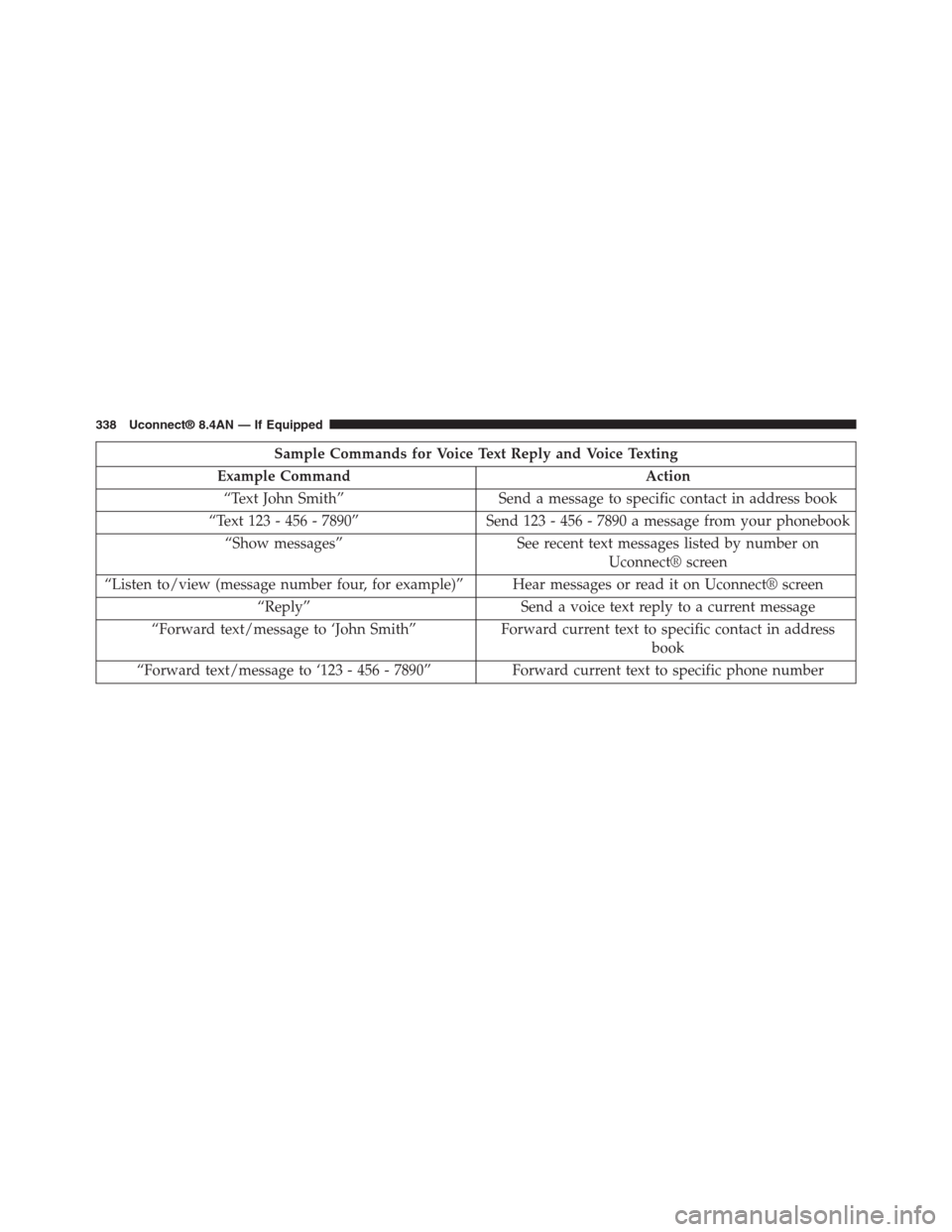
Sample Commands for Voice Text Reply and Voice Texting
Example Command Action
“Text John Smith” Send a message to specific contact in address book
“Text 123 - 456 - 7890” Send 123 - 456 - 7890 a message from your phonebook
“Show messages” See recent text messages listed by number on
Uconnect® screen
“Listen to/view (message number four, for example)” Hear messages or read it on Uconnect® screen
“Reply” Send a voice text reply to a current message
“Forward text/message to ‘John Smith” Forward current text to specific contact in address
book
“Forward text/message to ‘123 - 456 - 7890” Forward current text to specific phone number
338 Uconnect® 8.4AN — If Equipped
Page 340 of 429

Bluetooth® Communication Link
Mobile phones have been found to lose connection to the
Uconnect® Phone. When this happens, the connection
can generally be re-established by switching the mobile
phone OFF/ON. Your mobile phone is recommended to
remain in Bluetooth® ON mode.
Power-Up
After switching the ignition key from OFF to either the
ON or ACC position, or after a language change, you
must wait at least 15 seconds prior to using the system.
General Information
This device complies with Part 15 of the FCC rules and
RSS 210 of Industry Canada. Operation is subject to the
following conditions:
•Changes or modifications not expressly approved by
the party responsible for compliance could void the
user’s authority to operate the equipment.
•This device may not cause harmful interference.
•This device must accept any interference received,
including interference that may cause undesired op-
eration.
NAVIGATION
Getting Started
To access the Navigation system, press the#Nav#button
on the bottom of the touchscreen.
4
Uconnect® 8.4AN — If Equipped 339
Page 344 of 429
Closest City
Press this button on the touchscreen to route to a nearby
city. The screen will display an alphabetical listing of
nearby cities. The navigation system will calculate a route
with the destination at the center of the nearby city.
Phone Number
Press this button on the touchscreen to route to a location
or point of interest by the phone number.
NOTE:You can press the “back” arrow button on the
touchscreen to return to the previous screen or the “X”
button on the touchscreen to exit.
Where To? — Address
To enter a destination by Address, follow these steps:
1. While in the Nav Main Menu, press the “Where To?”
button on the touchscreen, then press the “Address”
button on the touchscreen.
2. Press “Spell City” or “Spell Street” to begin entering
the address of your destination.
4
Uconnect® 8.4AN — If Equipped 343