Page 225 of 429

Bluetooth® Communication Link
Mobile phones have been found to lose connection to the
Uconnect® Phone. When this happens, the connection
can generally be re-established by switching the mobile
phone OFF/ON. Your mobile phone is recommended to
remain in Bluetooth® ON mode.
Power-Up
After switching the ignition key from OFF to either the
ON or ACC position, or after a language change, you
must wait at least 15 seconds prior to using the system.
General Information
This device complies with Part 15 of the FCC rules and
RSS 210 of Industry Canada. Operation is subject to the
following conditions:
•Changes or modifications not expressly approved by
the party responsible for compliance could void the
user’s authority to operate the equipment.
•This device may not cause harmful interference.
•This device must accept any interference received,
including interference that may cause undesired op-
eration.
NAVIGATION
Navigation Registration (Uconnect® 8.4A Only)
Uconnect® 8.4A is Navigation-capable for dealer activa-
tion. See dealer for details.
Getting Started
Once the Navigation system has been activated by your
authorized dealer, access the system by pressing the
“Nav” button on the bottom of the touchscreen.
224 Uconnect® 8.4A — If Equipped
Page 229 of 429
Closest City
Press this button on the touchscreen to route to a nearby
city. The screen will display an alphabetical listing of
nearby cities. The navigation system will calculate a route
with the destination at the center of the nearby city.
Phone Number
Press this button on the touchscreen to route to a location
or point of interest by the phone number.
You can press the “back” arrow button on the touch-
screen to return to the previous screen or the “X” button
on the touchscreen to exit.
Where To? — Address
To enter a destination by Address, follow these steps:
1. While in the Nav Main Menu, press the “Where To?”
button on the touchscreen, then press the “Address”
button on the touchscreen.
228 Uconnect® 8.4A — If Equipped
Page 233 of 429
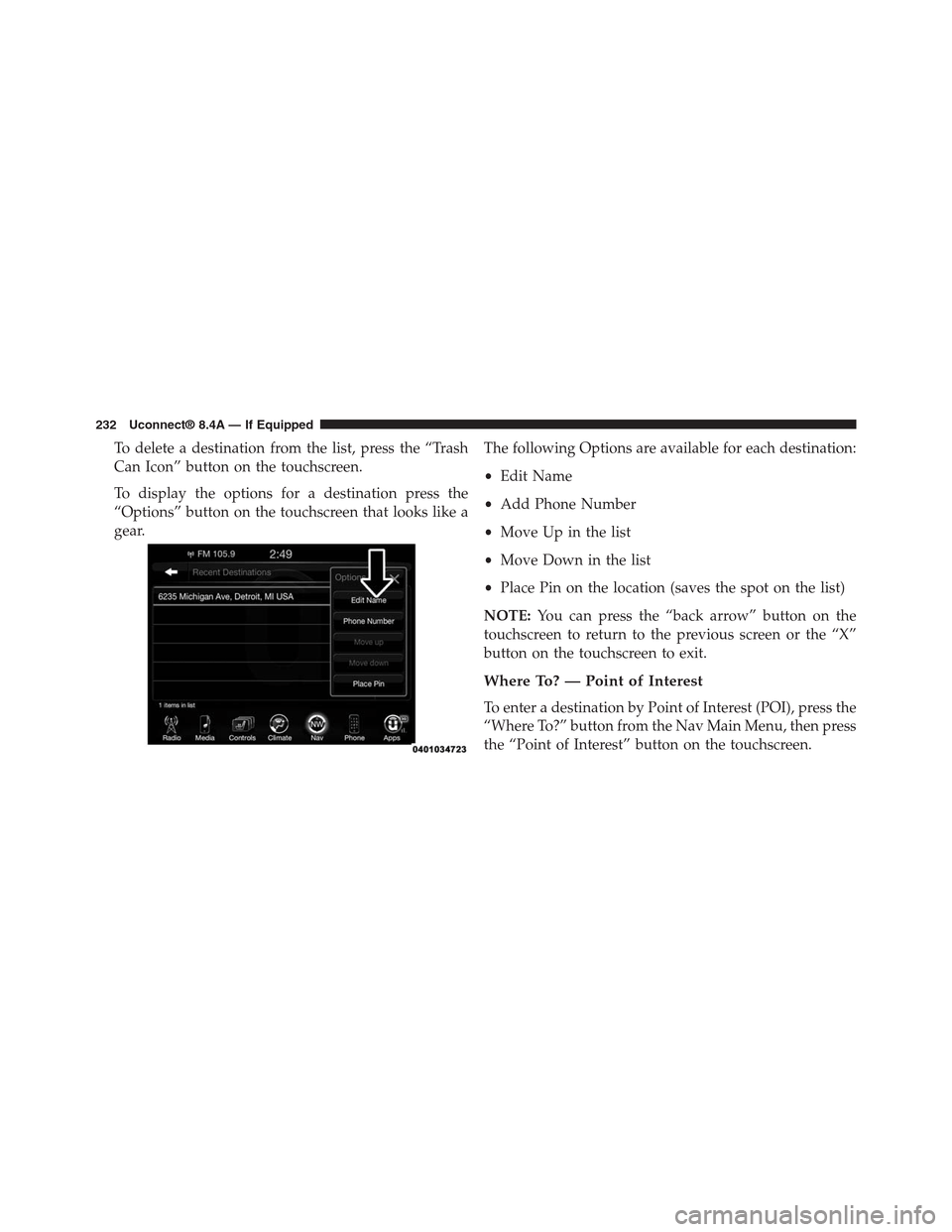
To delete a destination from the list, press the “Trash
Can Icon” button on the touchscreen.
To display the options for a destination press the
“Options” button on the touchscreen that looks like a
gear.
The following Options are available for each destination:
•Edit Name
•Add Phone Number
•Move Up in the list
•Move Down in the list
•Place Pin on the location (saves the spot on the list)
NOTE:You can press the “back arrow” button on the
touchscreen to return to the previous screen or the “X”
button on the touchscreen to exit.
Where To? — Point of Interest
To enter a destination by Point of Interest (POI), press the
“Where To?” button from the Nav Main Menu, then press
the “Point of Interest” button on the touchscreen.
232 Uconnect® 8.4A — If Equipped
Page 247 of 429
3. To delete a destination from the list, press the “Trash
Can Icon” button on the touchscreen.
4. To save a favorite destination, press the “Add Favor-
ite” button on the touchscreen and follow the steps to
route a destination.
5. To display the options for a favorite destination press
the “Options” button on the touchscreen that looks
like a gear.
The following Options are available for each favorite
destination:
•Edit Name
•Add Phone Number
If you are currently on a route guidance and you select a
Favorite, the system will ask you to choose one of the
following:
•Cancel previous route
•Add as first destination
•Add as last destination
NOTE:You can press the “back arrow” button on the
touchscreen to return to the previous screen or the “X”
button on the touchscreen to exit.
246 Uconnect® 8.4A — If Equipped
Page 250 of 429
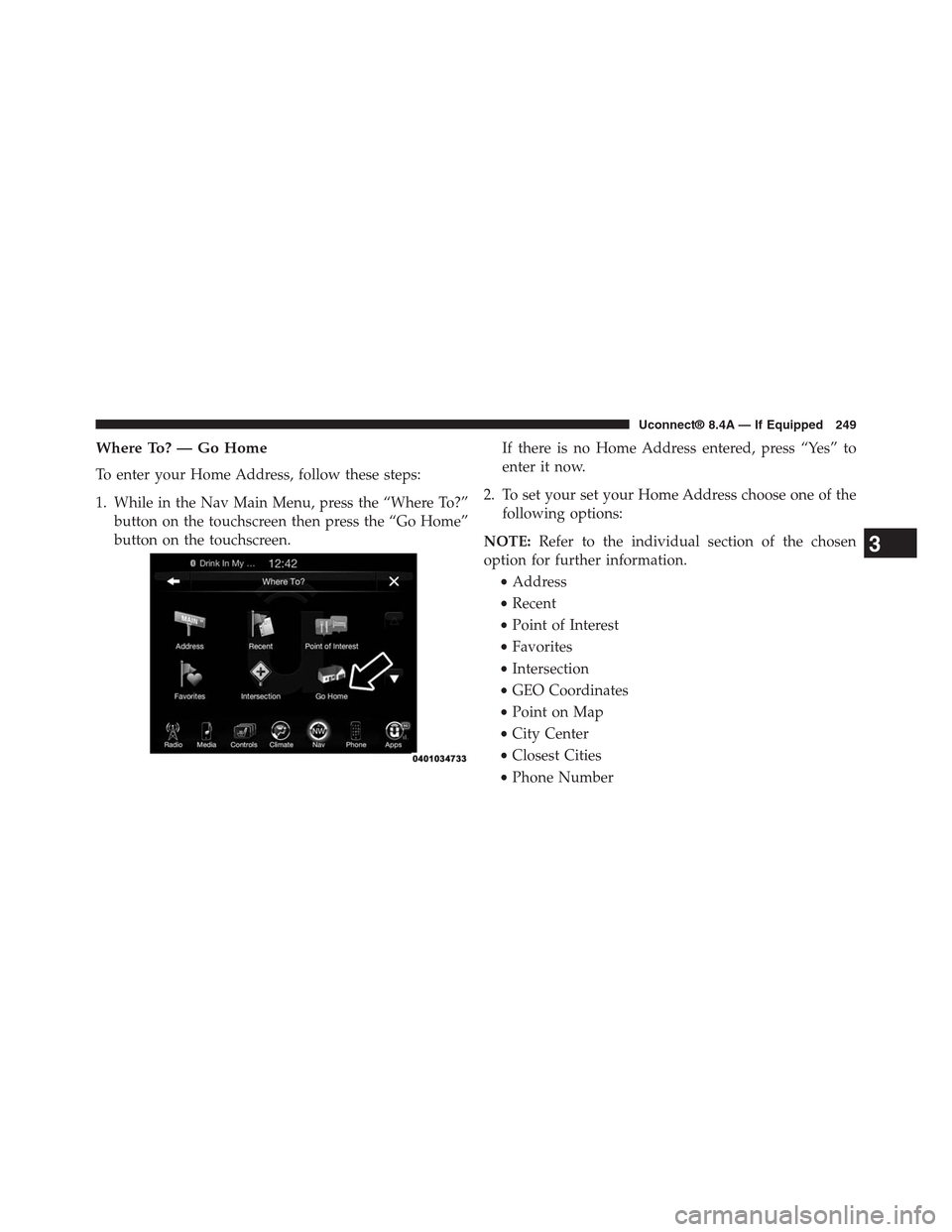
Where To? — Go Home
To enter your Home Address, follow these steps:
1. While in the Nav Main Menu, press the “Where To?”
button on the touchscreen then press the “Go Home”
button on the touchscreen.
If there is no Home Address entered, press “Yes” to
enter it now.
2. To set your set your Home Address choose one of the
following options:
NOTE:Refer to the individual section of the chosen
option for further information.
•Address
•Recent
•Point of Interest
•Favorites
•Intersection
•GEO Coordinates
•Point on Map
•City Center
•Closest Cities
•Phone Number
3
Uconnect® 8.4A — If Equipped 249
Page 253 of 429
To add a Trip, follow these steps:
1. Press the “Create new Trip” button on the touchscreen.
2. Type in the new Trip Name.
3. Press “Add Destination” to add destinations to your
trip.
4. Choose from the following options to add a destina-
tion
•Address
•Recent
•Point of Interest
•Favorites
•Intersection
•GEO Coordinates
•Point on Map
•City Center
•Closest Cities
•Phone Number
NOTE:Refer to the individual section of the chosen
option for further information.
5. Add more needed destinations to your trip.
NOTE:Each destination will be listed in order, with the
last destination being the final destination.
6. Your new Trip will appear on the Trips list.
To delete a Trip from the list, press the “Trash Can Icon”
button on the touchscreen.
To display the options for a trip press the “Options”
button on the touchscreen that looks like a gear.
The following Options are available for each trip:
•Edit Name
•Move Up in the list
252 Uconnect® 8.4A — If Equipped
Page 261 of 429
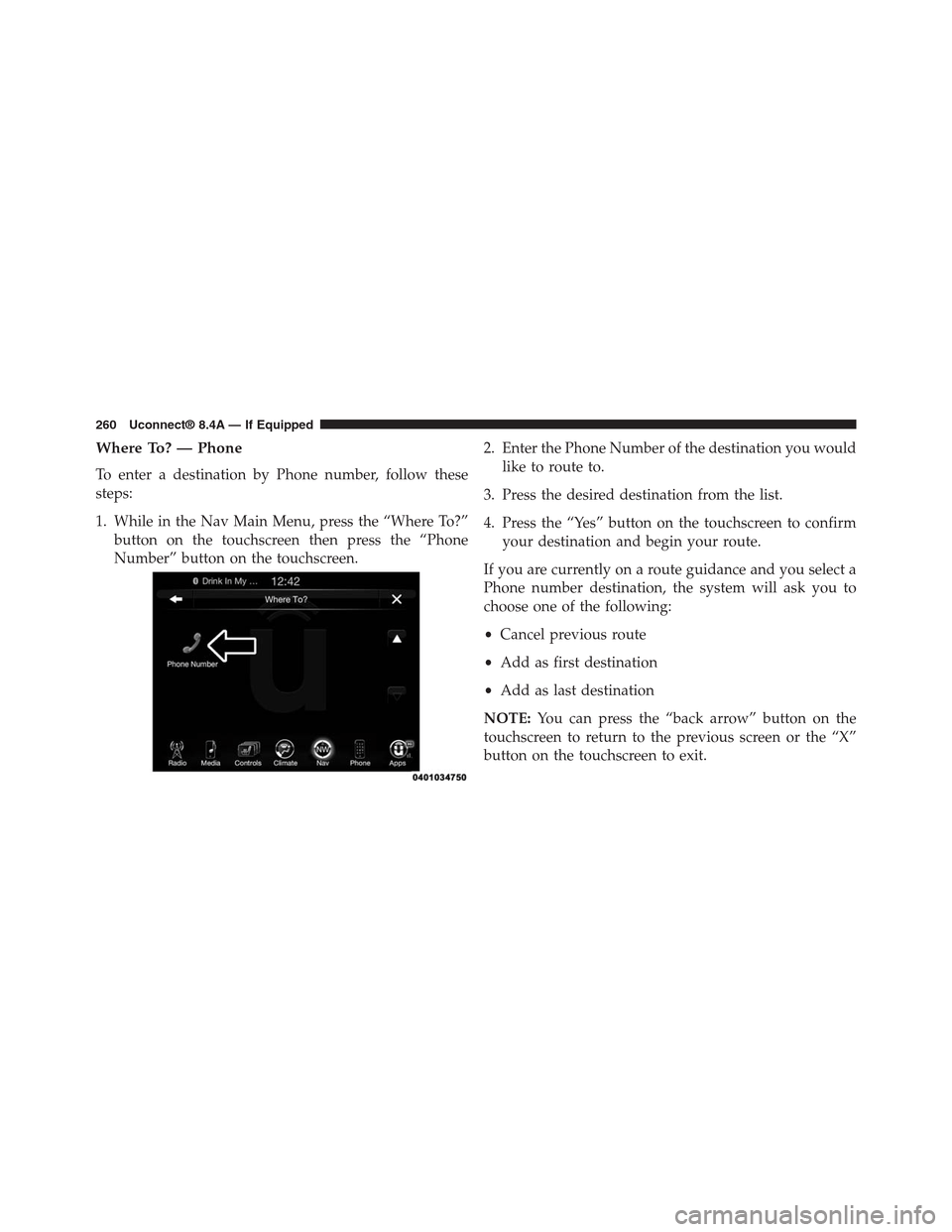
Where To? — Phone
To enter a destination by Phone number, follow these
steps:
1. While in the Nav Main Menu, press the “Where To?”
button on the touchscreen then press the “Phone
Number” button on the touchscreen.
2. Enter the Phone Number of the destination you would
like to route to.
3. Press the desired destination from the list.
4. Press the “Yes” button on the touchscreen to confirm
your destination and begin your route.
If you are currently on a route guidance and you select a
Phone number destination, the system will ask you to
choose one of the following:
•Cancel previous route
•Add as first destination
•Add as last destination
NOTE:You can press the “back arrow” button on the
touchscreen to return to the previous screen or the “X”
button on the touchscreen to exit.
260 Uconnect® 8.4A — If Equipped
Page 283 of 429
costs, you are responsible for them. If Roadside Assis-
tance is provided to your vehicle, you agree to be
responsible for any additional roadside assistance service
costs that you may incur.
To provide Uconnect® Services to you, we may record
and monitor your conversations with Roadside Assis-
tance, Uconnect® Care or Vehicle Care, whether such
conversations are initiated through the Uconnect® Ser-
vices in your vehicle, or via a landline or mobile tele-
phone, and may share information obtained through
such recording and monitoring in accordance with regu-
latory requirements. You acknowledge, agree and con-
sent to any recording, monitoring or sharing of informa-
tion obtained through any such call recordings.
9-1-1 Call — If Equipped
The 9-1-1 Call system is an embedded phone system that
allows you to connect to a 9-1-1 operator in an emer-
gency. You can choose to press the “9-1-1 Call” button on
the Rearview Mirror to contact a 9-1-1 operator.
9–1–1 Call Operating Instructions
1. Push the “9-1-1 Call” button on the Rearview Mirror;
NOTE:In case the 9-1-1 Call button is pushed in error,
there will be a 10 second delay before the 9-1-1 Call
system initiates a call to a 9-1-1 operator. To cancel the
9-1-1 Call connection, push the “9-1-1 Call” button on the
Rearview Mirror or press the “cancellation” button on
the Phone Screen. Termination of the 9-1-1 Call will turn
the green LED light on the Rearview Mirror off.
282 Uconnect® 8.4A — If Equipped