2014 NISSAN JUKE ECO mode
[x] Cancel search: ECO modePage 198 of 402
during this 5 seconds period will stop SCAN
tuning and the radio will remain tuned to that
station.
If the SCAN tuning button is not pushed within 5
seconds, SCAN tuning moves to the next
station.
toStation memory operations:
12 stations can be set for the FM band (6 each
for FM1 and FM2) , 18 for SiriusXM Satellite
Radio (6 each for XM1, XM2 and XM3)* and 6
can be set for the AM band for easy access.
1. Choose the radio band using the radio band select button.
2. Tune to the desired station using the SEEK, SCAN or TUNE button.
3. Push and hold the desired radio station preset button
tountil a beep sound is
heard. (The radio mutes when the radio
station preset button is pushed.)
4. The station indicator will then come on and the sound will resume. Memorizing is now
complete.
5. Other buttons can be set in the same manner.
If the battery cable is disconnected, or if the fuse
opens, the radio memory will be erased. In that
case, reset the desired stations. *: if so equipped
Radio Data System (RDS):
RDS stands for Radio Data System, and is a
data information service transmitted by some
radio stations on the FM band (not AM band)
encoded within a regular radio broadcast.
Currently, most RDS stations are in large cities,
but many stations are now considering broad-
casting RDS data.
RDS can display:
.
Station call sign, such as “WHFR 98.3”.
. Station name, such as “The Groove”.
. Music or programming type such as “Clas-
sical”, “Country” or “Rock”.
. Traffic reports about delays or construction.
If the station broadcasts RDS information, the
RDS icon is displayed.
RADIO DISPLAY change:
When the DISP/TEXT button is pushed during
the FM or SAT radio mode, the radio display will
change in the following order.
. For FM radio:
Frequency ↔PS (Programme Service)/PTY
(Programme type)
. For SiriusXM Satellite Radio*:
Category Name ?Channel Name ?Artist/ Feature
?Song/Program
In the FM radio mode, pushing the DISP/TEXT
button will switch the frequency display to the
PTY display (if available) , and if the DISP/TEXT
button is not pushed again within 5 seconds, it
will automatically switch to the PS display. If PTY
is not available, pushing the DISP/TEXT button
will only switch between the frequency display
and the PS display.
*: if so equipped
Heater, air conditioner, audio and phone systems4-43
Page 201 of 402
4-46Heater, air conditioner, audio and phone systems
connecting the iPod®to the vehicle, the iPod®
can only be operated by the vehicle audio
controls.
To disconnect the cable from the vehicle outlet,
fully depress the center connector button to
unlatch the connector and pull the connector
straight out of the outlet. To disconnect the
cable from the iPod
®, fully depress the side
connector buttons and pull the iPod®connector
straight out of the iPod®.
*iPod®, iPhone®and FireWire®are a trademark
of Apple Inc., registered in the U.S. and other
countries.
Compatibility:
The following models are available:
. Third generation iPod
®(Firmware version
2.3 or later) (Audiobook and Podcast are not
available)
. Fourth generation iPod
®(Firmware version
3.1.1 or later)
. Fifth generation iPod
®(Firmware version
1.1.2 or later)
. iPod mini
®(Firmware version 1.41 or later)
. iPod photo®(Firmware version 1.2.1 or
later)
. iPod nano
®(Firmware version 1.2 or later)
The fourth generation iPod nano®, iPod touch®,
the second generation iPod Classic®and iPhone
®3G may not work with the system in
some cases.
Make sure that your iPod
®firmware is updated.
* 12V-charge iPod®s are not chargeable with
this system.
iPod®button:
Place the ignition switch in the ACC or ON
position. Then, push the iPod
®button to switch
to the iPod®mode.
If another audio source is playing and the iPod®
is connected, pushing the iPod®button changes
to the iPod®mode.
If the system has been turned off while the iPod®
was playing, pushing the PWR button will start
the iPod®.
Top menu item selecting:
When the iPod®MENU button is pushed while
the iPod®is connected, the interface for iPod®
operation is shown on the audio display. The
items on the menu list can be scrolled by
pushing the SEEK button
orand the
TUNE buttonorwhile the iPod®is
operational. To select an item, push ENTER. The
display can be changed as follows:
For more information about each item, see the
iPod®Owner’s Manual.
BACK, ENTER button:
. When the ENTER button is pushed while
the top menu is displayed, program details
are shown on the audio display.
. To select the program, push to search using
the SEEK
orand ENTER button.
. When the BACK button is pushed, it returns
to the previous display.
iPod®play information:
When the DISP/TEXT button is pushed while a
program is being played, the program informa-
tion display will change as follows:
* Artist Name will not be displayed for a Podcast.
FF (Fast Forward) , REW (Re-
wind) button:
When the
orbutton is pushed for more
than 1.5 seconds while the iPod®is playing, the
iPod®will play while fast forwarding or rewind-
ing. When the button is released, the iPod®will
return to the normal play speed.
When the
orbutton is pushed for less
Page 202 of 402
than 1.5 seconds while the iPod®is playing, the
next track or the beginning of the current track
on the iPod
®will be played.
APS (Automatic Program
Search) FF, APS REW button:
When the
orbutton is pushed for more
than 1.5 seconds while the iPod®is playing,
numbers of tracks can be skipped through.
When the
orbutton is pushed for less
than 1.5 seconds while iPod®is playing, the next
track or the beginning of the current track on the
iPod
®will be played.
REPEAT (RPT) , RANDOM (RDM):
When the RPT button is pushed while a track is
being played, the play pattern can be changed
as follows:
Except Podcast and Audiobook:
Podcast:
ALL REPEAT ↔TRACK REPEAT
Audiobook:
AUX (Auxiliary) input
AUX IN jack:
The AUX IN jack is located on the audio unit.
The AUX IN audio input jack accepts any
standard analog audio input such as from a
portable cassette tape/CD player, MP3 player or
laptop computer.
NISSAN strongly recommends using a stereo
mini plug cable when connecting your music
device to the audio system. Music may not play
properly when a monaural cable is used.
AUX (Auxiliary) button:
With an AUX device plugged in, push the AUX
button repeatedly until the display changes to
the AUX mode.
When the AUX button is pushed with no device
plugged into the jack, the audio system does not
change to the AUX mode.
Heater, air conditioner, audio and phone systems4-47
Page 207 of 402
4-52Heater, air conditioner, audio and phone systems
JVH0370X
AUX (Auxiliary) input
AUX IN jack:
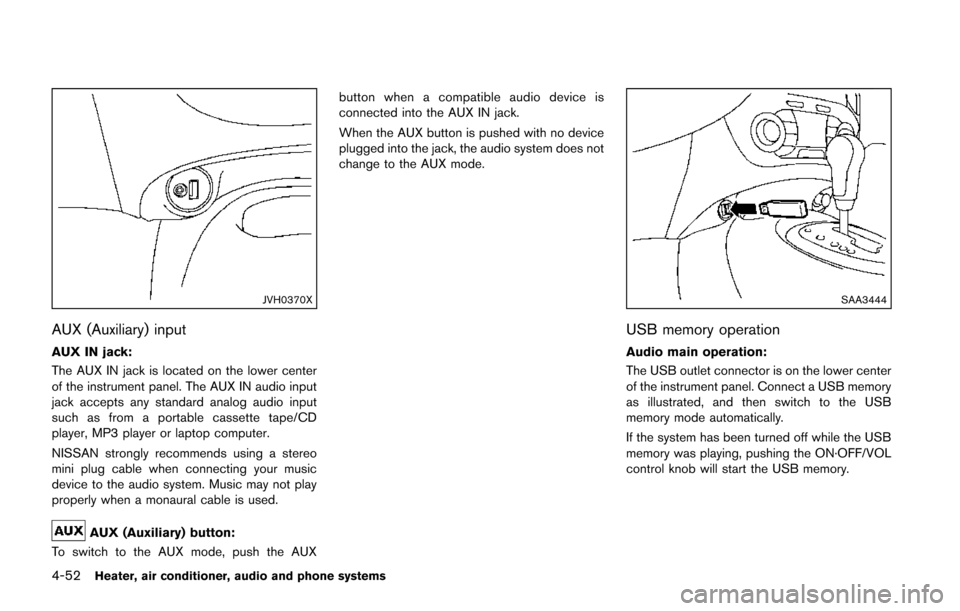
The AUX IN jack is located on the lower center
of the instrument panel. The AUX IN audio input
jack accepts any standard analog audio input
such as from a portable cassette tape/CD
player, MP3 player or laptop computer.
NISSAN strongly recommends using a stereo
mini plug cable when connecting your music
device to the audio system. Music may not play
properly when a monaural cable is used.
AUX (Auxiliary) button:
To switch to the AUX mode, push the AUX button when a compatible audio device is
connected into the AUX IN jack.
When the AUX button is pushed with no device
plugged into the jack, the audio system does not
change to the AUX mode.
SAA3444
USB memory operation
Audio main operation:
The USB outlet connector is on the lower center
of the instrument panel. Connect a USB memory
as illustrated, and then switch to the USB
memory mode automatically.
If the system has been turned off while the USB
memory was playing, pushing the ON·OFF/VOL
control knob will start the USB memory.
Page 208 of 402
WARNING
Do not connect, disconnect or operate
the USB device while driving. Doing so
can be a distraction. If distracted you
could lose control of your vehicle and
cause an accident or serious injury.
CAUTION
.Do not force the USB device into the
USB port. Inserting the USB device
tilted or up-side-down into the port
may damage the port. Make sure
that the USB device is connected
correctly into the USB port.
. Do not grab the USB port cover (if
so equipped) when pulling the USB
device out of the port. This could
damage the port and the cover.
. Do not leave the USB cable in a
place where it can be pulled unin-
tentionally. Pulling the cable may
damage the port.
Refer to your device manufacturer’s owner
information regarding the proper use and care of the device.
PLAY:
When the AUX button is pushed with the system
off and the USB memory inserted, the system
will turn on.
If another audio source is playing and a USB
memory is inserted, push the AUX button
repeatedly until the center display changes to
the USB memory mode.
SEEK/CATEGORY button:
Push the SEEK/CATEGORY button
while
an audio file on the USB device is playing to
return to the beginning of the current track. Push
the SEEK/CATEGORY button
several
times to skip backward several tracks.
Push the SEEK/CATEGORY button
while
an audio file on the USB device is playing to
advance one track. Push the SEEK/CATEGORY
button
several times to skip forward several
tracks. If the last track in a folder on the USB
device is skipped, the first track of the next folder
is played.
Push and hold the SEEK/CATEGORY button
orfor 1.5 seconds while an audio file
on the USB device is playing to reverse or fast
forward the track being played. The track plays
at an increased speed while reversing or fast forwarding. When the button is released, the
audio file returns to normal play speed.
Heater, air conditioner, audio and phone systems4-53
Page 210 of 402
WARNING
Do not connect, disconnect or operate
the USB device while driving. Doing so
can be a distraction. If distracted you
could lose control of your vehicle and
cause an accident or serious injury.
CAUTION
.Do not force the USB device into the
USB port. Inserting the USB device
tilted or up-side-down into the port
may damage the port. Make sure
that the USB device is connected
correctly into the USB port.
. Do not grab the USB port cover (if
so equipped) when pulling the USB
device out of the port. This could
damage the port and the cover.
. Do not leave the USB cable in a
place where it can be pulled unin-
tentionally. Pulling the cable may
damage the port.
Refer to your device manufacturer’s owner
information regarding the proper use and care of the device.
Compatibility:
The following models are available:
. Fifth generation iPod
®(version 1.2.3 or
later)
. iPod Classic
®(version 1.1.1 or later)
. First generation iPod touch®(version 2.0.0
or later)
. Second generation iPod touch
®(version
1.2.3 or later)
. First generation iPod nano
®(version 1.3.1 or
later)
. Second generation iPod nano
®(version
1.1.3 or later)
. Third generation iPod nano
®(version 1.1 or
later)
. Fourth generation iPod nano
®(version 1.0.2
or later)
This unit may not control/operate correctly when
connected to some iPod
®versions/firmware and
iPhone®.
Make sure that the iPod®version is updated.
Audio main operation:
Place the ignition switch in the ACC or ON
position. Then, push the
button repeatedly
to switch to the iPod®mode.
If the system has been turned off while the iPod®
was playing, pushing the ON·OFF button will
start the iPod®.
.
PLAY:
When the
button is pushed with the
system off and the iPod®connected, the
system will turn on. If another audio source
is playing and the iPod
®is connected, push
thebutton repeatedly to switch to the
iPod®mode.
. Interface:
The interface for iPod
®operation shown on
the vehicle display is similar to the iPod®
interface. Use the touch screen, BACK
button or the TUNE/SCROLL knob to
navigate the menus on the screen.
The following items can be chosen from the
menu list screen. For further information
about each item, see the iPod
®Owner’s
Manual.
— Playlists
— Artists
— Songs
— Composers
— Audiobooks
— Podcasts
The following touch-panel buttons shown on
the screen are also available:
Heater, air conditioner, audio and phone systems4-55
Page 211 of 402
4-56Heater, air conditioner, audio and phone systems
—: returns to the previous screen.
—
: plays/pauses the music selected.
.
SEEK/CATEGORY button:
When the
orbutton is pushed for
more than 1.5 seconds while the iPod®is
playing, the iPod®will play while fast
forwarding or rewinding. When the button
is released, the iPod
®will return to the
normal play speed.
. Random and repeat play mode:
SAA3492
While files on a USB device are playing, the
play pattern can be altered so that songs are
repeated or played randomly.
. Random:
Touch the “Random” key to apply a random
play pattern to the iPod
®. When the random
mode is active, theicon is displayed to
the left of the song title or album name to
denote which random pattern is applied. To
cancel Random mode, touch the “Random”
key until no
icon is displayed.
. Repeat:
Touch the “Repeat” key to apply a repeat
play pattern to the iPod
®. When the repeat
mode is active, theicon is displayed to the left of the song title or album name to
denote which repeat pattern is applied. To
cancel Repeat mode, touch the “Repeat”
key until no
icon is displayed.
Page 213 of 402
4-58Heater, air conditioner, audio and phone systems
Audio settings:
1. push the
button.
2. Touch the “Settings” key.
3. Touch the “Audio” key. Use the touch-screen to adjust the following
items to the desired setting:
.Bass:Adjusts the bass to the desired level.
.Treble:
Adjusts the treble to the desired level.
.Balance:Adjusts the balance to the desired level.
Balance adjusts the sound level between
the left and right speakers.
.Fade:Adjusts the fade to the desired level.
Fade adjusts the sound level between
the front and rear speakers.
.Speed Sensitive Vol.:Adjusts the speed sensitive volume
function, which increases the volume of
the audio system as the speed of the
vehicle increases. Set to “OFF” to dis-
able the feature. The higher the setting,
the more the volume increases in relation
to vehicle speed.
.AUX Volume Level:Controls the volume level of incoming
sound when an auxiliary device is con- nected to the system. Available options
are Low (Quiet) , Medium, and High
(Loud).
Bass, treble, balance and fade can also be
adjusted by pushing the AUDIO control knob
and turning it to select the item to adjust. When
the desired item is shown on the display, turn the
tuning to adjust and then push the AUDIO
button until the display returns to the main audio
screen. If the button is not pushed for approxi-
mately 10 seconds, the radio or CD display will
automatically reappear.
SXM settings:
To view the SXM settings:
1. Push the
button.
2. Touch the “Settings” key.
3. Touch the “SXM” key.
The signal strength, activation status and other
information are displayed on the screen.
FM/AM/SAT radio operation
FM·AM button:
Push the FM·AM button to change the band as
follows:
AM ?FM1 ?FM2 ?AM
If another audio source is playing when the
FM·AM button is pushed, the audio source
playing will automatically be turned off and the
last radio station played will begin playing.
The FM stereo indicator (ST) is shown on the
screen during FM stereo reception. When the
stereo broadcast signal is weak, the radio
automatically changes from stereo to monaural
reception.
SXM band select:
Pushing the SXM button will change the band
as follows:
SXM1* ?SXM2* ?SXM3* ?SXM1*
(satellite, if so equipped)
When the SXM button is pushed while the
ignition switch is in the ACC or ON position, the
radio will come on at the last station played.
The last station played will also come on when
the ON·OFF button is pushed.
*When the SXM button is pushed, the satellite
radio mode will be skipped unless an optional
satellite receiver and antenna are installed and a