2014 NISSAN JUKE ECO mode
[x] Cancel search: ECO modePage 221 of 402
4-66Heater, air conditioner, audio and phone systems
Push and hold the seek buttonorfor
1.5 seconds while a track is playing to reverse or
fast forward the track being played. The track
plays at an increased speed while reversing or
fast forwarding. When the button is released,
the track returns to normal play speed.
JVH0748X
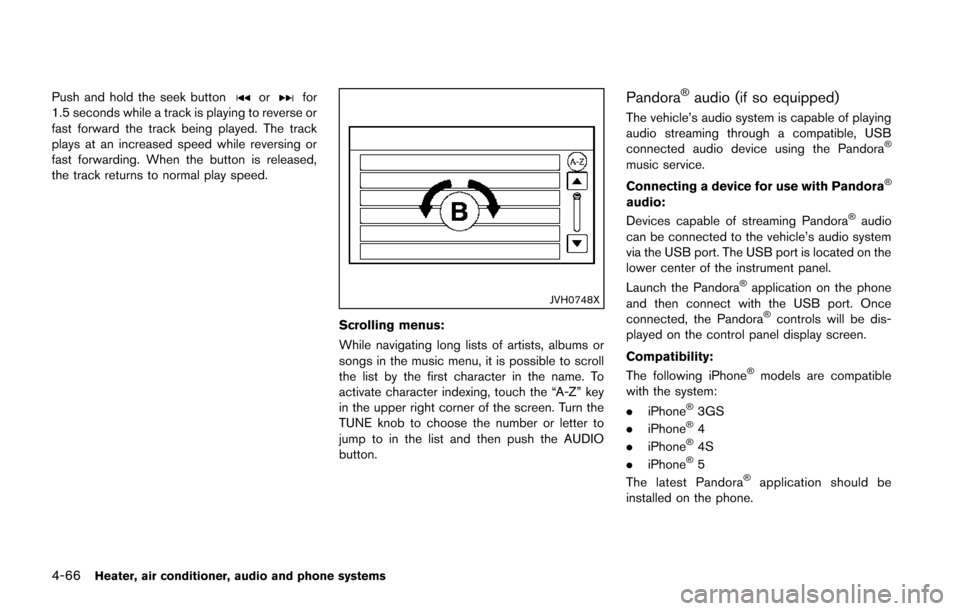
Scrolling menus:
While navigating long lists of artists, albums or
songs in the music menu, it is possible to scroll
the list by the first character in the name. To
activate character indexing, touch the “A-Z” key
in the upper right corner of the screen. Turn the
TUNE knob to choose the number or letter to
jump to in the list and then push the AUDIO
button.
Pandora®audio (if so equipped)
The vehicle’s audio system is capable of playing
audio streaming through a compatible, USB
connected audio device using the Pandora
®
music service.
Connecting a device for use with Pandora
®
audio:
Devices capable of streaming Pandora®audio
can be connected to the vehicle’s audio system
via the USB port. The USB port is located on the
lower center of the instrument panel.
Launch the Pandora
®application on the phone
and then connect with the USB port. Once
connected, the Pandora
®controls will be dis-
played on the control panel display screen.
Compatibility:
The following iPhone
®models are compatible
with the system:
. iPhone
®3GS
. iPhone®4
. iPhone®4S
. iPhone®5
The latest Pandora®application should be
installed on the phone.
Page 223 of 402
4-68Heater, air conditioner, audio and phone systems
JVH0750X
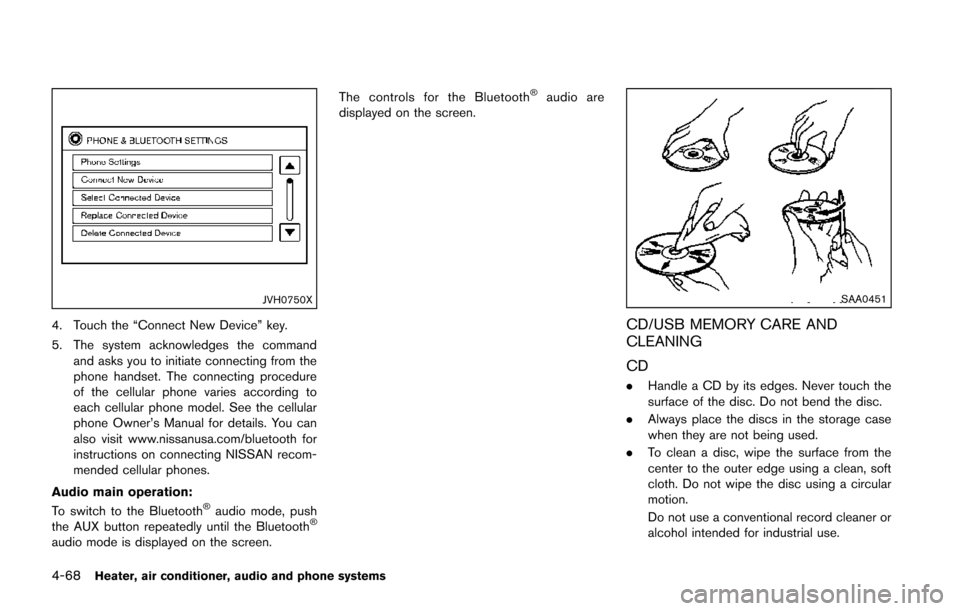
4. Touch the “Connect New Device” key.
5. The system acknowledges the commandand asks you to initiate connecting from the
phone handset. The connecting procedure
of the cellular phone varies according to
each cellular phone model. See the cellular
phone Owner’s Manual for details. You can
also visit www.nissanusa.com/bluetooth for
instructions on connecting NISSAN recom-
mended cellular phones.
Audio main operation:
To switch to the Bluetooth
®audio mode, push
the AUX button repeatedly until the Bluetooth®
audio mode is displayed on the screen. The controls for the Bluetooth
®audio are
displayed on the screen.
SAA0451
CD/USB MEMORY CARE AND
CLEANING
CD
. Handle a CD by its edges. Never touch the
surface of the disc. Do not bend the disc.
. Always place the discs in the storage case
when they are not being used.
. To clean a disc, wipe the surface from the
center to the outer edge using a clean, soft
cloth. Do not wipe the disc using a circular
motion.
Do not use a conventional record cleaner or
alcohol intended for industrial use.
Page 224 of 402
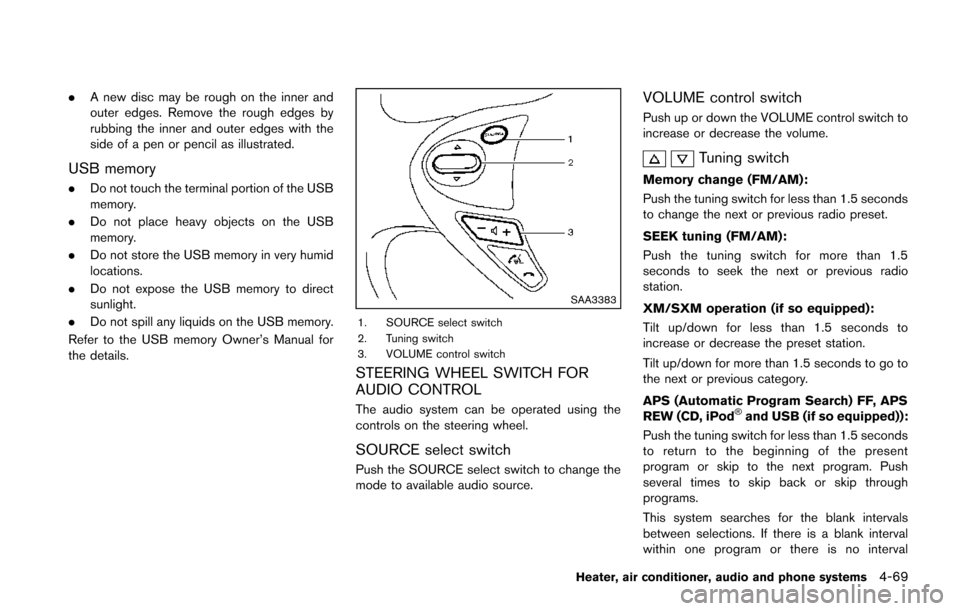
.A new disc may be rough on the inner and
outer edges. Remove the rough edges by
rubbing the inner and outer edges with the
side of a pen or pencil as illustrated.
USB memory
.Do not touch the terminal portion of the USB
memory.
. Do not place heavy objects on the USB
memory.
. Do not store the USB memory in very humid
locations.
. Do not expose the USB memory to direct
sunlight.
. Do not spill any liquids on the USB memory.
Refer to the USB memory Owner’s Manual for
the details.
SAA3383
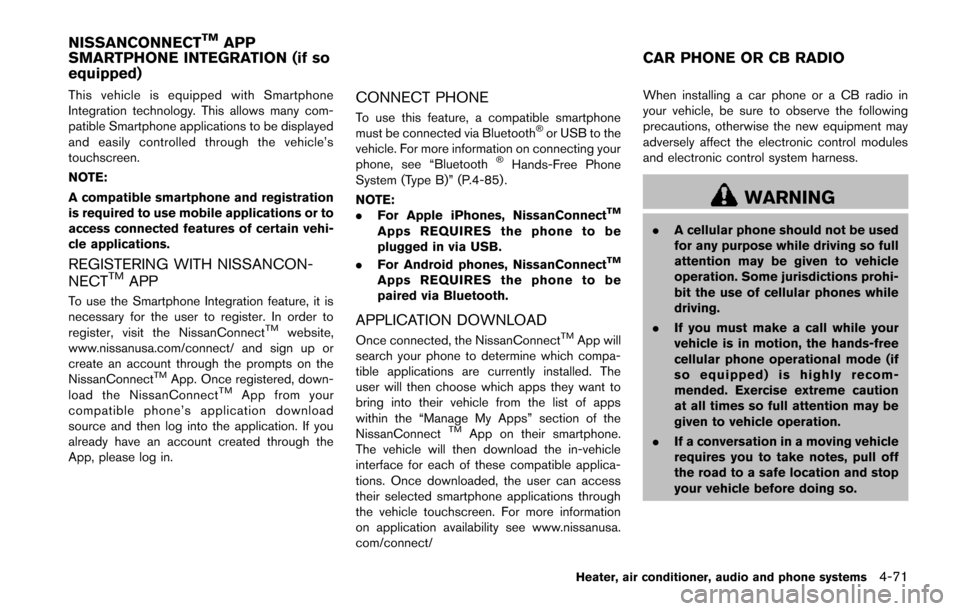
1. SOURCE select switch
2. Tuning switch
3. VOLUME control switch
STEERING WHEEL SWITCH FOR
AUDIO CONTROL
The audio system can be operated using the
controls on the steering wheel.
SOURCE select switch
Push the SOURCE select switch to change the
mode to available audio source.
VOLUME control switch
Push up or down the VOLUME control switch to
increase or decrease the volume.
Tuning switch
Memory change (FM/AM):
Push the tuning switch for less than 1.5 seconds
to change the next or previous radio preset.
SEEK tuning (FM/AM):
Push the tuning switch for more than 1.5
seconds to seek the next or previous radio
station.
XM/SXM operation (if so equipped):
Tilt up/down for less than 1.5 seconds to
increase or decrease the preset station.
Tilt up/down for more than 1.5 seconds to go to
the next or previous category.
APS (Automatic Program Search) FF, APS
REW (CD, iPod
®and USB (if so equipped)):
Push the tuning switch for less than 1.5 seconds
to return to the beginning of the present
program or skip to the next program. Push
several times to skip back or skip through
programs.
This system searches for the blank intervals
between selections. If there is a blank interval
within one program or there is no interval
Heater, air conditioner, audio and phone systems4-69
Page 226 of 402
This vehicle is equipped with Smartphone
Integration technology. This allows many com-
patible Smartphone applications to be displayed
and easily controlled through the vehicle’s
touchscreen.
NOTE:
A compatible smartphone and registration
is required to use mobile applications or to
access connected features of certain vehi-
cle applications.
REGISTERING WITH NISSANCON-
NECTTMAPP
To use the Smartphone Integration feature, it is
necessary for the user to register. In order to
register, visit the NissanConnect
TMwebsite,
www.nissanusa.com/connect/ and sign up or
create an account through the prompts on the
NissanConnect
TMApp. Once registered, down-
load the NissanConnectTMApp from your
compatible phone’s application download
source and then log into the application. If you
already have an account created through the
App, please log in.
CONNECT PHONE
To use this feature, a compatible smartphone
must be connected via Bluetooth®or USB to the
vehicle. For more information on connecting your
phone, see “Bluetooth
®Hands-Free Phone
System (Type B)” (P.4-85) .
NOTE:
. For Apple iPhones, NissanConnect
TM
Apps REQUIRES the phone to be
plugged in via USB.
. For Android phones, NissanConnect
TM
Apps REQUIRES the phone to be
paired via Bluetooth.
APPLICATION DOWNLOAD
Once connected, the NissanConnectTMApp will
search your phone to determine which compa-
tible applications are currently installed. The
user will then choose which apps they want to
bring into their vehicle from the list of apps
within the “Manage My Apps” section of the
NissanConnect
TMApp on their smartphone.
The vehicle will then download the in-vehicle
interface for each of these compatible applica-
tions. Once downloaded, the user can access
their selected smartphone applications through
the vehicle touchscreen. For more information
on application availability see www.nissanusa.
com/connect/ When installing a car phone or a CB radio in
your vehicle, be sure to observe the following
precautions, otherwise the new equipment may
adversely affect the electronic control modules
and electronic control system harness.
WARNING
.
A cellular phone should not be used
for any purpose while driving so full
attention may be given to vehicle
operation. Some jurisdictions prohi-
bit the use of cellular phones while
driving.
. If you must make a call while your
vehicle is in motion, the hands-free
cellular phone operational mode (if
so equipped) is highly recom-
mended. Exercise extreme caution
at all times so full attention may be
given to vehicle operation.
. If a conversation in a moving vehicle
requires you to take notes, pull off
the road to a safe location and stop
your vehicle before doing so.
Heater, air conditioner, audio and phone systems4-71
NISSANCONNECTTMAPP
SMARTPHONE INTEGRATION (if so
equipped) CAR PHONE OR CB RADIO
Page 231 of 402
4-76Heater, air conditioner, audio and phone systems
INFO
.If you are controlling the telephone system
by voice command for the first time or do not
know the appropriate voice command,
speak “Help”. The system announces the
available commands.
. When you speak numbers, you can speak
both “zero” or “oh” for “0”.
Manual command selection
Commands can be selected manually. While the
commands are displayed on the audio screen,
select a command by operating the audio tuning
switch, and then push the
switch. Once a
command is manually selected, the voice
command function is cancelled. To return to
voice command mode, push the
switch to
cancel the current operation, and then perform
the first procedure of voice command.
SAA3385
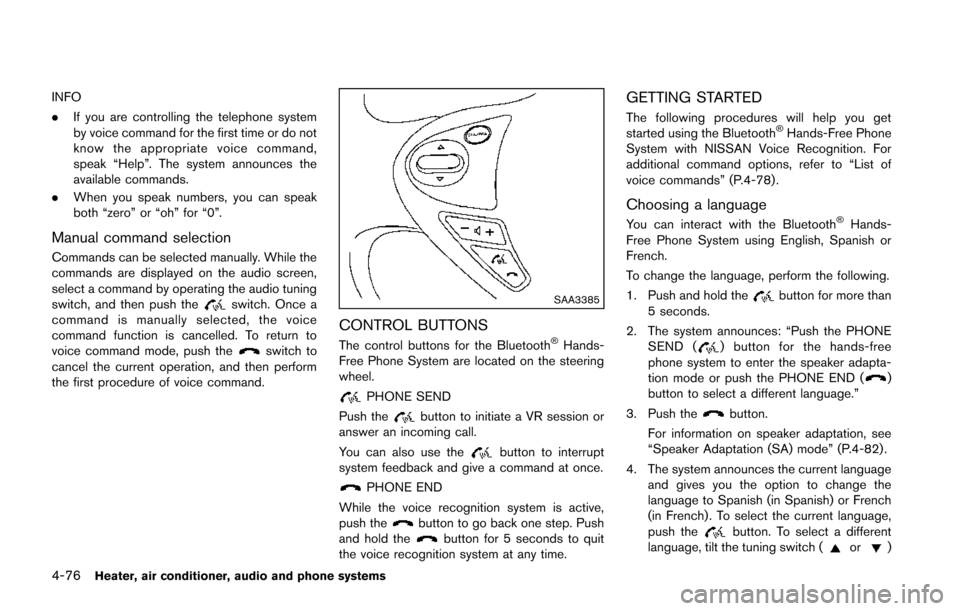
CONTROL BUTTONS
The control buttons for the Bluetooth®Hands-
Free Phone System are located on the steering
wheel.
PHONE SEND
Push the
button to initiate a VR session or
answer an incoming call.
You can also use the
button to interrupt
system feedback and give a command at once.
PHONE END
While the voice recognition system is active,
push the
button to go back one step. Push
and hold thebutton for 5 seconds to quit
the voice recognition system at any time.
GETTING STARTED
The following procedures will help you get
started using the Bluetooth®Hands-Free Phone
System with NISSAN Voice Recognition. For
additional command options, refer to “List of
voice commands” (P.4-78) .
Choosing a language
You can interact with the Bluetooth®Hands-
Free Phone System using English, Spanish or
French.
To change the language, perform the following.
1. Push and hold the
button for more than
5 seconds.
2. The system announces: “Push the PHONE SEND (
) button for the hands-free
phone system to enter the speaker adapta-
tion mode or push the PHONE END (
)
button to select a different language.”
3. Push the
button.
For information on speaker adaptation, see
“Speaker Adaptation (SA) mode” (P.4-82) .
4. The system announces the current language and gives you the option to change the
language to Spanish (in Spanish) or French
(in French) . To select the current language,
push the
button. To select a different
language, tilt the tuning switch (or)
Page 234 of 402
to call. Refer to “Making a call by entering a
phone number” (P.4-77) for more details.
“Redial”
*C
Use the Redial command to call the last number
that was dialed.
The system acknowledges the command, re-
peats the number and begins dialing.
If a redial number does not exist, the system
announces, “There is no number to redial” and
ends the VR session.
“Call back”
*D
Use the Call Back command to dial the number
of the last incoming call within the vehicle.
The system acknowledges the command, re-
peats the number and begins dialing.
If a call back number does not exist, the system
announces, “There is no number to call back”
and ends the VR session.
“Special Number”
To dial more than 10 digits or any special
characters, please say “Special Number”. When
the system acknowledges the command, the
system will prompt you to speak the number.
“During a call”
During a call there are several command options
available. Push the
button on the steering
wheel to mute the receiving voice and enter commands.
.
“Help” — The system announces the avail-
able commands.
. “Go back/Correction” — The system an-
nounces “Go back,” ends the VR session
and returns to the call.
. “Cancel/Quit” — The system announces
“Cancel,” ends the VR session and returns
to the call.
. “Send/Enter/Call/Dial” — Use the Send
command to enter numbers, “*” or “#”
during a call. For example, if you were
directed to dial an extension by an auto-
mated system:
Say: “Send one two three four.”
The system acknowledges the command
and sends the tones associated with the
numbers. The system then ends the VR
session and returns to the call. Say “star” for
“*”, say “pound” for “#”.
. “Transfer call” — Use the Transfer Call
command to transfer the call from the
Bluetooth
®Hands-Free Phone System to
the cellular phone when privacy is desired.
The system announces, “Transfer call. Call
transferred to privacy mode.” The system
then ends the VR session.
To reconnect a call from the cellular phone
to the Bluetooth
®Hands-Free Phone sys- tem, push the
button.
. “Mute” — Use the Mute command to mute
your voice so the other party cannot hear it.
Use the mute command again to unmute
your voice.
NOTE:
If a call is ended or the cellular phone
network connection is lost while the Mute
feature is on, the Mute feature will be reset
to “off” for the next call so the other party
can hear your voice.
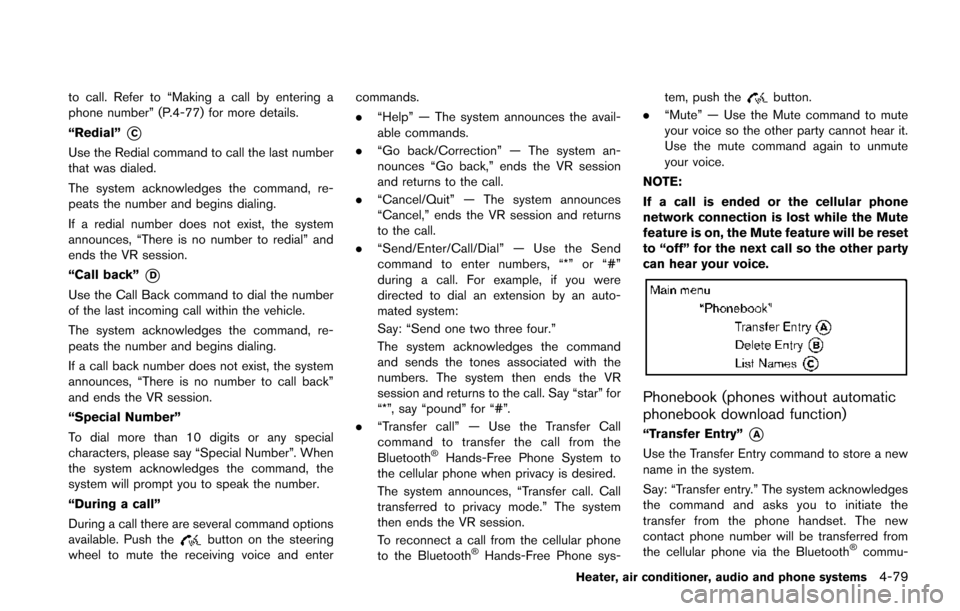
Phonebook (phones without automatic
phonebook download function)
“Transfer Entry”*A
Use the Transfer Entry command to store a new
name in the system.
Say: “Transfer entry.” The system acknowledges
the command and asks you to initiate the
transfer from the phone handset. The new
contact phone number will be transferred from
the cellular phone via the Bluetooth
®commu-
Heater, air conditioner, audio and phone systems4-79
Page 237 of 402
4-82Heater, air conditioner, audio and phone systems
SPEAKER ADAPTATION (SA) MODE
Speaker Adaptation allows up to two out-of
dialect users to train the system to improve
recognition accuracy. By repeating a number of
commands, the users can create a voice model
of their own voice that is stored in the system.
The system is capable of storing a different
speaker adaptation model for each connected
phone.
Training procedure
1. Position the vehicle in a reasonably quietoutdoor location.
2. Sit in the driver’s seat with the engine running, the parking brake on, and the
transmission in Park.
3. Push and hold the
button for more than
5 seconds.
4. The system announces: “Push the PHONE SEND (
) button for the hands-free
phone system to enter the speaker adapta-
tion mode or push the PHONE END (
)
button to select a different language.”
5. Push the
button.
For information on selecting a different
language, see “Choosing a language” (P.4-
76). 6. If the connected phone is already in use, the
system will prompt you to overwrite. Follow
the instructions provided by the system.
7. When preparation is complete and you are ready to begin, push the
button.
8. The SA mode will be explained. Follow the instructions provided by the system.
9. When training is finished, the system will tell you an adequate number of phrases have
been recorded.
10. The system will announce that speaker adaptation has been completed and the
system is ready.
The SA mode will stop if:
. The
button is pushed for more than 5
seconds in SA mode.
. The vehicle is driven during SA mode.
. The ignition switch is turned to the OFF or
LOCK position.
Training phrases
During the SA mode, the system instructs you to
say the following phrases.
(The system will prompt you for each phrase.)
. phonebook transfer entry
. dial 30429 .
delete call back number
. incoming
. transfer entry
. 8 pause 9 3 2 pause 7
. delete all entries
. call 7 2409
. phonebook delete entry
. next entry
. dial star 2170
. yes
. no
. select
. missed
. dial 85692
. Bluetooth on
. Outgoing
. call 3 1902
. 9 7 pause pause 3 0 8
. cancel
. call back number
. call star 2095
. delete phone
. dial 83051
. Record name
. 4 3 pause 2 9 pause 0
Page 239 of 402
4-84Heater, air conditioner, audio and phone systems
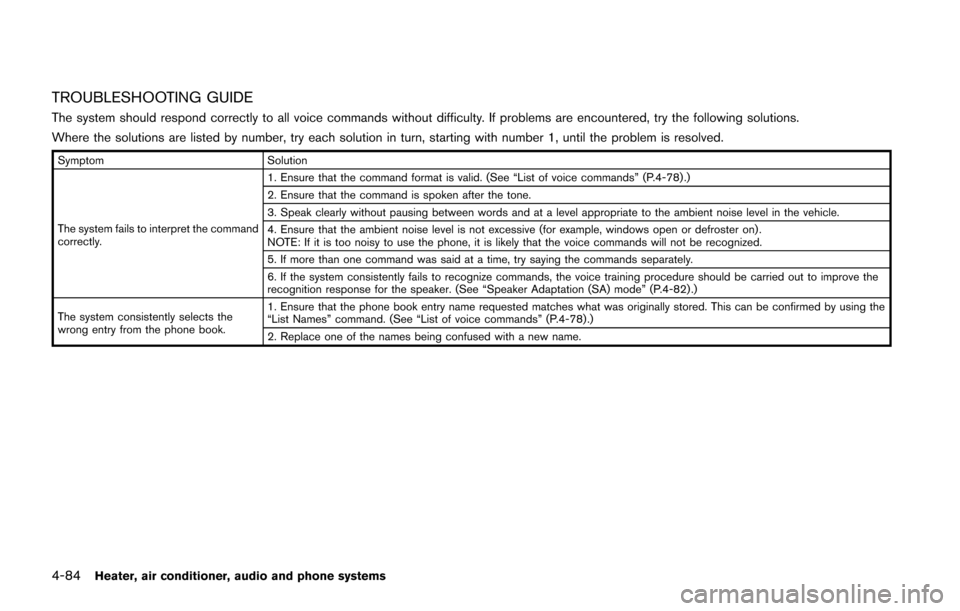
TROUBLESHOOTING GUIDE
The system should respond correctly to all voice commands without difficulty. If problems are encountered, try the following solutions.
Where the solutions are listed by number, try each solution in turn, starting with number 1, until the problem is resolved.
SymptomSolution
The system fails to interpret the command
correctly. 1. Ensure that the command format is valid. (See “List of voice commands” (P.4-78) .)
2. Ensure that the command is spoken after the tone.
3. Speak clearly without pausing between words and at a level appropriate to the ambient noise level in the vehicle.
4. Ensure that the ambient noise level is not excessive (for example, windows open or defroster on) .
NOTE: If it is too noisy to use the phone, it is likely that the voice commands will not be recognized.
5. If more than one command was said at a time, try saying the commands separately.
6. If the system consistently fails to recognize commands, the voice training procedure should be carried out to improve the
recognition response for the speaker. (See “Speaker Adaptation (SA) mode” (P.4-82) .)
The system consistently selects the
wrong entry from the phone book. 1. Ensure that the phone book entry name requested matches what was originally stored. This can be confirmed by using the
“List Names” command. (See “List of voice commands” (P.4-78) .)
2. Replace one of the names being confused with a new name.