2014 NISSAN JUKE display
[x] Cancel search: displayPage 170 of 402
HOW TO USE BRIGHTNESS CON-
TROL BUTTON
To change the display brightness, push thebutton. Pushing the button again will change the
display to the day or the night display.
If no operation is performed within 5 seconds,
the display will return to the previous display.
Push and hold the
button for more than two
seconds to turn the display off. Push the button
again to turn the display on.
HOW TO USE THE ON·OFF BUTTON/
VOLUME CONTROL KNOB
Push the ON·OFF button to turn audio function
on and off. Turn the volume control knob to
adjust audio volume.
HOW TO USE THE CAMERA BUTTON
For more information regarding the CAMERA
button, see “RearView monitor” (P.4-15). When the shift lever is shifted into the R
(Reverse) position, the monitor display shows
the view to the rear of the vehicle.
The system is designed as an aid to the driver in
situations such as slot parking or parallel
parking.
WARNING
Failure to follow the warnings and
instructions for proper use of the Rear-
View Monitor could result in serious
injury or death.
.
The RearView monitor is a conve-
nience but it is not a substitute for
proper backing. Always turn and
look out the windows, and check
mirrors to be sure that it is safe to
move before operating the vehicle.
Always back up slowly.
. The system is designed as an aid to
the driver in showing large station-
ary objects directly behind the vehi-
cle, to help avoid damaging the
vehicle.
. The system cannot completely elim-
inate blind spots and may not show
every object. .
Underneath the bumper and the
corner areas of the bumper cannot
be viewed on the RearView Monitor
because of its monitoring range
limitation. The system will not show
small objects below the bumper,
and may not show objects close to
the bumper or on the ground.
. Objects viewed in the RearView
Monitor differ from actual distance
because a wide-angle lens is used.
. Objects in the RearView Monitor
will appear visually opposite than
when viewed in the rear view and
outside mirrors.
. Make sure that the lift gate is
securely closed when backing up.
. Do not put anything on the Rear-
View camera. The RearView camera
is installed above the license plate.
. When washing the vehicle with
high-pressure water, be sure not to
spray it around the camera. Other-
wise, water may enter the camera
unit causing water condensation on
the lens, a malfunction, fire or an
electric shock.
Heater, air conditioner, audio and phone systems4-15
REARVIEW MONITOR (if so
equipped)
Page 171 of 402
4-16Heater, air conditioner, audio and phone systems
.Do not strike the camera. It is a
precision instrument. Otherwise, it
may malfunction or cause damage
resulting in a fire or an electric
shock.
CAUTION
Do not scratch the camera lens when
cleaning dirt or snow from the lens.
SAA2776
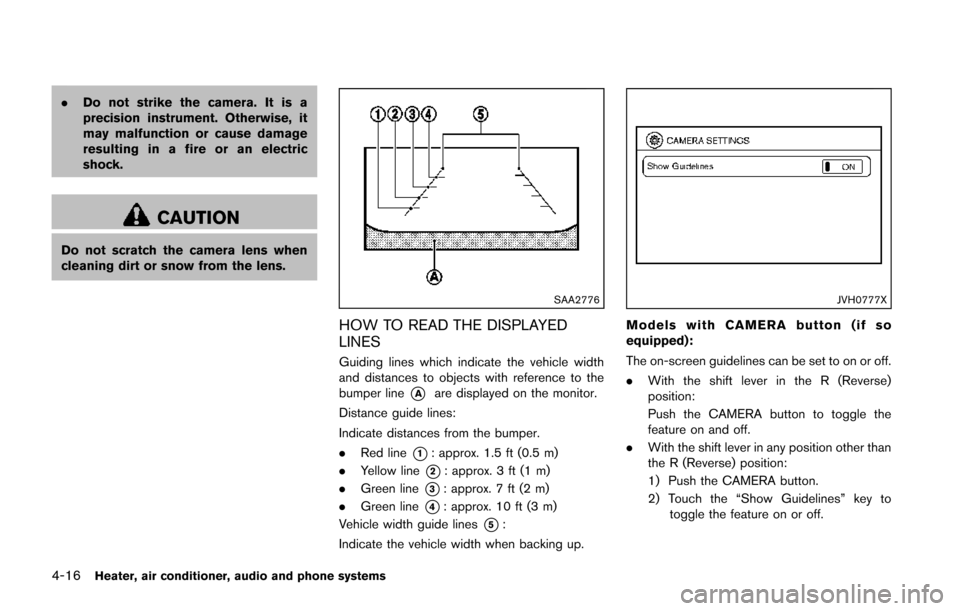
HOW TO READ THE DISPLAYED
LINES
Guiding lines which indicate the vehicle width
and distances to objects with reference to the
bumper line
*Aare displayed on the monitor.
Distance guide lines:
Indicate distances from the bumper.
. Red line
*1: approx. 1.5 ft (0.5 m)
. Yellow line
*2: approx. 3 ft (1 m)
. Green line
*3: approx. 7 ft (2 m)
. Green line
*4: approx. 10 ft (3 m)
Vehicle width guide lines
*5:
Indicate the vehicle width when backing up.
JVH0777X
Models with CAMERA button (if so
equipped):
The on-screen guidelines can be set to on or off.
. With the shift lever in the R (Reverse)
position:
Push the CAMERA button to toggle the
feature on and off.
. With the shift lever in any position other than
the R (Reverse) position:
1) Push the CAMERA button.
2) Touch the “Show Guidelines” key to
toggle the feature on or off.
Page 172 of 402
SAA1978
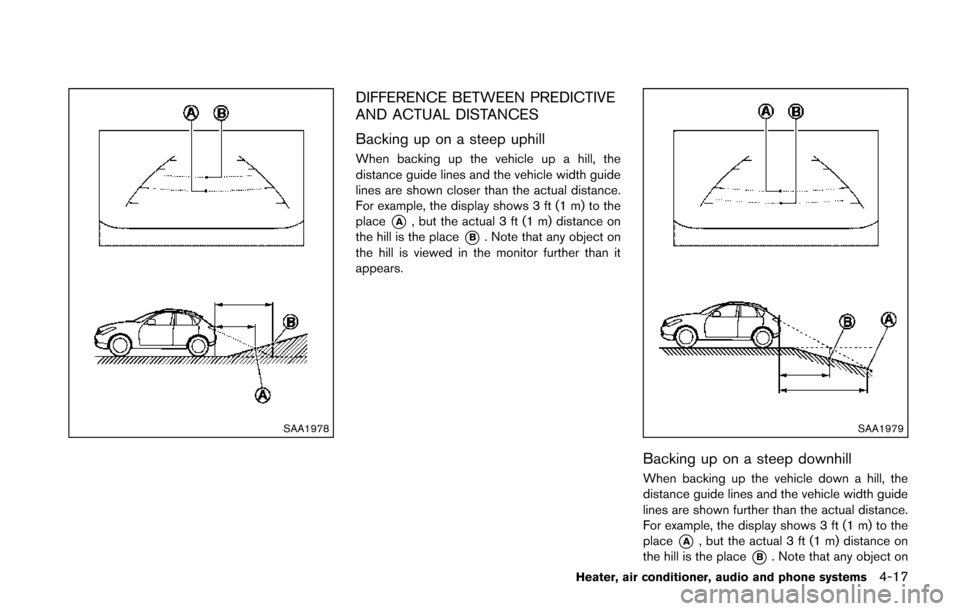
DIFFERENCE BETWEEN PREDICTIVE
AND ACTUAL DISTANCES
Backing up on a steep uphill
When backing up the vehicle up a hill, the
distance guide lines and the vehicle width guide
lines are shown closer than the actual distance.
For example, the display shows 3 ft (1 m) to the
place
*A, but the actual 3 ft (1 m) distance on
the hill is the place
*B. Note that any object on
the hill is viewed in the monitor further than it
appears.
SAA1979
Backing up on a steep downhill
When backing up the vehicle down a hill, the
distance guide lines and the vehicle width guide
lines are shown further than the actual distance.
For example, the display shows 3 ft (1 m) to the
place
*A, but the actual 3 ft (1 m) distance on
the hill is the place
*B. Note that any object on
Heater, air conditioner, audio and phone systems4-17
Page 173 of 402
4-18Heater, air conditioner, audio and phone systems
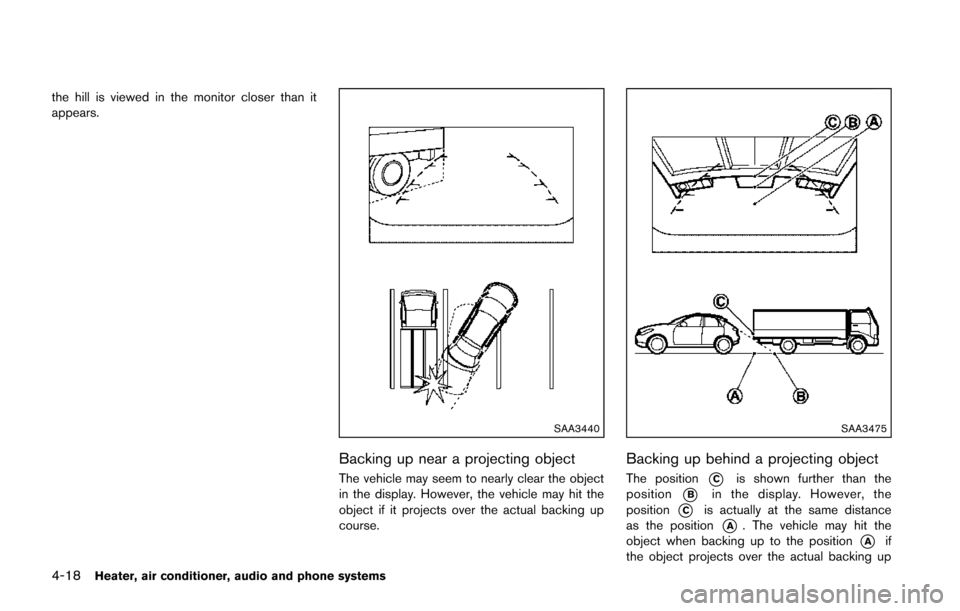
the hill is viewed in the monitor closer than it
appears.
SAA3440
Backing up near a projecting object
The vehicle may seem to nearly clear the object
in the display. However, the vehicle may hit the
object if it projects over the actual backing up
course.
SAA3475
Backing up behind a projecting object
The position*Cis shown further than the
position
*Bin the display. However, the
position
*Cis actually at the same distance
as the position
*A. The vehicle may hit the
object when backing up to the position
*Aif
the object projects over the actual backing up
Page 174 of 402
course.
ADJUSTING THE SCREEN (if so
equipped)
For detailed information, see “How to use the
APPS·i button” (P.4-12) .
OPERATING TIPS
.When the shift lever is shifted to the R
(Reverse) position, the monitor screen auto-
matically changes to the RearView Monitor
mode. However, the radio can be heard.
. When the view is switched, the display
images on the screen may be displayed with
some delay.
. When the temperature is extremely high or
low, the screen may not clearly display
objects. This is not a malfunction.
. When strong light is directly coming on the
camera, objects may not be displayed
clearly. This is not a malfunction.
. Vertical lines may be seen in objects on the
screen. This is due to strong reflected light
from the bumper. This is not a malfunction.
. The screen may flicker under fluorescent
light. This is not a malfunction.
. The colors of objects on the RearView
Monitor may differ somewhat from the actual
color of objects. This is not a malfunction. .
Objects on the monitor may not be clear in a
dark environment. This is not a malfunction.
. If dirt, rain or snow accumulates on the
camera, the RearView Monitor may not
display objects clearly. Clean the camera.
. Do not use alcohol, benzine or thinner to
clean the camera. This will cause discolora-
tion. To clean the camera, wipe with a cloth
dampened with diluted mild cleaning agent
and then wipe with a dry cloth.
. Do not damage the camera as the monitor
screen may be adversely affected.
. Do not use wax on the camera window.
Wipe off any wax with a clean cloth
dampened with mild detergent diluted with
water.
SAA3338
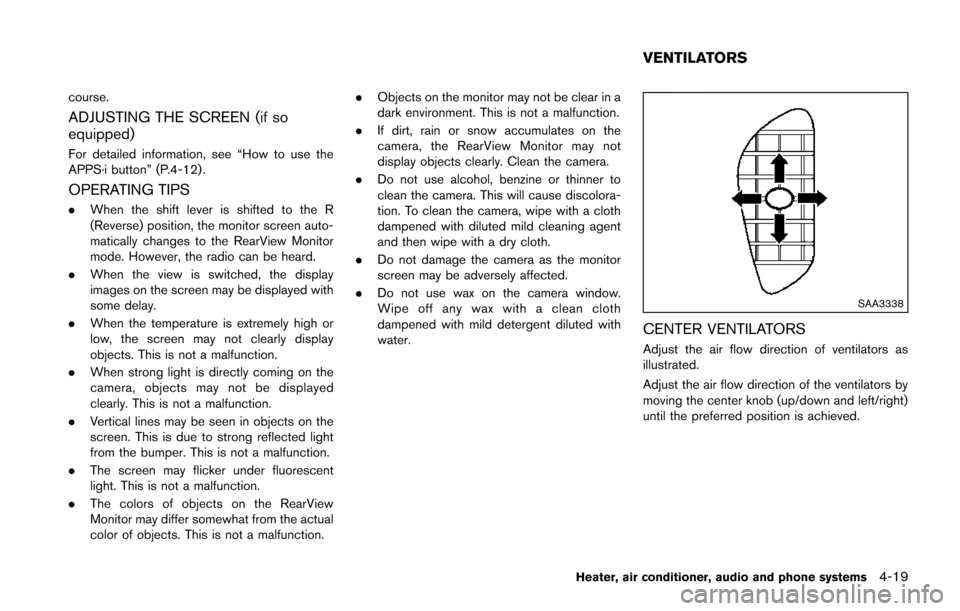
CENTER VENTILATORS
Adjust the air flow direction of ventilators as
illustrated.
Adjust the air flow direction of the ventilators by
moving the center knob (up/down and left/right)
until the preferred position is achieved.
Heater, air conditioner, audio and phone systems4-19
VENTILATORS
Page 179 of 402
4-24Heater, air conditioner, audio and phone systems
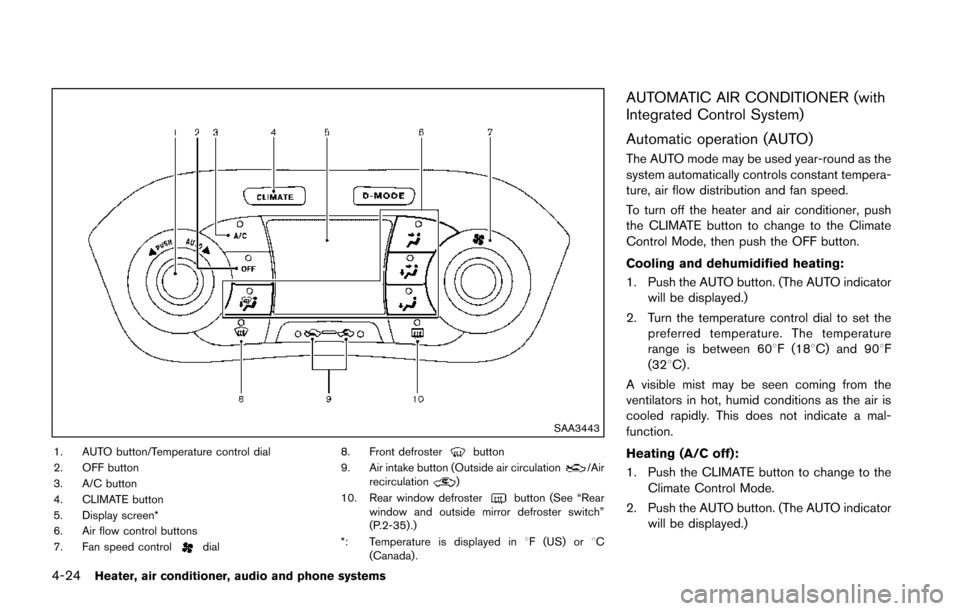
SAA3443
1. AUTO button/Temperature control dial
2. OFF button
3. A/C button
4. CLIMATE button
5. Display screen*
6. Air flow control buttons
7. Fan speed control
dial8. Front defroster
button
9. Air intake button (Outside air circulation/Air
recirculation)
10. Rear window defroster
button (See “Rear
window and outside mirror defroster switch”
(P.2-35) .)
*: Temperature is displayed in 8F (US) or 8C
(Canada) .
AUTOMATIC AIR CONDITIONER (with
Integrated Control System)
Automatic operation (AUTO)
The AUTO mode may be used year-round as the
system automatically controls constant tempera-
ture, air flow distribution and fan speed.
To turn off the heater and air conditioner, push
the CLIMATE button to change to the Climate
Control Mode, then push the OFF button.
Cooling and dehumidified heating:
1. Push the AUTO button. (The AUTO indicator will be displayed.)
2. Turn the temperature control dial to set the preferred temperature. The temperature
range is between 608F (188C) and 908F
(328C) .
A visible mist may be seen coming from the
ventilators in hot, humid conditions as the air is
cooled rapidly. This does not indicate a mal-
function.
Heating (A/C off):
1. Push the CLIMATE button to change to the Climate Control Mode.
2. Push the AUTO button. (The AUTO indicator will be displayed.)
Page 181 of 402
4-26Heater, air conditioner, audio and phone systems
Automatic air intake control:
Push and hold the outside air circulation “
”
/air recirculation “” button for more than 1.5
seconds to set the automatic control between
the outside air circulation and air recirculation
modes.
When the “
”or“” position is selected,
the air recirculation mode does not activate.
When setting the automatic control mode, the
indicator lights “
” and “” will blink twice
indicating that the system is in the automatic
control mode.
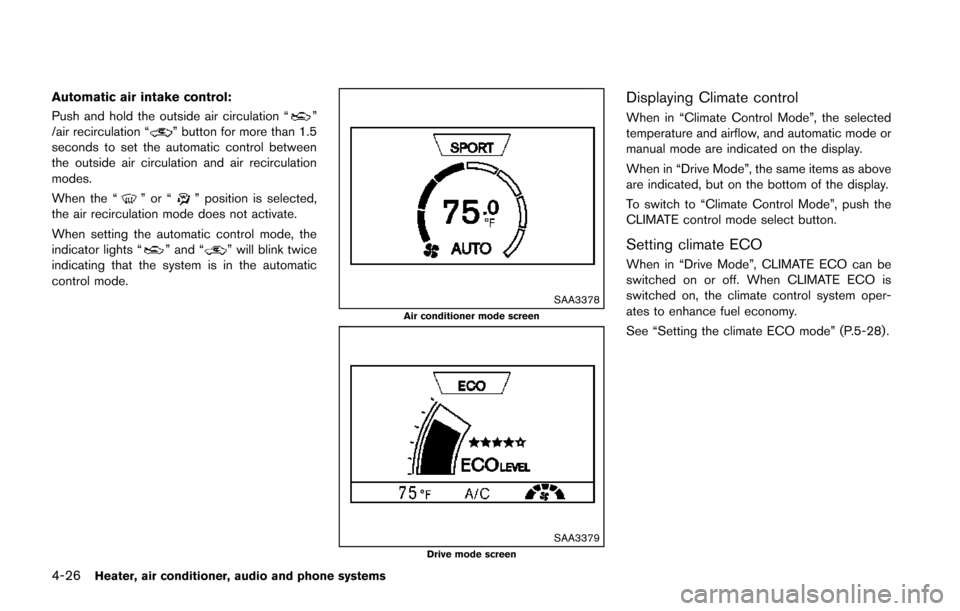
SAA3378Air conditioner mode screen
SAA3379Drive mode screen
Displaying Climate control
When in “Climate Control Mode”, the selected
temperature and airflow, and automatic mode or
manual mode are indicated on the display.
When in “Drive Mode”, the same items as above
are indicated, but on the bottom of the display.
To switch to “Climate Control Mode”, push the
CLIMATE control mode select button.
Setting climate ECO
When in “Drive Mode”, CLIMATE ECO can be
switched on or off. When CLIMATE ECO is
switched on, the climate control system oper-
ates to enhance fuel economy.
See “Setting the climate ECO mode” (P.5-28).
Page 185 of 402
4-30Heater, air conditioner, audio and phone systems
and dehumidify or ventilate the player
completely.
. The player may skip while driving on
rough roads.
. The CD player sometimes cannot func-
tion when the passenger compartment
temperature is extremely high. De-
crease the temperature before use.
. Only use high quality 4.7 in (12 cm)
round discs that have the “COMPACT
disc DIGITAL AUDIO” logo on the disc
or packaging.
. Do not expose the CD to direct sun-
light.
. CDs that are of poor quality, dirty,
scratched, covered with fingerprints,
or that have pin holes may not work
properly.
. The following CDs may not work prop-
erly:
—Copy control compact discs (CCCD)
— Recordable compact discs (CD-R)
— Rewritable compact discs (CD-RW)
. Do not use the following CDs as they
may cause the CD player to malfunc-
tion.
—3.1 in (8 cm) discs —
CDs that are not round
— CDs with a paper label
— CDs that are warped, scratched, or
have abnormal edges
. This audio system can only play pre-
recorded CDs. It has no capabilities to
record or burn CDs.
. If the CD cannot be played, one of the
following messages will be displayed.
Check Disc:
—Confirm that the CD is inserted
correctly (the label side is facing
up, etc.) .
— Confirm that the CD is not bent or
warped and it is free of scratches.
Push Eject:
This is an error due to the temperature
inside the player is too high. Remove
the CD by pushing the EJECT button,
and after a short time reinsert the CD.
The CD can be played when the tem-
perature of the player returns to nor-
mal.
Unplayable Track:
The file is unplayable in this audio
system (only MP3 or WMA CD) .Interface System for iPod®(models
without USB port)
. Some characters used in other languages
(Chinese, Japanese, etc.) are not displayed
properly on the vehicle display. We recom-
mend using English language characters
with an iPod
®.
. Large video podcast files cause slow
responses in the iPod
®. The vehicle display
may momentarily black out, but it will soon
recover.
. If the iPod
®automatically selects large video
podcast files while in the shuffle mode, the
vehicle display may momentarily black out,
but it will soon recover.
. Improperly plugging in the iPod
®may cause
a checkmark to be displayed on and off
(flickering) . Always make sure that the iPod
®
is connected properly.
. The iPod nano®(2nd Generation) will
continue to fast forward or rewind if it is
disconnected during a seek operation.
. An incorrect song title may appear when the
Play Mode is changed while using the iPod
nano
®(2nd Generation) .
. Audiobooks may not play in the same order
as they appear on the iPod
®.