2014 NISSAN JUKE display
[x] Cancel search: displayPage 217 of 402
4-62Heater, air conditioner, audio and phone systems
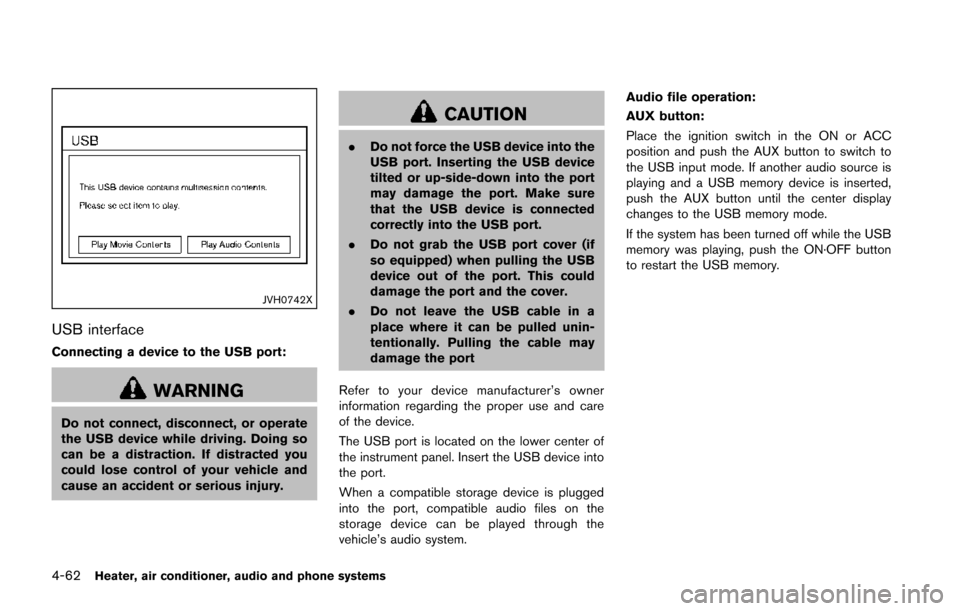
JVH0742X
USB interface
Connecting a device to the USB port:
WARNING
Do not connect, disconnect, or operate
the USB device while driving. Doing so
can be a distraction. If distracted you
could lose control of your vehicle and
cause an accident or serious injury.
CAUTION
.Do not force the USB device into the
USB port. Inserting the USB device
tilted or up-side-down into the port
may damage the port. Make sure
that the USB device is connected
correctly into the USB port.
. Do not grab the USB port cover (if
so equipped) when pulling the USB
device out of the port. This could
damage the port and the cover.
. Do not leave the USB cable in a
place where it can be pulled unin-
tentionally. Pulling the cable may
damage the port
Refer to your device manufacturer’s owner
information regarding the proper use and care
of the device.
The USB port is located on the lower center of
the instrument panel. Insert the USB device into
the port.
When a compatible storage device is plugged
into the port, compatible audio files on the
storage device can be played through the
vehicle’s audio system. Audio file operation:
AUX button:
Place the ignition switch in the ON or ACC
position and push the AUX button to switch to
the USB input mode. If another audio source is
playing and a USB memory device is inserted,
push the AUX button until the center display
changes to the USB memory mode.
If the system has been turned off while the USB
memory was playing, push the ON·OFF button
to restart the USB memory.
Page 218 of 402
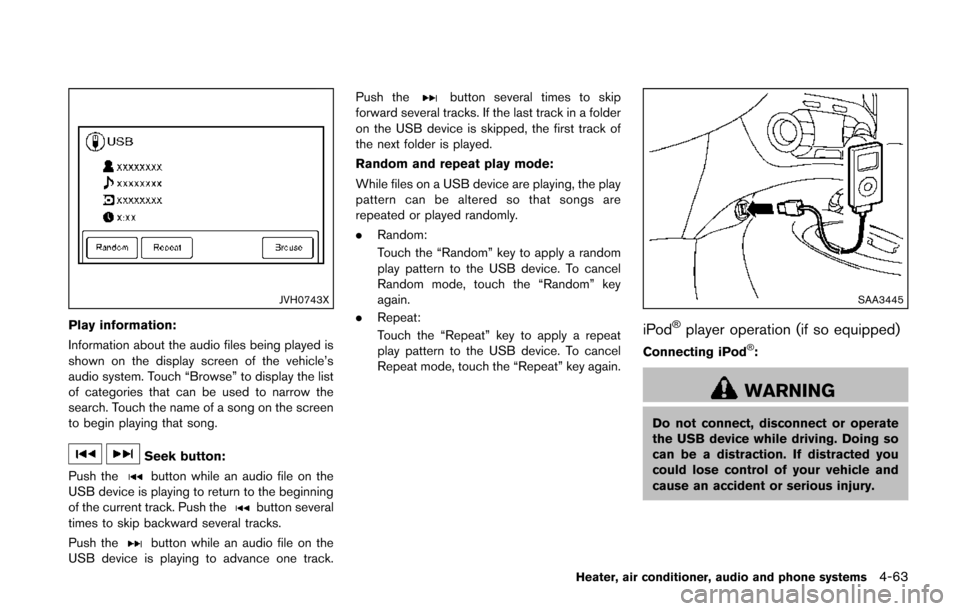
JVH0743X
Play information:
Information about the audio files being played is
shown on the display screen of the vehicle’s
audio system. Touch “Browse” to display the list
of categories that can be used to narrow the
search. Touch the name of a song on the screen
to begin playing that song.
Seek button:
Push the
button while an audio file on the
USB device is playing to return to the beginning
of the current track. Push the
button several
times to skip backward several tracks.
Push the
button while an audio file on the
USB device is playing to advance one track. Push the
button several times to skip
forward several tracks. If the last track in a folder
on the USB device is skipped, the first track of
the next folder is played.
Random and repeat play mode:
While files on a USB device are playing, the play
pattern can be altered so that songs are
repeated or played randomly.
. Random:
Touch the “Random” key to apply a random
play pattern to the USB device. To cancel
Random mode, touch the “Random” key
again.
. Repeat:
Touch the “Repeat” key to apply a repeat
play pattern to the USB device. To cancel
Repeat mode, touch the “Repeat” key again.
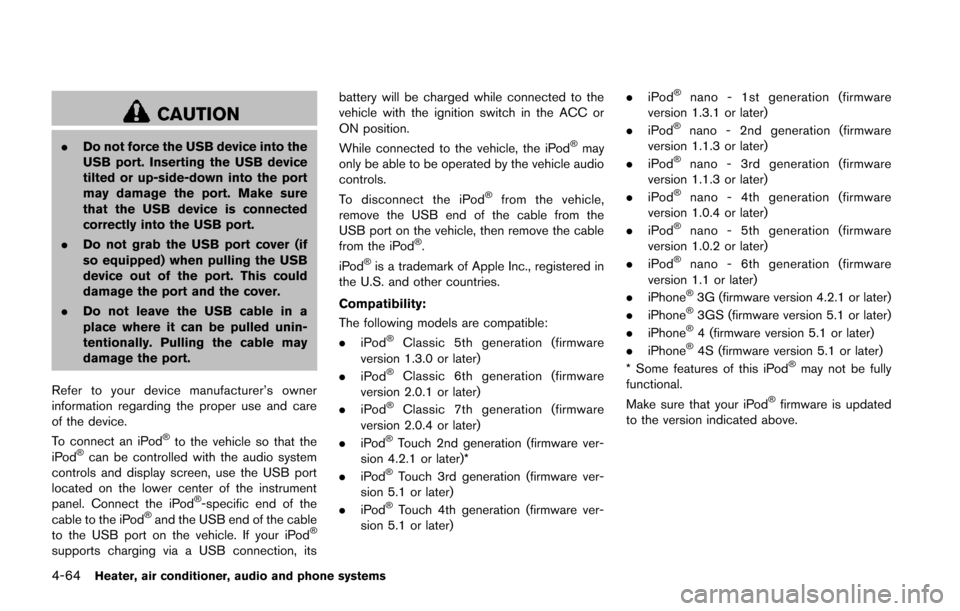
SAA3445
iPod®player operation (if so equipped)
Connecting iPod®:
WARNING
Do not connect, disconnect or operate
the USB device while driving. Doing so
can be a distraction. If distracted you
could lose control of your vehicle and
cause an accident or serious injury.
Heater, air conditioner, audio and phone systems4-63
Page 219 of 402
4-64Heater, air conditioner, audio and phone systems
CAUTION
.Do not force the USB device into the
USB port. Inserting the USB device
tilted or up-side-down into the port
may damage the port. Make sure
that the USB device is connected
correctly into the USB port.
. Do not grab the USB port cover (if
so equipped) when pulling the USB
device out of the port. This could
damage the port and the cover.
. Do not leave the USB cable in a
place where it can be pulled unin-
tentionally. Pulling the cable may
damage the port.
Refer to your device manufacturer’s owner
information regarding the proper use and care
of the device.
To connect an iPod
®to the vehicle so that the
iPod®can be controlled with the audio system
controls and display screen, use the USB port
located on the lower center of the instrument
panel. Connect the iPod
®-specific end of the
cable to the iPod®and the USB end of the cable
to the USB port on the vehicle. If your iPod®
supports charging via a USB connection, its battery will be charged while connected to the
vehicle with the ignition switch in the ACC or
ON position.
While connected to the vehicle, the iPod
®may
only be able to be operated by the vehicle audio
controls.
To disconnect the iPod
®from the vehicle,
remove the USB end of the cable from the
USB port on the vehicle, then remove the cable
from the iPod
®.
iPod®is a trademark of Apple Inc., registered in
the U.S. and other countries.
Compatibility:
The following models are compatible:
. iPod
®Classic 5th generation (firmware
version 1.3.0 or later)
. iPod
®Classic 6th generation (firmware
version 2.0.1 or later)
. iPod
®Classic 7th generation (firmware
version 2.0.4 or later)
. iPod
®Touch 2nd generation (firmware ver-
sion 4.2.1 or later)*
. iPod
®Touch 3rd generation (firmware ver-
sion 5.1 or later)
. iPod
®Touch 4th generation (firmware ver-
sion 5.1 or later) .
iPod
®nano - 1st generation (firmware
version 1.3.1 or later)
. iPod
®nano - 2nd generation (firmware
version 1.1.3 or later)
. iPod
®nano - 3rd generation (firmware
version 1.1.3 or later)
. iPod
®nano - 4th generation (firmware
version 1.0.4 or later)
. iPod
®nano - 5th generation (firmware
version 1.0.2 or later)
. iPod
®nano - 6th generation (firmware
version 1.1 or later)
. iPhone
®3G (firmware version 4.2.1 or later)
. iPhone®3GS (firmware version 5.1 or later)
. iPhone®4 (firmware version 5.1 or later)
. iPhone®4S (firmware version 5.1 or later)
* Some features of this iPod®may not be fully
functional.
Make sure that your iPod
®firmware is updated
to the version indicated above.
Page 220 of 402
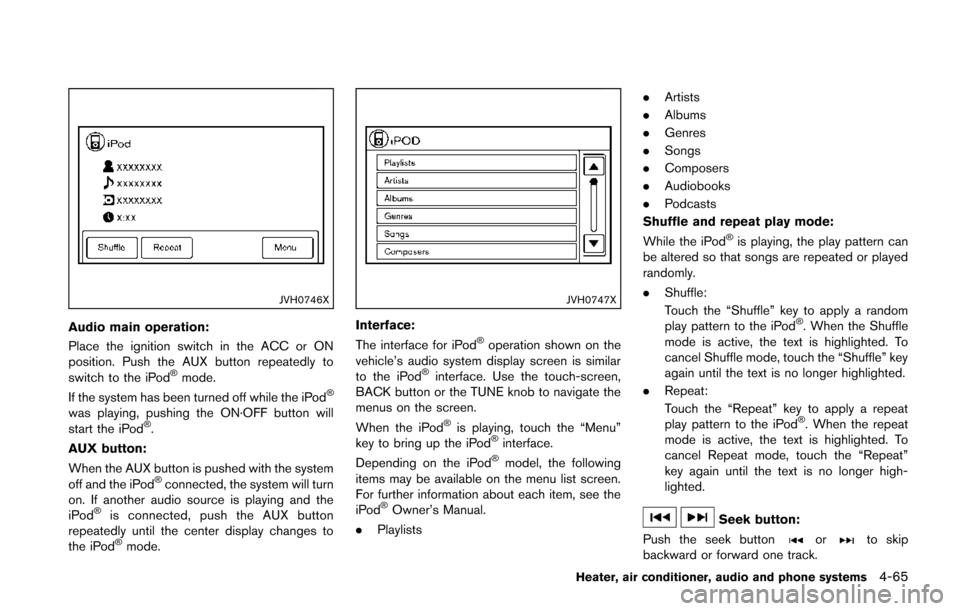
JVH0746X
Audio main operation:
Place the ignition switch in the ACC or ON
position. Push the AUX button repeatedly to
switch to the iPod
®mode.
If the system has been turned off while the iPod®
was playing, pushing the ON·OFF button will
start the iPod®.
AUX button:
When the AUX button is pushed with the system
off and the iPod
®connected, the system will turn
on. If another audio source is playing and the
iPod
®is connected, push the AUX button
repeatedly until the center display changes to
the iPod
®mode.
JVH0747X
Interface:
The interface for iPod®operation shown on the
vehicle’s audio system display screen is similar
to the iPod
®interface. Use the touch-screen,
BACK button or the TUNE knob to navigate the
menus on the screen.
When the iPod
®is playing, touch the “Menu”
key to bring up the iPod®interface.
Depending on the iPod®model, the following
items may be available on the menu list screen.
For further information about each item, see the
iPod
®Owner’s Manual.
. Playlists .
Artists
. Albums
. Genres
. Songs
. Composers
. Audiobooks
. Podcasts
Shuffle and repeat play mode:
While the iPod
®is playing, the play pattern can
be altered so that songs are repeated or played
randomly.
. Shuffle:
Touch the “Shuffle” key to apply a random
play pattern to the iPod
®. When the Shuffle
mode is active, the text is highlighted. To
cancel Shuffle mode, touch the “Shuffle” key
again until the text is no longer highlighted.
. Repeat:
Touch the “Repeat” key to apply a repeat
play pattern to the iPod
®. When the repeat
mode is active, the text is highlighted. To
cancel Repeat mode, touch the “Repeat”
key again until the text is no longer high-
lighted.
Seek button:
Push the seek button
orto skip
backward or forward one track.
Heater, air conditioner, audio and phone systems4-65
Page 221 of 402
4-66Heater, air conditioner, audio and phone systems
Push and hold the seek buttonorfor
1.5 seconds while a track is playing to reverse or
fast forward the track being played. The track
plays at an increased speed while reversing or
fast forwarding. When the button is released,
the track returns to normal play speed.
JVH0748X
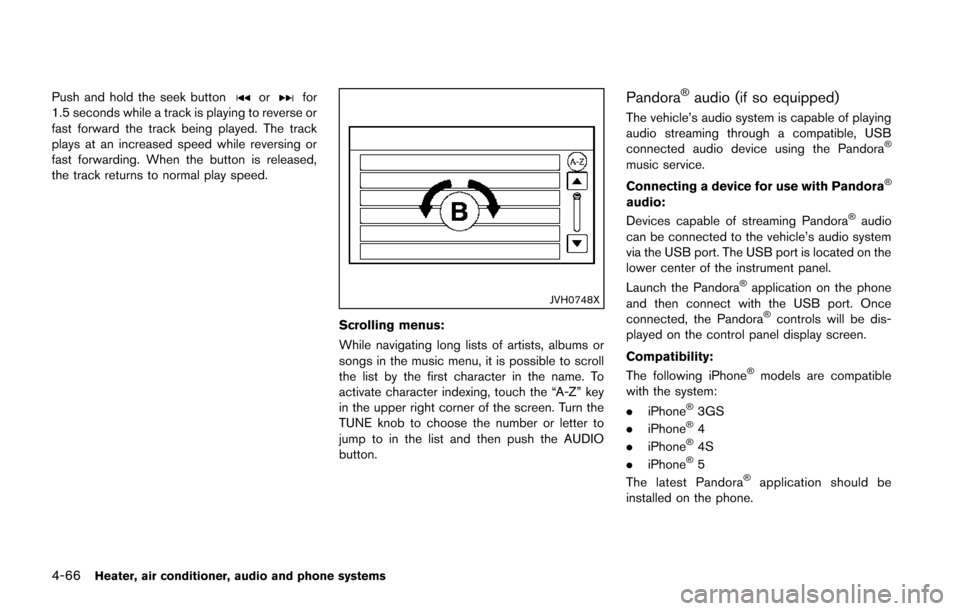
Scrolling menus:
While navigating long lists of artists, albums or
songs in the music menu, it is possible to scroll
the list by the first character in the name. To
activate character indexing, touch the “A-Z” key
in the upper right corner of the screen. Turn the
TUNE knob to choose the number or letter to
jump to in the list and then push the AUDIO
button.
Pandora®audio (if so equipped)
The vehicle’s audio system is capable of playing
audio streaming through a compatible, USB
connected audio device using the Pandora
®
music service.
Connecting a device for use with Pandora
®
audio:
Devices capable of streaming Pandora®audio
can be connected to the vehicle’s audio system
via the USB port. The USB port is located on the
lower center of the instrument panel.
Launch the Pandora
®application on the phone
and then connect with the USB port. Once
connected, the Pandora
®controls will be dis-
played on the control panel display screen.
Compatibility:
The following iPhone
®models are compatible
with the system:
. iPhone
®3GS
. iPhone®4
. iPhone®4S
. iPhone®5
The latest Pandora®application should be
installed on the phone.
Page 222 of 402
JVH0751X
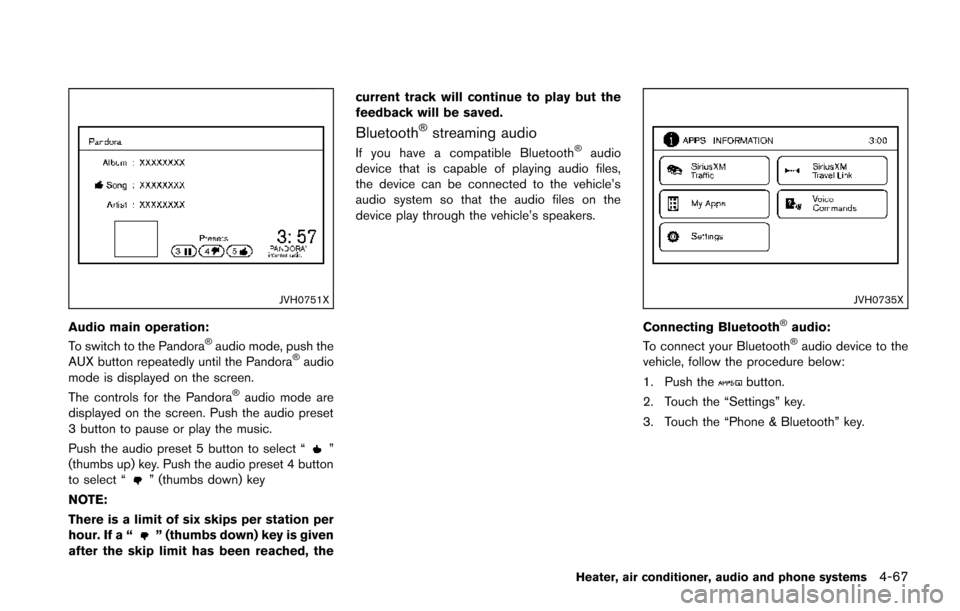
Audio main operation:
To switch to the Pandora®audio mode, push the
AUX button repeatedly until the Pandora®audio
mode is displayed on the screen.
The controls for the Pandora
®audio mode are
displayed on the screen. Push the audio preset
3 button to pause or play the music.
Push the audio preset 5 button to select “
”
(thumbs up) key. Push the audio preset 4 button
to select “
” (thumbs down) key
NOTE:
There is a limit of six skips per station per
hour. If a “
” (thumbs down) key is given
after the skip limit has been reached, the current track will continue to play but the
feedback will be saved.
Bluetooth®streaming audio
If you have a compatible Bluetooth®audio
device that is capable of playing audio files,
the device can be connected to the vehicle’s
audio system so that the audio files on the
device play through the vehicle’s speakers.
JVH0735X
Connecting Bluetooth®audio:
To connect your Bluetooth®audio device to the
vehicle, follow the procedure below:
1. Push the
button.
2. Touch the “Settings” key.
3. Touch the “Phone & Bluetooth” key.
Heater, air conditioner, audio and phone systems4-67
Page 223 of 402
4-68Heater, air conditioner, audio and phone systems
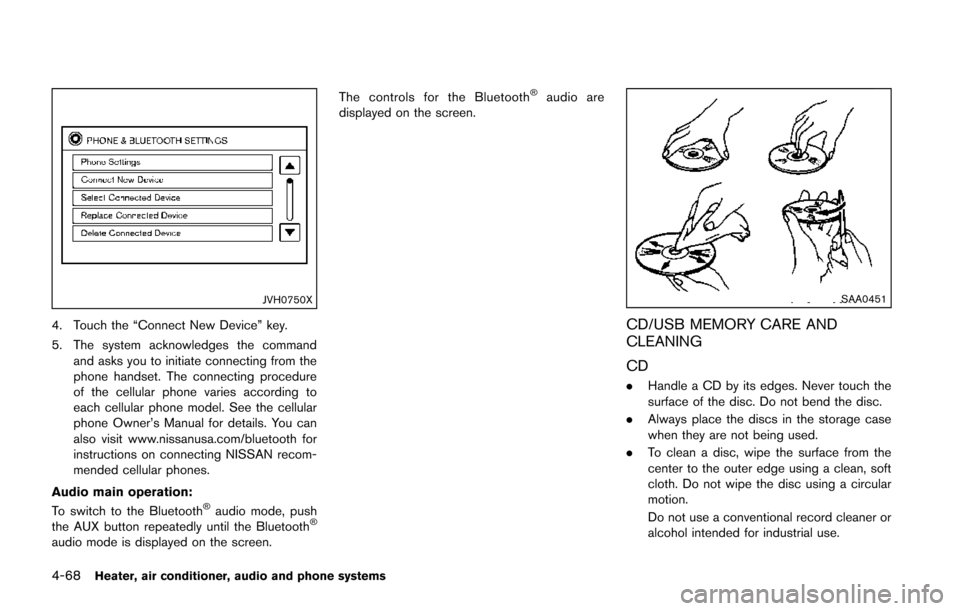
JVH0750X
4. Touch the “Connect New Device” key.
5. The system acknowledges the commandand asks you to initiate connecting from the
phone handset. The connecting procedure
of the cellular phone varies according to
each cellular phone model. See the cellular
phone Owner’s Manual for details. You can
also visit www.nissanusa.com/bluetooth for
instructions on connecting NISSAN recom-
mended cellular phones.
Audio main operation:
To switch to the Bluetooth
®audio mode, push
the AUX button repeatedly until the Bluetooth®
audio mode is displayed on the screen. The controls for the Bluetooth
®audio are
displayed on the screen.
SAA0451
CD/USB MEMORY CARE AND
CLEANING
CD
. Handle a CD by its edges. Never touch the
surface of the disc. Do not bend the disc.
. Always place the discs in the storage case
when they are not being used.
. To clean a disc, wipe the surface from the
center to the outer edge using a clean, soft
cloth. Do not wipe the disc using a circular
motion.
Do not use a conventional record cleaner or
alcohol intended for industrial use.
Page 226 of 402
This vehicle is equipped with Smartphone
Integration technology. This allows many com-
patible Smartphone applications to be displayed
and easily controlled through the vehicle’s
touchscreen.
NOTE:
A compatible smartphone and registration
is required to use mobile applications or to
access connected features of certain vehi-
cle applications.
REGISTERING WITH NISSANCON-
NECTTMAPP
To use the Smartphone Integration feature, it is
necessary for the user to register. In order to
register, visit the NissanConnect
TMwebsite,
www.nissanusa.com/connect/ and sign up or
create an account through the prompts on the
NissanConnect
TMApp. Once registered, down-
load the NissanConnectTMApp from your
compatible phone’s application download
source and then log into the application. If you
already have an account created through the
App, please log in.
CONNECT PHONE
To use this feature, a compatible smartphone
must be connected via Bluetooth®or USB to the
vehicle. For more information on connecting your
phone, see “Bluetooth
®Hands-Free Phone
System (Type B)” (P.4-85) .
NOTE:
. For Apple iPhones, NissanConnect
TM
Apps REQUIRES the phone to be
plugged in via USB.
. For Android phones, NissanConnect
TM
Apps REQUIRES the phone to be
paired via Bluetooth.
APPLICATION DOWNLOAD
Once connected, the NissanConnectTMApp will
search your phone to determine which compa-
tible applications are currently installed. The
user will then choose which apps they want to
bring into their vehicle from the list of apps
within the “Manage My Apps” section of the
NissanConnect
TMApp on their smartphone.
The vehicle will then download the in-vehicle
interface for each of these compatible applica-
tions. Once downloaded, the user can access
their selected smartphone applications through
the vehicle touchscreen. For more information
on application availability see www.nissanusa.
com/connect/ When installing a car phone or a CB radio in
your vehicle, be sure to observe the following
precautions, otherwise the new equipment may
adversely affect the electronic control modules
and electronic control system harness.
WARNING
.
A cellular phone should not be used
for any purpose while driving so full
attention may be given to vehicle
operation. Some jurisdictions prohi-
bit the use of cellular phones while
driving.
. If you must make a call while your
vehicle is in motion, the hands-free
cellular phone operational mode (if
so equipped) is highly recom-
mended. Exercise extreme caution
at all times so full attention may be
given to vehicle operation.
. If a conversation in a moving vehicle
requires you to take notes, pull off
the road to a safe location and stop
your vehicle before doing so.
Heater, air conditioner, audio and phone systems4-71
NISSANCONNECTTMAPP
SMARTPHONE INTEGRATION (if so
equipped) CAR PHONE OR CB RADIO