Page 160 of 402
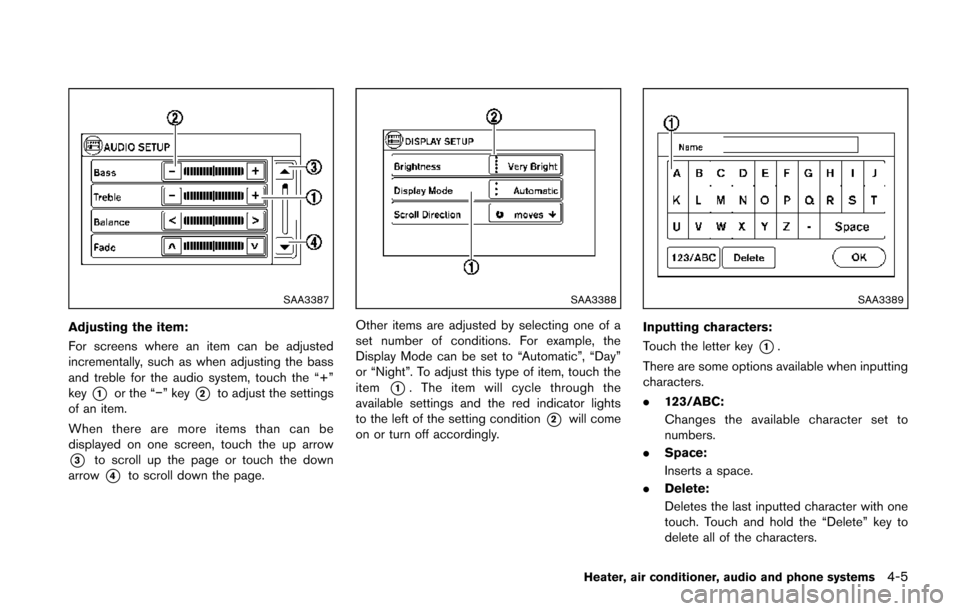
SAA3387
Adjusting the item:
For screens where an item can be adjusted
incrementally, such as when adjusting the bass
and treble for the audio system, touch the “+”
key
*1or the “−” key*2to adjust the settings
of an item.
When there are more items than can be
displayed on one screen, touch the up arrow
*3to scroll up the page or touch the down
arrow
*4to scroll down the page.
SAA3388
Other items are adjusted by selecting one of a
set number of conditions. For example, the
Display Mode can be set to “Automatic”, “Day”
or “Night”. To adjust this type of item, touch the
item
*1. The item will cycle through the
available settings and the red indicator lights
to the left of the setting condition
*2will come
on or turn off accordingly.
SAA3389
Inputting characters:
Touch the letter key
*1.
There are some options available when inputting
characters.
. 123/ABC:
Changes the available character set to
numbers.
. Space:
Inserts a space.
. Delete:
Deletes the last inputted character with one
touch. Touch and hold the “Delete” key to
delete all of the characters.
Heater, air conditioner, audio and phone systems4-5
Page 161 of 402
4-6Heater, air conditioner, audio and phone systems
.OK:
Completes the character input.
Touch screen maintenance
If you clean the display screen, use a dry, soft
cloth. If additional cleaning is necessary, use a
small amount of neutral detergent with a soft
cloth. Never spray the screen with water or
detergent. Dampen the cloth first and then wipe
the screen.
HOW TO USE THE BACK BUTTON
Push theBACK button to return to the
previous screen.
HOW TO USE BRIGHTNESS CON-
TROL AND DISPLAY ON/OFF BUTTON
To change the display brightness, push thebutton. Pushing the button again will change the
display to the day or the night display.
If no operation is performed within 5 seconds,
the display will return to the previous display.
Push and hold the
button for more than two
seconds to turn the display off. Push the button
again to turn the display on.
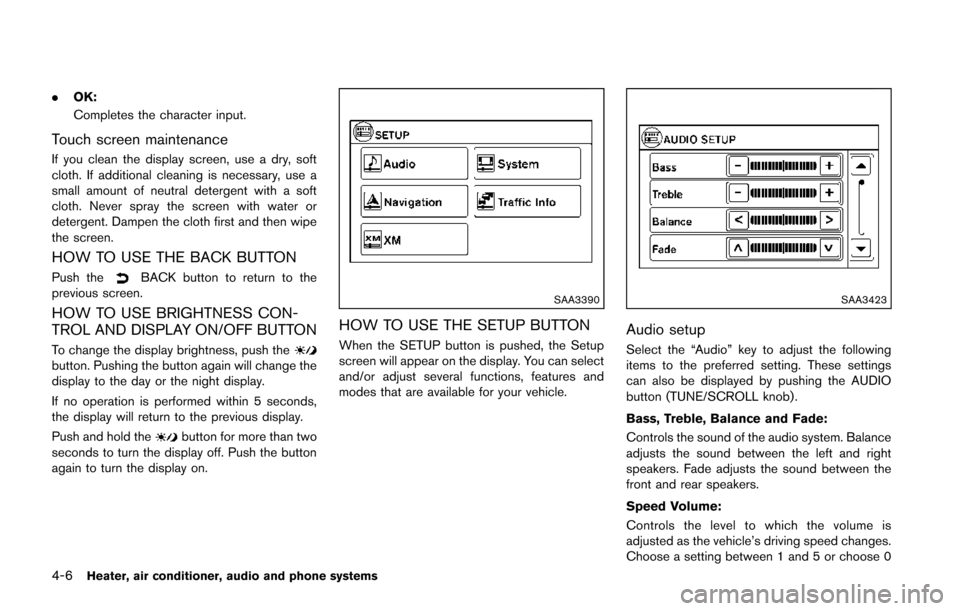
SAA3390
HOW TO USE THE SETUP BUTTON
When the SETUP button is pushed, the Setup
screen will appear on the display. You can select
and/or adjust several functions, features and
modes that are available for your vehicle.
SAA3423
Audio setup
Select the “Audio” key to adjust the following
items to the preferred setting. These settings
can also be displayed by pushing the AUDIO
button (TUNE/SCROLL knob).
Bass, Treble, Balance and Fade:
Controls the sound of the audio system. Balance
adjusts the sound between the left and right
speakers. Fade adjusts the sound between the
front and rear speakers.
Speed Volume:
Controls the level to which the volume is
adjusted as the vehicle’s driving speed changes.
Choose a setting between 1 and 5 or choose 0
Page 162 of 402
to disable the feature entirely.
AUX Level:
Controls the volume level of incoming sound
when an auxiliary device is connected to the
system. Available options are Quiet, Medium
and Loud.
Navigation setup
Refer to the separate Navigation System Own-
er’s Manual for information regarding this item.
XM setup
For SiriusXM Satellite Radio setup, refer to “FM-
AM-SAT radio with Compact Disc (CD) player
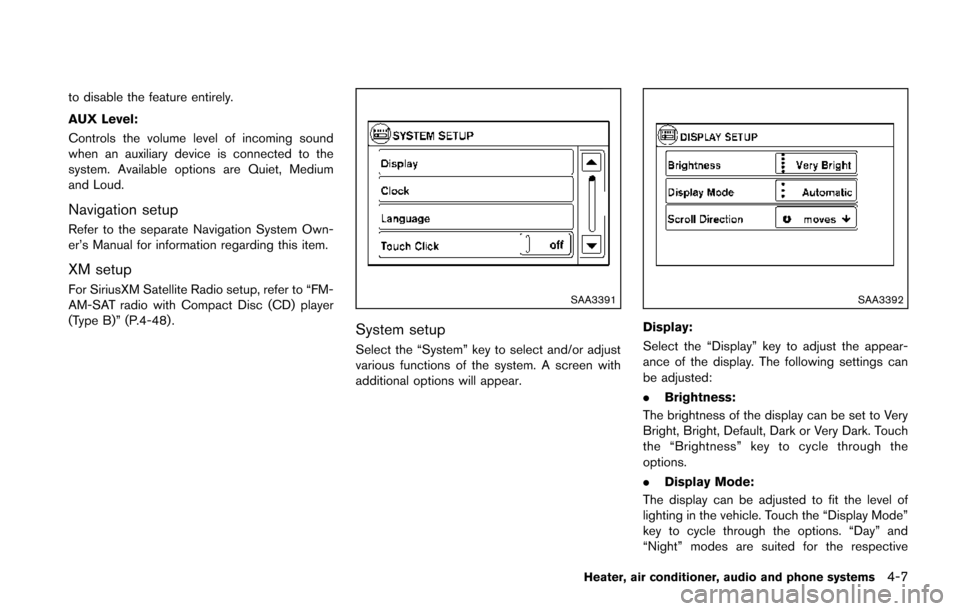
(Type B)” (P.4-48).SAA3391
System setup
Select the “System” key to select and/or adjust
various functions of the system. A screen with
additional options will appear.
SAA3392
Display:
Select the “Display” key to adjust the appear-
ance of the display. The following settings can
be adjusted:
.Brightness:
The brightness of the display can be set to Very
Bright, Bright, Default, Dark or Very Dark. Touch
the “Brightness” key to cycle through the
options.
. Display Mode:
The display can be adjusted to fit the level of
lighting in the vehicle. Touch the “Display Mode”
key to cycle through the options. “Day” and
“Night” modes are suited for the respective
Heater, air conditioner, audio and phone systems4-7
Page 163 of 402
4-8Heater, air conditioner, audio and phone systems
times of day, while “Automatic” controls the
display automatically.
.Scroll Direction:
The direction that menus scroll can be adjusted.
Choose either “up” or “down”.
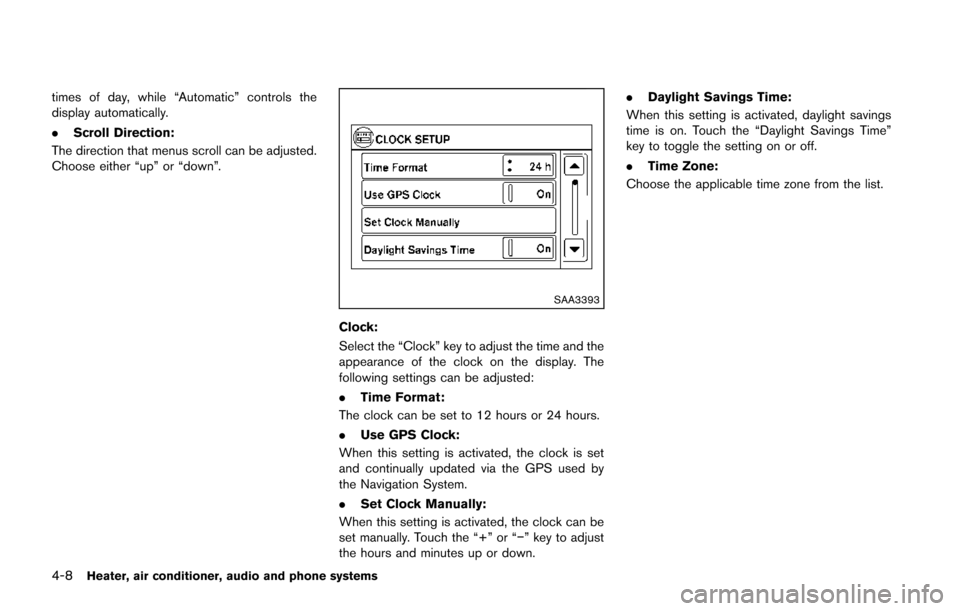
SAA3393
Clock:
Select the “Clock” key to adjust the time and the
appearance of the clock on the display. The
following settings can be adjusted:
. Time Format:
The clock can be set to 12 hours or 24 hours.
. Use GPS Clock:
When this setting is activated, the clock is set
and continually updated via the GPS used by
the Navigation System.
. Set Clock Manually:
When this setting is activated, the clock can be
set manually. Touch the “+” or “−” key to adjust
the hours and minutes up or down. .
Daylight Savings Time:
When this setting is activated, daylight savings
time is on. Touch the “Daylight Savings Time”
key to toggle the setting on or off.
. Time Zone:
Choose the applicable time zone from the list.
Page 165 of 402
4-10Heater, air conditioner, audio and phone systems
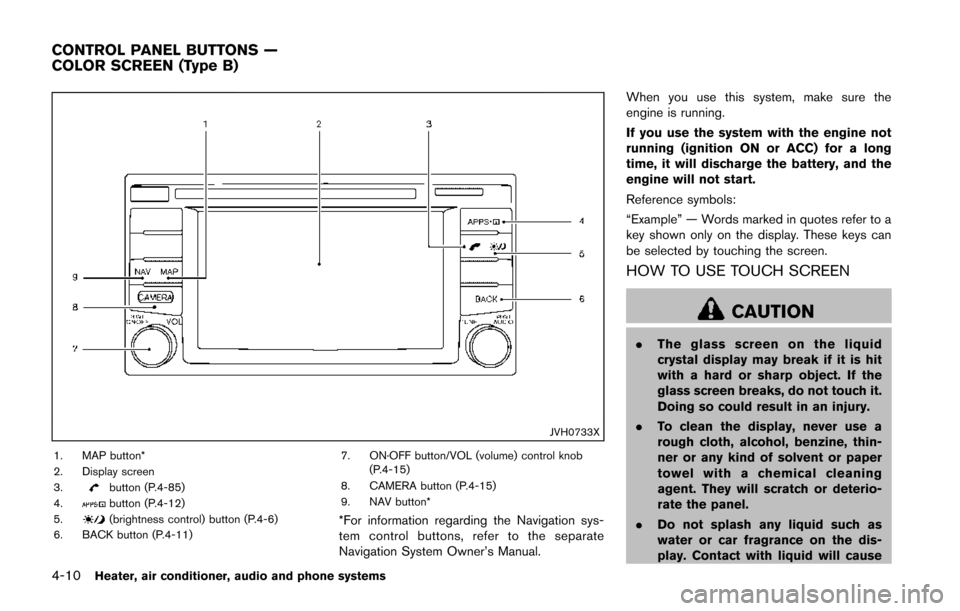
JVH0733X
1. MAP button*
2. Display screen
3.
button (P.4-85)
4.button (P.4-12)
5.(brightness control) button (P.4-6)
6. BACK button (P.4-11) 7. ON·OFF button/VOL (volume) control knob
(P.4-15)
8. CAMERA button (P.4-15)
9. NAV button**For information regarding the Navigation sys-
tem control buttons, refer to the separate
Navigation System Owner’s Manual. When you use this system, make sure the
engine is running.
If you use the system with the engine not
running (ignition ON or ACC) for a long
time, it will discharge the battery, and the
engine will not start.
Reference symbols:
“Example” — Words marked in quotes refer to a
key shown only on the display. These keys can
be selected by touching the screen.
HOW TO USE TOUCH SCREEN
CAUTION
.
The glass screen on the liquid
crystal display may break if it is hit
with a hard or sharp object. If the
glass screen breaks, do not touch it.
Doing so could result in an injury.
. To clean the display, never use a
rough cloth, alcohol, benzine, thin-
ner or any kind of solvent or paper
towel with a chemical cleaning
agent. They will scratch or deterio-
rate the panel.
. Do not splash any liquid such as
water or car fragrance on the dis-
play. Contact with liquid will cause
CONTROL PANEL BUTTONS —
COLOR SCREEN (Type B)
Page 166 of 402
the system to malfunction.
To help ensure safe driving, some functions
cannot be operated while driving.
The on-screen functions that are not available
while driving will be “grayed out” or muted.
Park the vehicle in a safe location and then
operate the navigation system.
WARNING
. ALWAYS give your full attention to
driving.
. Avoid using vehicle features that
could distract you. If distracted,
you could lose control of your
vehicle and cause an accident.JVH0734X
Touch screen operation
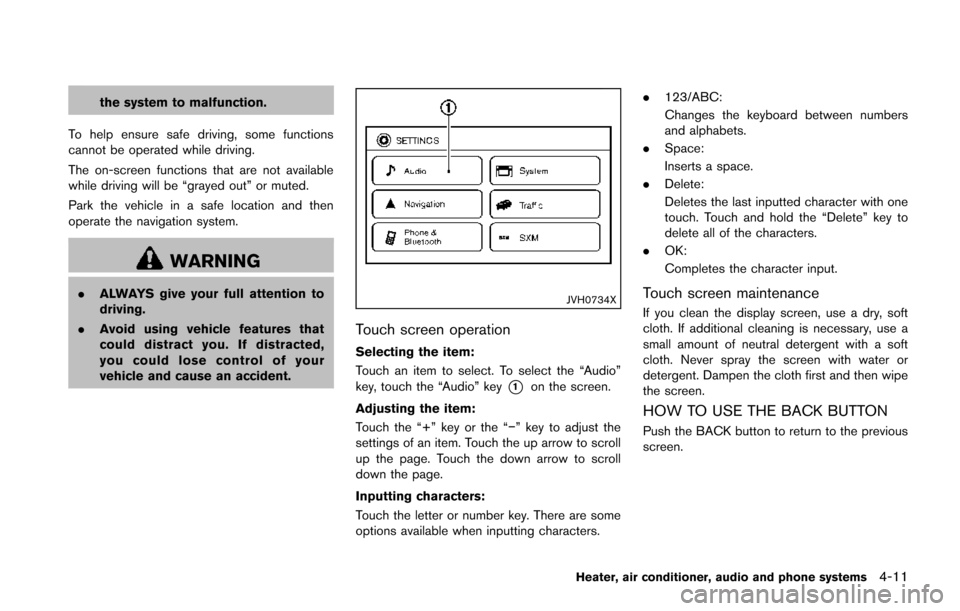
Selecting the item:
Touch an item to select. To select the “Audio”
key, touch the “Audio” key
*1on the screen.
Adjusting the item:
Touch the “+” key or the “−” key to adjust the
settings of an item. Touch the up arrow to scroll
up the page. Touch the down arrow to scroll
down the page.
Inputting characters:
Touch the letter or number key. There are some
options available when inputting characters. .
123/ABC:
Changes the keyboard between numbers
and alphabets.
. Space:
Inserts a space.
. Delete:
Deletes the last inputted character with one
touch. Touch and hold the “Delete” key to
delete all of the characters.
. OK:
Completes the character input.
Touch screen maintenance
If you clean the display screen, use a dry, soft
cloth. If additional cleaning is necessary, use a
small amount of neutral detergent with a soft
cloth. Never spray the screen with water or
detergent. Dampen the cloth first and then wipe
the screen.
HOW TO USE THE BACK BUTTON
Push the BACK button to return to the previous
screen.
Heater, air conditioner, audio and phone systems4-11
Page 168 of 402
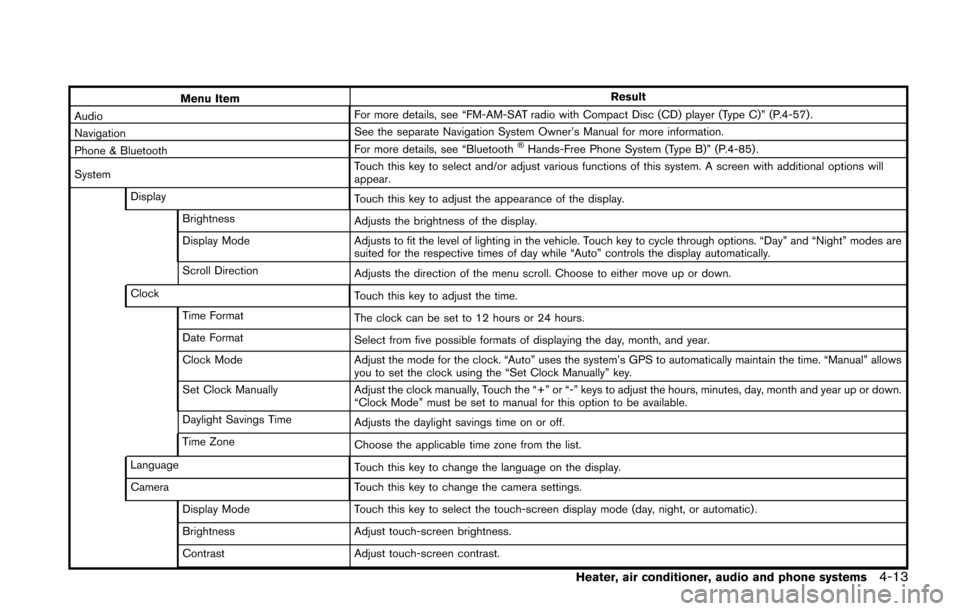
Menu ItemResult
Audio For more details, see “FM-AM-SAT radio with Compact Disc (CD) player (Type C)” (P.4-57) .
Navigation See the separate Navigation System Owner’s Manual for more information.
Phone & Bluetooth For more details, see “Bluetooth
®Hands-Free Phone System (Type B)” (P.4-85) .
System Touch this key to select and/or adjust various functions of this system. A screen with additional options will
appear.
Display Touch this key to adjust the appearance of the display.
Brightness Adjusts the brightness of the display.
Display Mode Adjusts to fit the level of lighting in the vehicle. Touch key to cycle through options. “Day” and “Night” modes are
suited for the respective times of day while “Auto” controls the display automatically.
Scroll Direction Adjusts the direction of the menu scroll. Choose to either move up or down.
Clock Touch this key to adjust the time.
Time Format The clock can be set to 12 hours or 24 hours.
Date Format Select from five possible formats of displaying the day, month, and year.
Clock Mode Adjust the mode for the clock. “Auto” uses the system’s GPS to automatically maintain the time. “Manual” allows
you to set the clock using the “Set Clock Manually” key.
Set Clock Manually Adjust the clock manually, Touch the “+” or “-” keys to adjust the hours, minutes, day, month and year up or down.
“Clock Mode” must be set to manual for this option to be available.
Daylight Savings Time Adjusts the daylight savings time on or off.
Time Zone Choose the applicable time zone from the list.
Language Touch this key to change the language on the display.
Camera Touch this key to change the camera settings.
Display Mode Touch this key to select the touch-screen display mode (day, night, or automatic) .
Brightness Adjust touch-screen brightness.
Contrast Adjust touch-screen contrast.
Heater, air conditioner, audio and phone systems4-13
Page 169 of 402
4-14Heater, air conditioner, audio and phone systems
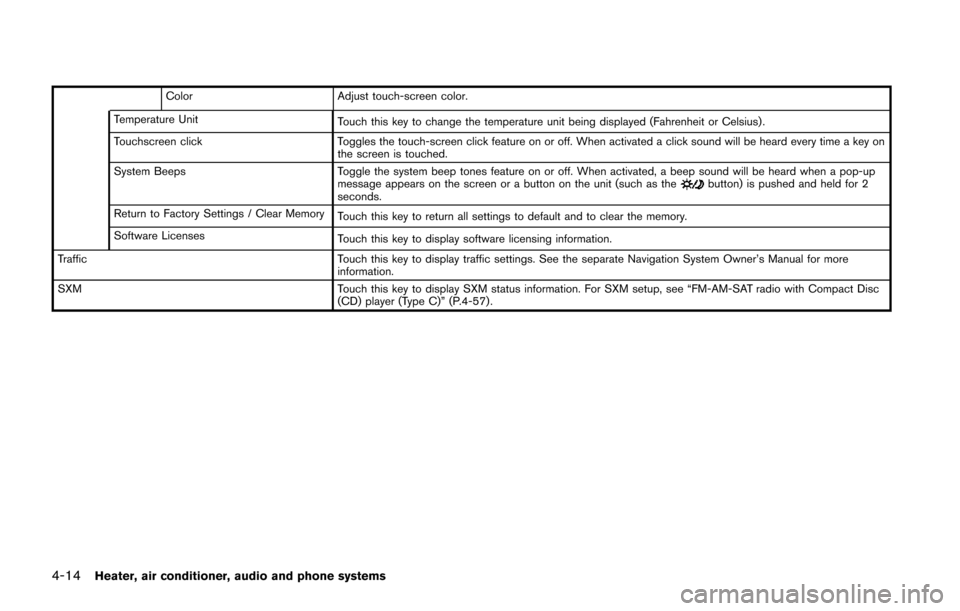
ColorAdjust touch-screen color.
Temperature Unit Touch this key to change the temperature unit being displayed (Fahrenheit or Celsius) .
Touchscreen click Toggles the touch-screen click feature on or off. When activated a click sound will be heard every time a key on
the screen is touched.
System Beeps Toggle the system beep tones feature on or off. When activated, a beep sound will be heard when a pop-up
message appears on the screen or a button on the unit (such as the
button) is pushed and held for 2
seconds.
Return to Factory Settings / Clear Memory Touch this key to return all settings to default and to clear the memory.
Software Licenses Touch this key to display software licensing information.
Traffic Touch this key to display traffic settings. See the separate Navigation System Owner’s Manual for more
information.
SXM Touch this key to display SXM status information. For SXM setup, see “FM-AM-SAT radio with Compact Disc
(CD) player (Type C)” (P.4-57) .