2014 MERCEDES-BENZ B-CLASS SPORTS audio
[x] Cancel search: audioPage 183 of 360
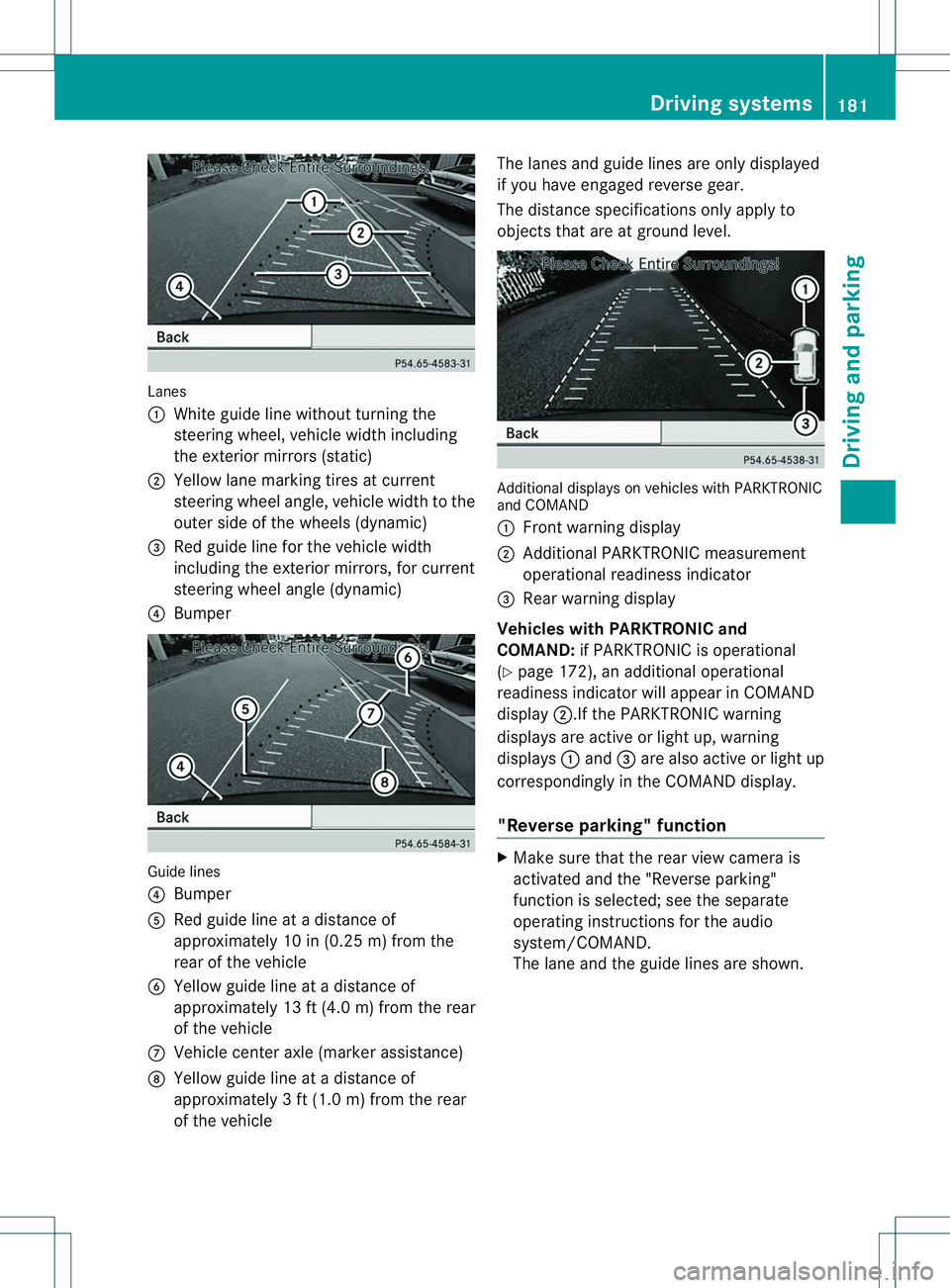
Lanes
001A
White guide line withou tturning the
steering wheel ,vehicl ewidthincluding
th ee xter iorm irror s(static)
0010 Yello wlane markin gtires at current
steering wheel angle, vehicl ewidthtot he
outer side of th ewheel s(dynamic)
0023 Red guide lin efor th evehicl ewidth
includin gthe exterio rmirrors, for current
steering wheel angle (dynamic)
0021 Bumper Guide lines
0021
Bumper
001E Red guide lin eatadistanceof
approximately 10 in (0.25 m) from the
rear of th evehicle
0024 Yellow guide lin eatadistanceof
approximately 13 ft (4.0 m) from the rear
of the vehicle
0007 Vehicle center axle (marker assistance)
0008 Yellow guide line at adistance of
approximately 3ft(1.0 m) from the rear
of the vehicle The lanes and guide line
sare only displayed
if you have engaged reverse gear.
The distance specifications only apply to
objects that are at ground level. Additional display
sonvehicles with PARKTRONIC
and COMAND
001A Front warning display
0010 Additional PARKTRONIC measurement
operational readiness indicator
0023 Rea rwarning display
Vehicles with PARKTRONIC and
COMAND: if PARKTRONIC is operational
(Y page 172), an additional operational
readiness indicator will appear in COMAND
display 0010.Ifthe PARKTRONIC warning
displays are active or light up, warning
displays 001Aand 0023are also active or light up
correspondingly in th eCOMAND display.
"Reverse parking" function X
Mak esure that th erear view camera is
activated and th e"Reverse parking"
function is selected; see th eseparate
operatin ginstruction sfor th eaudio
system/COMAND.
The lane and th eguide lines are shown. Driving systems
181Driving and parking Z
Page 194 of 360
Left control panel
000A
0004 R
Calls up th emenua nd men ubar 0006
0005
Press briefly:
R
Scrolls in lists
R Select sasubmenu or function
R In the Audio menu: selects a
stored station, an audio track or
av ideo scene
R In the Tel (telephone) menu:
switche stothephon ebook and
selects anam eort elephone
number 0006
0005
Press and hold:
R
In the Audio menu: selects the
previous/nex tstation or selects
an audi otrack or avideo scene
using rapi dscrolling
R In the Tel (Telephone) menu,
starts rapi dscrolling throug hthe
phone book 000C R
Confirms aselect ion/display
message
R In the Tel (telephone
)menu:
switches to the telephone book
and starts dialing the selected
number
R In the Audio menu
:stops the
statio nsearch functio natthe
desired station Right contro
lpanel 0008 R
Rejects or end sacall
R Exits phone book/redial
memory 0006 R
Makes or accepts acall
R Switche stothe redia lmemory 0008
0009 R
Adjusts the volume 0001 R
Mute Bac
kbutton 0002
Press briefly:
R
Back
R Switche soff the Voice Control
System; se ethe separate
operating instructions
R Hides displa ymessages/calls
up the last Trip menu function
used
R Exits the telephone book/redial
memory 0002
Press and hold:
R
Call supthe standard displa yin
the Trip menu
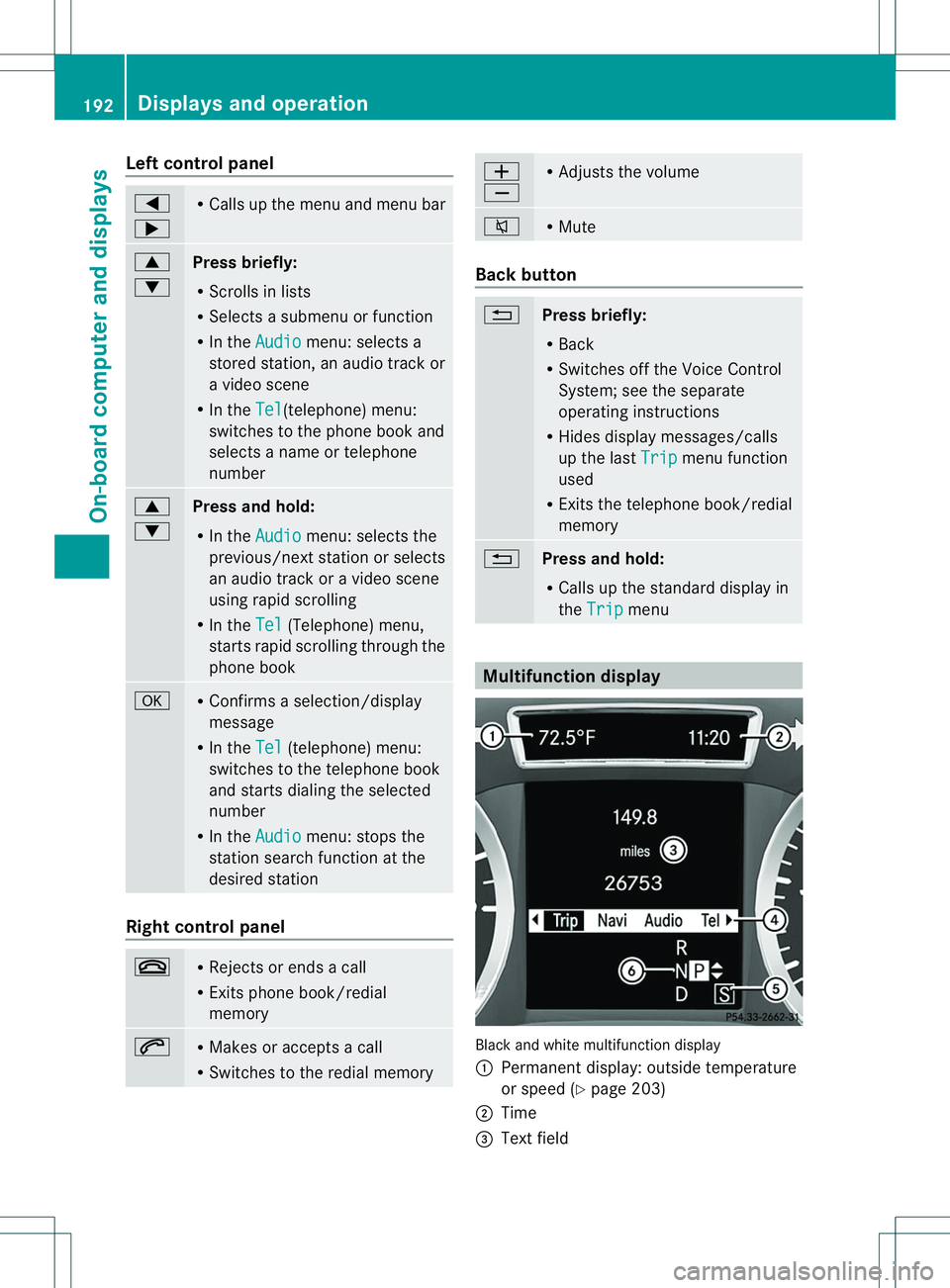
Multifunctio
ndisplay Black and white multifunction display
001A
Permanent display: outside temperature
or spee d(Ypage 203)
0010 Time
0023 Text field 192
Displays an
doperationOn-boa rdcompu tera nd displays
Page 195 of 360
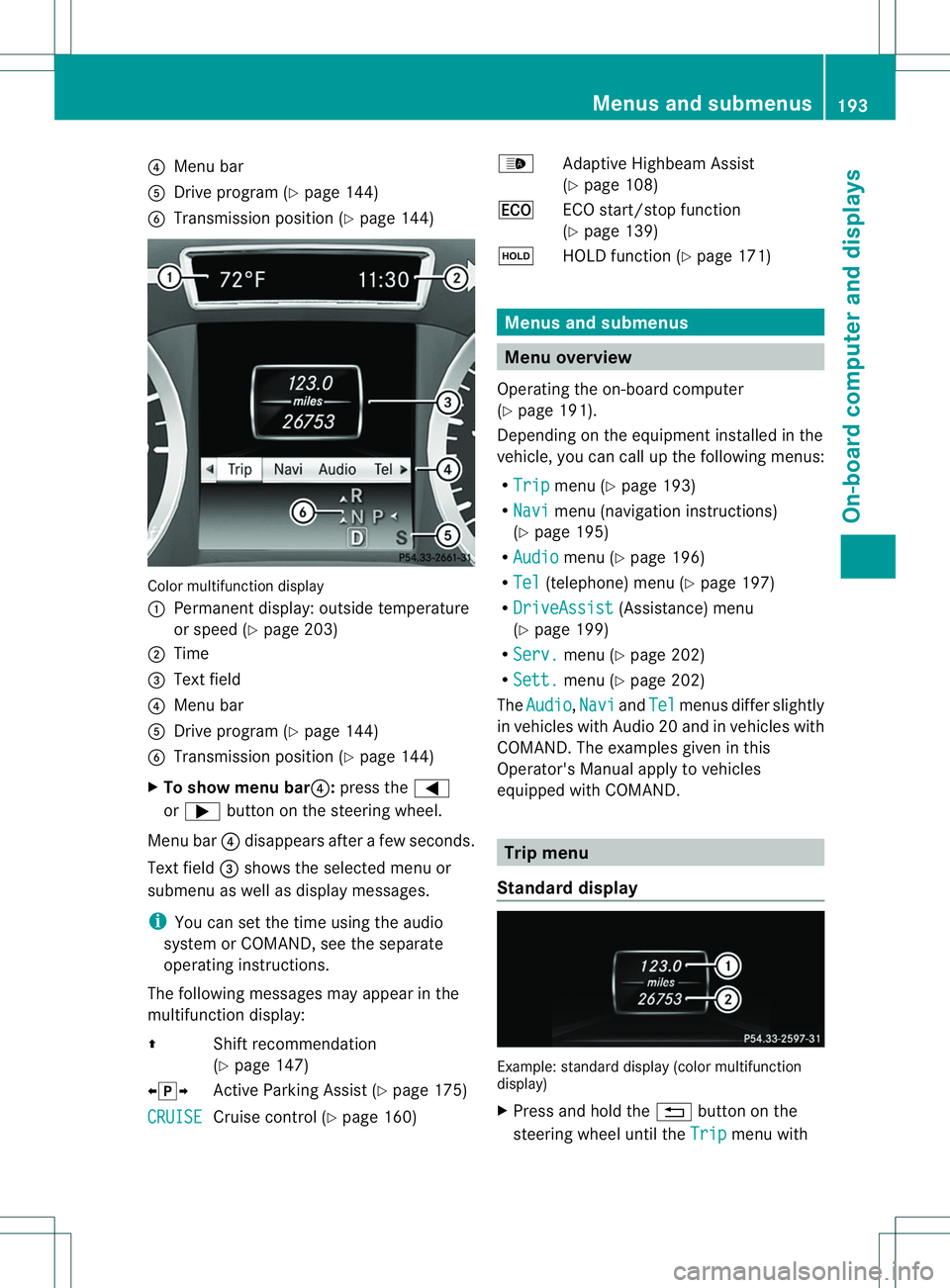
0021
Menu bar
001E Drive program (Y page 144)
0024 Transmission position (Y page 144)Color multifunction display
001A
Permanent display: outside temperature
or speed (Y page 203)
0010 Time
0023 Text field
0021 Menu bar
001E Drive program (Y page 144)
0024 Transmission position (Y page 144)
X To show menu bar0021: press the000A
or 0004 button on the steering wheel.
Menu bar 0021disappears after afew seconds.
Text field 0023shows the selected menu or
submenu as well as displaym essages.
i You can set the time using the audio
system or COMAND, see the separate
operating instructions.
The following messages may appearint he
multifunction display:
000A Shift recommendation
(Ypage 147)
000300060009 Active Parking Assist (Y page 175)
CRUISE Cruise control (Y
page 160) 000C
Adaptive Highbeam Assist
(Y page 108)
000C ECO start/stop function
(Ypage 139)
0005 HOLD function (Y page 171) Menus and submenus
Menu overview
Operating the on-board computer
(Y page 191).
Depending on the equipment installed in the
vehicle, you can call up the following menus:
R Trip menu (Y
page 193)
R Navi menu (navigation instructions)
(Y page 195)
R Audio menu (Y
page 196)
R Tel (telephone) menu (Y
page 197)
R DriveAssist (Assistance) menu
(Y page 199)
R Serv. menu (Y
page 202)
R Sett. menu (Y
page 202)
The Audio ,
Navi and
Tel menus differ slightly
in vehicles with Audio 20 and in vehicles with
COMAND. The examples given in this
Operator's Manual apply to vehicles
equipped with COMAND. Trip menu
Standard display Example: standard display (color multifunction
display)
X
Press and hold the 0002button on the
steering wheel until the Trip menu withMenus and submenus
193On-board computer and displays Z
Page 197 of 360
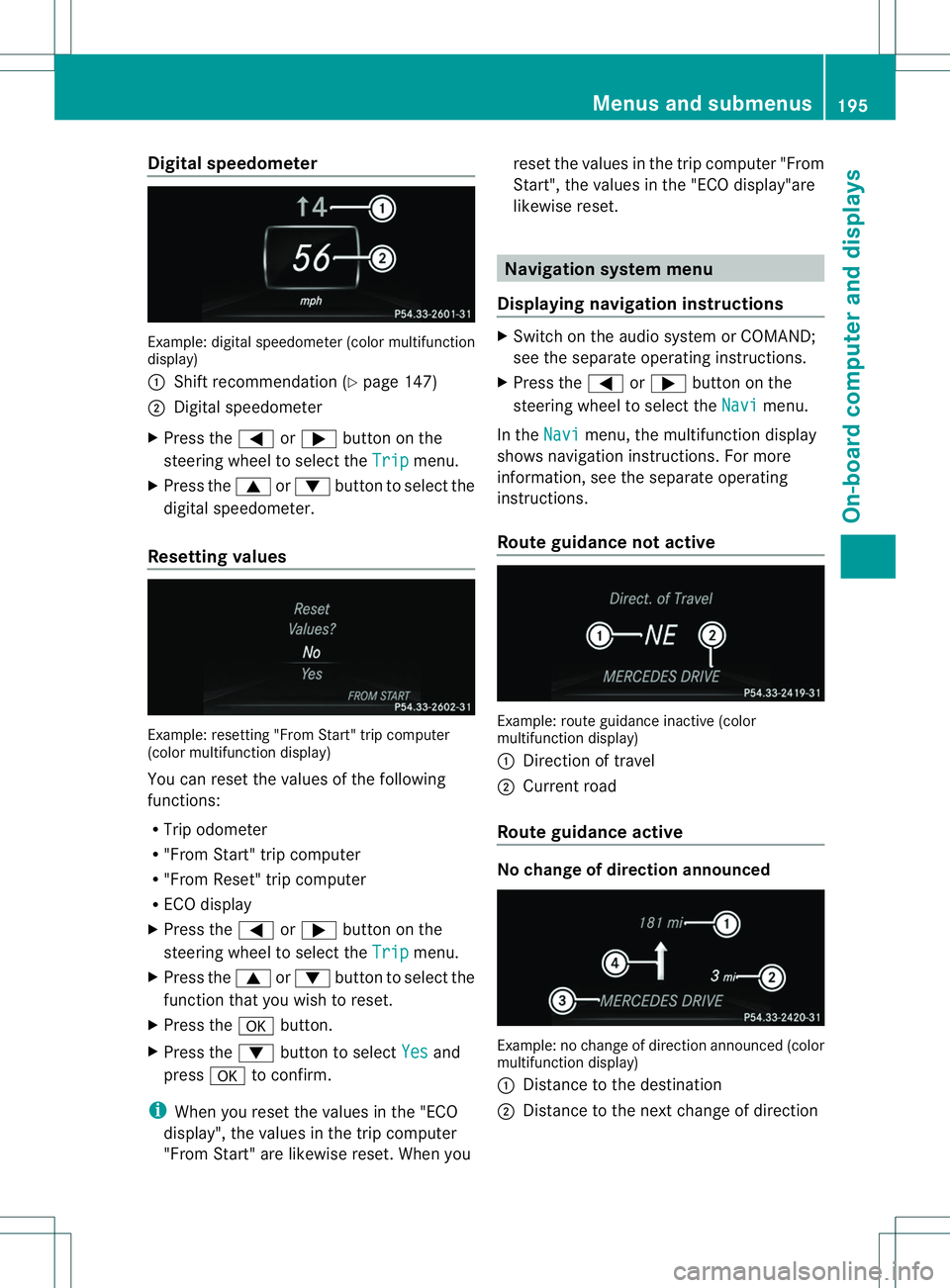
Digital speedometer
Example: digita
lspeedometer (colo rmultifunction
display)
001A Shift recommendatio n(Ypage 147)
0010 Digital speedometer
X Pres sthe 000A or0004 button on the
steering wheel to selec tthe Trip menu.
X Press the 0006or0005 button to select the
digital speedometer.
Resetting values Example: resetting"
From Start"trip computer
(color multifunction display)
You can reset the values of the following
functions:
R Trip odometer
R "From Start"t rip computer
R "From Reset" trip computer
R ECO display
X Press the 000Aor0004 button on the
steering wheel to select the Trip menu.
X Press the 0006or0005 button to select the
function that you wish to reset.
X Press the 000Cbutton.
X Press the 0005button to select Yes and
press 000Cto confirm.
i When you reset the values in the "ECO
display", the values in the trip computer
"From Start"a re likewise reset. When you reset the values in the trip computer "From
Start", the values in the "ECO display"are
likewise reset. Navigation system menu
Displaying navigation instructions X
Switch on the audios ystem or COMAND;
see the separate operating instructions.
X Press the 000Aor0004 button on the
steering wheel to select the Navi menu.
In the Navi menu, the multifunction display
shows navigation instructions. For more
information ,see the separate operating
instructions.
Route guidance not active Example: route guidance inactive (color
multifunction display)
001A
Direction of travel
0010 Current road
Route guidance active No change of direction announced
Example: no change of direction announced (color
multifunction display)
001A
Distancetot he destination
0010 Distancetot he next change of direction Menus and submenus
195On-board computer and displays Z
Page 198 of 360
0023
Curren troad
0021 "Follow th eroad's course "symbol
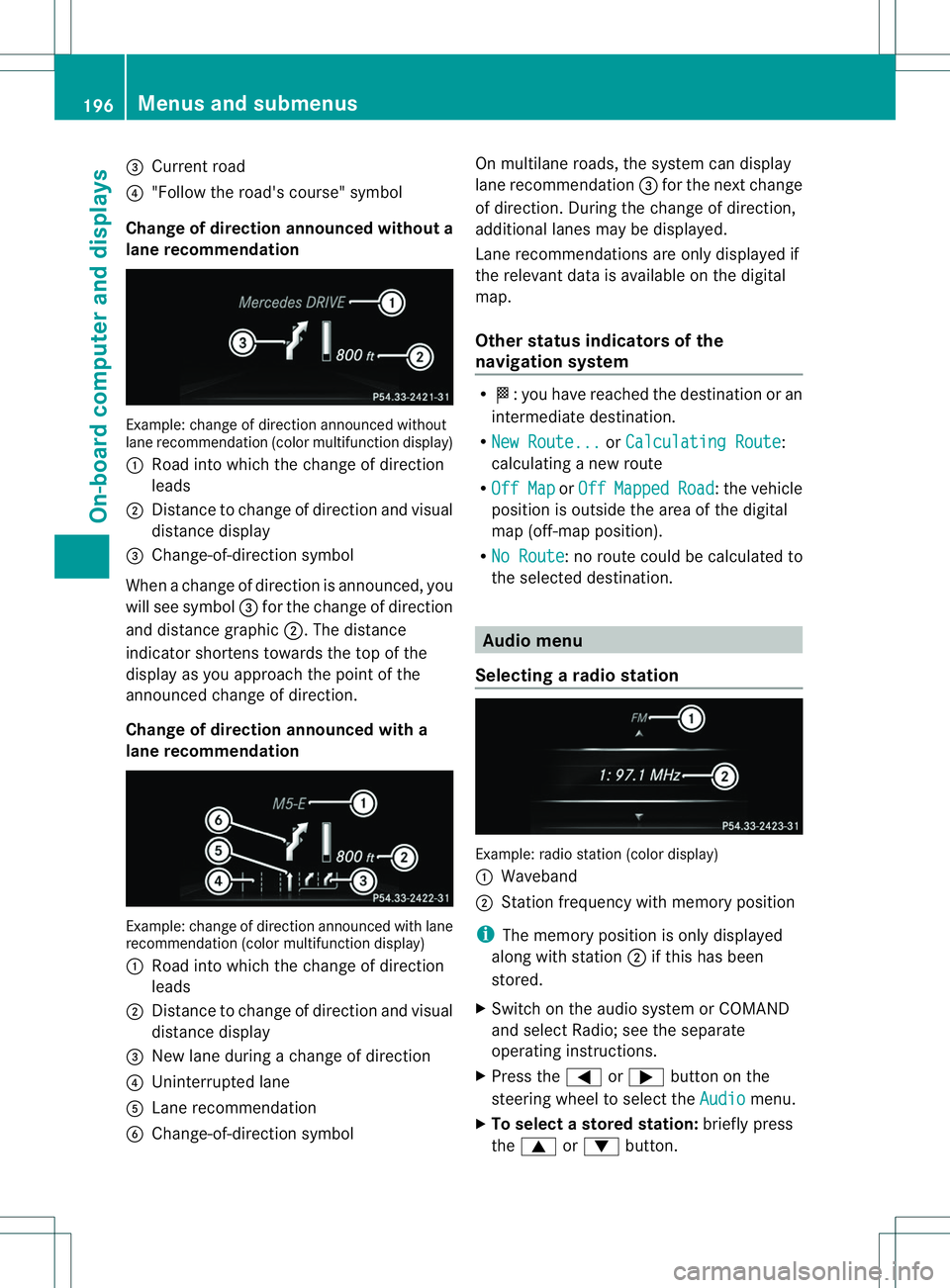
Change of direction announced withou ta
lane recommendation Example: change of direction announced without
lane recommendation (color multifunction display)
001A Road int owhich the change of direction
leads
0010 Distanc etochange of direction and visual
distance display
0023 Change-of-direction symbol
When achange of direction is announced, you
will see symbol 0023for the change of direction
and distance graphic 0010.The distance
indicator shortenst owards the top of the
displayasy ou approach the point of the
announced change of direction.
Change of direction announced with a
lane recommendation Example: change of direction announced with lane
recommendation (color multifunction display)
001A Road into which the change of direction
leads
0010 Distancetoc hange of direction and visual
distance display
0023 New lane during achange of direction
0021 Uninterrupted lane
001E Lane recommendation
0024 Change-of-direction symbol On multilane roads, the system can display
lane recommendation
0023for the next change
of direction. During the change of direction,
additional lanes may be displayed.
Lane recommendations are only displayed if
the relevant data is available on the digital
map.
Other status indicators of the
navigation system R
000D:y ou have reached the destination or an
intermediate destination.
R New Route... or
Calculating Route :
calculating anew route
R Off Map or
Off Mapped Road :t
he vehicle
position is outside the area of the digital
map (off-map position).
R No Route :nor
oute could be calculated to
the selected destination. Audio menu
Selecting aradio station Example: radi
ostatio n(colo rdisplay)
001A Waveband
0010 Station frequency with memory position
i The memory position is only displayed
along with station 0010if this has been
stored.
X Switch on the audio syste morCOMAND
and select Radio; see the separate
operating instructions.
X Press the 000Aor0004 button on the
steering wheel to select the Audio menu.
X To select astore dstation: brieflypress
the 0006 or0005 button. 196
Menus and submenusOn-board computer and displays
Page 199 of 360
X
To select astation from the station
list: press and briefl yholdt he 0006
or 0005 button.
If no statio nlist is received:
X To select astatio nusing the station
search: press and briefl yholdt he 0006
or 0005 button.
i For informatio nonchanging waveband
and storing stations, see the separate
operating instructions.
i SIRIUS XM satellite radi ofunctions like a
normal radio.
For mor einformatio nonsatelliteradio
operation, see th eseparate operating
instructions.
Operatin ganaudio player or audio
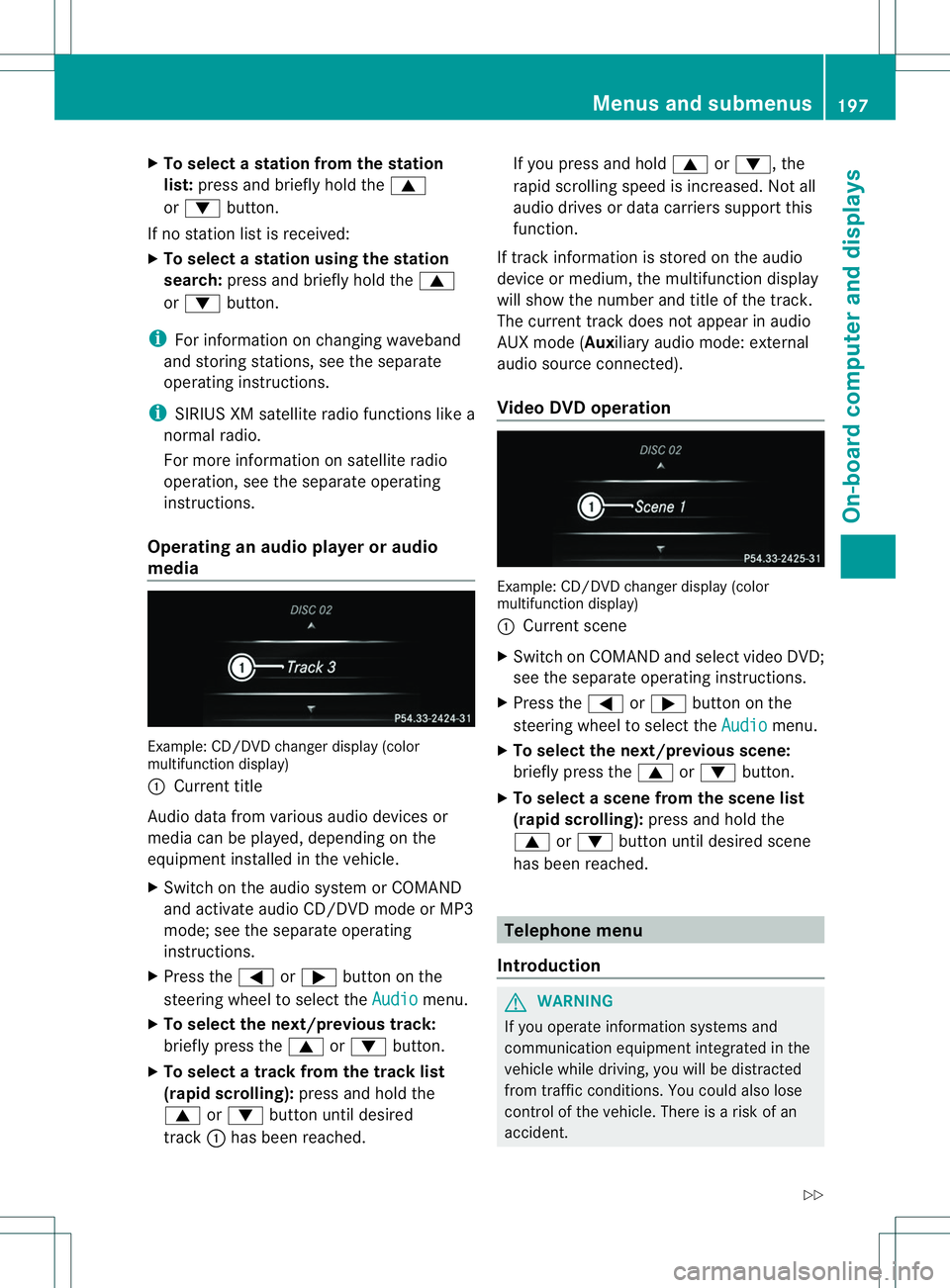
media Example
:CD/DVD change rdisplay (color
multifunction display)
001A Curren ttitle
Audio data from various audio devices or
media can be played, depending on the
equipmen tinstalled in the vehicle.
X Switch on the audi osystem or COMAND
and activate audi oCD/DV Dmode or MP3
mode; see the separate operating
instructions.
X Press the 000Aor0004 button on the
steerin gwheel to select the Audio menu.
X To select the next/previous track:
briefly press the 0006or0005 button.
X To select atrack from the track list
(rapid scrolling): press and hold the
0006 or0005 button until desired
track 001Ahas been reached. If you press and hold
0006or0005,t he
rapid scrolling speed is increased. Not all
audio drives or data carriers support this
function.
If track information is stored on the audio
device or medium, the multifunction display
will show the number and title of the track.
The current track does not appear in audio
AUX mode (Auxiliary audio mode: external
audio source connected).
Video DVD operation Example: CD/DVD changer display (color
multifunction display)
001A
Current scene
X Switch on COMAND and select video DVD;
see the separate operating instructions.
X Press the 000Aor0004 button on the
steerin gwheel to select the Audio menu.
X To select the next/previous scene:
briefly press the 0006or0005 button.
X To select ascene from th escene list
(rapid scrolling): press and hold the
0006 or0005 buttonuntil desired scene
ha sb eenr eached. Telephon
emenu
Introduction G
WARNING
If yo uoperate informatio nsystems and
communication equipmen tintegrated in the
vehicl ewhile driving, you will be distracted
from traffic conditions. You could also lose
control of th evehicle. There is ariskofan
accident. Menu
sand sub menus
197On-boardcomputer and displays
Z
Page 200 of 360
Only operate the equipment when the traffic
situation permits. If you are not sure that this
is possible,p ark the vehicle paying attention
to traffic conditions and operate the
equipment when the vehicle is stationary.
When telephoning, you must observe the
legal requirements for the country in which
you are currently driving.
X Switch on your mobile phone and audio
system or COMAND, see the separate
operating instructions.
X Establish aBluetooth ®
connection to the
audios ystem or COMAND; see the
separate operating instructions.
X Press the 000Aor0004 button on the
steering wheel to select the Tel menu.
You will see one of the following display
messages in the multifunction display:
R Phone READY or the name of the network
provider: the mobile phone has found a
network and is ready to receive.
R Telephone No Service :t
here is no
network available or the mobile phone is
searching for anetwork.
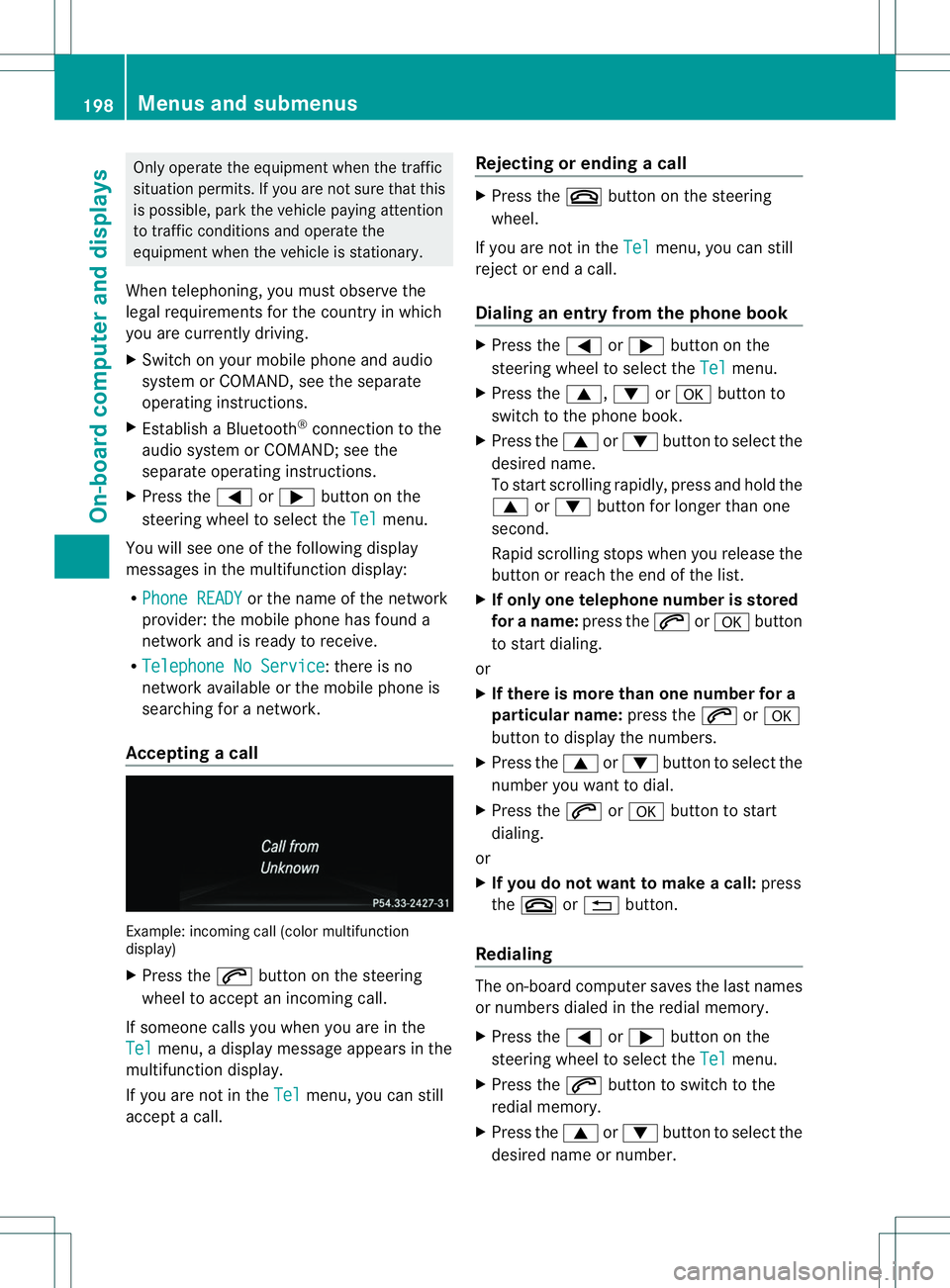
Accepting acall Example: incoming call (color multifunction
display)
X Press the 0006button on the steering
wheel to accep tanincoming call.
If someone calls yo uwheny ou areint he
Tel menu
,adisplay message appear sinthe
multifunctio ndisplay.
If you are not in the Tel menu, you can still
accept acall. Rejecting or ending
acall X
Press the 0008button on the steering
wheel.
If you are not in the Tel menu, you can still
reject or end acall.
Dialin gane ntry from the phone book X
Press the 000Aor0004 button on the
steering wheel to select the Tel menu.
X Press the 0006,0005or000C button to
switch to the phone book.
X Press the 0006or0005 button to select the
desired name.
To start scrolling rapidly, pres sand hol dthe
0006 or0005 button for longe rthan one
second.
Rapid scrolling stops whe nyou release the
button or reach the end of the list.
X If only one telephone number is stored
for aname: press the 0006or000C button
to start dialing.
or
X If thereism ore thanone number for a
particular name: press the0006or000C
button to display the numbers.
X Press the 0006or0005 button to select the
number you want to dial.
X Press the 0006or000C button to start
dialing.
or
X If you do not want to makeac all:press
the 0008 or0002 button.
Redialing The on-board computer saves the last names
or numbers dialed in the redial memory.
X
Press the 000Aor0004 button on the
steerin gwheel to select the Tel menu.
X Press the 0006button to switch to the
redial memory.
X Press the 0006or0005 button to select the
desired name or number. 198
Menus and submenusOn-board computer and displays
Page 254 of 360
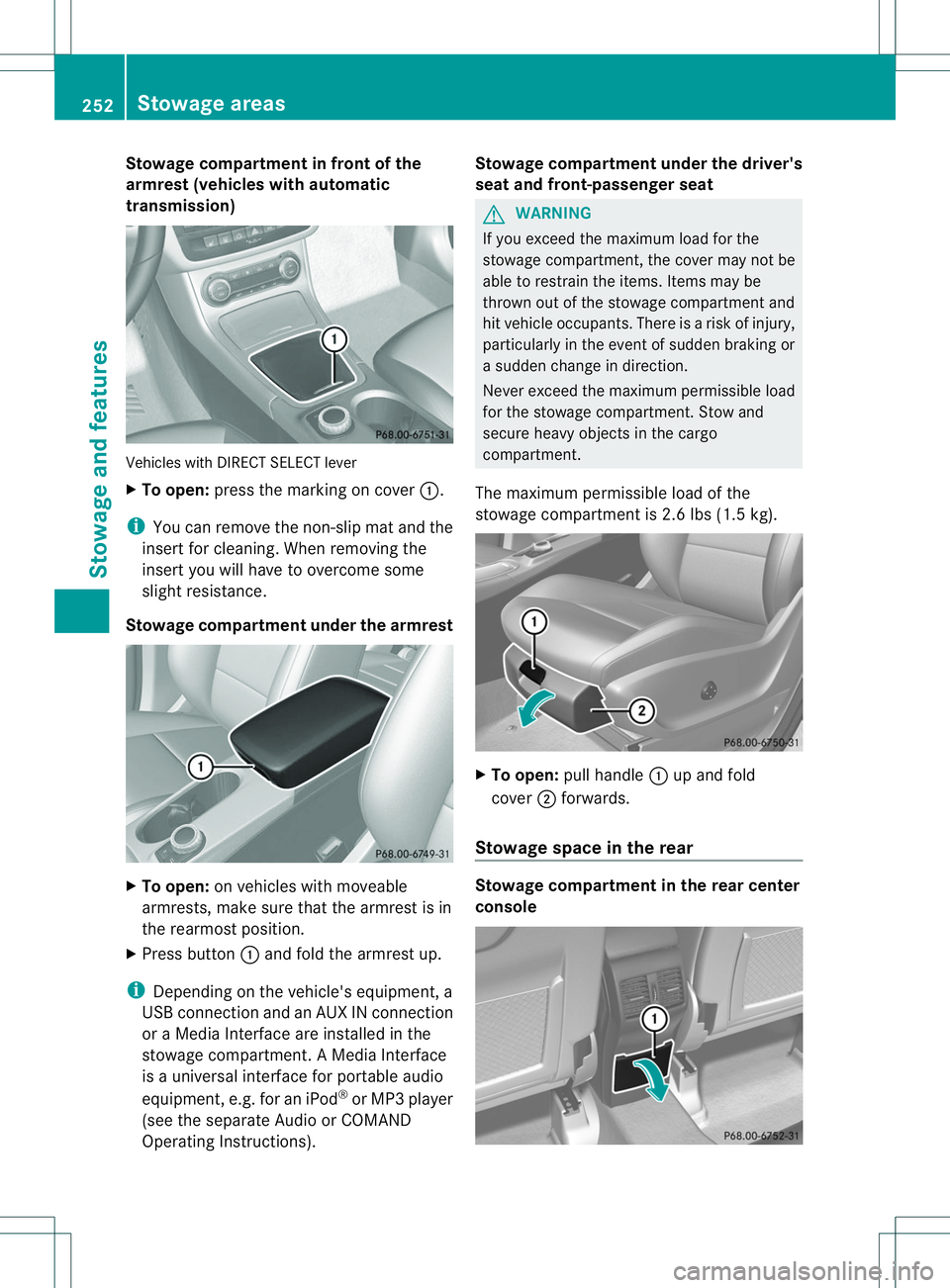
Stowage compartment in front of the
armrest (vehicles with automatic
transmission)
Vehicles with DIRECT SELECT lever
X
To open: press the marking on cover 001A.
i You can remove the non-slip mat and the
insert for cleaning. When removing the
insert you will have to overcome some
slight resistance.
Stowage compartment under the armrest X
To open: on vehicles with moveable
armrests, make sure that the armrest is in
the rearmost position.
X Press button 001Aand fold the armrest up.
i Depending on the vehicle's equipment, a
USB connection and an AUX IN connection
or aM edia Interface are installed in the
stowage compartment. AMedia Interface
is au niversal interface for portable audio
equipment, e.g. for an iPod ®
or MP3 player
(see the separate Audio or COMAND
Operating Instructions). Stowage compartment under the driver's
seat and front-passenger seat G
WARNING
If you exceed the maximum load for the
stowage compartment, the cover may not be
able to restrain the items. Items may be
thrown out of the stowage compartmen tand
hit vehicle occupants. There is arisk of injury,
particularly in the event of sudden braking or
as udden change in direction.
Never exceed the maximum permissible load
for the stowage compartment. Stow and
secure heavy objectsint he cargo
compartment.
The maximum permissible load of the
stowage compartmen tis2.6 lbs (1.5 kg). X
To open: pull handle 001Aup and fold
cover 0010forwards.
Stowage space in the rear Stowage compartment in the rear center
console252
Stowage areasStowage and features