Page 428 of 476
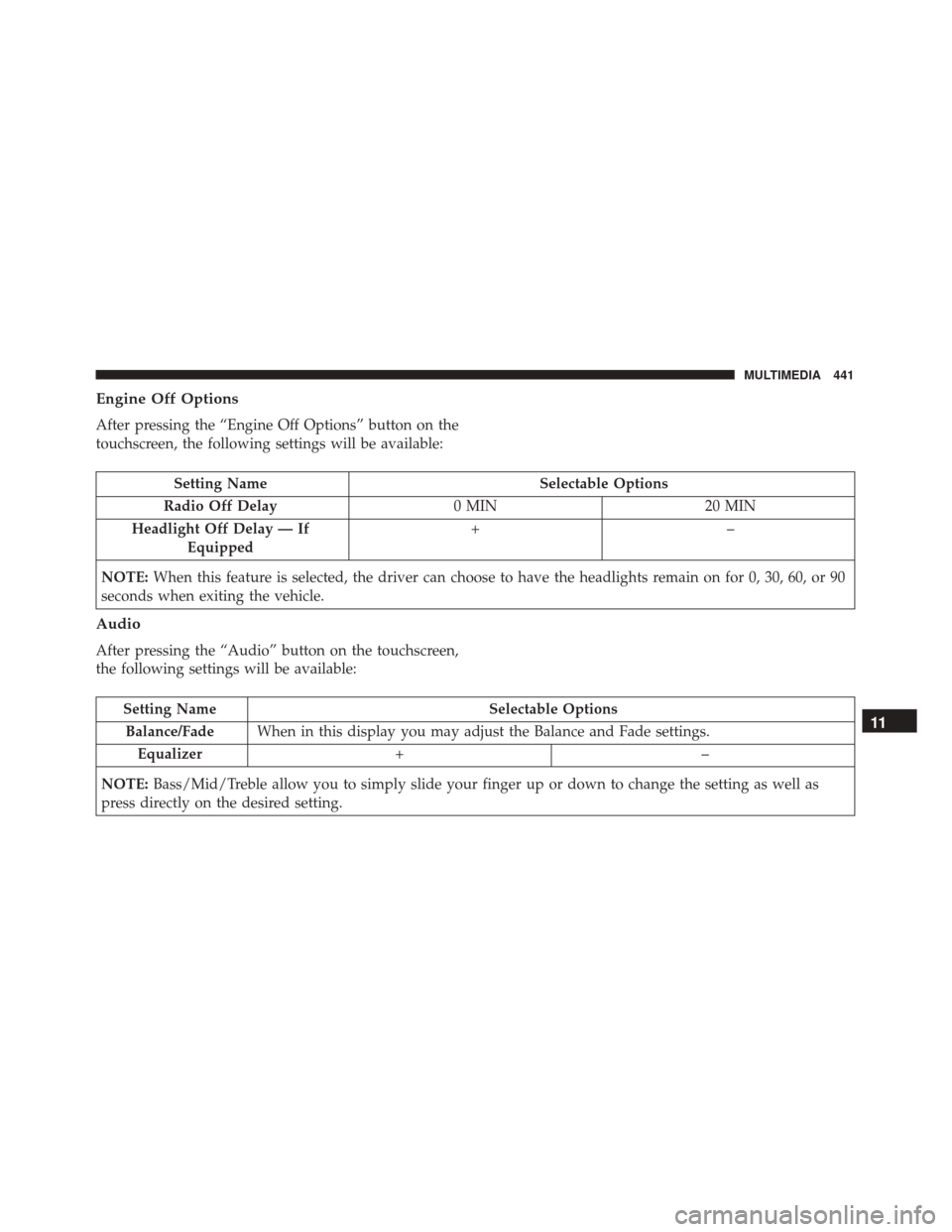
Audio
After pressing the “Audio” button on the touchscreen,
the following settings will be available:
Setting NameSelectable Options
Equalizer +–
NOTE: Bass/Mid/Treble allow you to simply slide your finger up or down to change the setting as well as
press directly on the desired setting.
Balance/Fade When in this display you may adjust the Balance and Fade settings.
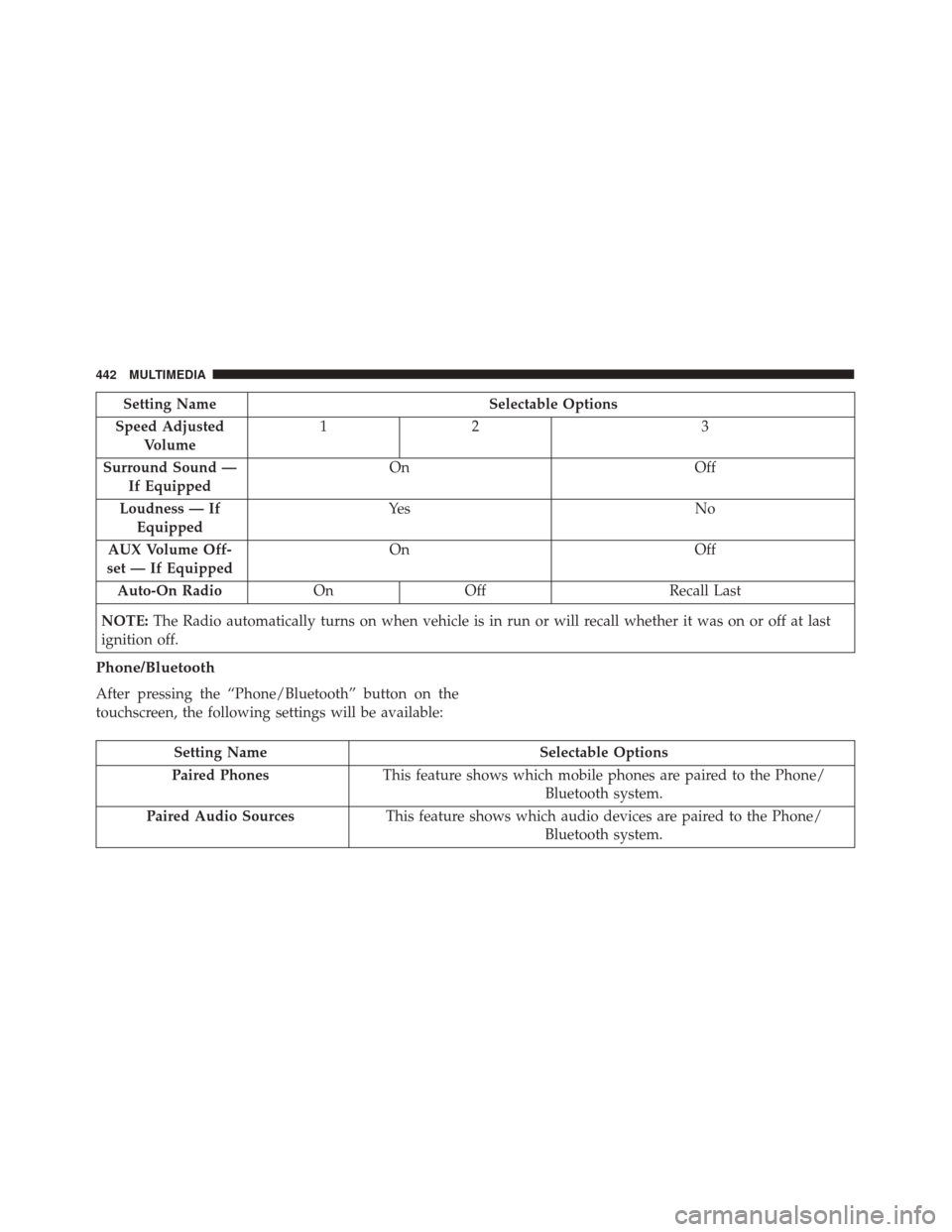
Speed Adjusted Volume 12
3
Surround Sound — If Equipped On
Off
Loudness — If Equipped Ye s
N o
AUX Volume Off-
set — If Equipped On
Off
Auto-On Radio OnOff Recall Last
NOTE: The Radio automatically turns on when vehicle is in run or will recall whether it was on or off at last
ignition off.
426 MULTIMEDIA
Page 432 of 476
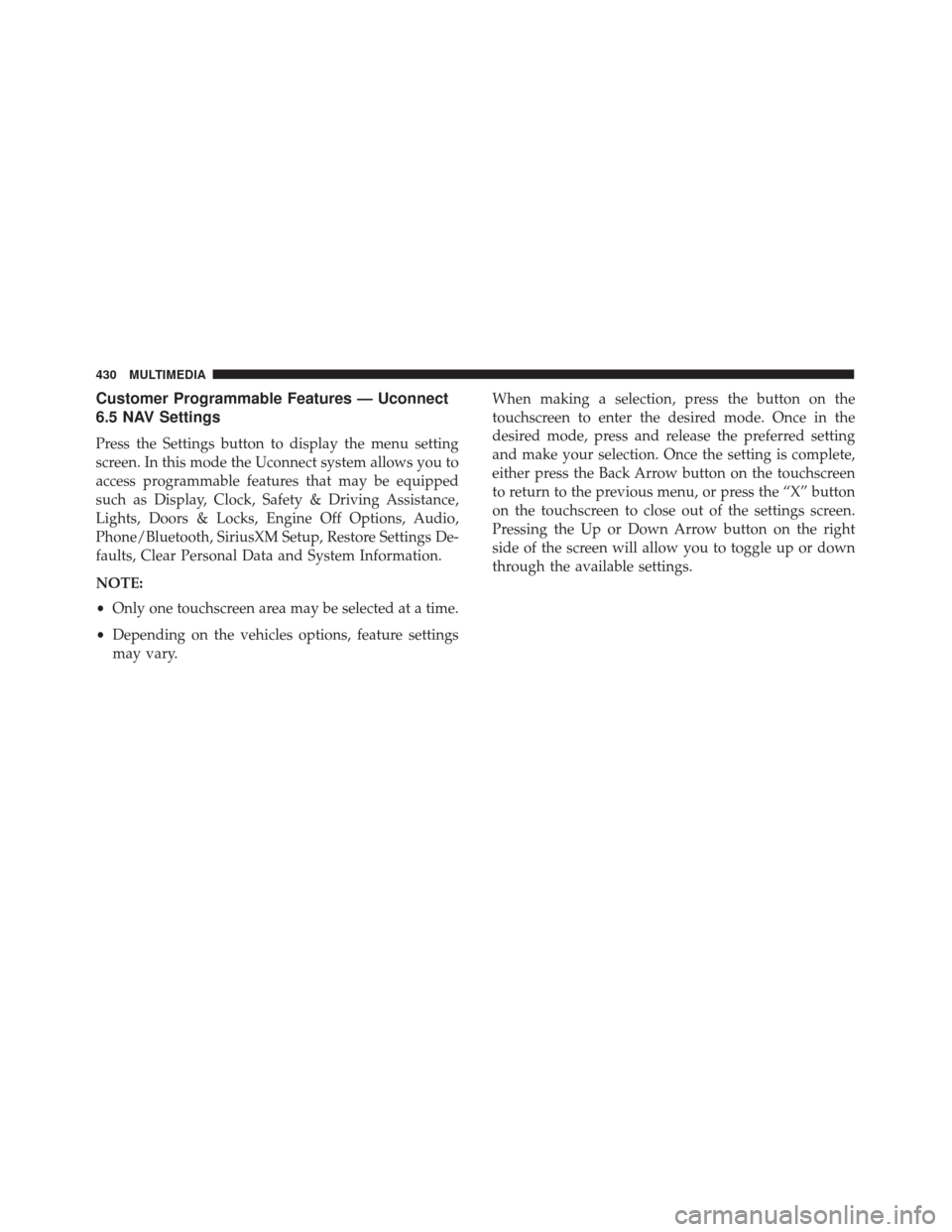
Customer Programmable Features — Uconnect
6.5 NAV Settings
Press the Settings button to display the menu setting
screen. In this mode the Uconnect system allows you to
access programmable features that may be equipped
such as Display, Clock, Safety & Driving Assistance,
Lights, Doors & Locks, Engine Off Options, Audio,
Phone/Bluetooth, SiriusXM Setup, Restore Settings De-
faults, Clear Personal Data and System Information.
NOTE:
•Only one touchscreen area may be selected at a time.
• Depending on the vehicles options, feature settings
may vary. When making a selection, press the button on the
touchscreen to enter the desired mode. Once in the
desired mode, press and release the preferred setting
and make your selection. Once the setting is complete,
either press the Back Arrow button on the touchscreen
to return to the previous menu, or press the “X” button
on the touchscreen to close out of the settings screen.
Pressing the Up or Down Arrow button on the right
side of the screen will allow you to toggle up or down
through the available settings.
430 MULTIMEDIA
Page 436 of 476
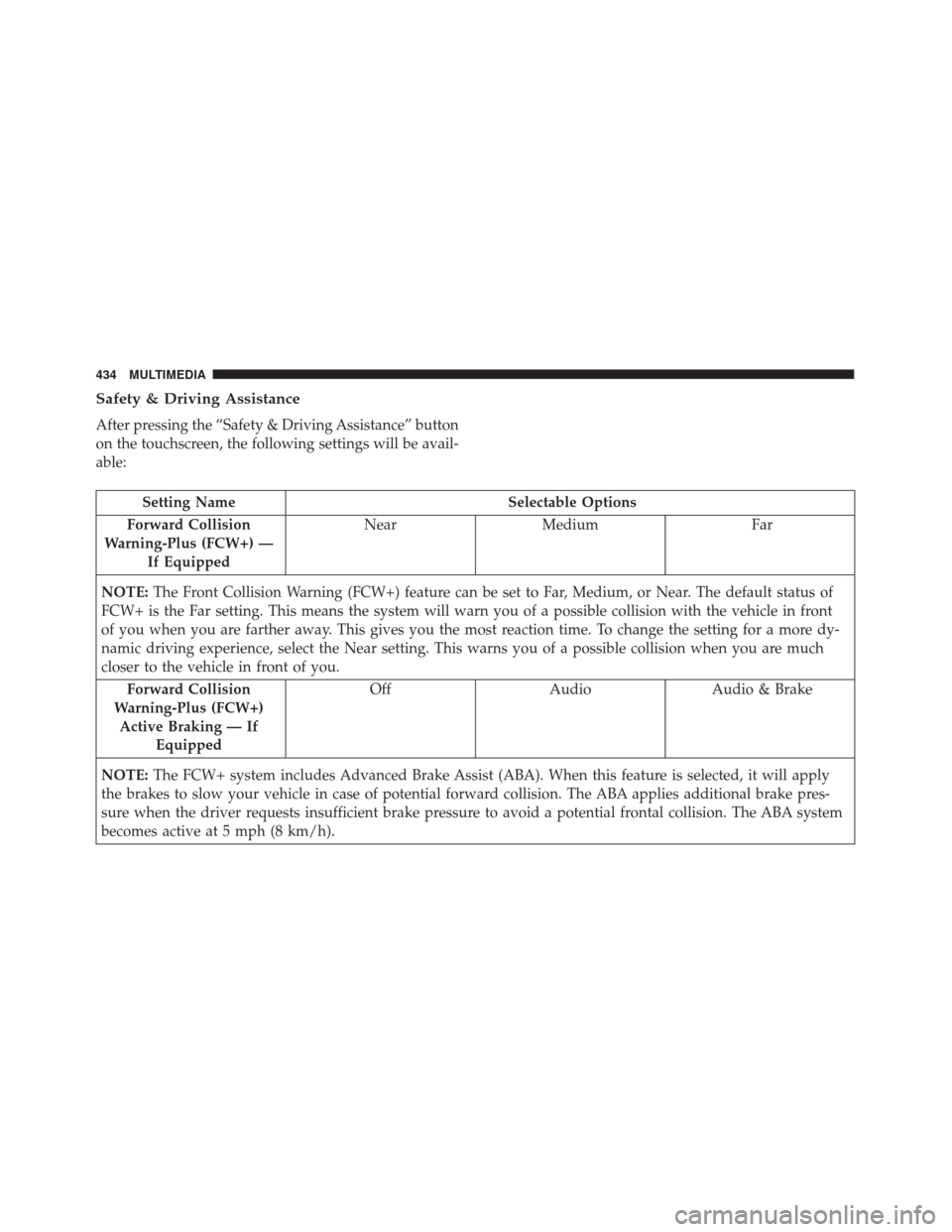
Safety & Driving Assistance
After pressing the “Safety & Driving Assistance” button
on the touchscreen, the following settings will be avail-
able:
Setting NameSelectable Options
Forward Collision
Warning-Plus (FCW+) — If Equipped Near
Medium Far
NOTE: The Front Collision Warning (FCW+) feature can be set to Far, Medium, or Near. The default status of
FCW+ is the Far setting. This means the system will warn you of a possible collision with the vehicle in front
of you when you are farther away. This gives you the most reaction time. To change the setting for a more dy-
namic driving experience, select the Near setting. This warns you of a possible collision when you are much
closer to the vehicle in front of you.
Forward Collision
Warning-Plus (FCW+) Active Braking — If Equipped Off
AudioAudio & Brake
NOTE: The FCW+ system includes Advanced Brake Assist (ABA). When this feature is selected, it will apply
the brakes to slow your vehicle in case of potential forward collision. The ABA applies additional brake pres-
sure when the driver requests insufficient brake pressure to avoid a potential frontal collision. The ABA system
becomes active at 5 mph (8 km/h).
434 MULTIMEDIA
Page 439 of 476
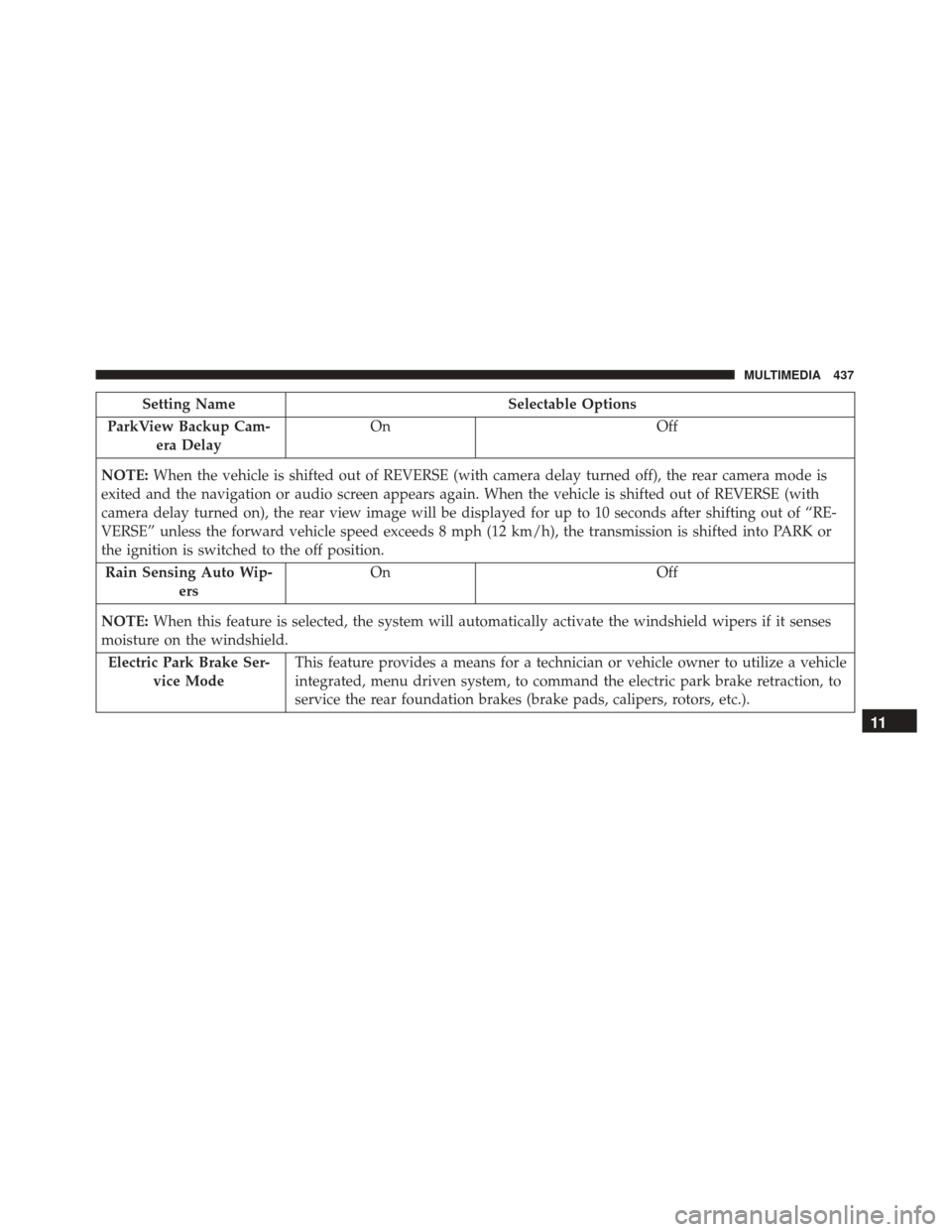
Setting NameSelectable Options
ParkView Backup Cam- era Delay On
Off
NOTE: When the vehicle is shifted out of REVERSE (with camera delay turned off), the rear camera mode is
exited and the navigation or audio screen appears again. When the vehicle is shifted out of REVERSE (with
camera delay turned on), the rear view image will be displayed for up to 10 seconds after shifting out of “RE-
VERSE” unless the forward vehicle speed exceeds 8 mph (12 km/h), the transmission is shifted into PARK or
the ignition is switched to the off position.
Rain Sensing Auto Wip- ers On
Off
NOTE: When this feature is selected, the system will automatically activate the windshield wipers if it senses
moisture on the windshield.
Electric Park Brake Ser- vice Mode This feature provides a means for a technician or vehicle owner to utilize a vehicle
integrated, menu driven system, to command the electric park brake retraction, to
service the rear foundation brakes (brake pads, calipers, rotors, etc.).
11
MULTIMEDIA 437
Page 443 of 476
Engine Off Options
After pressing the “Engine Off Options” button on the
touchscreen, the following settings will be available:
Setting NameSelectable Options
Radio Off Delay 0 MIN20 MIN
Headlight Off Delay — If Equipped +–
NOTE: When this feature is selected, the driver can choose to have the headlights remain on for 0, 30, 60, or 90
seconds when exiting the vehicle.
Audio
After pressing the “Audio” button on the touchscreen,
the following settings will be available:
Setting Name Selectable Options
Balance/Fade When in this display you may adjust the Balance and Fade settings.
Equalizer +–
NOTE: Bass/Mid/Treble allow you to simply slide your finger up or down to change the setting as well as
press directly on the desired setting.11
MULTIMEDIA 441
Page 444 of 476
Setting NameSelectable Options
Speed Adjusted Volume 12
3
Surround Sound — If Equipped On
Off
Loudness — If Equipped Ye s
N o
AUX Volume Off-
set — If Equipped On
Off
Auto-On Radio OnOff Recall Last
NOTE: The Radio automatically turns on when vehicle is in run or will recall whether it was on or off at last
ignition off.
Phone/Bluetooth
After pressing the “Phone/Bluetooth” button on the
touchscreen, the following settings will be available:
Setting Name Selectable Options
Paired Phones This feature shows which mobile phones are paired to the Phone/
Bluetooth system.
Paired Audio Sources This feature shows which audio devices are paired to the Phone/
Bluetooth system.
442 MULTIMEDIA
Page 446 of 476
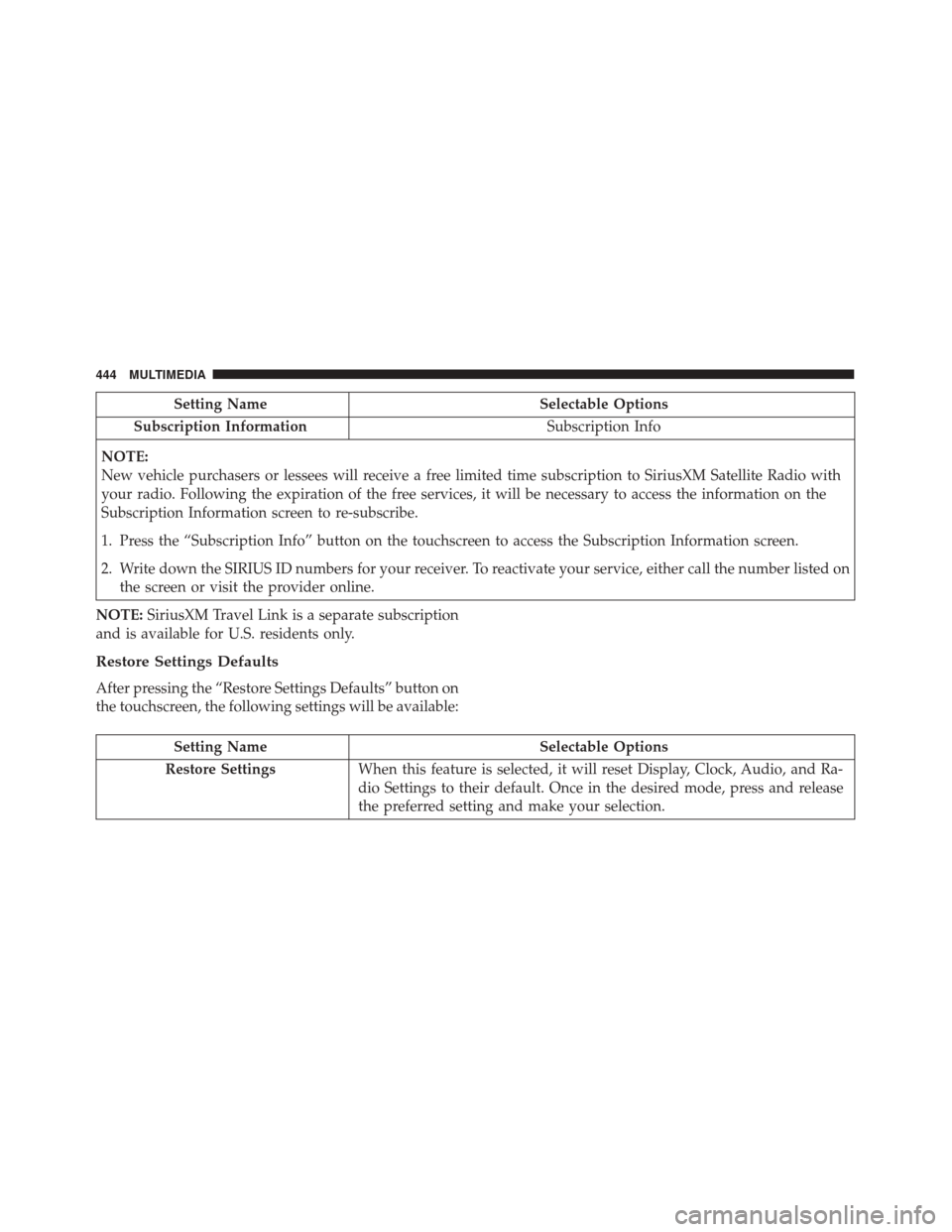
Setting NameSelectable Options
Subscription Information Subscription Info
NOTE:
New vehicle purchasers or lessees will receive a free limited time subscription to SiriusXM Satellite Radio with
your radio. Following the expiration of the free services, it will be necessary to access the information on the
Subscription Information screen to re-subscribe.
1. Press the “Subscription Info” button on the touchscreen to access the Subscription Information screen.
2. Write down the SIRIUS ID numbers for your receiver. To reactivate your service, either call the number listed on the screen or visit the provider online.
NOTE: SiriusXM Travel Link is a separate subscription
and is available for U.S. residents only.
Restore Settings Defaults
After pressing the “Restore Settings Defaults” button on
the touchscreen, the following settings will be available:
Setting Name Selectable Options
Restore Settings When this feature is selected, it will reset Display, Clock, Audio, and Ra-
dio Settings to their default. Once in the desired mode, press and release
the preferred setting and make your selection.
444 MULTIMEDIA
Page 448 of 476
Located below the heating ventilation and air condi-
tioning controls is the front USB port and AUX jack.
Refer to the Uconnect Owner ’s Manual Supplement for
external USB support capability.
Center Console USB Port
Located in the center console is a second USB port.
NOTE:Depending on vehicle configuration, the USB
port may be charge only, or media file capable.STEERING WHEEL AUDIO CONTROLS
The remote sound system controls are located at the
rear of the steering wheel. Reach behind the wheel to
access the switches.
The right-hand control is a rocker-type switch with a
pushbutton in the center and controls the volume and
mode of the sound system. Pushing the top of the
rocker switch will increase the volume, and pushing the
bottom of the rocker switch will decrease the volume.
Pushing the center button will make the radio switch
between the various modes available (AM/FM/SAT/
Center Console USB (Charge Only) Port — If Equipped
Remote Sound System Controls (Back View Of
Steering Wheel)
446 MULTIMEDIA