Page 53 of 386
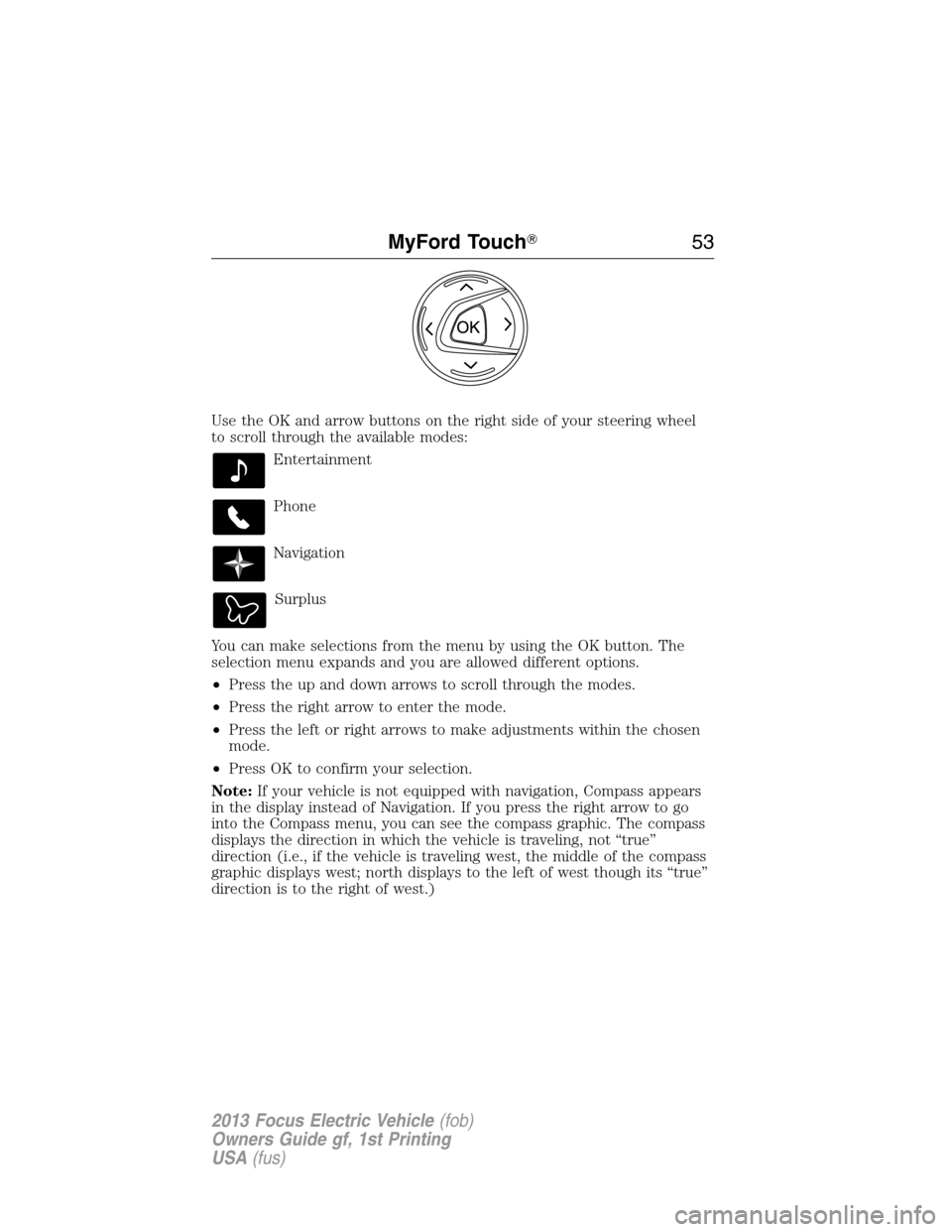
Use the OK and arrow buttons on the right side of your steering wheel
to scroll through the available modes:
Entertainment
Phone
Navigation
Surplus
You can make selections from the menu by using the OK button. The
selection menu expands and you are allowed different options.
•Press the up and down arrows to scroll through the modes.
•Press the right arrow to enter the mode.
•Press the left or right arrows to make adjustments within the chosen
mode.
•Press OK to confirm your selection.
Note:If your vehicle is not equipped with navigation, Compass appears
in the display instead of Navigation. If you press the right arrow to go
into the Compass menu, you can see the compass graphic. The compass
displays the direction in which the vehicle is traveling, not “true”
direction (i.e., if the vehicle is traveling west, the middle of the compass
graphic displays west; north displays to the left of west though its “true”
direction is to the right of west.)
MyFord Touch�53
2013 Focus Electric Vehicle(fob)
Owners Guide gf, 1st Printing
USA(fus)
Page 59 of 386
The dual mode feature is also available when the voice system displays a
list of items to pick from during a voice session, where you would be
able to touch the line item or say “Line 2”. If a command is not
understood or there are multiple options, the system returns a list for
you to choose from.
ENTERTAINMENT
Your system offers many media options. You can access these options
using the touchscreen or voice commands.
Browsing Device Content
When listening to any type of audio, you can browse through other
devices without having to change sources. For example, if you are
currently listening to the radio, you can browse all the artists that are
stored on your USB device.
Press the voice icon on the steering wheel. When prompted,
you can say:
“BROWSE” within Devices
“Browse”*
“Browse games”**
“Browse channels”**
“Browse CD track list”
“Browse Sirius channel guide”**
“Browse SD card”
“Browse USB”
“Help”
*If you have said “Browse”, you can then say any commands in the
following chart.
**If equipped with SIRIUS�satellite radio.
MyFord Touch�59
2013 Focus Electric Vehicle(fob)
Owners Guide gf, 1st Printing
USA(fus)
Page 66 of 386
Radio Voice Commands
If you are listening to the radio, press the voice button on the
steering wheel control. When prompted, say any of the
commands in the following chart.
If you are not listening to the radio, press the voice button and, after the
tone, say “Radio”, then any of the commands in the following chart.
“RADIO”
“<87.9–107.9>” “FM autoset preset <#>”
“<87.9–107.9> HD”
1“FM preset <#>”
“<530–1710>” “FM1”
“AM” “FM 1 preset <#>”
“AM <530–1710>” “FM2”
“AM autoset” “FM 2 preset <#>”
“AM autoset preset <#>” “HD <#>”
1
“AM preset <#>” “Preset <#>”
“Browse”2“Radio off”
“FM” “Radio on”
“FM <87.9–107.9>” “Set PTY”
“FM <87.9-107.9> HD <#>”
1“Tune”3
“FM autoset” “Help”1If available.2If you have said, “Browse”, seeBrowsing device contentearlier in this
section.
3If you have said, “Tune”, see the following “Tune” chart.
“TUNE”
“<87.9–107.9>” “FM autoset”
“<87.9-107.9> HD <#>”
*“FM autoset preset <#>”
“<530–1710>” “FM preset <#>”
“AM” “FM1”
“AM <530–1710>” “FM 1 preset <#>”
“AM autoset” “FM2”
“AM autoset preset <#>” “FM 2 preset <#>”
“AM preset <#>” “HD <#>”
*
“FM” “Preset <#>”
66MyFord Touch�
2013 Focus Electric Vehicle(fob)
Owners Guide gf, 1st Printing
USA(fus)
Page 69 of 386
When you select: You can:
Direct TuneEnter the desired satellite channel number
using the on-screen keypad.
BrowseView a list of all available stations. Scroll and
select the desired station.
You can also lock or skip unwanted channels
or view the song/artist on other stations.
Satellite Radio Voice Commands
If you are listening to SIRIUS satellite radio, press the voice
button on the steering wheel control. When prompted, say any
of the commands in the following chart.
If you are not listening to SIRIUS satellite radio, press the voice button
and, after the tone, say “Sirius”, then any of the commands in the
following chart.
“SIRIUS”
“<0–233>” “SAT 3”
“” “SAT 3 preset <#>”
“Preset <#>” “SAT preset <#>”
“SAT” “Sirius off”
“SAT 1” “Sirius on”
“SAT 1 preset <#>” “Sports game”
*
“SAT 2” “Tune”**
“SAT 2 preset <#>” “Help”
*If you have said, “Sports game”, see the following “Sports game” chart.
**If you have said, “Tune”, see the following “Tune” chart.
“SPORTS GAME”
“Tune to the game”
“Tune to the game”
“Tune to the game”
“Tune to the game”
“Help”
MyFord Touch�69
2013 Focus Electric Vehicle(fob)
Owners Guide gf, 1st Printing
USA(fus)
Page 73 of 386
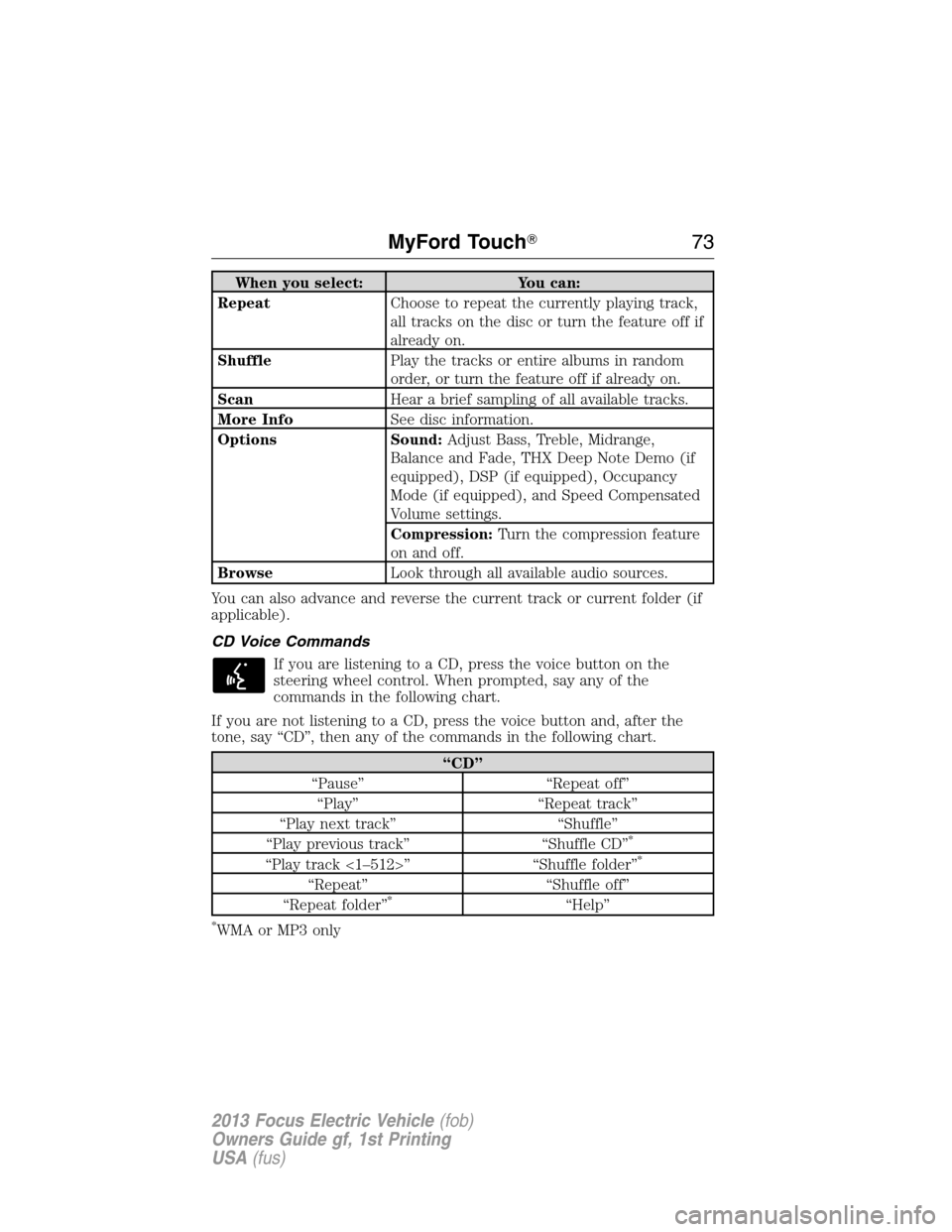
When you select: You can:
RepeatChoose to repeat the currently playing track,
all tracks on the disc or turn the feature off if
already on.
ShufflePlay the tracks or entire albums in random
order, or turn the feature off if already on.
ScanHear a brief sampling of all available tracks.
More InfoSee disc information.
Options Sound:Adjust Bass, Treble, Midrange,
Balance and Fade, THX Deep Note Demo (if
equipped), DSP (if equipped), Occupancy
Mode (if equipped), and Speed Compensated
Volume settings.
Compression:Turn the compression feature
on and off.
BrowseLook through all available audio sources.
You can also advance and reverse the current track or current folder (if
applicable).
CD Voice Commands
If you are listening to a CD, press the voice button on the
steering wheel control. When prompted, say any of the
commands in the following chart.
If you are not listening to a CD, press the voice button and, after the
tone, say “CD”, then any of the commands in the following chart.
“CD”
“Pause” “Repeat off”
“Play” “Repeat track”
“Play next track” “Shuffle”
“Play previous track” “Shuffle CD”
*
“Play track <1–512>” “Shuffle folder”*
“Repeat” “Shuffle off”
“Repeat folder”*“Help”
*WMA or MP3 only
MyFord Touch�73
2013 Focus Electric Vehicle(fob)
Owners Guide gf, 1st Printing
USA(fus)
Page 76 of 386
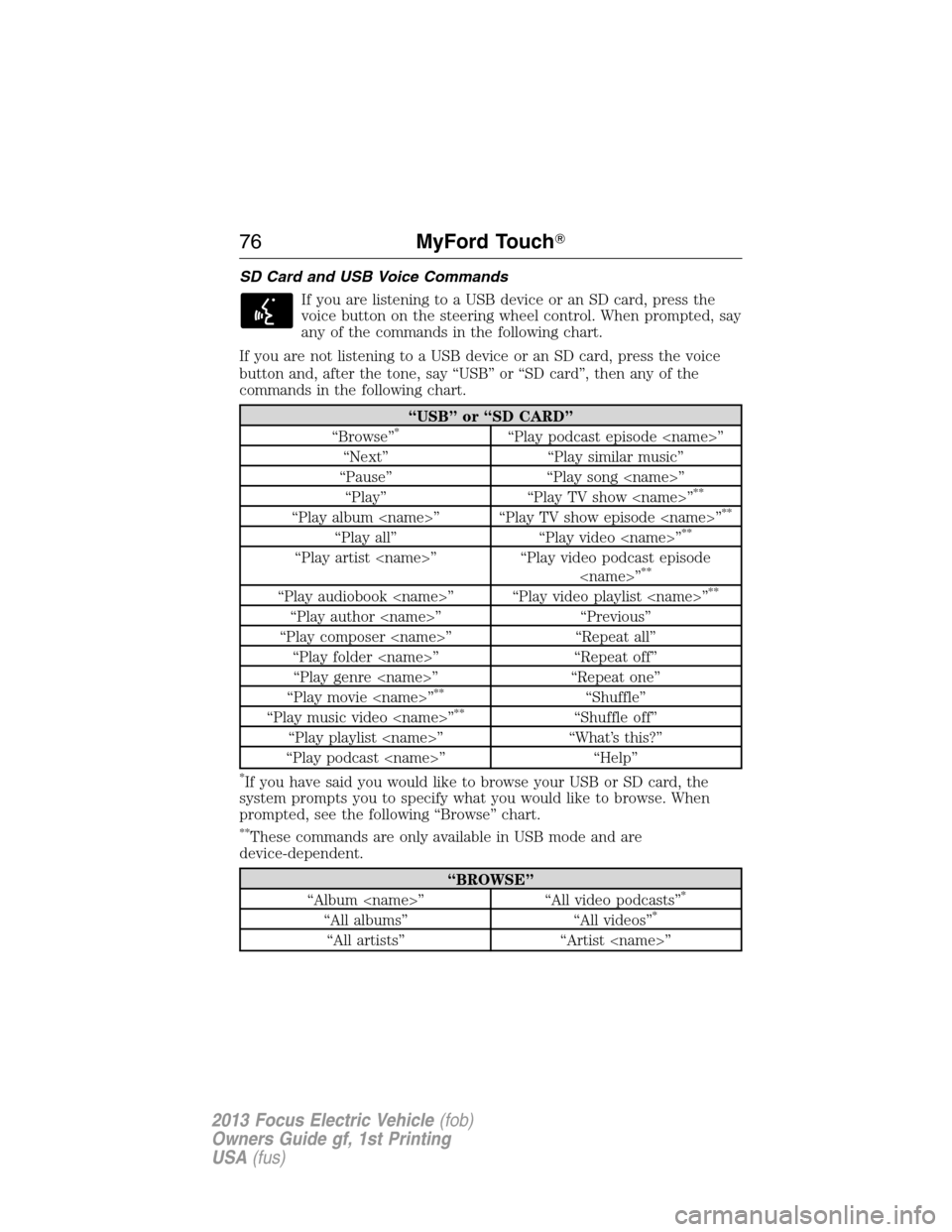
SD Card and USB Voice Commands
If you are listening to a USB device or an SD card, press the
voice button on the steering wheel control. When prompted, say
any of the commands in the following chart.
If you are not listening to a USB device or an SD card, press the voice
button and, after the tone, say “USB” or “SD card”, then any of the
commands in the following chart.
“USB” or “SD CARD”
“Browse”*“Play podcast episode ”
“Next” “Play similar music”
“Pause” “Play song ”
“Play” “Play TV show ”
**
“Play album ” “Play TV show episode ”**
“Play all” “Play video ”**
“Play artist ” “Play video podcast episode
”**
“Play audiobook ” “Play video playlist ”**
“Play author ” “Previous”
“Play composer ” “Repeat all”
“Play folder ” “Repeat off”
“Play genre ” “Repeat one”
“Play movie ”
**“Shuffle”
“Play music video ”**“Shuffle off”
“Play playlist ” “What’s this?”
“Play podcast ” “Help”
*If you have said you would like to browse your USB or SD card, the
system prompts you to specify what you would like to browse. When
prompted, see the following “Browse” chart.
**These commands are only available in USB mode and are
device-dependent.
“BROWSE”
“Album ” “All video podcasts”*
“All albums” “All videos”*
“All artists” “Artist ”
76MyFord Touch�
2013 Focus Electric Vehicle(fob)
Owners Guide gf, 1st Printing
USA(fus)
Page 77 of 386
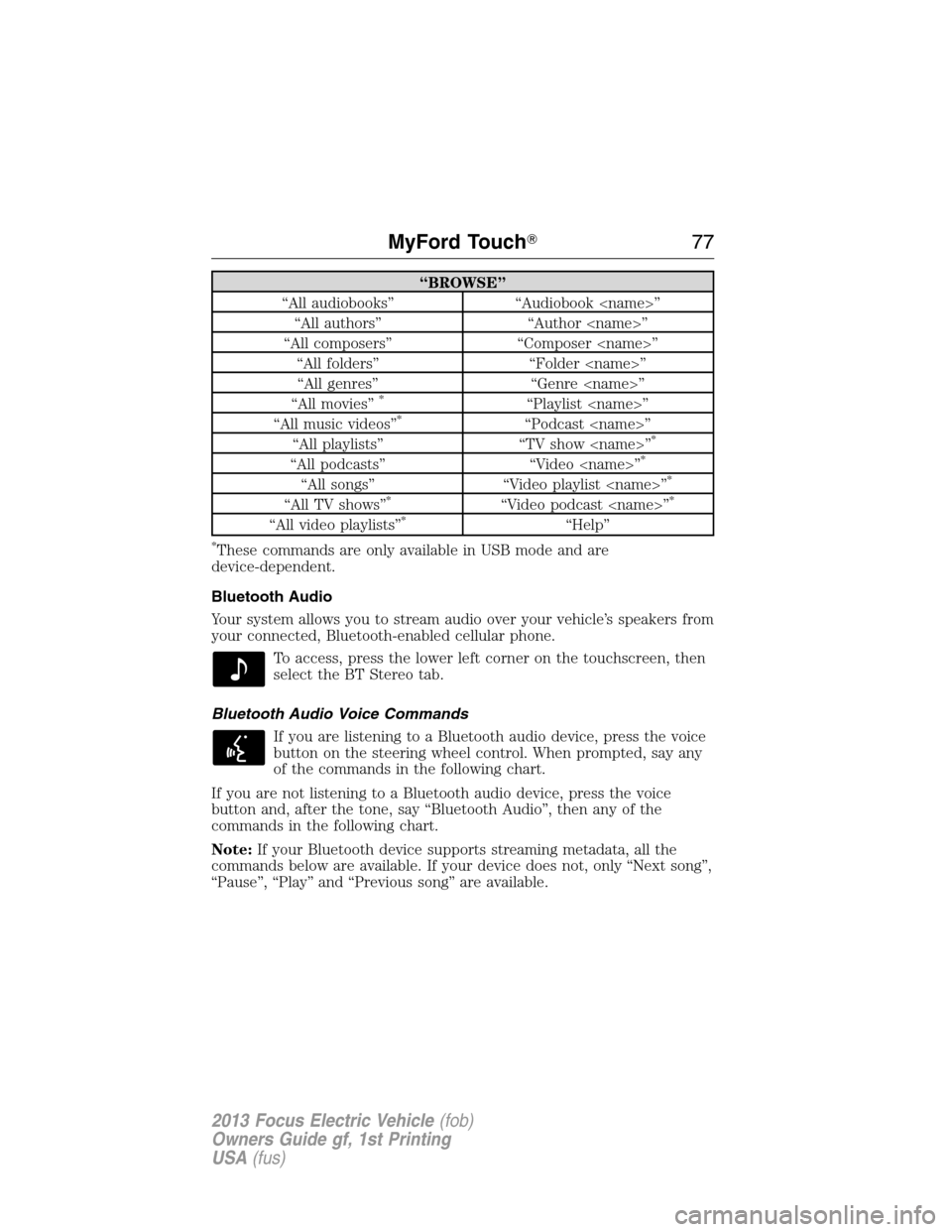
“BROWSE”
“All audiobooks” “Audiobook ”
“All authors” “Author ”
“All composers” “Composer ”
“All folders” “Folder ”
“All genres” “Genre ”
“All movies”
*“Playlist ”
“All music videos”*“Podcast ”
“All playlists” “TV show ”*
“All podcasts” “Video ”*
“All songs” “Video playlist ”*
“All TV shows”*“Video podcast ”*
“All video playlists”*“Help”
*These commands are only available in USB mode and are
device-dependent.
Bluetooth Audio
Your system allows you to stream audio over your vehicle’s speakers from
your connected, Bluetooth-enabled cellular phone.
To access, press the lower left corner on the touchscreen, then
select the BT Stereo tab.
Bluetooth Audio Voice Commands
If you are listening to a Bluetooth audio device, press the voice
button on the steering wheel control. When prompted, say any
of the commands in the following chart.
If you are not listening to a Bluetooth audio device, press the voice
button and, after the tone, say “Bluetooth Audio”, then any of the
commands in the following chart.
Note:If your Bluetooth device supports streaming metadata, all the
commands below are available. If your device does not, only “Next song”,
“Pause”, “Play” and “Previous song” are available.
MyFord Touch�77
2013 Focus Electric Vehicle(fob)
Owners Guide gf, 1st Printing
USA(fus)
Page 82 of 386
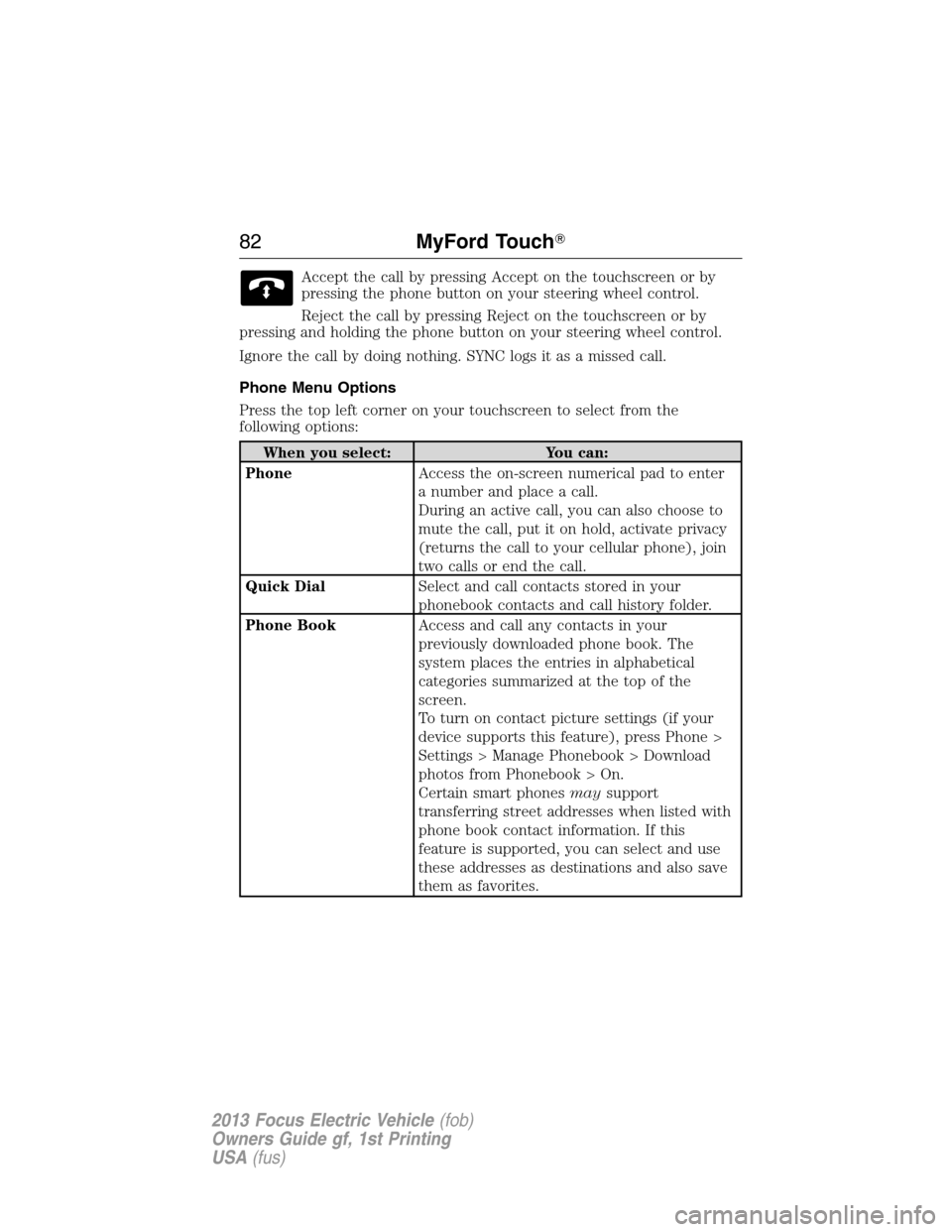
Accept the call by pressing Accept on the touchscreen or by
pressing the phone button on your steering wheel control.
Reject the call by pressing Reject on the touchscreen or by
pressing and holding the phone button on your steering wheel control.
Ignore the call by doing nothing. SYNC logs it as a missed call.
Phone Menu Options
Press the top left corner on your touchscreen to select from the
following options:
When you select: You can:
PhoneAccess the on-screen numerical pad to enter
a number and place a call.
During an active call, you can also choose to
mute the call, put it on hold, activate privacy
(returns the call to your cellular phone), join
two calls or end the call.
Quick DialSelect and call contacts stored in your
phonebook contacts and call history folder.
Phone BookAccess and call any contacts in your
previously downloaded phone book. The
system places the entries in alphabetical
categories summarized at the top of the
screen.
To turn on contact picture settings (if your
device supports this feature), press Phone >
Settings > Manage Phonebook > Download
photos from Phonebook > On.
Certain smart phonesmaysupport
transferring street addresses when listed with
phone book contact information. If this
feature is supported, you can select and use
these addresses as destinations and also save
them as favorites.
82MyFord Touch�
2013 Focus Electric Vehicle(fob)
Owners Guide gf, 1st Printing
USA(fus)