Page 22 of 386
•Energy Used - The total kilowatt hours.
•Brake Score - The average percentage of braking energy recaptured
and returned to the high voltage battery through regenerative braking.
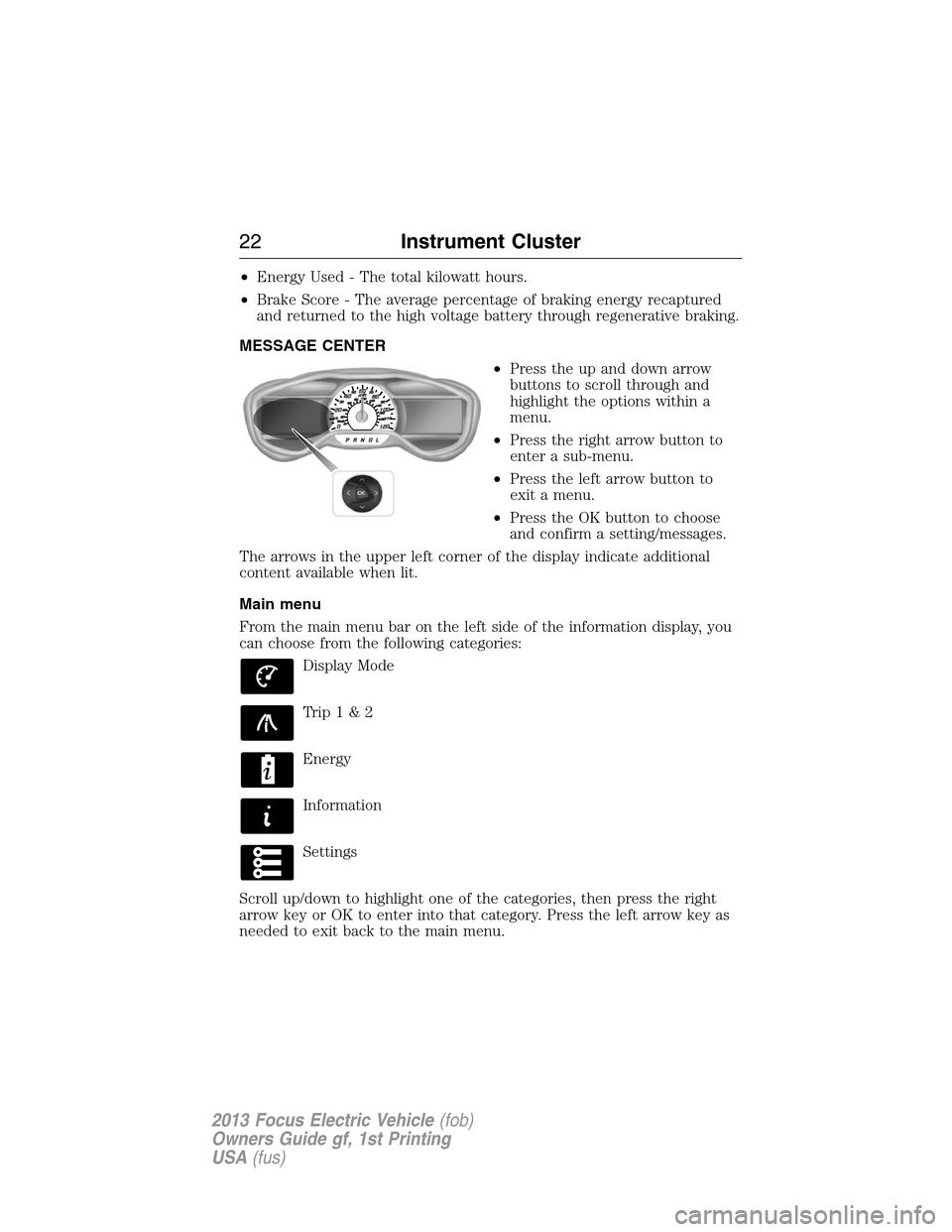
MESSAGE CENTER
•Press the up and down arrow
buttons to scroll through and
highlight the options within a
menu.
•Press the right arrow button to
enter a sub-menu.
•Press the left arrow button to
exit a menu.
•Press the OK button to choose
and confirm a setting/messages.
The arrows in the upper left corner of the display indicate additional
content available when lit.
Main menu
From the main menu bar on the left side of the information display, you
can choose from the following categories:
Display Mode
Trip1&2
Energy
Information
Settings
Scroll up/down to highlight one of the categories, then press the right
arrow key or OK to enter into that category. Press the left arrow key as
needed to exit back to the main menu.
22Instrument Cluster
2013 Focus Electric Vehicle(fob)
Owners Guide gf, 1st Printing
USA(fus)
Page 23 of 386
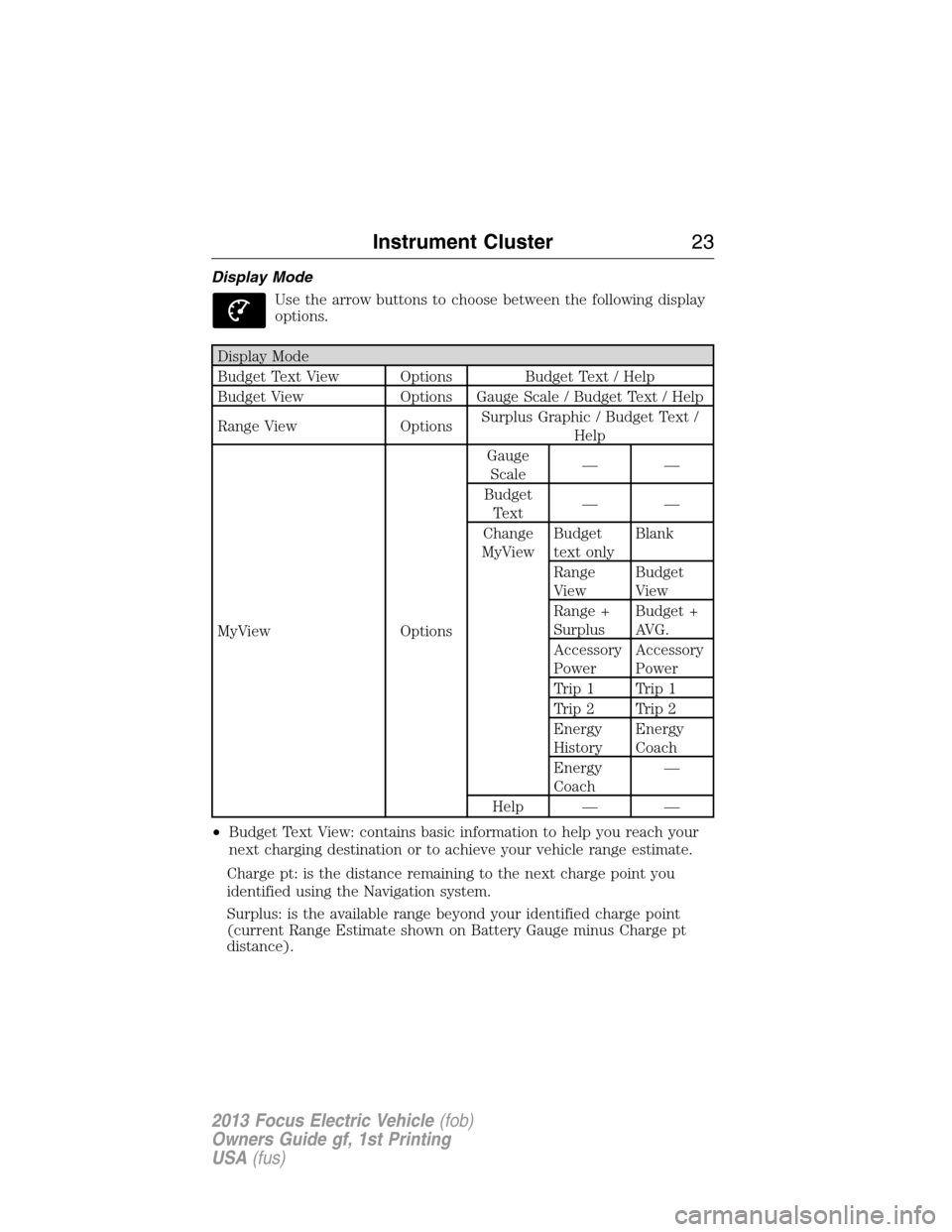
Display Mode
Use the arrow buttons to choose between the following display
options.
Display Mode
Budget Text View Options Budget Text / Help
Budget View Options Gauge Scale / Budget Text / Help
Range View OptionsSurplus Graphic / Budget Text /
Help
MyView OptionsGauge
Scale——
Budget
Text——
Change
MyViewBudget
text onlyBlank
Range
ViewBudget
View
Range +
SurplusBudget +
AVG.
Accessory
PowerAccessory
Power
Trip 1 Trip 1
Trip 2 Trip 2
Energy
HistoryEnergy
Coach
Energy
Coach—
Help — —
•Budget Text View: contains basic information to help you reach your
next charging destination or to achieve your vehicle range estimate.
Charge pt: is the distance remaining to the next charge point you
identified using the Navigation system.
Surplus: is the available range beyond your identified charge point
(current Range Estimate shown on Battery Gauge minus Charge pt
distance).
Instrument Cluster23
2013 Focus Electric Vehicle(fob)
Owners Guide gf, 1st Printing
USA(fus)
Page 25 of 386
Note:Trip data cannot be reset in MyView. See Trip1&2information
below.
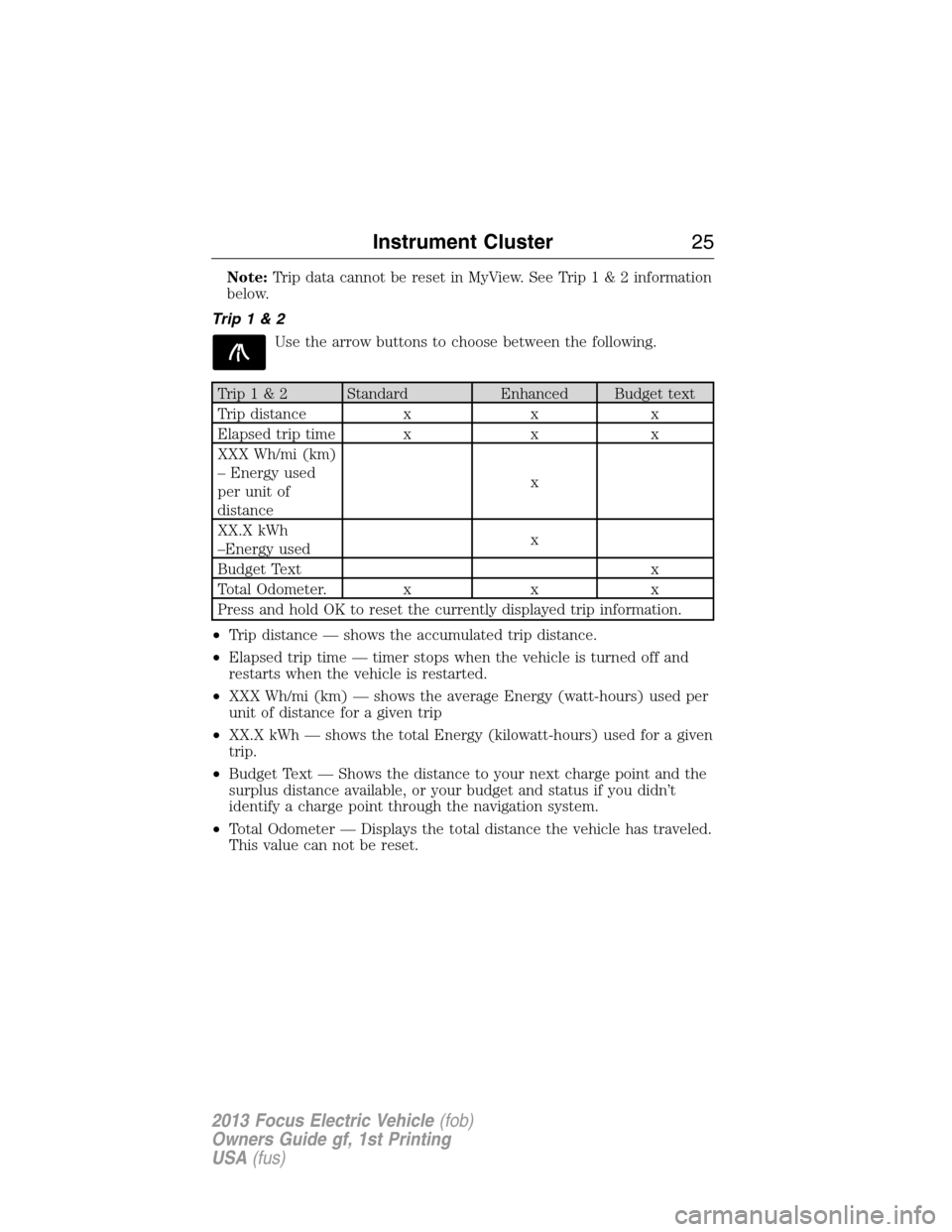
Trip1&2
Use the arrow buttons to choose between the following.
Trip1&2 Standard Enhanced Budget text
Trip distance x x x
Elapsed trip time x x x
XXX Wh/mi (km)
– Energy used
per unit of
distancex
XX.X kWh
–Energy usedx
Budget Text x
Total Odometer. x x x
Press and hold OK to reset the currently displayed trip information.
•Trip distance — shows the accumulated trip distance.
•Elapsed trip time — timer stops when the vehicle is turned off and
restarts when the vehicle is restarted.
•XXX Wh/mi (km) — shows the average Energy (watt-hours) used per
unit of distance for a given trip
•XX.X kWh — shows the total Energy (kilowatt-hours) used for a given
trip.
•Budget Text — Shows the distance to your next charge point and the
surplus distance available, or your budget and status if you didn’t
identify a charge point through the navigation system.
•Total Odometer — Displays the total distance the vehicle has traveled.
This value can not be reset.
Instrument Cluster25
2013 Focus Electric Vehicle(fob)
Owners Guide gf, 1st Printing
USA(fus)
Page 26 of 386
Energy
Use the arrow buttons to choose the desired energy display.
Energy
Energy History
OptionsTime intervals /
Help
Energy Coach Options Help
•Energy History: This view from left to right starts with the Budget
View gauge and adds historical Energy Use and Budget data. The data
is represented as an average for time intervals of either 1, 2 or
6 minutes, with the leftmost interval being the most recent. Total time
for the five intervals is shown at the bottom of the view. Interval time
can be selected in the Options menu. Intervals shown in grey color are
from the previous drive.
•Energy Coach: This view provides a comparison of your recent
Acceleration, Braking and Cruising behavior to what is recommended
for most efficient use of energy under present conditions. The
horizontal bars fill from left to right with best efficiency (and Blue
color) shown as at least half full. When the bars are less than half full,
the color is Amber, suggesting that a change in behavior is needed to
achieve better energy efficiency.
Information
In this mode, you can view different vehicle system information
and perform a system check.
Warnings
XX Warnings Displays the number of warnings that need
immediate attention in red. You can only view the
warnings from the System Check menu. View them
immediately by pressing OK and then OK again to
enter system check. Use the up/down arrows to
scroll through the warnings.
26Instrument Cluster
2013 Focus Electric Vehicle(fob)
Owners Guide gf, 1st Printing
USA(fus)
Page 27 of 386
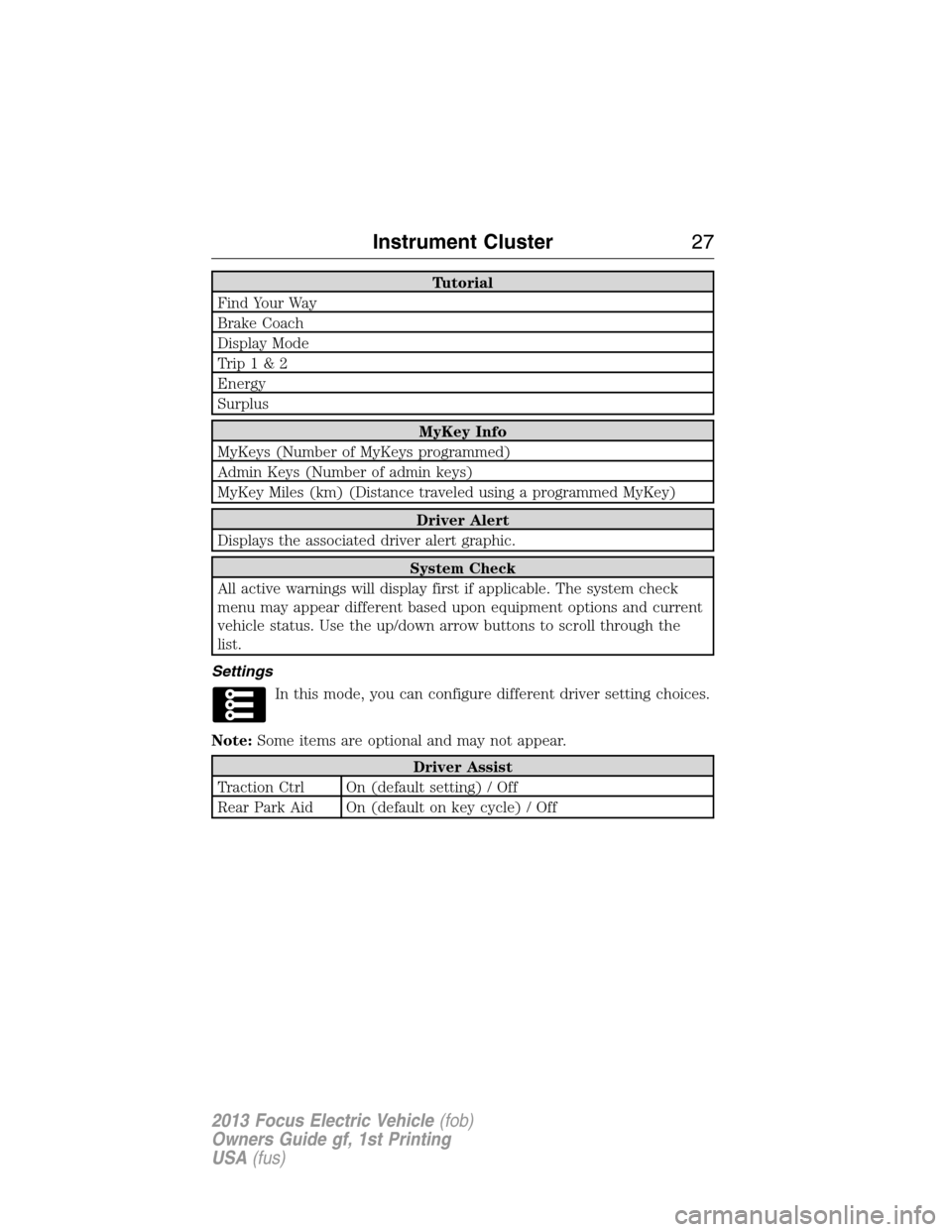
Tutorial
Find Your Way
Brake Coach
Display Mode
Trip1&2
Energy
Surplus
MyKey Info
MyKeys (Number of MyKeys programmed)
Admin Keys (Number of admin keys)
MyKey Miles (km) (Distance traveled using a programmed MyKey)
Driver Alert
Displays the associated driver alert graphic.
System Check
All active warnings will display first if applicable. The system check
menu may appear different based upon equipment options and current
vehicle status. Use the up/down arrow buttons to scroll through the
list.
Settings
In this mode, you can configure different driver setting choices.
Note:Some items are optional and may not appear.
Driver Assist
Traction Ctrl On (default setting) / Off
Rear Park Aid On (default on key cycle) / Off
Instrument Cluster27
2013 Focus Electric Vehicle(fob)
Owners Guide gf, 1st Printing
USA(fus)
Page 39 of 386
AM/FM/SINGLE CD SONY�AUDIO SYSTEM
WARNING:Driving while distracted can result in loss of vehicle
control, accident and injury. Ford strongly recommends that you
use extreme caution when using any device or feature that may take
your focus off the road. Your primary responsibility is the safe operation
of the vehicle. We recommend against the use of any handheld device
while driving, encourage the use of voice-operated systems when
possible and that you become aware of applicable state and local laws
that may affect use of electronic devices while driving.
Note:Most of the audio features are controlled through the MyFord
Touch�system. See theMyFord Touch�chapter for more information.
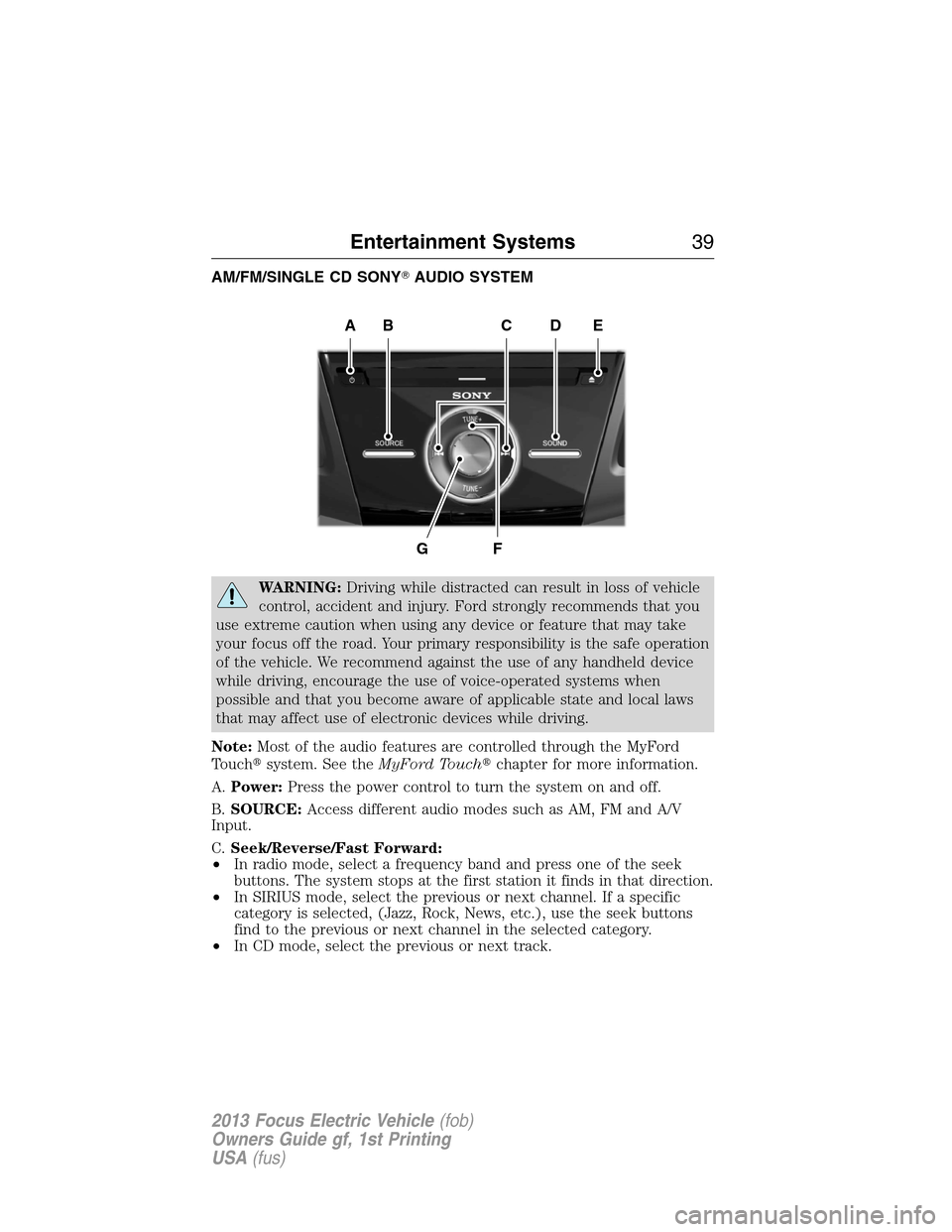
A.Power:Press the power control to turn the system on and off.
B.SOURCE:Access different audio modes such as AM, FM and A/V
Input.
C.Seek/Reverse/Fast Forward:
•In radio mode, select a frequency band and press one of the seek
buttons. The system stops at the first station it finds in that direction.
•In SIRIUS mode, select the previous or next channel. If a specific
category is selected, (Jazz, Rock, News, etc.), use the seek buttons
find to the previous or next channel in the selected category.
•In CD mode, select the previous or next track.
AEDBC
GF
Entertainment Systems39
2013 Focus Electric Vehicle(fob)
Owners Guide gf, 1st Printing
USA(fus)
Page 48 of 386
•Passenger Settings
•A/C
•Defrost
HOME
Press to access your home screen. Depending on your vehicle’s option
package and software, your screens may vary in appearance from the
screens shown in this section. Your features may also be limited
depending on your market. Check with your authorized dealer for
availability.
Using the Touch-sensitive Controls on Your System
Your vehicle’s centerstack has touch-sensitive switches for your
infotainment and climate control systems. To turn a feature on and off,
just touch the graphic with your finger. To get the best performance
from the touch-sensitive controls:
•Do not press hard on the controls. They are sensitive to light touch.
•Use your bare finger to touch the center of a touch-control graphic.
Touching off-center of the graphic may cause a nearby control to turn
on or off.
•Make sure your hands are clean and dry.
•Since the touchscreen operates based on the touch of a finger, you
may have trouble using it if you are wearing gloves.
•Metal and other conductive material should be kept away from the
surface of the touchscreen as this may cause electronic interference
(i.e., control activation).
Depending on your vehicle and option package, you may also have these
controls on your bezel:
•Power: Turn the media (or climate features) on or off.
•VOL: Increase or decrease the volume.
•Fan: Increase or decrease the fan speed.
•Seek and Tune buttons: Use as you normally would in media modes.
•Eject: Eject a CD.
•SOURCE: Touch the word repeatedly to see all available media
modes. The screen does not change, but you see the media changes
in the lower left status bar.
•SOUND: Touch the word to access the Sound menu where you can
make adjustments to settings, such as: Bass, Midrange, Treble,
Balance and Fade, THX Deep Note Demo (if equipped), DSP (if
equipped), Occupancy Mode (if equipped), and Speed Compensated
Volume settings.
•Hazard flasher: Press the button to turn the hazard flashers on or off.
48MyFord Touch�
2013 Focus Electric Vehicle(fob)
Owners Guide gf, 1st Printing
USA(fus)
Page 53 of 386
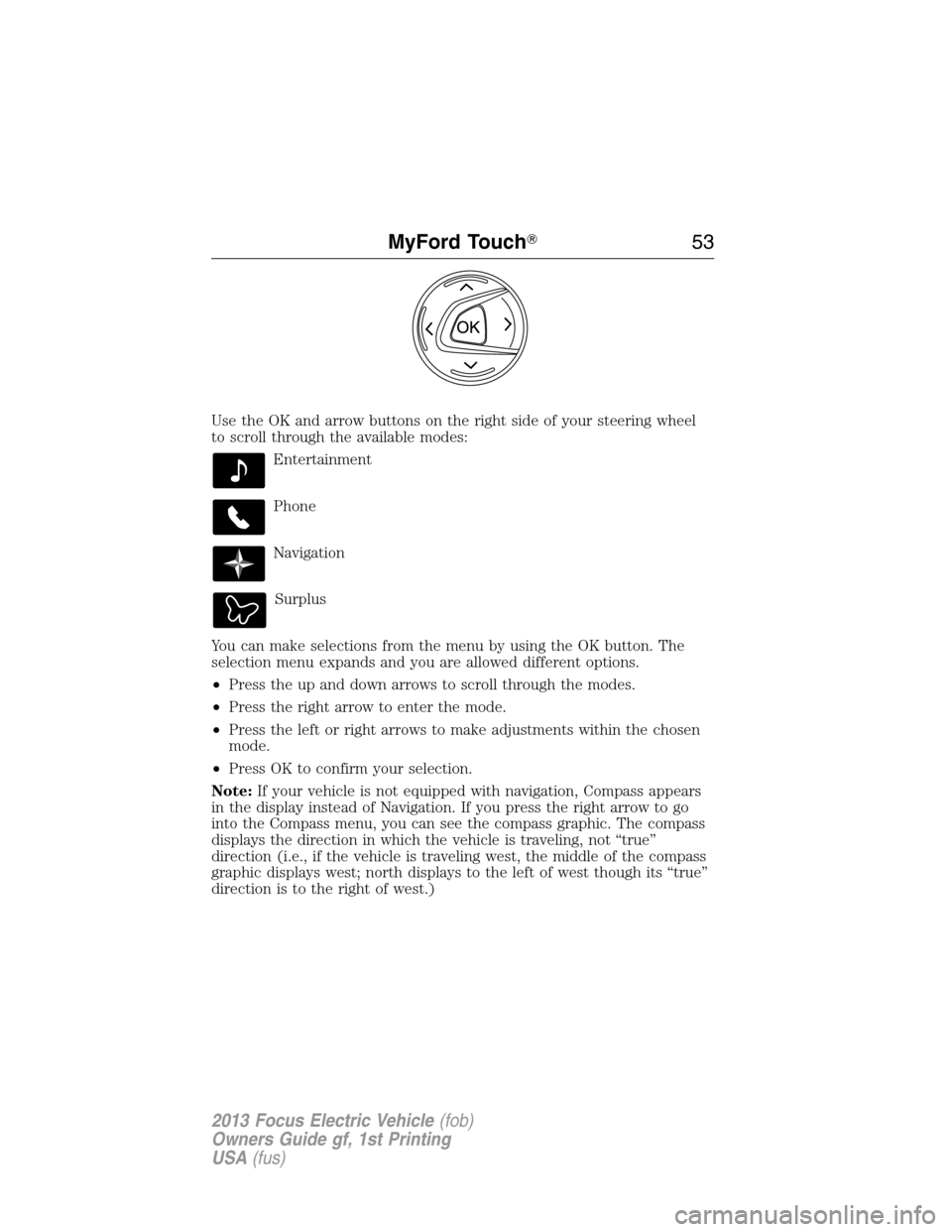
Use the OK and arrow buttons on the right side of your steering wheel
to scroll through the available modes:
Entertainment
Phone
Navigation
Surplus
You can make selections from the menu by using the OK button. The
selection menu expands and you are allowed different options.
•Press the up and down arrows to scroll through the modes.
•Press the right arrow to enter the mode.
•Press the left or right arrows to make adjustments within the chosen
mode.
•Press OK to confirm your selection.
Note:If your vehicle is not equipped with navigation, Compass appears
in the display instead of Navigation. If you press the right arrow to go
into the Compass menu, you can see the compass graphic. The compass
displays the direction in which the vehicle is traveling, not “true”
direction (i.e., if the vehicle is traveling west, the middle of the compass
graphic displays west; north displays to the left of west though its “true”
direction is to the right of west.)
MyFord Touch�53
2013 Focus Electric Vehicle(fob)
Owners Guide gf, 1st Printing
USA(fus)