Page 80 of 423

Odometer
Located in the bottom of the information
display Registers the accumulated
distance your vehicle has traveled.
Outside Air Temperature
Shows the outside air temperature.
Trip Computer
See Trip Computer (page 86).
Vehicle Settings and Personalization
See General Information (page 84).
Engine Coolant Temperature
Gauge
WARNING
Never remove the coolant reservoir
cap while the engine is running or hot.
At normal operating temperature, the
needle will remain in the center section.
Note:Do not restart the engine until the
cause of overheating has been resolved.
If the needle enters the red section, the
engine is overheating. Stop the engine,
switch the ignition off and determine the
cause once the engine has cooled down.
See Engine Coolant Check (page 222). Fuel Gauge
Switch the ignition on. The fuel gauge will
indicate approximately how much fuel is
left in the fuel tank. The fuel gauge may
vary slightly when your vehicle is moving
or on a gradient. The arrow adjacent to the
fuel pump symbol indicates on which side
of the vehicle the fuel filler door is located.
WARNING LAMPS AND
INDICATORS
The following warning lamps and
indicators will alert you to a vehicle
condition that may become serious. Some
lamps will illuminate when you start your
vehicle to make sure they work. If any
lamps remain on after starting your vehicle,
refer to the respective system warning
lamp for further information.
Note:
Some warning indicators appear in
the information display and function the
same as a warning lamp but do not display
when you start your vehicle.
Airbag - Front
If it fails to illuminate when you
start your vehicle, continues to
flash or remains on, it indicates
a malfunction. Have the system checked
by your authorized dealer.
Anti-Lock Braking System
If it illuminates when you are
driving, this indicates a
malfunction. You will continue
to have the normal braking system
(without ABS) unless the brake system
warning lamp is also illuminated. Have the
system checked by your authorized dealer.
80
Instrument Cluster
123
4
5
6 7 8 9 1011 12 13 14 15
E142800
Page 88 of 423

Alarm
Action
Message
Indicator
Message
Displays when the alarm has been triggereddue to unauthorized entry. See Anti-Theft Alarm (page 63).
Amber
Alarm activated Check
Vehicle
Displays when the system requires service dueto a malfunction. Contact your authorized dealer.
-
Alarm fault Service
required
Battery and Charging System
Action
Message
Indicator
Message
Stop your vehicle as soon as it is safe to do soand switch off the ignition. Contact your authorized dealer.
Red
Electrical system over-
voltage Stop safely
Displays to warn of a low battery condition.
Turn off all unneeded electrical accessories. Contact your authorized dealer.
Amber
Battery low See manual
Blind Spot Information and Cross Traffic Alert System
Action
Message
Indicator
Message
Displayed when the blind spot information
system and cross traffic alert system sensors are blocked. See Blind Spot Monitor (page 171).
Amber
BLIS Low visibility See
manual
Displayed when a fault with the system has
occurred. Contact your authorized dealer as soon as possible.
Amber
BLIS: X sensor fault
Service required
Displayed when the system is not available dueto trailer use. See Blind Spot Monitor (page 171).
Amber
BLIS not available Trailer
attached
Displayed when the system detects a vehicle.See Blind Spot Monitor (page 171).
Amber
Cross Traffic Vehicle
coming from X
88
Information Displays
Page 89 of 423

Action
Message
Indicator
Message
Displayed when the blind spot information
system and cross traffic alert system sensors are blocked. See Blind Spot Monitor (page 171).
Amber
Cross Traffic Sensor
blocked See manual
Displays when the system requires service dueto a malfunction. Contact your authorized dealer.
Amber
Cross Traffic fault
Service required
Displayed when the system is not available dueto trailer use. See Blind Spot Monitor (page 171).
-
Cross Traffic disabled
Trailer attached
Doors
Action
Message
Indicator
Message
Displays when the door(s) listed is not
completely closed and the vehicle is moving.
Red
X door open
Displays when the door(s) listed is notcompletely closed.
-
Displays when the luggage compartment is notcompletely closed and the vehicle is moving.
Red
trunk ajar
Displays when the luggage compartment is notcompletely closed.
-
Displays when the hood is not completelyclosed and the vehicle is moving.
Red
Hood open
Displays when the hood is not completelyclosed.
-
89
Information Displays
Page 95 of 423

Action
Message
Indicator
Message
Transmission is hot. Wait as needed to let itcool.
-
Transmission Hot Wait
...
The system is not functioning correctly anddefaulted to front-wheel drive. See your
authorized dealer. See Using Four-Wheel Drive (page 151).
Amber
4WD fault Service
required
Displays when the system disables automatic-ally and enters front-wheel drive only mode to
protect driveline components. See Using Four- Wheel Drive (page 151).
Amber
4WD Off
The system has overheated and defaulted tofront-wheel drive. See Using Four-Wheel Drive (page 151).
Amber
4WD temporarily
disabled
Displays when system operation has been
restored. See Using Four-Wheel Drive (page 151).
-
4WD restored
Displays as a reminder to shift into park.
-
Transmission not in Park
Select P
Displays to request the operator to apply thebrake as needed by the transmission.
-
Press brake to unlock
gearshift lever
Displays when the transmission shift lever isunlocked and free to select gears.
-
Gearshift lever unlocked
95
Information Displays
Page 99 of 423
Eject: Press to eject a CD.
A
Cursor arrows: Press to scroll through on-screen choices.
B
CD slot: Insert a CD.
C
OK: Press to confirm on-screen selections.
D
Clock: Press to set the time. Use the H and M buttons outside the audio display
to adjust the hours and minutes. Press OK to finish. (The clock can also be set
by pressing MENU, then scrolling to the clock settings menu.)
E
INFO: Press to access radio or CD information.
F
Number block: Press a button to store your favorite radio stations. When tuned
to a station, press and hold the button until sound returns.
G
Seek: Press to go to the next station up the radio frequency band or the next
track on a CD.
H
ON/OFF: Press to switch the audio system on or off by pressing the button.
Turn to adjust the volume.
I
Seek: Press to go to the next station down the radio frequency band or the
previous track on a CD.
J
99
Audio System
E142600
Page 101 of 423

Eject: Press to eject a CD.
A
Cursor arrows: Press to scroll through on-screen choices.
B
CD slot: Insert a CD.
C
OK: Press to confirms on-screen selections.
D
Clock: Press to set the time. Use the H and M buttons outside the audio display
to adjust the hours and minutes. Press OK to finish. (The clock can also be set
by pressing MENU, then scrolling to the clock settings menu.)
E
INFO: Press to access radio or CD information.
F
SOUND: Press to adjust the sound settings for Bass, Treble, Balance and Fade.
G
Number block: Press to store your favorite radio stations, when in radio mode.
When tuned to a station, press and hold a button until sound returns. When in
CD mode, press a button to select a track. In phone mode, use the buttons to
dial a phone number.
H
Function button 4: Press to select different functions of the audio system
depending on which mode (i.e. radio or CD) you are in.
I
Function button 3: Press to select different functions of the audio system
depending on which mode (i.e. radio or CD) you are in.
J
101
Audio System
E142601
Page 103 of 423

Eject Press to eject a CD.
A
Cursor arrows: Press to scroll through on-screen choices.
B
CD slot: Insert a CD.
C
OK: Press to confirm on-screen selections.
D
INFO: Press to access radio or CD information.
E
MENU: Press to access different audio system features. See Menu Structure
later in this chapter.
F
SOUND: Press to adjust the sound settings for Bass, Treble, Balance and Fade.
G
Number block: Press a button to store your favorite radio stations, when in
radio mode. When tuned to a station, press and hold the button until sound
returns. When in CD mode, press a button to select a track. In phone mode, use
the buttons to dial a phone number. In clock mode, use the H and M buttons
outside the audio display to adjust the hours and minutes. Press OK to finish.
(The clock can also be set by pressing MENU, then scrolling to the clock settings
menu.)
H
Function button 4: Press to select different functions of the audio system
depending on which mode (i.e. radio or CD) you are in.
I
103
Audio System
E142602
Page 107 of 423
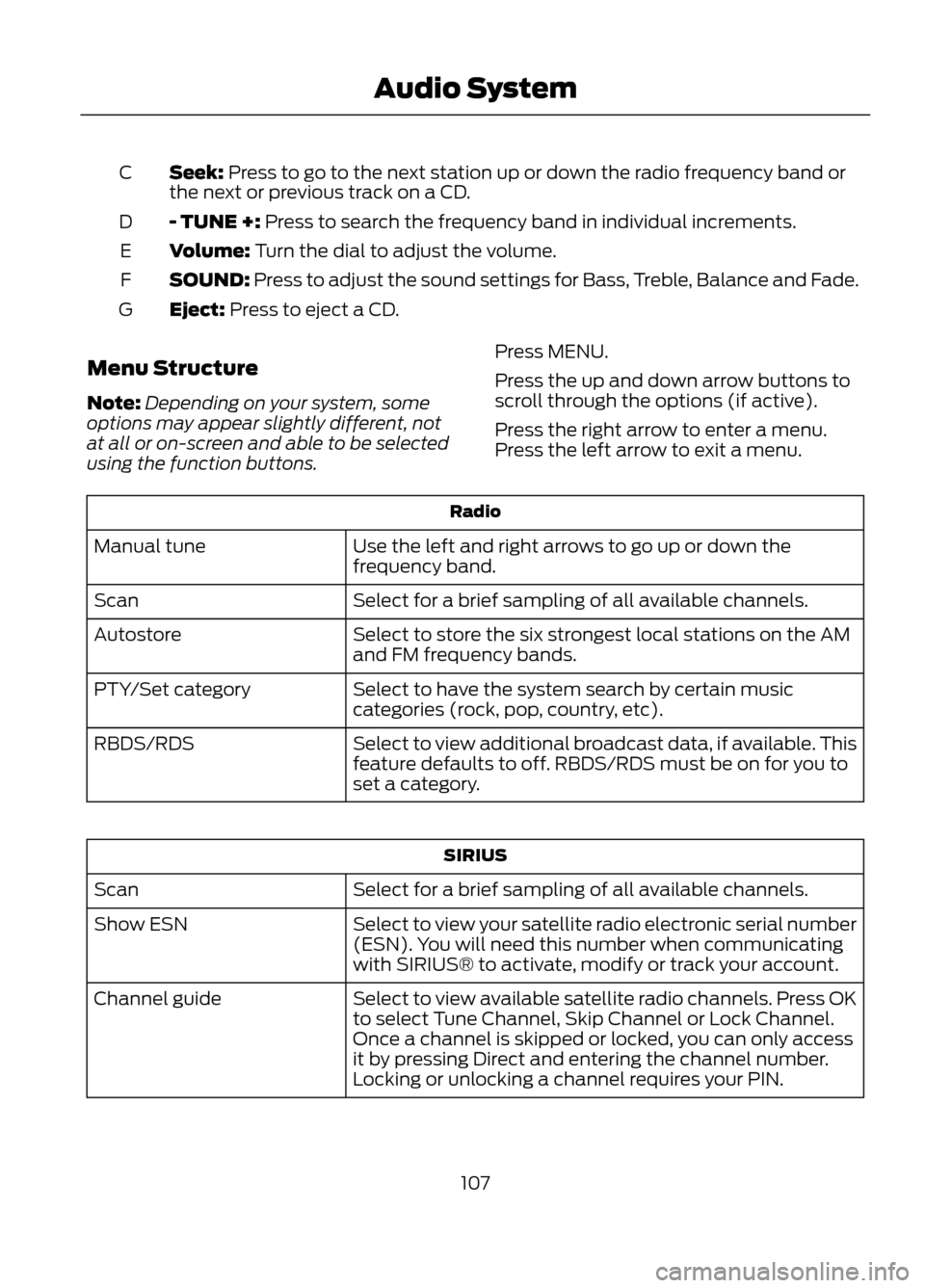
Seek: Press to go to the next station up or down the radio frequency band or
the next or previous track on a CD.
C
- TUNE +: Press to search the frequency band in individual increments.
D
Volume: Turn the dial to adjust the volume.
E
SOUND: Press to adjust the sound settings for Bass, Treble, Balance and Fade.
F
Eject: Press to eject a CD.
G
Menu Structure
Note: Depending on your system, some
options may appear slightly different, not
at all or on-screen and able to be selected
using the function buttons. Press MENU.
Press the up and down arrow buttons to
scroll through the options (if active).
Press the right arrow to enter a menu.
Press the left arrow to exit a menu.
Radio
Use the left and right arrows to go up or down the
frequency band.
Manual tune
Select for a brief sampling of all available channels.
Scan
Select to store the six strongest local stations on the AM
and FM frequency bands.
Autostore
Select to have the system search by certain music
categories (rock, pop, country, etc).
PTY/Set category
Select to view additional broadcast data, if available. This
feature defaults to off. RBDS/RDS must be on for you to
set a category.
RBDS/RDS
SIRIUS
Select for a brief sampling of all available channels.
Scan
Select to view your satellite radio electronic serial number
(ESN). You will need this number when communicating
with SIRIUS® to activate, modify or track your account.
Show ESN
Select to view available satellite radio channels. Press OK
to select Tune Channel, Skip Channel or Lock Channel.
Once a channel is skipped or locked, you can only access
it by pressing Direct and entering the channel number.
Locking or unlocking a channel requires your PIN.
Channel guide
107
Audio System
