Page 399 of 914
3895-1. Remote Touch screen
5
Interior features
GS350/250_EE (OM30C36E)
Changing the opening image
An image can be copied from a USB memory and used as the
opening image.
When saving the images to a USB memory, name the folder that
the opening image is saved to “StartupImage”. If these folder
names are not used, the system cannot download the images.
(The folder names are case sensitive.)
Page 400 of 914
3905-1. Remote Touch screen
GS350/250_EE (OM30C36E)
Transferring data
Open the console box.
Open the cover and connect
a USB memory.
Turn on the power of the USB
memory if it is not turned on.
Close the console box.
Select “Change opening image” on the “General settings”
screen.
Select “Transfer”.
Select “Yes”.
1
2
3
4
5
6
Page 401 of 914
3915-1. Remote Touch screen
5
Interior features
GS350/250_EE (OM30C36E)
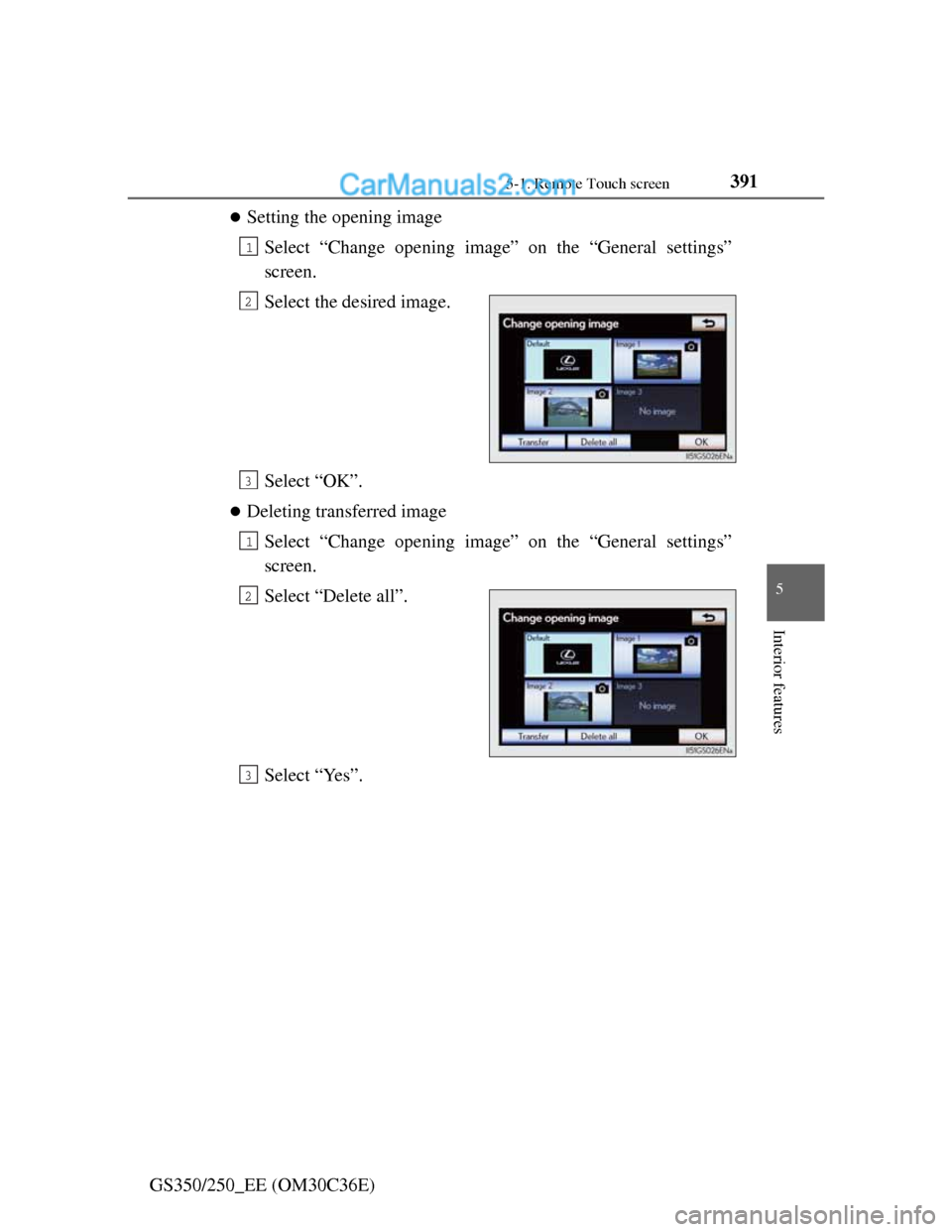
Setting the opening image
Select “Change opening image” on the “General settings”
screen.
Select the desired image.
Select “OK”.
Deleting transferred image
Select “Change opening image” on the “General settings”
screen.
Select “Delete all”.
Select “Yes”.
1
2
3
1
2
3
Page 402 of 914
3925-1. Remote Touch screen
GS350/250_EE (OM30C36E)
Changing the screen off image
Select “Screen off” on the “Display” screen to turn off the
screen. An image can be copied from a USB memory and can be
set to display when “Screen off” is selected.
When saving the images to a USB memory, name the folder that
the screen off image is saved to “DisplayOffImage”. If these
folder names are not used, the system cannot download the
images. (The folder names are case sensitive.)
Transferring data
Open the console box.
Open the cover and connect
a USB memory.
Turn on the power of the USB
memory if it is not turned on.
Close the console box.
Select “Change screen off image” on the “General settings”
screen.
1
2
3
4
Page 403 of 914
3935-1. Remote Touch screen
5
Interior features
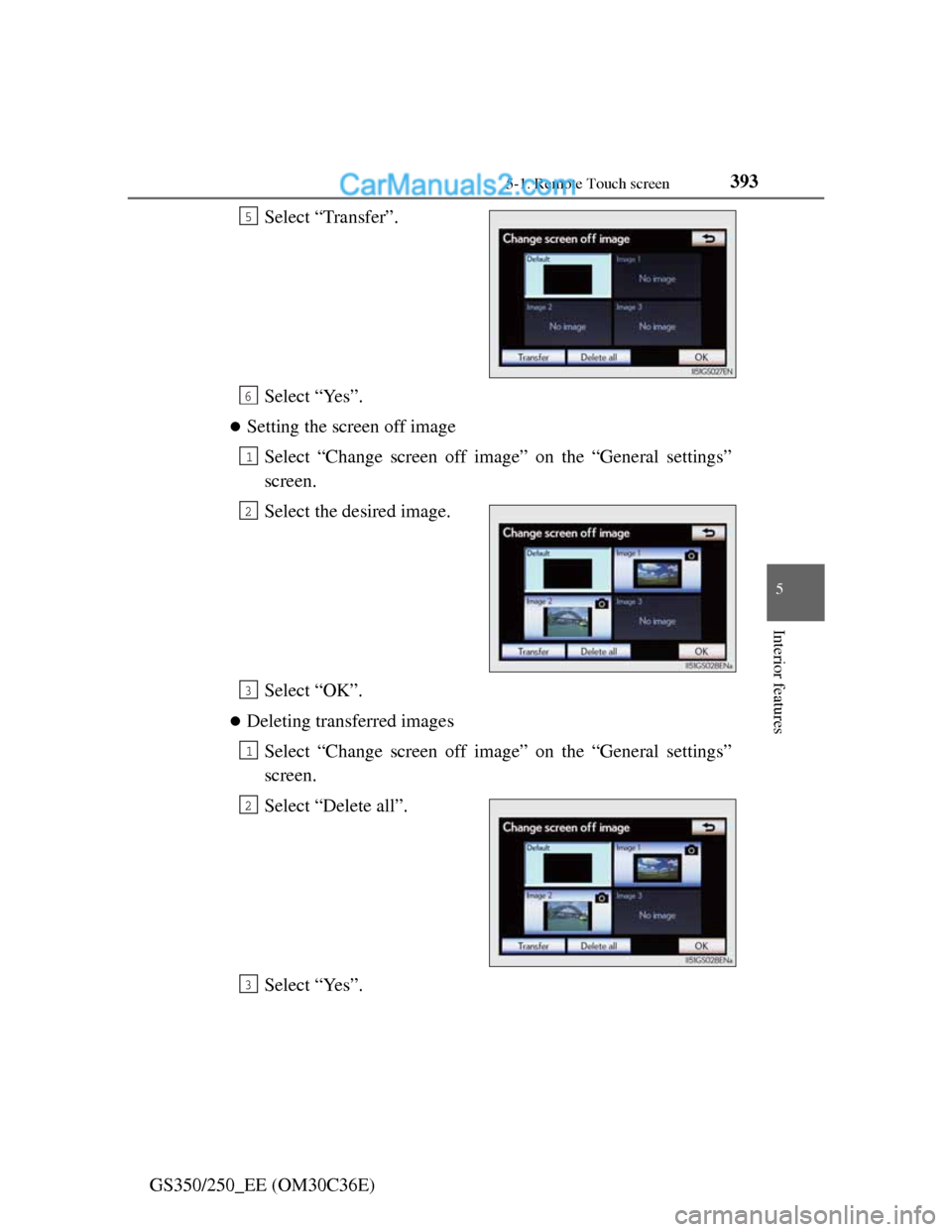
GS350/250_EE (OM30C36E)Select “Transfer”.
Select “Yes”.
Setting the screen off image
Select “Change screen off image” on the “General settings”
screen.
Select the desired image.
Select “OK”.
Deleting transferred images
Select “Change screen off image” on the “General settings”
screen.
Select “Delete all”.
Select “Yes”.
5
6
1
2
3
1
2
3
Page 404 of 914
3945-1. Remote Touch screen
GS350/250_EE (OM30C36E)
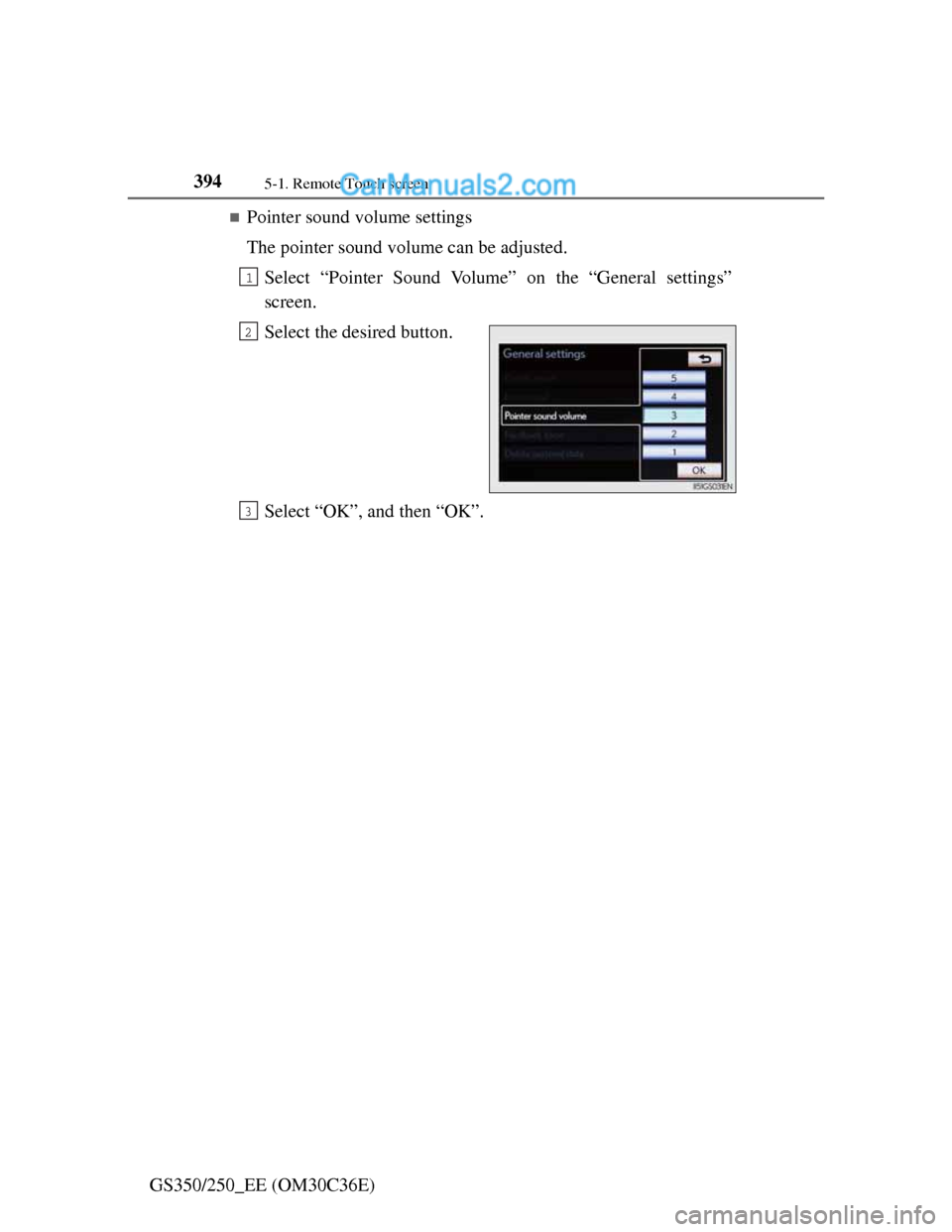
Pointer sound volume settings
The pointer sound volume can be adjusted.
Select “Pointer Sound Volume” on the “General settings”
screen.
Select the desired button.
Select “OK”, and then “OK”.
1
2
3
Page 405 of 914
3955-1. Remote Touch screen
5
Interior features
GS350/250_EE (OM30C36E)
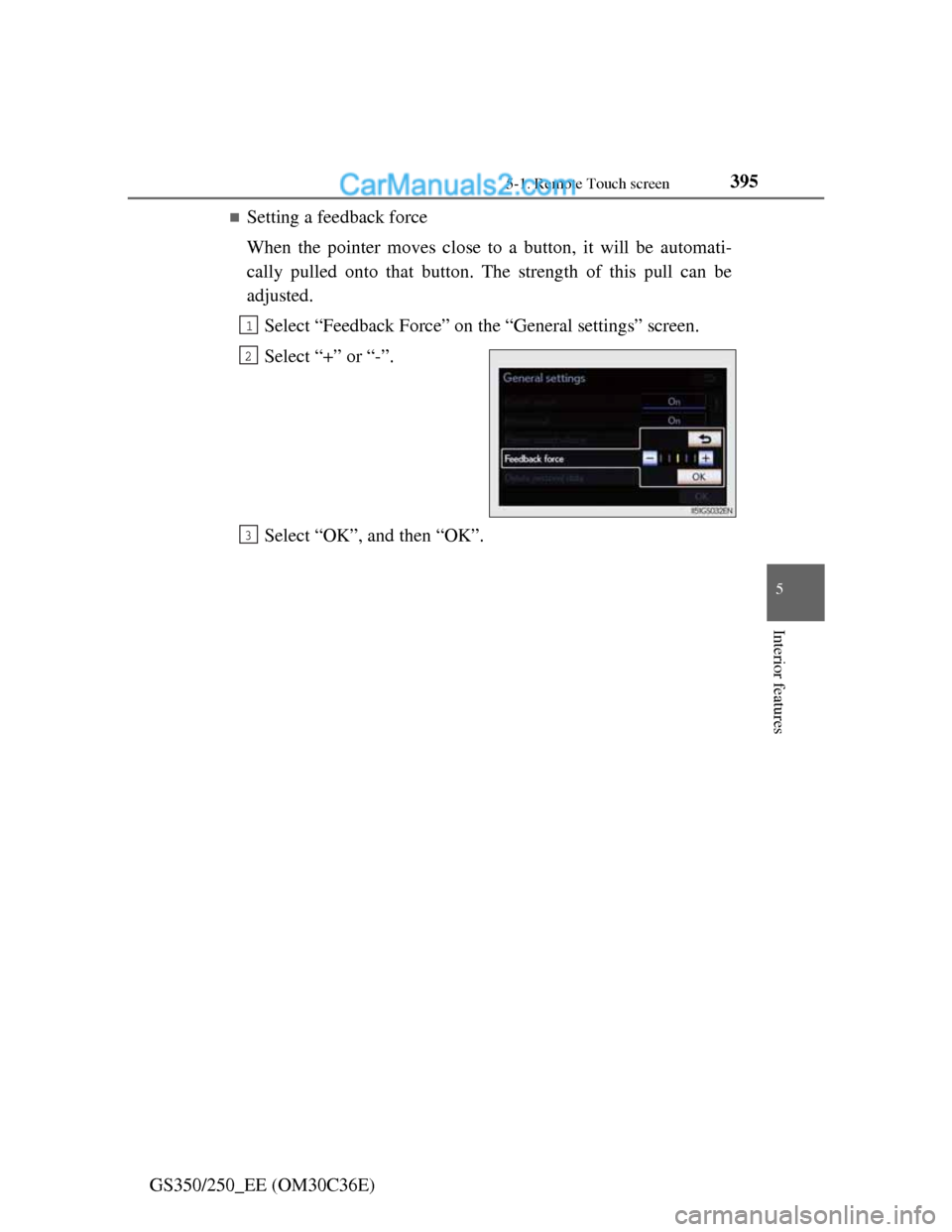
Setting a feedback force
When the pointer moves close to a button, it will be automati-
cally pulled onto that button. The strength of this pull can be
adjusted.
Select “Feedback Force” on the “General settings” screen.
Select “+” or “-”.
Select “OK”, and then “OK”.
1
2
3
Page 406 of 914
3965-1. Remote Touch screen
GS350/250_EE (OM30C36E)
Delete personal data
This function is not available while driving.
Select “Delete personal data” on the “General settings” screen.
Select “Delete”.
Check carefully beforehand, as
data cannot be retrieved once
deleted.
Select “Yes”.
The following personal data can be deleted or returned to their default set-
tings:
• Maintenance conditions
*
• Maintenance information off setting*
• Memory point*
• Password settings for backing up and copying memory points*
•Areas to avoid*
• Previous points*
• Route guidance*
•Route trace*
• Phonebook data
• Call history data
• Speed dial data
•Bluetooth
® phone data
• Phone sound settings
• Phone display settings
• Message settings
• Audio setting
•Bluetooth
® audio setting
• Search engine settings
• Opening image data
• Screen off image data
*: Vehicles with a navigation system.
1
2
3