Page 297 of 914
2904-5. Using the driving support
GS350/250_EE (OM30C36E)
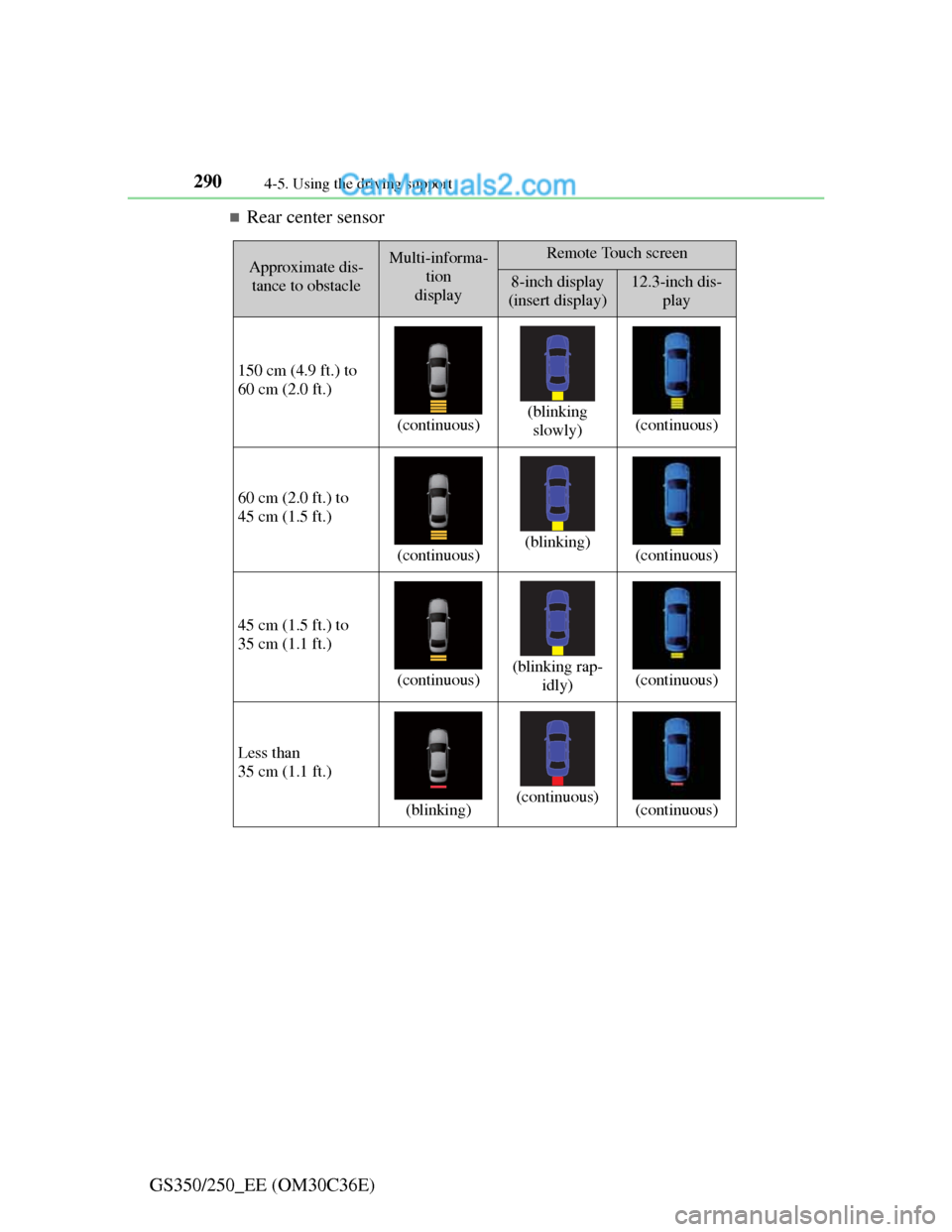
Rear center sensor
Approximate dis-
tance to obstacleMulti-informa-
tion
displayRemote Touch screen
8-inch display
(insert display)12.3-inch dis-
play
150 cm (4.9 ft.) to
60 cm (2.0 ft.)
(continuous)(blinking
slowly)(continuous)
60 cm (2.0 ft.) to
45 cm (1.5 ft.)
(continuous)(blinking)(continuous)
45 cm (1.5 ft.) to
35 cm (1.1 ft.)
(continuous)(blinking rap-
idly)(continuous)
Less than
35 cm (1.1 ft.)
(blinking)(continuous)(continuous)
Page 299 of 914
2924-5. Using the driving support
GS350/250_EE (OM30C36E)You can change the warning beep volume and Remote Touch
screen operating conditions.
Press the “MENU” button on the Remote Touch. (P. 368)
Select “Setup” on the “Menu” screen.
Select “Vehicle” on the “Setup” screen.
Select “Lexus park assist” on the “Vehicle settings” screen.
Alert volume setting
Display on/off
Alert distance setting
Make sure to save after changing
settings.
Setting up Lexus parking assist-sensor
1
2
3
4
1
2
3
Page 376 of 914

366
GS350/250_EE (OM30C36E)
5-1. Remote Touch screen
Remote Touch ................... 368
Remote Touch screen ........ 370
Set up screen ..................... 382
Speech command system .. 401
5-2. Using the air conditioning
system and defogger
Front automatic
air conditioning system ... 409
Rear
air conditioning system ... 425
Rear window and outside rear
view mirror defoggers..... 430
Windshield wiper de-icer .. 4315-3. Using the audio system
Audio system type ............ 432
Using the radio.................. 457
Using the CD/DVD
player .............................. 465
Playing an audio CD and
MP3/WMA discs ............ 467
Playing DVD video .......... 473
CD/DVD player and DVD
video disc information .... 486
Listening to
Bluetooth
® audio ............ 496
Listening to
a USB memory ............... 508
Listening to an iPod .......... 519
Optimal use of
the audio/video system ... 530
Using the AUX port.......... 533
Using the rear seat
audio controls ................. 534
Using the steering wheel
audio switches ................ 539
Page 378 of 914
3685-1. Remote Touch screen
GS350/250_EE (OM30C36E)
Remote Touch
“•” button
Press this button to change map scale and scroll through lists.
“HOME” button
Press this button to display the home screen.
Remote Touch knob
Use this knob to move the cursor and select items on the screen.
Feedback force, pointer sound volume, on or off of selection sounds etc.
can be changed.
“MENU” button
Press this button to display the “Menu” screen.
The Remote Touch can be used to operate the Remote Touch
screens.
Owners of models equipped with a navigation system should refer
to the “Navigation System Owner’s Manual”.
The illustration below is for left-hand drive vehicles without navi-
gation system.
The button positions may differ slightly for right-hand drive vehi-
cles.
1
2
3
4
Page 379 of 914

3695-1. Remote Touch screen
5
Interior features
GS350/250_EE (OM30C36E)
CAUTION
When using the Remote Touch
Do not allow fingers, fingernails or hair to become caught in the Remote
Touch as this may cause an injury.
Be careful when selecting the Remote Touch in extreme temperatures as it
may become very hot or cold due to the temperature inside the vehicle.
NOTICE
To prevent damage to the Remote Touch
Do not allow the Remote Touch to come into contact with food, liquid,
stickers or lit cigarettes as doing so may cause it to change color, emit a
strange odor or stop functioning.
Do not subject the Remote Touch to excessive pressure or strong impact
as the knob may bend or break off.
Do not allow coins, contact lenses or other such items to become caught in
the Remote Touch as this may cause it to stop functioning.
Items of clothing may rip if they become caught on the Remote Touch
knob.
If your hand or any object is on the Remote Touch knob when the engine
switch is turned to ACCESSORY mode, the Remote Touch knob may not
operate properly.
Page 380 of 914
3705-1. Remote Touch screen
GS350/250_EE (OM30C36E)
Remote Touch screen
By using the Remote Touch, you can control the audio system and
air conditioning system, and adjust the screen display etc.
Owners of models equipped with a navigation system should refer
to the “Navigation System Owner’s Manual”.
Vehicles with a 12.3-inch display: Different information can be
displayed on the left and right of the screen. The 8-inch display
area on the left of the screen is called the “Main Display”, and the
area to the right is called the “Side Display”. For details, refer to
the “Navigation System Owner’s Manual”.
“Menu” screen
Vehicles without navigation
systemVehicles with a 8-inch dis-
play navigation system
Vehicles with a 12.3-inch dis-
play navigation system
Page 381 of 914
3715-1. Remote Touch screen
5
Interior features
GS350/250_EE (OM30C36E)If the engine switch is turned to
ACCESSORY or IGNITION
ON mode, the initial screen will
be displayed for a few seconds as
the system starts up.
Images shown on the initial screen
can be changed to suit individual
preferences. (P. 389)
SwitchPage
“Car”P. 3 7 8
“Info”Navigation System Owner’s Manual
“Setup”P. 3 8 2
“Navi”Navigation System Owner’s Manual
“Audio”P. 432, 467
“Climate”P. 4 0 9
“Telephone”P. 5 4 2
“Display”P. 3 7 2
Initial screen
Page 382 of 914
3725-1. Remote Touch screen
GS350/250_EE (OM30C36E)The contrast and brightness of the screen display and the image the
camera displays can be adjusted. (For information regarding audio/
video screen adjustment: P. 480)
Press the “MENU” button on the Remote Touch and select
“Display” on the “Menu” screen.
Select “Map•Menu”/“Menu” or “Camera” to display the
desired screen.
Select “<” or “>” to select the desired function (“Contrast” or
“Brightness”) and then select the desired screen button to
adjust contrast and brightness.
After adjusting the screen, select “OK”.
Adjusting the display
1
2
Display screen (“Map•Menu”/
“Menu”)Display screen (“Camera”)
If the map menu adjust screen
does not appear, select
“Map•Menu”/“Menu”.If the camera adjust screen does
not appear, select “Camera”.
3
“-”“+”
“Contrast”WeakerStronger
“Brightness”DarkerBrighter
4