Page 446 of 914

4355-3. Using the audio system
5
Interior features
GS350/250_EE (OM30C36E)
Using cellular phones
Interference may be heard through the audio system’s speakers if a cellular
phone is being used inside or close to the vehicle while the audio system is
operating.
When using the Remote Touch screen
Dimmed screen buttons cannot be operated.
Ta b
Select or , located either side of the screen tabs, to display tabs from
the previous or next page.
About Dolby
Manufactured under license from Dolby Laboratories. Dolby and the double-
D symbol are trademarks of Dolby Laboratories.
CAUTION
Certification for the disc player
This product is a Class 1 laser product classified under the Safety of laser
products, IEC 60825-1:2007, and contains a class 1 M laser module. To
ensure continued safety, do not remove any covers or attempt to gain access
to the inside of the product. Refer all servicing to qualified personnel.
CLASS 1 LASER PRODUCT
CAUTION - CLASS 1 M VISIBLE
AND INVISIBLE LASER RADIA-
TION WHEN OPEN, DO NOT VIEW
DIRECTLY WITH OPTICAL
INSTRUMENTS.
Page 472 of 914
4615-3. Using the audio system
5
Interior features
GS350/250_EE (OM30C36E)Detailed radio settings can be programmed.
Press the “MENU” button on the Remote Touch, then select
“Setup”.
Select “Audio” on the “Setup” screen.
Select “Radio settings”.
Select the item to be adjusted,
and then select the screen but-
ton next to it to adjust its set-
tings.
“FM traffic announcement”: The
tuner will automatically seek a sta-
tion that regularly broadcasts traf-
fic information and the station
broadcasts when the traffic infor-
mation program starts.
“FM alternative frequency”: A sta-
tion providing good reception is
automatically selected if current
reception worsens.
“Regional code change”: For
switching over to a broadcasting
station within the same local pro-
gram network.
“DAB alternative frequency”: A
station providing good reception is
Radio settings
1
2
3
4
Page 535 of 914
5245-3. Using the audio system
GS350/250_EE (OM30C36E)Open the console box, open
the cover and connect an iPod
using an iPod cable.
Turn on the power of the iPod if it
is not turned on.
Press the “MEDIA” button.
When the track currently being played has cover art data, it can be
displayed.
Press the “MENU” button on the Remote Touch and select
“Setup” on the “Menu” screen.
Select “Audio” on the “Setup” screen.
Select “iPod settings”.
Select “Display cover art”
Connecting an iPod
1
Cover art display settings
2
1
2
3
4
Page 544 of 914
533
5 5-3. Using the audio system
Interior features
GS350/250_EE (OM30C36E)
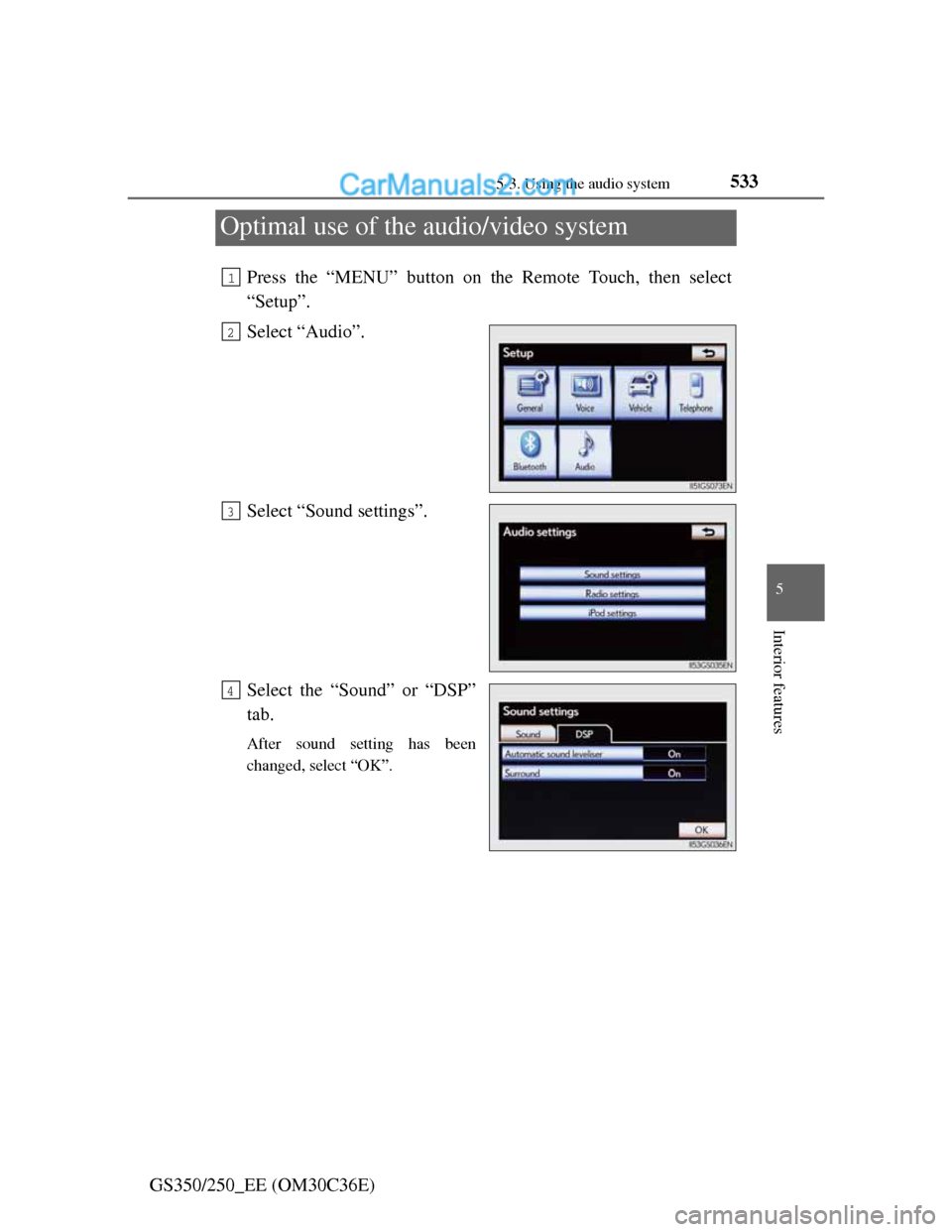
Optimal use of the audio/video system
Press the “MENU” button on the Remote Touch, then select
“Setup”.
Select “Audio”.
Select “Sound settings”.
Select the “Sound” or “DSP”
tab.
After sound setting has been
changed, select “OK”.
1
2
3
4
Page 571 of 914
5565-4. Using the hands-free phone system (for cellular phone)
GS350/250_EE (OM30C36E)
Using a Bluetooth® phone
Device name
Bluetooth
® connection status
Character deletion
Make a call
To display the screen shown above, press the “MENU” button on
the Remote Touch, then select “Telephone” or press on the
steering wheel.
1
2
3
4
Page 593 of 914
5785-4. Using the hands-free phone system (for cellular phone)
GS350/250_EE (OM30C36E)
Setting the hands-free system (for cellular phone)
Phone sound settings
Phonebook settings
Message settings
Phone display settings
To display the screen shown above, press the “MENU” button on
the Remote Touch, then select “Setup”, and select “Telephone”
on the “Setup” screen.
You can set the hands-free system to your desired settings.
1
2
3
4
Page 596 of 914
5815-4. Using the hands-free phone system (for cellular phone)
5
Interior features
GS350/250_EE (OM30C36E)The phonebook manages a maximum of 5 phonebooks in total. The
data for 1000 contacts (up to 3 numbers per contact) can be regis-
tered in each phonebook.
Setting the phonebook
Setting the speed dials
Deleting the call history
To display the screen above, follow the steps below.
Press the “MENU” button on the Remote Touch, then select
“Setup”, and select “Telephone” on the “Setup” screen.
Select “Phonebook” on the “Telephone settings” screen.
Setting the phonebook
Transferring a phone number
You can transfer the phone numbers in your Bluetooth
® phone to
the system. Operation methods differ between PBAP compatible
and PBAP incompatible but OPP compatible Bluetooth
® phones.
If your cellular phone is neither PBAP nor OPP compatible, the
phonebook cannot be transferred.
Phonebook settings
1
2
3
1
2
Page 609 of 914
5945-4. Using the hands-free phone system (for cellular phone)
GS350/250_EE (OM30C36E)You can change the message settings.
To display the screen above, follow the steps below.
Press the “MENU” button on the Remote Touch, then select
“Setup”, and select “Telephone” on the “Setup” screen.
Select “Messaging settings” on the “Telephone settings”
screen.
Message settings
Page 1Page 2
Message forwarding from cellular phone on/off
New message notification display on/off
New message voice notification on/off
Changing new message notification volume
Changing new message voice notification tone
Automatic message read out function on/off
Changing a message read out volume
Cellular phone’s message read and unread status update function
on/off
Editing quick reply messages
1
2
3
4
5
6
7
8
9
1
2