Page 209 of 429

�Î
�Î �Î
�Î
�Î �Î
�Î �Î
Thechartontherightexplainsthe
error messages you may see in the
display while playing a disc.
If you see an error message in the
display while playing a disc, press
the eject button. After ejecting the
disc, check it for damage or
deformation. If there is no damage,
insert the disc again.
For additional information on
damaged discs, see page .
Theaudiosystemwilltrytoplaythe
disc. If there is still a problem, the
error message will reappear. Press
the eject button, and pull out the disc.
Insert a dif f erent disc. If the new
disc plays, there is a problem with
the f irst disc. If the error message
cycle repeats and you cannot clear it,
take your vehicle to a dealer. Cause
Error Message Solution
199
High Temperature
Track/File format not
supported
Mechanical Error
Servo Error
Disc Error Will disappear when the temperature returns to
normal.
Current track will be skipped. The next
supported track or file plays automatically.
Press the EJECT button and pull out the disc(s).
Check the disc f or serious damage, signs of
def ormation, excessive scratches, and/or dirt
(see page 199). Insert the disc again. If the code
does not disappear, or the disc(s) cannot be
removed, consult your dealer. Do not try to
f orce the disc out the player.
Check the disc f or serious damage, signs of
def ormation, excessive scratches, and/or dirt
(see page 199).
On models without navigation system
On models with navigation system
1:2:
CD Player/Changer Error Messages
202 HEAT ERROR
HOT
UNSUPPORTED UNSUPPORT BAD DISC
PLEASE CHECK OWNER’S
MANUAL
PUSH EJECT
MECH ERROR
CHANGER ERROR CHKDISCLOAD
BAD DISC
PLEASE CHECK OWNER’S
MANUAL
CHECK DISC
DISC ERROR 1
2 1
2
1 2
Main MenuTable of Contents
Page 210 of 429
�´
�µ �´�µ
�Û�Ý
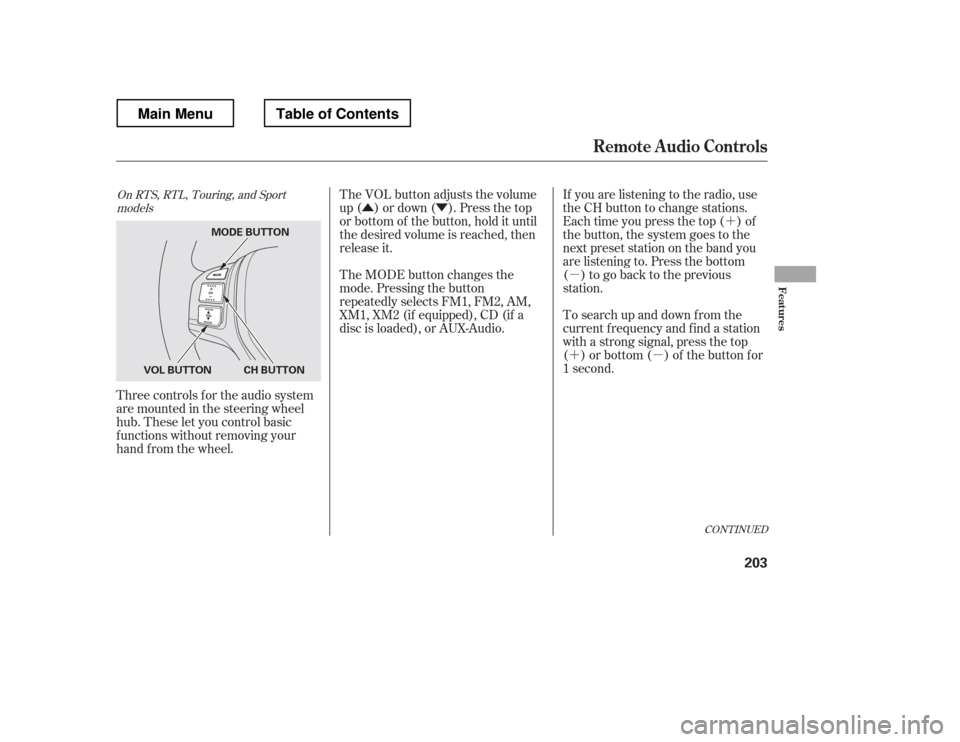
Three controls f or the audio system
are mounted in the steering wheel
hub. These let you control basic
f unctions without removing your
hand f rom the wheel. If you are listening to the radio, use
the CH button to change stations.
Each time you press the top ( ) of
the button, the system goes to the
next preset station on the band you
are listening to. Press the bottom
( ) to go back to the previous
station.
To search up and down f rom the
current f requency and f ind a station
with a strong signal, press the top
( ) or bottom ( ) of the button for
1 second.
The VOL button adjusts the volume
up ( ) or down ( ). Press the top
or bottom of the button, hold it until
the desired volume is reached, then
release it.
The MODE button changes the
mode. Pressing the button
repeatedly selects FM1, FM2, AM,
XM1, XM2 (if equipped), CD (if a
disc is loaded), or AUX-Audio.
CONT INUED
On RTS, RTL, Touring, and Sport
models
Remote Audio Controls
Features
203
MODE BUTTON
CH BUTTON
VOL BUTTON
Main MenuTable of Contents
Page 211 of 429

�´�µ �´
�µ
�´
�µ �´
�µ
�´ �µ
If you are playing a disc, the system
skips to the beginning of the next
track each time you press the top
( ) of the CH button. Press the
bottom ( ) to return to the
beginning of the current track. Press
it again to return to the previous
track. You will see the disc and track
numbers in the upper display.
To go to the next disc, press the top
( ) of the button for 1 second.
Press the bottom ( ) f or 1 second
to go back to the previous disc.
When you play an MP3/WMA disc,
press the top ( ) of the button for 1
second to go to the next folder. Press
the bottom ( ) for 1 second to go
back to the previous folder. If you are listening to XM Radio, use
the CH button to change channels.
Each time you press the top ( ) of
the button, the system goes to the
next preset channel. Press the
bottom( )togobacktothe
previous preset channel.
To go to the next channel of the
category you are listening to, press
the top ( ) of the button for 1
second. Press the bottom ( ) f or 1
second to go back to the previous
channel.
On models without navigation system
Remote Audio Controls
204
Main MenuTable of Contents
Page 212 of 429
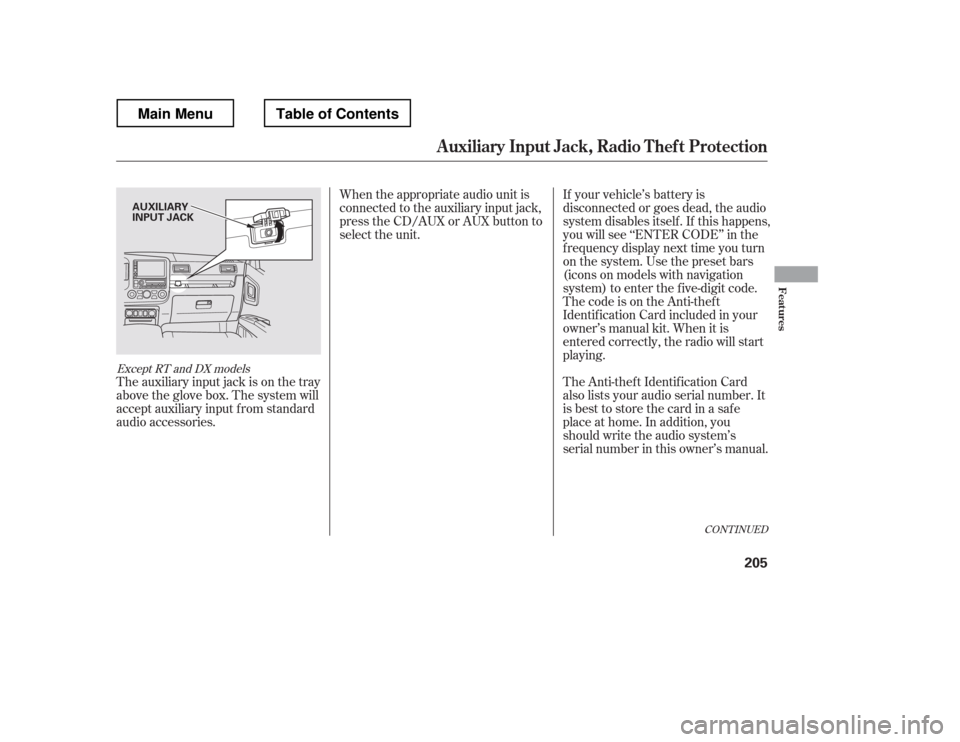
The auxiliary input jack is on the tray
above the glove box. The system will
accept auxiliary input f rom standard
audio accessories.When the appropriate audio unit is
connected to the auxiliary input jack,
press the CD/AUX or AUX button to
select the unit.
If your vehicle
Page 213 of 429
If you make a mistake entering the
code, do not start over; complete the
f ive-digit sequence, then enter the
correct code. You have ten tries to
enter the correct code. If you are
unsuccessful in ten attempts, you
must then leave the system on for
one hour bef ore trying again.
The system will retain your AM and
FM presets even if power is
disconnected.We recommend that you register the
security code at Owner Link (owners.
honda.com). If you lose the Anti-
thef t Identif ication Card bef ore
registering the code at Owner Link,
you must obtain the code f rom your
dealer or
. To do this, you will need the
audio system
Page 215 of 429
If equipped
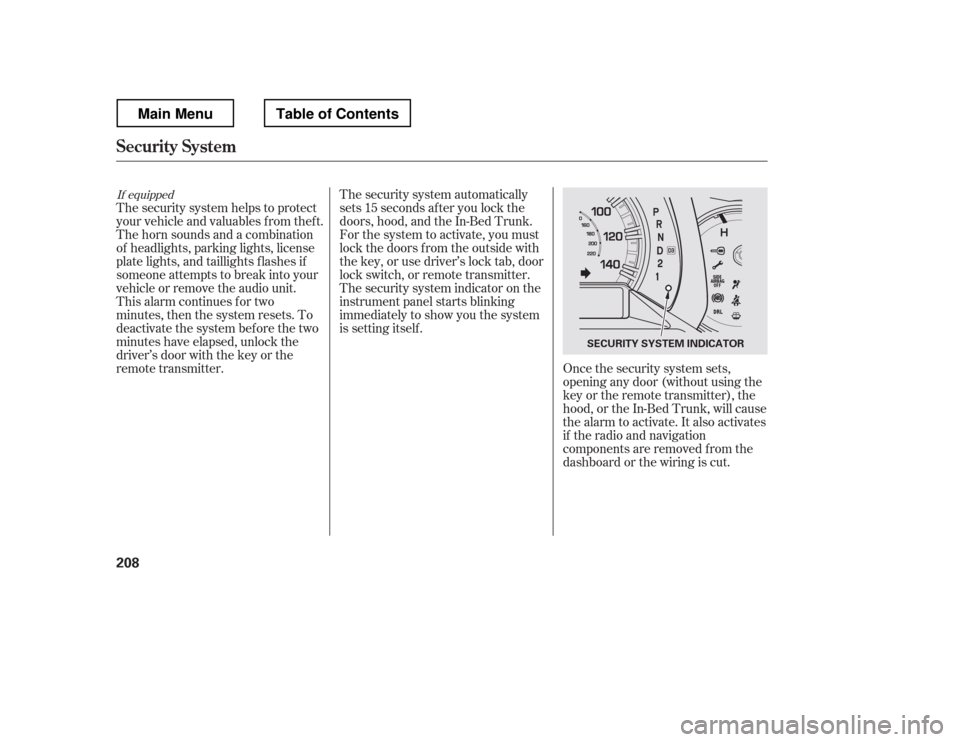
The security system helps to protect
your vehicle and valuables f rom thef t.
The horn sounds and a combination
of headlights, parking lights, license
plate lights, and taillights f lashes if
someone attempts to break into your
vehicle or remove the audio unit.
This alarm continues for two
minutes, then the system resets. To
deactivate the system before the two
minutes have elapsed, unlock the
driver
Page 231 of 429
A notif ication that there is an
incoming call, or HFL is in use, will
appear on the navigation screen
when the audio system is on.When there is an incoming call, or
HFL is in use, ‘‘HANDS FREE
LINK
Page 240 of 429
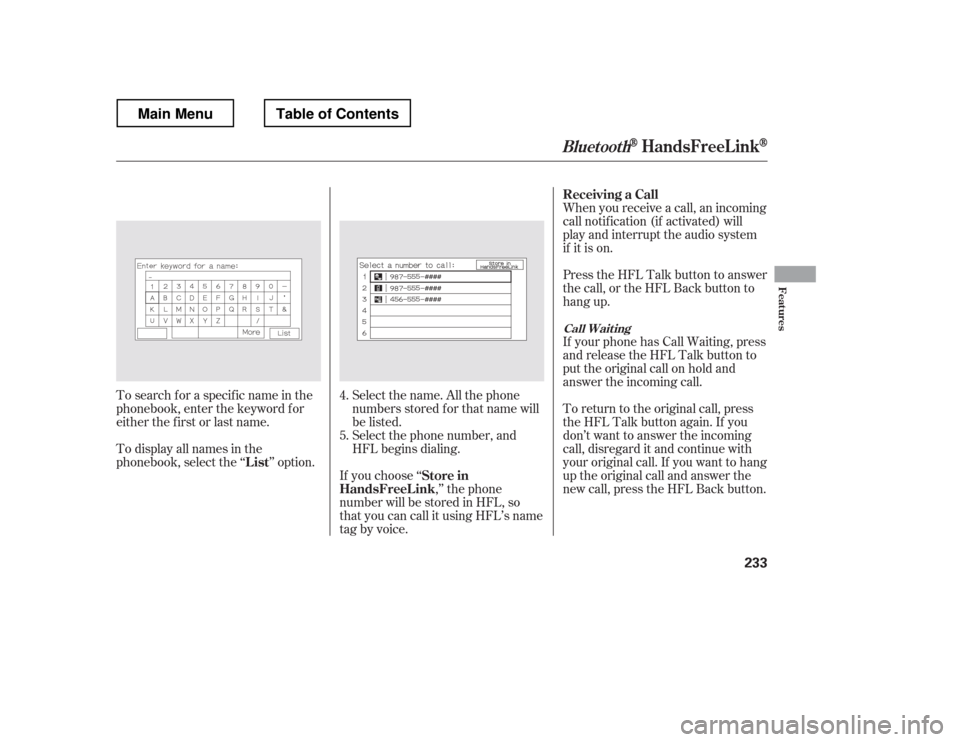
Select the name. All the phone
numbers stored f or that name will
be listed.When you receive a call, an incoming
call notif ication (if activated) will
play and interrupt the audio system
if it is on.
Press the HFL Talk button to answer
the call, or the HFL Back button to
hang up.
If your phone has Call Waiting, press
and release the HFL Talk button to
put the original call on hold and
answer the incoming call.
To return to the original call, press
the HFL Talk button again. If you
don