Page 168 of 429

�µ
�µ
�µ
�µ�µ
�µ
You can use any of f ive methods to
f ind radio stations on the selected
band: tune, seek, scan, the preset
bars, and auto select.
Use the TUNE bar to tune
the radio to a desired f requency.
Press the side of the bar to tune
to a higher f requency, and press the side to tune to a lower
f requency.
The scan f unction samples
all stations with strong signals on the
selected band. To activate it, press
the SCAN button, then release it.
You will see SCAN in the display.
When the system finds a strong signal, it will stop and play that
station f or about 10 seconds.
The ignition switch must be in the
ACCESSORY (I) or ON (II) position.
Turn the system on by pushing the
PWR button or the AM/FM button.
Adjust the volume by turning the
volume knob.
Pushing the AUDIO button will also
turn on the system (see page ).
The band and f requency that the
radio was last tuned to are displayed.
To change bands, press the AM/FM
button. On the FM band, ST will be
displayed if the station is
broadcasting in stereo. Stereo
reproduction in AM is not available.
On the AM band, AM noise
reduction turns on automatically. The SEEK f unction
searches up and down f rom the
current f requency to f ind a station
with a strong signal. To activate it,
press the or side of the
SEEK/SKIP bar, then release it. If you do nothing, the system will
scan f or the next strong station and
play it f or 10 seconds. When it plays
a station that you want to listen to,
press the SCAN button again.
Each side of the bars (1
6) can store one f requency on AM
and two f requencies on FM.
Usethetune,seek,orscan
function to tune the radio to a
desired station.
Select the desired band, AM or
FM. FM1 and FM2 let you store
six stations each.
Pick a preset number (1 6), then
press and hold it until you hear a
beep.
Repeat steps 1 through 3 to store a
total of six stations on AM and
twelve stations on FM.
1. 2.3. 4.
163
CONT INUED
On models with navigation system
T o Play the A M/FM Radio T o Select a Station
TUNE
SCAN
SEEK
Preset
Playing the AM/FM Radio
Features
161
Main MenuTable of Contents
Page 170 of 429

�µ
�µ
In addition to the knobs, buttons, and
bars on the radio control panel, you
can operate some of the radio
controls on the navigation system
screen. To adjust the sound, push the
AUDIO button, then enter the sound
grid by touching the SOUND icon on
the display.
While you are listening to the radio,
you can change to another band by
pressing the AUDIO button next to
the navigation system screen, and
then touching the desired band icon
(FM1, FM2, or AM).
AUTO SELECT, SCAN, and SOUND
are adjustable f rom the navigation
screen. For an explanation of these
f unctions, see pages and .
Touch the
A.SEL icon to activate the auto select
f unction. You will see A.SEL f lashing
on the display.
Touch the SCAN icon to
activate the scan function. You will
see SCAN on the display. Touch the
icon again to deactivate it. 161 162
CONT INUED
On models with navigation system
Operating the Radio on the
Navigation System Screen
AUTO SELECT
SCANA djust ing t he Sound
Playing the AM/FM Radio
Features
163
AUDIO BUTTON
Main MenuTable of Contents
Page 175 of 429
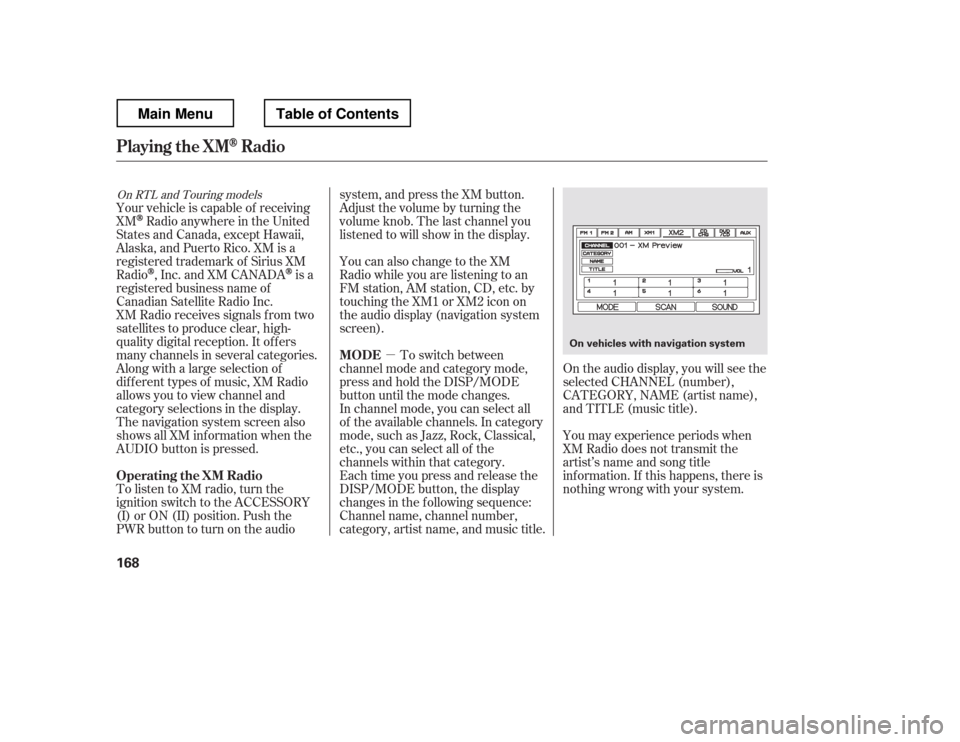
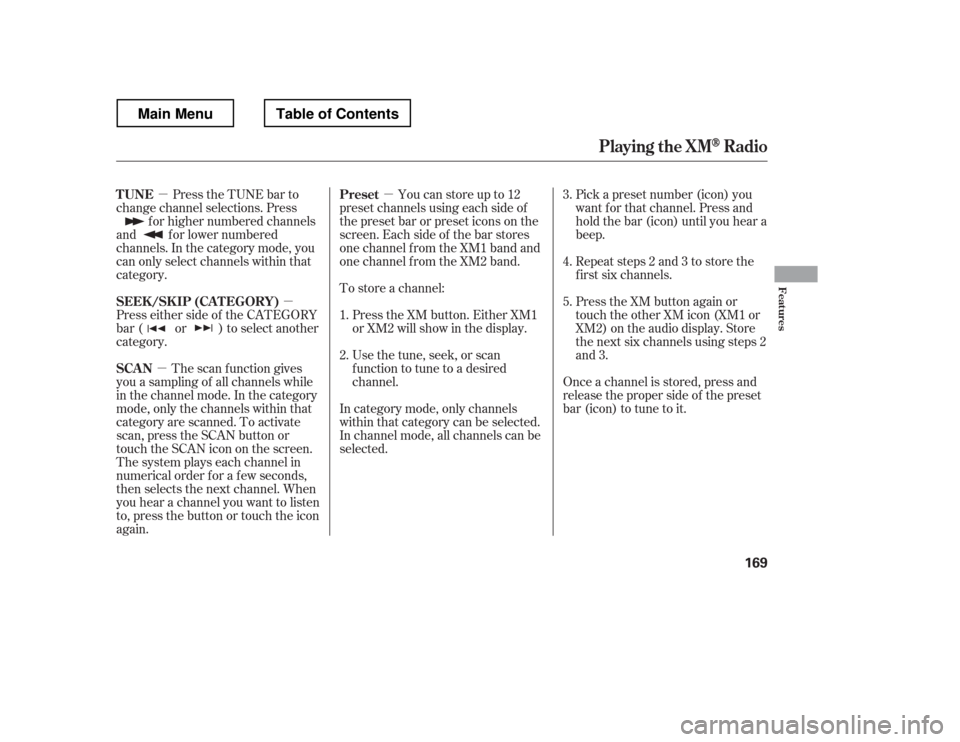
�µOn the audio display, you will see the
selected CHANNEL (number),
CATEGORY, NAME (artist name),
and TITLE (music title).
You may experience periods when
XM Radio does not transmit the
artist
Page 176 of 429
�µ�µ
�µ �µ
Press the TUNE bar to
change channel selections. Press
f or higher numbered channels
and f or lower numbered
channels. In the category mode, you
can only select channels within that
category.
Press either side of the CATEGORY
bar ( or ) to select another
category.
The scan f unction gives
you a sampling of all channels while
in the channel mode. In the category
mode, only the channels within that
category are scanned. To activate
scan, press the SCAN button or
touch the SCAN icon on the screen.
The system plays each channel in
numerical order f or a f ew seconds,
then selects the next channel. When
you hear a channel you want to listen
to, press the button or touch the icon
again. Youcanstoreupto12
preset channels using each side of
the preset bar or preset icons on the
screen. Each side of the bar stores
one channel f rom the XM1 band and
one channel f rom the XM2 band. Pick a preset number (icon) you
want f or that channel. Press and
hold the bar (icon) until you hear a
beep.
Repeat steps 2 and 3 to store the
f irst six channels.
Once a channel is stored, press and
release the proper side of the preset
bar (icon) to tune to it.
To store a channel:
Press the XM button. Either XM1
or XM2 will show in the display.
Usethetune,seek,orscan
function to tune to a desired
channel. Press the XM button again or
touch the other XM icon (XM1 or
XM2) on the audio display. Store
the next six channels using steps 2
and 3.
In category mode, only channels
within that category can be selected.
In channel mode, all channels can be
selected.
1. 2. 3. 4. 5.
TUNE
SEEK /SK IP (CA T EGORY)
SCAN Preset
Playing t he XMRadio
Features
169
Main MenuTable of Contents
Page 177 of 429
�µ�µ
�µ �µ �µ
�µ
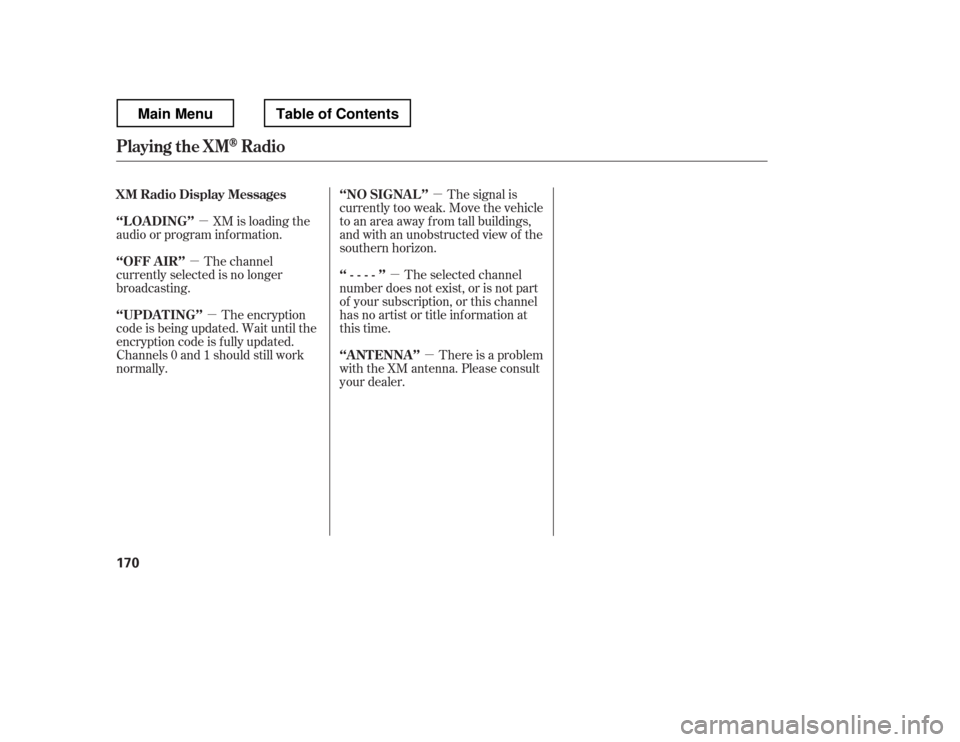
XM is loading the
audio or program inf ormation. The signal is
currently too weak. Move the vehicle
to an area away from tall buildings,
and with an unobstructed view of the
southern horizon.
The channel
currently selected is no longer
broadcasting.
The encryption
code is being updated. Wait until the
encryption code is f ully updated.
Channels 0 and 1 should still work
normally. The selected channel
number does not exist, or is not part
of your subscription, or this channel
has no artist or title inf ormation at
this time.
There is a problem
with the XM antenna. Please consult
your dealer.
XM Radio Display Messages
‘‘L OA DING
Page 179 of 429
Depending on where you drive, you
may experience reception problems.
Interf erence can be caused by any of
these conditions:Driving on the north side of a
large commercial truck on an
east/west road.
Driving in tunnels.
Driving on a road beside a vertical
wall, steep clif f , or hill to the south
of you.
Driving on the lower level of a
multi-tiered road.
Driving on a single lane road
alongside dense trees taller than
50 ft. (15 m) to the south of you.
Driving on the north side of an
east/west mountain road.
Large items carried on a roof rack. If your XM Radio service has expired
or you purchased your vehicle f rom
a previous owner, you can listen to a
sampling of the broadcasts
available
on XM Radio. With the ignition
switch in the ACCESSORY (I) or ON
(II) position, push the PWR button to
turn on the audio system and press
the XM button. A variety of music
types and styles will play.
Theremaybeothergeographic
situations that could af f ect XM Radio
reception.
As required by the FCC:
Changes or modif ications not expressly
approved by the party responsible f or compliance could void the user
Page 181 of 429
You operate the CD player with the
same controls used f or the radio. See
page f or the CD player operation
inf ormation.This audio system can also play
CD-Rs and CD-RWs compressed in
MP3 or WMA f ormats. When
playing a disc in MP3, you will see
‘‘MP3
Page 184 of 429
�µ�µ
You will also see some text data
under these conditions:
When a new f older, f ile, or track is
selected.
When you change the audio mode
to play a disc with text data or in
MP3 or WMA.
When you insert a disc, and the
system begins to play.
When playing a CD-DA with text
data, the album and track name are
showninthedisplay.Withadiscin
MP3 or WMA, the display shows the
f older and f ile name. You can use the SEEK/SKIP bar
while a disc is playing to select
passages and change tracks (f iles in
MP3/WMA mode).
Each time you press and
releasethe sideof theSEEK/
SKIP bar, the player skips f orward to
the beginning of the next track (f ile
in MP3 or WMA mode). Press and
release the side, to skip
backward to the beginning of the
current track. Press it again to skip
to the beginning of the previous
track.
To move rapidly within a track, press
and hold the or side of the
SEEK/SKIP bar. To
select a dif f erent f older, press either
side of the TUNE/FOLDER bar.
Press the side of the bar to skip
to the next folder, and the side
of the bar to skip to the beginning of
the previous f older.
In MP3 or WMA mode
CONT INUED
T o Change or Select T racks/Files
SK IP FOLDER SELECTION
CD Player
Features
177
Main MenuTable of Contents