Page 191 of 429

�µEach time you press and
releasethe sideof theSEEK/
SKIP bar, the player skips f orward to
the beginning of the next track (f ile
in MP3 or WMA mode). Press and
release the side, to skip
backward to the beginning of the
current track. Press it again to skip
to the beginning of the previous
track.
To move rapidly within a track or f ile,
press and hold either side ( or ) of the SEEK/SKIP bar.
Use the SEEK/SKIP bar while a disc
is playing to select passages and
change tracks (f iles in MP3 or WMA
mode).
In MP3 or WMA mode, use the
TUNE/FOLDER bar to select
f olders in the disc and use either
side of the SEEK/SKIP bar to
change f iles.
To select a dif f erent disc, use the
appropriate preset buttons (1
through 6). If you select an empty
position, the system will go into the
loading sequence (see page ).
When you insert a disc, and the
system begins to play.
When you change the audio mode
to play a disc with text data or in
MP3 or WMA.
When playing a CD-DA with text
data, the album and track name are
showninthedisplay.Withadiscin
MP3 or WMA, the display shows the
f older and f ile name.
182
CD Changer (Models without navigation system)
SK IPT o Change or Select T racks/Files
184
Main MenuTable of Contents
Page 196 of 429
Your audio system has an in-dash
CD changer that holds up to six CDs,
providing several hours of
continuous entertainment. You
operate this CD changer with the
same controls used f or the radio.
To load CDs or operate the CD
changer, the ignition switch must be
in the ACCESSORY (I) or ON (II)
position.
CONT INUED
On RTL and Touring models withnavigation system
CD Changer (Models with navigation system)
To Play a Disc
Features
189
SEEK/SKIP BAR AM/FM BUTTON
SCAN
BUTTON
LOAD INDICATOR
LOAD BUTTON EJECT BUTTON CD SLOT
PRESET BARS
RTL and Touring models with navigation system
DISP BUTTONRPT
BUTTON
RDM BUTTON
Do not use CDs with adhesive labels.
The label can curl up and cause the CD
to jam in the unit.
Main MenuTable of Contents
Page 199 of 429
�µ
�¼ You will also see some text data
under these conditions:
When a new f older, f ile, or track is
selected.
When you change the audio mode
to play a disc with text data or in
MP3 or WMA.
When you insert a disc, and the
system begins to play.
When playing a CD-DA with text
data, the album and track name are
showninthedisplay.Withadiscin
MP3 or WMA, the display shows the
f older and f ile name. You can use the SEEK/SKIP bar
while a disc is playing to select
passages and change tracks (f iles in
MP3/WMA mode).
Each time you press and
releasethe sideof theSEEK/
SKIP bar, the player skips f orward to
the beginning of the next track (f ile
in MP3 or WMA mode). Press and
release the side, to skip
backward to the beginning of the
current track. Press it again to skip
to the beginning of the previous
track.
To move rapidly within a track, press
andholdthe or SKIPbar.
The display shows up to 16
characters of selected text data (the
f older name, f ile name, etc.).
If the text data has more than 17
characters, you will see the f irst 15
characters and the indicator in
the display. Press and hold the DISP
button until the next 16 characters
are shown. You can see up to 31
characters of the text data.
If youpressandholdtheDISP
button again, the display shows the
f irst 15 characters again.
If any letter is not available, it is
replaced with ‘‘ .
Page 202 of 429
�µ
CONT INUED
Each time you press and release the
SCAN button, the mode changes
from scan, disc scan, then to normal
play.
Each time you press and release the
SCAN button, the mode changes
f rom f ile scan, f older scan, disc scan,
then to normal play.
When the f irst track in the last disc,
or the f irst f ile in the last main f older
in the last disc begins to play, the
disc scan mode will be canceled.
Pressing either side of the SEEK/
SKIP bar or selecting a dif f erent
folder with the TUNE bar also turns
off the scan feature.
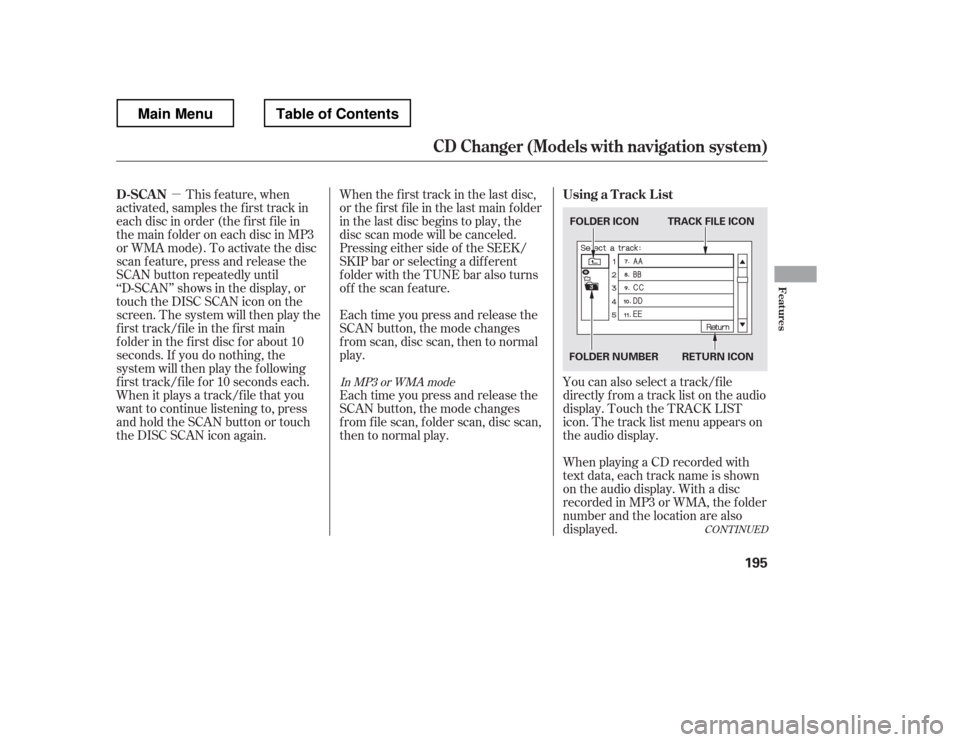
You can also select a track/f ile
directly f rom a track list on the audio
display. Touch the TRACK LIST
icon. The track list menu appears on
the audio display.
When playing a CD recorded with
text data, each track name is shown
on the audio display. With a disc
recorded in MP3 or WMA, the f older
number and the location are also
displayed.
This f eature, when
activated, samples the first track in
each disc in order (the f irst f ile in
themainfolderoneachdiscinMP3
or WMA mode). To activate the disc
scan feature, press and release the
SCAN button repeatedly until
‘‘D-SCAN
Page 204 of 429
When you press the eject button
while listening to the radio, or with
the audio system turned of f , the disc
that was last selected is ejected.
Af ter that disc is ejected, pressing
the eject button again will eject the
next disc in numerical order. By
doing this six times, you can remove
all the discs f rom the changer.
To eject one disc, press and release
the eject button.
You can also eject discs when the
ignition switch is on or of f :
To eject all discs, press and hold the
eject button until the LOAD
indicator begins to blink. For inf ormation on how to handle
and protect discs, see page .
198
CD Changer (Models with navigation system)
Protecting Discs
Features
197
Main MenuTable of Contents
Page 205 of 429
When a CD is not being played, store
it in its case to protect it f rom dust
and other contamination. To prevent
warpage, keep CDs out of direct
sunlight and extreme heat.
To clean a CD, use a clean sof t cloth.
Wipe across the CD f rom the center
to the outside edge.
AnewCDmayberoughonthe
inner and outer edges. The small
plastic pieces causing this roughness
can f lake of f and f all on the re-
cording surf ace of the CD, causing
skipping or other problems. Remove
these pieces by rubbing the inner
and outer edges with the side of a
pencil or pen.Handle a CD by its edges; never
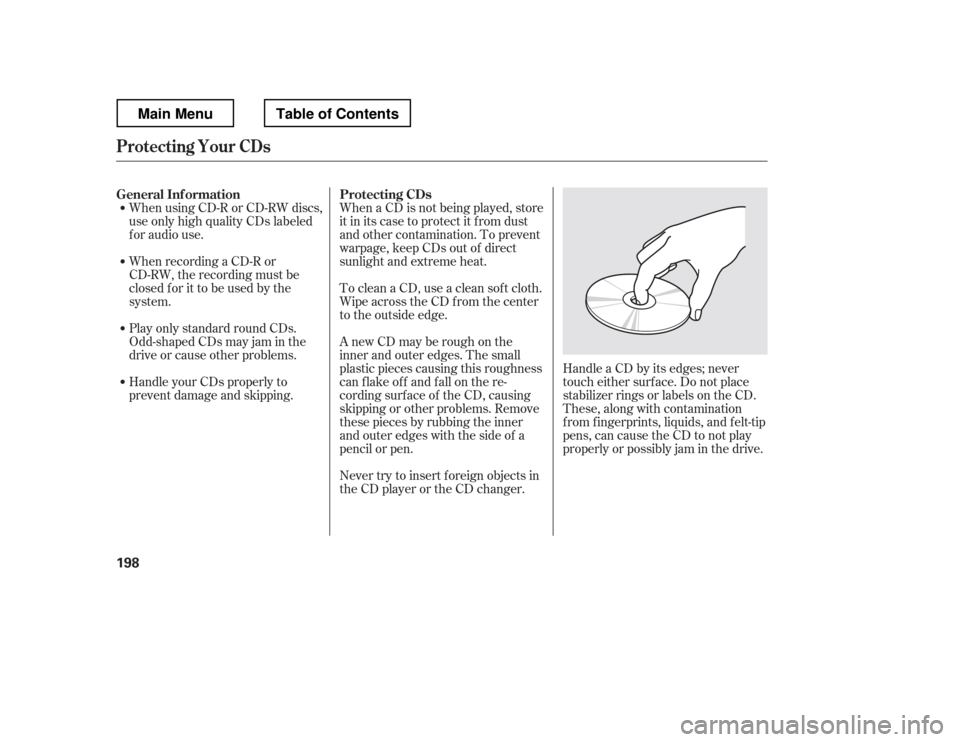
touch either surf ace. Do not place
stabilizer rings or labels on the CD.
These, along with contamination
f rom f ingerprints, liquids, and f elt-tip
pens, can cause the CD to not play
properly or possibly jam in the drive.
Never try to insert f oreign objects in
the CD player or the CD changer.
When using CD-R or CD-RW discs,
use only high quality CDs labeled
f or audio use.
When recording a CD-R or
CD-RW, the recording must be
closedforittobeusedbythe
system.
Play only standard round CDs.
Odd-shaped CDs may jam in the
driveorcauseotherproblems.
Handle your CDs properly to
prevent damage and skipping.
General Inf ormation Protecting CDs
Protecting Your CDs
198
Main MenuTable of Contents
Page 206 of 429
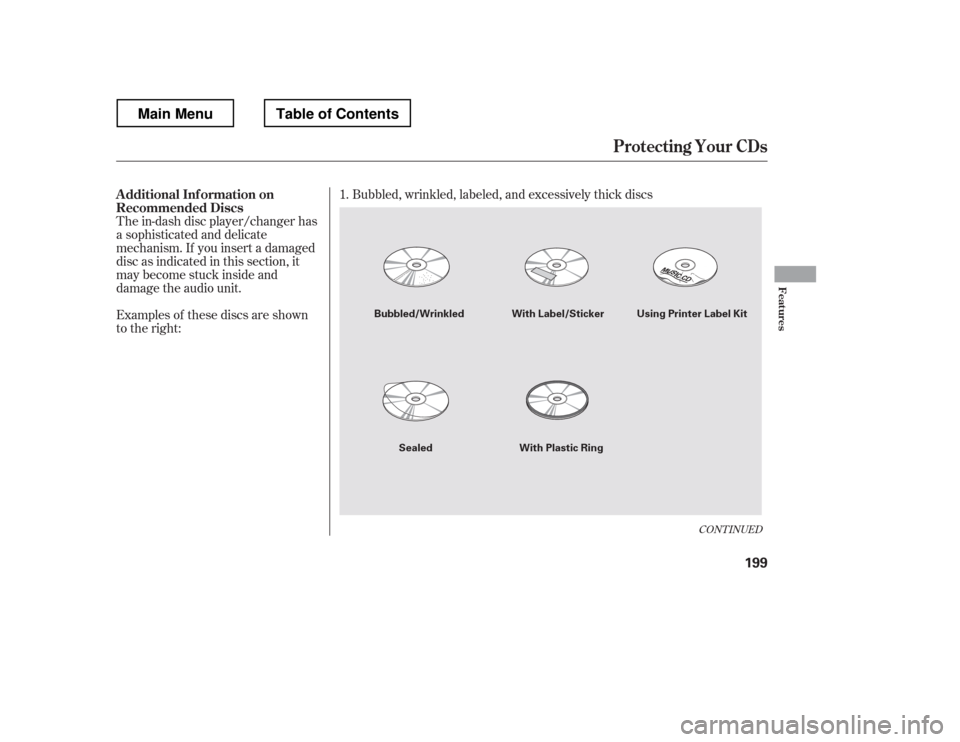
The in-dash disc player/changer has
a sophisticated and delicate
mechanism. If you insert a damaged
disc as indicated in this section, it
maybecomestuckinsideand
damage the audio unit.
Examples of these discs are shown
to the right:Bubbled, wrinkled, labeled, and excessively thick discs
1.
CONT INUED
Additional Inf ormation on
Recommended Discs
Protecting Your CDs
Features
199
Using Printer Label Kit
Bubbled/Wrinkled
With Plastic Ring
With Label/Sticker
Sealed
Main MenuTable of Contents
Page 208 of 429
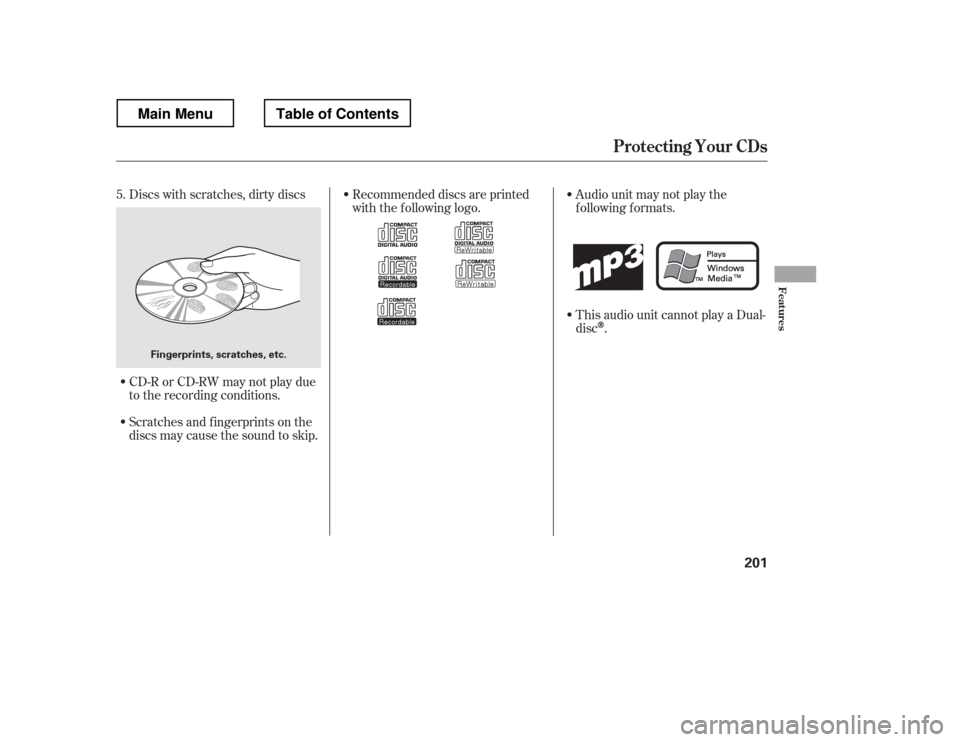
Discs with scratches, dirty discs
CD-R or CD-RW may not play due
to the recording conditions.
Scratches and f ingerprints on the
discs may cause the sound to skip.Recommended discs are printed
with the f ollowing logo.
Audio unit may not play the
following formats.
This audio unit cannot play a Dual- disc
.
5.
Protecting Your CDs
Features
201
Fingerprints, scratches, etc.
Main MenuTable of Contents