Page 195 of 458
5-8Audio
Power and sound controls &Power switch and volume control
Type A and B audio
Type C audio The dial is used for both power (ON/OFF)
and volume control. The radio is turned
ON and OFF by pushing the dial, and the
volume is controlled by turning the dial. &
Sound control
! Tone and balance control
Type A and B audio
Type C audio
Each brief press of the sound control dial
changes the control modes in the follow-
ing sequence.
Choose the desired level for each mode
by turning the sound control dial.
The control function returns to the tune/
track/channel control mode after approxi-
mately 5 seconds.
Page 196 of 458

!Other sound setting controls
Type A and B audio
Type C audio
Each brief press of the “MENU ”button
changes the control modes in the follow-
ing sequence. Type A audio:
Type B audio:
Type C audio:
Choose the desired settings for each
mode by turning the sound control dial.
The control function returns to the tune/
track/channel control mode after approxi-
mately 5 seconds. !
SPEED VOLUME setting
SPEED VOLUME CONTROL is a function
that automatically adjusts the volume
according to the vehicle speed. As the
vehicle speed increases, the audio vo-
lume automatically increases to match the
vehicle speed, in order to create a
pleasant listening environment even as
the driving noise increases. The amount of this automatic volume change can be set
in the range from OFF to 2. The initial
setting is OFF. !
BEEP setting
A beep sound (operation sound) that
occurs when the audio system is operated
can be set ON/OFF. The initial setting isON. ! SRS CS Auto setting (type B audio)
SRS CS Auto can be set ON/OFF. When
this setting is ON, “
”is displayed on the
screen.
NOTE
SRS CS Auto creates a 5.1ch equiva-
lent surround field using 10 speakers
that are installed in the vehicle.
SRS CS Auto features:
1) Sound originating from door mount
speakers can be heard at ear level
(built in SRS FOCUS effect).
2) Ultra rich bass sound can be ob-
tained from standard door mount
speakers (built in SRS TruBass effect).
3) Surround sound can be obtained
from 2-channel stereo sources such as
CD, MP3 and FM (built in SRS Circle
Surround II effect).
4) SRS CS Auto can position the
center channel image in the center of
the vehicle ’s windshield. This elimi- Audio
5-9
– CONTINUED –
Page 200 of 458

!Seek tuning (SEEK)
Type A and B audio
Type C audio
If you press the “
”or “”side of the
“ SEEK ”button briefly, the radio will auto-
matically search for a receivable station and stop at the first one it finds. This
function may not be available, however,
when radio signals are weak. In such a
situation, perform manual tuning to select
the desired station. !
Scan tuning (SCAN)
Type A and B audio
Type C audio
If you press the “SCAN ”button, the radio
will switch to the scan mode. In this mode,
the radio scans through the radio band
until a station is found. The radio will stop
at the station for 5 seconds while display-
ing the frequency, after which scanning
will continue until the entire band has beenscanned.
Press the “SCAN ”button again to cancel
the SCAN mode and to stop at any
displayed channel.
Automatic tuning may not function prop-
erly if the station reception is weakened by
distance from the station or proximity to
tall buildings and hills. Audio
5-13
– CONTINUED –
Page 201 of 458
5-14Audio
! PTY (Program type) group tuning
(only FM reception)
Type A and B audio
Type C audio
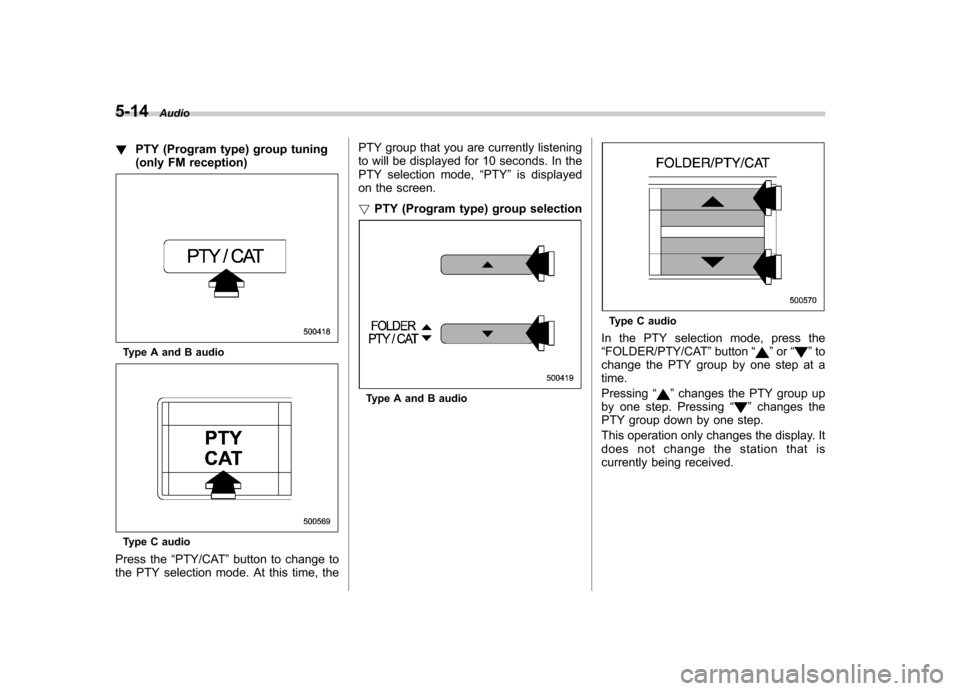
Press the “PTY/CAT ”button to change to
the PTY selection mode. At this time, the PTY group that you are currently listening
to will be displayed for 10 seconds. In the
PTY selection mode,
“PTY ”is displayed
on the screen. ! PTY (Program type) group selection
Type A and B audio
Type C audio
In the PTY selection mode, press the “ FOLDER/PTY/CAT ”button “
”or “”to
change the PTY group by one step at a time. Pressing “
”changes the PTY group up
by one step. Pressing “”changes the
PTY group down by one step.
This operation only changes the display. It
does not change the station that is
currently being received.
Page 202 of 458
!Seek in PTY (Program type) group
Type A and B audio
Type C audio
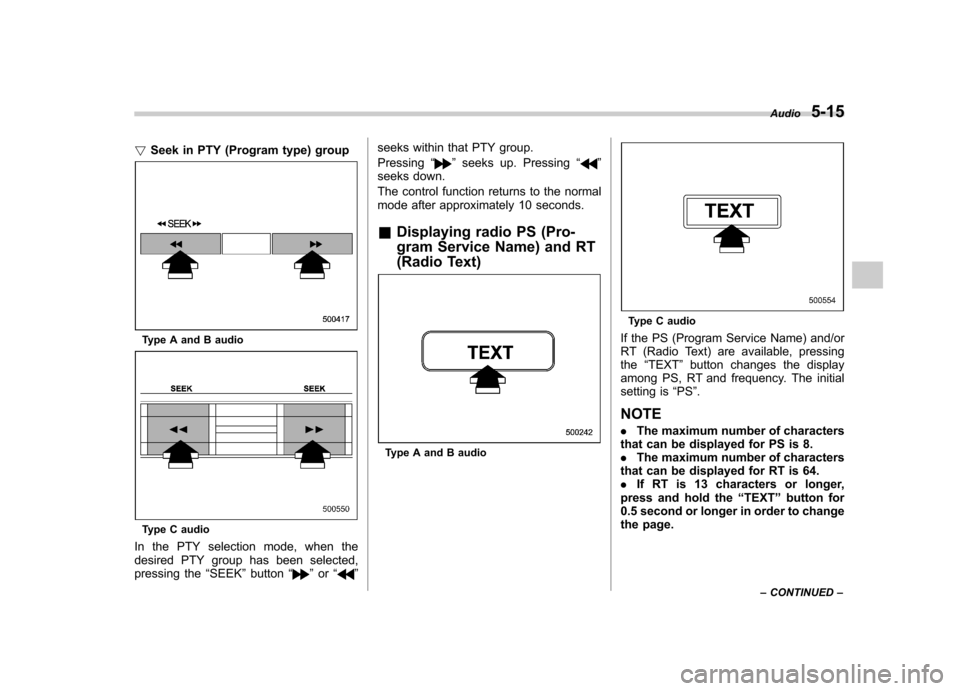
In the PTY selection mode, when the
desired PTY group has been selected,
pressing the “SEEK ”button “
”or “” seeks within that PTY group. Pressing
“
”seeks up. Pressing “”
seeks down.
The control function returns to the normal
mode after approximately 10 seconds. & Displaying radio PS (Pro-
gram Service Name) and RT
(Radio Text)
Type A and B audio
Type C audio
If the PS (Program Service Name) and/or
RT (Radio Text) are available, pressingthe “TEXT ”button changes the display
among PS, RT and frequency. The initial
setting is “PS ”.
NOTE . The maximum number of characters
that can be displayed for PS is 8. . The maximum number of characters
that can be displayed for RT is 64.. If RT is 13 characters or longer,
press and hold the “TEXT ”button for
0.5 second or longer in order to change
the page. Audio
5-15
– CONTINUED –
Page 205 of 458
5-18Audio
signals can be blocked by objects such as
buildings, but the network of repeater
stations allows signal coverage within
urban areas such as cities.
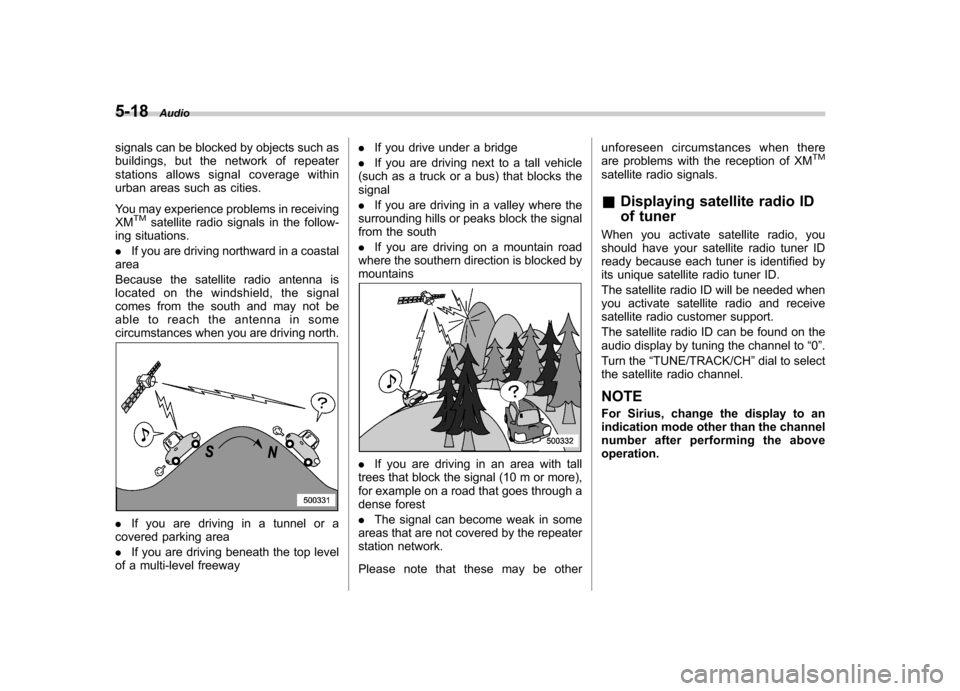
You may experience problems in receiving XM
TMsatellite radio signals in the follow-
ing situations. . If you are driving northward in a coastal
area
Because the satellite radio antenna is
located on the windshield, the signal
comes from the south and may not be
able to reach the antenna in some
circumstances when you are driving north.
. If you are driving in a tunnel or a
covered parking area . If you are driving beneath the top level
of a multi-level freeway .
If you drive under a bridge
. If you are driving next to a tall vehicle
(such as a truck or a bus) that blocks the signal . If you are driving in a valley where the
surrounding hills or peaks block the signal
from the south . If you are driving on a mountain road
where the southern direction is blocked by mountains
. If you are driving in an area with tall
trees that block the signal (10 m or more),
for example on a road that goes through a
dense forest . The signal can become weak in some
areas that are not covered by the repeater
station network.
Please note that these may be other unforeseen circumstances when there
are problems with the reception of XM
TM
satellite radio signals. &
Displaying satellite radio ID
of tuner
When you activate satellite radio, you
should have your satellite radio tuner ID
ready because each tuner is identified by
its unique satellite radio tuner ID.
The satellite radio ID will be needed when
you activate satellite radio and receive
satellite radio customer support.
The satellite radio ID can be found on the
audio display by tuning the channel to “0 ”.
Turn the “TUNE/TRACK/CH ”dial to select
the satellite radio channel.
NOTE
For Sirius, change the display to an
indication mode other than the channel
number after performing the aboveoperation.
Page 208 of 458
Type C audio
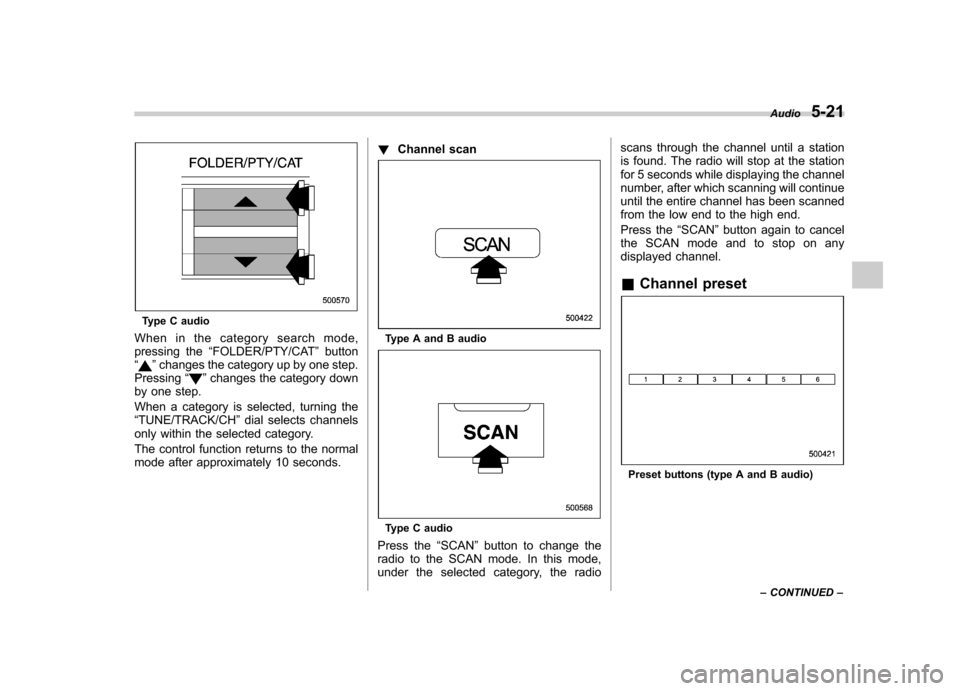
When in the category search mode,
pressing the “FOLDER/PTY/CAT ”button
“
” changes the category up by one step.
Pressing “”changes the category down
by one step.
When a category is selected, turning the “ TUNE/TRACK/CH ”dial selects channels
only within the selected category.
The control function returns to the normal
mode after approximately 10 seconds. !
Channel scan
Type A and B audio
Type C audio
Press the “SCAN ”button to change the
radio to the SCAN mode. In this mode,
under the selected category, the radio scans through the channel until a station
is found. The radio will stop at the station
for 5 seconds while displaying the channel
number, after which scanning will continue
until the entire channel has been scanned
from the low end to the high end.
Press the
“SCAN ”button again to cancel
the SCAN mode and to stop on any
displayed channel. & Channel preset
Preset buttons (type A and B audio) Audio
5-21
– CONTINUED –
Page 211 of 458

5-24Audio
inserted the disc, the “LOAD ”indicator will
turn off. The disc will then be automatically
drawn in, and the player will begin to play
back the first track of the disc. . To insert more discs in succession,
repeat Steps 1 and 2. The magazine will
be loaded with discs in the ascending
order of position number.
If you do not insert any disc in 15 seconds
after you have pressed the “LOAD ”button,
the player will begin to play back the first
track of the last disc you have inserted. . The disc indicator steadily lights up if a
disc is already inserted in the correspond-
ing position of the magazine. . While the player is in the loading mode,
if you press “FM/AM ”or “SAT ”button, the
player will enter the standby mode. Press the “CD/AUX ”button to start playback.
! Inserting a disc in a desired posi-tion
1. Briefly press the “LOAD ”button. If the
magazine in the player has an idle
position where you can insert a disc, the
disc number indicator associated with the
idle position will blink.
The positions in the magazine the indica-
tor of which steadily lights up are already
loaded with discs.
Disc select buttons
2. Press the disc select button at the
position where you want to insert a disc.
3. When the “LOAD ”indicator illumi-
nates, insert the disc. Once you have
inserted the disc, the “LOAD ”indicator will
turn off. The disc will then be automatically
drawn in, and the player will begin to play
the first track on the disc. . If you wish to insert another disc,
repeat the procedure beginning with step 1.
If you do not insert any disc in 15 seconds
after you have pressed the “LOAD ”button,
the player will begin to play back the first
track of the last disc you have inserted. . While the player is in the loading mode,
if you press “FM/AM ”or “SAT ”button, the player will enter standby mode. Press the “
CD/AUX ”button to start playback.
! Loading all the magazine (full disc
loading mode)
1. If you continue to press the “LOAD ”
button for more than 1.5 seconds, the
player will produce beep sound and will
enter the full disc loading mode.
2. When the disc number indicator
flashes and “ALL LOAD ”indicator illumi-
nates, insert a disc within 15 seconds. If a
disc is successfully loaded during this
period, the disc number indicator will stop
blinking and will steadily light.
3. When the loading of a disc is com-
plete, the next disc number indicator will
blink. Then repeat Step 2.
4. When the magazine is filled with discs
by repeating Steps 2 and 3, the player will
start playback of the discs, beginning with
the one inserted first.
If you fail to insert any disc during each 15
seconds interval, the full disc loading
mode will be canceled, and the player will
start playback of the disc inserted first.
& How to play back a CD
! When there is no CD inserted
Properly insert a CD. Refer to “How to
insert a CD (type A and C) ”F 5-23/ “How