2011 SUBARU IMPREZA ECO mode
[x] Cancel search: ECO modePage 232 of 458

Bluetooth®audio (type C
audio)
This function enables you to play back
audio sources recorded in Bluetooth
®
audio devices. You need to register theBluetooth®audio device in the system
before using it. & Media format
Bluetooth
®audio devices cannot be
connected if they are not compatible with
the following Bluetooth
®profiles.
. A2DP (Advanced Audio Distribution
Profile) . AVRCP (Audio/Video Remote Control
Profile) & Setting Bluetooth
®audio
1. Select the “BT-A SETUP ”menu by
pressing the “MENU ”button.
2. Perform the following procedure while “ BT-A ”is displayed.
NOTE
You cannot set a Bluetooth
®audio
while driving. !
Registering (pairing) device
1. Select the “PAIR AUDIO ”menu by
operating the “TUNE/TRACK/CH ”dial. If a
device is already registered, “MEMORY
FULL ”is displayed and the mode changes
to the Bluetooth
®audio setting mode.
2. After the passkey is shown on the
display, input the passkey into the cell
phone. If you input the correct passkey,“ PAIRED ”is displayed and the registering
procedure is finished. If you input an
incorrect passkey, “FAILED ”is displayed,
the registering procedure was not suc-
cessful and the mode changes to theBluetooth
®audio setting mode.
! Selecting device
1. Select the “SELECT AUDIO ”menu by
operating the “TUNE/TRACK/CH ”dial. If
no devices are registered, “EMPTY ”is
displayed and the mode changes to theBluetooth
®audio setting mode.
2. Select the “CONFIRM ”menu by oper-
ating the “TUNE/TRACK/CH ”dial. If the
device is connected, “SELECTED ”is
displayed and the selecting procedure is
finished. If the device cannot be con-nected, “FAILED ”is displayed and the
selecting procedure was not successful. !
Setting passkey
1. Select the “SET PASSKEY ”menu by
operating the “TUNE/TRACK/CH ”dial.
After the currently set passkey is dis-
played, a new passkey can be entered.
2. Input the new passkey by operating the “TUNE/TRACK/CH ”dial.
3. Select the “CONFIRM ”menu by oper-
ating the “TUNE/TRACK/CH ”dial. The
new passkey is displayed, the passkey is
changed and the mode changes to theBluetooth
®audio setting mode.
! Deleting device
1. Select the “DELETE AUDIO ”menu by
operating the “TUNE/TRACK/CH ”dial. If
no devices are registered, “EMPTY ”is
displayed and the mode changes to theBluetooth
®audio setting mode.
2. Select the “CONFIRM ”menu by oper-
ating the “TUNE/TRACK/CH ”dial. “DE-
LETED ”is displayed and the mode
changes to the Bluetooth
®audio setting
mode. & Bluetooth
®audio operation
NOTE
Depending on the connected device, it
may not activate as per the following
items or not work smoothly. Audio
5-45
– CONTINUED –
Page 233 of 458

5-46Audio
!How to play back
Press the “CD/AUX ”button and select the
“ BT-A ”mode.
! To select a track from its beginning
Select a track in the same way that a track
is selected when a CD is played. Refer to“ To select a track from its beginning ”F 5-
26. ! Repeating
Repeating is operated in the same way a
CD is played. Refer to “Repeating ”F 5-28.
Each time you briefly press the “RPT/
RDM ”button, the mode changes in the
following sequence.
! Random playback
Random playback is operated in the same
way a CD is played. Refer to “Random
playback ”F 5-29. Each time you press the
“ RPT/RDM ”button for 0.5 second or
longer, the mode changes in the followingsequence.
! Display selection
Select an indication in the same way that
an indication is selected when a CD is
played. Refer to “Display selection ”F 5-
30. Each time you briefly press the “TEXT ”
button, the indication changes in the
following sequence.
! Folder selection
Select a folder in the same way that a
folder is selected when a CD is played.
Refer to “Folder selection ”F 5-31. Hands-free system (if
equipped) NOTE .
For models with the genuine
SUBARU navigation system, refer to
the Owner ’s Manual supplement for the
navigation system.. When selling your vehicle, make
sure that you initialize the Hands-free
system to prevent personal data from
being improperly accessed.
The Hands-free system operates while the
ignition switch is in the “Acc ”or “ON ”
position.
Page 236 of 458
&Safety precautions
WARNING
. For safety reasons, avoid operat-
ing the cell phone while driving.
. Do not make a phone call while
driving. When you have an in-
coming call, stop the vehicle in a
safe location before taking the
incoming phone call. When you
have to absolutely take a phone
call, tell the caller “I’ ll call you
back ”. And then call the caller
back after stopping the vehicle in
a safe location.
CAUTION
. Do not leave the cell phone in the
vehicle. The temperature in the
vehicle may become extremely
high and cause a malfunction of
the cell phone.
. When using the cell phone, be
careful not to get it close to the
in-vehicle equipment. Getting it
too close to the in-vehicle equip-
ment may result in deterioration
in tone quality or a poor connect-
ing condition. .
In the frequency band used by
this equipment, along with indus-
trial, scientific and medical
equipment such as a microwave
oven, radio stations (a license is
required) to be used by the
production line in the factory to
identify movable bodies, specific
small power radio stations (a
license is not required) and ama-
teur radio stations (a license is
required) are being operated.
(These three types of radio sta-
tions are hereinafter referred toas “other radio stations. ”) Before
using this equipment, be sure to
check to see if “other radio
stations ”are being operated in
the vicinity. If there is detrimental
radio interference from this
equipment to “other radio sta-
tions, ”move the equipment to
another location as soon as
possible to avoid radio interfer-
ence. The frequency band used
by this equipment is in the 2.4
GHz zone. The FH-SS modulation
is employed as a modulation
method. The expected inflicting
interference distance is less than
33 ft (10 m). This equipment uses
a full band and can avoid a band used by a movable body identifi-
cation device.
& Using the Hands-free system
NOTE
You can select the menus by operating the “TUNE/TRACK/CH ”dial or using
the voice command system. Refer to“ Menu list of the Hands-free system ”
F 5-55 or “Voice command system ”
F 5-58.
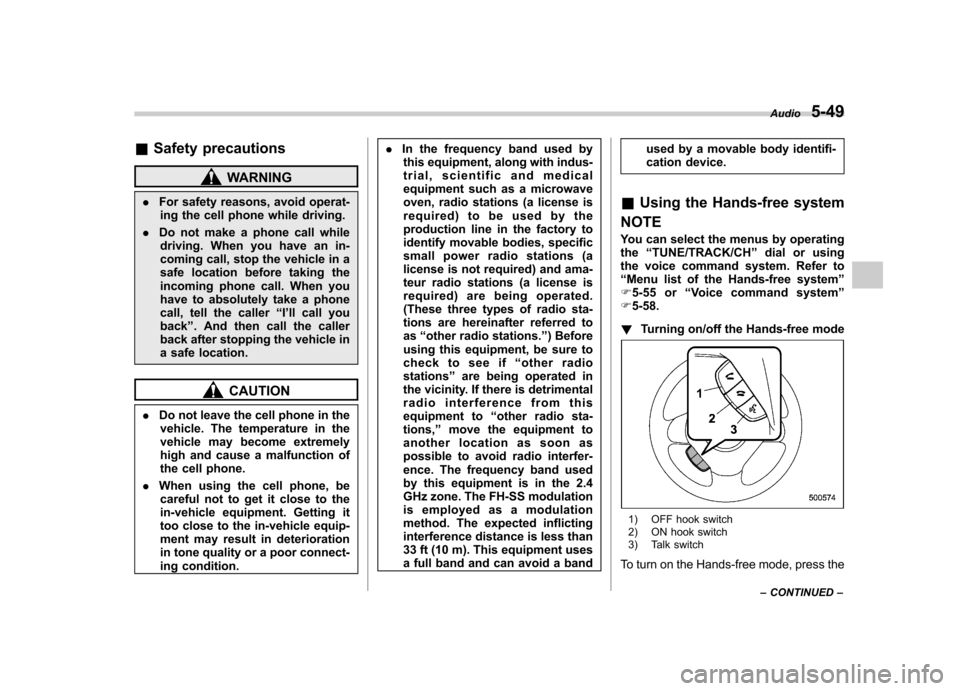
! Turning on/off the Hands-free mode
1) OFF hook switch
2) ON hook switch
3) Talk switch
To turn on the Hands-free mode, press the Audio
5-49
– CONTINUED –
Page 237 of 458

5-50Audio
OFF hook switch
. To turn off the
Hands-free mode, press the ON hook switch
.
! Preparation for using the Hands-
free system
Before using the Hands-free system, it is
necessary to register a cell phone in the
system. Perform the following procedure
to register a cell phone.
1. Press the OFF hook switch
.
2. Select “ENGLISH ”/“ FRANÇAIS ”by
operating the “TUNE/TRACK/CH ”dial.
Then “WELCOME! ”will be displayed.
3. Press the “TUNE/TRACK/CH ”dial or
the talk switch
.
4. Select the “RECORD NAME ”menu.
5. Say the name to be registered.
6. Select the “CONFIRM ”menu. After
“ CAR M_MEDIA ”is displayed, a pass key
is displayed.
7. Input the displayed pass key into the
cell phone while “PKY: **** ”is displayed. If
you input the correct pass key, “PAIRED ”
is displayed and the registration proce-
dure is finished. If you input an incorrect
pass key, “FAILED ”is displayed and the
registration procedure was not successful. !
Updating phonebook data
! Registering by voice
1. Select the “PHONE BOOK ”menu.
2. Select the “ADD ENTRY ”menu.
3. Select the “BY VOICE ”menu.
4. Press the talk switch
.
5. Say the phone number to be regis- tered.
6. Select the “CONFIRM ”menu.
7. Select the “RECORD NAME ”menu by
operating the “TUNE/TRACK/CH ”dial or
press the talk switch
.
8. Say the name (voice tag) to be registered.
9. Select the “CONFIRM ”menu. Then
“ STORED ”is displayed and the mode
changes to the registering speed dial
mode. Refer to “Registering speed dial ”
F 5-51.
! Registering by phone
1. Select the “PHONE BOOK ”menu.
2. Select the “ADD ENTRY ”menu.
3. Select the “BY PHONE ”menu.
4. Select the “CONFIRM ”menu. Then
“ TRANSFER ”is displayed.
5. Transfer the data from the cell phone.
For details about transferring the data,
refer to the Owner ’s Manual of the cell phone.
6. Select the
“RECORD NAME ”menu by
operating the “TUNE/TRACK/CH ”dial or
press the talk switch
.
7. Say the name (voice tag) to be registered.
8. Select the “CONFIRM ”menu. Then
“ STORED ”is displayed and the mode
changes to the registering speed dial
mode. Refer to “Registering speed dial ”
F 5-51.
! Registering by inputting manually
1. Select the “PHONE BOOK ”menu.
2. Select the “ADD ENTRY ”menu.
3. Select the “MANUAL INPUT ”menu by
operating the “TUNE/TRACK/CH ”dial.
4. Input the phone number to be regis-tered.
5. Select the “RECORD NAME ”menu by
operating the “TUNE/TRACK/CH ”dial or
press the talk switch
.
6. Say the name (voice tag) to be registered.
7. Select the “CONFIRM ”menu. Then
“ STORED ”is displayed and the mode
changes to the registering speed dial
mode. Refer to “Registering speed dial ”
F 5-51.
Page 238 of 458

NOTE
While inputting the phone numbers, if “GO BACK ”is chosen using the
“ TUNE/TRACK/CH ”dial, the character
that was input last is deleted. ! Registering from call history
1. Select the “PHONE BOOK ”menu.
2. Select the “ADD ENTRY ”menu.
3. Select the “CALL HISTORY ”menu.
4. Select “OUTGOING ”or “INCOMING ”
by operating the “TUNE/TRACK/CH ”dial.
5. Select the phone number by operating the “TUNE/TRACK/CH ”dial.
6. Select the “RECORD NAME ”menu by
operating the “TUNE/TRACK/CH ”dial or
press the talk switch
.
7. Say the name (voice tag) to be registered.
8. Select the “CONFIRM ”menu. Then
“ STORED ”is displayed and the mode
changes to the registering speed dial
mode. Refer to “Registering speed dial ”
F 5-51.
! Registering from redial
1. Select the “REDIAL ”menu.
2. Select the phone number by operatingthe “TUNE/TRACK/CH ”dial.
3. Select the “STORE ”menu. 4. Select the
“CONFIRM ”menu.
5. Select the “RECORD NAME ”menu by
operating the “TUNE/TRACK/CH ”dial or
press the talk switch
.
6. Say the name (voice tag) to be registered.
7. Select the “CONFIRM ”menu. Then
“ STORED ”is displayed and the mode
changes to the registering speed dial
mode. Refer to “Registering speed dial ”
F 5-51.
! Registering from call back
1. Select the “CALL BACK ”menu.
2. Select the phone number by operatingthe “TUNE/TRACK/CH ”dial.
3. Select the “STORE ”menu.
4. Select the “CONFIRM ”menu.
5. Select the “RECORD NAME ”menu by
operating the “TUNE/TRACK/CH ”dial or
press the talk switch
.
6. Say the name (voice tag) to be registered.
7. Select the “CONFIRM ”menu. Then
“ STORED ”is displayed and the mode
changes to the registering speed dial
mode. Refer to “Registering speed dial ”
F 5-51. !
Registering speed dial
1. After registering phonebook data, se-
lect the “SPEED DIAL ”menu.
Preset buttons
2. Press the preset button in which you
want to register the phone number. NOTE
If the number to be used is already
registered in speed dial, “OVER-
WRITE? ”will be displayed.
! List names function
The voice tags registered in the phone-
book are spoken by using the list names
function. To use the list names function,
perform the following procedure.
1. Select the “PHONE BOOK ”menu.
Audio
5-51
– CONTINUED –
Page 247 of 458

5-60Audio
! Phone setup
! Setting pair phone
Refer to “Preparation for using the Hands-
free system ”F 5-50.
! Selecting phone
To select the registered cell phone for
connecting to the in-vehicle equipment,
perform the following procedure.
1. Select the “SETUP ”menu.
2. Select the “PHONE SETUP ”menu.
3. Select the “SELECT PHONE ”menu. If
no cell phones are registered, “EMPTY ”is
displayed and the mode changes to the “ PHONE SETUP ”mode.
4. Select the cell phone by operating the“ TUNE/TRACK/CH ”dial or saying the
voice tag.
5. Select the “CONFIRM ”menu. “SE-
LECTED ”is displayed, the selected cell
phone is connected to the in-vehicle
equipment and the mode changes to the“ PHONE SETUP ”mode.
! Changing the voice tag of the cellphone
1. Select the “SETUP ”menu.
2. Select the “PHONE SETUP ”menu.
3. Select the “CHANGE NAME ”menu. If
no cell phones are registered, “EMPTY ”is displayed and the mode changes to the“
PHONE SETUP ”mode.
4. Select the cell phone by operating the“ TUNE/TRACK/CH ”dial or saying the
voice tag.
5. Select the “RECORD NAME ”menu.
6. Register the voice tag. For details,
refer to “Preparation for using the Hands-
free system ”F 5-50.
! List phones function
The cell phone voice tags saved in the cell
phone list are spoken by using the list
phones function.
1. Select the “SETUP ”menu.
2. Select the “PHONE SETUP ”menu.
3. Select the “LIST PHONES ”menu. If
no cell phones are registered, “EMPTY ”is
displayed and the mode changes to the “ PHONE SETUP ”mode.
4. Registered cell phones are displayed
on the saved side. While displayed, if the“ TUNE/TRACK/CH ”dial is turned, the
next registered cell phone is displayed.
Press the ON hook button
to close the
Hands-free menu.
5. Select a cell phone by operating the “ TUNE/TRACK/CH ”dial or pressing the
talk switch
. Then “SELECTED ”is
displayed.
6. Select the following menus. .
“SELECT PHONE ”to connect the
selected cell phone. “CHANGE NAME ”to change the voice
tag. “DELETE ”to delete the selected cell
phone from the list. “GO BACK ”to go back to the “PHONE
SETUP ”mode
! Setting passkey
1. Select the “SETUP ”menu.
2. Select the “PHONE SETUP ”menu.
3. Select the “SET PASSKEY ”menu.
After the currently set passkey is dis-
played, a new passkey can be entered.
4. Input the new passkey by operating the “TUNE/TRACK/CH ”dial or saying the
passkey.
5. Select the “CONFIRM ”menu. The new
passkey is displayed, the passkey is
changed and the mode changes to the“ PHONE SETUP ”mode.
! Deleting registered cell phone from
the list
1. Select the “SETUP ”menu.
2. Select the “PHONE SETUP ”menu.
3. Select the “DELETE ”menu.
4. Select a cell phone to be deleted by
operating the “TUNE/TRACK/CH ”dial or
Page 251 of 458
6-2Interior equipment
Interior lights
When leaving your vehicle, make sure the
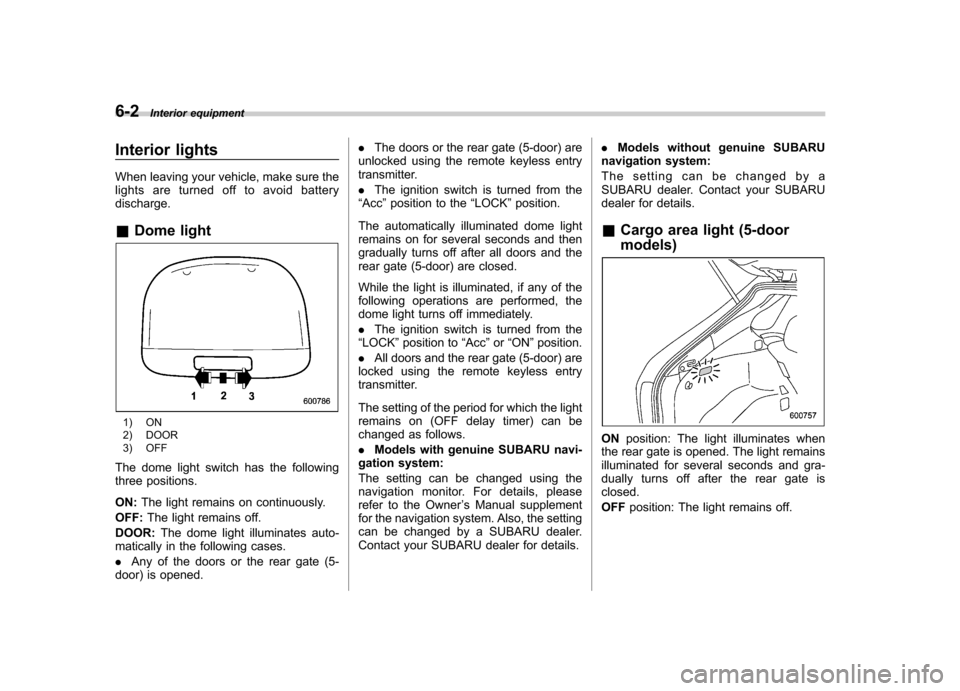
lights are turned off to avoid batterydischarge. &Dome light
1) ON
2) DOOR
3) OFF
The dome light switch has the following
three positions. ON: The light remains on continuously.
OFF: The light remains off.
DOOR: The dome light illuminates auto-
matically in the following cases. . Any of the doors or the rear gate (5-
door) is opened. .
The doors or the rear gate (5-door) are
unlocked using the remote keyless entry
transmitter. . The ignition switch is turned from the
“ Acc ”position to the “LOCK ”position.
The automatically illuminated dome light
remains on for several seconds and then
gradually turns off after all doors and the
rear gate (5-door) are closed.
While the light is illuminated, if any of the
following operations are performed, the
dome light turns off immediately. . The ignition switch is turned from the
“ LOCK ”position to “Acc ”or “ON ”position.
. All doors and the rear gate (5-door) are
locked using the remote keyless entry
transmitter.
The setting of the period for which the light
remains on (OFF delay timer) can be
changed as follows. . Models with genuine SUBARU navi-
gation system:
The setting can be changed using the
navigation monitor. For details, please
refer to the Owner ’s Manual supplement
for the navigation system. Also, the setting
can be changed by a SUBARU dealer.
Contact your SUBARU dealer for details. .
Models without genuine SUBARU
navigation system:
The setting can be changed by a
SUBARU dealer. Contact your SUBARU
dealer for details.
& Cargo area light (5-door models)
ON position: The light illuminates when
the rear gate is opened. The light remains
illuminated for several seconds and gra-
dually turns off after the rear gate isclosed. OFF position: The light remains off.
Page 252 of 458
&Map lights
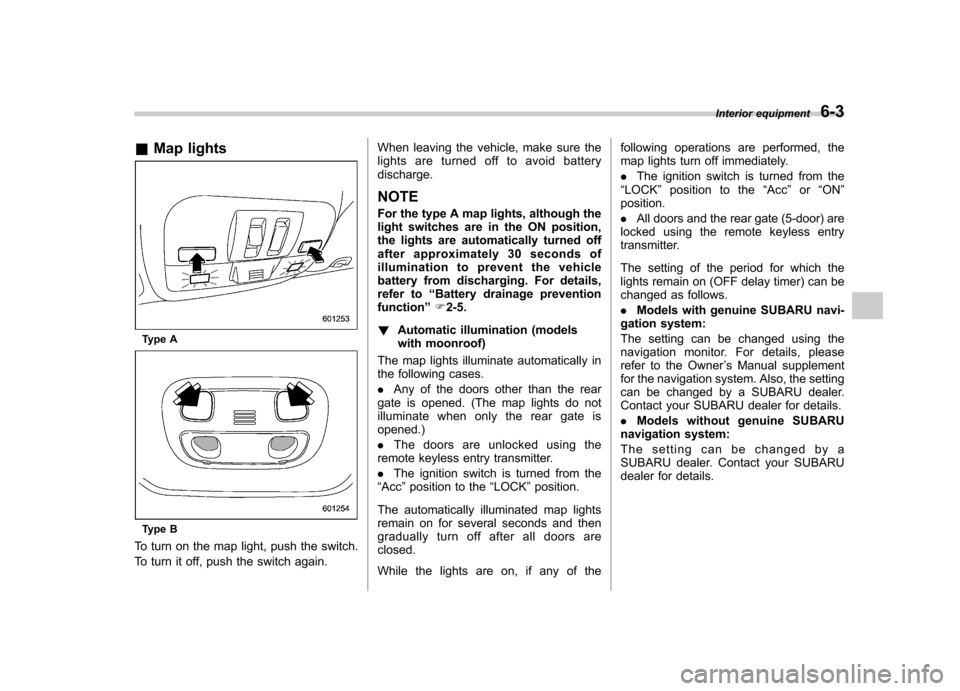
Type A
Type B
To turn on the map light, push the switch.
To turn it off, push the switch again. When leaving the vehicle, make sure the
lights are turned off to avoid batterydischarge.
NOTE
For the type A map lights, although the
light switches are in the ON position,
the lights are automatically turned off
after approximately 30 seconds of
illumination to prevent the vehicle
battery from discharging. For details,
refer to “Battery drainage prevention
function ”F 2-5.
! Automatic illumination (models
with moonroof)
The map lights illuminate automatically in
the following cases. . Any of the doors other than the rear
gate is opened. (The map lights do not
illuminate when only the rear gate isopened.) . The doors are unlocked using the
remote keyless entry transmitter.. The ignition switch is turned from the
“ Acc ”position to the “LOCK ”position.
The automatically illuminated map lights
remain on for several seconds and then
gradually turn off after all doors areclosed.
While the lights are on, if any of the following operations are performed, the
map lights turn off immediately. .
The ignition switch is turned from the
“ LOCK ”position to the “Acc ”or “ON ”
position.. All doors and the rear gate (5-door) are
locked using the remote keyless entry
transmitter.
The setting of the period for which the
lights remain on (OFF delay timer) can be
changed as follows. . Models with genuine SUBARU navi-
gation system:
The setting can be changed using the
navigation monitor. For details, please
refer to the Owner ’s Manual supplement
for the navigation system. Also, the setting
can be changed by a SUBARU dealer.
Contact your SUBARU dealer for details. . Models without genuine SUBARU
navigation system:
The setting can be changed by a
SUBARU dealer. Contact your SUBARU
dealer for details. Interior equipment
6-3