Page 304 of 563
302
3-4. Using the hands-free system (for mobile phone)
ES350_U
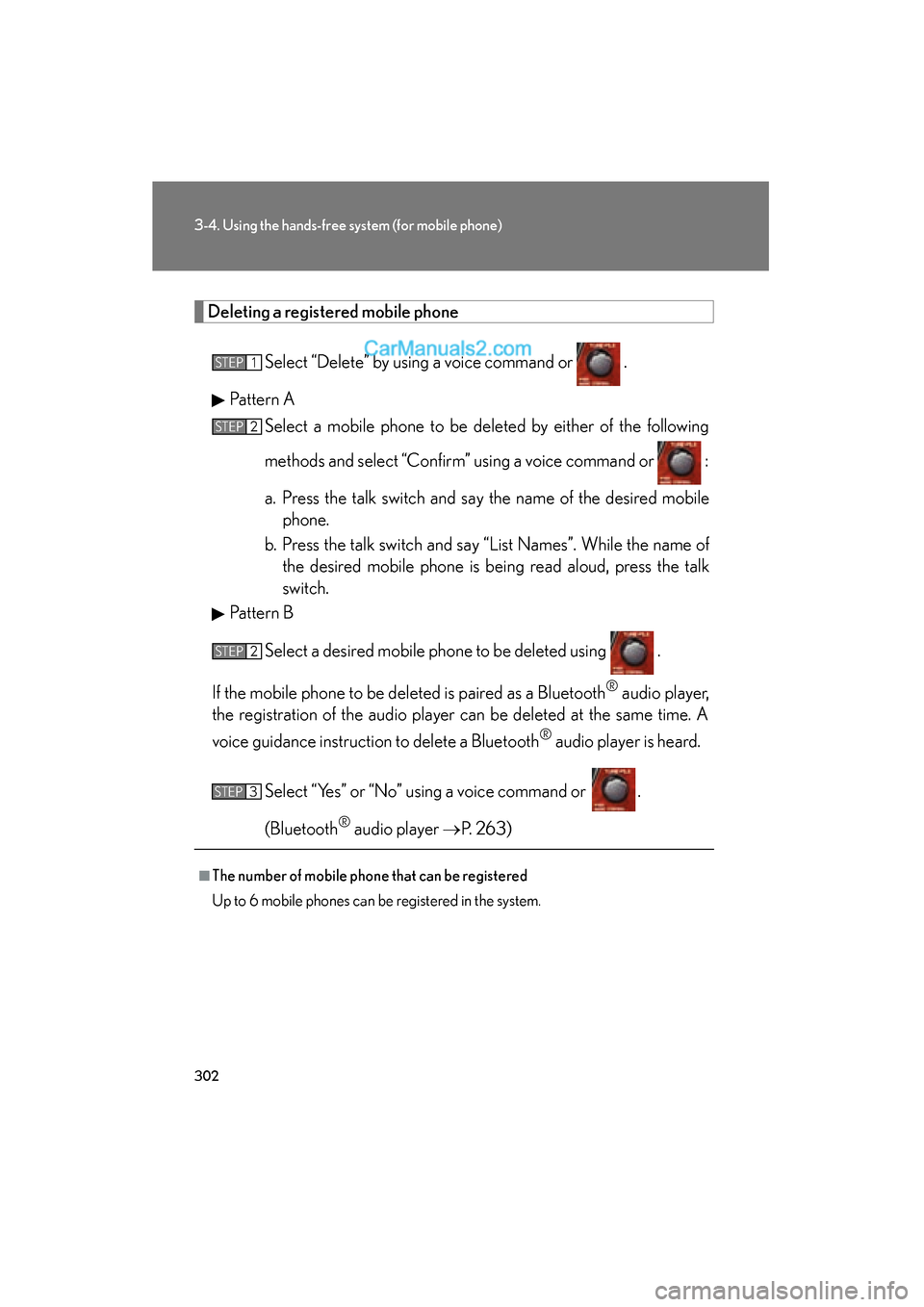
Deleting a registered mobile phone
Select “Delete” by using a voice command or .
Pattern A Select a mobile phone to be deleted by either of the following
methods and select “Confirm” using a voice command or :
a. Press the talk switch and say the name of the desired mobilephone.
b. Press the talk switch and say “List Names”. While the name of the desired mobile phone is being read aloud, press the talk
switch.
Pattern B
Select a desired mobile phone to be deleted using .
If the mobile phone to be de leted is paired as a Bluetooth
® audio player,
the registration of the audio player can be deleted at the same time. A
voice guidance instruction to delete a Bluetooth
® audio player is heard.
Select “Yes” or “No” using a voice command or .
(Bluetooth
® audio player →P. 2 6 3 )
■The number of mobile phone that can be registered
Up to 6 mobile phones can be registered in the system.
STEP1
STEP2
STEP2
STEP3
Page 310 of 563
308
3-4. Using the hands-free system (for mobile phone)
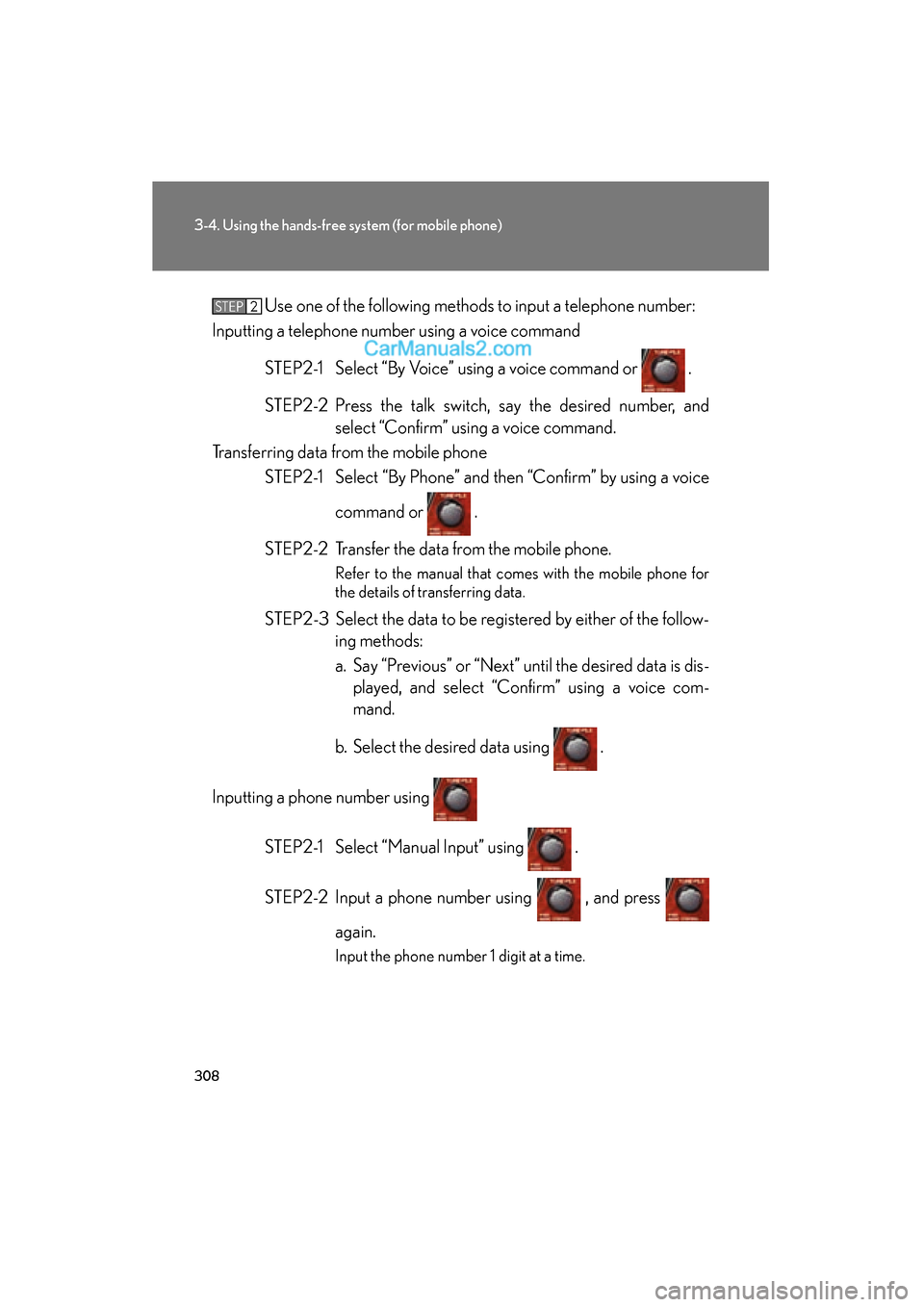
ES350_UUse one of the following methods to input a telephone number:
Inputting a telephone number using a voice command
STEP2-1 Select “By Voice” using a voice command or .
STEP2-2 Press the talk switch, say the desired number, and select “Confirm” using a voice command.
Transferring data from the mobile phone STEP2-1 Select “By Phone” and then “Confirm” by using a voice
command or .
STEP2-2 Transfer the data from the mobile phone.
Refer to the manual that comes with the mobile phone for
the details of transferring data.
STEP2-3 Select the data to be registered by either of the follow- ing methods:
a. Say “Previous” or “Next” until the desired data is dis-played, and select “Confirm” using a voice com-
mand.
b. Select the desired data using .
Inputting a phone number using STEP2-1 Select “Manual Input” using .
STEP2-2 Input a phone number using , and press again.
Input the phone number 1 digit at a time.
STEP2
Page 311 of 563
309
3-4. Using the hands-free system (for mobile phone)
3
Interior features
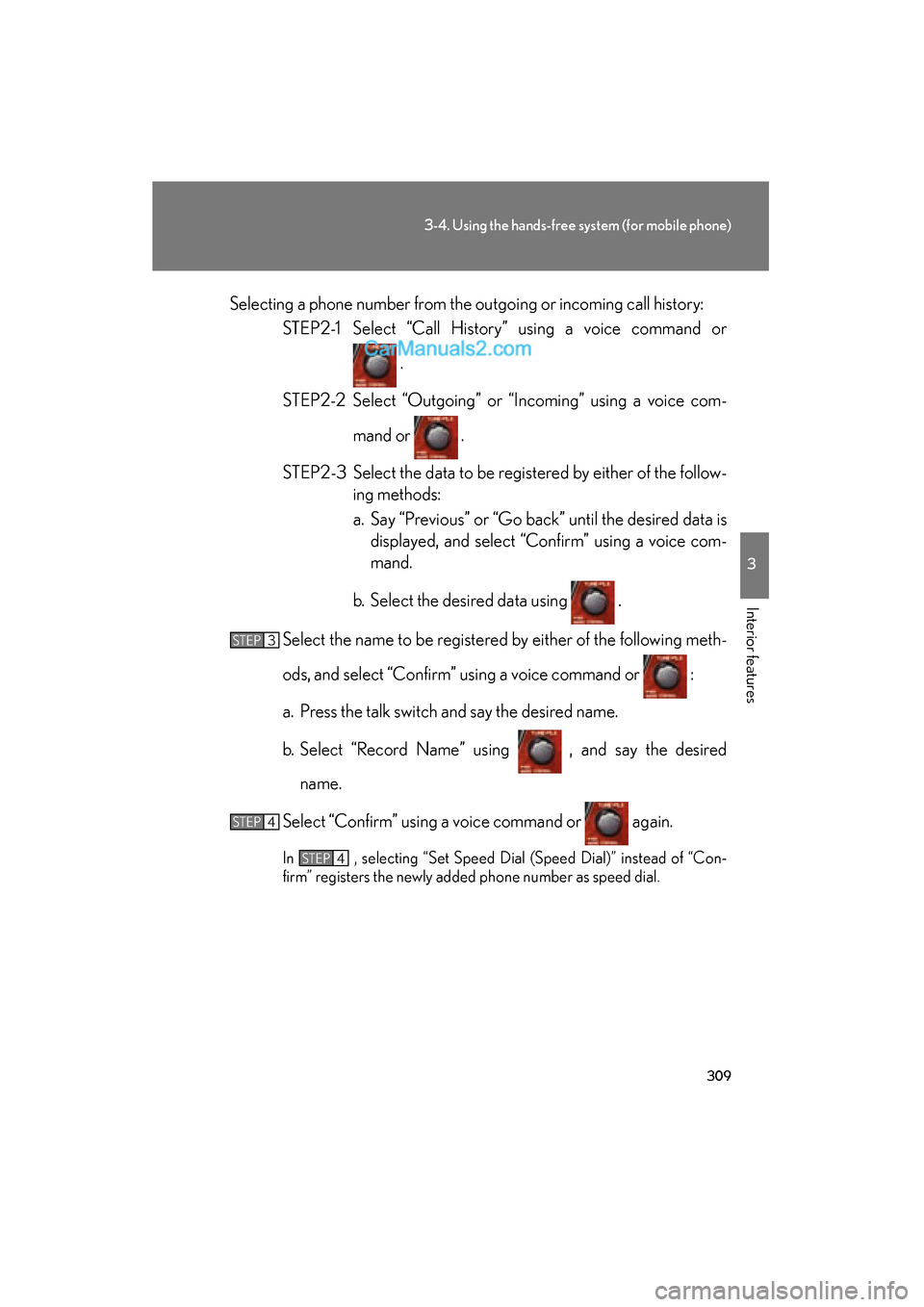
ES350_USelecting a phone number from the outgoing or incoming call history:
STEP2-1 Select “Call History” using a voice command or
.
STEP2-2 Select “Outgoing” or “Incoming” using a voice com- mand or .
STEP2-3 Select the data to be registered by either of the follow- ing methods:
a. Say “Previous” or “Go back” until the desired data isdisplayed, and select “Confirm” using a voice com-
mand.
b. Select the desired data using .
Select the name to be registered by either of the following meth-
ods, and select “Confirm” using a voice command or :
a. Press the talk switch and say the desired name.
b. Select “Record Name” using , and say the desired name.
Select “Confirm” using a voice command or again.
In , selecting “Set Speed Dial (Speed Dial)” instead of “Con-
firm” registers the newly added phone number as speed dial.
STEP3
STEP4
STEP4
Page 312 of 563
310
3-4. Using the hands-free system (for mobile phone)
ES350_U
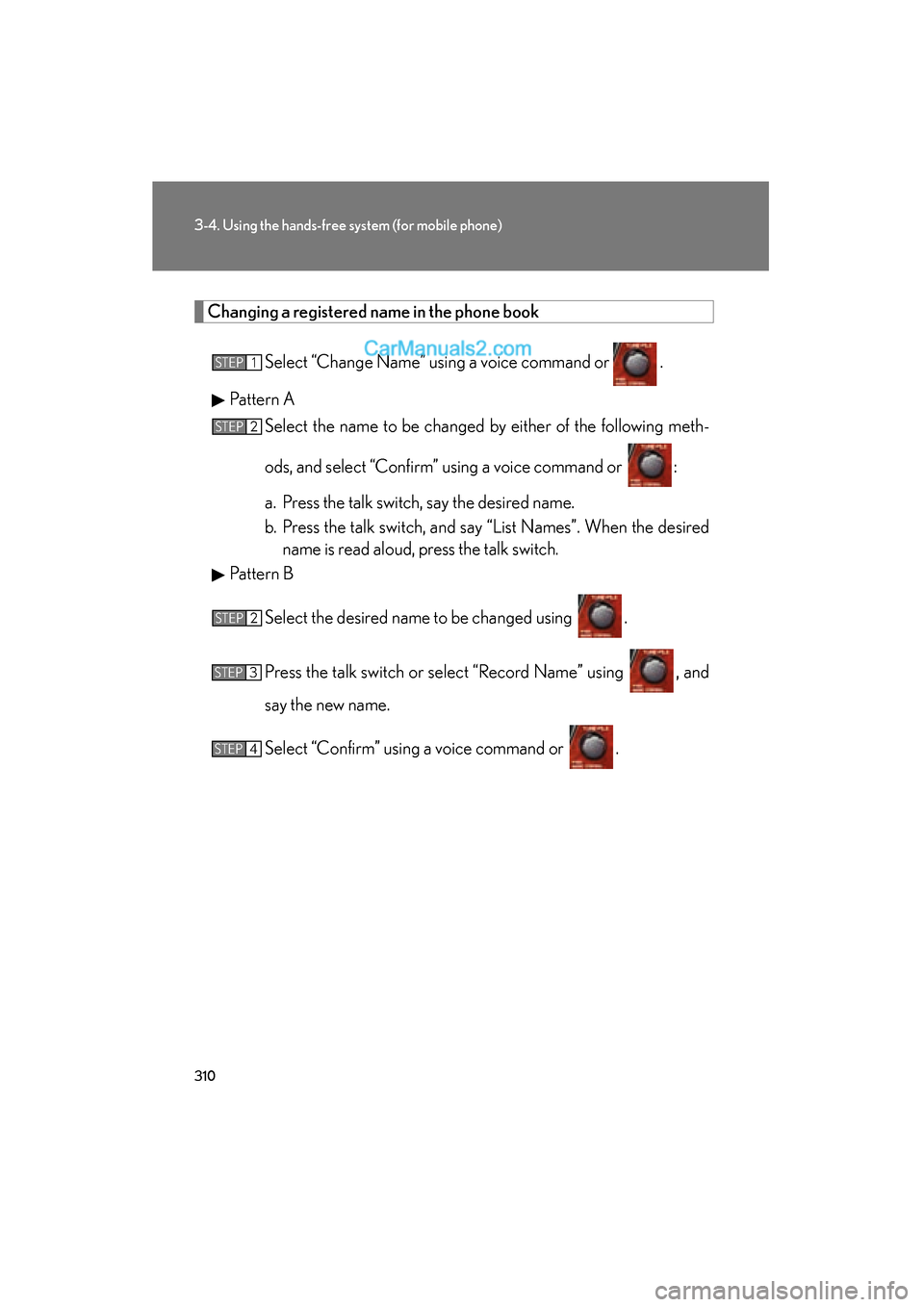
Changing a registered name in the phone book
Select “Change Name” using a voice command or .
Pattern A Select the name to be changed by either of the following meth-
ods, and select “Confirm” using a voice command or :
a. Press the talk switch, say the desired name.
b. Press the talk switch, and say “List Names”. When the desiredname is read aloud, press the talk switch.
Pattern B
Select the desired name to be changed using .
Press the talk switch or select “Record Name” using , and
say the new name.
Select “Confirm” using a voice command or .
STEP1
STEP2
STEP2
STEP3
STEP4
Page 313 of 563
311
3-4. Using the hands-free system (for mobile phone)
3
Interior features
ES350_U
Listing the registered dataSelect “List Names” using a voice command or . The list of the reg-
istered data will be read aloud.
When listing is complete, the system returns to “Phonebook”.
Pressing the talk switch while a data is being read aloud selects the data,
and the following function will be available.
● Dialing: “Dial”
● Changing a registered name: “Change Name”
● Deleting an entry: “Delete Entry”
● Setting speed dial: “Set Speed Dial (Speed Dial)”
Setting speed dial
Select “Set Speed Dial (Speed Dial)” using a voice command or .
Pattern A Select the data to be registered as a speed dial by either of the
following methods, and select “Confirm” using a voice command
or :
a. Press the talk switch, say the desired name.
b. Press the talk switch, and say “List Names”. When the desiredname is read aloud, press the talk switch.
STEP1
STEP2
Page 314 of 563
312
3-4. Using the hands-free system (for mobile phone)
ES350_UPattern B
Select the desired data using .
Select the desired preset button, and register the data into speed
dial by either of the following methods:
a. Press the desired preset button and select “Confirm” by using avoice command or .
b. Press and hold the desired preset button.
Deleting registered data
Select “Delete Entry” using a voice command or .
Pattern A Select data to be deleted by either of the following methods, and
select “Confirm” using a voice command or :
a. Press the talk switch, and say the name of the desired phonenumber to be deleted.
b. Press the talk switch, say “List Names”. While the name of the desired phone number is being read aloud, press the talk
switch.
Pattern B
Select the desired data to be deleted using .
STEP2
STEP3
STEP1
STEP2
STEP2
Page 316 of 563
314
ES350_U
3-5. Using the interior lights
Interior lights list
Your Lexus is equipped with the illuminated entry system to assist in enter-
ing the vehicle. Owing to the function of the system, the lights shown in the
following illustration automatically turn on/off according to the presence of
the electronic key, whether the door s are locked/unlocked, whether the
doors are opened/closed, and the “ENGINE START STOP” switch mode.
Front personal lights (→P. 316)
Front interior lights ( →P. 316)
Shift lever lighting
This light turns on or off depending on the darkness of the surroundings
when the “ENGINE START STOP” switch is in ACCESSORY or IGNI-
TION ON mode.
Rear personal lights ( → P. 316)
Rear interior light ( → P. 316)
Door courtesy lights
Front foot well lighting
Outer foot lights
Page 318 of 563
316
3-5. Using the interior lights
ES350_U
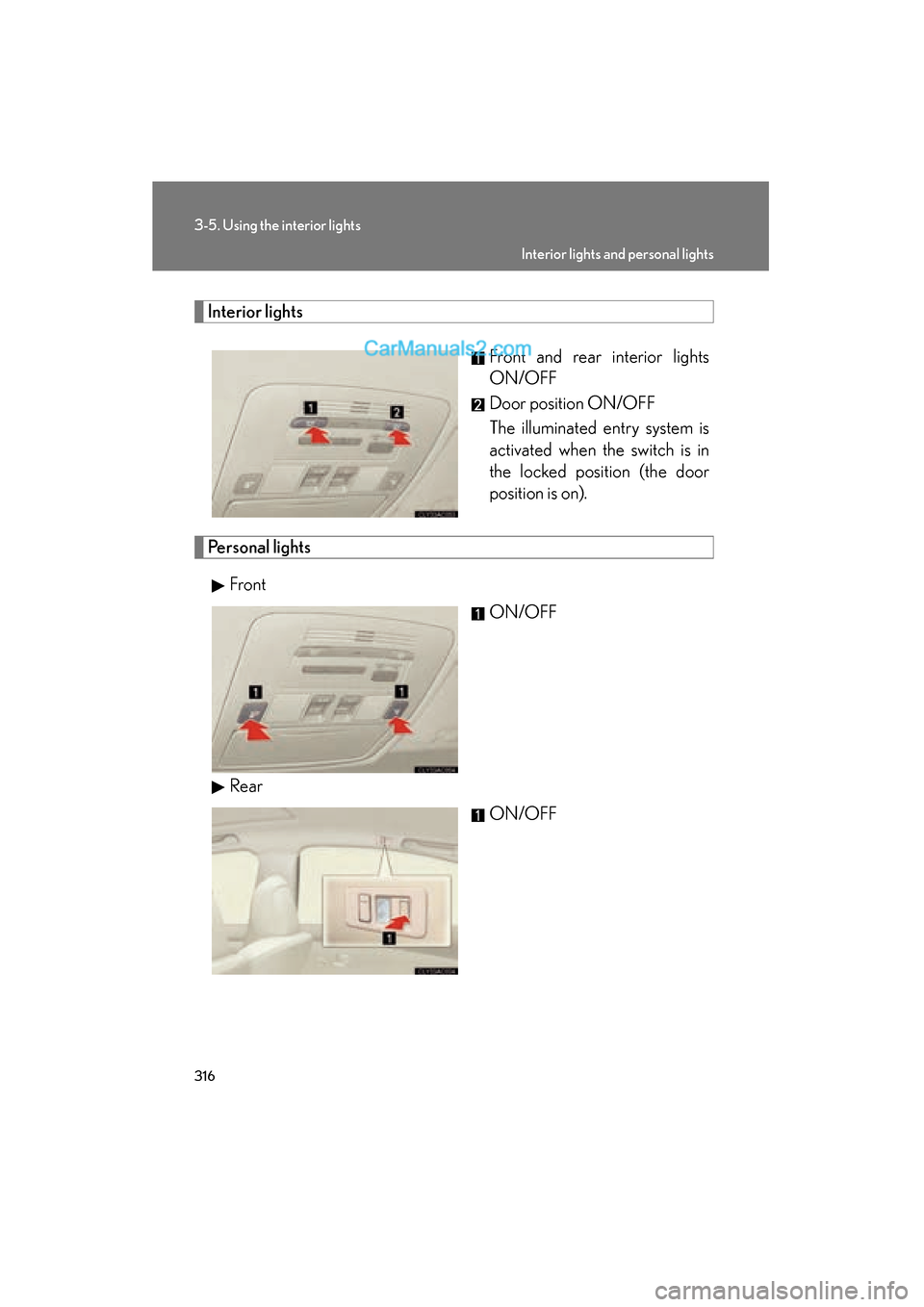
Interior lightsFront and rear interior lights
ON/OFF
Door position ON/OFF
The illuminated entry system is
activated when the switch is in
the locked position (the door
position is on).
Personal lightsFront ON/OFF
Rear ON/OFF
Interior lights and personal lights