2010 MERCEDES-BENZ SLS COUPE steering
[x] Cancel search: steeringPage 167 of 361
Radio Data System (RDS)
The Radio Data System (RDS) provides inaud-
ible additional information in the FM wave-
band. The system consists of a listening
receiver and a monitoring receiver.
The monitoring receive rconstantly scans the
FM waveband and collects data from all the
stations with adequate reception, e.g. recep-
tion quality and RDS data such as programme
name and alternative frequencies. COMAND
stores the data and constantly updates the
memory. Therefore, the listening receiver is
able to switch inaudibly to an alternative fre-
quency with a better signal.
i RDS only functions for stations which
transmit RDS data.
Switching RDS on/off
You can use the functions "Frequency fix" (FM
mode) or "Station fix" (DAB mode*) to prevent
COMAND from switching between alternative
frequencies. This is useful, for example, when
the same content is broadcast with a time
delay, or when there is interference on one of
the frequencies.
X Select Radioin the radio or DABr adio dis-
play
X Select Frequency fix orStation fix .
The function is switched on 0019or off 0004,
depending on the previous status.
Traffic Programme Many FM stations transmit traffic announce-
ments (TA). You can also hear these in DAB
radio mode*.
You can switch announcements on and off or
interrupt a current announcement.
Switching Traffic Programme on/off
X Firs toption: selectRadio in the radio or
DAB radio display. The tick next to
TAindicates that traffic
announcement receptio nis switched on.
You see the TAicon in the status bar.
X Select TA.
TA is switched on or off, depending on the
previous status.
X Second option: press and hold the 001E
button until the TAicon lights up or goes
out in the status bar.
At one sounds.
or
X Using the multifunction steering wheel,
press and hold 001Euntil the TAicon lights
up or goes out in the status bar.
At one sounds.
Once traffic announcements have been
switched on, COMAND selects an RDS sta-
tion. The Traffic Programme is retrieved from:
R the currently selected FM station
R an RDS station in the range of stations of
the currently selected FM station
R the RDS station with the best reception
quality
When traffic announcements are switched
on, a traffic announcement will interrupt the
audio signal from the currently activated
audio or video source.
i Telephone conversations and navigation
announcements are not interrupted.
Ad isplay message appears in the display in
all audio operating modes.
Interrupting a traffic announcement
X Briefly press the 000Bbutton during a traffic
announcement.
or
X Using the multifunction steering wheel,
briefly press the 000Bbutton during a traffic
announcement.
COMAND switches back to the audio
source that was selected before the
announcement. Any subsequent new
announcements will continue to interrupt
the audio source. 164
AudioCOMAND APS
*o
ptional
BA 197 ECE RE 2010/6a; 1; 2, en-GB
sabbaeu
Version: 3.0.3.6 2010-05-07T14:19:43+02:00 - Seite 164
Page 179 of 361
R
MUSIC REGISTER, position 3
R Media Interface*, position 4
X To selectad isc:turn 002800130029 or slide 001F0013000D.
X Press 0017.
i If you select a DVD video disc, the system
switches to video DVD mode
(Y page 193).
Selecting atrack Selecting by skipping to
atrack
X To jump forwards or backwards to a
track: turn002800130029 when the display/selec-
tio nw indow is active.
or
X Press the 0001or0002 button.
i The skip forward function skips to the
next track. The skip back function skips to
the beginning of the current track if the
track has been playing for more than eight
seconds .Ifthe track has been playing for
less than eight seconds, it skips to the start
of the previous track. If the Random
tracks orRandom folder playback
option has been selected, the track order
is random.
Selecting by track list
X In audio CD and audio DVD mode: select
Title orTrack list.
or
X In MP3 mode: press0017when the display/
selection window is active.
The track list appears. The 0023dot indicates
the current track.
X To select a track: turn002800130029 or slide
001F0013000D.
X Press 0017.
i In MP3 mode, the list shows all the tracks
in alphabetical order. Using the multifunction steering wheel
X
Switch to audio CD, audio DVD or MP3
mode on the COMAND control panel
(Y page 173).
X On the multifunction steering wheel, press
0008 or000E to select the Audiomenu.
X On the multifunction steering wheel, press
000F or000C to select a track.
Fast forward/rewind X
If the display/selection window is
active: slide and hold 002B0013002Cuntil the
desired position has been reached.
or
X Press and hold the 0001or0002 button
until the desired position is reached.
Selecting afolder i
This function is only available in MP3
mode.
X Switch to MP3 mode (Y page 173).
X Select Folder .
or
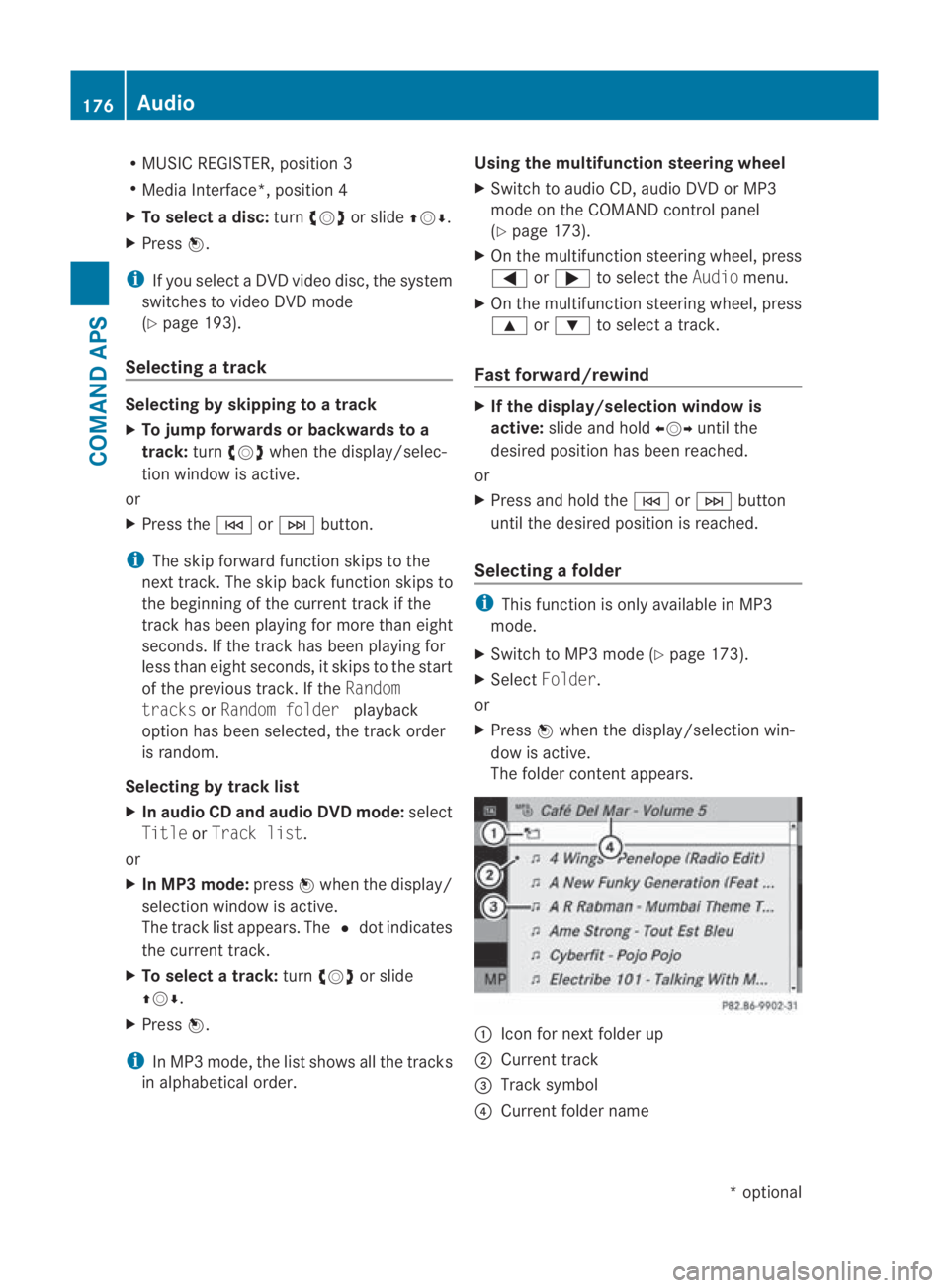
X Press 0017when the display/selectio nwin-
dow is active.
The folder conten tappears. 0001
Icon for next folder up
0002 Current track
0015 Track symbol
0014 Current folder name 176
AudioCOMAND APS
*o
ptional
BA 197 ECE RE 2010/6a; 1; 2, en-GB
sabbaeu
Version: 3.0.3.6 2010-05-07T14:19:43+02:00 - Seite 176
Page 190 of 361
Using the multifunction steering wheel
X
Switch to Media Interface operation on the
COMAND control panel (Y page 185).
X On the multifunction steering wheel, press
0008 or000E to select the Audiomenu.
X On the multifunction steering wheel, press
000F or000C to select a track.
Selecting by number pad
X To make an entry: press the0007button.
The input menu appears. The number of
characters available for input depends on
the number of stored tracks.
X To enter a track number: press a number
key, e.g. 0012.
The digit is entered in the first position of
the input line.
i If an invalid number is entered, COMAND
will ignore it and it will not be displayed.
X If desired, enter further digits.
X To confirm the entry: press0017.
or
X Press and hold the number key for the last
digit.
The selected trac kis played.
Fast forward/rewind
X If the display/selection window is
active: slide and hold 002B0013002Cuntil the
desired position has been reached.
or
X Press and hold the 0002or0001 button
until the desired position is reached.
i On an iPod ®
, fast rewind only functions
within the current track.
Selecting acategory/playlist/folder iPod
®
and selected MP3 players
You can select tracks for an iPod ®
or MP3
playera ccording to categories and folders. Examples of categories include:
R
Current track list
R Playlists (e.g.All)
R Artists
R Albums
R Tracks
R Podcasts
R Genres
R Composers
R Audiobooks
i Some playback categories contai nthe
All entry. When this entry is selected, the
entire content of the category selected will
be displayed.
USB devices
For USB mass storage devices, you can select
folders and also playlists (if available). When
playing back playlists, COMAND can also dis-
play the respective albuma nd artistname
(metadata), if this has been uploaded to the
system.
Playlists are indicated in the display by a spe-
cial icon. When you open the playlist, the cor-
responding tracks are opened. The playback
options may now feature Random catego‐
ries instead of Random folder .
For US Bmass storage devices, you can
choose to display the metadat acontained in
the tags of the encoded music data, or to dis-
play the file and directory names when the
music is playing.
X To display album and artist name: select
Media Interface 0004Display Metadata .
Selecting categories and opening folders
X To open acategory list/folder: press0017
whe nthe display/selection window is
active.
or
X Select Music.
The available categories or the folder con-
tents (e.g. further folders) are displayed. Audio
187COMAND APS
BA 197 ECE RE 2010/6a; 1; 2, en-GB
sabbaeu Version: 3.0.3.6 2010-05-07T14:19:43+02:00 - Seite 187 Z
Page 198 of 361
X
To stop playback: select0010againwhile
playback is interrupted.
or
X Select 0010twice in quick succession dur-
ing playback.
Selection is at 000D.
X To restart playback: select000D.
Playback restarts from the beginning.
Pause function X
Show the menu system (Y page 194).
X To pause playback: select0007.
The 0007 display changes to 000D.
X To resume playback: select000D.
The menu system is hidden.
Selecting ascene/chapter X
To skip forwards/back: turn002800130029 or slide
002B0013002C .
or
X Press the 0001or0002 buttonont he con-
trol panel.
The control menu (Y page 194) appears for
approximately 8seconds.
Using the multifunction steering wheel
X In COMAND, switch to video DVD mode
(Y page 193).
X Press 0008or000E to select the Audio
menu.
X Press 000For000C to select a scene/
chapter.
Selecting afilm/title i
This function is only available if the DVD
is divided into several films/titles.
X Show the menu syste m(Ypage 194).
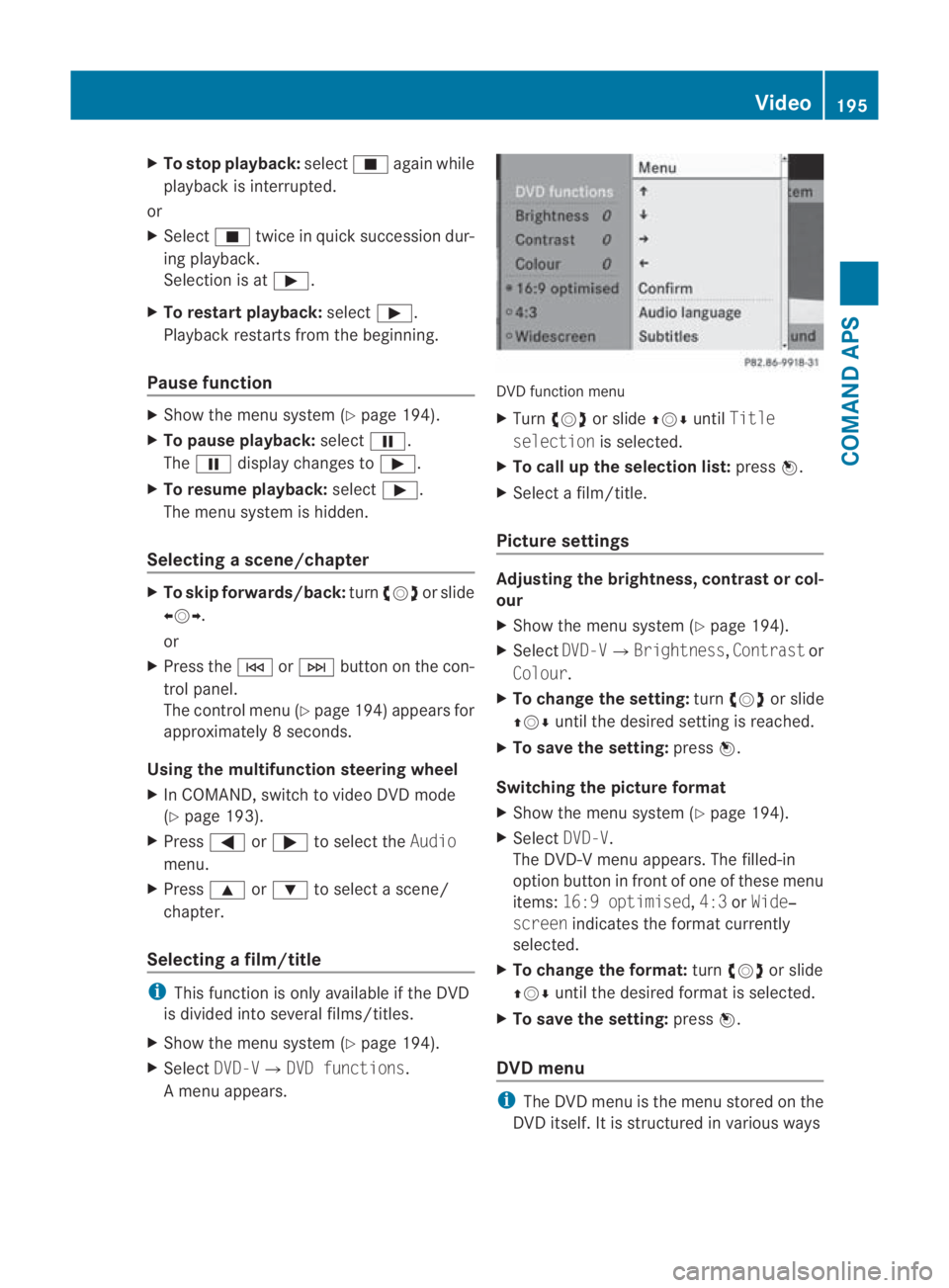
X Select DVD-V0004 DVD functions.
Am enu appears. DVD function menu
X
Turn 002800130029 or slide 001F0013000DuntilTitle
selection is selected.
X To call up the selection list: press0017.
X Select a film/title.
Picture settings Adjusting the brightness, contrast or col-
our
X
Show the menu system (Y page 194).
X Select DVD-V0004Brightness, Contrastor
Colour.
X To change the setting: turn002800130029 or slide
001F0013000D until the desired setting is reached.
X To save the setting: press0017.
Switching the picture format
X Show the menu system (Y page 194).
X Select DVD-V.
The DVD-V menu appears. The filled-in
option button in fron tofone of these menu
items: 16:9 optimised ,4:3 orWide‐
screen indicates the format currently
selected.
X To change the format: turn002800130029 or slide
001F0013000D until the desired format is selected.
X To save the setting: press0017.
DVD menu i
The DVD menu is the menu stored on the
DVD itself. It is structured in various ways Video
195COMAND APS
BA 197 ECE RE 2010/6a; 1; 2, en-GB
sabbaeuV ersion: 3.0.3.6
2010-05-07T14:19:43+02:00 - Seite 195 Z
Page 202 of 361
Doors
.................................................. 200
Opening/closing the boot ................201
Key positions .................................... 202
Seats .................................................. 203
Steering wheel .................................. 206
Mirrors ............................................... 207
Memory functions* ...........................210
Seat belts ........................................... 210
Lights ................................................. 214
Windscreen wipers ...........................217
Side windows .................................... 218
Driving and parking ..........................220
AMG SPEEDSHIFT DCT 7-speed
sports transmission .........................223
Instrument cluster ............................229
On-board computer ..........................230
Driving systems ................................ 243
Climate control ................................. 251
Loading and stowing ........................257
Features ............................................. 259 199Controls
BA 197 ECE RE 2010/6a; 1; 2, en-GB
sabbaeu
Version: 3.0.3.6 2010-05-07T14:19:43+02:00 - Seite 199
Page 209 of 361
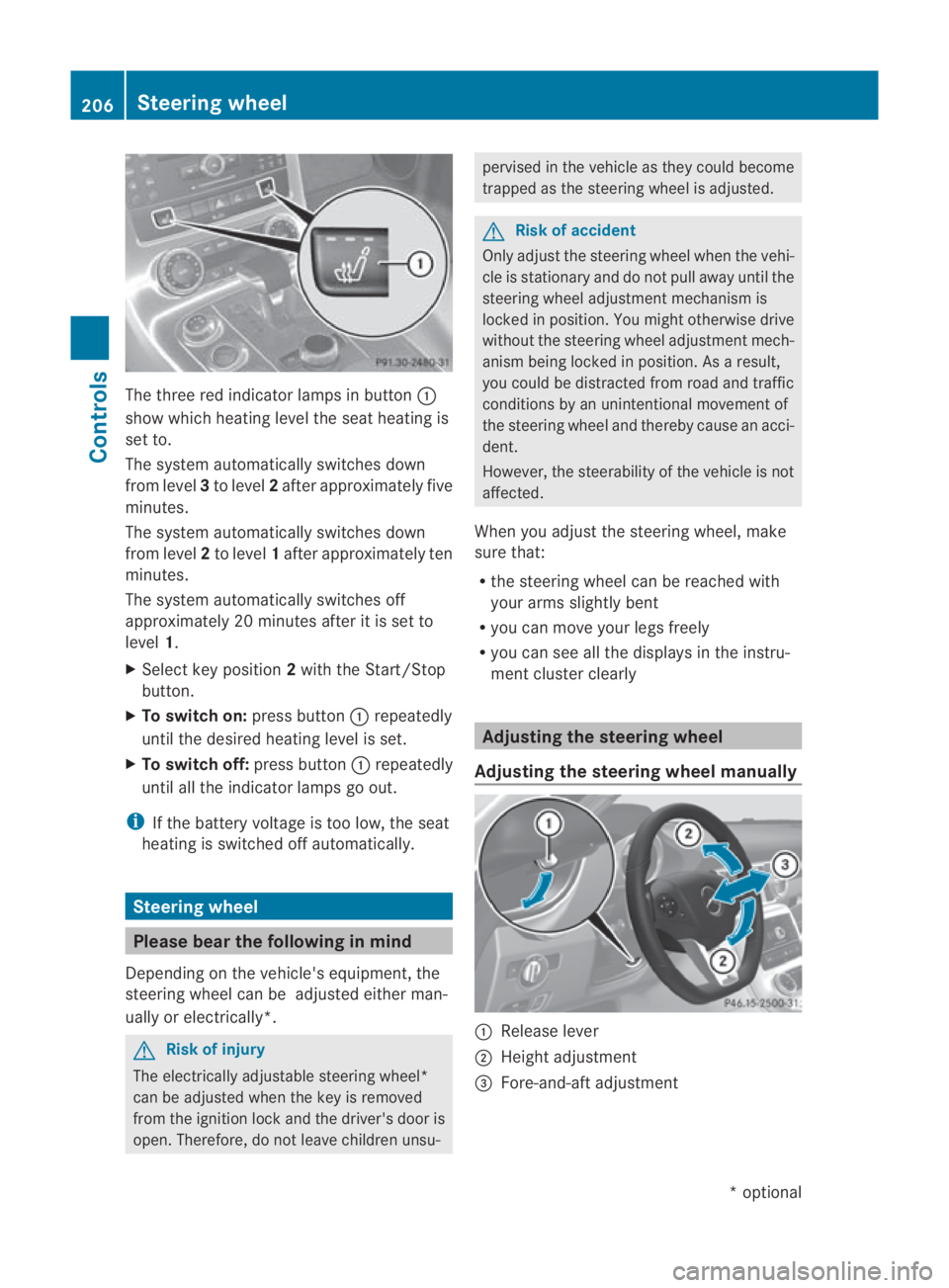
The three red indicator lamps in button
0001
show which heating level the seat heating is
set to.
The system automatically switches down
from level 3to level 2after approximately five
minutes.
The system automatically switches down
from level 2to level 1after approximately ten
minutes.
The system automatically switches off
approximately 20 minutes after it is set to
level 1.
X Select key position 2with the Start/Stop
button.
X To switch on: press button0001repeatedly
until the desired heating level is set.
X To switch off: press button0001repeatedly
until all the indicator lamps go out.
i If the battery voltage is too low, the seat
heating is switched off automatically. Steering wheel
Please bear the following in mind
Depending on the vehicle's equipment, the
steering wheel can be adjusted either man-
ually or electrically*. G
Risk of injury
The electrically adjustable steering wheel*
can be adjusted whe nthe key is removed
from the ignition lock and the driver's door is
open. Therefore, do not leave children unsu- pervised in the vehicle as they could become
trapped as the steering wheel is adjusted.
G
Risk of accident
Only adjust the steering wheel when the vehi-
cle is stationary and do not pull away until the
steering wheel adjustment mechanism is
locked in position. You might otherwise drive
without the steering wheel adjustment mech-
anism being locked in position. As a result,
you could be distracted from road and traffic
conditions by an unintentional movement of
the steering wheel and thereby cause an acci-
dent.
However, the steerability of the vehicle is not
affected.
When you adjust the steering wheel, make
sure that:
R the steering wheel can be reached with
your arms slightly bent
R you can move your legs freely
R you can see all the displays in the instru-
ment cluster clearly Adjusting the steering wheel
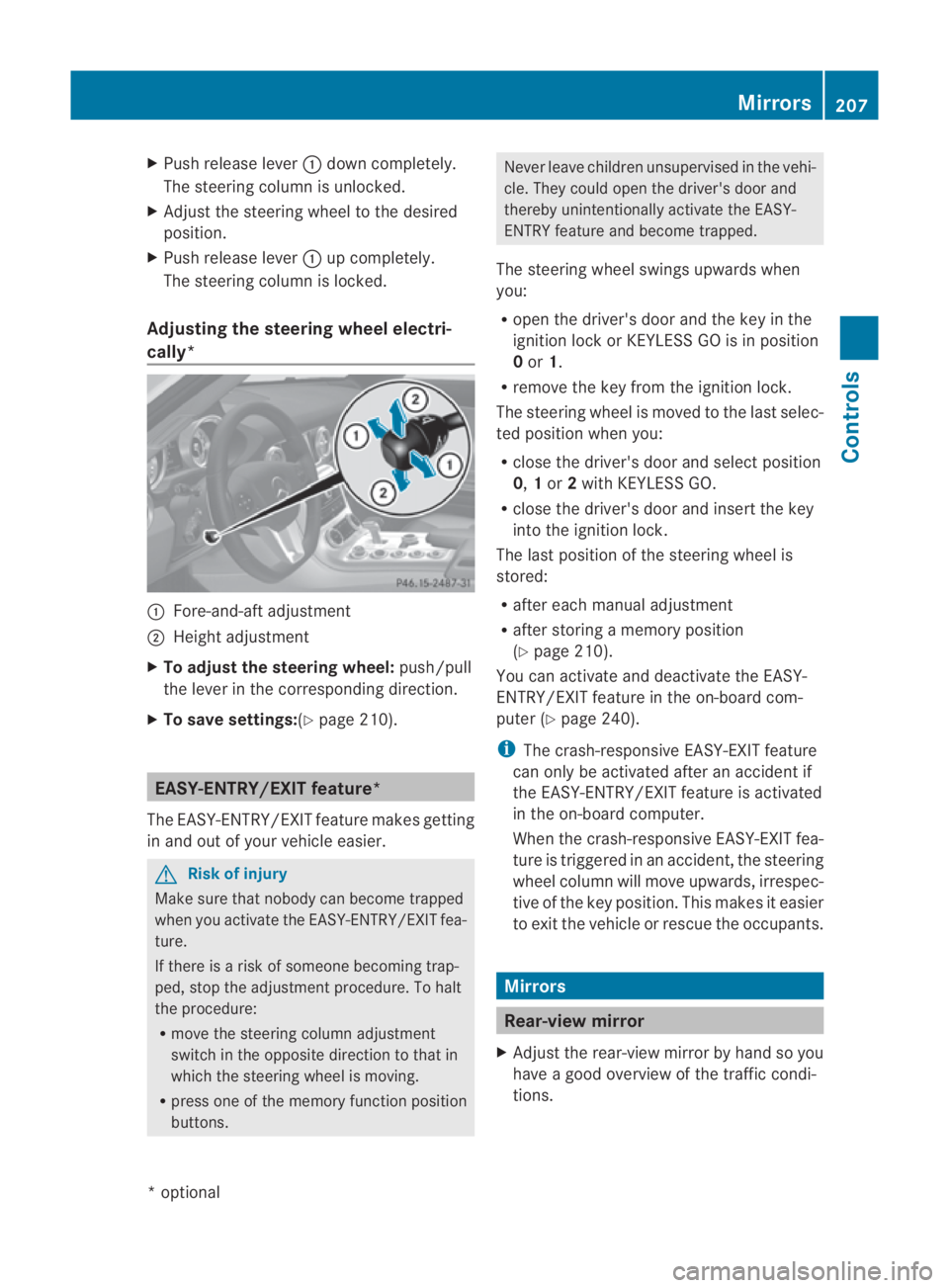
Adjusting the steering wheel manually 0001
Release lever
0002 Height adjustment
0015 Fore-and-aft adjustment 206
Steering wheelControls
*o
ptional
BA 197 ECE RE 2010/6a; 1; 2, en-GB
sabbaeu
Version: 3.0.3.6 2010-05-07T14:19:43+02:00 - Seite 206
Page 210 of 361
X
Push release lever 0001down completely.
The steering column is unlocked.
X Adjust the steering wheel to the desired
position.
X Push release lever 0001up completely.
The steering column is locked.
Adjusting the steering wheel electri-
cally* 0001
Fore-and-aft adjustment
0002 Height adjustment
X To adjust the steering wheel: push/pull
the lever in the corresponding direction.
X To save settings: (Ypage 210). EASY-ENTRY/EXIT feature*
The EASY-ENTRY/EXIT feature makes getting
in and out of your vehicle easier. G
Risk of injury
Make sure that nobody can become trapped
when you activate the EASY-ENTRY/EXIT fea-
ture.
If there is a risk of someone becoming trap-
ped, stop the adjustmen tprocedure. To halt
the procedure:
R move the steering column adjustment
switch in the opposite directio nto that in
which the steering wheel is moving.
R press one of the memory function position
buttons. Never leave children unsupervised in the vehi-
cle. They could open the driver's door and
thereby unintentionally activate the EASY-
ENTRY feature and become trapped.
The steering wheel swings upwards when
you:
R open the driver's door and the key in the
ignition lock or KEYLESS GO is in position
0or 1.
R remove the key from the ignition lock.
The steering wheel is moved to the last selec-
ted position when you:
R close the driver's door and select position
0, 1or 2with KEYLESS GO.
R close the driver's door and insert the key
into the ignition lock.
The last position of the steering wheel is
stored:
R after each manual adjustment
R after storing a memory position
(Y page 210).
You can activate and deactivate the EASY-
ENTRY/EXIT feature in the on-board com-
puter (Y page 240).
i The crash-responsive EASY-EXIT feature
can only be activated after an accident if
the EASY-ENTRY/EXIT feature is activated
in the on-board computer.
When the crash-responsive EASY-EXIT fea-
ture is triggered in an accident, the steering
wheel column will move upwards, irrespec-
tive of the key position. This makes it easier
to exit the vehicle or rescue the occupants. Mirrors
Rear-view mirror
X Adjust the rear-view mirror by hand so you
have a good overview of the traffic condi-
tions. Mirrors
207Controls
*optional
BA 197 ECE RE 2010/6a; 1; 2, en-GB
sabbaeu
Version: 3.0.3.6 2010-05-07T14:19:43+02:00 - Seite 207 Z
Page 213 of 361
Calling up
astore dparking position set-
ting X
Select key position 2with the Start/Stop
button (Y page 202).
X Engage reverse gear.
The exterior mirror on the front-passenger
side moves to the stored parking position.
The exterior mirror on the front-passenger
side moves back to its original position:
R as soon as you exceed a speed of
10 km/h
R about ten seconds after you have disen-
gaged reverse gear
R if you press button 0001for the exterior mir-
ror on the driver's side Memory functions*
Storing settings
Using the memory function, you can store up
to three different settings, e.g. for three dif-
ferent people.
You can save the following settings as a single
memory preset:
R sea tand backres tposition
R driver's side: steering wheel position
R driver's side: position of the exterior mir-
rors on the driver's and front-passenger
sides G
Risk of injury
The memory function can still be used when
the key has been removed. For this reason,
children should never be left unsupervised in
the vehicle. They could otherwise become
trapped when adjusting the seat or the steer-
ing wheel. G
Risk of accident
Only use the memory function on the driver's
side when the vehicle is stationary. Other-
wise, you could be distracted from the traffic
conditions by the steering wheel and seat moving of their own accord, and as a result
cause an accident.
X
Select key position 2with the Start/Stop
button.
X Adjust the seat (Y page 204).
X On the driver's side, adjust the steering
wheel (Y page 206) and the mirrors
(Y page 208).
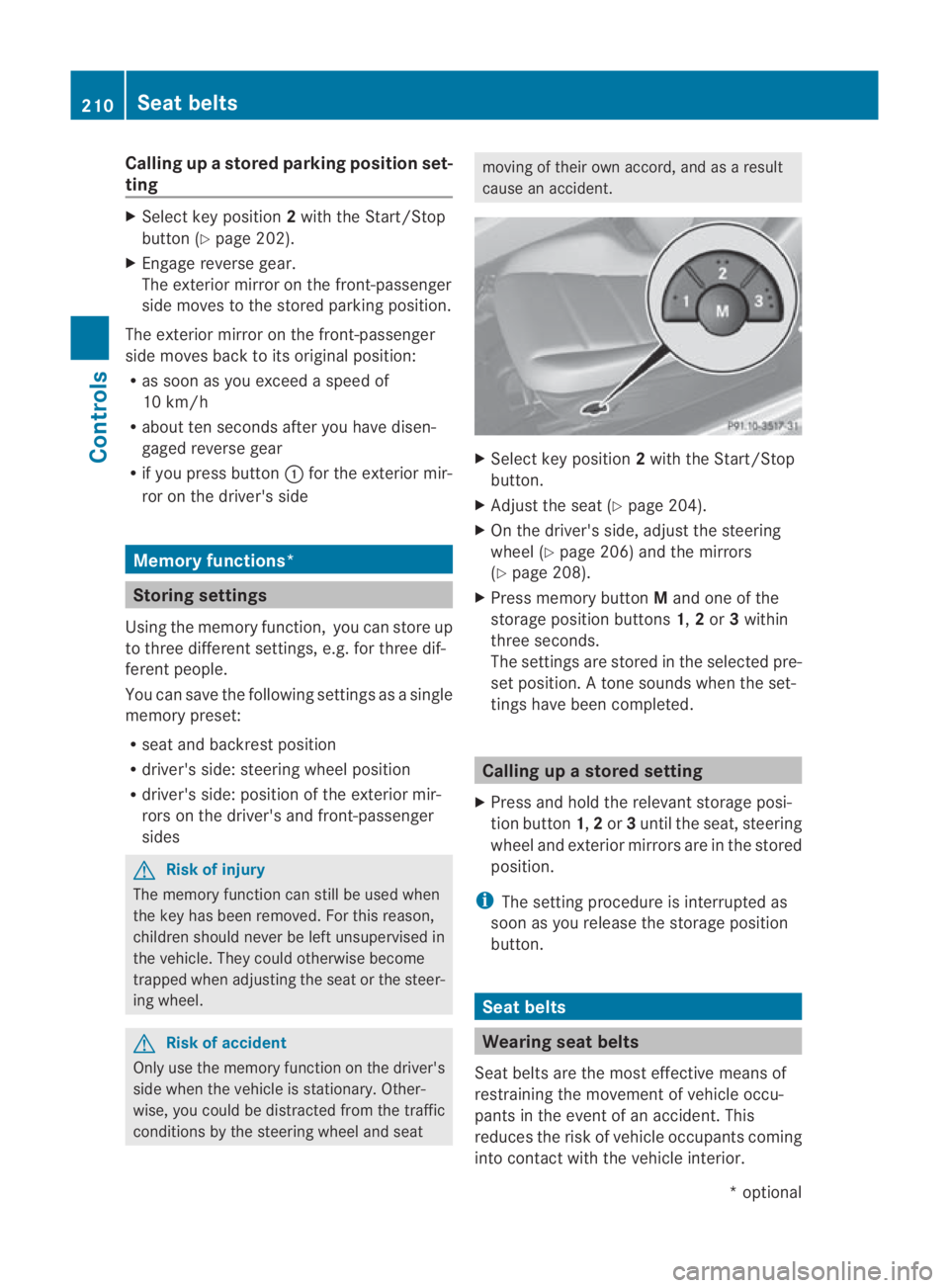
X Press memory button Mand one of the
storage position buttons 1,2or 3within
three seconds.
The settings are stored in the selected pre-
set position. Atone sounds when the set-
tings have been completed. Calling up
astore dsetting
X Press and hold the relevant storage posi-
tio nb utton 1,2or 3until the seat, steering
wheel and exterio rmirrors are in the stored
position.
i The setting procedure is interrupted as
soon as you release the storage position
button. Seat belts
Wearing seat belts
Seat belts are the most effective means of
restraining the movement of vehicle occu-
pants in the event of an accident. This
reduces the risk of vehicle occupants coming
into contact with the vehicle interior. 210
Seat beltsControls
*o
ptional
BA 197 ECE RE 2010/6a; 1; 2, en-GB
sabbaeu
Version: 3.0.3.6 2010-05-07T14:19:43+02:00 - Seite 210