2010 CHEVROLET HHR ESP
[x] Cancel search: ESPPage 254 of 480
Using the Digit Dial Command
1. Press and holdbgfor two seconds. The system
responds with “Ready”followed by a tone.
2. Say “Digit Dial”. The system responds with “Digit
dial using
to dial” followed by a tone.
3. Say the digit to be dialed one at a time. Following each digit, the system will repeat back the digit it
heard followed by a tone.
4. Continue entering digits until the number to be dialed is complete. After the whole number has
been entered, say “Dial”. The system responds
with “OK, Dialing” and dials the number.
.If an unwanted number is recognized by the
system, say“Clear”at any time to clear the last
number.
.To hear all of the numbers recognized by the
system, say “Verify”at any time and the system
will repeat them.
Using the Call Command
1. Press and holdb gfor two seconds. The system
responds with “Ready”followed by a tone.
2. Say “Call”. The system responds with “Call using
by a tone. 3. Say the name tag of the person to call.
.If the system clearly recognizes the name tag it
responds with
“OK, calling,
dials the number.
.If the system is unsure it recognizes the right
name tag, it confirms the name tag followed by
a tone. If the name tag is correct, say “Yes”.
The system responds with “OK, calling,
not correct, say “No”. The system will ask for
the name tag to be re‐entered.
Once connected, the person called will be heard
through the audio speakers.
Using the Re‐dial Command
1. Press and holdb gfor two seconds. The system
responds with “Ready”followed by a tone.
2. After the tone, say “Re‐dial”. The system responds
with “Re‐dial using
last number called from the connected Bluetooth
phone.
Once connected, the person called will be heard
through the audio speakers.
4-88
Page 255 of 480
Receiving a Call
When an incoming call is received, the audio system
mutes and a ring tone is heard in the vehicle.
.Pressbgand begin speaking to answer the call.
.Pressc xto ignore a call.
Call Waiting
Call waiting must be supported on the Bluetooth phone
and enabled by the wireless service carrier to work.
.Pressbgto answer an incoming call when
another call is active. The original call is placed
on hold.
.Pressb gagain to return to the original call.
.To ignore the incoming call, continue with the
original call with no action.
.Pressc xto disconnect the current call and
switch to the call on hold.
Three‐Way Calling
Three‐Way Calling must be supported on the Bluetooth
phone and enabled by the wireless service carrier
to work.
1. While on a call press
b g. The system
responds with “Ready”followed by a tone.
2. Say “Three‐way call”. The system responds with
“Three‐way call, please say dial or call”.
3. Use the dial or call command to dial the number of the third party to be called.
4. Once the call is connected, press
b gto link all
the callers together.
Ending a Call
Pressc xto end a call.
Muting a Call
During a call, all sounds from inside the vehicle can be
muted so that the person on the other end of the call
cannot hear them.
4-89
Page 256 of 480
To Mute a call
1. Pressbg. The system responds with “Ready”
followed by a tone.
2. Say “Mute Call”. The system responds
with “Call muted”.
To Cancel Mute
1. Pressbg. The system responds with “Ready”
followed by a tone.
2. After the tone, say “Mute Call”. The system
responds with “Resuming call”.
Transferring a Call
Audio can be transferred between the in‐vehicle
Bluetooth system and the cell phone.
To Transfer Audio to the Cell Phone
During a call with the audio in the vehicle:
1. Press
b g. The system responds with “Ready”
followed by a tone.
2. Say “Transfer Call.” The system responds with
“Transferring call” and the audio will switch from
the vehicle to the cell phone.
To Transfer Audio to the In-Vehicle
Bluetooth System
The cellular phone must be paired and connected with
the Bluetooth system before a call can be transferred.
The connection process can take up to two minutes
after the key is turned to the ON/RUN or ACC/
ACCESSORY position.
During a call with the audio on the cell phone,
press
b gfor more than two seconds. The audio
switches from the cell phone to the vehicle.
Voice Pass-Thru
Voice Pass‐Thru allows access to the voice recognition
commands on the cell phone. See the cell phone
manufacturers user guide to see if the cell phone
supports this feature. This feature can be used to
verbally access contacts stored in the cell phone.
1. Press and hold
b gfor two seconds. The system
responds with “Ready”followed by a tone.
2. Say “Bluetooth”. The system responds with
“Bluetooth ready” followed by a tone.
3. Say “Voice”. The system responds with “OK,
accessing
.The cell phone's normal prompt messages will
go through its cycle according to the phone's
operating instructions.
4-90
Page 257 of 480
Dual Tone Multi-Frequency
(DTMF) Tones
The in‐vehicle Bluetooth system can send numbers and
numbers stored as name tags during a call. This is used
when calling a menu driven phone system. Account
numbers can be programmed into the phonebook for
retrieval during menu driven calls.
Sending a Number During a Call
1. Pressbg. The system responds with “Ready”
followed by a tone.
2. Say “Dial”. The system responds with “Say a
number to send tones” followed by a tone.
3. Say the number to send.
.If the system clearly recognizes the number it
responds with “OK, Sending Number” and the
dial tones are sent and the call continues.
.If the system is not sure it recognized the
number properly, it responds “Dial Number,
Please say yes or no?” followed by a tone.
If the number is correct, say “Yes”. The system
responds with “OK, Sending Number” and the
dial tones are sent and the call continues.
Sending a Stored Name Tag During a Call
1. Pressb g. The system responds with “Ready”
followed by a tone.
2. Say “Send name tag.” The system responds with
“Say a name tag to send tones” followed by a tone.
3. Say the name tag to send.
.If the system clearly recognizes the name tag it
responds with “OK, Sending
the dial tones are sent and the call continues.
.If the system is not sure it recognized the name
tag properly, it responds “Dial
Please say yes or no?” followed by a tone.
If the name tag is correct, say “Yes”. The
system responds with “OK, Sending
continues.
Clearing the System
Unless information is deleted out of the in‐vehicle
Bluetooth system, it will be retained indefinitely. This
includes all saved name tags in the phonebook and
phone pairing information. For information on how to
delete this information, see the above sections on
Deleting a Paired Phone and Deleting Name Tags.
4-91
Page 258 of 480
Other Information
The Bluetooth®word mark and logos are owned by the
Bluetooth®SIG, Inc. and any use of such marks by
General Motors is under license. Other trademarks and
trade names are those of their respective owners.
See Radio Frequency Statement
on page 8‑17for FCC
information.
Theft-Deterrent Feature
THEFTLOCK®is designed to discourage theft of the
vehicle's radio by learning a portion of the Vehicle
Identification Number (VIN). The radio does not operate
if it is stolen or moved to a different vehicle.
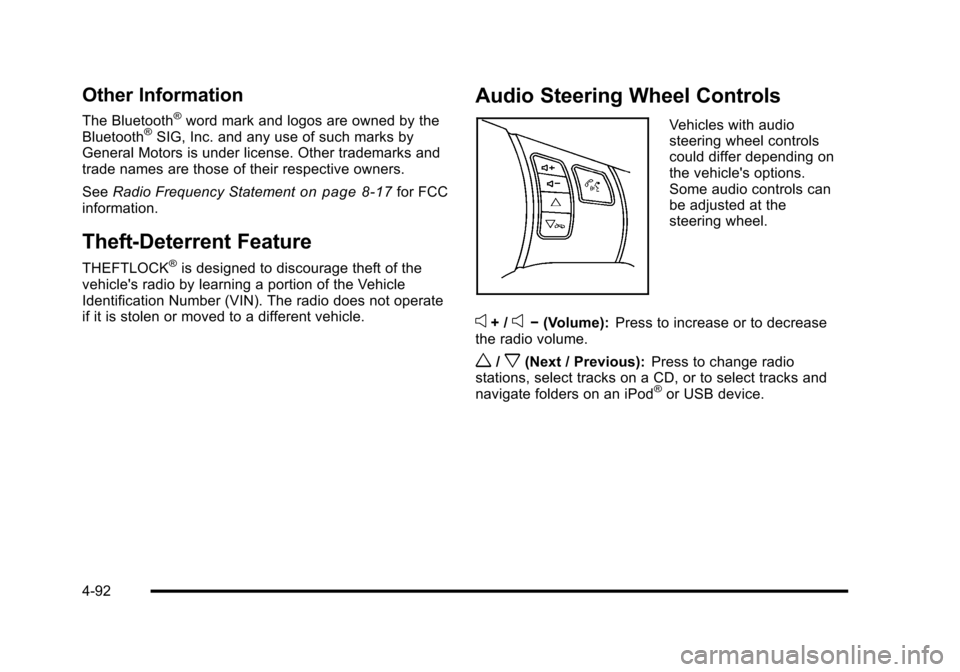
Audio Steering Wheel Controls
Vehicles with audio
steering wheel controls
could differ depending on
the vehicle's options.
Some audio controls can
be adjusted at the
steering wheel.
e+ /e− (Volume): Press to increase or to decrease
the radio volume.
w/x(Next / Previous): Press to change radio
stations, select tracks on a CD, or to select tracks and
navigate folders on an iPod
®or USB device.
4-92
Page 260 of 480
Radio Reception
Frequency interference and static can occur during
normal radio reception if items such as cell phone
chargers, vehicle convenience accessories, and
external electronic devices are plugged into the
accessory power outlet. If there is interference or static,
unplug the item from the accessory power outlet.
AM
The range for most AM stations is greater than for FM,
especially at night. The longer range can cause station
frequencies to interfere with each other. For better radio
reception, most AM radio stations boost the power
levels during the day, and then reduce these levels
during the night. Static can also occur when things like
storms and power lines interfere with radio reception.
When this happens, try reducing the treble on the radio.
FM Stereo
FM signals only reach about 10 to 40 miles (16 to 65 km).
Although the radio has a built-in electronic circuit that
automatically works to reduce interference, some static
can occur, especially around tall buildings or hills,
causing the sound to fade in and out.
XM™Satellite Radio Service
XM Satellite Radio Service gives digital radio reception
from coast-to-coast in the 48 contiguous United States,
and in Canada. Just as with FM, tall buildings or hills
can interfere with satellite radio signals, causing the
sound to fade in and out. In addition, traveling or
standing under heavy foliage, bridges, garages,
or tunnels may cause loss of the XM signal for a period
of time.
4-94
Page 265 of 480
For persons under 21, it is against the law in every
U.S. state to drink alcohol. There are good medical,
psychological, and developmental reasons for
these laws.
The obvious way to eliminate the leading highway
safety problem is for people never to drink alcohol
and then drive.
Medical research shows that alcohol in a person's
system can make crash injuries worse, especially
injuries to the brain, spinal cord, or heart. This means
that when anyone who has been drinking—driver or
passenger —is in a crash, that person's chance of
being killed or permanently disabled is higher than if
the person had not been drinking.
Control of a Vehicle
The following three systems help to control the vehicle
while driving —brakes, steering, and accelerator. At
times, as when driving on snow or ice, it is easy to ask
more of those control systems than the tires and road
can provide. Meaning, you can lose control of the
vehicle. See Traction Control System (TCS)
on
page 5‑9, Enhanced Traction System (ETS)on
page 5‑11, and Electronic Stability Control (ESC)on
page 5‑6.
Adding non‐dealer/non‐retailer accessories can affect
vehicle performance. See Accessories and
Modifications on page 6‑3.
Braking
See Brake System Warning Light on page 4‑30.
Braking action involves perception time and reaction
time. Deciding to push the brake pedal is perception
time. Actually doing it is reaction time.
Average reaction time is about three‐fourths of a
second. But that is only an average. It might be less
with one driver and as long as two or three seconds or
more with another. Age, physical condition, alertness,
coordination, and eyesight all play a part. So do alcohol,
drugs, and frustration. But even in three‐fourths of a
second, a vehicle moving at 100 km/h (60 mph) travels
20 m (66 feet). That could be a lot of distance in an
emergency, so keeping enough space between the
vehicle and others is important.
And, of course, actual stopping distances vary greatly
with the surface of the road, whether it is pavement or
gravel; the condition of the road, whether it is wet, dry,
or icy; tire tread; the condition of the brakes; the weight
of the vehicle; and the amount of brake force applied.
5-3
Page 267 of 480
Let us say the road is wet and you are driving safely.
Suddenly, an animal jumps out in front of you. You slam
on the brakes and continue braking. Here is what
happens with ABS:
A computer senses that the wheels are slowing down.
If one of the wheels is about to stop rolling, the
computer will separately work the brakes at each wheel.
ABS can change the brake pressure to each wheel, as
required, faster than any driver could. This can help the
driver steer around the obstacle while braking hard.
As the brakes are applied, the computer keeps
receiving updates on wheel speed and controls braking
pressure accordingly.
Remember: ABS does not change the time needed to
get a foot up to the brake pedal or always decrease
stopping distance. If you get too close to the vehicle in
front of you, there will not be enough time to apply the
brakes if that vehicle suddenly slows or stops. Always
leave enough room up ahead to stop, even with ABS.
Using ABS
Do not pump the brakes. Just hold the brake pedal
down firmly and let antilock work. A slight brake pedal
pulsation might be felt or some noise noticed, but this is
normal.
Braking in Emergencies
At some time, nearly every driver gets into a situation
that requires hard braking.
If the vehicle has Electronic Stability Control (ESC)
with Antilock Brake System (ABS), it allows the driver
to steer and brake at the same time. However, if the
vehicle does not have ESC with ABS, the first
reaction—to hit the brake pedal hard and hold it
down —might be the wrong thing to do. The wheels
can stop rolling. Once they do, the vehicle cannot
respond to the driver's steering. Momentum will carry it
in whatever direction it was headed when the wheels
stopped rolling. That could be off the road, into the very
thing the driver was trying to avoid, or into traffic.
If the vehicle does not have ABS, use a “squeeze”
braking technique. This gives maximum braking while
maintaining steering control. Do this by pushing on the
brake pedal with steadily increasing pressure.
In an emergency, you will probably want to squeeze the
brakes hard without locking the wheels. If you hear or
feel the wheels sliding, ease off the brake pedal. This
helps retain steering control. Without ABS, it is different.
See Antilock Brake System (ABS) on page 5‑4.
In many emergencies, steering can help more than
even the very best braking.
5-5