2010 CHEVROLET HHR ESP
[x] Cancel search: ESPPage 138 of 480
Manual Transmission
The shift lever should be in N (Neutral) and the parking
brake engaged. Hold the clutch pedal down to the floor
and start the engine. The vehicle will not start if the
clutch pedal is not all the way down.
Starting Procedure
1. With your foot off the accelerator pedal, turn theignition key to START. When the engine starts, let
go of the key. The idle speed will go down as the
engine warms. Do not race the engine immediately
after starting it. Operate the engine and
transmission gently to allow the oil to warm up and
lubricate all moving parts.
The vehicle has a Computer-Controlled Cranking
System. This feature assists in starting the engine
and protects components. If the ignition key is
turned to the START position, and then released
when the engine begins cranking, the engine will
continue cranking for a few seconds or until the
vehicle starts. If the engine does not start and the
key is held in START for many seconds, cranking
will be stopped after 15 seconds to prevent
cranking motor damage. To prevent gear damage,
this system also prevents cranking if the engine is
already running. Engine cranking can be stopped
by turning the ignition switch to ACC/ACCESSORY
or LOCK/OFF. Notice:
Cranking the engine for long periods of
time, by returning the key to the START position
immediately after cranking has ended, can overheat
and damage the cranking motor, and drain the
battery. Wait at least 15 seconds between each try,
to let the cranking motor cool down.
2. If the engine does not start after 5‐10 seconds, especially in very cold weather (below 0°F or
−18°C), it could be flooded with too much gasoline.
Push the accelerator pedal all the way to the floor
and holding it there as you hold the key in START
for a maximum of 15 seconds. Wait at least
15 seconds between each try, to allow the cranking
motor to cool. When the engine starts, let go of the
key and accelerator. If the vehicle starts briefly but
then stops again, repeat the procedure. This clears
the extra gasoline from the engine. Do not race the
engine immediately after starting it. Operate the
engine and transmission gently until the oil warms
up and lubricates all moving parts.
Notice: The engine is designed to work with the
electronics in the vehicle. If you add electrical parts
or accessories, you could change the way the
engine operates. Before adding electrical
equipment, check with your dealer/retailer. If you
do not, the engine might not perform properly.
Any resulting damage would not be covered by the
vehicle warranty.
3-26
Page 209 of 480
Readouts #2
TIRE PRESSURES:Displays the last gauge tire
pressures recorded from each of the wheel mounted tire
pressure sensors.
Readouts #3
BAROMETER: Displays ambient air pressure as
measured by the engine’s ambient pressure sensor.
OUTSIDE TEMPERATURE: Displays ambient
temperature as measured by an outside air temperature
sensor.
BATTERY VOLTAGE: Displays the vehicle’s battery
voltage.
Readouts #4
COOLANT TEMPERATURE: Displays engine coolant
temperature as measured by a coolant temperature
sensor.
INLET AIR TEMPERATURE: Displays the
instantaneous temperature of the air at the inlet to the
induction system. FUEL PRESSURE:
Displays fuel pressure as
measured by a sensor on the output of the
high-pressure fuel pump.
INDICATORS
The indicators come on when the corresponding
function is actively working to stabilize or control the
vehicle. Each indicator light on the RPD display can be
turned on and off using the SETUP MENU. These
indicators work independently of the telltales on the
instrument panel cluster. Turning the indicator on the
RPD display on or off does not enable or disable the
functions on the vehicle.
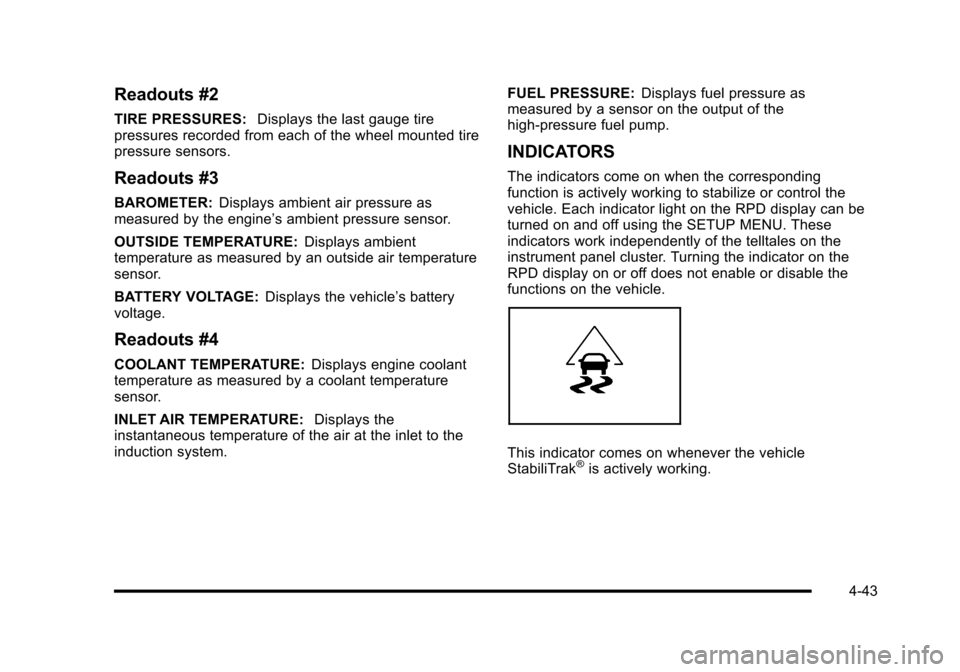
This indicator comes on whenever the vehicle
StabiliTrak®is actively working.
4-43
Page 248 of 480
Bluetooth®
Vehicles with a Bluetooth system can use a Bluetooth
capable cell phone with a Hands Free Profile to make
and receive phone calls. The system can be used while
the key is in ON/RUN or ACC/ACCESSORY position.
The range of the Bluetooth system can be up to 9.1 m
(30 ft). Not all phones support all functions, and not all
phones are guaranteed to work with the in-vehicle
Bluetooth system. See www.gm.com/bluetooth for
more information on compatible phones.
Voice Recognition
The Bluetooth system uses voice recognition to
interpret voice commands to dial phone numbers
and name tags.
Noise:Keep interior noise levels to a minimum. The
system may not recognize voice commands if there is
too much background noise.
When to Speak: A short tone sounds after the system
responds indicating when it is waiting for a voice
command. Wait until the tone and then speak.
How to Speak: Speak clearly in a calm and natural
voice.
Audio System
When using the in‐vehicle Bluetooth system, sound
comes through the vehicle's front audio system
speakers and overrides the audio system. Use the
audio system volume knob, during a call, to change
the volume level. The adjusted volume level remains in
memory for later calls. To prevent missed calls, a
minimum volume level is used if the volume is turned
down too low.
Bluetooth Controls
Use the buttons located on the steering wheel to
operate the in‐vehicle Bluetooth system. See Audio
Steering Wheel Controls
on page 4‑92for more
information.
b g(Push To Talk) : Press to answer incoming calls,
to confirm system information, and to start speech
recognition.
c x(Phone On Hook): Press to end a call, reject a
call, or to cancel an operation.
4-82
Page 249 of 480
Pairing
A Bluetooth enabled cell phone must be paired to the
in‐vehicle Bluetooth system first and then connected to
the vehicle before it can be used. See the cell phone
manufacturers user guide for Bluetooth functions
before pairing the cell phone. If a Bluetooth phone is
not connected, calls will be made using OnStar
®
Hands‐Free Calling, if available. Refer to the OnStar
owner's guide for more information.
Pairing Information:
.Up to five cell phones can be paired to the
in‐vehicle Bluetooth system.
.The pairing process is disabled when the vehicle
is moving.
.The in‐vehicle Bluetooth system automatically links
with the first available paired cell phone in the
order the phone was paired.
.Only one paired cell phone can be connected to
the in‐vehicle Bluetooth system at a time.
.Pairing should only need to be completed once,
unless changes to the pairing information have
been made or the phone is deleted.
To link to a different paired phone, see Linking to a
Different Phone later in this section.
Pairing a Phone
1. Press and holdb gfor two seconds. The system
responds with “Ready”followed by a tone.
2. Say “Bluetooth”. The system responds with
“Bluetooth ready” followed by a tone.
3. Say “Pair”. The system responds with instructions
and a four digit PIN number. The PIN number will
be used in Step 4.
4. Start the Pairing process on the cell phone that will be paired to the vehicle. Reference the cell phone
manufacturers user guide for information on this
process.
Locate the device named “General Motors”in
the list on the cellular phone and follow the
instructions on the cell phone to enter the
four digit PIN number that was provided in Step 3.
5. The system prompts for a name for the phone. Use a name that best describes the phone. This name
will be used to indicate which phone is connected.
The system then confirms the name provided.
6. The system responds with “
been successfully paired” after the pairing process
is complete.
7. Repeat Steps 1 through 7 for additional phones to be paired.
4-83
Page 250 of 480
Listing All Paired and Connected Phones
1. Press and holdbgfor two seconds. The system
responds with “Ready”followed by a tone.
2. Say “Bluetooth”. The system responds with
“Bluetooth ready” followed by a tone.
3. Say “List”. The system lists all the paired Bluetooth
devices. If a phone is connected to the vehicle, the
system will say “Is connected”after the connected
phone.
Deleting a Paired Phone
1. Press and holdb gfor two seconds. The system
responds with “Ready”followed by a tone.
2. Say “Bluetooth”. The system responds with
“Bluetooth ready” followed by a tone.
3. Say “Delete”. The system asks which phone to
delete followed by a tone.
4. Say the name of the phone to be deleted. If the phone name is unknown, use the “List”command
for a list of all paired phones. The system responds
with “Would you like to delete
Yes or No” followed by a tone.
5. Say “Yes”to delete the phone. The system
responds with “OK, deleting
Linking to a Different Phone
1. Press and holdbgfor two seconds. The system
responds with “Ready”followed by a tone.
2. Say “Bluetooth”. The system responds with
“Bluetooth ready” followed by a tone.
3. Say “Change phone”. The system responds with
“Please wait while I search for other phones”.
.If another phone is found, the response will
be “
.If another phone is not found, the original
phone remains connected.
Storing Name Tags
The system can store up to thirty phone numbers as
name tags that are shared between the Bluetooth and
OnStar systems.
The system uses the following commands to store and
retrieve phone numbers:
.Store
.Digit Store
.Directory
4-84
Page 251 of 480

Using the Store Command
The store command allows a phone number to be
stored without entering the digits individually.1. Press and hold
b gfor two seconds. The system
responds with “Ready”followed by a tone.
2. Say “Store”. The system responds with “Store,
number please” followed by a tone.
3. Say the complete phone number to be stored at once with no pauses.
.If the system recognizes the number it
responds with “OK, Storing”and repeats the
phone number.
.If the system is unsure it recognizes the phone
number, it responds with “Store”and repeats
the number followed by “Please say yes or no”.
If the number is correct, say “Yes”. If the
number is not correct, say “No”. The system will
ask for the number to be re‐entered.
4. After the system stores the phone number, it responds with “Please say the name tag” followed
by a tone. 5. Say a name tag for the phone number. The name
tag is recorded and the system responds with
“About to store
sound OK?”.
.If the name tag does not sound correct, say
“No” and repeat Step 5.
.If the name tag sounds correct, say “Yes”and
the name tag is stored. After the number is
stored the system returns to the main menu.
Using the Digit Store Command
The digit store command allows a phone number to be
stored by entering the digits individually.
1. Press and hold
b gfor two seconds. The system
responds with “Ready”followed by a tone.
2. Say “Digit Store”. The system responds with
“Please say the first digit to store” followed by
a tone.
4-85
Page 252 of 480
3. Say the first digit to be stored. The system willrepeat back the digit it heard followed by a tone.
Continue entering digits until the number to be
stored is complete.
.If an unwanted number is recognized by the
system, say “Clear”at any time to clear the last
number.
.To hear all of the numbers recognized by the
system, say “Verify”at any time and the system
will repeat them.
4. After the complete number has been entered, say “Store”. The system responds with “Please say the
name tag” followed by a tone.
5. Say a name tag for the phone number. The name tag is recorded and the system responds with
“About to store
sound OK?”.
.If the name tag does not sound correct, say
“No” and repeat Step 5.
.If the name tag sounds correct, say “Yes”and
the name tag is stored. After the number is
stored the system returns to the main menu.
Using the Directory Command
The directory command lists all of the name tags stored
by the system. To use the directory command:
1. Press and hold
b gfor two seconds. The system
responds with “Ready”followed by a tone.
2. Say “Directory”. The system responds with
“Directory” and then plays back all of the stored
name tags. When the list is complete, the system
returns to the main menu.
Deleting Name Tags
The system uses the following commands to delete
name tags:
.Delete
.Delete all name tags
Using the Delete Command
The delete command allows specific name tags to be
deleted.
To use the delete command:
1. Press and hold
b gfor two seconds. The system
responds with “Ready”followed by a tone.
2. Say “Delete”. The system responds with “Delete,
please say the name tag” followed by a tone.
4-86
Page 253 of 480
3. Say the name tag to be deleted. The systemresponds with “Would you like to delete,
.If the name tag is correct, say “Yes”to delete
the name tag. The system responds with “OK,
deleting
main menu.”
.If the name tag is incorrect, say “No”. The
system responds with “No. OK, let's try again,
please say the name tag.”
Using the Delete All Name Tags Command
The delete all name tags command deletes all stored
phone book name tags and route name tags for OnStar,
if present.
To use the delete all name tags command:
1. Press and hold
b gfor two seconds. The system
responds with “Ready”followed by a tone.
2. Say “Delete all name tags”. The system responds
with “You are about to delete all name tags stored
in your phone directory and your route destination
directory. Are you sure you want to do this? Please
say yes or no.”
.Say “Yes” to delete all name tags.
.Say“No” to cancel the function and return to
the main menu.
Making a Call
Calls can be made using the following commands:
.Dial
.Digit Dial
.Call
.Re‐dial
Using the Dial Command
1. Press and holdb gfor two seconds. The system
responds with “Ready”followed by a tone.
2. Say “Dial”. The system responds with “Dial
using
by a tone.
3. Say the entire number without pausing.
.If the system recognizes the number, it
responds with “OK, Dialing”and dials the
number.
.If the system does not recognize the number, it
confirms the numbers followed by a tone. If the
number is correct, say “Yes”. The system
responds with “OK, Dialing”and dials the
number. If the number is not correct, say “No”.
The system will ask for the number to be
re‐entered.
4-87