2010 CHEVROLET CORVETTE audio
[x] Cancel search: audioPage 170 of 472

Section 4 Instrument Panel
Fog Lamp Light . . . . . . . . . . . . . . . . . . . . . . . . . . . . . . . . 4-45
Lights On Reminder . . . . . . . . . . . . . . . . . . . . . . . . . . . 4-45
Highbeam On Light . . . . . . . . . . . . . . . . . . . . . . . . . . . . 4-45
Fuel Gauge . . . . . . . . . . . . . . . . . . . . . . . . . . . . . . . . . . . . 4-46
Boost Gauge (ZR1 Only) . . . . . . . . . . . . . . . . . . . . . . 4-47
Driver Information Center (DIC) . . . . . . . . . . . . . . . . . . 4-47
DIC Operation and Displays . . . . . . . . . . . . . . . . . . . 4-47
DIC Warnings and Messages . . . . . . . . . . . . . . . . . . 4-52
Other Messages . . . . . . . . . . . . . . . . . . . . . . . . . . . . . . . 4-70
DIC Vehicle Personalization . . . . . . . . . . . . . . . . . . . 4-71 Audio System(s)
. . . . . . . . . . . . . . . . . . . . . . . . . . . . . . . . . . 4-80
Setting the Clock . . . . . . . . . . . . . . . . . . . . . . . . . . . . . . 4-80
Radio(s) . . . . . . . . . . . . . . . . . . . . . . . . . . . . . . . . . . . . . . . 4-81
Using an MP3 . . . . . . . . . . . . . . . . . . . . . . . . . . . . . . . . . 4-92
XM Radio Messages . . . . . . . . . . . . . . . . . . . . . . . . . . . 4-95
Navigation/Radio System . . . . . . . . . . . . . . . . . . . . . . 4-96
Bluetooth
®. . . . . . . . . . . . . . . . . . . . . . . . . . . . . . . . . . . . . 4-96
Theft-Deterrent Feature . . . . . . . . . . . . . . . . . . . . . . 4-106
Audio Steering Wheel Controls . . . . . . . . . . . . . . . 4-107
Radio Reception . . . . . . . . . . . . . . . . . . . . . . . . . . . . . . 4-108
Diversity Antenna System . . . . . . . . . . . . . . . . . . . . 4-109
XM™ Satellite Radio Antenna System . . . . . . . . 4-109
4-2
Page 185 of 472
.Transmission Fluid Temperature Gauge,
(Automatic Transmission Vehicles Only)
.Engine Oil Temperature Gauge
.Engine Oil Pressure Gauge
.G-Force Gauge
.Boost Gauge (If Equipped)
.Audio Functions, Street Mode Only
.Navigation, Only with Navigation Radio,
Turn-by-Turn Guidance
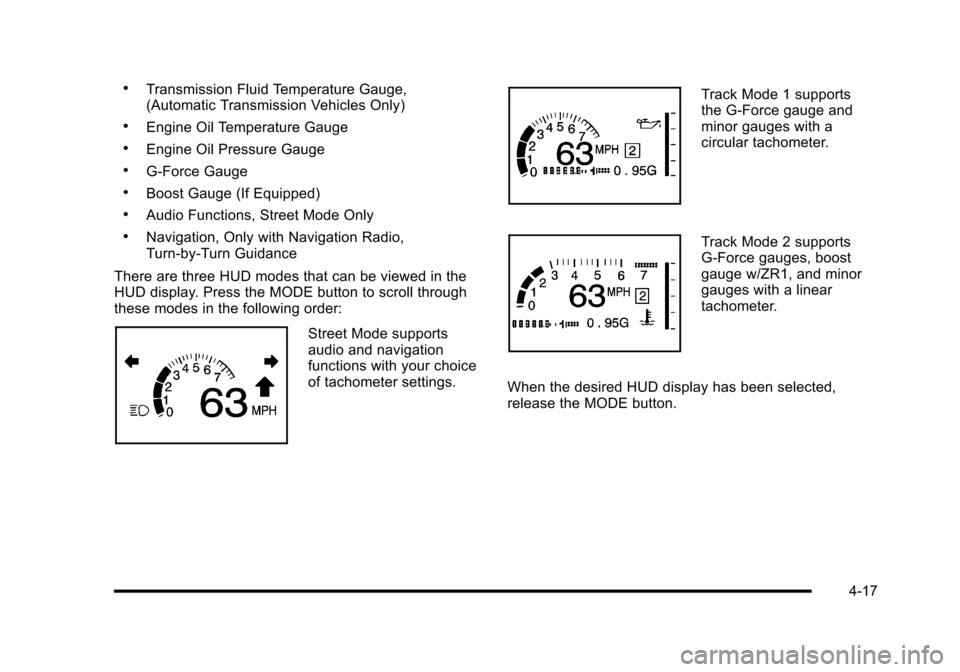
There are three HUD modes that can be viewed in the
HUD display. Press the MODE button to scroll through
these modes in the following order:
Street Mode supports
audio and navigation
functions with your choice
of tachometer settings.
Track Mode 1 supports
the G-Force gauge and
minor gauges with a
circular tachometer.
Track Mode 2 supports
G-Force gauges, boost
gauge w/ZR1, and minor
gauges with a linear
tachometer.
When the desired HUD display has been selected,
release the MODE button.
4-17
Page 248 of 472

Audio System(s)
Determine which radio the vehicle has and read the
following pages to become familiar with its features.
{WARNING:
Taking your eyes off the road for extended periods
could cause a crash resulting in injury or death to
you or others. Do not give extended attention to
entertainment tasks while driving.
This system provides access to many audio and non
audio listings.
To minimize taking your eyes off the road while driving,
do the following while the vehicle is parked:
.Become familiar with the operation and controls of
the audio system.
.Set up the tone, speaker adjustments, and preset
radio stations.
For more information, see Defensive Driving
on
page 5‑2. Notice:
Contact your dealer/retailer before adding
any equipment.
Adding audio or communication equipment could
interfere with the operation of the vehicle's engine,
radio, or other systems, and could damage them.
Follow federal rules covering mobile radio and
telephone equipment.
The vehicle has Retained Accessory Power (RAP). With
RAP, the audio system can be played even after the
ignition is turned off. See Retained Accessory Power
(RAP)
on page 3‑24for more information.
Setting the Clock
To set the clock:
1. Press and hold H until the correct hour displays.
2. Press and hold M until the correct minute displays.
The clock mode automatically times out with the
changed display format set as the current default
setting.
4-80
Page 249 of 472
Radio(s)
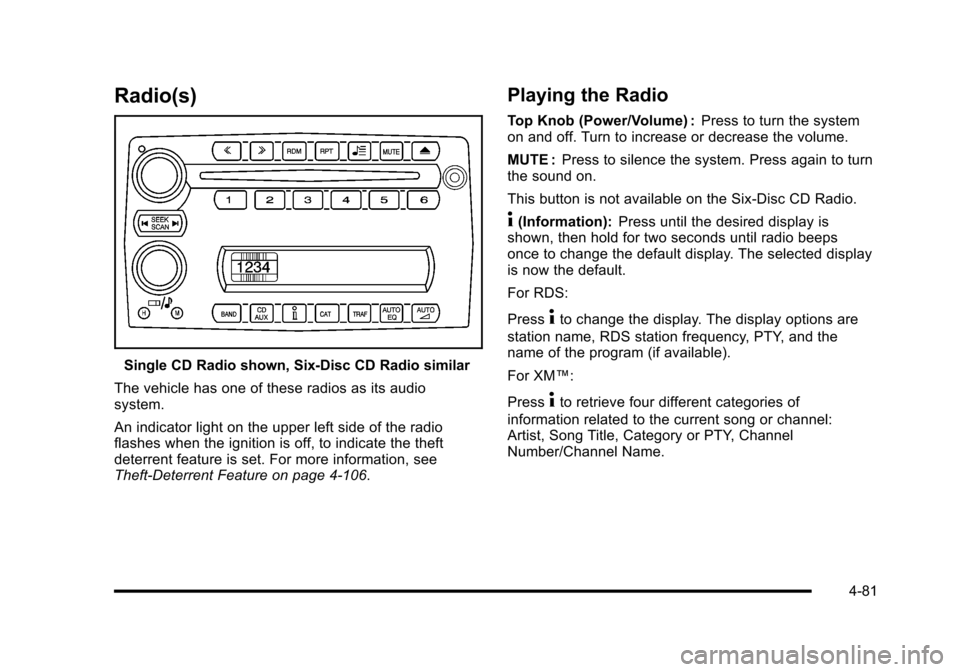
Single CD Radio shown, Six-Disc CD Radio similar
The vehicle has one of these radios as its audio
system.
An indicator light on the upper left side of the radio
flashes when the ignition is off, to indicate the theft
deterrent feature is set. For more information, see
Theft-Deterrent Feature on page 4‑106.
Playing the Radio
Top Knob (Power/Volume) : Press to turn the system
on and off. Turn to increase or decrease the volume.
MUTE : Press to silence the system. Press again to turn
the sound on.
This button is not available on the Six-Disc CD Radio.
4(Information): Press until the desired display is
shown, then hold for two seconds until radio beeps
once to change the default display. The selected display
is now the default.
For RDS:
Press
4to change the display. The display options are
station name, RDS station frequency, PTY, and the
name of the program (if available).
For XM™:
Press
4to retrieve four different categories of
information related to the current song or channel:
Artist, Song Title, Category or PTY, Channel
Number/Channel Name.
4-81
Page 250 of 472
Audio Settings
Press and holdOewhen no tone or speaker control
is displayed to adjust all tone and speaker controls to
the middle position. AUDIO SETTINGS CENTERED
displays.
Adjusting the Tone (Bass/Treble)
O e(Bass/Treble): To adjust the Bass or Treble:
Press and release
O euntil BASS or TREBLE
displays.
.Turn theO eknob to increase or to decrease
the level.
.Press and hold theO eknob until the level
changes to the middle position.
Adjusting the Speakers (Balance/Fade)
O e(Balance/Fade): To adjust the Balance:
Press and release
O euntil BALANCE displays.
.Turn theOeknob to move the sound toward the
right or the left speakers.
.Press and hold theO eknob until the level
changes to the middle position. To adjust the Fade:
Press and release
O
euntil FADE displays
.Turn theOeknob to move the sound toward the
front or the rear speakers.
.Press and hold theO eknob until the level
changes to the middle position.
AUTO EQ (Automatic Equalization) : The radio saves
separate AUTO EQ settings for each preset and source.
For vehicles without the Bose
®sound system:
.Press AUTO EQ to select equalization settings
designed for CLASSICAL, POP, ROCK, JAZZ,
TALK, and COUNTRY.
.Selecting CUSTOM or changing bass or treble,
returns the EQ to the manual bass and treble
settings.
For vehicles with the Bose
®sound system:
.Press AUTO EQ to select equalization settings
from EQ1 through EQ6.
.Selecting CUSTOM or changing bass or treble,
returns the EQ to the manual bass and treble
settings.
4-82
Page 251 of 472
AUTOn(Automatic Volume):Automatic volume
automatically adjusts the audio system to make up for
road and wind noise, by increasing the volume as
vehicle speed increases.
For vehicles without the Bose
®sound system:
1. Set the volume at the desired level.
2. Press AUTO
nto select AUTO VOLUME MIN
(minimum), AUTO VOLUME MED (medium),
or AUTO VOLUME MAX (maximum). Each higher
setting provides more volume compensation at
faster vehicle speeds.
3. Press AUTO
nuntil AUTO VOLUME OFF
displays to turn automatic volume off. For vehicles with the Bose
®sound system:
Vehicles with the Bose
®sound system include Bose®
AudioPilot®noise compensation technology. AudioPilot®
continuously adjusts the audio system equalization
to compensate for background noise. This feature is
most effective at lower radio volume settings where
background noise can affect how well the audio is
heard. At higher volume settings, there may be little
or no adjustments by AudioPilot
®. For additional
information on AudioPilot®, visit bose.com/audiopilot.
To use AudioPilot
®:
1. Set the volume at the desired level.
2. Press AUTO
nuntil AUTO VOLUME ON
displays.
3. Press AUTO
nuntil AUTO VOLUME OFF
displays to turn off AudioPilot®.
4-83
Page 255 of 472
TRAF (Traffic) :TA (traffic) displays when the station
broadcasts traffic announcements, the announcement
will be played.
Press TRAF and the radio seeks to a station that
broadcasts traffic announcements. When a station
is found, the radio stops seeking and TA displays.
NO TRAFFIC INFO displays if a station that broadcasts
traffic announcements can not be found.
Press TRAF to turn off the traffic announcements if TA
is on the display.
The radio plays the traffic announcement even if the
volume is low. The radio interrupts the play of a CD if
the last tuned station broadcasts traffic announcements.
This function does not apply to XM Satellite Radio
Service.
Radio Messages for XM Only
See XM Radio Messageson page 4‑95XM Radio
Messages later in this section for further detail.
Using the CD Player
The CD player can play smaller 3 inch (8 cm) single
CDs with an adapter ring.
A CD in the player it stays in the player when the
ignition is turned off. When the ignition or radio is turned
on, the CD starts to play where it stopped, if it was the
last selected audio source.
Loading a CD
Single CD Radio:
Insert the CD partway into the slot, label side up, until
the player pulls the CD in. The CD begins playing
automatically.
The CD symbol displays when a CD is inserted, and
the track number displays when each new track starts
to play.
Six-Disc CD Radio:
If more than one CD has been loaded, a number for
each CD displays.
M(Load): Press to load CDs into the CD player.
To insert one CD:
1. Press
M.
2. Load a CD and insert the CD partway into the slot, label side up when INSERT CD # displays.
The player pulls the CD in.
4-87
Page 259 of 472
Care of CDs and the CD Player
Care of CDs
Store CD(s) in their original cases or other protective
cases and away from direct sunlight and dust. The CD
player scans the bottom of the disc. If the bottom of a
CD is damaged it may not play properly or at all. Do not
touch the bottom of a CD while handling it. Pick up CDs
by grasping the outer edges or the edge of the hole and
the outer edge.
If the surface of a CD is dirty, take a soft, lint free
cloth or dampen a clean, soft cloth in a mild, neutral
detergent solution mixed with water, and clean it. Make
sure the wiping process starts from the center to
the edge.
Care of the CD Player
Do not add labels to a CD, it could get caught in the
CD player. Use a marking pen to write on the top of the
CD if a description is needed.
Do not use CD lens cleaners, they could damage the
CD player. Notice:
If a label is added to a CD, or more than one
CD is inserted into the slot at a time, or an attempt
is made to play scratched or damaged CDs, the CD
player could be damaged. While using the CD
player, use only CDs in good condition without any
label, load one CD at a time, and keep the CD player
and the loading slot free of foreign materials,
liquids, and debris.
If an error displays, see “CD Messages”later in this
section.
Using the Auxiliary Input Jack
The radio system has an auxiliary input jack located on
the right side of the faceplate. This is not an audio
output; do not plug the headphone set into the front
auxiliary input jack. An external audio device can be
connected to the auxiliary input jack for use as another
source for audio listening.
Drivers are encouraged to set up any auxiliary device
while the vehicle is in P (Park). See Defensive Driving
on page 5‑2.
4-91