Page 230 of 512
230 3-3. Using the audio system
PRIUS_U_(L/O_0802)■
Scanning XM
® satellite radio channels
● Scanning channels in the current category
Touch on the screen or press .
“SCAN” appears on the screen.
When the desired channel is reached, touch orpress the button once again.
● Scanning preset channels
Touch on the screen or press and hold ituntil you hear a beep.
“P SCAN” appears on the screen.
When the desired channel is reached, touch or
press the button once again.
■ Displaying the title and artist name
Touch on the screen.
The screen will display up to 10
characters.
Touch the button once again to
return to the previous screen.
STEP1SCAN
STEP2
STEP1SCAN
67(3�
Page 232 of 512
232 3-3. Using the audio system
PRIUS_U_(L/O_0802)
■If the satellite radio does not operate normally
If a problem occurs with the XM
® tuner, a message will appear on the
screen. Refer to the table below to identify the problem, and take the sug-
gested corrective action.
ANTENNA
The XM® antenna is not connected. Check
whether the XM® antenna cable is attached
securely.
There is a short-circuit in the antenna or the sur-
rounding antenna cable. See a Toyota certified
dealer.
UPDATING You have not subscribed to XM
® satellite radio.
The radio is being updated with the latest encryp-
tion code. Contact XM
® satellite radio for subscrip-
tion information. When a contract is canceled, you
can choose “CH000” and all free-to-air channels.
The premium channel you selected is not autho-
rized. Wait for about 2 seconds until the radio
returns to the previous channel or “CH001”. If it
does not change automatically, select another
channel. If you want to listen to the premium chan-
nel, contact XM
® satellite radio.
NO SIGNAL The XM
® signal is too weak at the current location.
Wait until your vehicle reaches a location with a
stronger signal.
LOADING The unit is acquiring audio or program information.
Wait until the unit has received the information.
OFF AIRThe channel you selected is not broadcasting any
programming. Select another channel.
-----There is no song/program title or artist name/fea-
ture associated with the channel at that time. No
action needed.
Page 234 of 512
234
3-3. Using the audio system
PRIUS_U_(L/O_0802)
Using the radio (Vehicle without AUX adapter)
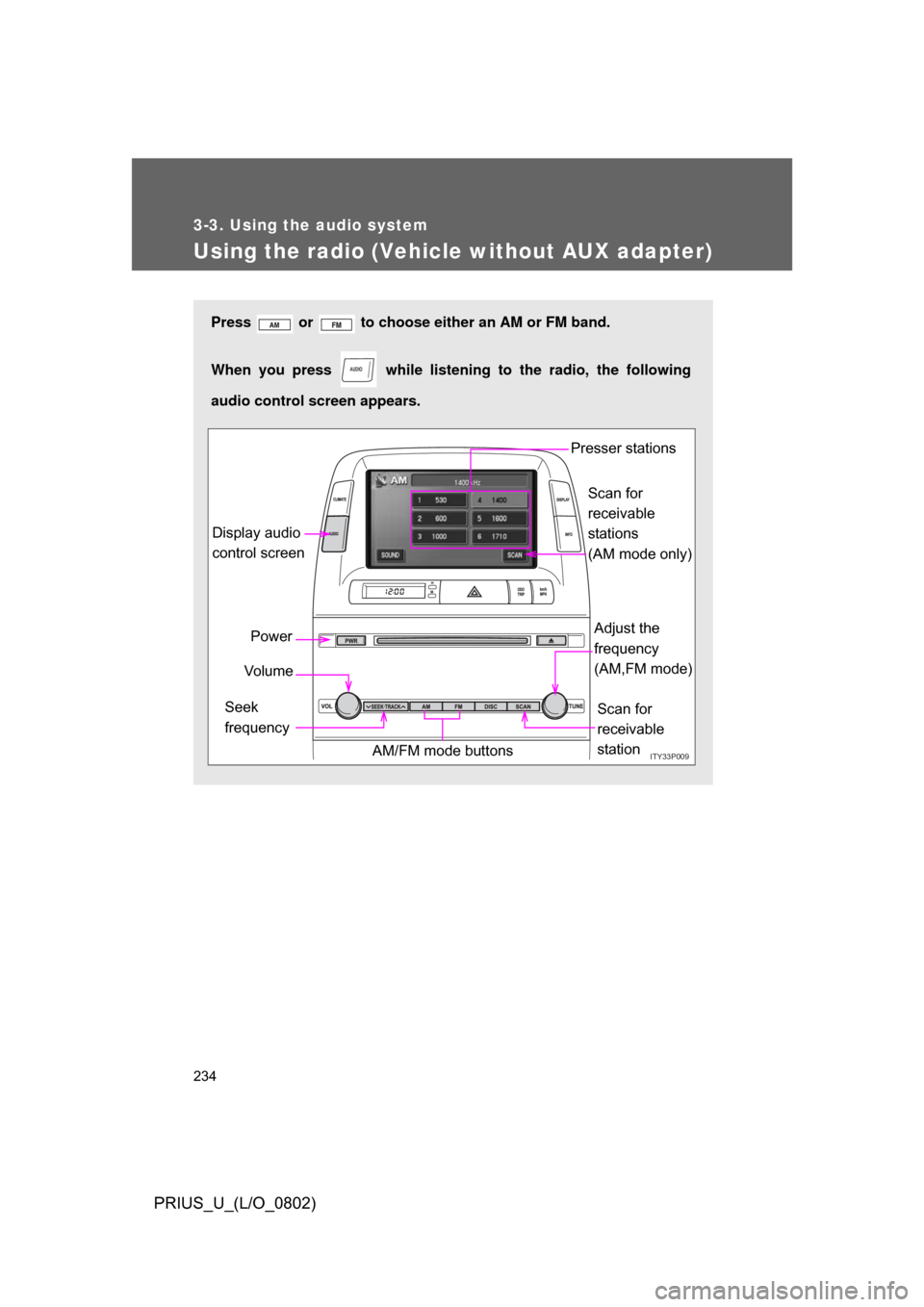
Press or to choose either an AM or FM band.
When you press while listening to the radio, the following
audio control screen appears.
AUDIO
ITY33P009
Display audio
control screen
Power
Vo l u m e
Scan for
receivable
station
Seek
frequency Adjust the
frequency
(AM,FM mode)
AM/FM mode buttons Presser stations
Scan for
receivable
stations
(AM mode only)
Page 235 of 512
235
3-3. Using the audio system
3
Interior features
PRIUS_U_(L/O_0802)
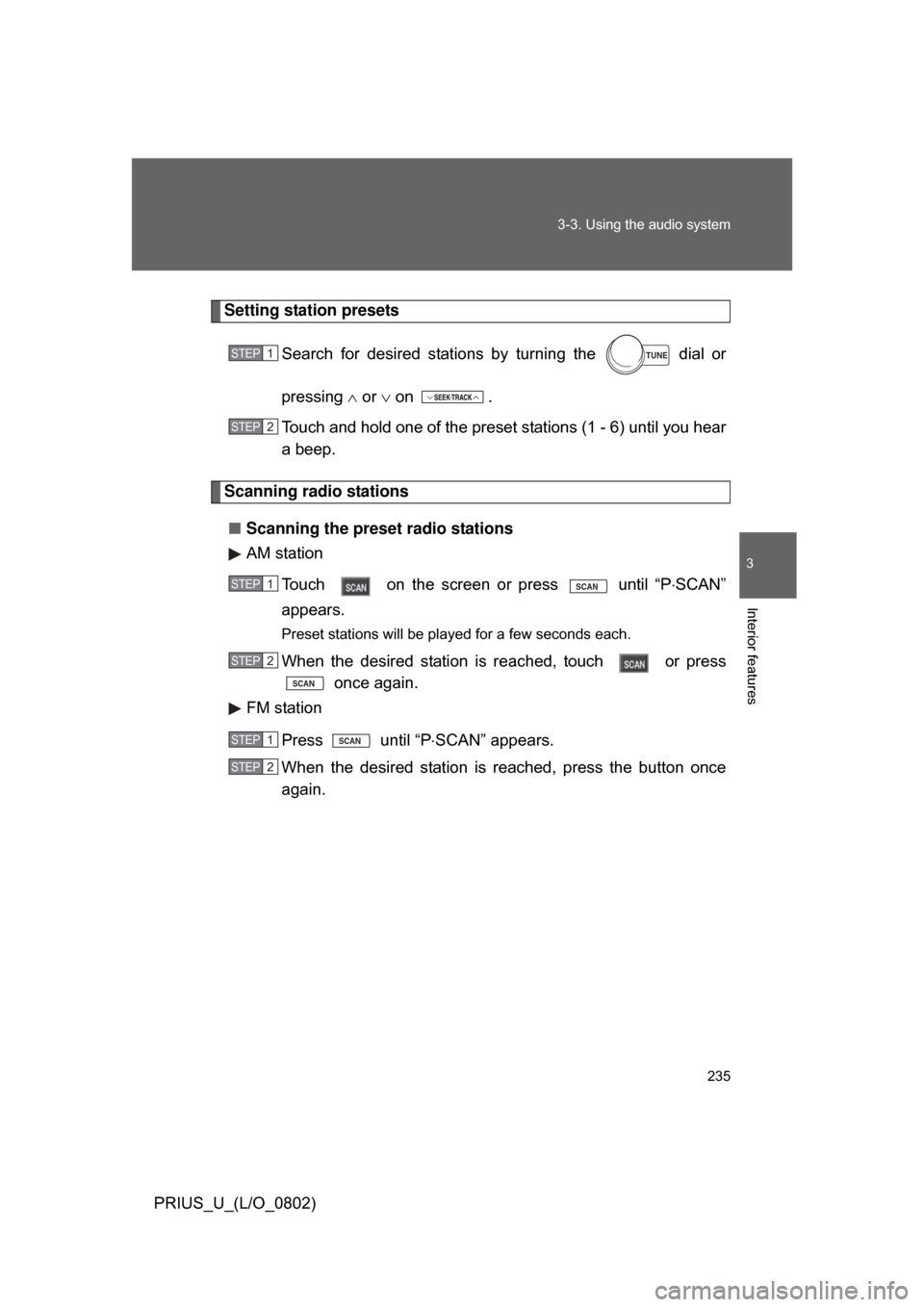
Setting station presets
Search for desired stations by turning the
dial or
pressing or on .
Touch and hold one of the preset stations (1 - 6) until you hear
a beep.
Scanning radio stations
■ Scanning the preset radio stations
AM station
Touch on the screen or press
until “P SCAN”
appears.
Preset stations will be played for a few seconds each.
When the desired station is reached, touch or press
once again.
FM station
Press until “P SCAN” appears.
When the desired station is reached, press the button once
again.
STEP1TUNE
STEP2
STEP1SCAN
STEP2
SCAN
STEP1SCAN
STEP2
Page 236 of 512
236 3-3. Using the audio system
PRIUS_U_(L/O_0802)■
Scanning all radio stations within range
AM station
Touch on the screen or press .
“SCAN” appears on the screen and all stations with reception will be
played for a few seconds each.
When the desired station is reached, touch or press
once again.
FM station
Press .
“SCAN” appears on the screen and all stations with reception will be
played for a few seconds each.
When the desired station is reached, press the button once
again.
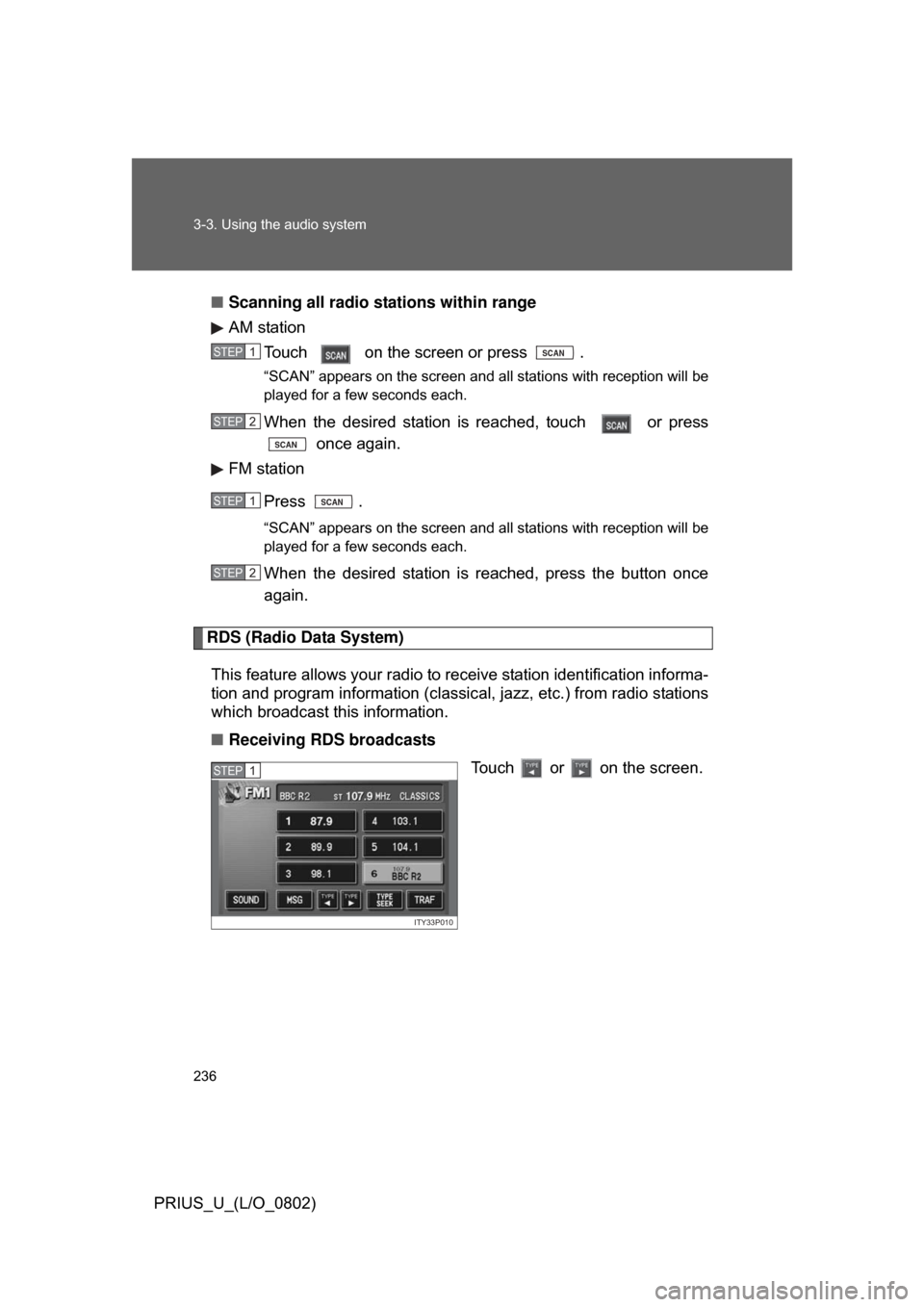
RDS (Radio Data System)
This feature allows your radio to receive station identification informa-
tion and program information (classic al, jazz, etc.) from radio stations
which broadcast this information.
■ Receiving RDS broadcasts
Touch or on the screen.
STEP1SCAN
STEP2
SCAN
STEP1SCAN
STEP2
ITY33P010
STEP1
Page 237 of 512
237
3-3. Using the audio system
3
Interior features
PRIUS_U_(L/O_0802)
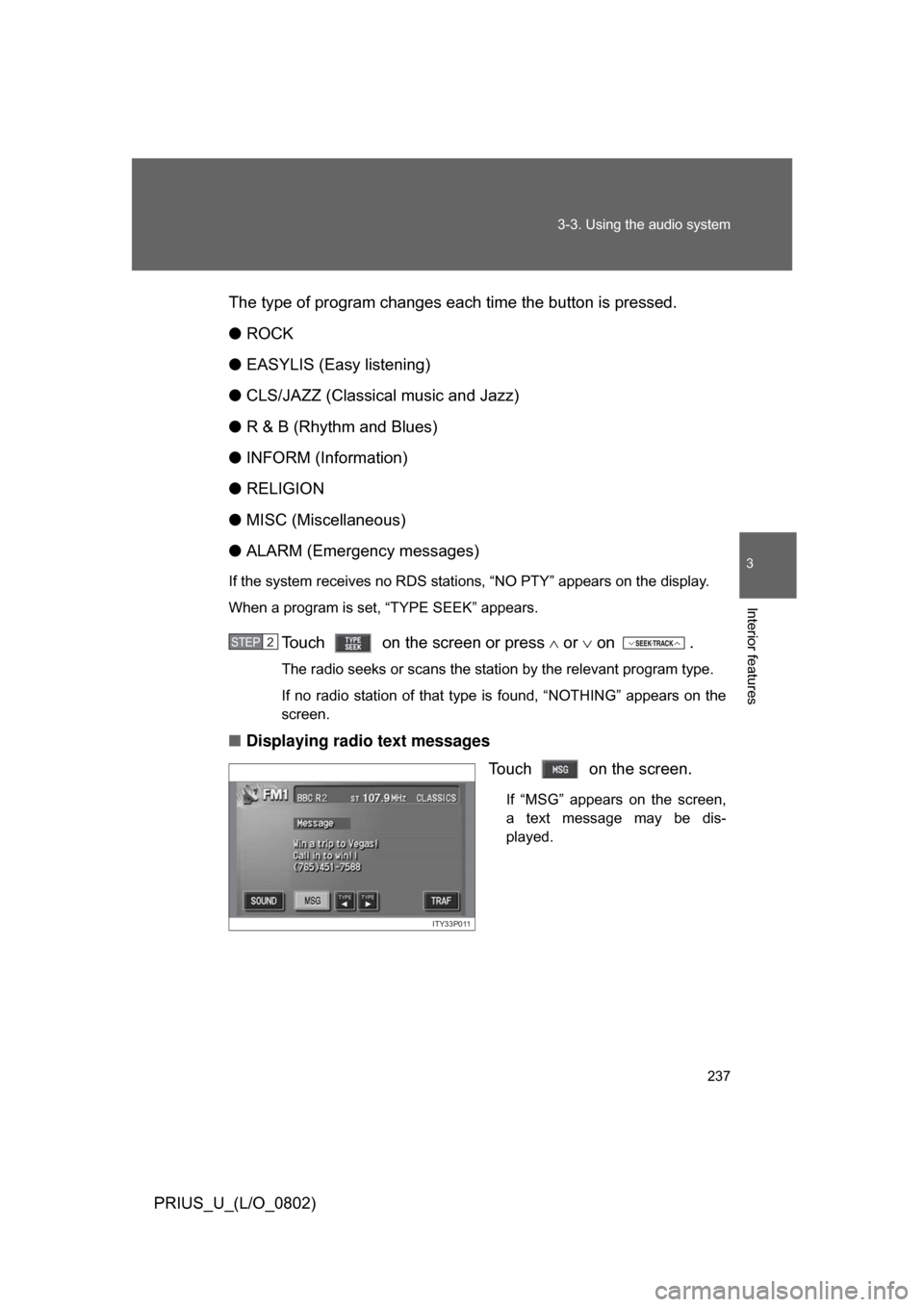
The type of program changes each time the button is pressed.
●
ROCK
● EASYLIS (Easy listening)
● CLS/JAZZ (Classical music and Jazz)
● R & B (Rhythm and Blues)
● INFORM (Information)
● RELIGION
● MISC (Miscellaneous)
● ALARM (Emergency messages)
If the system receives no RDS stations, “NO PTY” appears on the display.
When a program is set, “TYPE SEEK” appears.
Touch on the screen or press or on .
The radio seeks or scans the station by the relevant program type.
If no radio station of that type is found, “NOTHING” appears on the
screen.
■ Displaying radio text messages
Touch on the screen.
If “MSG” appears on the screen,
a text message may be dis-
played.
STEP2
ITY33P011
Page 238 of 512
238 3-3. Using the audio system
PRIUS_U_(L/O_0802)■
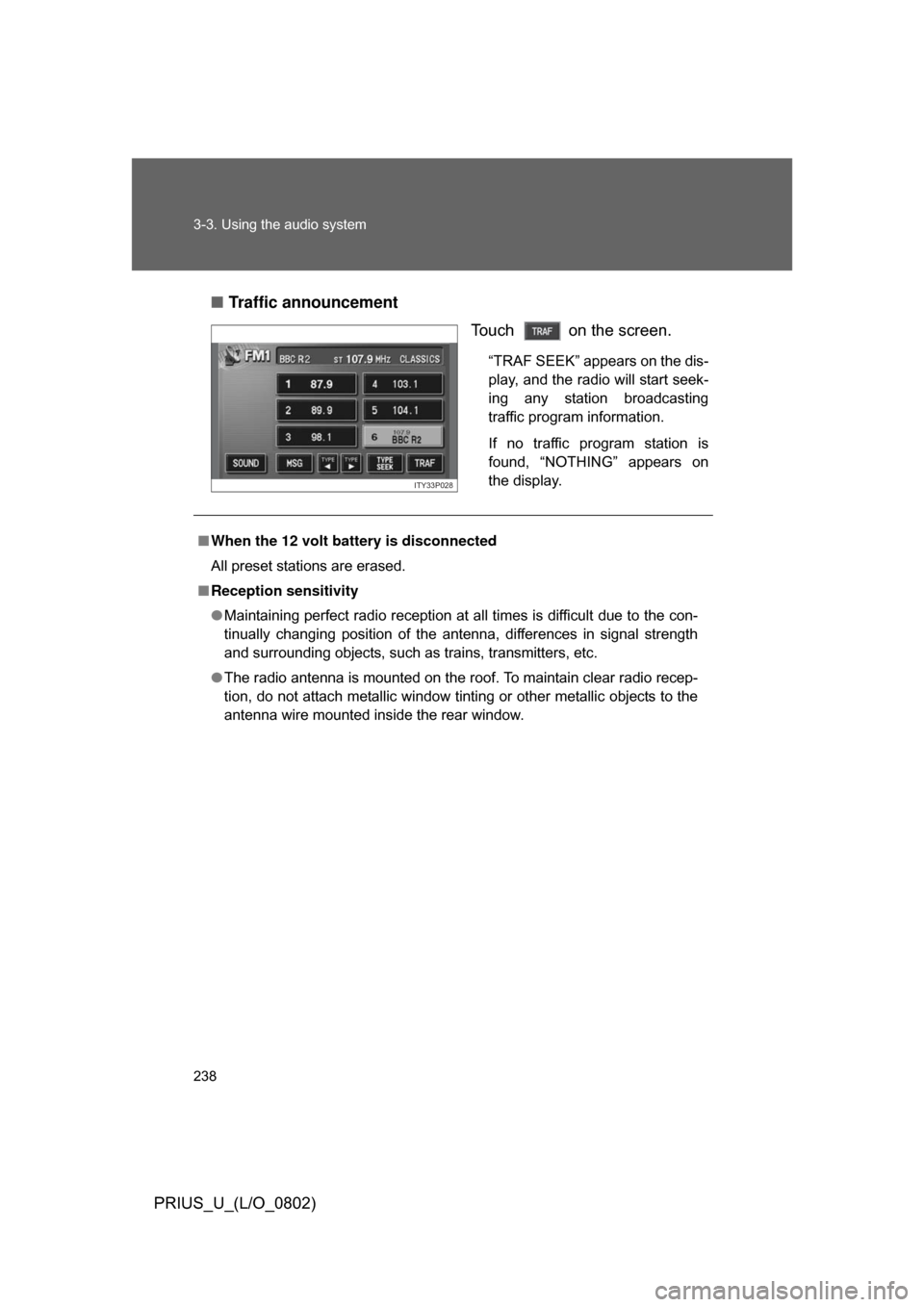
Traffic announcement
Touch on the screen.
“TRAF SEEK” appears on the dis-
play, and the radio will start seek-
ing any station broadcasting
traffic program information.
If no traffic program station is
found, “NOTHING” appears on
the display.
ITY33P028
■When the 12 volt battery is disconnected
All preset stations are erased.
■ Reception sensitivity
● Maintaining perfect radio reception at all times is difficult due to the con-
tinually changing position of the antenna, differences in signal strength
and surrounding objects, such as trains, transmitters, etc.
● The radio antenna is mounted on the roof. To maintain clear radio recep-
tion, do not attach metallic window tinting or other metallic objects to the
antenna wire mounted inside the rear window.
Page 239 of 512
239
3-3. Using the audio system
3
Interior features
PRIUS_U_(L/O_0802)
Using the CD player (Vehicle with AUX adapter)
Insert a CD or press with a CD inserted.
When you press while listening to a CD, the following audio
control screen appears.
This illustration is a vehicle equipped with the CD changer.
AUDIO
ITY33P015
Select CD
Display track list
Search playback
CD slot Random playback
Repeat play
Power
Vo l u m e CD eject
Playback
CD load
Display audio
control screen